3CX Hosted PBX Review: Easy Business Phone Setup Guide
3CX makes setting up a professional business phone system easy with hosted PBX, video calls, and live chat. This review tests call quality, mobile apps, and admin setup. Covers pricing, features, and whether 3CX can replace your current business phone solution.

3CX
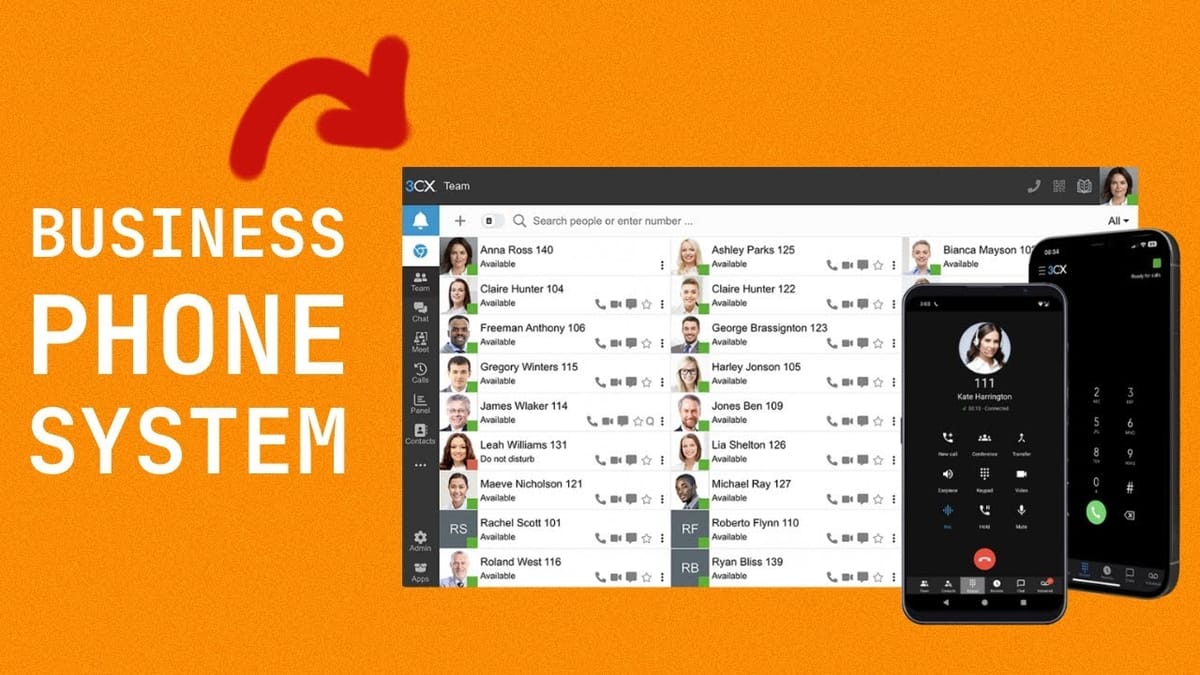
A cloud-hosted PBX system that gives your business a full phone network with extensions, video conferencing, messaging, and live website chat.
Small to medium business owners who want a professional phone system without expensive per-user VoIP pricing or hardware to manage.
RingCentral, Grasshopper, Vonage, Google Voice for Business
What Is 3CX and Why Should You Care?
If you've been running your business off personal cell phones and random Zoom links, it might be time to grow up — without the enterprise price tag. 3CX is a hosted PBX system, which is just a fancy way of saying it's a private phone network for your business that lives in the cloud.
Every team member gets their own extension. You can make voice calls, video calls, send business text messages, and even add live chat to your website. The best part? 3CX doesn't charge per user. They bill by the system based on concurrent calls, which makes it dramatically cheaper to scale than traditional VoIP providers like RingCentral or Grasshopper.
Major companies like Coca-Cola, Toyota, and Holiday Inn use 3CX, so this isn't some scrappy startup tool. It's enterprise-grade software at a price that small business owners can actually stomach.
Creating Your 3CX Account
Getting started with 3CX is straightforward. Head to their website and scroll down to the free two-month trial — no credit card required. You'll sign up with your email, choose the hosted Pro/Enterprise plan, and pick a domain name for your system.
During setup, you'll select a few preferences: extension format (three-digit is standard for most businesses), your time zone, and a prompt language. Once you hit go, 3CX handles the heavy lifting — provisioning your domain, securing it with an SSL certificate, configuring the firewall, and getting everything ready.
The whole process takes just a few minutes. When it's done, you'll get login credentials and a URL for your admin dashboard. No servers to spin up, no IT department required.
Adding Users and Managing Extensions
Once you're logged in, the first thing you should do is head to the gear icon and add your team. Each person gets a dedicated extension — for example, extension 100, 101, 102, and so on.
3CX includes built-in user roles for access control. You can set someone as a standard user, a receptionist, or a full system administrator if they'll be helping configure things on the back end. This is especially useful if you want to give a team lead visibility into call handling without handing over the keys to the entire system.
Remember, because 3CX bills by system capacity rather than per-user, there's no reason to hold back. Add everyone on your team without worrying about the bill creeping up with each new hire.
Making Internal Calls
With users added, you immediately have a working internal phone system. Team members can call each other by dialing an extension number or simply searching by name in the 3CX interface.
You get the full suite of internal communication tools right out of the box: voice calls, video calls, and text messaging between team members. All of this works without connecting to the outside world — no SIP trunk needed for internal use. It's essentially a free intercom system for your entire company.
This alone is valuable for distributed teams. Everyone stays connected through one platform instead of juggling personal numbers, Slack calls, and separate video conferencing tools.
Understanding SIP Trunks
To make and receive calls from the outside world — customers, vendors, anyone not on your 3CX system — you need what's called a SIP trunk. Think of it as a bridge between your private phone network and the public phone system, delivered over the internet.
3CX maintains a list of supported SIP trunk providers on their website, organized by country. You'll want to browse that list and pick a provider that supports the features you need. For example, some providers support SMS while others don't, so check the details before committing.
The provider you choose is a separate service from 3CX itself. 3CX handles your internal phone system and features; the SIP trunk provider handles the connection to the outside world and charges for call minutes.
Amazon Chime SIP Trunk Pricing
Amazon Chime is a solid SIP trunk option, especially if you want something that works across many countries. Here's what the pricing looks like for the United States:
You'll pay about $1 per month per phone number. Inbound calls run roughly $0.002 per minute — that works out to about 13 cents per hour of talk time. Outbound calls are roughly double at around 28-29 cents per hour for domestic calls.
Even if you're on the phone all day, these numbers are remarkably low. For a small business that makes and receives a moderate volume of calls, you're looking at a total monthly cost that's a fraction of what traditional VoIP services charge per user.
Connecting Amazon Chime to 3CX Step by Step
Setting up the Amazon Chime connection involves a few steps in the AWS console, but it's manageable once you know where everything lives. Start by searching for "Amazon Chime SDK" in AWS, then navigate to Phone Number Management to provision a new number. Choose "voice connector" as your product type, pick your country and area code, and grab a phone number from the available inventory.
Next, create a voice connector in the left sidebar. Give it a name, and critically, set encryption to disabled — 3CX doesn't support encrypted connections on the Amazon Chime side. Under the termination settings, you'll add your 3CX IP address to the allowed host list (you can find this in your 3CX admin under Voice > Add Trunk). Set up calling plans for the countries you want to reach, and create authentication credentials that you'll use in 3CX.
For origination (inbound calls), enable it and add a new route using your 3CX hostname, port 5060, TCP protocol, priority 1, and weight 5. Finally, assign your provisioned phone number to the voice connector.
Back in 3CX, add a new trunk with the outbound hostname from Amazon Chime as your registrar, your full phone number (including the +1) as the trunk number, and the credentials you created. Hit save and you're connected to the outside world.
Testing Your First Inbound Call
The moment of truth: pick up your regular cell phone and dial the number you just provisioned through Amazon Chime. If everything is configured correctly, your 3CX dashboard will ring immediately.
You can answer right from the web interface on your computer, which works fine if you're at your desk. But for most people, the real power is answering on the go through the 3CX mobile app — which brings us to one of the best features of this whole setup.
The 3CX Mobile App
The 3CX app is available for both iOS and Android, and setting it up couldn't be easier. When you first open the app, it offers to connect via QR code. Just click the QR icon in your 3CX web dashboard, point your phone at the screen, and you're logged in instantly.
From the app, you can make outbound calls using your business number (so customers never see your personal cell), call anyone on your team internally for free, send text messages, check voicemails, and even schedule video meetings. It's a complete business phone in your pocket.
The key advantage here is that none of this touches your cell phone plan. Calls route through the internet via 3CX, keeping your personal and business communications completely separate. No second SIM card, no second phone — just one app.
Ring Groups and Digital Receptionists
Once your basic phone system is up and running, 3CX offers two powerful call routing features that make it feel like a proper enterprise setup.
Ring groups let you bundle team members together so that when a call comes in, everyone in the group gets rung simultaneously. Whoever picks up first takes the call. This is perfect for sales teams, support desks, or any scenario where you want fast response times without manually routing calls.
Digital receptionists take it a step further. When callers dial in, they hear an automated menu — "Press 1 for support, press 2 for sales" — and get routed to the appropriate ring group or individual extension. You can set up the key mappings in just a few clicks. Combine ring groups with a digital receptionist and you've essentially built a call center without any specialized hardware or expensive software.
Watch the Full Video
Prefer watching to reading? Check out the full video on YouTube for a complete walkthrough with live demos and commentary.
Final Verdict
3CX delivers a professional business phone system that punches well above its price point. The hosted PBX setup is straightforward, call quality is reliable, and the mobile app means your business line goes wherever you do.
For small businesses outgrowing personal phone numbers, 3CX is one of the most cost-effective ways to look professional without the enterprise complexity. The free tier for up to 10 users makes it an easy recommendation for startups and solopreneurs.
Rating: 8.0 out of 10
Frequently Asked Questions
What is 3CX?
3CX is a business phone system (PBX) that provides VoIP calling, video conferencing, and live chat. It can be self-hosted or cloud-hosted to replace traditional phone lines for businesses.
Is 3CX free?
3CX offers a free tier for small teams that includes basic calling features. Paid plans access additional features like call queues, advanced reporting, and higher user limits.
How does 3CX compare to traditional phone systems?
3CX uses internet-based calling which is significantly cheaper than traditional phone lines. It also adds modern features like video calls, mobile apps, and CRM integrations that landlines cannot provide.
Can 3CX work with remote teams?
Yes, 3CX provides mobile and desktop apps that let team members make and receive business calls from anywhere. Remote workers get the same phone system features as in-office staff.
Is 3CX difficult to set up?
3CX hosted setup is relatively straightforward, especially the cloud-hosted option. Self-hosting requires more technical knowledge but offers greater control over the system and data.