
Admin 2020 Review: Give WordPress a Modern Backend Makeover
Admin 2020 is a WordPress plugin that completely overhauls the backend dashboard with a modern UI, dark mode, media folders, and built-in analytics — ideal for impressing clients.

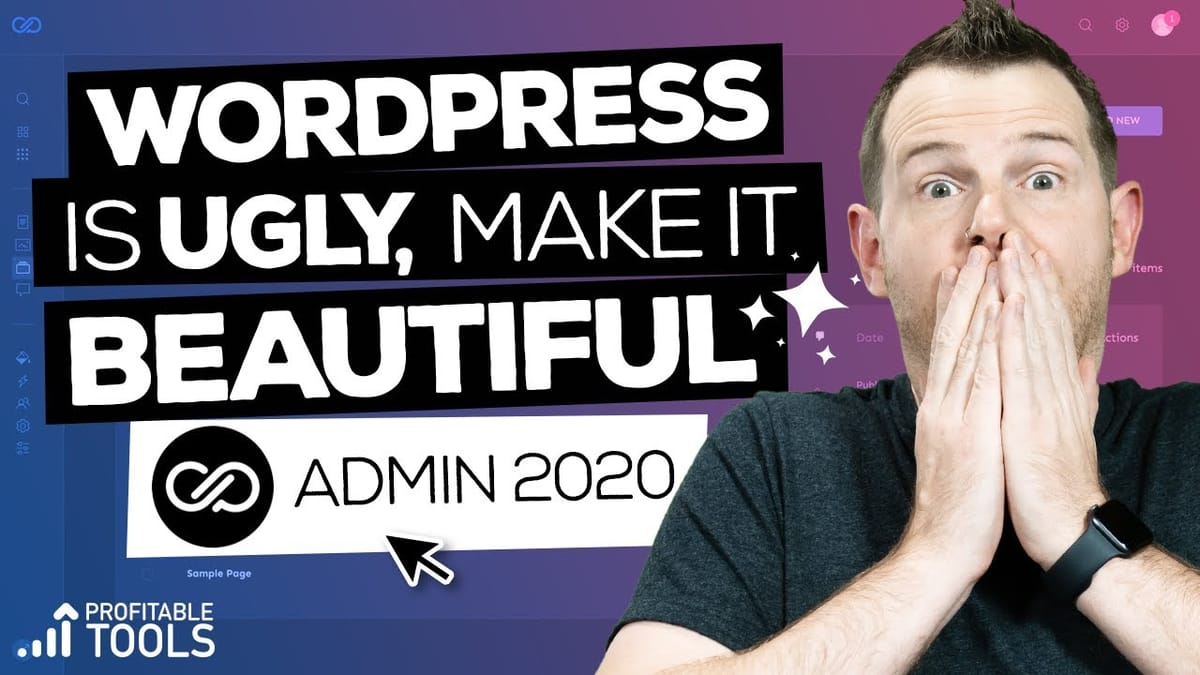
Admin 2020
Redesigns the WordPress admin dashboard with a modern interface, adding features like dark mode, media folders, search, and a Google Analytics overview.
WordPress developers and agencies who build sites for clients and want a cleaner, more professional-looking backend experience.
White Label CMS, Admin Menu Editor, Flavor Admin Dashboard
Why the WordPress Backend Needs a Refresh
WordPress has been the backbone of the web for well over a decade, and while themes and page builders have evolved dramatically, the admin dashboard hasn't kept pace. If you pull up a WordPress tutorial from 2010, the backend looks remarkably similar to what you see today. For seasoned WordPress users, that familiarity is comfortable — you know where everything lives and how it all works.
But here's the thing: if you're building websites for clients, that dated backend can be a tough sell. Platforms like Squarespace offer sleek, modern dashboards right out of the box, and clients notice the difference. Admin 2020 is a plugin that aims to bridge that gap by giving WordPress a complete visual overhaul without changing how anything actually works under the hood.
First Impressions: Activating Admin 2020
Getting started with Admin 2020 is about as simple as it gets. Install the plugin, hit activate, and the WordPress dashboard transforms instantly. The cluttered sidebar gets cleaned up with nice visual dividers, your logo can sit in the top corner, and everything just feels more intentional.
The overall layout stays familiar enough that you won't get lost, but the visual polish is immediately noticeable. Menus are less cluttered, the typography is cleaner, and the interface feels more like a modern SaaS app than the WordPress backend we've all grown used to. Whether that's an upgrade or just a change of scenery is a matter of taste, but there's no denying it looks more customized and professional.
Built-In Search and Media Library Upgrades
One of the standout features Admin 2020 adds is a global search function for the backend. A small magnifying glass icon appears in the top bar, and you can use it to quickly search for plugins, pages, posts — essentially anything in your WordPress install. If you've ever spent time clicking through menus trying to find a specific page or plugin setting, this feature alone can save you real time.
The media library also gets a significant upgrade. Beyond the standard grid and list views that WordPress already offers, Admin 2020 introduces a folder system. You can create folders like "Logos" or "Blog Images" and organize your uploads accordingly. There are also quick-filter buttons in the top right corner to sort by media type — images, audio, video, and PDFs. Other standalone plugins offer similar media organization features, but having it bundled into a single UI overhaul plugin is a nice convenience.
Dark Mode and Visual Customization
If the default bright interface isn't your style — or if you're working late at night — Admin 2020 includes a dark mode toggle right in the user profile area. One click and the entire backend switches to a darker color scheme that's much easier on the eyes during long editing sessions.
Beyond dark mode, the plugin's settings screen lets you customize the primary link color, upload a custom logo, and toggle various UI elements on or off. There's a loading bar animation that appears when navigating between pages, for instance, which you can disable if you find it distracting. These are small touches, but they add up to a backend that feels genuinely tailored rather than generic.
Role-Based Menu Visibility for Client Sites
This is where Admin 2020 really shines for agencies and freelancers. The plugin lets you hide specific menu items based on WordPress user roles. If you've built a client site with a handful of plugins running behind the scenes, you probably don't want your client poking around in settings they don't need to touch.
From the Admin 2020 settings screen, you can select a role — say, Editor — and then toggle off any menu items you want hidden from that role. Don't want editors seeing your forms plugin or a downloads manager? Just hide them. It's straightforward and works on a per-role basis. One limitation worth noting: you can't create custom roles directly from this screen, so you'd need a separate plugin like User Role Editor if your setup requires custom roles beyond the WordPress defaults.
The Overview Dashboard with Google Analytics
Admin 2020 includes an overview screen that can replace the default WordPress dashboard. Once you connect it to Google Analytics, it pulls in traffic data and displays it with clean graphs and visual breakdowns. You can see active pages, visitor locations on a map, and most-commented posts — all from within WordPress.
You also get a system info panel, which is handy for quick diagnostics. The overview page can be set as the default homepage when logging into WordPress, so clients see a polished analytics dashboard instead of the usual WordPress welcome screen with its update nags and quick draft widget. For clients who want to keep an eye on their site traffic without logging into a separate analytics tool, this is a genuinely useful feature.
Final Verdict: Is Admin 2020 Worth It?
Admin 2020 bundles a lot of useful features into a single plugin: a modernized UI, dark mode, backend search, media folders, role-based menu visibility, and a Google Analytics overview dashboard. Each of these features exists as a standalone plugin elsewhere, but having them all in one cohesive package is the real appeal.
Is it a must-install for every WordPress site? Probably not. If you're a solo operator who's perfectly comfortable with the standard WordPress backend, there's no pressing need to change what works. But if you're building sites for clients — especially clients coming from platforms like Squarespace or Wix who expect a modern-looking interface — Admin 2020 can make a strong impression. It's the kind of polish that builds trust and makes handoff day a little smoother.
Watch the Full Video
Prefer watching to reading? Check out the full video on YouTube for a complete walkthrough with live demos and commentary.


