
Ally Review: WordPress Accessibility Plugin from Elementor
Ally is a new WordPress accessibility plugin from Elementor that scans your site for compliance issues, offers AI-powered fixes, and adds a usability widget for visitors — all starting with a free plan.

Ally
Ally is a WordPress accessibility plugin that scans your site for compliance issues, helps you fix them, and adds a visitor-facing usability widget with features like text resizing, dark mode, and a reading mask.
WordPress site owners, freelancers, and agencies who want to make their websites accessible without hiring expensive consultants or learning complex WCAG guidelines.
accessiBe, UserWay, AudioEye, WP Accessibility
Why Website Accessibility Can't Wait
Most website owners genuinely want their sites to be accessible. The problem is that accessibility feels complex — full of jargon, legal requirements, and the assumption that compliance will be expensive. So the task gets pushed to the bottom of the to-do list, and it stays there.
The numbers tell a sobering story. A staggering 96% of websites currently have accessibility issues. Last year saw 8,800 lawsuit complaints filed against website owners for non-compliance, with the average settlement landing around $25,000. That's a real financial risk for businesses of any size.
Beyond the legal exposure, there's a massive opportunity being left on the table. Roughly 1.3 billion people worldwide live with some form of disability, and they collectively control about $13 trillion in spending power. An inaccessible website doesn't just create legal liability — it actively turns away potential customers.
What Is Ally and How Does It Work?
Ally is a new web accessibility plugin for WordPress, built by the Elementor team. While it integrates naturally with Elementor, it works with any WordPress theme — you don't need to be an Elementor user to benefit from it.
At its core, Ally does two things. First, it scans the pages of your website and identifies accessibility problems, presenting them in a clear, actionable way. Second, it provides a front-end usability widget that gives your visitors tools to customize their browsing experience — things like adjustable text size, contrast controls, and reading aids.
Pricing is approachable. There's a free plan so you can test drive the scanner and widget before committing. For a single site, paid plans start around five dollars per month. Agencies get dedicated plans with the option to white-label the entire tool, which is a nice touch if you're offering accessibility services to clients.
Installing Ally and Running Your First Scan
Getting started takes about two minutes. Head to your WordPress dashboard, go to Plugins > Add New, and search for "ally." Install and activate the plugin, and you'll see a new Ally menu item appear in your sidebar.
The main Ally dashboard is a scans overview page. It shows how many URLs you've scanned, how many issues are outstanding, and how many you've already resolved. You can kick off a new scan from here, but there's an even faster method — Ally adds a scan column directly to your WordPress Pages list. Just find the page you want to check and click "Scan URL."
Scanning is fast. In the demo, a full page scan completed in seconds and returned 36 issues. Each issue is categorized (structure, navigation, color contrast, etc.) so you can prioritize what to tackle first.
Fixing Accessibility Issues: Structure, Navigation, and AI Fixes
When Ally finds an issue, it doesn't just flag it — it shows you exactly where in the code the problem lives. For a navigation issue like "menus must have a clear unique label," you can right-click, inspect the element, and locate the offending code. Ally even provides example fixes so you know what the corrected markup should look like.
If you're not comfortable editing code yourself, you have two options. You can send the detailed report to your developer with all the context they need. Or, if you're on a paid plan, you can let Ally's AI resolve the issue automatically. One click triggers the AI fix, and within seconds the issue is patched. You review the change, hit "Apply Fix," and move on to the next item.
This AI-assisted approach is a genuine time-saver. Accessibility fixes can be tedious and repetitive — exactly the kind of work that's well-suited to automation. Having the option to review before applying keeps you in control.
Resolving Color Contrast Problems
Color contrast is one of the most common accessibility issues, and it's one that even experienced designers miss. The classic scenario: a designer picks a solid color background that's not quite black or white, layers colored text on top, and it looks great on their calibrated monitor. But for people with vision issues — and honestly, for everyone reading a large block of text — it's fatiguing and hard to read.
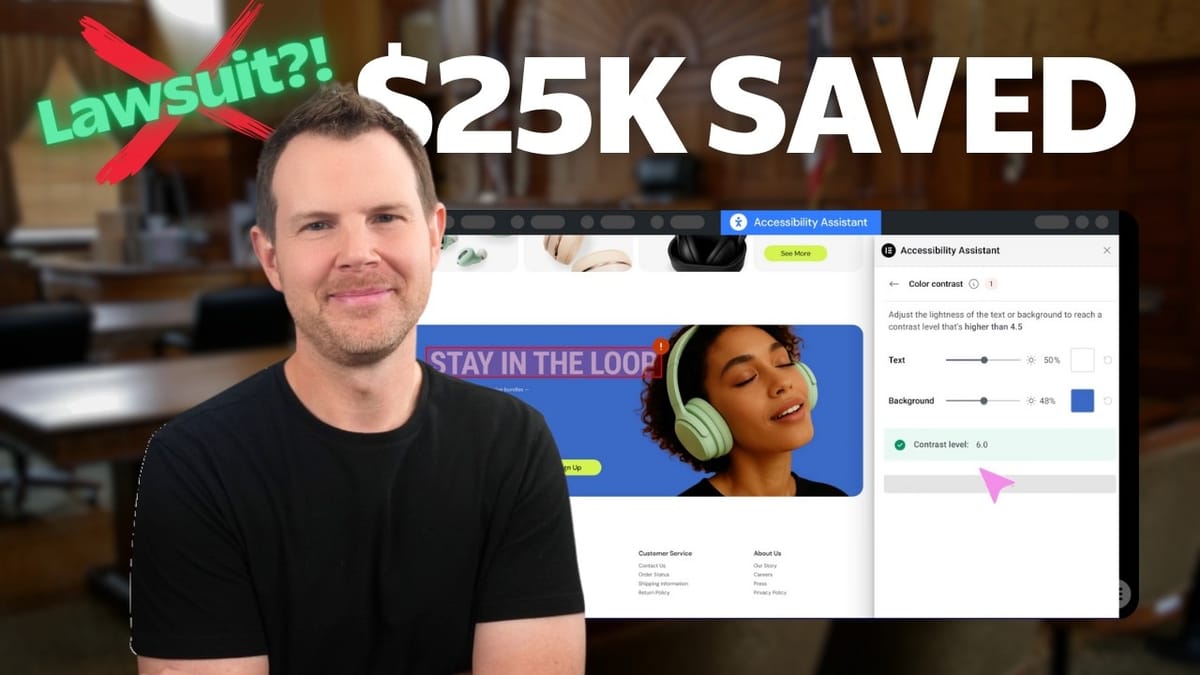
Ally handles contrast issues beautifully, especially if you're using Elementor. You get interactive sliders that let you adjust text color in real time. As you darken the text, the moment it hits an acceptable contrast ratio, a green checkmark appears. It takes the guesswork out of WCAG compliance.
The tool also catches less obvious problems, like link colors that work fine in your main content area but become nearly invisible when placed against a different background elsewhere on the page. These are the kinds of subtle issues that slip through design reviews but create real barriers for visitors. What's worth noting is that many of these contrast fixes aren't just accessibility improvements — they're general usability improvements that can boost conversions for every visitor.
The Usability Widget: Personalization for Every Visitor
Beyond the scanner, Ally includes a front-end usability widget that appears on your live site. When a visitor clicks it, they get a panel of tools to customize their browsing experience — no account required, no settings pages, just immediate adjustments.
Text size controls let visitors enlarge content with a single click. Line height adjustments prevent enlarged text from getting cramped. Text alignment can be switched to left-align for easier reading. Font changes can improve readability, and a full grayscale mode helps visitors who struggle with color-heavy designs.
There are several more specialized features as well. Dark mode reduces contrast fatigue. A reading mask overlays a guide bar that follows your scroll position, helping readers track long-form content without losing their place. You can hide all images on the page if they're distracting, and a "highlight links" feature illuminates every clickable element so visitors can see exactly where the interactive content lives.
For visitors who rely on assistive technology, the widget also offers an integrated screen reader option — a meaningful addition that turns the widget into a genuine accessibility tool rather than just a cosmetic overlay.
Customizing the Widget: Capabilities, Design, and Positioning
Every feature in the usability widget can be toggled on or off from the Ally settings in your WordPress admin under the Capabilities tab. If a feature isn't relevant to your audience, just switch it off. You can also enable features that aren't turned on by default, like the screen reader and a language selector that lets visitors change the widget's interface language.
For agencies and white-label use cases, there's a toggle to remove the Ally branding from the widget entirely. Once enabled, the widget appears completely unbranded — your clients will never know what tool is powering it.
The Design section gives you control over the widget's icon (choose from preset options or upload your own), color scheme, and positioning. You can place it in any corner of the screen, and set different positions for desktop and mobile. If you'd rather not show the widget on a particular device type, you can hide it on desktop or mobile independently. It's the kind of granular control that keeps the widget from conflicting with other floating elements on your site.
Analytics: Who's Using the Accessibility Features?
Ally includes a built-in analytics feature that tracks how visitors interact with the usability widget. It's turned off by default for privacy reasons, but once enabled, you'll see data on how many times the widget is opened and which specific features visitors are using most.
This data is surprisingly useful. If you notice a high percentage of visitors are increasing text size, that's a signal your base font might be too small. If dark mode is popular, it might be worth incorporating a native dark theme into your site design. The analytics turn the widget from a passive tool into an active feedback loop about your site's readability.
Creating a Legally Required Accessibility Statement
Just like privacy policies and terms of service, accessibility statements are becoming a legal requirement in many jurisdictions. Ally can generate one for you automatically.
The setup is straightforward: toggle the feature on, fill in some basic information about your organization, and preview the statement as you go. When you're satisfied, click "Create Statement and Page" — Ally generates a WordPress page and automatically links it from inside the usability widget.
The statement serves two purposes. It demonstrates your commitment to accessibility, which matters both legally and from a trust perspective. And it provides a feedback channel where visitors can report accessibility issues they encounter, giving you a direct line to problems you might have missed.
Final Verdict: Is Ally Worth It?
Ally solves a real problem in a practical way. Website accessibility has long been the kind of task that feels too complex and too expensive to tackle — so most site owners just don't. With 96% of websites having issues and lawsuits on the rise, that approach is becoming increasingly risky.
What makes Ally stand out is the combination of a detailed scanner with actionable fixes, AI-powered remediation on paid plans, and a genuinely useful visitor-facing widget — all wrapped in a WordPress-native experience. The free plan removes the barrier to getting started, and the paid plans are priced reasonably enough that there's no good excuse to keep putting accessibility off.
Whether you're running a single business site or managing dozens of client sites as an agency, Ally makes the process of becoming more accessible straightforward and affordable. It won't make your site perfectly compliant overnight, but it gives you the tools and visibility to make steady, meaningful progress.
Watch the Full Video
Prefer watching to reading? Check out the full video on YouTube for a complete walkthrough with live demos and commentary.


