
Baseline Review: Build Brand Kits for a One-Time Fee
Baseline lets you build complete brand kits — logos, typography, colors, tone of voice, and social media templates — without hiring a branding agency. Here's whether the AppSumo lifetime deal is worth it.

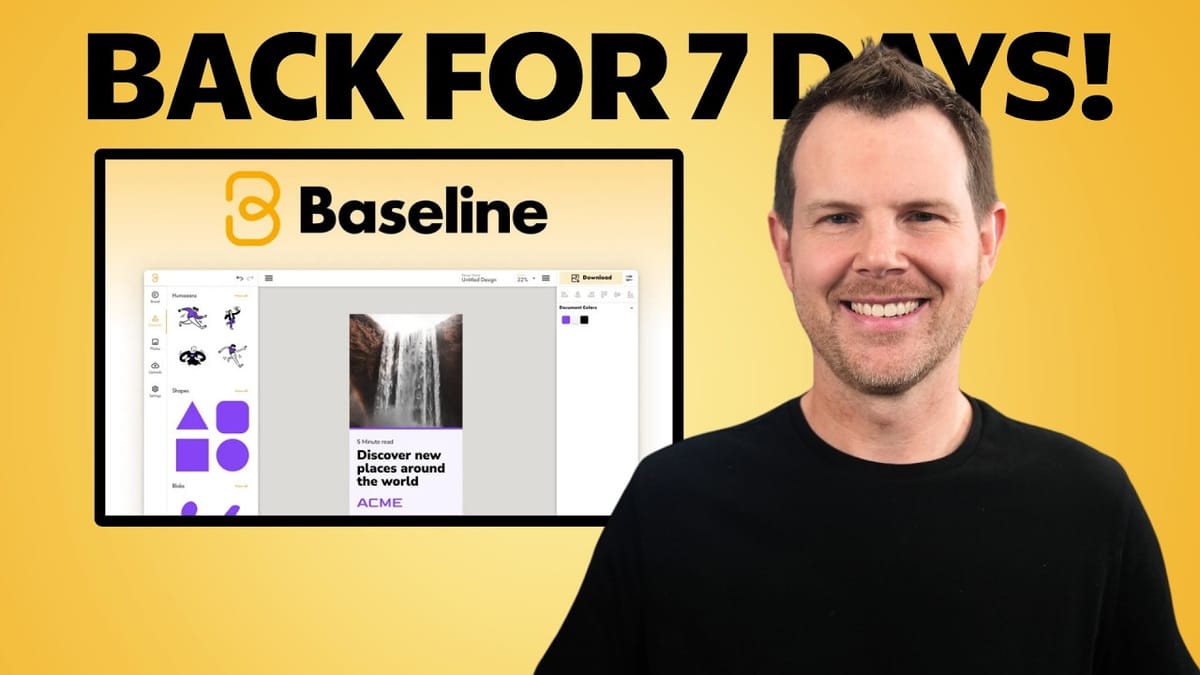
Baseline
Baseline helps you create and share professional brand kits that include your logo, typography, color palette, tone of voice, and social media templates.
Small business owners, freelancers, service providers, and agencies who need affordable branding without hiring a design firm.
Canva, Frontify, Brandfolder
What Is Baseline and Why Do You Need a Brand Kit?
A brand kit is more than just a logo file sitting in a Google Drive folder. It's a complete playbook for how your business looks, sounds, and presents itself — covering everything from typography and color palettes to your brand voice and core values. If you've ever hired a graphic designer and had to explain your brand from scratch, or watched an affiliate partner butcher your logo on a thumbnail, you already know why brand kits matter.
Professional branding agencies routinely charge $15,000 to $30,000 to develop this kind of asset package. Baseline aims to make that process accessible to anyone, regardless of budget or design experience. The tool walks you through a guided setup to build a shareable, professional brand kit — and it's currently available as a lifetime deal on AppSumo.
AppSumo Lifetime Deal Overview
Baseline is available as a limited-time lifetime deal on AppSumo, starting at just $79 for a one-time payment. Unlike many AppSumo deals that run for 30 or 60 days, this one has a shorter window — just seven days — so it's worth acting quickly if the tool fits your needs.
The number of brands you can manage depends on which tier you purchase. Higher tiers (Tier 3 and Tier 4) include an organizations feature, which functions like sub-accounts for managing client brands separately. There's also an unlimited plan offering up to 25 collaborators per brand with no cap on the number of brands. For service providers, web developers, or anyone managing branding for multiple clients, the higher tiers offer significantly better value.
Inside the Baseline Interface
The Baseline dashboard keeps things clean and straightforward. Your brands are listed on the main screen, and adding a new one takes just a couple of clicks. Hit "New Brand," enter your brand name, and the guided setup begins.
The first question Baseline asks is whether you already have a logo. If you don't, Baseline can generate a basic one for you. If you do, you can upload your own files and Baseline will handle the rest — including automatically generating logo variations. The entire onboarding flow is designed to be linear and low-friction, which makes it genuinely approachable for people who have never thought about branding before.
Creating a Logo from Scratch
If you tell Baseline you don't have a logo, it walks you through a simple generation process. Don't expect AI-generated artwork or anything particularly creative — what you get is your brand name rendered across a selection of typefaces. You scroll through the options, pick one that feels right, and then customize the color, casing, and letter spacing.
The logo creator includes options for uppercase, lowercase, or original casing, and you can adjust the tracking (overall letter spacing). What you won't get is individual kerning control — the fine-tuned spacing between specific letter pairs that professional typographers obsess over. That's a meaningful limitation if you're after a polished final product, but for validating a business idea or getting something presentable while you bootstrap, it does the job.
The practical advice here: don't spend thousands on a logo before your business is making money. Use Baseline to get started, validate your idea, and invest in a professional designer once you have revenue to justify it.
Choosing and Customizing Brand Colors
After the logo step, Baseline asks you to choose a color palette. One thing worth noting is that this step comes early in the process — before typography — which is a bit unusual. Most professional designers treat color selection as one of the final steps. That said, everything is editable after the fact, so the order doesn't create any real problems.
Baseline offers a library of preset color schemes to choose from. The default palettes tend to lean vibrant, with lots of saturated colors. Most real-world brands use one bold accent color alongside more subdued tones, so you'll likely want to edit the palette after selecting a starting point. You can modify any color, delete ones you don't need, and add descriptions like "use for call-to-action buttons" to guide future designers.
If you upload your own logo, Baseline does something genuinely useful: it analyzes the logo file and extracts a color palette automatically. It won't go as far as scanning your website for colors (some competing tools do offer that), but logo-based extraction is a solid starting point.
Gradients Done Right
The gradient section is a surprisingly strong feature. Gradients are notoriously difficult for non-designers to get right — it's easy to end up with something that looks like a bad PowerPoint transition. Baseline generates tasteful gradient options based on your selected brand colors, including some metallic looks and subtle dark gradients.
You can select as many or as few gradients as you want, or skip the section entirely. Each gradient is available with its CSS code directly in the brand kit, making it easy for developers to implement exact matches. It's a small touch, but it shows that Baseline understands how brand kits actually get used in practice.
Typography and Font Selection
Font handling is one of Baseline's strongest areas. You get three font slots — heading, subheading, and body — and three ways to fill them. You can browse the entire Google Fonts library without any setup required, upload custom font files (OTF, TTF, WOFF, and WOFF2 formats are all supported), or link to an Adobe Typekit account.
Custom font uploads work smoothly. Upload a WOFF2 file and the preview updates immediately to show your selected typeface. You can mix and match sources too — a purchased custom font for headlines, a lighter variant for subheadings, and a Google Font for body copy, for example.
Each font slot includes weight controls (light through bold) and an uppercase toggle. A good rule of thumb: stick to no more than two distinct typefaces across your three slots. Three completely different fonts tends to look chaotic. Using the same family at different weights, or pairing one display font with one readable body font, produces more cohesive results.
Setting Your Typography Scale
The typography scale section controls the size relationships between your heading levels (H1 through H6) and body text. You set a base font size and choose a mathematical ratio that determines how much larger each heading level becomes.
For example, a 16px base with a "major third" ratio produces an H1 around 48px — quite large. If that feels too dramatic, switching to a "major second" ratio keeps the H1 more restrained while maintaining the same body size. It's a detail that most DIY brand kits skip entirely, but it makes a real difference in how consistent your content looks across a website, emails, and print materials.
A word of caution: dropping the base size below 16px creates accessibility issues. At 14px, body copy becomes difficult to read for many users and may violate WCAG accessibility guidelines. When in doubt, stick with 16px as your base and adjust the ratio instead.
Your Brand Kit at a Glance
Once you've completed the setup, Baseline assembles everything into a polished brand guidelines page. The kit includes your logo in multiple variations (including auto-generated black and white versions), a safe zone specification showing minimum spacing around your logo, and a "prohibited use" section that shows what not to do with your brand assets.
The prohibited use section is particularly valuable if you work with affiliates, ambassadors, or freelance designers. You can explicitly document what modifications are off-limits — no stretching, no color changes, no placing the logo on busy backgrounds. When someone inevitably breaks the rules, you have a documented standard to point to.
Every color in the palette displays its hex code and CSS value. Gradients include their full CSS definitions. The typography section previews each font at every heading level. It's a complete reference document that anyone working on your brand can use immediately.
Uploading a Custom Logo
If you already have a professionally designed logo, the upload experience is where Baseline really shines. Upload an SVG file and Baseline automatically generates black and white variations — saving you the step of creating those yourself or asking your designer for additional exports.
You can upload multiple logo variations too. Most brands have at least a full logo and a logomark (the icon-only version), and Baseline accommodates both with separate upload slots. Each variation gets its own set of auto-generated color versions. All names are customizable, so you can label them however makes sense for your brand — "Icon," "Horizontal," "Stacked," whatever fits.
One minor hiccup: the automatic black/white generation doesn't work perfectly with every SVG file. If your logo was created by cropping or contains unusual layer structures, the conversion may produce unexpected results. In those cases, just remove the bad variations and upload corrected versions manually.
Defining Your Brand Tone of Voice
Beyond visual identity, Baseline includes a guided tone-of-voice builder that walks you through a series of straightforward questions. How formal is your brand? Serious or funny? Respectful or irreverent? Excited or pragmatic? Each question uses a simple slider or multiple-choice format that forces you to actually think about your brand's personality.
This is deceptively useful. If you're a service provider onboarding a new client who says "just make us go viral," you can walk them through these questions to extract real, actionable brand guidelines. And if you're building your own brand, it's a structured way to articulate something that often stays vague and undefined.
The resulting tone of voice profile appears as a dedicated section in your brand kit. It's particularly handy for AI-assisted content creation — you can copy the tone description directly into a prompt to get outputs that sound more like your brand and less like generic AI copy.
Photography Galleries and Asset Management
Baseline includes a photography gallery system that might seem odd at first, but serves an important purpose. Brands have visual identities that extend beyond logos and colors — the style of photography you use communicates just as much about who you are. Think about whether your brand uses warm, candid shots of real people or clean, minimal product photography. Documenting this in your brand kit means future designers immediately understand the aesthetic you're going for.
Galleries are organized into named collections with customizable layouts — grid, collage, or masonry-style arrangements with adjustable spacing. An auto-fill feature lets you select a folder of assets and populate a gallery automatically.
The asset management system works as a centralized file repository with folder organization. Upload profile photos, banner ads, product shots, or any branded materials your team or ambassadors might need. Everything uploaded through the social media editor also appears here, including any modifications you've made (like background removals), which keeps all your brand assets in one searchable location.
The Built-In Social Media Editor
Baseline includes a social media editor that lets you create branded content using templates. Choose a platform format (LinkedIn feed, Instagram post, etc.), pick a template, and start customizing. The editor automatically pulls in your brand colors and typography, so everything you create is on-brand by default — no manual color-picking required.
The editor covers the basics well. You get elements like shapes and icons, a photo library with search, background removal (which works surprisingly well), and standard photo adjustments including blur, grayscale, sepia, and filters. Download options include PNG, JPEG, and WebP formats, with transparent background support for PNG and WebP.
That said, the editor has some notable limitations compared to a tool like Canva. There's no proper layers panel — you can only send elements forward or backward one step at a time. Setting a background image requires a workaround of manually resizing a photo and sending it to the back, rather than simply designating it as a background. These aren't dealbreakers, but they make complex designs more tedious than they need to be.
A social media scheduler is currently in private beta and will be available to AppSumo customers, which would make Baseline a more complete content creation workflow.
Sharing Your Brand Kit
Getting your brand kit into other people's hands is straightforward. You can share a direct URL, embed the kit on your website, or export a PDF for print use. Password protection is available if you want to limit access, and you can remove Baseline's branding from the shared version.
The embed option is particularly practical. Many established companies host a brand assets page on their website — Baseline gives you that capability without building it from scratch in your website builder. Think of it like what WP Fusion and other SaaS companies do: a public page showing approved logos, colors, typography, and banner assets for anyone who needs to represent the brand correctly.
Pricing, Plans, and Final Verdict
Baseline's AppSumo lifetime deal starts at $79 for a single payment with access to all core features. For service providers or agencies, higher tiers unlock the organizations feature (essentially sub-accounts for client management) and more brand slots. The top-end unlimited plan supports 25 collaborators per brand with no limit on the number of brands, priced at $359.
For the average small business owner, the entry-level plan covers everything you need. Service providers should seriously consider the higher tiers — the organizations feature alone makes client management significantly cleaner, and the per-brand cost drops dramatically when you're managing five or more brands.
Baseline earns a 7.6 out of 10. The core brand kit builder is excellent — well-designed, intuitive, and genuinely useful from day one. The social media editor, while functional, needs work to compete with dedicated tools like Canva, particularly around layer management and background handling. But since the editor is really a bonus feature on top of the primary brand kit functionality, it's hard to hold that against the overall package too much. At $79 for lifetime access, the value proposition is strong. You'll make that investment back the first time you don't have to explain your brand guidelines from scratch to a new designer or content creator.
Watch the Full Video
Prefer watching to reading? Check out the full video on YouTube for a complete walkthrough with live demos and commentary.


