
Best WordPress Hosting for Business: Cloudways vs Kinsta vs Flywheel
Skip the shared hosting headaches. Here's a breakdown of three business-class WordPress hosts and a step-by-step guide to getting your first site online with Cloudways.

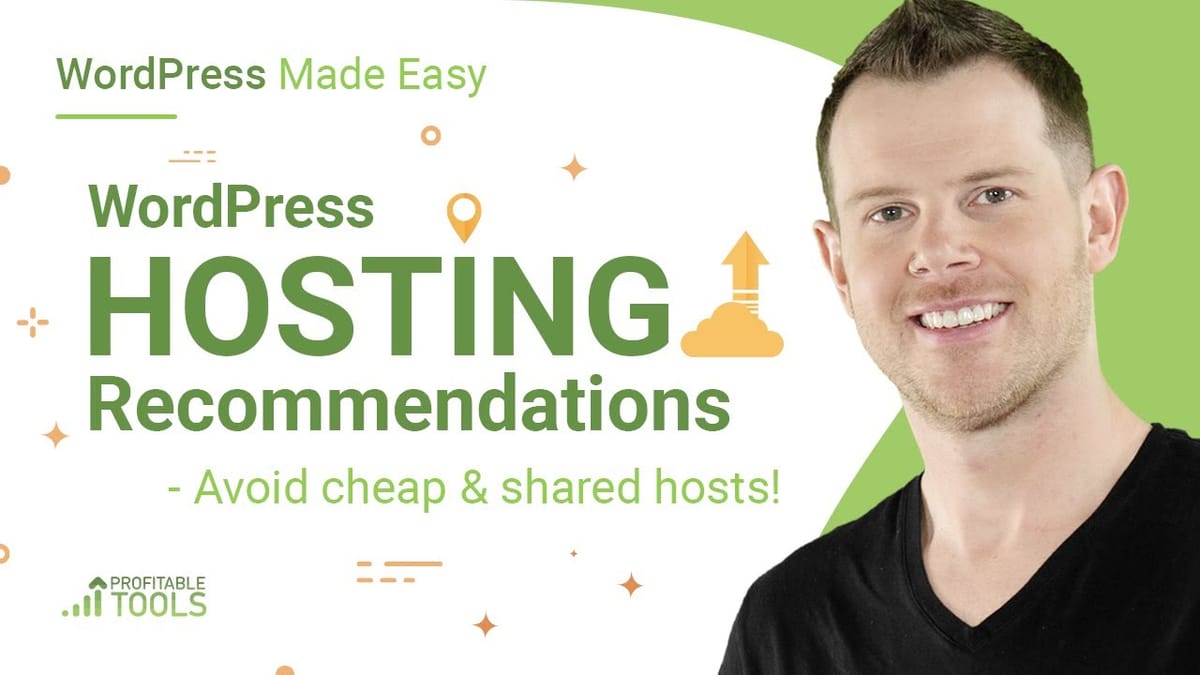
Why WordPress Dominates the Web
WordPress is open source, meaning the code is completely free to download and install on any properly equipped web server. You can even customize it if you have the technical chops. But the real reason WordPress powers such a massive chunk of the internet comes down to one word: extensibility.
Think of the core WordPress platform like a free app on your phone. It works perfectly well on its own, but when you want to add extra features, there's an entire ecosystem of add-ons — called plugins in WordPress land — available for almost anything you can imagine a website doing. Need e-commerce? There's a plugin. SEO tools? Plugins for that too. Contact forms, membership areas, booking systems — the list goes on.
This combination of zero cost and near-unlimited flexibility makes WordPress the go-to choice for everyone from solo bloggers to enterprise businesses.
What Is Web Hosting and Why Does It Matter?
WordPress is software that runs on a web server — essentially a computer running a special operating system designed to display websites. The key difference from your laptop is that a web server is always on and always connected to the internet, so people can visit your site at any time of day.
What virtually everyone does is rent access to a server, and that's what hosting is. It's also the only cost you need to get started with WordPress. Everything else — themes, plugins, customizations — can come later.
Here's the critical part most beginners overlook: not all hosting is created equal. If you're building a business website, shared hosting is a false economy. An underspecced or overcrowded server means slow load times, increased vulnerability to security breaches, and the dreaded 404 errors where your site simply doesn't load. For a business, that directly translates to lost customers and lost revenue.
Three Business-Class WordPress Hosts Compared
After testing countless hosting providers, three stand out for business use. Each hits a different price point and comes with its own set of trade-offs.
**Flywheel** offers managed WordPress hosting starting at $13 per month, but you'll need to prepay for the full year to lock in that rate. What you get in return is a custom web stack specifically engineered to deliver WordPress sites quickly, plus solid technical support when you need it. It's a strong choice if you're comfortable with the annual commitment.
**Kinsta** is the premium option at $30 per month for a single site. That price tag buys you exceptional support and a highly customized server environment for what amounts to a top-shelf WordPress experience. If performance and support are your top priorities and budget is less of a concern, Kinsta is hard to beat.
**Cloudways** is the recommendation for most people. They charge by the hour — roughly one penny per hour, which works out to about $10 per month for a starter server. There are no long-term contracts, so if you decide to delete your server, you're not locked in. And crucially, they don't jack up prices after the first year like many budget hosts do. The trade-off is that support quality doesn't quite match Kinsta or even Flywheel, but for the flexibility and pricing, it's an excellent starting point.
Setting Up Your First Cloudways Server
Getting started with Cloudways is straightforward. After creating your account, choose WordPress as your application, name your app and server, then select a cloud platform. Vultr is a solid default choice, though any of the available options will work fine.
Start with the lowest server size available. This is an important principle: you can always scale up your server if you need more resources, but scaling down isn't nearly as easy. Beginning conservatively saves money and avoids overprovisioning.
For server location, pick something geographically close to where your visitors are most likely to be. If your audience is primarily in the US, choose a US-based server. Give the server a few minutes to spin up, and you'll be ready to access your fresh WordPress installation.
You can preview your site immediately by clicking on your application from the Cloudways menu and hitting the application URL. It won't look pretty yet — the default site has a generic theme and a random string of characters for a URL — but it's live and functional.
Connecting Your Domain Name
To replace that ugly default URL with your actual business domain, you need to connect a domain name. If you don't already own one, grab one from a registrar like Namecheap.
The setup is a three-step process. First, head to Domain Management under the Cloudways menu and enter your domain name. Next, you'll need your server's IP address — think of it like GPS coordinates for your website. Find it by clicking the server icon in Cloudways and double-clicking the public IP address under Master Credentials, which copies it to your clipboard.
Then head over to your domain registrar's DNS management area. Create an A record with an @ symbol as the host and your server's IP address as the value. Optionally, create a second A record with "www" as the host pointing to the same IP address. This ensures both yourdomain.com and www.yourdomain.com reach your site.
DNS propagation can take anywhere from a few minutes to a few hours. You can check progress at whatsmydns.net — just enter your domain, select A record, and see which locations around the world have picked up your new address.
Securing Your Site with SSL
Once your domain has propagated, your next step is installing an SSL certificate. That padlock icon you see in browser address bars isn't just cosmetic — it means all data traveling between the server and your visitors' browsers is encrypted, protecting against interception.
From within Cloudways, navigate to SSL Certificate, enter your email address and domain name, then hit Install Certificate. One critical note: make sure your domain has fully propagated before attempting this step, or the installation will fail.
When prompted, choose to force HTTPS so that every connection to your site is automatically secured. This is non-negotiable for a business website in today's landscape — search engines penalize non-HTTPS sites, and visitors increasingly expect that padlock to be there.
Logging Into WordPress for the First Time
With hosting purchased, your domain connected, and SSL installed, you're ready to actually use WordPress. Head back to the Application screen in Cloudways and look for the Access Details section. Under Admin Panel, you'll find your login URL, username, and password.
Double-click the password field to copy it, then click the Admin Panel URL. This takes you to the WordPress login screen. Enter the email address you used when signing up with Cloudways, paste in the password, and hit login.
You're now inside the WordPress admin dashboard — the control center where you'll build out your entire website. From here, you can install themes to control your site's appearance, add plugins for extra functionality, create pages and posts, and configure every aspect of how your site works.
This is just the starting line. The real fun begins when you start customizing WordPress with themes like Astra Pro, page builders like Elementor, and essential plugins for SEO, security, and performance.
Watch the Full Video
Prefer watching to reading? Check out the full video on YouTube for a complete walkthrough with live demos and commentary.


