CleanShot X Review: The Best Mac Screenshot & Recording Tool
CleanShot X is an all-in-one Mac screenshot and screen recording tool with annotation, scrolling capture, and cloud sharing. This review covers daily use, key features, and output quality. The best Mac capture tool for content creators, developers, and professionals.

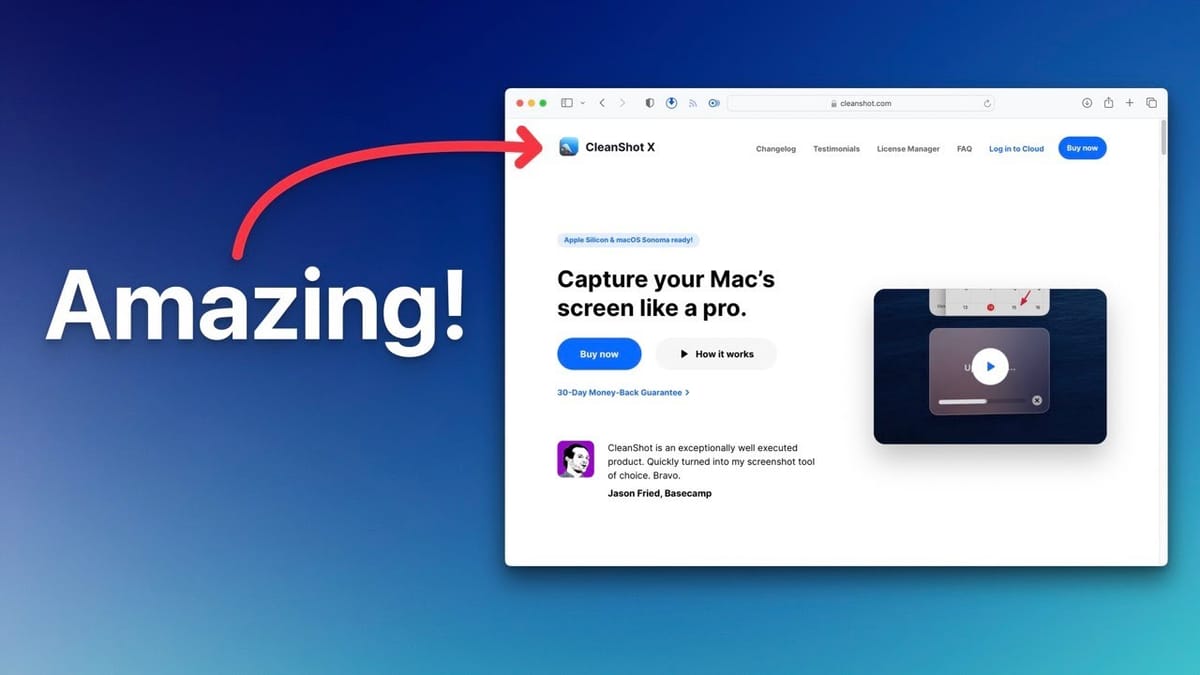
CleanShot X
An all-in-one Mac utility for capturing screenshots, recording your screen, annotating images, performing OCR, and sharing via the cloud.
Mac users who need professional screenshots and screen recordings — especially content creators, freelancers, and anyone communicating visually with clients.
Loom, macOS Screenshot, QuickTime Player, Snagit
Introducing Dave's Toolbox
Most tool reviews cover what's brand new or what's on sale. Dave's Toolbox is a different kind of series — it focuses on the software that's actually road-tested and earning its keep day after day.
The first pick in the series is CleanShot X, a Mac utility that handles three things Dave relies on constantly: screenshots with annotation, screen recordings as a Loom replacement for client and VA communication, and OCR for grabbing unselectable text off the screen. It's one of those tools that quietly replaces half a dozen others once you start using it.
Screenshots That Actually Look Professional
Taking a screenshot on a Mac sounds simple until you try to capture a window with those rounded corners intact. CleanShot X nails this with its "Capture Window" mode — click the window you want and you get a pixel-perfect screenshot complete with a transparent background and automatic drop shadow.
Beyond basic captures, there's a full "Capture Area" mode (assignable to any keyboard shortcut) for grabbing just a portion of the screen. Every screenshot drops into a small overlay in the corner of your display where it stays until you're ready to deal with it — save it, annotate it, upload it, or just leave it parked while you keep working.
Built-In Annotation and Thumbnail Creation
CleanShot X ships with a surprisingly capable image editor. You can throw on gradient or solid-color backgrounds, adjust padding, lock to specific aspect ratios like 16:9, and reposition your screenshot within the canvas — all in a few clicks.
The text tool supports full formatting with adjustable font sizes and colors, and there's a dedicated arrow tool with thickness and curvature controls. Dave demonstrates building a YouTube thumbnail from scratch in roughly 30 seconds: a window capture on a colored background, some bold text, and a curved arrow pointing at a key UI element. It's not Photoshop, but for quick visual content it gets the job done remarkably fast.
Communicating with Clients Using Annotations
One of the most practical CleanShot features for freelancers is the numbered counter tool. Select it from the toolbar and each click drops a sequentially numbered circle onto your screenshot — perfect for walking a client through a multi-step process like "click here first, then here, then here."
You can resize the counters, change their color, switch from numbers to letters, and mix them with other tools like the highlighter. The highlighter is particularly useful because its opacity lets you call attention to part of a UI without obscuring any text or buttons underneath.
The Highlighter Tool
The highlighter deserves a special mention because of how forgiving it is. You don't need to be precise — just draw roughly over the area you want to emphasize and the semi-transparent overlay does the rest. It's one of those small touches that makes CleanShot feel like it was designed by people who actually use screenshot tools all day.
Combined with the counter and arrow tools, you can build clear, professional-looking annotated screenshots in seconds without ever opening a dedicated image editor.
Instant Sharing with CleanShot Cloud
Once you've finished annotating, one click on the cloud icon uploads your screenshot (or screen recording) to CleanShot Cloud and copies a shareable link to your clipboard. Drop that link into Slack, email, or wherever your client will see it — they get a clean, fast-loading preview without needing to download anything.
You can name files, tag them, set passwords, and even configure self-destruct timers so screenshots automatically delete after a set period. This is great for sensitive client work where you don't want screenshots lingering on the internet indefinitely.
Managing Your CleanShot Cloud Account
Every CleanShot license includes a CleanShot Cloud account, though the amount of storage varies by plan. Even on a 10 GB plan, storage is rarely a concern thanks to the self-destruct feature — most quick client communications don't need to live forever.
The cloud dashboard gives you access to all your uploads with options to delete, re-share, or export. If you ever need to free up space, you can export your data and clear the account without losing anything permanently.
Advanced Settings and Custom Domains
The advanced settings let you set up a custom domain for your share links — instead of a generic CleanShot URL, your screenshots can be served from something like share.yourdomain.com. It's a small professional touch that goes a long way when sharing with clients.
You can also brand the sharing portal with your avatar or company logo and toggle the download button on or off depending on whether you want recipients to be able to save your files locally.
Screen Recording as a Loom Replacement
CleanShot's screen recording is where things get seriously impressive. You get adjustable recording areas with draggable handles, aspect ratio locking (16:9 for YouTube, or freeform), and the ability to snap to a specific window by pressing the spacebar. You can type in an exact resolution like 1920×1080, and on a Retina Mac that actually records at 3840×2160 — true 4K — because each logical pixel maps to two physical pixels.
The recording toolbar includes controls for microphone selection (including using your iPhone as a mic via Continuity Camera), system audio capture, mouse click visualization, and on-screen keyboard shortcut display. System audio capture is a standout — it records internal audio directly, not through a microphone, which is perfect for reaction videos or capturing any on-screen content with sound.
Continuity Camera support means you can use your iPhone as a webcam overlay during recordings. The overlay can be circular, square, or vertical, and it floats on top of your recording just like Loom. You can resize it and reposition it anywhere on screen.
During recording, you get pause/resume functionality (rare in screen recorders), a restart button for re-doing your intro without accumulating bad takes, and a trash button with a confirmation dialog. The pause feature is especially useful — you can step away, come back, and the recording picks up seamlessly with no gap.
The Built-In Video Editor
After recording, your video appears in the same corner overlay as screenshots. From there you can upload to CleanShot Cloud, copy to clipboard, save locally, or open in the built-in editor.
The editor isn't a full NLE — it's focused on trimming the start and end of your recording and resizing the output. The resize function is particularly useful when you've recorded at 4K and want to deliver a smaller file. It's enough for quick client communications without needing to open a separate video editing app.
Scrolling Capture and More Features
Scrolling capture solves a problem every screenshot tool struggles with: capturing content that extends beyond your screen. Select an area, start scrolling, and CleanShot stitches together a single long screenshot as you go. It works beautifully for Twitter threads, long web pages, documentation, or any content that doesn't fit in one viewport.
The resulting image stays crisp at full resolution no matter how long it gets, and you can annotate it with the same tools available for regular screenshots.
Opening and Restoring Images
CleanShot isn't limited to images you capture within the app. You can right-click any image on your Mac and open it with CleanShot to access the full annotation toolkit, then upload it to CleanShot Cloud. The same goes for videos.
If you accidentally close a capture, the capture history (accessible from the menu bar) lets you restore recent screenshots so nothing gets lost. It's a thoughtful safety net that saves you from having to retake screenshots.
Pin Screenshots to Your Desktop
The pin feature keeps a screenshot floating above all your other windows. This is incredibly useful when you need to reference an image — a design mockup, a data chart, a set of instructions — while working in another application.
The pinned screenshot stays visible no matter what app is in the foreground, and you can drag it anywhere on screen. It's one of those features that sounds minor but changes how you work once you start using it.
OCR: Copy Text from Any Image
CleanShot includes an OCR (Optical Character Recognition) tool that lets you select any text visible on screen — even text embedded in images or UI elements that normally can't be highlighted — and copy it straight to your clipboard.
Activate it from the menu bar or assign a keyboard shortcut, drag a selection over the text you want, and it's on your clipboard instantly. It works on single words, multi-line paragraphs, and even text inside screenshots of social media posts. There's an option to preserve or strip line breaks depending on your needs.
This is a genuine time-saver for web developers dealing with non-selectable text, researchers pulling quotes from images, or anyone who's ever had to manually retype something visible on their screen.
Final Verdict: Why CleanShot X Earned Its Spot
CleanShot X replaces a handful of separate utilities — a screenshot tool, a screen recorder, Loom, an image annotator, and an OCR app — with a single, well-designed Mac application. The 4K recording on Retina displays, Continuity Camera support, pause/restart during recording, and the cloud sharing with self-destructing links make it feel like it was built specifically for content creators and client-facing professionals.
It's available as a standalone purchase directly from the developers or as part of the Setapp subscription service, which bundles it with hundreds of other Mac apps. Either way, if you work on a Mac and regularly take screenshots or record your screen, CleanShot X is hard to beat.
Note for Windows users: CleanShot X is Mac-only. If you know of a solid Windows alternative, the community would love to hear about it.
Watch the Full Video
Prefer watching to reading? Check out the full video on YouTube for a complete walkthrough with live demos and commentary.
Frequently Asked Questions
What is CleanShot X?
CleanShot X is a Mac screenshot and screen recording app that replaces the built-in macOS screenshot tool. It offers annotation, scrolling capture, cloud sharing, and advanced editing features.
Is CleanShot X worth the price?
For anyone who takes screenshots regularly for documentation, tutorials, or communication, CleanShot X significantly improves workflow over the default Mac tools. The time saved easily justifies the cost.
What makes CleanShot X better than Mac screenshots?
CleanShot X adds scrolling capture, annotation tools, background removal, pin screenshots on screen, quick cloud sharing, screen recording with trimming, and OCR text recognition from images.
Does CleanShot X include screen recording?
Yes, CleanShot X includes screen recording with options for full screen, window, or area recording. You can record as video or GIF and trim recordings before sharing.
Is CleanShot X available on Setapp?
Yes, CleanShot X is included in the Setapp subscription, which gives you access to over 240 Mac apps for a monthly fee. This can be more economical if you use multiple Setapp apps.