
How to Set Up Email on Cloudways: Personal, Transactional & Marketing
Moving to Cloudways but worried about losing your email? Here's how to set up personal, transactional, and marketing email so you can finally ditch shared hosting.

Why Your Shared Hosting Email Is Holding You Back
If you're still on a shared hosting provider, there's a good chance your email is one of the main reasons you haven't migrated to a cloud VPS yet. Your website, your email, your DNS — it's all bundled together, and untangling it feels like a nightmare.
But here's the thing: shared hosting email is actively hurting your business. Google and Yahoo have been cracking down on deliverability standards, and most shared providers simply aren't keeping up. The result? Your perfectly legitimate business emails land in spam folders or promotion tabs. That's not a great look when you're trying to close deals or support customers.
Cloud VPS hosting through platforms like Cloudways is the clear winner for anyone running e-commerce, online courses, membership sites, or anything with meaningful traffic. The only real barrier is figuring out what to do with your email — and that's exactly what we're solving here.
The Three Types of Email Every Business Sends
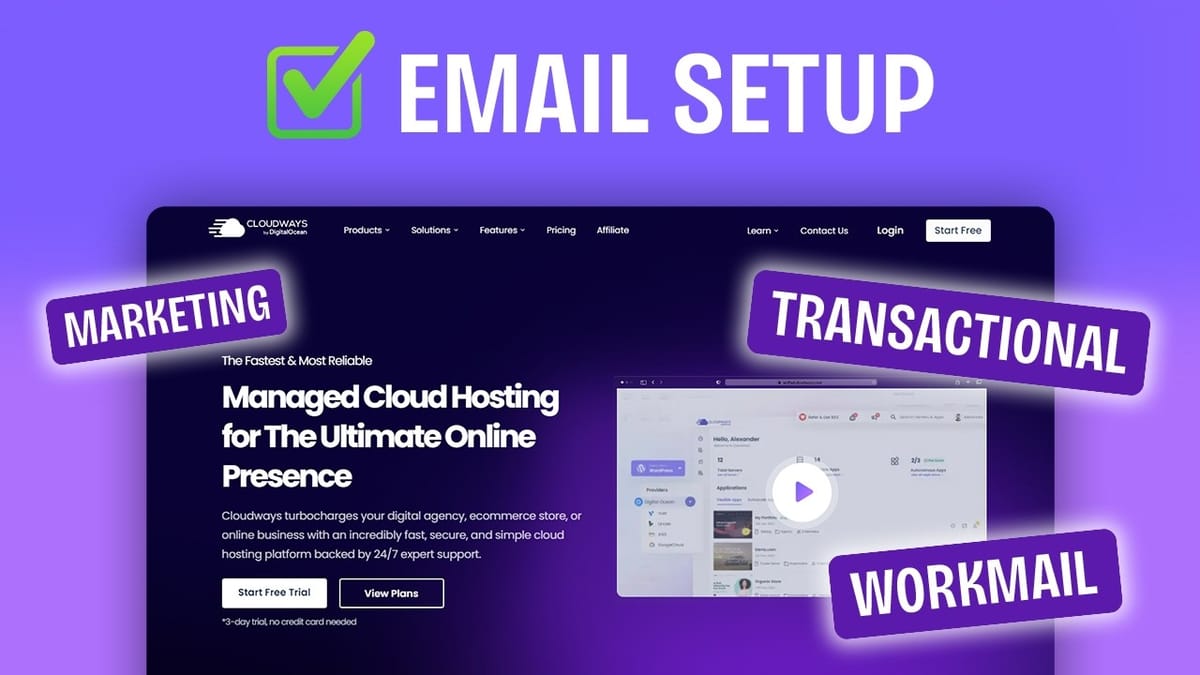
Before diving into the setup, it helps to understand that your business actually sends three distinct types of email, and each one deserves its own strategy.
**Personal or work email** is the obvious one — the messages you compose and send from your email client. If you've been using your shared host's cPanel email for this, you're probably sharing an IP address with hundreds of other sites, some of which may have questionable sending practices.
**Transactional email** covers the automated messages your website sends: password resets, order receipts, account creation confirmations, comment notifications. These emails are critical — if a customer doesn't get their receipt, your business looks unprofessional. Every WordPress site sends transactional email, even if you're not running an online store.
**Marketing email** is the third category — newsletters, promotional campaigns, and drip sequences. These are the emails you might be paying MailChimp, ConvertKit, or ActiveCampaign hundreds of dollars a month to send. There's a much more affordable approach available, and it starts with separating these three email streams.
Setting Up Personal Email with Rackspace
Cloudways offers a built-in Rackspace Email add-on right from the sidebar under Add-ons. At just $1 per user per month with 25GB of storage, it's a fraction of the cost of Google Workspace (which starts at $6/user/month). You still get everything you need — aliases, mail forwarding, and compatibility with any standard SMTP email client.
Adding a mailbox takes about 30 seconds. Click "Add Mailbox," enter your desired email address, set a password, and save. You can add multiple mailboxes on the same screen if you need them.
There are a few DNS records to configure with your domain provider — Rackspace will actually email you the exact records you need, so you don't have to hunt through documentation. Before you switch your DNS though, make sure you migrate your existing emails first. Rackspace provides a self-service migration tool that lets you pull all your old messages over from your previous host. The key sequence is: create the new Rackspace accounts, migrate your old emails over, and only then update your DNS to point new mail to Rackspace.
Accessing Your Rackspace Email
Rackspace gives you a webmail client out of the box — log in with your email and password, and you've got a full interface with contacts, calendars, tasks, and notes. It's a surprisingly complete productivity suite for a dollar a month.
But if you're like most people, you'd rather use a dedicated email app. Cloudways provides a step-by-step guide for configuring all the major clients: Gmail, Windows Mail, Outlook, Thunderbird, iOS Mail, and Mac Mail. As long as your email app supports standard SMTP connections, it'll work with Rackspace.
The combination of aliases and mail forwarding is particularly useful. You can set up role-based addresses like support@yourdomain.com or sales@yourdomain.com and funnel them all into a single inbox — without paying for extra accounts.
Configuring Transactional Email with Elastic Email
Transactional email is where shared hosting really falls apart. When your host runs a mail server for a thousand different websites on the same IP, one bad actor selling questionable products can tank deliverability for everyone — including you. Your order receipts end up in spam, and there's nothing you can do about it.
Cloudways solves this with their Elastic Email add-on. The pricing is almost comically affordable: 1,000 emails per month costs $0.10. Even at 15,000 emails per month, you're looking at $1.40. Navigate to Add-ons, select Elastic Email, choose your volume tier, and you're set up with an API key.
The setup requires verifying your domain with Elastic Email, which means adding a few DNS records: an SPF text record, a DKIM text record, and a CNAME for tracking opens and clicks. If you're on a root domain (not a subdomain), you can skip the subdomain-specific records in their documentation. You'll also want a DMARC record — Cloudflare offers free DMARC management that handles this with a couple of clicks.
Once your domain is verified (you can check with Elastic Email's built-in verification tool), head back to your server settings in Cloudways, go to SMTP, select Elastic Email, and enable it. Send a test email to confirm everything's working — it should hit the inbox immediately.
Using Your Own SMTP Provider
Elastic Email isn't your only option for transactional email on Cloudways. The SMTP settings panel lets you connect any provider you prefer. There are built-in API integrations for Mailgun, Mandrill, SendGrid, and AuthSMTP, plus a generic option where you can enter any SMTP server's credentials.
API connections are generally more reliable and cost-effective at scale than traditional SMTP credentials, so if your provider supports it, go that route. The flexibility here is one of Cloudways' strengths — you're never locked into a single email provider.
Sending Marketing Email from WordPress
Here's where things get interesting. Instead of paying hundreds of dollars a month for ActiveCampaign or MailChimp, you can send marketing emails directly from WordPress using a plugin like FluentCRM (which has a fully functional free version) paired with an affordable sending service like Amazon SES.
The trick is keeping your transactional and marketing email on separate paths. Install Fluent SMTP as your WordPress mail plugin, then set up two connections: one for Elastic Email (handling transactional messages from a support@ address) and one for your marketing provider like Amazon SES or Postmark (sending from your personal email address).
In FluentCRM's email settings, set your "from" address to your personal email — this is what newsletter subscribers will see. For WooCommerce receipts and other transactional messages, go to WooCommerce Settings > Emails and set the from address to something like support@yourdomain.com. Fluent SMTP's routing feature automatically sends each email through the correct provider based on the from address.
This separation is critical. Marketing emails occasionally get marked as spam — that's just the nature of bulk email. By routing them through a different provider than your transactional messages, a spam complaint on a newsletter won't affect the deliverability of your order receipts and password reset emails.
Wrapping Up: No More Excuses to Stay on Shared Hosting
With Rackspace handling personal email at $1/month, Elastic Email covering transactional messages for pennies, and FluentCRM plus a bulk sender replacing expensive marketing platforms, there's really no email-related reason to stay on shared hosting anymore.
The total cost for a complete email setup on Cloudways comes out to a few dollars a month — dramatically less than what most people pay for inferior service on shared hosts or expensive all-in-one platforms. More importantly, your emails will actually reach inboxes because you're using dedicated, properly configured sending services with full SPF, DKIM, and DMARC authentication.
If you've been putting off the move to cloud hosting because of email, this is your sign. The migration path is well-documented, the costs are minimal, and the deliverability improvement alone makes it worth the switch.
Watch the Full Video
Prefer watching to reading? Check out the full video on YouTube for a complete walkthrough with live demos and commentary.


