
DMARC Report Review: Email Authentication Made Simple
DMARC Report takes the confusing world of email authentication and makes it manageable with monitoring dashboards, automated alerts, and a white-label interface perfect for service providers.

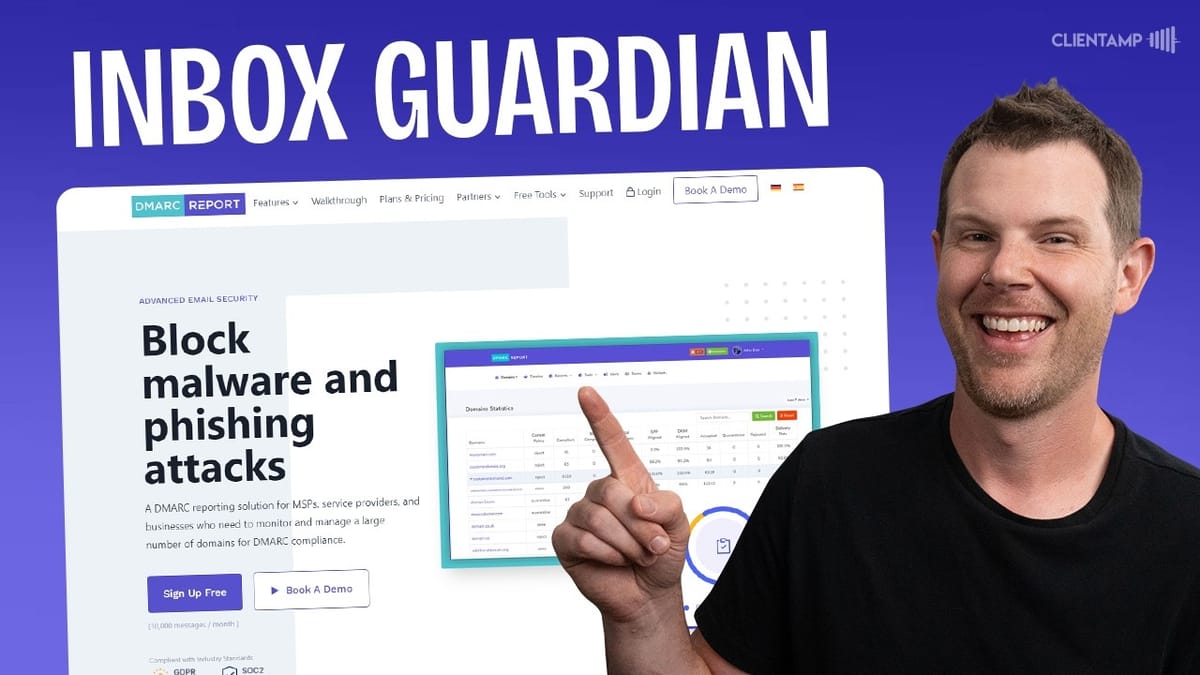
DMARC Report
Monitors and simplifies DMARC, SPF, and DKIM email authentication records so you can protect your domain from spoofing and ensure deliverability.
Service providers managing multiple client domains, e-commerce site owners, and anyone who sends email from a custom domain and wants to keep it secure.
Cloudflare DMARC Management, Valimail, EasyDMARC, Postmark DMARC
What Is DMARC and Why Should You Care?
Email authentication sounds like something only IT departments worry about, but if you send email from a custom domain — whether that's for your business, your e-commerce store, or your clients — it directly affects whether your messages land in inboxes or spam folders. Worse, without proper authentication, someone could spoof your domain and send fraudulent emails that look like they came from you.
DMARC (Domain-based Message Authentication, Reporting, and Conformance) is the protocol that ties it all together. Think of it as the supervisor that tells receiving mail servers what to do when an email from your domain looks suspicious. DMARC Report is a tool available on AppSumo that takes this protocol and wraps it in a dashboard you can actually understand, complete with monitoring, alerts, and reporting.
Back in February 2024, both Google and Yahoo started requiring DMARC records for anyone sending more than 5,000 emails. A lot of people scrambled to create records but set the policy to "none" — which is like installing a lock on your front door and never actually locking it. DMARC Report helps you move beyond that bare minimum into a configuration that actually protects your domain.
Setting Up Your Domain
Getting started with DMARC Report is straightforward. When you first log in, the tool walks you through creating a DMARC record for your domain. You enter your domain name and it generates a TXT DNS record that you copy over to your DNS provider — whether that's Cloudflare, GoDaddy, Namecheap, or wherever you manage your domain.
If you already have a DMARC record in place, you have the option to either add to your existing record or replace it entirely. For most people, replacing with a fresh record is the cleanest approach, especially if your current record was cobbled together from a step-by-step guide you barely remember following. Just copy the value from DMARC Report, paste it into your DNS settings as a TXT record with the name `_dmarc`, and save.
Once you've added the record, check the confirmation box in DMARC Report and hit next. If DNS hasn't propagated yet, don't panic — just click the three-dot menu on your domain and choose "retest DNS." It usually flips from red to green within a minute or two.
Understanding SPF Records
SPF (Sender Policy Framework) is one of the three pillars of email authentication, and it's the simplest to understand. Your SPF record is just a list of services authorized to send email on behalf of your domain. Think of it like an approved carriers list — if you only ship packages via UPS and the post office, a FedEx delivery with your name on it would raise eyebrows.
Every time you sign up for a service that sends email from your domain — whether that's Google Workspace, Postmark, Mailchimp, or a self-hosted server — they'll give you an SPF entry to add to your DNS. The catch is there's a hard limit of 10 DNS lookups in a single SPF record, and many services use more than one lookup under the hood. Go over 10 and things start breaking.
DMARC Report includes a handy SPF lookup tool under the Tools menu that shows you exactly which services are authorized for your domain and how many lookups you're using. There's also an SPF generator if you need to build or optimize your record from scratch. The SPF alignment setting in your DMARC policy can be set to either relaxed (the default) or strict — relaxed allows some flexibility, while strict will cause more aggressive rejection of unauthorized senders.
DKIM: Your Email's Digital Signature
DKIM (DomainKeys Identified Mail) works differently from SPF but serves a complementary purpose. While SPF verifies who's allowed to send email from your domain, DKIM verifies that the email content hasn't been tampered with in transit. It's a digital signature embedded in the email when it's sent — the receiving server can then check that signature to confirm the message arrived exactly as it left.
Consider what happens when an email travels across the internet: it passes through multiple servers, any of which could theoretically intercept and modify the contents. DKIM prevents this by cryptographically signing the message. If anything changes along the way, the signature breaks and the receiver knows something is off.
Like SPF, DKIM records are set up through your DNS settings. Most email services will provide you with the DKIM record to add — it can be either a TXT or CNAME record, with CNAME becoming more common these days. Once it's in your DNS, authentication happens automatically. In DMARC Report, your DKIM alignment can also be toggled between relaxed and strict, and the recommendation is to start relaxed until you're confident everything is configured correctly.
Reading the DMARC Dashboard
Once your domain has been sending emails for a while, the DMARC Report dashboard starts to fill up with useful data. The overview tiles show you at a glance how many emails are compliant, forwarded, or failing authentication. In the demo, 14 out of 15 emails were fully compliant, with one flagged as forwarded — which is a normal edge case, not a security concern.
Forwarded emails show up as non-compliant because the forwarding server's SPF records won't match your domain's. It's not a red flag in the same way a spoofed email would be, but DMARC Report surfaces it so you're aware. You can click into any of these categories to see the specific messages, where they came from, and the full authentication details.
The DMARC policy itself has three enforcement levels: none (do nothing), quarantine (flag suspicious emails), and reject (block them outright). There's also a percentage setting that controls how much of your outgoing email is subject to the policy — starting at 50% and gradually increasing to 100% is a smart way to avoid accidentally blocking legitimate messages while you're dialing in your configuration.
Configuring and Tightening Your Policy
The settings displayed on the main dashboard are read-only — they reflect what's in your actual DNS record. To make changes, head over to the Hosted Services section and select DMARC. Here you'll find a full editor where you can adjust your policy from quarantine to reject, change the percentage of emails covered, update reporting email addresses, and toggle SPF and DKIM alignment between relaxed and strict.
The recommended approach is to start with a relaxed, lower-percentage configuration and tighten things gradually. Begin with quarantine at maybe 50%, monitor your reports for a few weeks, and once you're confident that all your legitimate email services are properly authenticated, bump it up to reject at 100%. This staged approach prevents you from accidentally blocking your own email.
DMARC Report generates the updated DNS record for you — just copy and paste it into your DNS provider. Alternatively, you can set up a hosted CNAME record that points to DMARC Report, giving you a GUI to manage everything without ever touching your DNS again. This is particularly useful if you're managing multiple client domains and don't want to bounce between different DNS providers.
Teams, Tags, and Client Management
For service providers managing multiple domains, DMARC Report includes a solid organizational layer. Tags let you group domains by client, project, or any category that makes sense for your workflow. Create a tag, assign it a color, and attach it to the relevant domains — they'll show up visually coded on your main dashboard.
Teams build on top of tags. Once you've tagged a set of domains, you can create a team around that tag and invite stakeholders with specific view-only permissions. This means your client can see their own DMARC reporting data without accessing anyone else's domains or making changes they shouldn't.
There's also an embeddable widget feature that generates a snippet of code you can drop into a client reporting dashboard or website. You can restrict which domains the widget code runs on, and choose from several metrics to display. It's a nice touch for agencies that want to add deliverability monitoring to their existing client portals.
Alerts: The Feature That Justifies the Price
If you're not going to log into DMARC Report every day — and let's be honest, you're not — then alerts are the single most important feature. Without active monitoring, you could have a misconfiguration or spoofing attempt going on for weeks before you notice.
There are two types of alerts. Event alerts fire when something specific happens: your DMARC record changes, your SPF record gets modified, or there's a drop in DKIM alignment or delivery rate. These are great for catching unauthorized DNS changes or configuration drift. Metric alerts trigger when a threshold is crossed, like more than 10 non-compliant emails in a single day.
The simplest setup is to go into your account settings, find Domain Reports in the sidebar, and toggle on weekly reports. But for real-time protection, create custom alerts for each domain covering record changes and non-compliance spikes. This is actually one of the key advantages over Cloudflare's free DMARC management — Cloudflare doesn't offer alerts on its free tier, which means you'd have to manually check for issues.
DMARC Report vs. Cloudflare's Free Option
A fair question that comes up is why you'd pay for DMARC Report when Cloudflare offers free DMARC management. There are a few legitimate reasons. First, Cloudflare's DMARC tools only work if your DNS is managed by Cloudflare. If your company uses a different DNS provider, it's simply not an option.
Second, Cloudflare's free tier lacks the alerting and notification features that make DMARC Report genuinely useful for ongoing monitoring. You can see your records and alignment status, but if something goes wrong, nobody's going to tap you on the shoulder. For a single personal domain, that might be acceptable. For a service provider managing dozens of client domains, it's a dealbreaker.
That said, the two aren't mutually exclusive. You can absolutely use both — just add DMARC Report's email address as an additional reporting destination in your DMARC record rather than replacing the Cloudflare one. The protocol doesn't care which platform processes the reports. Cloudflare deserves credit for offering any DMARC management at all for free, and hopefully their feature set expands over time.
Plans, Pricing, and Who This Is For
The AppSumo deal starts at $69 for a single code, which gets you 25 domains, 75,000 monthly reports, and full white-label capability. Each additional code adds another 25 domains and 75,000 reports, with bigger jumps at higher tiers — code five bumps you to 150 domains, and code eight maxes out at 500 domains plus 250 parked domains.
White labeling is available right from tier one. Under your profile settings, you can add your own branding, logo, favicon, and even a custom domain for the interface. This turns DMARC Report into your own branded email security platform — a compelling value-add for any agency or service provider.
So who actually needs this? Service providers managing client domains will get the most obvious value from the team management, tagging, and white-label features. But even if you run a single e-commerce site or business website, having automated DMARC monitoring for a one-time $69 fee is solid insurance. You'll forget you even spent the money, but you'll be glad it's running if someone tries to spoof your domain.
Final Verdict: 8.1/10
DMARC Report earns an 8.1 out of 10. It's a high-quality, focused tool that does exactly what it promises — takes the confusing world of email authentication and makes it approachable. The dashboard is clear, the setup process is guided, and the alerting system fills a genuine gap that even Cloudflare's free offering doesn't cover.
The sweet spot for this tool is service providers who can bundle DMARC monitoring into their existing client offerings. Whether you're building WordPress sites, designing email templates, or managing hosting, adding deliverability monitoring is a low-effort way to increase the value of your services. But it's not just for agencies — anyone sending email from a custom domain should have DMARC properly configured, and this tool makes ongoing management practically effortless.
At $69 for a lifetime deal covering 25 domains with white labeling included, the value proposition is hard to argue with. It's the kind of tool you set up once, configure your alerts, and then it quietly watches your back.
Watch the Full Video
Prefer watching to reading? Check out the full video on YouTube for a complete walkthrough with live demos and commentary.


