
Focusee Review: A $39 Screen Studio Alternative Worth Buying?
Focusee combines Screen Studio's cinematic screen recordings with Loom's sharing features at a fraction of the price. Here's a detailed look at what you get for $39.

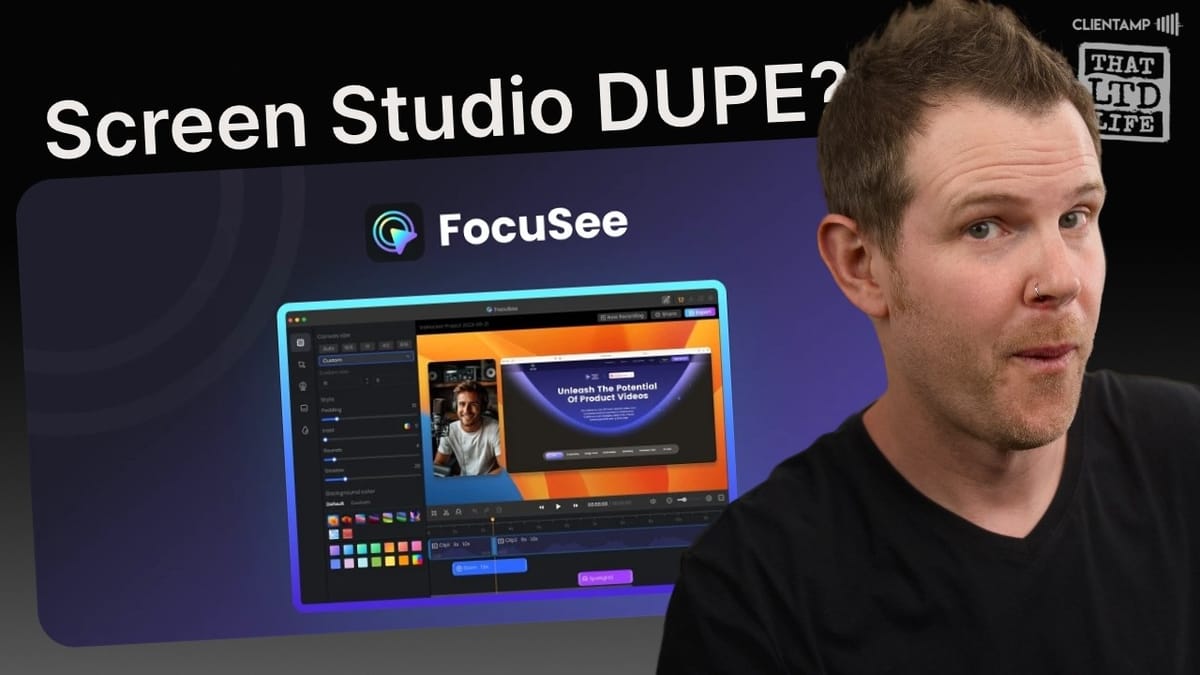
Focusee
A screen recording app that automatically adds cinematic zoom effects, motion blur, and click animations to your recordings, with built-in sharing and basic editing.
Content creators, course builders, and professionals who want polished screen recordings without learning complex video editing software.
Screen Studio, Loom, CleanShot X
What Is Focusee?
Focusee is essentially what you'd get if you took Loom and Screen Studio, left out a few features from each, and smashed them together into one tool. It's a screen recording application that automatically generates cinematic zoom effects, motion blur, and click animations — the kind of polish that made Screen Studio wildly popular — but at a significantly lower price point.
The big differentiator here is platform support. Screen Studio is Mac-only, while Focusee works on both Mac and Windows. That said, there are reports in the AppSumo reviews suggesting the Windows experience may not be as smooth, so definitely test it on your setup before committing.
Pricing: Focusee vs Screen Studio
Focusee is available as a lifetime deal starting at $39. You can scale up to $99 or $200 depending on how many devices you need, which makes it viable for small teams as well. The higher tiers also bump up your cloud storage for the Loom-style sharing feature — though you're looking at relatively modest allotments of 1GB, 4GB, or 6GB depending on your plan.
Screen Studio, by comparison, runs $89 for a single license that includes one year of updates. You can keep using it after that year, but you won't receive any new features. So it's pay-once-use-forever, but not the same as a true lifetime deal with ongoing updates. At roughly double the price with a more limited update policy, Focusee's value proposition is hard to ignore — if the feature set holds up.
Recording Options and Setup
Focusee gives you three recording modes: full screen, custom region, and window capture. The custom region mode lets you drag a selection box across your screen, and the resolution displays in real-time as you resize — handy for hitting exact dimensions like 1920×1080. However, there are no presets for common resolutions, which means you're manually dragging to hit your target. Screen Studio does have these presets, and their absence here is noticeable.
Window capture is more straightforward. Hover over any open window and click to lock in that recording area. The app supports webcam recording from any connected camera (including iPhone via Continuity Camera), microphone selection, and system audio capture. System audio is particularly useful for tutorials involving music production or any app where the audio matters.
One workflow annoyance: if you start a custom region recording and decide you want to switch to a different mode, you have to close out the entire recording setup and start over. It's a small friction point, but it adds up.
The Loading Time Problem
Here's the single biggest complaint with Focusee: after you stop a recording, the app takes an painfully long time to process your footage before you can interact with it. In testing, a 50-second recording took over 50 seconds just to load — longer than the actual recording itself. During this time, you're completely locked out of the editing interface.
To make matters worse, when the video does finally finish loading, it doesn't bring the window to the foreground. Instead, it starts playing back in the background with audio, which is disorienting. The expected behavior — window comes forward, video is paused and ready to edit — just doesn't happen. This is the kind of polish issue that separates a good tool from a great one.
Video Enhancement and Canvas Controls
Once you're past the loading screen, Focusee's editing interface is laid out very similarly to Screen Studio. A left-hand sidebar contains universal settings that apply to your entire project, starting with video enhancement controls.
You can switch your output aspect ratio between 16:9, 1:1 (square), 4:3, and 9:16 (vertical) — and there's a helpful dropdown showing which ratios work best for which platforms. The corner roundness on your recording window is adjustable, and you'll probably want to dial it back from the default, which is quite aggressive. Padding controls let you determine how much background wallpaper shows around your recording, and there's a library of macOS-style gradient backgrounds to choose from, plus the option to upload your own.
There's also an "inset" feature that adds a solid-color border around your recording, but it clashes with the background wallpaper in practice. It uses a flat color that's hard to blend naturally, making it a feature most users will probably skip.
Mouse Enhancements and Click Effects
Focusee offers several ways to make your cursor more visible and engaging. You can swap out the default cursor for several stylized options, including a charming Windows 95 pixel-art cursor and some more playful illustrated designs. Size is fully adjustable.
Click effects add visual feedback whenever you click — options include ripple animations and confetti bursts that add a bit of personality to otherwise dry screen recordings. There's also a persistent spotlight mode that places a glowing highlight around your cursor at all times, similar to what the NHL used to do with the glowing puck on TV broadcasts. You can fine-tune the spotlight's opacity and size to keep it subtle. Mouse click sounds round out the options, with three sound styles and adjustable volume.
Motion Blur: The Cinematic Secret Sauce
Motion blur is the feature that gives screen recordings that polished, cinematic quality — the same effect that made Screen Studio famous. With motion blur on, scrolling, zooming, and cursor movement all get a smooth, film-like treatment. Turn it off, and your recording looks like a normal computer screen. Turn it on, and it looks like a computer scene in a movie.
Focusee gives you independent control over three blur parameters: zoom-in blur (applied when the view transitions from wide to zoomed), screen movement blur (for windows moving or animated content), and cursor movement blur. Each has its own slider, so you can dial in exactly the level of smoothness you want for each type of motion.
Webcam Layouts and Customization
The webcam controls are one of Focusee's stronger features. Multiple layout presets let you position your camera feed in different arrangements — picture-in-picture in any corner, layered with the camera on top of or beneath the screen recording, and side-by-side options. Every layout can be flipped horizontally, and you can fine-tune positioning by dragging elements around within the chosen layout's constraints.
The camera can be circular or rectangular (with adjustable roundness), and there's a clever feature that automatically shrinks your webcam during zooms so it doesn't obstruct the content viewers should be focusing on. You control exactly how small it gets.
However, there's a significant limitation: the show/hide camera toggle is a global project setting. You can't have your camera full-screen for an intro, then switch to picture-in-picture for the tutorial portion. Every well-produced tutorial on YouTube uses these kinds of view transitions, so this is a real missing feature. Screen Studio has this capability in beta and plans to ship it in their main release soon.
Captions and Watermarks
Caption generation uses Whisper AI and produces high-quality transcriptions quickly. You can edit individual captions, but be careful — there's no undo for caption edits. If you make a mistake, your only option is to regenerate the entire transcript from scratch.
Styling options for captions are limited. You can adjust the size and position (top or bottom of screen), but there's no custom font selection, no background color control, and no way to create those popular MrBeast-style animated captions. What you get looks more like traditional closed captions — functional but not flashy.
The watermark feature lets you overlay your logo on the recording with adjustable size, opacity, and corner positioning. It works well enough for branding purposes, though it would be nice to have free-form positioning rather than being locked to the four corners.
Timeline Editor: Simple but Limited
Focusee's timeline editor handles the basics. Your recording appears as a clip on the timeline, with auto-generated zoom markers that you can drag, resize, reposition, or delete. Clicking anywhere below the video adds a new zoom point, and each zoom's focus area can be precisely positioned by dragging a frame overlay on the preview.
The auto-zoom detection is genuinely useful — Focusee watches where your mouse activity happens and automatically creates zoom effects at those moments. You can disable individual zooms without deleting them (handy for experimenting), or disable all zooms at once if you prefer a clean, unzoomed look.
A spotlight tool lets you draw attention to specific areas of the screen by dimming everything except your highlighted region. It's effective but bare-bones — no control over fade timing or transition style.
Where the Editor Falls Short
If you're coming from professional editing software like Final Cut Pro or DaVinci Resolve, you'll feel the limitations quickly. There's no way to insert gap clips or blank screens between segments. You can't independently edit audio — so if you misspeak, there's no way to dub in a correction without re-recording the entire project or exporting and finishing in another application.
Every zoom has a built-in slow zoom-out animation that can't be changed to a hard cut, which creates a distracting zoom-in-zoom-out rhythm when multiple zooms are placed close together. The clip splitting tool works but feels clunky compared to dedicated editors.
For users who just need simple screen recordings with automatic polish, these limitations probably won't matter. But if you're producing tutorial content regularly, you'll bump up against these walls sooner than you'd like.
Presets and Sharing Features
Once you've dialed in a look you like, you can save it as a preset — a smart feature for anyone producing screen recordings with consistent branding. This saves all your canvas, mouse, blur, and webcam settings so you don't have to reconfigure everything for each new project.
The sharing functionality is where Focusee's Loom DNA shows up. Upload your recording to their cloud (hosted by Gmoo, the parent company), and you get a shareable link with an embedded player that supports emoji reactions and comments — very much in the Loom mold. There's also an embed code for dropping videos directly onto your website.
The standout sharing feature is the ability to add interactions, specifically email collection gates. You can set a popup to appear at any timestamp that requires viewers to enter their email before continuing. It's not the most polished implementation, but it's a genuinely useful marketing feature that most screen recording tools don't even attempt. Note that viewers do need a free Gmoo account to interact with shared videos.
Exporting Your Videos
Export options are straightforward: GIF or MP4, with resolution scaling from 720p up to 4K and frame rates between 10fps and 60fps. On an M1 Max Mac Studio, export times roughly matched playback duration — so a one-minute video takes about one minute to export at 1080p.
That's acceptable for short recordings, but it could become a bottleneck for longer content. Professional nonlinear editors like Final Cut Pro typically export several times faster than real-time playback, so heavy users may find this frustrating.
Final Verdict: Should You Buy Focusee?
Focusee earns a 6.8 out of 10. It's a solid application that delivers most of Screen Studio's headline features — automatic zooms, motion blur, click effects, cinematic polish — at less than half the price. The addition of Loom-style sharing with email gates adds genuine value for marketers and course creators.
The pain points are real though: the post-recording loading times are frustrating, the webcam can't switch between full-screen and picture-in-picture within a project, caption styling is limited, and the editor lacks basic features like gap clips and independent audio editing. These are the kinds of rough edges that separate a good deal from a great tool.
If budget is your primary concern, Focusee at $39 is a reasonable investment — especially for occasional screen recordings where the auto-zoom and motion blur do most of the heavy lifting. But if you're producing content regularly and can stretch to $89, Screen Studio's deeper polish, preset recording resolutions, and more active development make it the stronger long-term choice. All software is a commodity these days, but the artistry and passion behind Screen Studio still gives it the edge.
Watch the Full Video
Prefer watching to reading? Check out the full video on YouTube for a complete walkthrough with live demos and commentary.


