
Guidejar Review: Turn Any Process into Step-by-Step Guides
Guidejar captures screenshots and builds step-by-step guides automatically as you work. Here's how this lifetime deal stacks up for documenting workflows and SOPs.

Guidejar
Automatically captures screenshots and creates step-by-step guides as you perform tasks on your computer or in your browser.
Business owners, team leads, and service providers who need to document workflows, SOPs, and processes without spending hours on manual screenshots.
Scribe, Tango, Loom, CleanShot X
Why You Should Be Documenting Your Processes
Every business has workflows that live entirely inside someone's head. You know the ones — those nuanced, multi-step processes you repeat daily but never bother writing down because it would take too long to document them properly. The problem is, those workflows are your intellectual property. They're arguably the most valuable part of your business.
Documenting standard operating procedures has always been a time sink. You have to perform the task, stop to take screenshots, annotate each image, write descriptions, and organize everything into a coherent guide. Most people skip it entirely because the documentation process takes longer than the task itself.
Guidejar flips that equation on its head. Instead of documenting after the fact, it watches you work and captures everything automatically. You just do the task as you normally would, and Guidejar builds the guide for you. It's available as a lifetime deal on AppSumo, which means you pay once instead of dealing with yet another monthly subscription.
Guidejar Pricing: What You Get for $49 or $98
Guidejar is available through AppSumo with two main tiers. The first plan starts at just $49 — a one-time payment, not a monthly subscription. For that price, you get 10 team members, unlimited guides, all core features, and no Guidejar branding on your published guides.
The $98 plan (which is the one I went with) adds two significant features. First, you get the Mac desktop app, which lets you capture tasks performed outside the browser — think desktop applications, system settings, or anything that doesn't live in Chrome. Second, you get access to the help center with a custom domain. This turns your collection of guides into a full knowledge base that you can host on your own subdomain, complete with SSL certificate.
If most of your work happens in a browser, the $49 plan will probably cover everything you need. But if you regularly use desktop apps and want a branded knowledge base for your team or customers, the upgrade is well worth the extra $49.
Getting Started: Chrome Extension and Mac App
Setting up Guidejar takes just a few minutes. There are two capture methods: a Chrome extension for browser-based workflows and a Mac desktop app for everything else. You can install both, and I'd recommend doing exactly that.
The Chrome extension installs like any other — add it from the Chrome Web Store and pin it to your toolbar for easy access. It works perfectly in Chromium-based browsers like Arc, so you're not limited to Chrome itself. The Mac app is a standard drag-and-drop install. The only extra step is entering an API key, which you generate from your Guidejar account settings under the Mac App API Key section.
One practical tip: even if Safari or Firefox is your daily driver, it's worth keeping a Chromium browser around specifically for Guidejar captures. The Chrome extension captures much more context about what's happening on screen compared to the Mac app, which means better automatic labeling and more accurate step descriptions.
Creating Your First Guide with the Chrome Extension
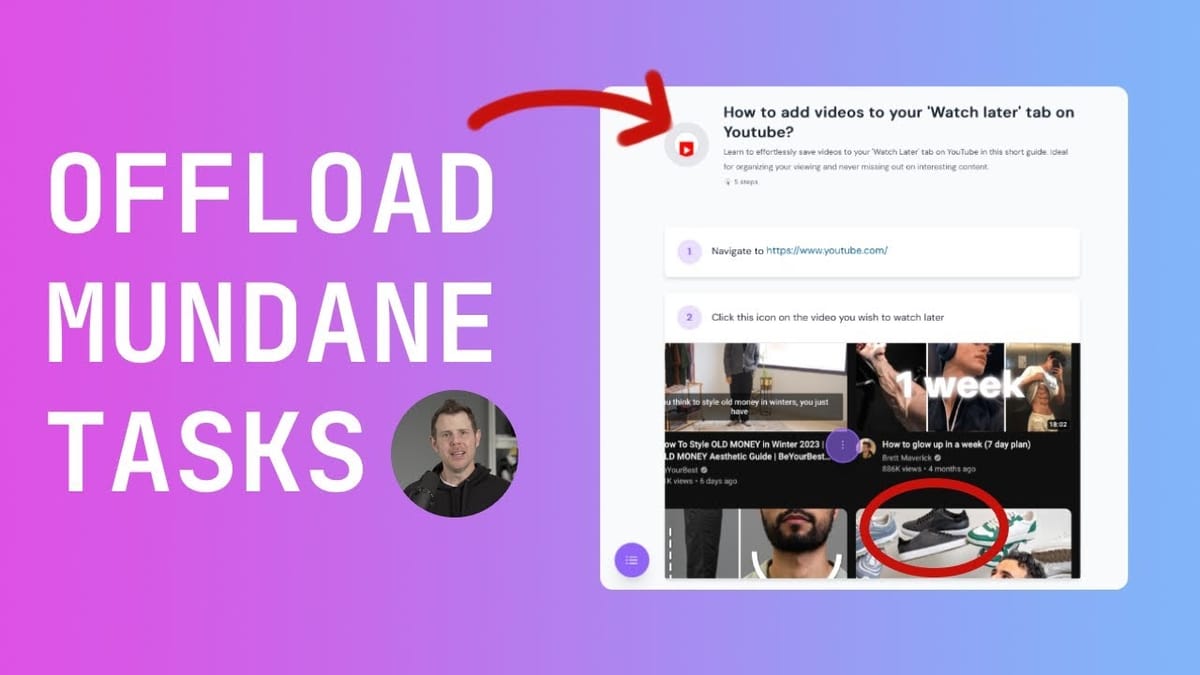
The Chrome extension workflow is impressively simple. Click the Guidejar icon in your toolbar, hit Start Capture, and then just do the task you want to document. Guidejar watches your clicks and interactions, captures screenshots at each important moment, and assembles everything into a numbered step-by-step guide.
I tested this by documenting how to add a new subscriber in Ghost CMS. After clicking through the process — navigating to members, creating a new member, entering details, adjusting newsletter subscriptions, and saving — I stopped the capture and Guidejar had a 10-step guide ready. Each step included a screenshot with an animated indicator showing exactly where I clicked.
The automatic capture isn't perfect, of course. It occasionally misidentifies what you clicked on, and if you make an accidental click, that gets captured as a step too. But here's the key insight: cleaning up a mostly-complete guide is dramatically faster than building one from scratch. You're editing rather than creating, which is exactly the kind of efficiency gain that makes a tool worth using.
Editing and Annotating Your Guides
Once Guidejar captures your workflow, you'll want to polish it. The editing interface is straightforward — click the edit button and you can modify step descriptions, reorder steps using drag handles, delete unnecessary steps, or add new ones between existing steps.
The step descriptions are where you'll spend most of your editing time. Guidejar's automatic labels range from perfectly accurate ("Click Save") to vague ("Click here"), so plan on rewriting a few of them. You can also add special callout blocks between steps for tips or warnings, which is handy for those "don't proceed until X happens" moments.
Image annotation is built right into the editor. You can add text overlays, outlined or filled rectangles, circles, and — my personal favorite — a blur tool for hiding sensitive information like email addresses or passwords. The annotation tools aren't as polished as a dedicated screenshot app like CleanShot X, but they're more than adequate for the job. You can also choose from several font options for your guide's overall appearance, with Inter being a solid default choice.
One current limitation worth noting: there's no image cropping tool in the editor. If the Mac app captures your entire screen and you want to focus on a specific area, you'll need to crop the image externally and re-upload it. Hopefully that feature is on the roadmap.
Sharing, Exporting, and Backing Up Your Guides
Guidejar gives you several ways to distribute your finished guides. The simplest is a shareable link — copy the URL and anyone can view your guide on Guidejar's hosted page, complete with a table of contents sidebar for longer guides. You can even deep-link to specific steps, which is great for answering targeted questions.
You can also embed guides directly on your existing website using the provided embed code, which keeps visitors on your domain. For offline use or archival purposes, there's PDF export and HTML export. The HTML export works well, but be aware that images are referenced from Guidejar's servers rather than bundled into the file. For a truly self-contained backup, PDF is the safer choice.
My recommendation: always back up your guides using the copy-paste method into Google Docs, Notion, or Apple Notes, even if you're primarily using Guidejar's hosted version. Your workflows and SOPs are valuable intellectual property, and you want them stored somewhere you control regardless of what happens to any third-party tool. The formatting won't be as pretty as Guidejar's native display, but all the content and images carry over.
Mac App: Desktop Capture with a Few Trade-offs
The Mac app extends Guidejar's capture capabilities beyond the browser. After granting screen recording permissions in System Settings, you trigger captures from the menu bar icon. I tested it by documenting how to uninstall an app using CleanMyMac X, and it captured each step accurately — selecting the uninstaller, choosing the app, clicking uninstall, and entering the system password.
There are two notable differences compared to the Chrome extension. First, the Mac app captures your entire screen rather than just the browser window, so you may need to be mindful of sensitive information visible in other areas of your display. Second, the automatic labeling is less accurate because the desktop app can't read UI elements as precisely as the Chrome extension reads web page content. Expect to do a bit more manual editing on guides created with the Mac app.
Despite these trade-offs, the Mac app fills an important gap. Any workflow that involves desktop software — design tools, system utilities, native email clients, development environments — simply can't be captured with a browser extension. Having both options available means you can document virtually any process in your business.
Built-in Help Center and Knowledge Base
One of Guidejar's standout features, especially on the $98 plan, is the built-in help center. This transforms your collection of guides into a searchable knowledge base that you can organize by categories, brand with your logo and colors, and host on a custom domain.
Setting it up is straightforward. Create categories, assign guides to them, add a logo and company description, and optionally connect a custom domain. The help center includes a search bar, SEO settings (including search engine indexing controls and favicon support), and a clean, professional layout that looks good without much customization.
For service-based businesses, this is a significant value-add. Instead of emailing PDF guides to clients or maintaining a separate documentation platform, you can point them to a branded knowledge base on your own subdomain — something like help.yourdomain.com. It eliminates the need for a separate knowledge base tool, which would typically be another monthly subscription.
Final Verdict: Is Guidejar Worth It?
Guidejar solves a genuine problem — documenting workflows is tedious, and most people simply don't do it because of the time investment. By automating the capture process, Guidejar removes the biggest friction point. You work as you normally would, and a polished guide materializes behind you.
The tool isn't without rough edges. Image cropping in the editor, selective screen capture on Mac, and bundled HTML exports are all features that would improve the experience. But none of these are dealbreakers, and for a lifetime deal starting at $49, the value proposition is hard to argue with.
If you're currently paying monthly for a similar tool like Scribe or Tango, switching to Guidejar is a no-brainer from a cost perspective. And if you've been meaning to document your processes but never got around to it, this is the kind of tool that actually makes it happen. The automatic capture removes enough friction that creating guides becomes something you'll realistically do rather than perpetually postpone.
Watch the Full Video
Prefer watching to reading? Check out the full video on YouTube for a complete walkthrough with live demos and commentary.


