
Instacap Review: Is This $29 Screenshot Tool Worth It?
Instacap is a Chrome-based screenshot and feedback tool with a slick UI, instant sharing links, and some rough edges. Here's whether the $29 lifetime deal is worth your money.

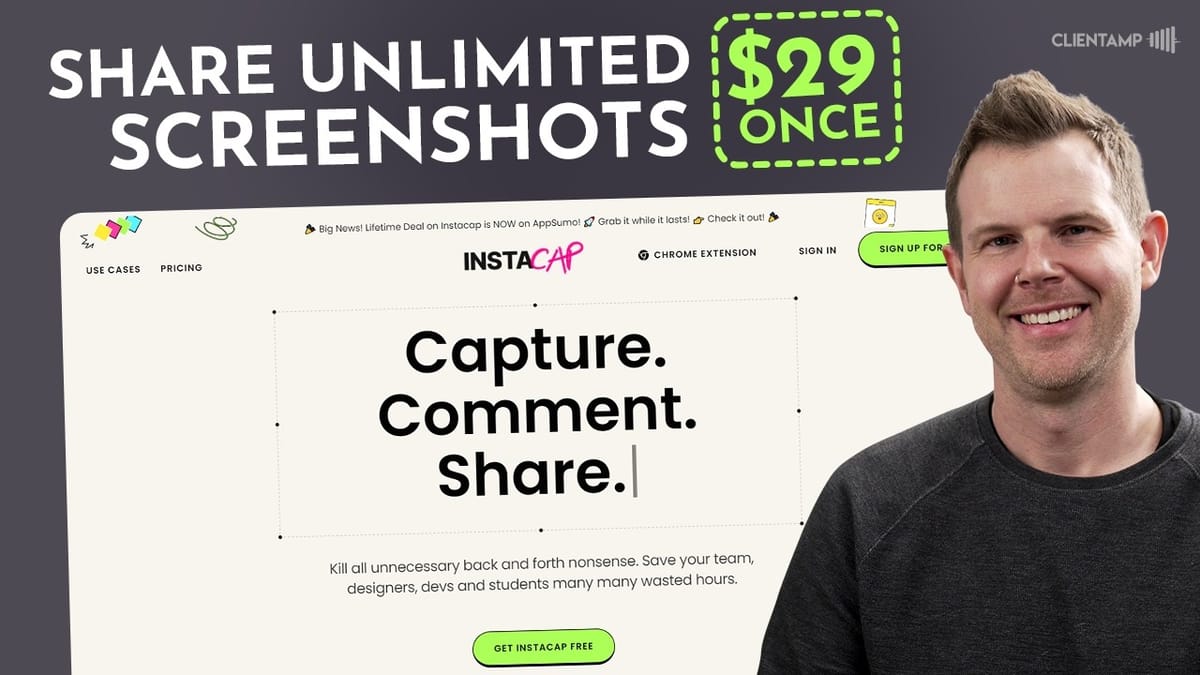
Instacap
A Chrome extension that lets you capture screenshots, annotate them, and share instant feedback links with clients or teammates.
Developers, designers, and freelancers who need a quick way to capture browser screenshots and collect visual feedback from clients without requiring signups.
CleanShot X, Loom, Droplr, Markup Hero
What Is Instacap?
Instacap is a Chrome extension built for capturing screenshots directly in your browser and sharing them with anyone via a simple link. It landed on AppSumo as a lifetime deal starting at just $29, and it's positioning itself as a lightweight alternative to heavier screenshot and annotation tools.
The core pitch is straightforward: take a screenshot, mark it up, share a link, and let anyone leave comments — no account required on their end. It's clearly targeting developers showcasing features, designers collecting feedback, and freelancers collaborating with clients. The big caveat right out of the gate is that this is Chrome-only, so if you're living in Safari or Firefox, this one isn't for you.
Plans and Pricing
The AppSumo deal comes in three tiers. Tier 1 at $29 gets you a single user license, which is perfect if you're a solo freelancer or just want to try it out. Tier 2 jumps to $109 and opens up collaboration for up to 10 users. Tier 3 at the top covers 50 users with full collaboration features.
For most people, the $29 tier is the obvious entry point. The collaboration tiers make sense if you're running a small agency or design team, but even the base tier gives you unlimited captures and storage — there are no caps on how much content you can save, which is generous for a lifetime deal at this price.
Getting Started: Download and Setup
Setup is about as painless as it gets. After activating your AppSumo code, you're redirected to Instacap's site to create an account, and then it's just a matter of installing the Chrome extension from the Web Store. The whole process takes under two minutes.
Once installed, the extension icon sits in your browser's toolbar. Instacap greets you with a nicely designed onboarding page that walks you through the three capture modes: free selection, screen capture, and full-page scrolling capture. The onboarding page itself has a minor issue — there's a "check out a live demo here" link that isn't actually clickable — but it's a small hiccup in an otherwise smooth setup experience.
Accounts, Projects, and Organization
Inside your Instacap dashboard, you can organize captures into projects. Creating a new project is simple — hit the plus button, give it a name, and you're set. The dashboard shows your project folders alongside a "non-project captures" area that acts as a catch-all for anything you haven't filed yet.
Instacap supports drag-and-drop uploads for images and PDFs, and you can also add captures via URL — just paste in a link to any image or PDF and it gets pulled right into your project. One frustration: when you take a screenshot using the extension, it defaults to your non-project captures. You can move it afterward via the triple-dot menu, but it would be much smoother if the extension prompted you to choose a project at capture time. There is a "capture project" selector in the extension itself, though it's easy to miss.
The Free Selector and Capture Interface
The free selection tool lets you draw a box around any portion of your browser window to capture it. It's responsive and the selection area is easy to resize before hitting the capture button. Once captured, the link is automatically copied to your clipboard — a genuinely nice touch for fast sharing workflows.
The UI after capture is one of Instacap's strongest points. It feels modern and fresh, with bright colors and a clean layout that doesn't mimic any particular platform's design language. You can rename captures, switch between view, comment, and annotate modes, and access background and framing tools — all from a well-organized toolbar. There is a notable bug with the rename field: typing in the title bar causes it to revert to the previous name. You can work around it by renaming through the triple-dot menu instead, but it's the kind of thing that should get patched.
Comment Mode and Collaboration
Comment mode is where Instacap's collaboration features come alive. Click anywhere on the image and a comment pin drops at that location, letting you start a threaded conversation tied to a specific spot on the screenshot. You can reply to comments, add emoji reactions, and even record a Loom video directly within the comment thread.
The Loom integration is clever — you don't need a Loom account or login, and the recorded video embeds right into the comment thread. It's limited to five minutes on the free Loom tier, but for quick visual feedback that's usually plenty. The pin placement is slightly off from where you click, so you need to aim a bit below your target. It's a minor accuracy issue that takes some getting used to.
Comment threads can be marked as resolved or unresolved, making it easy to track which feedback items have been addressed. This resolve/unresolve workflow is simple and effective — exactly what you'd want for a back-and-forth review process.
Sharing with Clients and Guests
Sharing is arguably Instacap's strongest feature. Hit the share button and you get a public link that anyone can open without creating an account. Recipients see the screenshot, can leave comments as a guest by just entering their name, and their feedback appears in your dashboard immediately.
This is genuinely valuable for client work. You take a screenshot, share the link over Slack or email, and your client can leave pinpointed visual feedback in seconds. No onboarding friction, no "please create an account" barriers. Even on the $29 single-user tier, there's no limit on how many people can view and comment via shared links — the collaboration tier restriction only applies to adding team members to your account, not to guest access.
Annotation Tools
The annotation mode gives you basic markup tools: arrows, freehand drawing, shapes, text, and chat bubble overlays. You can change colors from a built-in palette and reposition elements after placing them. Arrows are straight only — no curves — and the freehand lines have a jagged, low-resolution quality that doesn't feel polished.
You can update the color of some elements after the fact (shapes and arrows), but freehand drawings are locked in once placed. There's a text tool and a chat-bubble option if you want to annotate without using the formal comment system. Delete works via the keyboard or a trash can icon, and there's an undo button for quick corrections.
Honestly, the annotation tools are functional but not impressive. If you're coming from CleanShot X or even a basic tool like Skitch, you'll find the markup capabilities limited. For simple arrows and callouts, it gets the job done. For anything more refined, you'll want a dedicated tool.
Backgrounds and Framing
This is where Instacap punches above its weight. The background editor lets you place your screenshot on a gradient, solid color, or image background with optional grid overlays and 3D perspective effects. The 3D tilt looks genuinely impressive and gives your screenshots a polished, marketing-ready feel.
You can resize and reposition the screenshot within the frame, choose from preset social media dimensions (Facebook Open Graph, Twitter cards, Instagram stories, and more), and add device frames like MacBook, Windows, or glass-style bezels. There's a full color picker for custom backgrounds, not just preset swatches — something that wasn't immediately obvious but makes a big difference for brand consistency.
The one major gap is the lack of text overlays in the background editor. CleanShot X lets you add text directly onto the styled screenshot, which is useful for quick social media graphics or feature announcements. Instacap doesn't offer that yet. You also can't set default background preferences, so if you want clean edges without rounded corners, you'll need to adjust the image radius setting every single time.
Full Page Capture and Screen Capture
Beyond the free selection tool, Instacap offers a screen capture mode that grabs everything currently visible in your browser window, and a full-page scrolling capture that automatically scrolls down the entire page and stitches the result together. Both work quickly and reliably.
The screen capture adds rounded corners by default, which is a stylistic choice you may or may not appreciate. There's no built-in crop tool, so if you capture a scrollbar or other unwanted element, you can't trim it out within Instacap. The full-page capture is smooth — it scrolls the page automatically, takes the shot, and copies the share link to your clipboard in one fluid action. For quickly sharing entire page designs with a client, this workflow is genuinely fast.
Uploading Files and Adding Links
Instacap isn't limited to browser screenshots. You can drag and drop images directly into your projects, and they'll be uploaded and available for annotation and sharing just like any captured screenshot. You can also paste in a URL to any publicly accessible image or PDF, and Instacap will pull it into your project.
This opens up some interesting use cases — pulling in design assets from a staging site, importing reference images, or collecting visual materials from various sources into a single project for review. The URL import worked flawlessly in testing, grabbing images directly from external websites with no issues. Every uploaded image gets the same rounded-corner treatment by default, but you can remove that in the background editor by adjusting the image radius.
Quirks and Rough Edges
Instacap has a number of small bugs and UX issues that hold it back. The title rename bug is the most noticeable — typing directly in the title field causes it to revert. Comment pins don't land exactly where you click. The move-to-project option doesn't always show all available projects. There's a UI glitch where the save button renders behind the triple-dot menu instead of replacing it.
The extension occasionally shows a "waiting to load" state and needs a page refresh before it works. Links pasted into comments aren't clickable. There's no crop tool. No default settings for backgrounds or image radius. These are all individually minor, but they add up to an experience that feels unfinished in places.
The good news is that none of these are architectural problems — they're polish issues that can be fixed with updates. Since this is a lifetime deal, you're essentially betting that the team will continue improving the product over the coming months.
Final Verdict: 6.5/10
Instacap earns a 6.5 out of 10. The core screenshot-and-share workflow is genuinely fast and useful, and the guest commenting feature alone could justify the $29 price for anyone doing regular client feedback rounds. The background and framing tools are surprisingly polished for a tool at this price point, and the unlimited storage on a lifetime deal is hard to argue with.
The annotation tools are basic, the extension has noticeable bugs, and the Chrome-only limitation cuts out a meaningful chunk of potential users. If you're comparing it head-to-head with CleanShot X on a Mac, CleanShot wins on nearly every feature — but CleanShot is also Mac-only and doesn't have the instant-share-with-guest-comments workflow.
At $29, this is worth picking up if you work in Chrome and regularly need to share screenshots for feedback. Don't expect a fully polished tool today, but there's a solid foundation here. Give it six to twelve months and this could grow into something really compelling. The design sensibility is strong — the team just needs to catch the features up to match.
Watch the Full Video
Prefer watching to reading? Check out the full video on YouTube for a complete walkthrough with live demos and commentary.


