
Jigso Sidekick Review: Free GPT-4 Access Inside Slack
Jigso Sidekick lets you use GPT-4 right inside Slack, plus connect apps like Zendesk and Salesforce to query your business data through natural conversation.

Jigso Sidekick
Brings GPT-4-powered AI assistance directly into Slack, with integrations for Zendesk, Salesforce, Google Sheets, and more.
Teams and professionals who live in Slack and want AI assistance plus business data queries without switching tools.
ChatGPT, Slack GPT, Dust.tt, Glean
Why You Want AI Where You Already Work
ChatGPT is great, but it lives on its own island. You have to leave whatever you're doing, open a browser tab, type your prompt, copy the result, and paste it back where you actually need it. That workflow gets old fast, especially when you're deep in a Slack conversation with your team and need a quick answer.
Jigso Sidekick solves this by embedding GPT-4 directly into Slack. You get the same powerful language model, but it's sitting right there in your sidebar alongside your channels and DMs. No context switching, no copy-pasting between tabs. Ask it a question the same way you'd message a coworker.
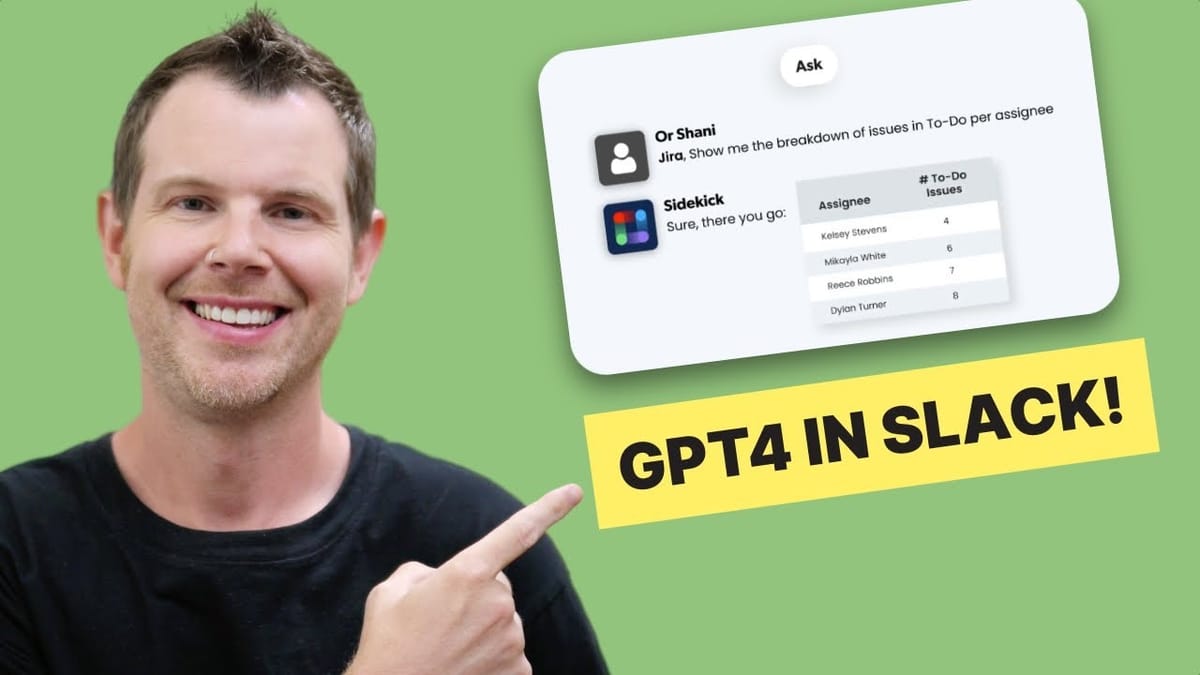
The real kicker is that Sidekick goes beyond basic chat. It can connect to your business tools — Zendesk, Jira, Salesforce, Google Sheets — and let you query real data through natural language. That turns it from a novelty into something genuinely useful for day-to-day work.
Setting Up Jigso Sidekick in Slack
Getting started takes about 30 seconds. Click the "Add to Slack" button, approve the permissions, and you're done. Sidekick appears in your Slack sidebar under the Apps section, ready to go.
If you ever change your mind, removing it is just as simple — a couple of clicks and it's gone. There's no complicated onboarding, no configuration wizards, and no IT department involvement required. The permissions are straightforward, and because it runs as a standard Slack app, it follows the same security model your workspace already uses.
Smart Slack Monitoring and Summaries
One of the most practical features is keyword monitoring. Tell Sidekick to watch for specific topics across your Slack channels, and it'll alert you when someone mentions them. For example, you can ask it to notify you whenever anyone mentions "expense spending" or "uptime" — and it'll flag those messages without you needing to scroll through every channel.
This is a game-changer if you're managing a team or monitoring multiple projects. Instead of trying to keep up with dozens of active channels, you set up a few keyword alerts and let Sidekick do the watching for you.
Channel summaries are equally useful. If you've been away from a busy channel for a few hours (or a few days), just type "sum" followed by the channel name, and Sidekick will give you a quick rundown of what's been discussed. It pulls out the key topics and presents them as a digestible summary, so you can catch up in seconds rather than minutes of scrolling.
Connecting Zendesk for Support Insights
Connecting Zendesk is as simple as typing "connect Zendesk" in the Sidekick chat. You'll get a button to authenticate, enter your Zendesk URL, log in, and you're linked up. From that point on, you can ask natural language questions about your support data without ever leaving Slack.
Want to know how many tickets each team member is handling? Just ask. Need to check how many open tickets exist right now? Ask that too. Sidekick queries Zendesk in real time and returns the results directly in your chat — sometimes even as formatted images with charts and breakdowns.
The sharing feature is a nice touch as well. If Sidekick surfaces something important — like an average response time that's way too high — you can instantly share that insight with a colleague right from the chat. It keeps accountability tight and makes it easy to flag issues without writing up a separate report.
Salesforce and Google Sheets Integration
The Salesforce connection follows the same pattern: type "connect Salesforce," authenticate, and start asking questions. You can query closed deals, pipeline numbers, opportunity counts — all through plain English. It's particularly handy for quick check-ins when someone in a Slack thread asks about last quarter's numbers and you don't want to dig through Salesforce dashboards.
Google Sheets integration works a bit differently and doesn't even require a formal connection. Just paste the URL of a Google Sheet into your Sidekick chat, follow it with your question, and Sidekick will read the spreadsheet and answer. In testing, it was able to parse an employee directory and instantly report that 99 employees were based in Austin.
The same approach works with Google Docs. Paste a document URL, ask a question about its contents, and Sidekick pulls the relevant information. It's essentially giving you a conversational interface to documents that would otherwise require manual searching and reading.
Is Jigso Sidekick Worth Adding to Your Slack?
Jigso Sidekick is genuinely free, which removes any barrier to trying it out. The core GPT-4 chat functionality alone makes it worth installing — having AI assistance right in Slack saves more time than you'd expect. But the real value comes from the integrations.
If your team uses Zendesk, Salesforce, Jira, or Google Workspace, being able to query that data conversationally inside Slack is a significant productivity boost. And with more integrations on the roadmap — including Gmail, Notion, Monday, and Pipedrive — Sidekick is positioned to become a central hub for accessing all your business data without leaving the app you're already using all day.
The keyword monitoring and channel summaries are practical features that solve real problems for anyone managing busy Slack workspaces. It's not trying to replace ChatGPT for deep research or creative writing — it's filling a different niche as your AI-powered teammate that lives where your conversations happen.
Watch the Full Video
Prefer watching to reading? Check out the full video on YouTube for a complete walkthrough with live demos and commentary.


