
Kosmic AI Review: Video Production Suite on AppSumo
Kosmic AI is an ambitious all-in-one video production platform with editing, recording, AI generation, and project management — but is it ready for prime time?

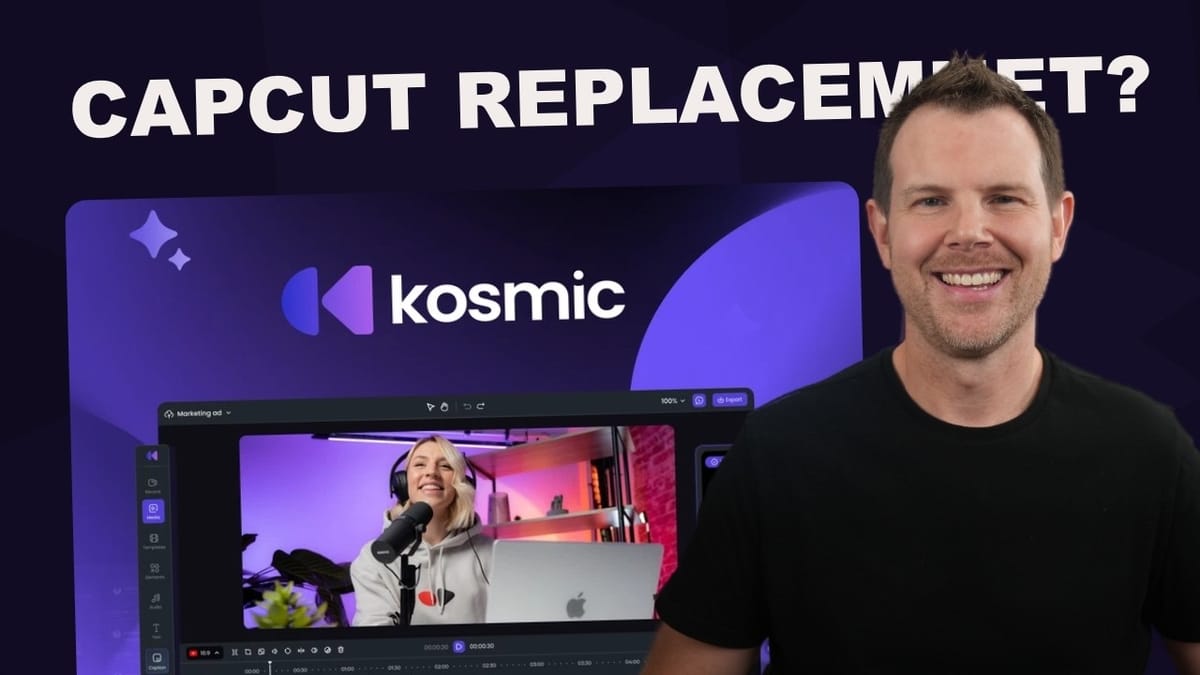
Kosmic AI
An all-in-one video production platform that combines video editing, screen recording, AI video creation, script writing, project management, and a freelancer marketplace.
Content creators and small video teams who want a single platform for scripting, recording, editing, and managing video projects.
Adobe Premiere, Final Cut Pro, DaVinci Resolve, Fiverr
What Is Kosmic AI?
Kosmic AI is a brand new lifetime deal on AppSumo that aims to be a complete video production suite. Rather than bouncing between a handful of different apps for scripting, recording, editing, and team coordination, Kosmic bundles all of those functions into a single web-based platform.
The feature list is genuinely ambitious. You get a video editor, screen and webcam recorder with teleprompter, an AI-powered script generator, AI video creation, a Trello-style project management system, built-in team chat, and even a freelancer marketplace. It's the kind of tool that tries to replace your entire video production stack in one shot.
That ambition comes with a caveat, though. Kosmic AI is still in beta, and it shows. There are rough edges throughout the platform — small UX quirks, unfinished features, and workflows that aren't quite intuitive yet. The core functionality works, but you'll need patience and a willingness to work around some friction points.
AppSumo Deal Pricing and the Upcoming Price Increase
Kosmic AI is currently available as an AppSumo Plus exclusive across four pricing tiers, ranging from $69 to $499. Plus members get an additional 10% discount on top of those prices, which means the top-tier plan comes in around $450 right now.
Here's the time-sensitive part: once the Plus exclusivity window ends (roughly six days from the deal launch), the tool opens up to the general public with a significant price increase. That tier four plan jumps from $499 to $600 at general availability. If you're even mildly interested, buying during the Plus window saves you a meaningful chunk of money.
All four tiers include the same features — the difference is purely in usage limits like AI credits, export counts, storage, and team seats. More on the specific plan breakdowns later.
Launchpad Dashboard
When you first log in, you land on the Launchpad — Kosmic's main dashboard. It gives you an overview of your current activity with widgets showing job stats (total, active, pending, completed) and your personal task list below.
One important distinction to understand early: whenever Kosmic references "jobs," it's talking about the freelancer marketplace, not your own video projects. Your internal work is tracked under "tasks" instead. It's a naming convention that can trip you up at first.
The dashboard does its job but lacks customization options. You can't rearrange widgets, hide sections you don't use (like the marketplace stats), or prioritize your task list higher on the screen. It's a relatively minor complaint, but the ability to personalize this landing page would go a long way toward making it feel like your own workspace.
Mission Control: Projects and File Management
Mission Control is split into two sections: Projects and Task Manager. The Projects section works as a file manager where each project automatically generates a structured folder hierarchy — similar to the Mac app PostHaste. Create a new project and you'll immediately get organized subfolders for assets, media, and other project components. It's a smart approach that keeps things tidy from the start.
The file management system includes filters for images, video, and audio across all projects. You can inspect file properties including name, type, size, resolution, and access permissions. There's even a comment system for collaborating on specific files with your team.
There are some rough spots, though. File names get truncated after about 15 characters in the browser, so you'll want to keep your naming conventions short. The upload process has a quirky two-step flow — after selecting a file, nothing visibly happens until you click the upload button again (which subtly changes its label to "upload 1 files"). And the breadcrumb navigation at the top of the file browser isn't clickable, forcing you to use the back arrow one folder at a time. These are small issues, but they add friction to everyday use.
Task Manager and Project Management
The task manager defaults to showing marketplace job tasks every time you open it — you'll need to manually switch to the Internal Tasks tab to see your own work. A default preference setting would be a welcome addition here.
Once you're in the internal tasks view, you get a solid Kanban board setup. Cards can be dragged between columns, and you can add custom columns. There's a slight animation quirk where dropped cards bounce to the top of a column before settling, but it's functional. The limitation is that default columns can't be deleted or renamed — only collapsed. And collapsing a column has no uncollapse button; you have to reload the page entirely to get it back.
Task creation requires filling out every field, including the description, even for simple items like "post the video." Tasks can be assigned to team members, given priorities, and set with due dates. Those due dates automatically appear on a built-in calendar view, which is a nice touch for planning content schedules. There's also a Slack-like chat feature with channels for team communication. It's basic compared to dedicated chat tools — no webhooks or integrations — but it works for keeping a small team coordinated within the same platform.
Video Recording and Teleprompter
Kosmic's recording tools let you capture from your webcam, microphone, or screen — or any combination of the three. You can select your camera and audio source from dropdown menus, and choose from multiple aspect ratios including 16:9, square, and 9:16 for vertical content.
The teleprompter is one of the more practical features here. Once you've written or imported a script, the prompter overlay can be dragged anywhere on screen. This lets you position the text as close to your webcam as possible to maintain more natural eye contact while reading. You're still limited by the browser window (you can't float it over other apps), but it's significantly better than having notes off to the side.
A countdown timer with options for 3, 5, or 10 seconds gives you a moment to get settled before recording begins. It's a straightforward recording setup that covers the basics well.
Video Editor Deep Dive
The video editor is where Kosmic really shows its depth. It operates like a browser-based nonlinear editor with a multi-track timeline, and it's more capable than you might expect from a web app. You can import media directly from your project folders, drag clips onto the timeline, and each piece of media gets its own lane.
Editing fundamentals are solid. You can split clips with the S key, separate audio from video for independent editing (enabling L-cuts and J-cuts), mute individual tracks, and adjust playback speed. There's a stock media library built in with video, photos, Giphy integration, stickers, and emojis — handy for social media content. Background removal is also available: drop in a photo, hit auto removal under the smart tool, and the background gets stripped out cleanly.
The editor's biggest UX issue is saving your work. There's no save button — you have to export your project as a private template, give it a name and description, and then reopen it later from the templates section. If you just close the editor, your work is gone. It's a workflow that works once you know about it, but it's far from intuitive. A simple save-to-project function would dramatically improve the experience.
Script Editor and AI Writing
The script editor is a straightforward text editor with a 2,000-character limit for both manual and AI-generated scripts. That character count is fairly restrictive — it's enough for a short social media video but not much more.
The AI script generation is, frankly, one of the weaker features. Prompts fed into the generator produce scripts that feel like they were written by an early-generation language model. In testing, a prompt about the rise and fall of MySpace produced a script that simply cut off mid-sentence without a conclusion. You'd genuinely get better results from the free tiers of ChatGPT or Claude.
Where the script section redeems itself is in AI audio generation. Once you've written (or imported) your script, you can convert it to a voiceover using one of Kosmic's built-in AI voices. The voice quality is surprisingly good — natural-sounding narration with several distinct voices to choose from. If you're creating content where you don't want to be on camera, this text-to-speech pipeline is genuinely useful.
AI Video Creation
Kosmic's AI video creation tool lets you generate a complete video from a text prompt. You choose an image generation model (Flux, Flux Pro, Sauna, or Photon) or opt for Pixabay stock video, then configure aspect ratio, quality up to 1080p, duration between 15 and 60 seconds, and a visual style.
The style options are oddly limited — just anime, nature, and horror. There's a "manage" section that appears to let you create custom presets, but it doesn't actually save anything. It's clearly an unfinished feature.
In practice, the AI video output is a mixed bag. A test prompt about MySpace requested a 60-second video at 720p but returned a 1:41 clip — so the duration controls aren't precise. The generated visuals occasionally make questionable choices (stock footage of someone applying makeup during a segment about MySpace), and the caption system needs serious work. The Hormozi-style caption preset produced text in a nearly unreadable font with poor positioning. You can manually fix captions in the editor, but it's tedious work that defeats the purpose of automated generation.
The underlying concept is solid, and all generated content is fully editable in the video editor. But right now, expect to spend significant time cleaning up AI-generated videos before they're publishable.
Freelancer Marketplace
Kosmic includes a built-in freelancer marketplace modeled after platforms like Fiverr and Upwork. You can browse talent profiles, post jobs, hire editors or voiceover artists, and manage the entire workflow within the platform. Kosmic takes a 10% fee on marketplace transactions.
The challenge is that marketplaces live or die based on network effects, and right now, the talent pool is extremely thin. At the time of review, only about 12 freelancers had signed up across all categories. Entire specialties like photography and voiceover had zero available providers.
This could go one of two ways: the AppSumo launch brings in enough users to create a viable marketplace, or the feature quietly fades away while the team focuses on the core software tools. Honestly, the latter might not be a bad outcome — the video production features are where the real value lies. If you're considering Kosmic, don't factor the marketplace into your buying decision. Treat it as a potential bonus rather than a core feature.
Plans, Pricing, and Usage Limits
All four tiers ($69 to $499) include the full feature set. The differences come down to usage limits across several categories: AI credits per month (70 to 500), generation minutes, script limits, caption limits, background removals (10 on tier one, unlimited from tier three), video quality (1080p on tiers one and two, 4K on three and four), video length (10 to 45 minutes), exports per month (5 to 40), storage (2GB to 20GB), and team seats (1 to 20).
The limit structure is honestly over-complicated. You're already gated by AI credits — adding separate caps for minutes, scripts, captions, and exports creates unnecessary confusion. A simplified credits-only system where one resource controls everything would be far more user-friendly.
For reference, generating one AI video during testing consumed roughly 27 credits out of 300 on a tier three plan. That puts you in the range of about 10 AI-generated videos per month on that tier, not accounting for scripts and captions eating into the same pool.
Final Verdict: 6.6 Out of 10
Kosmic AI earns a 6.6 out of 10. The word that keeps coming back is "ambitious." This platform is trying to replace your video editor, screen recorder, teleprompter, project manager, team chat, and freelancer marketplace all at once — and a surprising amount of it actually works.
The video editor is genuinely capable for a web-based tool. The recording setup with the movable teleprompter is practical. AI voiceover quality is solid. And the project management system, while imperfect, is a thoughtful addition that tools like Premiere and Final Cut don't offer.
But the beta label is well-earned. The save system is unintuitive, the AI video captions need work, the script generator is underwhelming, and there are UX quirks scattered throughout — from the two-step upload process to non-clickable breadcrumbs. Most of these issues are straightforward fixes, not fundamental architecture problems. Give the team six months to a year of refinement, and this could be a much stronger product.
If you're buying now, go in with the understanding that you're investing in potential. The foundation is solid, the feature ambition is real, and the lifetime deal pricing makes the risk manageable — especially before the price increase hits.
Watch the Full Video
Prefer watching to reading? Check out the full video on YouTube for a complete walkthrough with live demos and commentary.


