
Kroto Review: AI Screen Recording for Docs & Knowledge Bases
Kroto uses AI to transform quick screen recordings into professional step-by-step guides, articles, and videos — but is it ready for prime time?

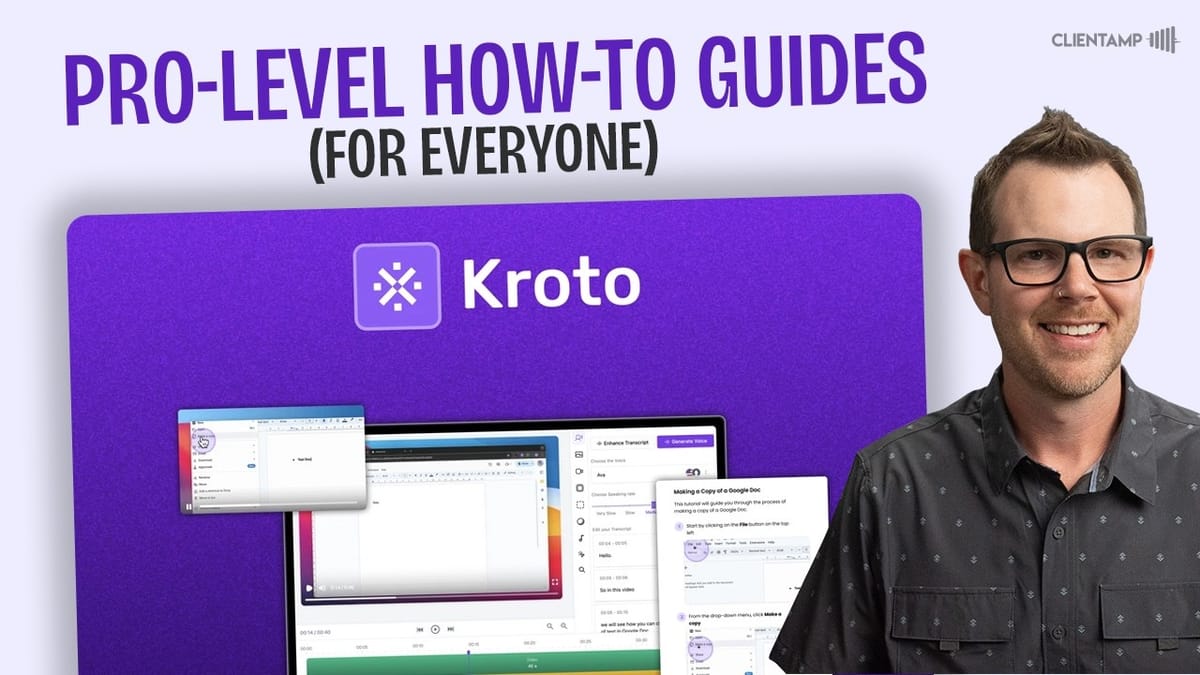
Kroto
Kroto is a Chrome extension that turns screen recordings into AI-polished articles, step-by-step guides, and videos with generated voiceovers.
Support teams, educators, SaaS companies, and anyone who needs to create how-to documentation or training content quickly.
Loom, Scribe, Tango, Layer Path
What Is Kroto and Why Would You Use It?
If you've ever recorded a screen walkthrough and cringed at your own narration — the ums, the rambling, the moments where you forget what you were about to say — Kroto is built to solve that problem. It's a Chrome extension that records your screen, captures what you say, and then uses AI to polish everything into a clean article, a step-by-step guide, or a finished video with an AI-generated voiceover.
The pitch is straightforward: record once, get multiple output formats. You end up with an article your support team can embed in a knowledge base and a video you can share with clients or publish on YouTube. The AI handles cleaning up your transcript, generating a more professional-sounding voiceover, and even adding zoom-and-pan effects to the screen recording.
Kroto is currently available as a lifetime deal on AppSumo, starting at $49 for Plus members. Non-Plus members can grab it after the initial window, though pricing will be slightly higher. Whether the deal is worth it depends heavily on how much documentation or training content you produce — so let's dig into exactly how the tool works.
The Kroto Interface and Knowledge Bases
When you first log into Kroto, the home screen is clean and simple. You'll see your recordings, your knowledge bases, and your guides all organized in the sidebar. Knowledge bases function as folders — you can group related guides together and even assign each knowledge base its own custom domain (more on that later).
There's also a pronunciation feature tucked into the settings. If the AI voiceover consistently mispronounces a product name or technical term, you can define the correct pronunciation right there. It's a small detail, but for anyone creating client-facing content with niche terminology, it's a thoughtful inclusion.
Workspace settings let you add collaborators, and each collaborator can be assigned a role — owner, editor, or viewer. The collaboration features are tied to your AppSumo tier, so higher tiers unlock more seats.
Recording Your First Guide
Kroto works exclusively as a Chrome extension, which is both its strength and its biggest limitation. If you're a Chrome (or Chromium-based browser) user, setup is painless — install the extension, pin it to your toolbar, and you're ready to record. If you primarily work in native desktop apps, though, Kroto won't be able to capture those workflows.
The recording process follows a specific rhythm that takes some getting used to. Kroto wants you to speak first, describing what you're about to do, then perform the action, then pause before moving to the next step. This "say it, then do it" approach helps the AI map your narration to specific screen actions, but it feels unnatural if you're used to talking while clicking. It's a deliberate trade-off for cleaner AI output.
For a test run, recording a WordPress cache-clearing walkthrough with about a dozen steps produced a two-minute recording. That's a realistic length for most support documentation — long enough to cover a real workflow, short enough that the AI can process it without issues.
AI Generation and the Article Mode
After recording, you hit the generate button and Kroto's AI goes to work. It extracts your voice, transcribes it, and then produces two outputs: an article and a video. The generation process involves a few stages — extracting, transcribing, and polishing — and can take a minute or two. Worth noting: the first generation attempt failed with a "failed to fetch" error during testing. The second attempt succeeded without any changes, which suggests some intermittent reliability issues.
The article mode is genuinely impressive. Kroto automatically broke the cache-clearing walkthrough into numbered steps, highlighted key UI elements in bold, and even grabbed the website's logo from the recorded screen without being told the URL. Each step includes an animated GIF showing exactly where to click, so even in article format, visual learners get the context they need.
Editing the article is straightforward. You can click into any text block and modify it directly, with a formatting toolbar for bold, links, and other basics. There's also a plus button for adding entirely new steps, and a color scheme selector if you want to brand the guide. The text editor won't win any awards for power features, but it covers the essentials for documentation work.
Video Mode: Backgrounds, Aspect Ratios, and Customization
The video side of Kroto offers a surprising amount of customization. Your screen recording sits inside a styled frame, and you can swap the background between image wallpapers, solid colors, and gradients. Brand-conscious users will appreciate being able to dial in exact hex colors for a gradient background — it's a quick way to make every video feel on-brand without touching a video editor.
The frame itself has adjustable border radius, shadow, and padding. Crank the border radius up for a rounded, modern look, or keep it minimal. The padding slider controls how much background is visible around your recording — slide it all the way down and the recording fills the frame, slide it up and you get more breathing room. There's also an intro and outro card system where you can customize text, colors, and logos.
Aspect ratio options include 16:9, square, vertical (for Shorts/Reels), and auto. Background music is available but limited to a handful of built-in tracks with no upload option. For most support and training videos, you'll probably skip the music anyway. Click highlighting is a nice touch — it adds a visible animation wherever you clicked during recording, making it easier for viewers to follow along.
AI Voiceover: Promising but Buggy
The AI voiceover feature is central to Kroto's value proposition, and it's a mixed bag in its current state. Before generating a voice, you can edit your transcript to clean up anything the AI might struggle with, or use the "enhance transcript" button to let AI rewrite your narration in a more polished, professional tone.
Voice options come in two tiers: standard and premium. Standard voices require you to set a speaking rate manually, while premium voices handle pacing more naturally. The quality difference between the two tiers is noticeable but not dramatic. Premium voices sound a bit more human, and they cost more credits.
Here's where things got rough during testing. The voiceover generation failed multiple times — three consecutive failures before finally succeeding on the fourth attempt. The root cause appeared to be navigating away from the voiceover screen while generation was in progress. Once the test stayed on the generation screen without touching anything else, it completed successfully. This is a significant usability issue: the tool lets you navigate freely during generation but apparently can't handle it. Until that's fixed, the workaround is simple — start the voice generation and don't touch anything until it's done.
Zoom, Pan, and Screen Recording Polish
Kroto automatically adds zoom-and-pan effects to your screen recording, attempting to focus on the area where the action is happening. In theory, this is a great feature — it keeps viewers focused and makes the video feel more dynamic than a static full-screen capture.
In practice, the auto-zoom missed the mark on several steps during testing, cropping out the exact element being clicked. The fix is to switch individual zoom points from auto to manual mode, which lets you drag the zoom frame to the correct position. This per-zoom control is well-designed — you can leave auto-zoom on for steps where it works and override specific ones where it doesn't.
The zoom and pan controls live in a timeline at the bottom of the editor, with clear markers showing where each zoom occurs. It's intuitive to scrub through and adjust, even if you do end up tweaking most of the auto-generated zooms. For short recordings with simple, centered UI interactions, auto-zoom will probably work fine. For anything involving menus at the edges of the screen, expect to do some manual adjustments.
Publishing, Sharing, and Knowledge Base Management
When your article and video are ready, hitting publish processes both simultaneously. Publishing took about a minute during testing, with a progress bar that moved unevenly — fast at first, then slower through the middle. Once published, you get a public page that displays the video at the top and the article below, complete with a "did you find this guide helpful" feedback widget.
Sharing options are flexible. You can share via email with optional edit permissions, generate a public link, copy the content as HTML or Markdown, download the article, or grab an embed code. The embed options let you choose between video only, guide only, or both — useful if you want to embed just the article in a help center and the video on YouTube.
Knowledge bases act as organized collections of guides. You can move any standalone guide into a knowledge base after the fact, and each knowledge base gets its own settings panel with options for name, logo, accent color, privacy, and analytics. The analytics dashboard shows which guides are getting the most views — handy for identifying what your users actually need help with.
Custom Domains and Settings
Starting at AppSumo tier two, each knowledge base can have its own custom domain. Setup is standard — enter your desired subdomain (like docs.yourcompany.com), save, and Kroto provides the DNS records you need to configure. It's a clean way to make your documentation feel like a native part of your website rather than a third-party hosted page.
The settings panel also includes privacy controls. You can lock down a knowledge base so it's not publicly accessible, which is important for internal documentation or client-specific guides. The accent color option lets you match your brand, and you can link back to your main website from the knowledge base header.
Plans, Pricing, and the AppSumo Deal
Kroto's AppSumo deal runs across five tiers. Tier one starts at $49 and gives you 25 credits per month, but it's limited — no video export, no custom domains, and no article export. For most users, that's too restrictive to be practical.
Tier two is the sweet spot at $98. You get 50 credits per month, multiple knowledge bases, export capabilities for both video and articles, and custom domain support. The exported video quality is impressive — roughly 2.5K resolution (2716 x 1480), which is higher than 1080p and perfectly suitable for YouTube uploads.
Tiers three through five progressively increase credit limits and knowledge base caps. Tier five at $500 unlocks unlimited credits and 40 knowledge bases, which is a strong value for agencies or companies producing documentation at scale. Credits are consumed when you create articles, with premium voices and regenerations eating into your monthly allotment. One article with a premium voice and one regeneration used roughly 2 credits during testing.
How Kroto Compares to Layer Path
Kroto invites direct comparison with Layer Path, another tool in the screen-recording-to-documentation space. Layer Path packs in more features overall, with a broader set of editing tools and output options. Kroto, on the other hand, takes a more streamlined approach — fewer knobs to turn, but a faster path from recording to finished output.
If you value simplicity and just want to record, polish, and publish without spending time in an editor, Kroto is the more straightforward choice. If you need deeper customization and don't mind a steeper learning curve, Layer Path gives you more to work with. At the time of this review, Kroto is the only one of the two available as a lifetime deal, which gives it a practical edge for budget-conscious buyers.
Final Verdict: A 7 Out of 10 with Room to Grow
Kroto earns a 7 out of 10. The core concept is solid — record your screen, let AI clean it up, and publish as both an article and a video. The article output is genuinely useful and could save hours of documentation work. The video customization options are surprisingly deep for a tool at this price point.
The rough edges are real, though. The voiceover generation failed repeatedly when navigating away from the screen, the auto-zoom frequently missed target areas, and the Chrome-only limitation locks out anyone working primarily in desktop apps. These feel like solvable problems, and the tool is clearly under active development.
For support teams, educators, and SaaS companies that need to produce how-to content regularly, Kroto is worth a serious look — especially at the lifetime deal pricing. Just go in knowing you'll need to babysit the voiceover generation and do some manual zoom adjustments. If those trade-offs are acceptable, the time savings on documentation alone could pay for the tool many times over.
Watch the Full Video
Prefer watching to reading? Check out the full video on YouTube for a complete walkthrough with live demos and commentary.


