
LayerPath Review: Interactive Guides, Tours & Video Demos
LayerPath turns simple screen recordings into interactive tours, step-by-step guides, and professional demo videos with AI voiceovers — here's whether it's worth the investment.

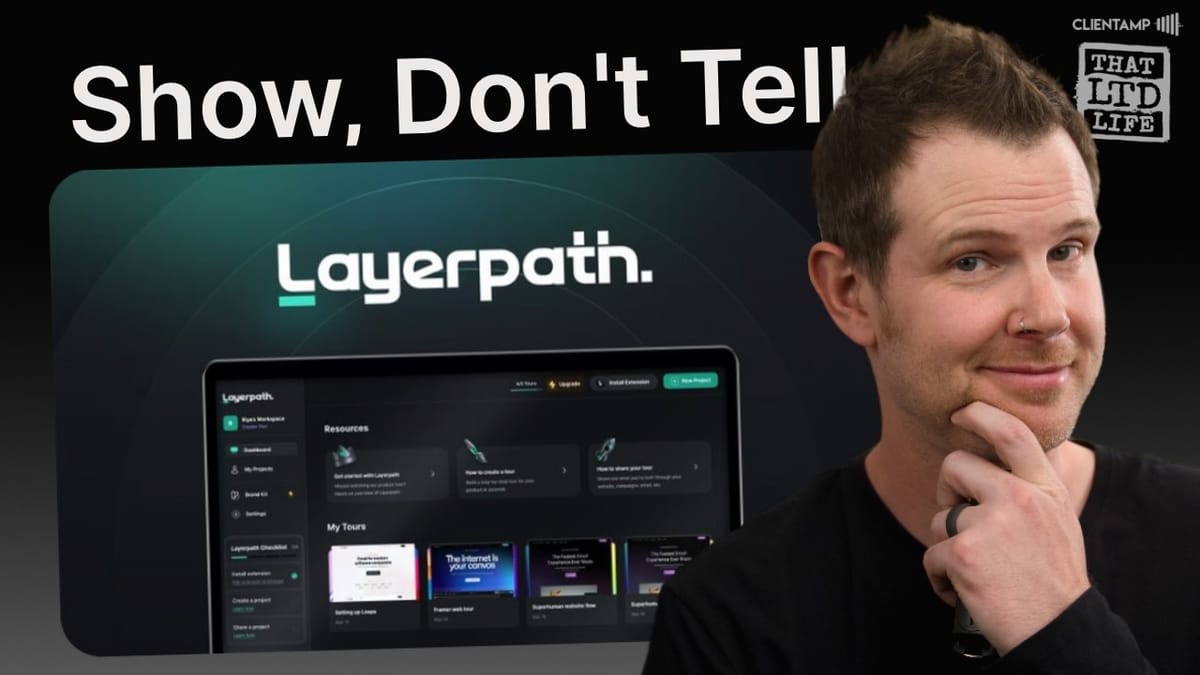
LayerPath
LayerPath converts screen recordings into interactive product tours, step-by-step guides, and polished demo videos with AI-powered content and voiceovers.
SaaS founders, product teams, and anyone who needs to create customer onboarding tutorials, knowledge base content, or promotional demo videos.
Guidjar, Scribe, Storylane, Arcade
What Is LayerPath?
LayerPath is a customer onboarding and demo creation tool that landed on AppSumo as a lifetime deal. The core idea is simple: record your screen walking through a process, and LayerPath automatically generates three different output formats — an interactive tour, a written step-by-step guide, and a polished video — all from a single recording.
If you've ever needed to show a client how to do something inside WordPress, demonstrate your SaaS product to prospects, or build out a knowledge base with visual walkthroughs, LayerPath aims to handle all of that. It's a Chrome extension-based recorder paired with a surprisingly deep web editor, and the AI features for content generation and voiceover are genuinely impressive.
Plans and Pricing Breakdown
LayerPath offers three tiers on AppSumo, starting at $49 for tier one (though that price was a limited-time AppSumo Plus exclusive and may increase to $59). The tier structure is heavily weighted toward tier three at $259, which is where most of the premium features live.
Tier one gets you 100 video export credits, 1,000 AI content credits, and 100 voiceover credits per month. Tier two bumps those to 300, 5,400, and 400 respectively, and adds video editing, playlists, advanced branching, permissions, and analytics. Tier three pushes limits to 1,000 exports, 15,000 AI credits, and 2,000 voiceover credits, plus redaction/blur tools, 3D effects and animations, collaboration, workspace access, and a custom domain.
The pricing tilt is steeper than most AppSumo deals. Features like redacting sensitive information — which feels like a basic need — are locked behind the highest tier. If you're serious about using LayerPath for promotional videos, tier three is where you want to be. For knowledge base and basic onboarding content, tier one or two should suffice.
Getting Started: Dashboard and Recording
After purchasing and signing up (via a passwordless magic link flow), LayerPath drops you into a settings page showing your plan details and credit limits. It's a nice touch — you can see exactly what you paid for without going back to the AppSumo deal page, which is worth screenshotting since deal pages sometimes change after purchase.
The dashboard is clean and straightforward. You can create projects, manage playlists, set up a brand kit, and access settings. To start a new project, you either upload an existing video, pull one from your library, or record fresh using LayerPath's Chrome extension. The extension requirement means you need to be in a Chromium-based browser (Chrome, Arc, Brave, etc.) to record.
Recording Your First Demo
Recording is dead simple. Open the LayerPath extension, hit start recording, and walk through whatever process you want to demonstrate. For this review, I recorded a WordPress tutorial showing how to change a site title — navigating to the dashboard, going to Settings > General, updating the site title field, and saving changes.
Once you stop the recording, LayerPath captures all images and video automatically. Without any editing at all, it immediately generates three outputs: an interactive tour with tooltips and step-by-step navigation, a written guide format, and a full video recording with automatic cropping, backgrounds, and 3D zoom effects.
Interactive Tours: The Star Feature
The interactive tour is LayerPath's flagship output. It presents your recording as a step-by-step walkthrough where users click through each action, with animated hotspots showing exactly where to click and tooltips explaining what to do. Think of it as turning a screen recording into an interactive PowerPoint that actually guides someone through a process.
Out of the box, the tour was surprisingly functional. LayerPath correctly identified the key steps and generated reasonable descriptions. There were some quirks — the first step displayed as step two, and some tooltip text didn't quite match what actually happened — but these are easy fixes in the editor. The tour concludes with a replay option and a call-to-action, which is a nice touch for product demos.
Guide View: A Clean Alternative
The guide format presents the same content as a more traditional step-by-step document with screenshots and numbered instructions. It's the kind of thing you'd embed in a help desk or knowledge base, and honestly, the layout is one of the more intuitive interfaces I've seen for this type of content.
One disappointment: content edits made in the tour view don't automatically carry over to the guide view. You'll need to update titles and descriptions separately for each format, or use the AI content feature on each one individually. It's not a dealbreaker, but it's extra work that feels unnecessary.
The Tour Editor: Slides, Tooltips, and Layouts
The tour editor feels like a cross between PowerPoint and a web design tool. Your recording is broken into slides on the left sidebar, and you can drag to reorder, delete, duplicate, or upload additional slides. Each slide's tooltip is fully customizable — you can edit the text, change colors, reposition it (top, bottom, left, right), and adjust the visual style.
There are two tooltip presentation styles: a traditional blinking hotspot approach, and a spotlight mode where everything fades out except the action area. The spotlight look is more modern and effective for drawing attention. You can also set destinations for each step, linking to the next slide by default or jumping to any specific slide for branched experiences.
Layout options are genuinely impressive. You can switch between tooltip overlays, side-panel directions, and lower-third text placements on a slide-by-slide basis. This means your tutorial doesn't have to be monotonous — you can vary the presentation style to match what each step needs. Most competing tools lock you into a single layout for the entire project.
Customization: Backgrounds, Buttons, and Brand Kit
The right-hand sidebar packs in a lot of customization. Beyond tooltips and layouts, you can change backgrounds (solid colors, gradients, or abstract images), customize button text, colors, and corner radius, toggle browser skin overlays, and enable pan-and-zoom effects across the entire tour.
The background options deserve a mention. The default greenish color isn't great, but switching to one of the abstract backgrounds or a clean gray immediately makes the presentation look professional. Just note that background settings apply project-wide while most other settings are per-slide — the organization is a bit inconsistent.
Button customization lets you add multiple CTAs per slide with different destinations, so you could have a "Next Step" button alongside a "Buy Now" button linking to your website. The corner radius and color options are solid, though I'd love to see font weight controls for bolder button text.
Image Editor and Redaction Tools
LayerPath includes Pintura as its built-in image editor — the same editor used in Ghost Pro. It's a capable tool for annotating screenshots, drawing shapes, resizing, rotating, applying filters, and yes, redacting sensitive information with blur effects.
The redaction feature being locked to tier three is a head-scratcher. It's built into the Pintura license they're already paying for, so gating it as a premium feature feels like artificial scarcity. If you're creating tutorials that show any kind of dashboard or admin panel, you'll likely need to blur out sensitive data, and having to pay $259 for that capability is a tough sell.
AI Content Generation: Surprisingly Good
The "Enhance with AI" feature is where LayerPath really shines. You provide a brief description of what your tutorial covers, hit apply, and the AI rewrites all of your tooltip text and slide descriptions with polished, professional language. The results genuinely read like they were written by a technical copywriter.
What's interesting is that the AI does better work when you've already written rough descriptions yourself. It's essentially upgrading your casual notes into precise, professional copy. When run on blank slides, the output is decent but less detailed. So the best workflow is: record, quickly describe each step in your own words, then let the AI polish everything.
Credit usage is remarkably efficient. Generating AI content for an entire project consumed just one credit out of 15,000 monthly on tier three. Even on tier one with 1,000 credits, you'd have plenty of headroom for regular use.
AI Voiceover: Natural Narration with Smart Context
The AI voiceover feature generates a full narration for your tour by reading the tooltip text and adding contextual commentary. You pick from several voice options (I went with Roderick), provide a description of the project, and hit apply. There's no progress indicator during generation, which is a bit nerve-wracking, but the results are worth the wait.
What impressed me most is that the voiceover doesn't just read what's on screen. For the intro and outro slides, the AI generates original contextual content — framing the tutorial and offering follow-up suggestions. The narrator understood we were doing a WordPress tutorial and added relevant advice about next steps.
The catch is that AI-generated content isn't always accurate. In my case, it suggested updating meta descriptions for SEO, which requires a plugin that not every WordPress site has. The good news: you can edit the voiceover text on a slide-by-slide basis after generation, so you have full control over what gets said. The one missing feature I really want? A manual record button for your own voice.
Video Editor: Timeline-Based Editing with Effects
The video editor is a full timeline-based environment with layers for your recording, voiceover, zoom effects, rotation, blur, and highlighting. It's not competing with Premiere Pro, but for demo videos, it's surprisingly capable.
The zoom effects are the biggest value-add here. LayerPath automatically adds zooms when you click during recording, creating those smooth focus animations you see in professional product demos. The default zoom duration is too short — they snap in and out so quickly that they're jarring. But manually dragging the zoom keyframes to extend them transforms the video. A half-second or longer zoom hold makes a dramatic difference in watchability.
You also get 3D tilt and rotation effects (tier three only), customizable backgrounds with gradients and abstract images, stroke/shadow options for the recording frame, and a highlight tool that spotlights specific areas of the screen. The highlight transitions are instant on/off rather than faded, which looks a bit abrupt, but the functionality is solid.
Video Output and Quality
Videos export at 1080p resolution with no option to change that — 4K would be nice but 1080p is adequate for screen recordings where the zoom effects are working with full-resolution source material. You can export as MP4 video or GIF, though the download button starts rendering immediately without showing options, so you'll want to use the dropdown arrow to choose your format first.
The intro and outro slides are customizable with your logo, title text, animations, and background effects. The logo upload has a sizing limitation — even larger logos render quite small, and square logos work better than horizontal ones. Title text supports effects like neon, stripes, and slice, plus animations like wave, reveal, and zoom. Some are tasteful, others are a bit much. The subtitle/caption feature auto-generates from the voiceover and highlights words as they're spoken, though formatting options for captions are currently limited.
Sharing and Publishing Options
LayerPath offers multiple sharing options depending on your output format. Tours and guides can be published as hosted web pages with a toggle switch, and you get embed codes for dropping them into knowledge bases, help desks, or websites. Videos and GIFs can be downloaded directly.
Guides have additional export options that tours don't: you can export to Notion, Google Docs, Word, HTML, or MDX (markdown). This makes guides particularly useful for teams that maintain documentation in different platforms. The advanced video export settings let you configure frame rate, annotations, captions, background music (choose from six built-in tracks — no custom uploads), and background color.
Custom Domain and Playlists
Tier three includes custom domain support, letting you host your tutorials at something like guides.yourcompany.com. Setup involves configuring DNS records, but once done, it gives your shared content a much more professional appearance than a generic LayerPath URL.
Playlists, available from tier two and up, let you group related projects into collections. If you're building out a full knowledge base — say, a series of WordPress tutorials covering settings, plugins, and theme customization — you can bundle them into a single shareable playlist. It's a simple feature but essential for anyone using LayerPath as a comprehensive training or documentation platform.
Final Verdict: 8.6/10
LayerPath earns an 8.6 out of 10. It's one of those tools that exceeded expectations — the three-format output from a single recording (tour, guide, video) is genuinely useful, the AI content and voiceover features produce quality results, and the editing flexibility across layouts, backgrounds, and effects gives you real creative control.
The weak spots are mostly around polish: no manual voiceover recording, inconsistent terminology (layers vs. slides), no keyboard shortcuts in the video editor, some settings that apply globally mixed in with per-slide options, and the heavy feature gating toward tier three. The redaction tools especially should be available at lower tiers.
For product owners with a SaaS or WordPress plugin to promote, tier three at ~$233 (with AppSumo Plus) is a strong investment for creating professional demo and onboarding content. For anyone building knowledge bases or client tutorials, tier two hits the sweet spot with playlists and video editing. If you communicate with people about how to use software in any capacity, LayerPath is worth a serious look — it's like Guidjar's bigger, more capable sibling.
Watch the Full Video
Prefer watching to reading? Check out the full video on YouTube for a complete walkthrough with live demos and commentary.


