
MacWhisper Review: Local Transcription, Dictation & More
MacWhisper is a local transcription powerhouse for Mac users, but most people only scratch the surface. Here's how Dave uses it daily for dictation, YouTube transcription, AI-powered cleanup, and batch processing.

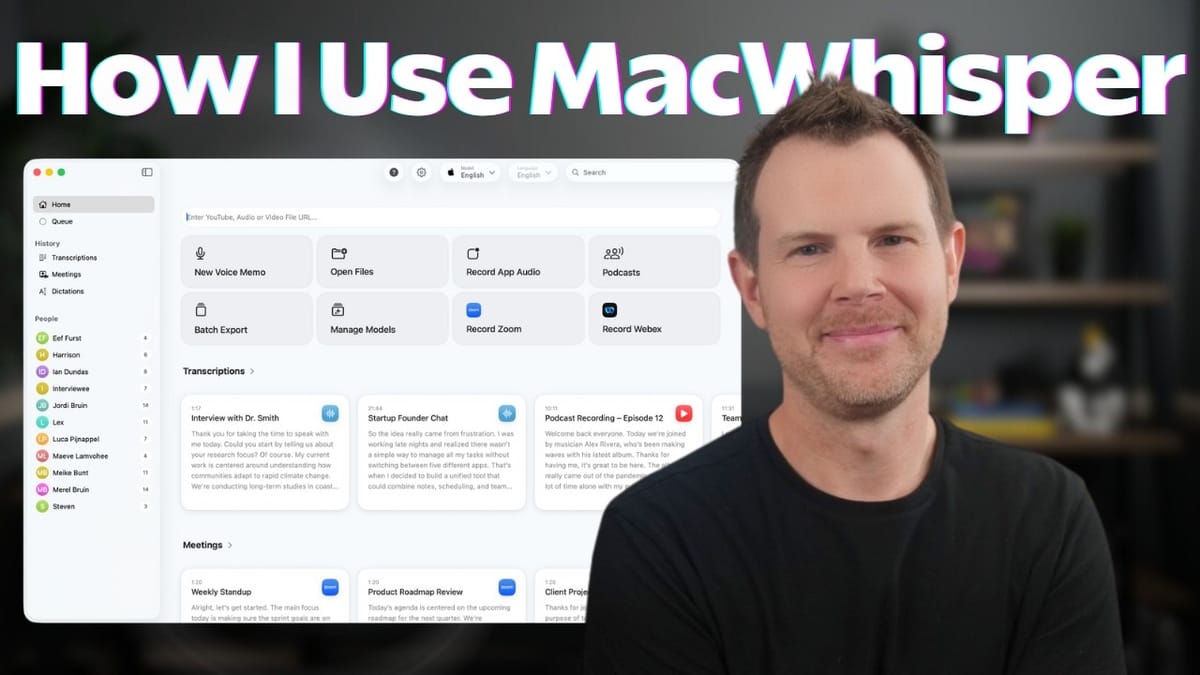
MacWhisper
A Mac-native transcription tool that runs OpenAI's Whisper model locally on your machine for fast, private, and cost-free audio and video transcription.
Mac users who need reliable transcription for content creation, meeting notes, dictation, or consuming video content more efficiently.
Otter.ai, Descript, TurboScribe, Happy Scribe
Why MacWhisper Earns a Spot in Dave's Daily Toolkit
Dave's Toolbox is a series dedicated to the tools that survive the gauntlet of hundreds of reviews and still get used every single day. MacWhisper has earned that distinction. It's the transcription tool Dave consistently references as the gold standard whenever he reviews competing products, and nothing has managed to dethrone it.
A few things to know upfront: MacWhisper is a Mac-only application (it's right there in the name). It runs OpenAI's Whisper model entirely on your local machine, which means no recurring subscription fees, no cloud dependency for basic transcription, and no concerns about sending sensitive audio to third-party servers. Once you buy it, the core transcription engine is yours to use without limits.
That said, most MacWhisper owners are only using a fraction of what the tool can do. Beyond simple drag-and-drop transcription, there's built-in dictation, AI-powered text cleanup, YouTube video transcription, batch processing, and automated watch folders. This review walks through every major feature and how to get the most out of each one.
Basic Transcription: Drag, Drop, Done
The simplest way to use MacWhisper is the one most people already know: drag and drop an audio or video file into the app window, and it starts transcribing immediately. There's no confirmation dialog, no settings to configure. You drop the file and it goes to work.
Transcription speed depends on your hardware. On an M4 Max Mac Studio, a 17-minute video completes in roughly 90 seconds. On a MacBook Air, it's a bit slower but still perfectly usable. Dave uses MacWhisper on both machines without any complaints about performance, so even if you're not running top-tier Apple silicon, you should be fine.
Once transcription finishes, a convenient copy button lets you grab the entire text and paste it wherever you need it. This is the workflow Dave uses most often: transcribe a podcast recording or video, copy the text, and drop it into Claude or ChatGPT to generate show notes, summaries, or repurposed content. It's fast, it's simple, and it costs nothing beyond the initial purchase.
Export Options and Formats
After transcribing, MacWhisper gives you flexible export options. You can switch to export mode and choose between a plain transcript (a block of text) or subtitles with timestamps. The subtitle format is particularly useful for creating YouTube chapter markers or podcast timestamps.
For subtitle files, SRT is the standard format you'll want for platforms like YouTube. For transcripts, a simple text file usually does the job. The export process works like any standard Mac save dialog: pick your format, choose your destination, and you're done. It's straightforward, but it becomes far more powerful when combined with the batch export and watch folder features covered later in this review.
System-Wide Dictation That Actually Works
This is one of MacWhisper's most underrated features, and Dave suspects a large number of owners don't even know it exists. MacWhisper can replace Apple's built-in dictation with Whisper-powered transcription that works system-wide across any application on your Mac.
To set it up, open MacWhisper's settings, navigate to the dictation section, and enable it. Dave prefers the function key (globe key) as a push-to-talk trigger, treating it like a talkback mic in a recording studio. Hold the key, speak, release, and your words appear as text wherever your cursor is. The accuracy is noticeably superior to Apple's native dictation.
There is one limitation with basic local dictation: it transcribes literally. If you dictate a grocery list, you'll get a sentence like "I need tomatoes, spaghetti noodles, and parmesan cheese" rather than a formatted bulleted list. For many people that's fine, but if you want smarter formatting, that's where AI integration comes in.
AI Integration and Custom Prompts
MacWhisper lets you connect cloud AI providers like OpenAI directly through their API keys. This unlocks AI-powered dictation, where your spoken words are not only transcribed but also cleaned up, reformatted, or transformed according to custom prompts.
The app ships with several built-in prompts including cleanup, translation, and professional tone. You can also create entirely custom prompts. Dave added a simple rule to the cleanup prompt: "If the transcript contains a list, add a bulleted list with a title." After that change, dictating a grocery list produced a properly formatted bulleted list instead of a run-on sentence.
The real power here is for email and professional communication. Dave demonstrated dictating a full business email, rambling naturally about budget constraints and scheduling a follow-up. Within seconds, MacWhisper's AI cleanup transformed that stream-of-consciousness dictation into a polished, well-structured email. For anyone who thinks faster than they type, or who dreads composing emails, this feature alone could justify the cost of MacWhisper plus a few dollars in API credits.
Transcribing YouTube Videos by URL
If you've ever been curious about a YouTube video's content but didn't want to commit 15 or 20 minutes to watching it, MacWhisper has you covered. Simply right-click a YouTube video, copy the link, and paste the URL directly into MacWhisper. The app downloads and transcribes the video automatically.
Dave uses this feature to cut through clickbait. Instead of watching an entire video to find out if a product is worth investigating, he transcribes it and either reads through the text or uses the built-in chat feature to ask specific questions. For content creators, this is equally useful for quickly transcribing your own published videos without having to dig up the original source files.
The transcription also includes speaker diarization (identifying different speakers), though Dave notes this feature is still in beta and sometimes mistakes one person for multiple speakers. It's not perfect, but for the primary use case of getting searchable text from a video, it works extremely well.
Chat with Any Transcript
Once you've transcribed something, whether from a local file or a YouTube URL, MacWhisper lets you chat directly with the transcript using your connected AI provider. Click the chat icon, select your preferred model (GPT-4.1, for example), and start asking questions.
Dave demonstrated this by transcribing a video about saunas and then asking "Is sauna good for you?" The AI provided a concise summary of the video's key points without Dave having to read a single line of the transcript. The feature also includes pre-built prompts like "give me the bullet points," so you can get a quick summary with a single click.
You can create custom prompts specifically for transcript chat, separate from your dictation prompts. This means you could have one-click prompts tailored to your workflow, whether that's extracting action items from meeting recordings, pulling key takeaways from educational content, or summarizing competitor videos for market research.
Recording Meetings and System Audio
MacWhisper includes a relatively newer feature for recording meetings and system audio. It won't attend a meeting on your behalf or act as a bot in your call, but if you're actively in a meeting on your Mac, it can capture the system audio from any application and transcribe it in real time.
From the home screen, you can grab app audio from any open application on your Mac. This makes it useful well beyond meetings: transcribe a webinar, capture audio from a training video, or record anything else producing sound on your system. It's a flexible tool for anyone who wants a written record of audio content playing on their machine.
Batch Export for Content at Scale
For content creators or anyone dealing with large volumes of audio, the batch export feature is a game changer. Instead of dragging files in one at a time, you can load dozens or even hundreds of files into MacWhisper's batch exporter and let it process everything in one go.
The batch exporter lets you select multiple output formats simultaneously. For example, you might want both a plain text transcript and an SRT subtitle file for each piece of content. You can add additional formats if needed, choose your output destination, and kick off the batch. Dave regularly sets up large batch jobs and lets them run overnight.
This feature is especially valuable for course creators and agencies. Dave mentions using it for clients who need transcriptions of entire course libraries: download all the videos, load them into MacWhisper, start the batch before bed, and wake up to complete transcripts and subtitle files ready to be added to existing content.
Watch Folders and Automation
The final power feature is watch folders. You designate a folder on your Mac, and any time a new audio or video file lands in that folder, MacWhisper automatically picks it up, transcribes it, and exports it in your chosen formats, all without any manual intervention.
For content creators with a regular publishing workflow, this is incredibly useful. Set your video editor to export finished files to a specific folder, and MacWhisper will automatically generate transcripts and subtitle files as part of your pipeline. Dave has his export folder configured as a watch folder, automatically producing both text files and SRT files for every new export.
This kind of automation turns MacWhisper from a tool you open occasionally into a background utility that's always working for you. Combined with the batch export feature, it means you can handle transcription at virtually any scale without changing your existing workflow.
Final Verdict: Is MacWhisper Worth It?
At just 59 euros as a one-time purchase, MacWhisper is one of the easiest recommendations Dave makes. There are no subscriptions, no per-minute charges, and no cloud dependency for core transcription. The tool has sold nearly 300,000 copies, all going to support solo developer Jordi, which is a testament to how well it serves its users.
The combination of local Whisper-powered transcription, system-wide dictation, AI-enhanced text cleanup, YouTube URL transcription, batch processing, and watch folder automation makes MacWhisper far more than a simple transcription tool. Most users are only scratching the surface, and the features covered in this review should give you plenty of reasons to dig deeper into what you already own, or to pick it up if you haven't yet.
If you're on a Mac and you work with audio or video in any capacity, whether as a creator, a professional who attends meetings, or simply someone who wants to consume content more efficiently, MacWhisper deserves a spot in your toolkit.
Watch the Full Video
Prefer watching to reading? Check out the full video on YouTube for a complete walkthrough with live demos and commentary.


