
How to Migrate WordPress to Cloudways: Complete Checklist
A comprehensive, checklist-driven walkthrough for migrating any WordPress website from shared hosting to Cloudways — including DNS configuration, SSL setup, and how to avoid losing WooCommerce orders during the switch.

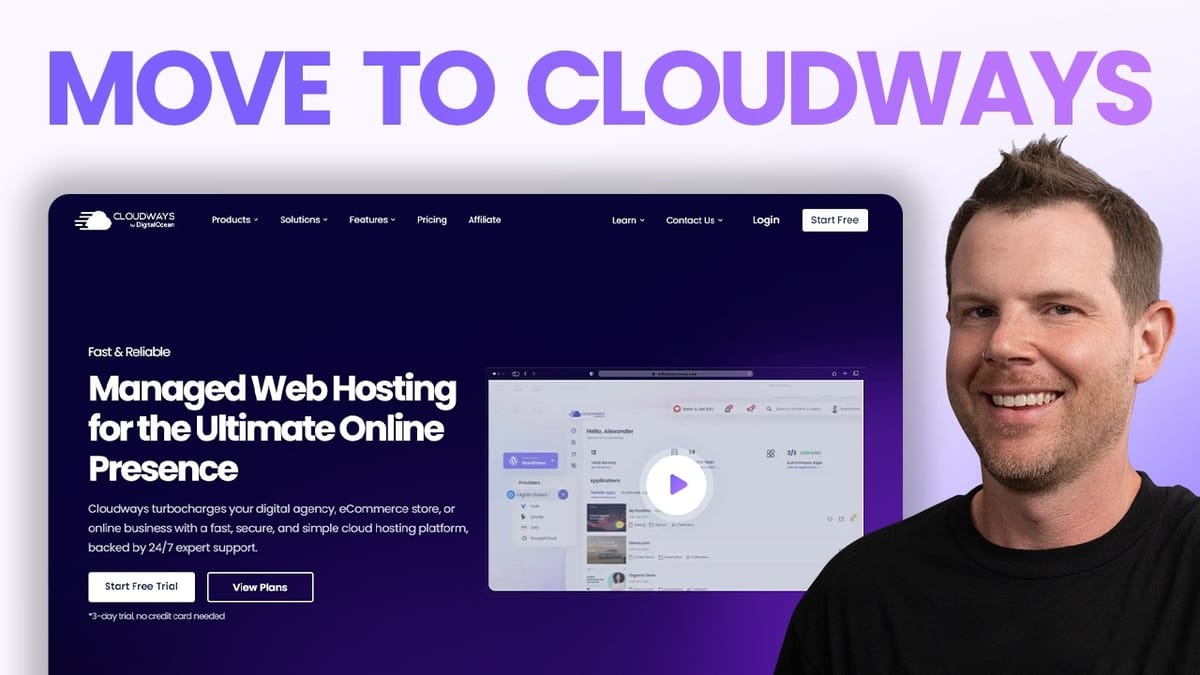
Cloudways
Cloudways is a managed cloud hosting platform that lets you deploy WordPress on infrastructure providers like DigitalOcean, Vultr, Linode, AWS, and Google Cloud without managing the server yourself.
WordPress site owners and agencies tired of sluggish shared hosting, especially those running WooCommerce or other resource-intensive applications.
SiteGround, Kinsta, WP Engine, Flywheel
Why Shared Hosting Is Probably Your Real Problem
A lot of WordPress users assume the platform itself is slow or buggy — especially when WooCommerce starts throwing checkout errors or pages take forever to load. The reality is usually much simpler: the server is underpowered for the workload.
Shared hosting plans pack hundreds of sites onto the same hardware, leaving your store or membership site fighting for resources. Migrating to a proper cloud server through Cloudways can eliminate most of those performance headaches without switching away from WordPress entirely.
This guide follows a comprehensive migration checklist that covers everything from pre-migration backups to post-migration testing. Unlike most migration tutorials that skip straight to "install a plugin and click a button," this walkthrough addresses the real-world complications — DNS propagation, WooCommerce downtime, payment gateway verification, and all the things that can go sideways when you move a production site.
What You Need Before Starting
You only need three things to complete this migration. First, a Cloudways account — signing up is straightforward and they offer a free trial period to get started. Second, your existing WordPress website with full administrator access. Third, access to your DNS records, which could be at your current hosting provider, your domain registrar (like GoDaddy or Namecheap), or a service like Cloudflare.
It's worth noting that Cloudways offers your first migration completely free if you'd rather have a professional handle it. But if you want to learn the process — especially useful if you manage client sites — doing it yourself is a valuable skill that gets easier every time.
Pre-Migration Preparation
Before touching anything on Cloudways, take a full backup of your existing website. If you already have automated backups running, confirm a recent one exists. If not, reach out to your current host or use a backup plugin to create one. Never start a migration without a safety net.
Next, document your current server settings. Head to your WordPress admin dashboard, navigate to **Tools → Site Health → Info → Server**, and you'll find your PHP version, memory limit, max execution time, and upload size limits. The quickest method is clicking the "Copy site info to clipboard" button at the top of the page and saving the output to a text file on your desktop. This captures everything including your active plugin list with version numbers.
For WooCommerce or other transaction-heavy sites, take screenshots of your current order count, revenue figures, and any other metrics that matter. You'll want a clear "before" snapshot so you can verify nothing was lost after migration. Do the same for any plugins with complex settings — especially those that tend to be finicky.
Lower Your DNS TTL Values
This step is optional but highly recommended. TTL stands for "time to live" and controls how long DNS records are cached by internet providers worldwide. The lower the TTL, the faster DNS changes propagate when you eventually flip your domain to the new server.
Log into wherever your DNS is managed — whether that's your hosting provider's cPanel, Cloudflare, GoDaddy, or another registrar. Find the A record for your root domain (usually displayed as "@" or just your domain name) and lower the TTL to the minimum allowed. Some providers let you go as low as one minute; others may only go down to five or fifteen minutes. Either way, it's an improvement over the default which can be hours.
You don't need to change the TTL on every record. Focus on the root A record since that's the one pointing to your server's IP address. Lowering this ahead of time means the actual DNS switchover later will happen much more smoothly.
Document External Integrations and Check Disk Space
Take inventory of every external service connected to your WordPress site. This includes email marketing platforms like ConvertKit (now Kit), automation tools like Zapier, payment gateways, CRM connections, and anything running through a snippets plugin. Screenshot the settings for each integration so you can verify they still work after migration.
For disk space, head back to **Tools → Site Health → Info → Directories and Sizes**. Note the total size at the bottom — this tells you the minimum storage your new server needs. In most cases, even the smallest Cloudways plan offers more than enough space, but if your site is particularly large with lots of media files, you'll want to confirm the plan you choose has at least double your current usage.
This is also a good opportunity to clean house. Delete unused media files, clear out draft posts you'll never publish, and remove any duplicated content. A leaner site migrates faster and starts fresh on better footing.
Setting Up Your Cloudways Server
Once you're logged into Cloudways, you'll be prompted to create your first server. Choose WordPress as your application, give it a recognizable name, and optionally organize it into a project folder.
For the hosting provider, Cloudways offers DigitalOcean, Vultr, Linode, AWS, and Google Cloud. DigitalOcean is a solid middle-ground choice — they actually acquired Cloudways, so the integration is tight. Each provider has slightly different pricing and specs, so check the comparison if you're particular about it.
Server sizing is where people tend to overthink things. For most sites, a 2GB RAM plan is a good starting point. If you're already handling significant traffic or running WooCommerce, jump to 4GB. The plans with faster CPU cores (marked with a stopwatch icon) are worth the premium for transactional sites — WooCommerce stores, LearnDash courses, or anything with dynamic content. A general rule: dynamic sites with transactions deserve their own server, while static lead-gen sites can comfortably share one server with 10-15 other similar sites.
Choosing Server Location and Configuring PHP
Pick a server location closest to your primary audience. Cloudways has data centers worldwide, though the exact options depend on which hosting provider you chose. Don't stress too much about this — you can always layer on a CDN later to serve cached content from edge locations globally.
While the server spins up (usually takes about six minutes), there's an important configuration step waiting. Once it's ready, navigate to **Server → Settings & Packages → Packages** and verify the PHP version matches what your old site was running. Matching PHP versions before migration eliminates an entire category of potential issues. If your old site was on PHP 7.4 or 8.0, you should consider upgrading eventually, but do it as a separate task — not during migration.
For memory limits and execution times, go to the application's basic settings. Cloudways defaults are generally better than shared hosting — 300-second execution time versus the typical 30 seconds, and 100MB upload size. Bump the memory limit to match or exceed your old server's setting. These changes apply server-wide, though you can override them per-application through the PHP-FPM settings if needed.
Installing the Migration Plugin and Filling Out the Form
On your source WordPress site (the one currently live), go to **Plugins → Add New** and search for "Cloudways WordPress Migrator." Install and activate it. The plugin is built on BlogVault's migration technology, which is reliable and handles the heavy lifting of moving files and database tables.
The migration form asks for several pieces of information from your Cloudways dashboard. You'll need the destination site URL (the temporary Cloudways URL, not your real domain), the server's public IP address, the database name, and SFTP credentials. All of these are found under your application's access details in Cloudways. For SFTP, you can either use the application-specific credentials or the server's master credentials — the master credentials are simpler if you only have one site on the server.
Leave "HTTP Auth" set to no unless your destination is password-protected at the server level (not WordPress login — the browser-level authentication prompt). For the source site options, most people can leave the extra root directories and database table options unchecked unless you've stored files outside of the standard WordPress directory structure.
Protecting WooCommerce Orders During Migration
If your site runs WooCommerce, this step is critical. Before hitting the migrate button, put your store into maintenance or "coming soon" mode so no new orders come through on the old server while data is being copied to the new one. Any orders placed on the old server after migration starts would be lost.
WooCommerce recently added a built-in feature for this. Look for the "Live" indicator in your WordPress admin bar, click it, and you'll find options to put just your store pages into coming soon mode while keeping the rest of your site accessible. Toggle on the store pages, save, and confirm.
Once the store is in coming soon mode, the clock is ticking. This is effectively downtime for your e-commerce operations, so note the exact time and work through the remaining steps efficiently. If you're doing this for a client, communicate clearly: this is when the migration officially begins, and you'll report back with total downtime when it's complete.
Running the Migration
With the form filled out and your store safely in maintenance mode, click "Start Migration." The plugin validates your credentials, then begins transferring files and database tables to the Cloudways server. A small site might finish in under 15 minutes; larger sites with lots of media could take significantly longer.
Don't panic if it seems slow — a sluggish source server can bottleneck the transfer speed. Let the BlogVault migration engine do its thing. Monitor for any warnings or errors as it progresses, and document anything unusual.
Once complete, the plugin will confirm success and provide a link to view your site on the Cloudways server. Click through and do a thorough visual inspection. Check every page type — homepage, blog posts, product pages, contact forms. Right-click images and verify their URLs reference the new Cloudways domain, not your old hosting address. Log into the WordPress admin using your original credentials (not the Cloudways-generated ones) and compare the site health info — particularly the Directories and Sizes section — against your pre-migration notes. A slightly smaller database is normal; the migration process optimizes it. But your uploads directory size should match exactly.
Domain Configuration and Search-Replace
Now it's time to point your real domain at the new server. Start by running a search and replace on the Cloudways site's database using the Better Search Replace plugin. Install it on your destination site, then navigate to **Tools → Better Search Replace**. In the "search for" field, paste the temporary Cloudways URL (with https://, no trailing slash). In the "replace with" field, enter your actual domain. Select all database tables and run the replacement.
Next, head to the Cloudways panel. Under your application's **Domain Management**, add your custom domain and set it as the primary domain. Then go to your DNS provider and update the A record for your root domain to point to the Cloudways server's IP address. If you want www to work as well, add a CNAME record with "www" pointing to your root domain.
DNS propagation can take anywhere from a couple minutes to a few hours depending on the TTL values we set earlier. Use a tool like whatsmydns.net to check propagation status before proceeding to SSL setup.
SSL Certificate and Cache Configuration
Once DNS has propagated, go to the SSL Certificate section in your Cloudways application settings. Select Let's Encrypt, enter your email and domain, and install. If you get an error about the domain not pointing to the correct IP, give propagation a few more minutes and try again.
For broader coverage, consider setting up a wildcard SSL certificate. This requires adding a CNAME record for the ACME challenge verification — Cloudways provides the exact values to enter in your DNS settings. A wildcard cert covers all subdomains, which is useful if you plan to use staging environments or subdomain-based features.
With SSL in place, clear all caches. Purge the Breeze cache (Cloudways' built-in caching plugin), flush the object cache if you're using Redis, and clear any other caching layers. This ensures visitors see the fresh, properly-configured version of your site from the start.
Post-Migration Testing and Going Live
Systematic testing is what separates a smooth migration from a nightmare. Browse every page type on your site in an incognito window to confirm you're hitting the new server (not a cached version of the old one). Verify by checking for changes you made during setup — like swapping Redis Object Cache for Object Cache Pro.
Take your WooCommerce store out of coming soon mode by clicking the status indicator and switching back to "Live." Run a test checkout to confirm payment gateways are still connected and processing correctly. Test all contact forms, user registration, login, and password reset flows. If you've set up transactional email on Cloudways, confirm those are sending too.
Check your SSL certificate using SSL Shopper's SSL Checker — you want all green checkmarks. Verify that your sitemap, robots.txt, and analytics tracking code are all intact. If anything looks off, try running the Better Search Replace one more time — occasionally it doesn't catch every instance on the first pass.
Post-Migration Housekeeping
Document your new server details — IP address, login credentials, server specs — and update any internal records or password managers. Take an immediate backup using either Cloudways' built-in backup system or your preferred third-party tool.
Monitor the site closely for the next 24 to 48 hours. Set up an uptime monitoring service if you don't already have one. Keep an eye out for intermittent errors, broken images, or form submission failures that might not have appeared during initial testing.
Don't rush to delete your old hosting account. Keep it active for at least a week as a safety net. Once you're fully confident the migration is solid and everything is running smoothly on Cloudways, you can cancel the old plan. The performance difference — especially for WooCommerce and other dynamic WordPress applications — should be immediately noticeable.
Watch the Full Video
Prefer watching to reading? Check out the full video on YouTube for a complete walkthrough with live demos and commentary.


