
How to Build a Deals Page with Google Sheets & NinjaTables
A step-by-step walkthrough of how I built my deals page using Google Sheets as a backend and NinjaTables to power a filterable, mobile-friendly deals table on WordPress.

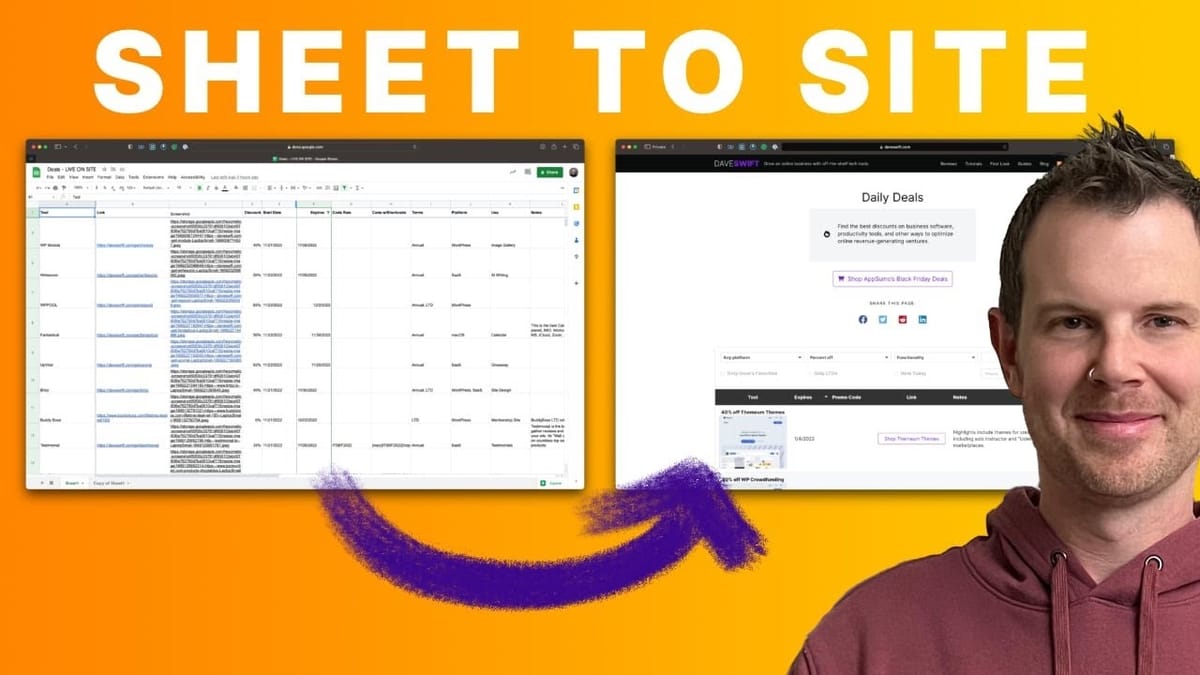
Why I Built a Deals Page (And Why You Should Too)
If you've ever felt overwhelmed by Black Friday ads flooding your inbox and social feeds, you'll understand exactly why I built a dedicated deals page on daveswift.com. Instead of being at the mercy of whatever promotions happen to find me, I now have a single, curated destination where I can browse hundreds of tech deals on my own terms.
The page features a fully filterable table — want to find only WooCommerce products available as lifetime deals? A couple of clicks and the table refreshes instantly. The secret sauce behind all of this is that the entire table is powered by a Google Sheet. That's not a requirement of the setup, but I chose it because spreadsheets are incredibly fast for managing tabular data. Copying, pasting, and reorganizing columns is just easier in a spreadsheet than in any WordPress interface.
On the WordPress side, the plugin doing the heavy lifting is NinjaTables Pro. You will need the Pro version to replicate everything covered here, though a free version exists with more limited functionality. Between Google Sheets as the data backend and NinjaTables as the display engine, you get a surprisingly powerful and flexible system.
Connecting Google Sheets to NinjaTables
The connection between Google Sheets and NinjaTables is straightforward. Inside the NinjaTables editor, you point it at your Google Sheet URL and select which columns to import. Not every column in the spreadsheet needs to come into WordPress — you can uncheck any columns you want to exclude, which becomes important later when some columns exist purely for data transformation.
Here's where it gets interesting: the front-end table might show five visible columns, but the Google Sheet behind it has far more. That's because NinjaTables lets you combine multiple columns into a single display column using a feature called Transform Value. For example, my "Tool" column on the front end is actually a combination of four separate spreadsheet columns — the discount amount, the product name, a screenshot of the homepage, and a link to the product.
Transform Values: Combining Columns Like a Pro
The Transform Value feature in NinjaTables works similarly to merge tags in email marketing. You know how you can insert a {first_name} token into an email template? NinjaTables gives you a shortcode token for every column in your spreadsheet, and you can arrange them with HTML to create custom layouts.
For the Tool column, I wrapped everything in a link tag using the row's URL, then combined a text string showing the discount percentage and product name (like "40% off WooCommerce"), followed by an image tag pulling in the screenshot. The tokens reference specific columns: `row link` maps to the link column, `row discount` maps to the discount column, `row tool` maps to the product name, and `row screenshot` maps to the screenshot URL.
This approach gives you enormous flexibility over how your data is presented without having to restructure your source spreadsheet. You keep the data clean and normalized in Google Sheets, then use Transform Values to assemble it into something visually appealing on the front end.
Automating Screenshots with Hexomatic
Every deal on the table includes a screenshot of the product's homepage, and managing these manually for hundreds of deals would be a nightmare. That's where Hexomatic comes in. It's an automation tool that can capture, resize, and compress screenshots at scale.
The workflow is simple: paste in one or more URLs, and Hexomatic runs them through a screen capture step configured for a small laptop viewport with a 10-second wait time to let pages fully load. It then resizes and compresses each image to 250 pixels wide at 80% quality. For bulk updates, you can export the results to CSV and paste the screenshot URLs directly into your Google Sheet.
Once the URLs are in the spreadsheet, the website updates automatically within a few minutes. Google Sheets syncs with NinjaTables every five minutes, and there's an additional layer of page caching on top of that. For big batch updates, you can manually purge the cache (I use Cloudflare) to make everything go live immediately. The slight delay from caching actually serves as a nice safety net for day-to-day edits.
Dave's Favorites: Adding Personality with Checkbox Filters
Tables are inherently impersonal, so I wanted to add a human touch. The "Only Dave's Favorites" checkbox filter lets visitors see just the products I personally recommend. It's a small feature that adds real personality to an otherwise data-driven page.
The implementation is elegant in its simplicity. The last column in the Google Sheet is labeled "favorite," and for any product I want to highlight, I type "Dave's favorite" in that cell. On the NinjaTables side, this column is completely hidden on all devices — visitors never see the raw data. Instead, it's used exclusively as a filter.
Under Table Configuration, I set up a Custom Filter that looks for the value "Dave's favorite" in the favorite column. When a visitor checks the box, only matching rows display. The same pattern works for any binary filter — I use it for the LTD (lifetime deal) toggle as well, checking a "terms" column for the value "LTD."
For more complex filtering like platform and functionality, NinjaTables supports multi-select dropdowns. In the Google Sheet, I separate multiple values with commas (for example, a tool available on both WordPress and Shopify), and NinjaTables automatically makes it filterable by each individual value. The percentage-off filter takes a slightly different approach, using manually defined ranges rather than dynamic data from the table.
Click-to-Copy Promo Codes
When a deal includes a promo code, visitors can click to copy it directly from the table. Getting this working required some creative problem-solving because it's not a built-in NinjaTables feature.
My first attempt was to use Transform Values to wrap promo codes in copy-to-clipboard HTML, but the code wouldn't render properly inside a NinjaTables cell. After some experimentation, I found a free WordPress plugin called "Copy Anything to Clipboard" that uses shortcodes to make any enclosed text clickable-to-copy.
The trick was that putting the shortcodes inside Transform Values didn't work either. The solution was to handle everything in Google Sheets itself. I created a formula that takes the raw promo code from one column and wraps it in the plugin's shortcodes in a separate column. NinjaTables only imports the pre-formatted column — the raw code column is excluded entirely. This is one of the major advantages of using Google Sheets as your backend: you get access to all of Sheets' formula and transformation capabilities to work around plugin limitations.
Managing Expiration Dates in Google Sheets
Deals expire, and you need a system for handling that gracefully. In my Google Sheet, I use a filter on the expiration date column that hides anything dated before yesterday. This gives me manual control over when expired deals actually disappear from the page.
Why not make it exact? Because a lot of developers drag their feet on actually ending their sales. By giving expired deals a two-to-three day grace period, visitors might still be able to grab a deal even after the official end date. The deal page will show that it's technically expired, but the link might still work. It's a pragmatic approach that balances accuracy with real-world deal behavior.
Making Tables Work on Mobile
Tables and mobile devices have always been a difficult pairing — tabular data is inherently wide, and small screens are inherently narrow. NinjaTables handles this with responsive breakpoints that let you hide specific columns on specific device sizes.
For my deals page, I hide the notes column on mobile and tablet since it's supplementary information that isn't essential for browsing. The result is a clean, usable table that looks genuinely good on a phone. Visitors can tap a plus button on any row to expand and see the hidden information — expiration dates, notes, and anything else tucked away — while still being able to easily tap the buy button.
This progressive disclosure approach means mobile users get the essential information upfront without being overwhelmed, with full details just a tap away.
Scheduling Deals with Advanced Shortcodes
When developers share upcoming deals with me under embargo, I need a way to get the information into my system immediately without making it public before the approved start date. NinjaTables' advanced shortcodes solve this perfectly.
In the Google Sheet, each deal has a "start date" column. On the WordPress page, instead of using a basic NinjaTables shortcode, I use an advanced version with a filter expression. The shortcode includes a "less than" filter on the start date column compared to the current date. Any deal with a start date in the future simply won't appear on the front end.
This means I can add deals to the spreadsheet the moment I get the information, complete with all the details, screenshots, and promo codes. When the start date arrives, the deal automatically appears on the page without me having to touch anything. NinjaTables' documentation covers many more filtering options beyond date-based ones, so there's plenty of room to customize this approach for your own needs.
Watch the Full Video
Prefer watching to reading? Check out the full video on YouTube for a complete walkthrough with live demos and commentary.


