
PhotoGPT Review: AI Image Generation With Your Own Face
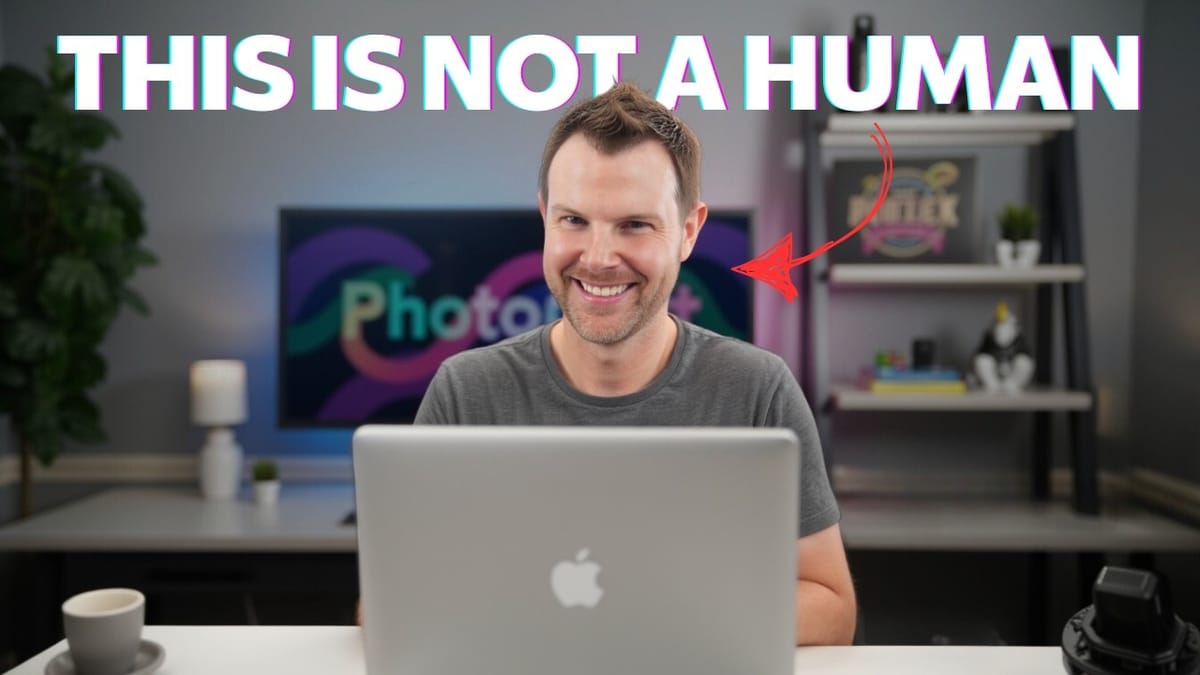
PhotoGPT is an AI image generation tool that lets you train a custom model on your own photos. I tested it out to see if this AppSumo lifetime deal is worth the investment.

PhotoGPT
An AI image generation tool that lets you train custom models on your own photos to create realistic images of yourself or others.
Content creators, small business owners, and professionals who need custom AI-generated headshots, thumbnails, or marketing images without hiring a photographer.
Midjourney, DALL-E, Stable Diffusion, Headshot Pro
What Is PhotoGPT and Why Does It Matter?
AI image generation has come a long way since early 2022, but one persistent challenge has been training a model on your own face. Most tools let you generate stunning images of fictional people, but getting your actual likeness into the AI has always been clunky, expensive, or unreliable.
PhotoGPT tackles this head-on. Available as a lifetime deal on AppSumo, it gives you the ability to upload your own photos, train a custom AI model, and then generate realistic images of yourself in virtually any setting or style. Starting at just $69 as a one-time payment, it removes the ongoing subscription cost that most AI image tools charge.
PhotoGPT Pricing and Plan Tiers
PhotoGPT offers three tiers through its AppSumo lifetime deal, and the differences matter depending on how you plan to use the tool. Tier one starts at $69 and includes one AI model — that means you can train it on one person's face. Tier two bumps you up to four models, and tier three gives you eight.
Beyond the number of models, the tiers also gate some important features. Additional aspect ratios (beyond the default square) require at least tier two. High-resolution image upscaling is locked behind tier three. If you're planning to use PhotoGPT for professional work like headshots or marketing materials, the upscaling feature alone might justify the higher tier.
Sample Generated Images: The Good and the Goofy
Once your model finishes training, PhotoGPT automatically generates a batch of sample images so you can see the results right away. The quality varies — some outputs are genuinely impressive, like professional-looking headshots you could realistically use for a company website or LinkedIn profile.
Others are less convincing. Like most AI image generators, PhotoGPT occasionally produces images that land squarely in uncanny valley territory. You'll get some outputs that look slightly off, and others where the AI takes creative liberties with your appearance. That said, the hit rate on usable images is solid, especially when you're intentional with your prompts and presets.
Using the PhotoGPT Interface
PhotoGPT keeps things simple on the interface side. The workflow follows a straightforward left-to-right flow: select your model, choose a preset, set your resolution, and write your prompt.
The preset system is one of the more interesting features. You get a wide range of options — glamour shots, passport photos, graduation pictures, fitness photos, YouTube thumbnails, and more. Each preset applies a strong stylistic direction to the final output, so picking the right one matters. For professional use cases, presets like "legal professional" or "corporate headshot" give you polished results without needing to craft a detailed prompt.
One small gripe: the preset models that come built into PhotoGPT (Selena, Axel, Dion, and others) don't show preview images. You're essentially choosing blindly unless you generate a test image first. It would be a nice quality-of-life improvement to see a thumbnail of each model before selecting one.
Custom Instructions and AI Prompt Enhancement
Where PhotoGPT gets genuinely useful is in its custom instruction system. You can write a plain-English description of the image you want — something like "a lawyer who just finished their opening statement in court" — and the tool will generate based on that.
There's also a built-in AI enhancement button that takes your basic prompt and expands it with richer detail. A simple one-liner about a lawyer in court gets transformed into a detailed scene description with specific elements like a wooden courtroom podium, a nameplate, sunlight streaming through tall windows, and atmospheric details. This enhancement feature is surprisingly effective at getting more consistent, detailed results from the image generator.
How Well Does PhotoGPT Follow Prompts?
Image generation takes about 30 to 40 seconds per batch — not instant, but not painfully slow either. The real question is how well the output matches your instructions, and PhotoGPT does a genuinely good job here.
In testing with the enhanced courtroom prompt, the generated images included specific details like the "Attorney Smith" nameplate on the podium and tall windows with light streaming through. The tool followed the prompt closely across all four generated images, which is more consistency than you typically see with general-purpose AI image generators.
PhotoGPT also nails hairstyles, which has historically been a weak point for AI image tools. Across nearly every generated image, the haircut matched the training photos accurately. Where the tool occasionally falls short is skin texture and overall likeness — some outputs look more like a relative than an exact match, particularly with the passport photo preset.
Community Gallery and Image Management
PhotoGPT includes a community gallery where users share their generated images, and it doubles as a creative starting point. If you spot an image you like in the gallery, you can click "generate similar" to load that exact prompt and settings into your workspace. From there, just swap in your own model and hit generate — it's a quick way to replicate a look without crafting a prompt from scratch.
The image management tools cover the basics: favoriting images, deleting bad outputs, copying prompts for later use, downloading to your hard drive, and generating similar variations. The upscaling feature is available directly from the image viewer, which is convenient if you're on the right AppSumo tier.
There is one notable bug in the gallery: clicking on an image often opens a different photo than the one you selected. You can still navigate to the right image using arrow keys, but it's a frustrating inconsistency that hopefully gets patched soon.
How to Create Your Own AI Model
Training a custom model is straightforward. Head to the Models section, hit start, and fill in some basic details: gender, age, eye color, ethnicity, and a name for your model. Then upload at least 12 photos of the person you're modeling.
The key requirement is that your photos should be close-up shots of just the subject — no group photos, nothing taken from far away. This is honestly the trickiest part for most people, since the majority of photos on your phone probably include other people. Once you've gathered your 12+ solo shots, upload them and start the training process. It takes about 30 minutes, and you'll get an email notification when it's ready.
Final Verdict: Is PhotoGPT Worth It?
PhotoGPT earns an 8.3 out of 10. It delivers on its core promise — training a custom AI model on your own face and generating realistic images — with a clean interface and useful features like AI prompt enhancement and a community gallery.
The tool isn't perfect. Some generated images miss the mark on likeness, the gallery has a navigational bug, and the preset model selection could use preview thumbnails. But for the price of a one-time lifetime deal starting at $69, it's a compelling option for content creators who need custom AI imagery. The YouTube thumbnail preset alone could pay for itself if you're regularly creating video content and want eye-catching, personalized thumbnails without a photo shoot.
Watch the Full Video
Prefer watching to reading? Check out the full video on YouTube for a complete walkthrough with live demos and commentary.


