
Podia Email Marketing Review: Free Plan, Features & Setup
Podia's email marketing platform just got a major upgrade. Here's everything you need to know about broadcasts, campaigns, segmentation, and the generous free plan.

Podia
An all-in-one platform for building websites, selling digital products, and running email marketing campaigns.
Online creators, course sellers, and coaches who want an integrated platform without stitching together multiple tools.
ConvertKit, Mailchimp, Kajabi, Flodesk
What Is Podia and Why Does It Matter?
Podia is an all-in-one platform designed for creators who are tired of bolting together a dozen different tools just to run an online business. It handles websites, email marketing, digital product sales, online courses, coaching, and even affiliate programs — all under one roof.
The platform recently rolled out a significant upgrade to its email marketing features, and it's worth a closer look. Whether you're just getting started or considering a switch from a dedicated email tool, Podia's integrated approach means fewer logins, fewer integrations to maintain, and a much simpler workflow overall.
Podia's Pricing: What the Free Plan Actually Includes
Podia's free plan is genuinely generous. You get a full website, an online community (so you can skip the Facebook group), one digital download, and even a coaching product — all without entering a credit card. The catch is a 10% transaction fee on sales, but if you haven't made your first dollar yet, that's a perfectly reasonable trade-off to validate your idea.
The one feature that might push you to upgrade early is custom domains. It's not essential, but a lot of people want their own URL from day one. When you're ready, the Starter plan adds that. As your revenue grows and those transaction fees start adding up, the Shaker plan at $59/month removes them entirely and throws in an affiliate program — which alone typically costs $59/month from standalone providers.
There are small additional charges based on subscriber count and team members, but the value at each tier is hard to argue with. The fact that courses even include video hosting at these prices is remarkable.
Broadcasts vs. Campaigns: Understanding the Basics
Podia's email system is split into two core functions: broadcasts and campaigns. If you're new to email marketing, the distinction is simple but important.
A broadcast is a one-time send — think of it as your weekly newsletter or a time-sensitive announcement. You write it, pick your audience, and hit send. A campaign, on the other hand, is an automated sequence. After someone buys a course, signs up for your list, or takes a specific action, they automatically receive a series of emails on a schedule you define. Both are built using the same email designer, but they serve very different purposes in your marketing strategy.
Creating Your First Broadcast
Setting up a broadcast starts with giving it an internal name — something only you see, so make it descriptive enough that you can find it later. Adding the year to the name is a practical move when you're publishing regularly.
The subject line and preview text fields are front and center, which is a nice touch. Preview text is that snippet people see on their phone before opening the email, and it can make or break your open rate. Podia makes it easy to customize rather than leaving it as an afterthought.
You'll also set your sender name and email address here. Free accounts start with a Podia email address, but you can verify your own domain by adding a DNS record. It takes a few minutes to set up, but it's critical for deliverability and following email authentication best practices.
Audience Segmentation and Targeting
Podia handles segmentation in a way that's approachable for beginners but flexible enough for advanced use. Out of the box, you get automatic segments for all contacts, subscribers (people who opted in via forms), paying members (course students, membership holders), and customers (digital product buyers).
Each segment can be fully customized — rename it, edit the filters, or create entirely new ones. For one-off sends, you can skip segments altogether and apply quick filters: target people on a waitlist, with a specific tag, or who've spent over a certain dollar amount. That last one is particularly useful for upselling — send your premium offer exclusively to customers who've already spent $500 or more with you.
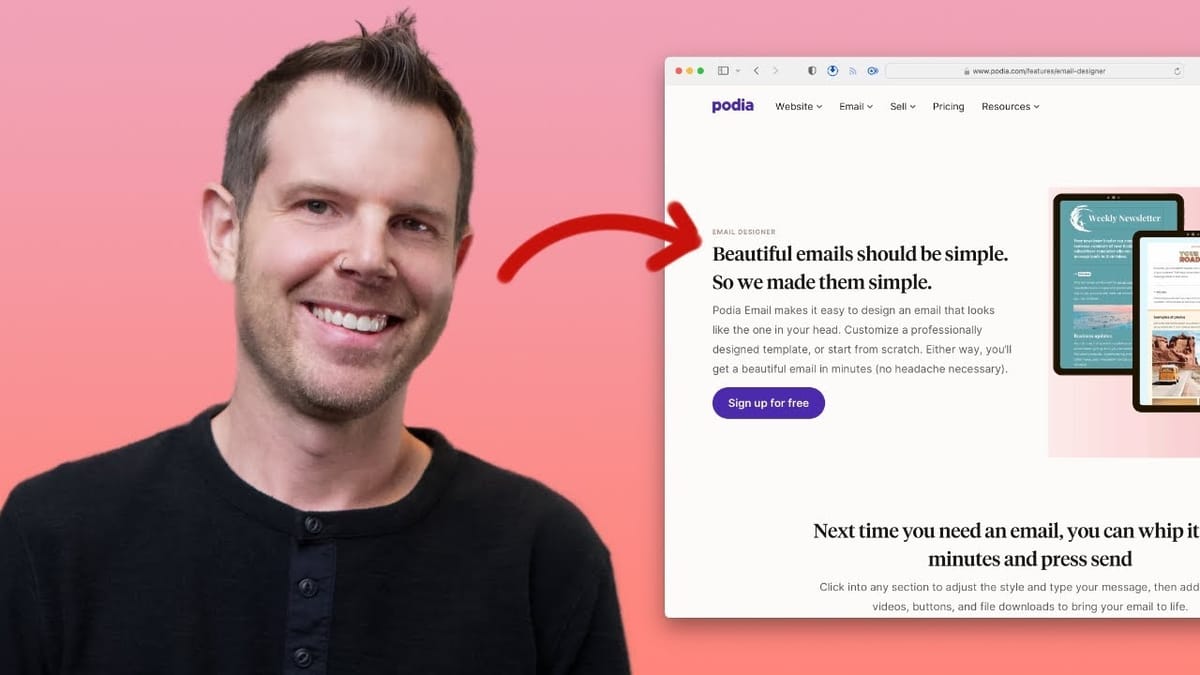
The New Email Designer: A Full Walkthrough
The redesigned email builder is where Podia really stepped up. You can start from a pre-made template, duplicate a previous email, or go completely blank. If you prefer plain-text-style emails with HTML tracking (so you still get open and click data), the blank canvas is the way to go.
The editor itself works a lot like Notion. Type your content, hit slash to bring up a command menu, and insert headings, images, buttons, dividers, video thumbnails, social links, columns, and more. Personalization tokens let you address subscribers by first name, with a fallback placeholder for contacts who haven't provided one.
Text formatting is equally intuitive — select text to get a floating toolbar for bold, italic, strikethrough, code blocks, and links. Keyboard shortcuts like Cmd+K for inserting links work as expected. Blocks can be duplicated, rearranged with drag arrows, and deleted, making it easy to build e-commerce-style emails by cloning product blocks and swapping out content.
Color customization is thorough. You can set background, text, and link colors with hex codes, and there's an option to define site-wide brand colors that automatically populate across your emails. The built-in Unsplash integration for images is a welcome addition — search and drop stock photos directly into your email without leaving the editor.
Adding and Migrating Subscribers
Getting contacts into Podia is straightforward. For small lists, you can add people manually from the Audience section — type in an email, apply a tag, and you're done. Podia auto-creates useful default tags like "email form" for anyone who signs up through your website forms, so you can always trace where a contact came from.
For larger migrations, Podia supports CSV imports. Export your list from Mailchimp, ConvertKit, or wherever you're coming from, head to the Audience section, click Imports, and upload the file. All your existing contacts come along for the ride.
If the migration feels intimidating and you have a sizable list, signing up for an annual Podia plan gets you a done-for-you migration. Think of it as a migration fee that happens to include a full year of service.
Building an Email Landing Page
Podia includes a dedicated email lander page type so you can build an opt-in page without any third-party tools. Head to the Site section, choose Edit Site, and create a new email lander. You'll get a pre-built page with a signup form that you can customize using the same block editor found throughout the platform.
Add images, adjust widths, update copy, and assign tags to anyone who signs up through that specific form. By default, the "email form" tag is applied, but you can stack additional tags — like "newsletter" — for more granular tracking. When you're done, hit publish and the page goes live immediately, even on Podia's free subdomain.
Sending, Scheduling, and Previewing Emails
Before sending a broadcast, Podia lets you fire off a test email — always a good idea before blasting your entire list. When you're ready to send for real, you can either send immediately or schedule for a specific date and time. Write your Monday newsletter over the weekend, schedule it for 9 AM, and sleep in.
The send confirmation screen shows exactly how many recipients will receive the email, which is a reassuring final check. Everything auto-saves as you work, so there's no risk of losing progress if you need to step away mid-draft.
Setting Up Automated Email Campaigns
Campaigns are where Podia's email marketing gets really powerful. You create emails using the same designer, but instead of sending them manually, they fire automatically based on triggers you define. Some creators build out a full year's worth of evergreen content — one or two emails per week, running on autopilot.
The campaign editor lets you stack multiple emails in sequence with custom delays between them. Your first email might go out immediately, the second three days later, the third a week after that. Each email in the sequence can use its own template, subject line, and preview text.
Entrance and Exit Conditions: The Key to Smart Automation
Every campaign needs entrance conditions — the triggers that start someone on the sequence. Podia offers several: being added to your audience, receiving a specific tag, or leaving another campaign. That last one is especially useful for building a value ladder, where completing one sequence automatically starts the next.
Exit conditions are equally important and often overlooked. If you're running a sales sequence for a product and someone buys it, you need to stop sending them purchase reminders. Podia lets you set exit conditions based on community joins, tag assignments, product purchases, or simply receiving the final email in the sequence. It's the kind of common-sense feature that prevents the most annoying email marketing mistake — pitching someone on something they've already bought.
Watch the Full Video
Prefer watching to reading? Check out the full video on YouTube for a complete walkthrough with live demos and commentary.


