
Radiolize Review: Launch Your Own Internet Radio for $99
Radiolize is a cloud-based tool that lets you launch your own internet radio station with playlists, live broadcasting, on-demand media, and DJ accounts — all for a one-time $99 lifetime deal on AppSumo.

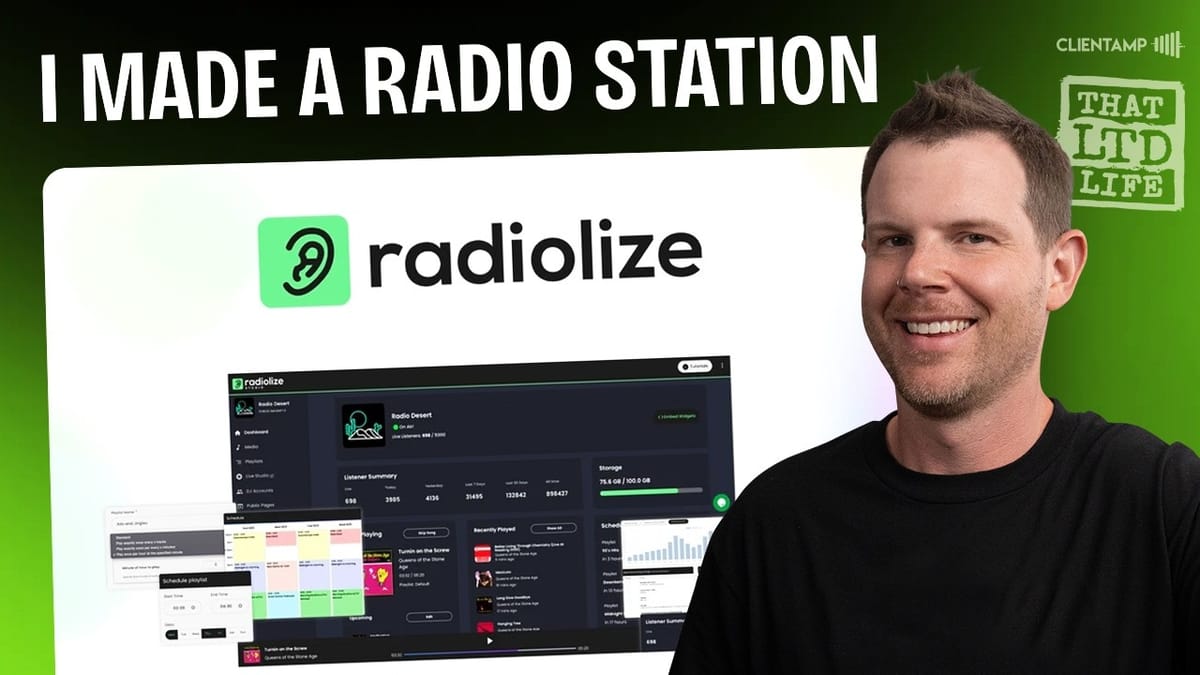
Radiolize
Radiolize is a cloud-based platform that lets you create, broadcast, and manage your own internet radio station with features like scheduled playlists, live streaming, on-demand episodes, and DJ accounts.
Content creators, podcasters, former radio professionals, and hobbyists who want to run their own internet radio station without expensive equipment or technical expertise.
Shoutcast, Icecast, Live365, Radio.co
What Is Radiolize and Why Internet Radio?
Internet radio has been around since the late 1990s — remember RealPlayer? — but launching your own station used to require serious equipment and technical know-how. Back in 1995, bands like Pearl Jam were pulling up to shows with vans full of broadcasting gear to run pirate radio stations. For most people, that kind of setup was completely out of reach.
Radiolize changes that equation entirely. Available as a lifetime deal on AppSumo for just $99, it's a cloud-based platform that promises to let you create, broadcast, and manage your own internet radio station with a simple all-in-one tool. No vans, no transmitters, no FCC violations required.
Plans and Pricing Breakdown
All Radiolize plans include unlimited bandwidth, which is a nice bonus — one less thing to worry about as your audience grows. The main differentiators between tiers come down to three factors: storage space, stream quality, and simultaneous listener capacity.
Tier 1 ($99) gives you 10 GB of storage, 128 kbps audio quality, and up to 1,000 simultaneous listeners. That's perfectly adequate for spoken-word content like podcasts or talk shows. Tier 3 bumps you up to 100 GB of storage, 192 kbps quality (a solid compromise between fidelity and file size for music), and 5,000 listeners. There's even a Tier 4 at $500 that doubles storage to 200 GB and supports 10,000 concurrent listeners.
If you're primarily doing spoken-word content, 128 kbps is honestly fine. For music, 192 kbps is the sweet spot — though anyone who survived the Napster era knows 128 kbps gets the job done in a pinch.
The Onboarding Experience (Be Patient)
Here's where things get a little bumpy. After purchasing the AppSumo code and creating an account, you'll land on what is clearly a WordPress-powered backend. The initial login experience looks like a WooCommerce storefront, which is a bit disorienting for what's supposed to be a radio platform.
The bigger issue is that your radio station isn't available immediately after signup. Radiolize sends a fairly easy-to-miss email explaining that the system needs time to create your station automatically — a process that can take a couple of hours. During that time, clicking "Create New" just redirects you to the pricing page, which feels like something is broken.
This is a solvable problem with better communication. A prominent banner during onboarding saying "Your station is being set up, please allow a few hours" would save a lot of confusion. That said, once the setup completes, everything works as advertised. Just be patient and don't panic if things look broken at first.
Your Station's Public Page and Studio
Once your station is live, you get a public-facing page where listeners can tune in. The page shows the station status (online/offline), displays currently playing tracks, maintains a song history, and even lets listeners request songs.
It's worth noting that once you get past the WordPress-based account management layer, the actual radio station interface is clearly a custom-built application — not WordPress at all. Radiolize uses WordPress purely for their e-commerce and account management, then spins up a dedicated radio station instance for you behind the scenes.
Uploading Media and Creating Playlists
Managing your station is straightforward. Click the Manage button and you can start uploading media right away. Drag and drop your MP3 files into the interface and they upload quickly. For larger libraries, there's SFTP access available if you prefer to upload in bulk.
Once your files are uploaded, you can edit metadata for each track — change file names, titles, and other details using the pencil icon. From there, creating playlists is simple: select your tracks, choose "Create New Playlist," give it a name, and save. You'll see a summary showing how many tracks are in the playlist and the total runtime.
Within each playlist, you have solid control over playback. You can set tracks to play sequentially, shuffled, or randomly. There's a playback type option that lets you ensure certain tracks play at specific intervals — every certain number of minutes or every hour. You can even enable ads within playlists, though that's a more advanced feature to explore on your own.
Scheduling and On-Demand Streaming
The scheduling system lets you set playlists to run 24/7 or during specific time windows. You can create multiple playlists and schedule them for different times of the day — morning shows, afternoon music blocks, evening talk segments, whatever fits your format. There's even an option to have scheduled content interrupt currently playing tracks, which is essential for time-sensitive programming.
Radiolize also supports on-demand media, turning your radio station into something closer to a podcast platform. By checking the on-demand option within your playlist settings, each episode becomes individually accessible through a dedicated on-demand page. Listeners can browse and play specific episodes rather than just tuning into the live stream. Note that on-demand content may take a little time to populate after enabling it — don't panic if it's not immediately visible.
Dashboard, Settings, and Customization
The dashboard gives you a quick overview of your station's health: listener counts, storage usage, and station status. You can rename your station, set a genre, adjust the time zone, and modify compression settings from the settings panel.
One minor annoyance: the station logo has to be linked via URL rather than uploaded directly. You'll need to host your logo image somewhere and paste in the URL. It works, but a simple upload button would be a better experience. The logo also displays best as a square image.
Additional settings include the ability to ban IP addresses (useful if someone's causing trouble), control how many recently played songs are displayed, and configure relays for remote broadcasting software. There's also SFTP credential management and the ability to add additional user accounts.
Reports and Analytics
Radiolize includes a surprisingly robust reporting suite. The overview report gives you a high-level snapshot, while the listener report breaks down where your audience is tuning in from geographically. You can track song requests, monitor playback time to see how long people stick around, and — perhaps most usefully — check the listener impact report to see which tracks cause people to start or stop listening.
There are also utility reports for identifying duplicate songs and unprocessable files. For stations playing copyrighted music, there's a sound exchange royalties report for tracking what you might owe. On the integrations side, Radiolize supports webhooks including Matomo and Google Analytics, plus a generic webhook that fires whenever your station data changes.
Live Studio and DJ Accounts
The Live Studio feature is where Radiolize gets genuinely exciting. You can broadcast live directly from your browser — just grant microphone access and start streaming. This opens up possibilities for live talk shows, member-only broadcasts, real-time audience interaction, or simulcasting alongside pre-recorded content.
The live interface lets you add files to different playlists and mix between them in real time, essentially turning you into a live DJ. You do need a special "streamer" account to broadcast live, but there's documentation and video tutorials to walk you through the setup.
You can also create DJ accounts for other people. If you want collaborators to log into your Icecast server and broadcast their own shows, just create streamer accounts with their own credentials. It's a genuinely impressive feature set for what amounts to a $99 one-time payment.
Final Verdict: Is Radiolize Worth $99?
Radiolize earns a 7.8 out of 10. It delivers on its core promise: you really can set up a functioning internet radio station in a matter of minutes (well, a couple of hours if you count the initial provisioning time). The feature set is impressive — scheduled playlists, on-demand media, live broadcasting, DJ accounts, analytics, webhook integrations — all for a one-time $99 payment.
The rough edges are real but manageable. The onboarding experience needs better communication about setup wait times, the WordPress-based account layer feels disconnected from the actual product, and small things like requiring a URL for your logo instead of a simple upload feel unpolished. But once you're past setup, the platform works well and the audio quality is solid.
For content creators who want to repurpose audio content, former radio professionals looking for an affordable way back on the air, or hobbyists who've always dreamed of running their own station, Radiolize is a genuinely compelling deal. The fact that this kind of technology is available for under $100 as a lifetime purchase is remarkable.
Watch the Full Video
Prefer watching to reading? Check out the full video on YouTube for a complete walkthrough with live demos and commentary.


