
Rambox Review: Organize All Your Web Apps in One Workspace
Rambox lets you pull your most-used web apps out of the browser and into a single, organized workspace with multi-account support, custom layouts, and smart power saving.

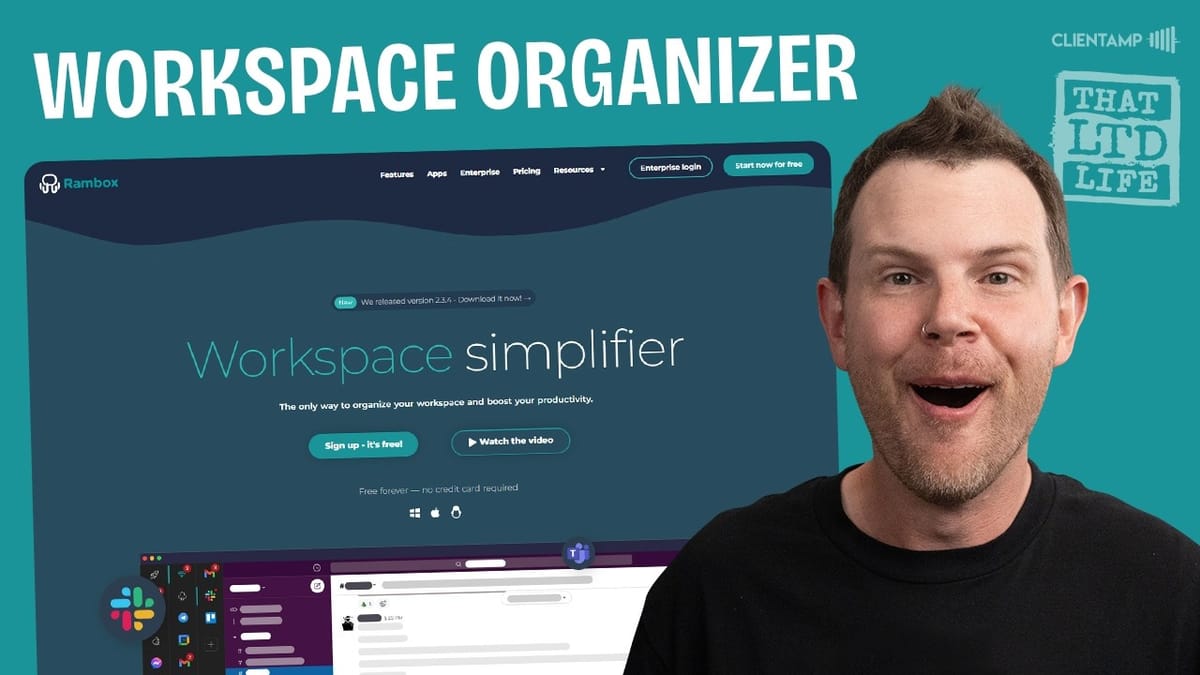
Rambox
Rambox consolidates all your web apps into a single desktop workspace with multi-account profiles, notifications management, and customizable layouts.
Professionals and power users who juggle multiple web apps and accounts throughout their workday and want to reduce browser tab clutter.
Franz, Station, Wavebox, Shift
What Is Rambox and Why Does It Exist?
We all live inside the browser, but that doesn't mean we should be doing all of our work buried under 150 open tabs. Rambox is a desktop app that pulls your most-used web apps out of the browser and organizes them into a dedicated workspace. Think of it as a purpose-built container for your Slack, Gmail, Notion, help desk, and anything else you rely on daily.
Rambox has been around since 2016, making them one of the original players in this space. The concept is straightforward: keep your work apps focused and accessible in one place, and leave your browser free for everything else. The result is a cleaner separation between productive work and the endless scroll of social media and random tabs.
What makes the current deal interesting is the price point. Through an AppSumo code deal, Rambox is available for just $5 as a lifetime deal — a $64 savings off the regular price. It's a code-limited offer, so availability is finite.
Getting Started and Adding Your First Apps
Setting up Rambox is quick. After the initial welcome sequence, you're greeted with a clean interface and a plus button to start adding apps. Rambox ships with a massive directory of pre-configured integrations — everything from Claude AI and Gmail to Figma, GitHub, Dropbox, and hundreds more. Each one comes with a ready-made icon and sensible default settings.
When you add an app, you get several useful options right away. You can enable or disable the app entirely, which is handy on a laptop where you want to conserve battery. There's a hibernation mode that automatically powers down apps you haven't touched in a while. Notifications can be toggled on or off per app, so you stay in control of what interrupts you and what doesn't.
One standout feature is link handling. If you've ever used a web app saved to your desktop, you've probably been frustrated when clicking a link opens a second window of that same app — without your extensions or password manager. Rambox lets you configure link handling on a per-app or global basis, routing external links to your default browser instead.
Adding Custom Apps
Not every app you use will be in Rambox's directory, and that's perfectly fine. The custom app feature lets you add any website by entering its URL. You can give it a custom name, upload your own icon, and configure the same notification, profile, and hibernation settings available to directory apps.
This is particularly useful for self-hosted tools. In my case, I added FreeScout, a self-hosted help desk, and it worked without any issues. The process takes about 30 seconds: name it, paste the URL, upload a logo, and you're done. From that point forward, it lives in your sidebar right alongside your other apps.
Workspaces: Grouping Apps by Context
Individual apps in the sidebar are great, but workspaces take the organization a step further. A workspace is essentially a folder that groups related apps together under a single icon. Click the workspace, and you get a second layer of navigation showing only the apps relevant to that context.
For example, I created a workspace called "Client Amp" for all my customer support tools. Inside it, I placed FreeScout for help desk tickets, Mattermost for team chat, and a Kanban board for project management. When it's time to switch from deep work in Claude over to client support, one click takes me to everything I need — and nothing I don't.
Workspaces also support notification schedules. You can limit notifications to specific hours, like 9 AM to 5 PM, so your support tools don't ping you outside of working hours. It's a small touch that makes a real difference for work-life balance.
Browser Extensions Inside Rambox
One of the common pain points with app consolidation tools is losing access to your browser extensions. Rambox addresses this with built-in support for popular extensions. You won't get access to every Chrome extension on the market, but the essentials are covered — password managers like Bitwarden, writing tools like Grammarly, and other widely-used utilities.
Adding an extension is simple. There's a dedicated extension icon in the interface where you can browse and toggle extensions on. After enabling one, a quick page reload activates it across your apps. This means you can log into services using your password manager without leaving Rambox, which removes one of the biggest friction points of working outside the browser.
If you rely on niche development tools or obscure extensions, those probably won't be available. But for the majority of users, the extension support covers the essentials.
Organizing and Moving Apps Between Workspaces
As your setup evolves, you'll want to reorganize. Rambox makes it easy to move apps between workspaces or back to the main sidebar. A right-click on any app icon reveals a move option, and you can relocate it to any existing workspace with a couple of clicks.
This flexibility means you don't have to plan your entire layout upfront. Start by adding apps as you need them, then group them into workspaces once patterns emerge. The drag-and-drop reorganization makes the whole process feel natural rather than rigid.
Appearance and Layout Options
Rambox ships with three themes: light, dark, and slate. The dark theme is clean and helps your app content stand out by fading the chrome into the background. Slate has a Slack-like aesthetic that some users might prefer. If you go with dark mode, just make sure your custom app icons work against a dark background — you may need to swap out a few.
Beyond themes, you can reposition the app bar to the top, right, bottom, or left of the screen. The top position mimics a traditional browser tab bar. The bottom position feels more like a macOS dock or Windows taskbar. The left sidebar is the default and, in my experience, the most practical for daily use since it gives you the most vertical screen real estate for your apps.
Managing Multiple Accounts for the Same Service
This is where Rambox really earns its keep. If you've ever juggled multiple Google accounts — one for YouTube, another for personal email, a third for a business — you know the pain of constantly switching and ending up logged into the wrong one. Rambox solves this with user profiles.
Each app instance can be assigned to a different profile. Your YouTube Studio can run under your business Google account, while Google Sheets runs under your personal account. Both stay logged in simultaneously, and there's never any confusion about which account is active. You can create as many profiles as you need beyond the three defaults (primary, private, and incognito).
This extends beyond Google, of course. Any service where you maintain multiple accounts — whether it's separate Claude AI workspaces for personal and professional use, multiple Slack organizations, or different email inboxes — can be configured with its own profile, keeping sessions completely isolated.
Multi-Screen Layouts and Custom Dashboards
Workspaces aren't limited to a simple list of apps. When you create one, you can choose from several grid layouts that display multiple apps side by side — two-panel splits, quad views, and more. Each panel within the layout can hold a different app, and you can resize them by dragging the dividers.
The practical applications go well beyond the baseball-watching demo I put together (MLB.tv, Baseball Reference, Twitter, and live scores all in one view). Think stock trading dashboards, analytics monitoring, or a customer support command center where you can see tickets, chat, and project boards simultaneously. You can split panels further at any time, adding or removing apps from the grid as needed.
The key benefit here is context switching. When you're done with your multi-panel dashboard, one click takes you back to a completely different workspace. Everything you were doing stays in place, and you pick up exactly where you left off when you return.
Power Saving and App Management
Rambox is thoughtful about resource management. Apps that haven't been used for a set period automatically go into hibernation, indicated by a small leaf icon. This is especially important on laptops where CPU and battery life matter. Waking an app back up takes one click, and it reloads to its last state.
You also get granular control over each app through a right-click menu. You can manually shut down an app to save power, mute its sound, disable notifications, navigate forward and back within the app, or force a reload. The notification bell at the bottom of the sidebar aggregates alerts from all your apps, and a focus mode lets you silence everything when you need to concentrate.
Search and Keyboard Shortcuts
With dozens of apps spread across multiple workspaces, finding what you need quickly is essential. Rambox includes a universal search (triggered by Command+Shift+Space) that lets you search across all apps and workspaces. If you can't remember which workspace you left something in, search will find it.
As you'd expect from a power user tool, keyboard shortcuts are available for most actions. This keeps you moving fast without reaching for the mouse every time you want to switch contexts.
Final Verdict: Is Rambox Worth It?
Rambox won't necessarily make you more productive in the traditional sense, but it will help you stay more focused. The separation between work contexts — client support in one workspace, creative tools in another, personal browsing in the actual browser — creates natural boundaries that reduce distraction.
The multi-account profile system alone justifies the tool for anyone managing multiple Google, Microsoft, or other service accounts. Add in the workspace layouts, notification scheduling, power saving, and extension support, and you've got a well-rounded workspace manager that's been refined over eight years of development.
At $5 for a lifetime deal, it's essentially a risk-free purchase. Even if you only use it for a month, you've gotten your money's worth. But based on my week of daily use — including producing videos with Rambox as my primary browser — I expect it to stick around in my workflow for a long time.
Watch the Full Video
Prefer watching to reading? Check out the full video on YouTube for a complete walkthrough with live demos and commentary.


