
ReelCraft AI Review: Generate Videos from a Single Prompt
ReelCraft AI lets you generate complete animated videos from a simple text prompt, complete with AI voiceovers, storyboarding, and even voice cloning — all for a one-time cost on AppSumo.

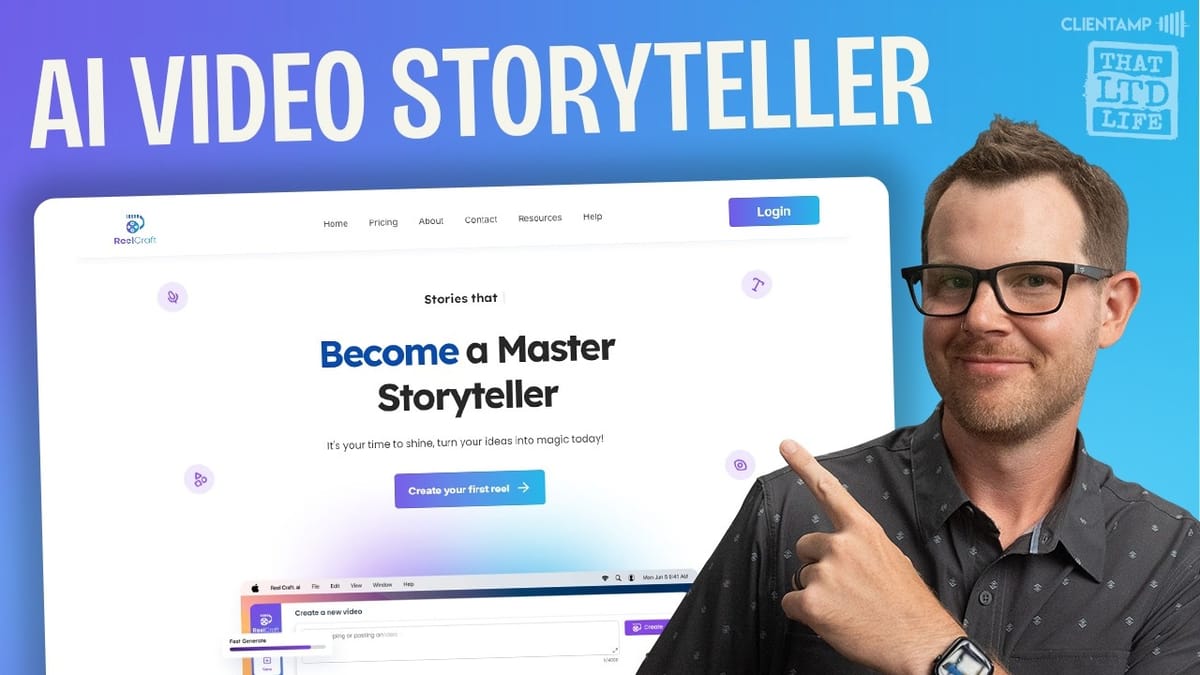
ReelCraft AI
An AI-powered video generation tool that turns text prompts into fully animated videos with narration, storyboarding, and image generation.
Content creators, marketers, and small business owners who need to produce video content quickly without traditional video editing skills.
Pictory, InVideo, Synthesia, Fliki
What Is ReelCraft AI?
ReelCraft AI is an AI video generation tool that takes a simple text prompt and turns it into a fully animated video — complete with narration, scene-by-scene storyboarding, and background music. You can go as minimal as a single sentence or paste in a full 4,000-character script, and the tool handles the rest.
What makes it particularly interesting is the voice cloning feature. You can upload an MP3 of your own voice (under 10MB), and ReelCraft will generate narration that sounds like you. If you'd rather not use your own voice, there's a solid library of built-in voices available in multiple languages. The tool also supports image generation, text-to-speech, and even animating still photographs — so it's more of an AI media suite than just a video maker.
Plans and Pricing on AppSumo
ReelCraft is available as an AppSumo lifetime deal starting at $69, though that price is subject to change. There are four tiers, and the differences matter more than you might expect.
Tier one is missing two key features: white labeling (which most people won't care about) and pro mode (which you absolutely will). Pro mode walks you through the full video creation workflow — scripting, storyboarding, and scene editing — before anything gets animated. Without it, you're flying blind. For that reason alone, tier two should be the minimum starting point for most users.
Higher tiers give you more credits per month, more voice cloning slots, and generally more room to experiment. If you plan to use ReelCraft regularly for content production, tier four is worth considering. But for kicking the tires and producing occasional videos, tier two hits the sweet spot.
The ReelCraft User Interface
When you log into ReelCraft, you land on the video creation screen. Right at the top is the prompt field where you type (or paste) your video concept. There's a toggle for pro mode, which I'd recommend keeping on at all times — it gives you editorial control over every step before anything gets rendered.
Below the prompt, you choose your graphics type. The options are 4K image or 4K animation, and animation is the way to go if you want actual video output. There's also an "HD Hyper" option, but that requires a separate paid credit system and isn't included with the lifetime deal.
The rest of the interface is organized into filter sections for background music, aspect ratio (16:9 or vertical 9:16), content type, visual style, and branding. It's a clean layout that walks you through each decision without feeling overwhelming.
Voiceover Options and Voice Cloning
ReelCraft ships with a library of high-quality AI voices. Some voices — like Mary and James — are multilingual, meaning you can use the same voice across any supported language. Others are language-specific, giving you more natural-sounding results for particular regions.
The real standout feature here is voice cloning. You upload an MP3 file of your own voice (it needs to be under 10MB), and ReelCraft generates a clone that can narrate your videos. The quality is surprisingly good, and it means you can produce narrated content at scale without sitting in front of a microphone every time. Your cloned voice and any other uploads live in the assets section, making them easy to reuse across projects.
Filters, Styles, and Branding
The content type selector lets you define the format of your video — explainer, story, historical, travel blog, biography, or wishes and quotes. This guides how the AI structures the narrative and paces the scenes.
The style section is where you pick the visual model for your output. Each option shows a thumbnail so you can preview the aesthetic. Models labeled with "FL" use Flux, which represents some of the more advanced image generation tech available. These tend to produce noticeably sharper, more polished results.
Branding deserves a special callout. You can upload your logo, but there's a catch: when you first upload it, the logo fills the entire frame. Don't panic — you need to manually shrink it down and position it where you want it (typically a corner). There's no warning about this, so save yourself the surprise and resize before generating. You can also attach custom intro and outro videos, which is a nice touch for maintaining brand consistency without needing a separate editor.
Building a Video: Story and Scenes
Once you submit your prompt with pro mode enabled, the first thing ReelCraft generates is a story overview and a narration script broken into individual scenes. For example, a simple prompt about walking through Austin eating tacos produced a six-scene narrative covering food trucks, brisket tacos, street murals, live music, and a sunset at the Congress Avenue Bridge.
Each scene's narration text is fully editable. You can rewrite lines, add or remove scenes, and adjust the flow before anything gets animated. This is the stage where you shape the video's direction — think of it as your screenplay draft.
The scenes step also lets you preview the AI voiceover for each individual scene. This is critical for catching mispronunciations or awkward phrasing. If a word sounds off, you can tweak the spelling or phrasing to nudge the AI toward the correct pronunciation. It's a small detail, but it saves you from burning credits on a video where the narrator butchers your key terminology.
Storyboarding and Video Output
After locking in your script and scenes, ReelCraft generates a storyboard — one AI-generated image per scene paired with its voiceover. This is where you start to see and hear what the final product will actually feel like. You can click through each scene, listen to the narration over the image, and decide if the visual direction matches your vision.
If something's off, you can go back and adjust before committing to the full render. Once you're happy, you hit the output video button and ReelCraft animates the storyboard images, layers in the narration and music, and produces the finished video.
The output quality is solid for AI-generated content. The Austin taco video, for instance, produced smooth animations with coherent visuals that actually matched the city's landmarks and vibe. You also have the option to clone a completed project and regenerate it with a different style or language — useful for repurposing content across platforms or markets.
The Studio: Images, Text-to-Speech, and Animation
Beyond video generation, ReelCraft includes a studio section with three additional tools. First is image generation, which works like any AI art generator — type a prompt, pick a style and aspect ratio, and get an image. The outputs are generally high quality, though you may need a few iterations to nail exactly what you're after (an image of a sumo wrestler eating tacos, for example, placed the tacos on a laptop instead of in his hands).
Second is text-to-speech, which lets you type up to 500 characters, choose a voice, and generate an audio clip. This is great for creating voiceover snippets, audio intros, or narration clips outside of the full video workflow.
Third — and arguably the most fun — is image animation. You upload a still photo and tell the tool what you want to happen. In one test, a photo of a boxing match was uploaded with instructions for the fighters to sit down for tea. The result wasn't perfect (they tapped gloves instead), but the motion applied to a still image is genuinely impressive. All uploaded assets are stored in your library for reuse across projects.
Final Verdict: Is ReelCraft AI Worth It?
ReelCraft AI packs a surprising amount of capability into one tool. The core video generation workflow — prompt to script to storyboard to animated video — is well thought out, especially with pro mode giving you control at every stage. Voice cloning is a genuine differentiator, and the studio tools (image generation, text-to-speech, image animation) add real value beyond just video production.
The main considerations are tier selection and credit management. Tier one is too limited without pro mode, so budget for at least tier two. If you're producing content regularly, the higher tiers will pay for themselves in credits alone. The lifetime deal structure means you're locking in a one-time cost instead of yet another monthly subscription, which is the whole appeal of grabbing it on AppSumo.
For content creators, marketers, and anyone who needs to produce video without a full production setup, ReelCraft is a compelling option — especially at the lifetime deal price point.
Watch the Full Video
Prefer watching to reading? Check out the full video on YouTube for a complete walkthrough with live demos and commentary.


