
SeeLab Review: AI Product Photos & Custom Model Training
SeeLab is an AI image generation tool with custom model training, background replacement, and in-painting editing. Here's how it performs for product photography and creative work.

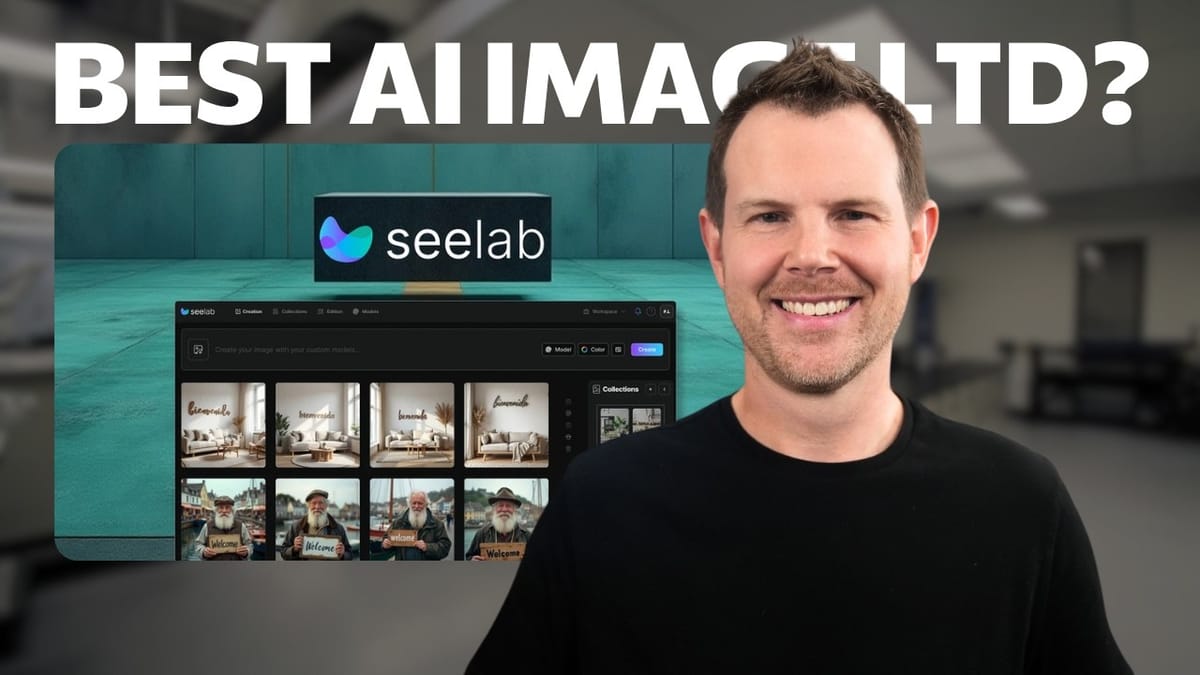
SeeLab
SeeLab is an AI image generation platform that lets you create images from prompts, edit them with in-painting tools, and train custom models on your own products, art styles, or photography styles.
E-commerce sellers, content creators, and small business owners who need product photography, branded visuals, or consistent image styles without expensive photo shoots.
PhotoGPT, SuperMachine, Canva
What Is SeeLab and Why Does It Matter?
SeeLab is an AI image generation tool available on AppSumo that goes beyond simple text-to-image prompts. The standout feature is the ability to train custom models on your own data — whether that's product photos, art styles, photography styles, or even personal avatars. That means you can teach the AI what your specific product looks like and then generate marketing-quality images of it in different scenarios.
For anyone selling physical products online, the implications are significant. Instead of booking expensive photography sessions every time you need new marketing materials, you could potentially train SeeLab on your existing product photos and generate fresh visuals on demand. The technology isn't perfect yet, but it's impressively close.
AppSumo Deal Pricing and Tiers
The AppSumo deal starts at $79 for tier one, which covers basic image generation and editing features. Tier two unlocks the custom model builder, which is really the headline feature of SeeLab — without it, you're getting a capable but less differentiated image generator. Higher tiers increase the number of custom models you can create, topping out at five models on the highest plan.
Each tier also comes with monthly limits on image generations, background removals, reframing operations, and other editing actions. The allowances are fairly generous for most users. For example, the lower tiers include enough generations that you'd need to be living in the app full-time to max them out. If you're a heavy user, the top tiers offer substantially higher limits.
Interface and Image Generation Walkthrough
SeeLab's interface is clean and well-organized. Four main tabs sit across the top: Creation (where you generate images), Collections (folders for organizing your work), Edition (a built-in image editor), and Custom Models. The layout is intuitive enough that you can start generating images within seconds of logging in.
The creation workflow starts with a text prompt, but SeeLab adds several useful controls beyond that. You can select from multiple AI models — Flux HD is the default and produces realistic photography-style results, but there are also options for illustrations, realism variants like Imogen 3 and Imogen 4, and of course your own custom models. A color selector lets you specify up to three colors you want to appear in the generated image, which is great for maintaining brand consistency. You also get aspect ratio presets (standard, tablet, mobile, banner, monitor) and can choose how many images to generate per prompt, defaulting to four.
First Image Generation Results
Testing with a fun prompt — a sumo wrestler eating tacos while watching a show on his laptop, using purple and gold colors — revealed both the strengths and typical limitations of current AI image generation. Out of four generated images, quality varied noticeably. Some had the laptop screen facing the wrong direction, and the color palette didn't always come through strongly.
The best of the four outputs incorporated the requested purple and gold into the background and laptop elements, and the overall composition was solid. The weakest outputs had orientation issues and odd food rendering. This is fairly typical for AI image generators in 2025 — you'll usually get one or two strong results out of a batch of four, with the others needing work or a re-roll. SeeLab performs on par with other tools using the Flux model in this regard.
Image Enhancement and Upscaling
Once you've generated an image, SeeLab offers several enhancement options directly from the results view. You can add images to collections, favorite them, remove or replace backgrounds, and magnify (upscale) them. The upscaling feature supports 1X, 2X, and 4X scaling, turning lower-resolution AI outputs into print-ready or high-resolution web assets.
There are also image-type-specific presets for upscaling, which can help optimize results depending on whether you're working with photography, illustrations, or product shots. The background removal and replacement tools are accessible right from the image view, making it easy to iterate without jumping between different sections of the app.
In-Painting Editor: Fix What AI Gets Wrong
The built-in editor is where SeeLab really earns its keep. Using in-painting, you can paint over specific areas of a generated image and ask the AI to regenerate just that portion. This is crucial because AI image generators rarely nail every detail on the first try — a laptop screen facing the wrong way, oddly shaped food, or a misplaced object can all be corrected without regenerating the entire image.
The editing tools include an adjustable paintbrush for masking areas, a mask inversion toggle (so you can choose to affect the background while preserving the subject, or vice versa), and the ability to switch between different AI models for your edits. Results depend heavily on prompt quality. Vague instructions like "fix the tacos" produced flat, pancake-like results, but a more specific prompt referencing "three delicious tacos that look like a Taco Bell commercial" yielded dramatically better output. The lesson: be specific with your editing prompts, and you'll get much closer to what you want.
Background Replacement and Collections
Background replacement is one of SeeLab's more polished features. You can describe a new environment in a text prompt and the AI will swap out the background while preserving the subject with impressive consistency. Testing this with the sumo wrestler image, the subject's face, clothing, plate of tacos, and laptop all remained virtually identical after the background was swapped from indoors to an outdoor park setting.
SeeLab includes a handy difference tool that lets you toggle between the before and after versions, making it easy to verify that the subject wasn't altered during the swap. This level of consistency is a notable improvement over earlier AI tools and makes background replacement genuinely useful for product photography and marketing materials.
Collections work like folders for organizing your generated images. You can create themed collections, save your favorites, and quickly access images for downloading, reuse (which loads the same generation settings for tweaking), editing, background removal, or upscaling. It's a simple but practical organizational feature.
Custom Model Training: The Killer Feature
Custom model training is SeeLab's most compelling differentiator. The process starts by selecting a model type — products and objects, avatars, art styles, or photography styles. For product photography, you upload between 4 and 24 images of your product from different angles. Images need to be square (1024x1024) and centered, so some prep work may be required.
After uploading, you select three images that best define the style you want to reproduce, then fill out a creative brief explaining what you want the model to learn. The training process takes roughly 20 minutes, during which SeeLab's system analyzes your images and builds a model that understands your product's visual characteristics.
A critical note on image sourcing: always use photos you've taken yourself or have purchased the rights to. Training a model on copyrighted images from other sources could create legal issues. For testing purposes, stock images work, but for production use, stick to your own photography.
Custom Model Results: Close But Not Perfect
Testing the custom guitar model produced genuinely impressive results. Generated images of a woman playing the trained guitar on stage looked compelling at first glance — the overall shape, color pattern, and style of the guitar were recognizable, and the surrounding scene looked professional and realistic.
However, close inspection revealed the limitations. Fine details like fretboard markers were in wrong positions across every generated image. One output had an incorrect headstock design, and there were occasional odd inlays that don't exist on the real instrument. For highly detailed products where precision matters, the technology isn't quite ready to replace professional photography.
That said, these results could serve as starting points for further refinement in Photoshop, or work perfectly well for social media content where pixel-level accuracy isn't critical. The trajectory is clear — if custom models are this capable now, they'll likely be indistinguishable from real photography within the next year or two.
Additional Editor Features
Beyond in-painting and background replacement, SeeLab's editor accepts any image — not just ones generated within the platform. You can drag and drop external images and access the full editing toolkit. Additional features include item replacement (similar to Canva's magic edit), reframing to change aspect ratios while AI-generating the extended areas, and image cleaning for removing unwanted elements like logos or watermarks.
SeeLab also has a video generation component, though that feature is not included in the lifetime deal and requires a separate subscription. For most users focused on still images and product photography, the included tools cover the essential workflows.
SeeLab vs PhotoGPT vs SuperMachine
Three AI image generation tools are currently available on AppSumo, and each has distinct strengths. SuperMachine has been around the longest and offers unique features like face swapping and sketch-to-image conversion. However, it lacks custom model training, which puts it behind the other two for users who want personalized outputs.
PhotoGPT excels at human avatar generation. It produces highly realistic self-portraits and personal photos — convincing enough to fool people into thinking they're real. The trade-off is that its custom models are limited to human avatars only, and you get up to eight models on the top tier.
SeeLab matches PhotoGPT in overall quality and versatility but takes a different approach to custom models. You can train models on products, art styles, photography styles, and avatars — not just people. The downside is fewer models per dollar (five on the top plan versus PhotoGPT's eight at a similar price point). All three tools use the Flux model family, so base image quality is comparable across the board.
Final Verdict: Is SeeLab Worth It?
SeeLab lands in the A tier alongside PhotoGPT, making them the two best AI image generation deals currently on AppSumo. The choice between them comes down to your use case. If you primarily need realistic human avatars and personal photos, PhotoGPT edges ahead with more models and specialized portrait generation. If you need product photography, branded visuals across different styles, or the flexibility to train models on objects and art styles, SeeLab is the better pick.
The custom model training, while not perfect for highly detailed products, is genuinely useful and only going to improve. The editing suite is capable, the interface is clean, and the monthly generation limits are generous enough for most users. SuperMachine remains interesting but falls to C tier without custom models. For anyone serious about AI-powered visual content, SeeLab is a strong investment at the current AppSumo pricing.
Watch the Full Video
Prefer watching to reading? Check out the full video on YouTube for a complete walkthrough with live demos and commentary.


