
SnapCut Review: Turn Long Videos Into Shorts for $49
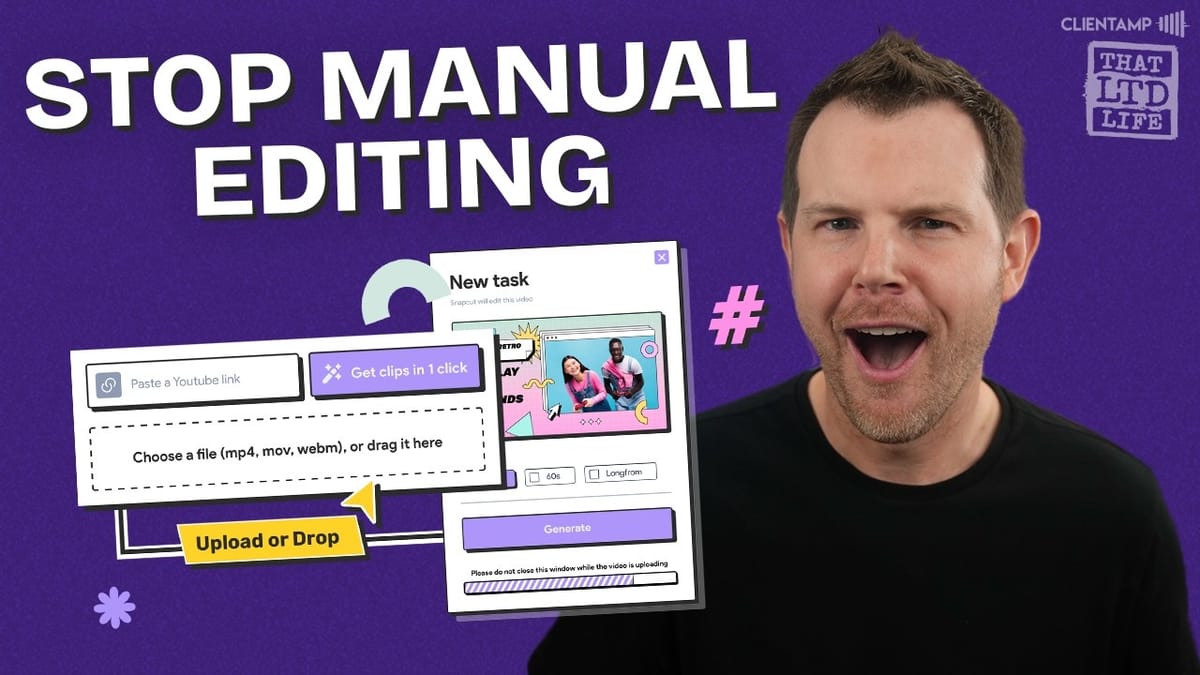
SnapCut is a lifetime deal that promises to turn your long-form videos into engaging shorts with AI-powered clipping, captions, and reframing — all for a one-time price of $49.

SnapCut
Automatically transforms long-form video content into short-form clips with AI-powered selection, reframing, and auto-captions in up to 20 languages.
Content creators, podcasters, and marketers who want to repurpose long-form videos into shorts without manual editing.
Opus Clip, Vizard, Kapwing, Descript
What Is SnapCut and What Do You Get?
SnapCut is a new lifetime deal on AppSumo designed to solve one of the biggest headaches for video creators: turning long-form content into short, platform-ready clips. The tool uses AI to automatically select the best moments from your videos, reframe them for vertical or other aspect ratios, and add auto-generated captions in up to 20 languages.
Every plan includes AI auto-selection of the best cuts, automatic reframing, caption editing, no watermarks, 4K rendering, multiple aspect ratio outputs, and 90-day storage. You also get custom brand templates, which is a nice touch for creators who want consistent branding across all their clips.
Plans and Pricing
The entry-level tier starts at just $49 for a lifetime deal and gives you 200 processing minutes per month. That's a solid amount for most creators — if you're putting out a weekly podcast or a handful of YouTube videos, you'll likely stay well within that limit.
Tier two bumps you up to 500 minutes per month for $109, which should cover virtually any creator's needs. All tiers include the full feature set, so you're really just choosing based on how much content you plan to process each month.
Importing and Processing Your Videos
Getting started is straightforward. You can paste a YouTube link directly into SnapCut, and the Pro plan (which comes with the AppSumo deal) also supports imports from Dailymotion, Facebook, Instagram, Loom, Twitch, Dropbox, and Vimeo. One quirk to note: the shortened YouTube share links (youtube.be) may not always work — you might need to use the full URL instead.
Once you feed it a video, you choose your speech language and optionally select a translation language. There's also a "no clipping" option, which appears to translate the entire video without cutting it into shorts. Processing speed is genuinely impressive — a 19-minute video was fully processed in roughly three minutes, producing 15 individual short clips. That particular video used 20 minutes of processing credits.
Subtitle Customization and Caption Styles
SnapCut offers several built-in caption templates: Simple, Cara, Blue Pop, Commie (a comic book/MrBeast-inspired style), and Monty. Each has a distinct visual personality, and you can further customize fonts, colors, sizes, stroke effects, shadows, and animations like fade or slide transitions.
The theme editor pulls from a decent selection of Google Fonts and lets you adjust weight, color, uppercase formatting, and more. One thing to watch for is the stroke setting — it adds a blurred outline around each letter that can be hard to read if you're not careful with the styling. The shadow controls could also be a bit more intuitive, as turning off the shadow doesn't always produce the expected result.
Once you've dialed in your preferred look, you can save it as a custom template for reuse across future videos. This is a real time-saver if you're producing shorts regularly and want a consistent visual identity.
The Video Editor
The editor gives you control over aspect ratio — you can switch between portrait (9:16) for shorts and standard 16:9, among other options. For screen-recording-heavy content, you may find that 16:9 works better since vertical reframing naturally crops out most of the screen.
Each clip is assembled from multiple segments of the original video, and you can adjust the framing position using a slider to control what part of the frame is visible. This is helpful for repositioning focus onto a specific area of the screen, like a pricing table or a particular UI element. However, there's no keyframe animation, so you can't have the frame smoothly pan across the screen as you talk about different elements.
Caption editing is handled through a dedicated CC section where you can correct any transcription errors. The AI transcription quality is solid — in testing, there were very few mistakes. You can also manually highlight individual words in specific colors, which is useful for emphasizing key terms during playback.
B-Roll Integration
SnapCut includes a built-in B-roll feature powered by Pexels. To use it, you select a portion of your caption text, and the tool lets you overlay a free stock video or image on top of that segment. The team has mentioned that AI-generated B-roll is coming soon, which could make this feature significantly more useful.
For talking-head content or vlogs, this could be a great way to add visual variety without sourcing footage separately. For screen recordings or software demos, it's less practical — but it's a welcome addition to the toolkit nonetheless.
Brand Studio
The Brand Studio lets you create reusable brand overlays that can be applied to any clip. You can upload a logo and control its placement, sizing, and timing — choosing to show it always, during the first 15% of the clip, the middle 45%, or the last 15%.
There's also support for intro and outro videos, though for short-form content, you probably want to skip those and get viewers into the content immediately. The Brand Studio settings override global clip settings when applied, so you have granular control over each clip's branding.
The interface for saving brands is slightly unintuitive — you need to hit "Create" rather than a save button — but once you've set it up, applying your brand to clips is quick and painless.
Exporting Your Shorts
When you're ready to export, SnapCut gives you a few options. You can download the video with captions burned in, download it without captions (useful if you want to handle subtitles separately or skip them entirely), or download just the transcription as an SRT file.
Exporting is fast, and SnapCut sends you an email notification once your render is complete. There's also a built-in preview player so you can review the final output before downloading.
What's Missing and Room for Improvement
Two features would make SnapCut significantly more useful. First, a user management system — the ability to grant access to an editor or virtual assistant so they can generate and edit clips on your behalf. Second, manual clip selection, where you could define exact start and end points rather than relying entirely on the AI's choices.
The reframing AI also struggles with screen recordings, which isn't surprising. If your content is primarily software demos or desktop screencasts, you'll likely need to manually adjust the framing for most clips. Talking-head and podcast content, on the other hand, should work much better out of the box.
Final Verdict: 8.2 out of 10
SnapCut earns an 8.2 out of 10. The user interface is clean, minimalistic, and fast — the design choices are bold but not overwhelming. Processing speed is impressive, the caption customization is solid, and the brand studio adds a nice layer of professionalism to your output.
At $49 for 200 monthly processing minutes, it's hard to argue with the value. Most weekly podcasters or YouTube creators won't come close to hitting that limit. If you're looking for a straightforward, affordable way to start repurposing your long-form content into shorts, SnapCut is well worth a look.
Watch the Full Video
Prefer watching to reading? Check out the full video on YouTube for a complete walkthrough with live demos and commentary.


