
Softr Workflows Review: Built-In AI Automation for Your Apps
Softr's new Workflows feature lets you build powerful automations without leaving the platform. Here's how to create an AI-powered lead qualifier that scores, routes, and follows up with contacts automatically.

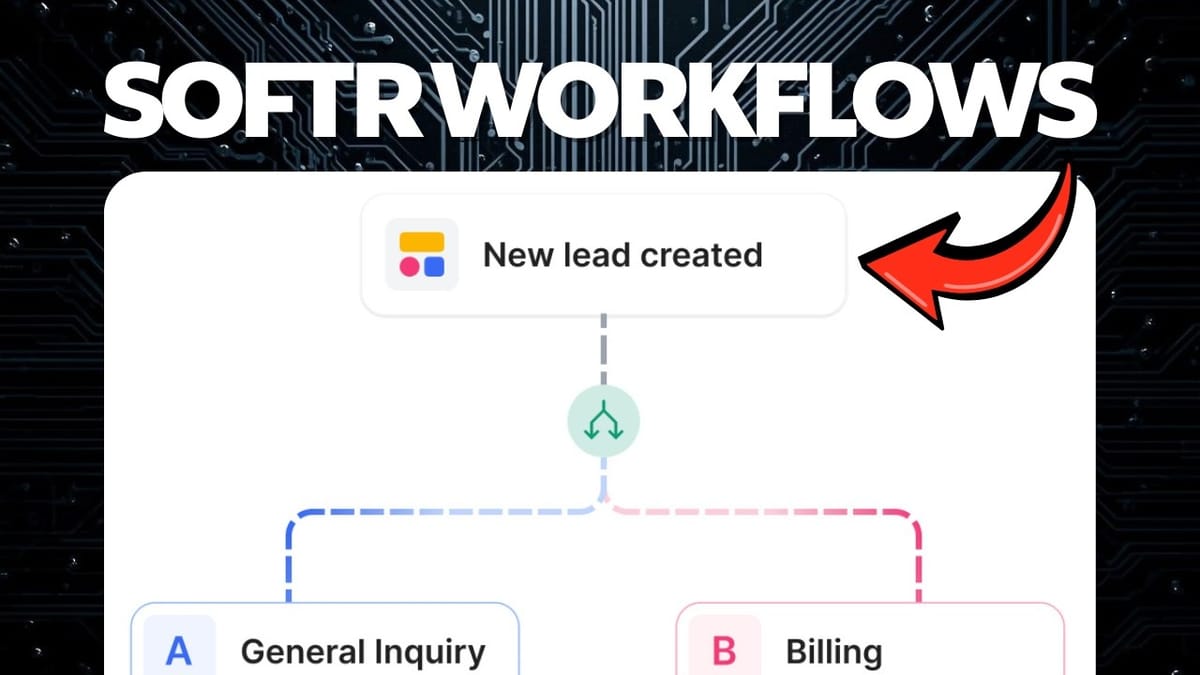
Softr Workflows
Adds built-in automation and AI-powered workflows directly inside the Softr app-building platform, eliminating the need for third-party tools like Zapier.
Business owners, agencies, and no-code builders who use Softr and want to automate lead qualification, email follow-ups, and internal notifications without extra subscriptions.
Zapier, Make, n8n
Why AI and Automation Should Handle Your Busy Work
If you run any kind of service business, you know the drill. Leads come in, you stop what you're doing, read through the inquiry, try to figure out if it's legit, decide how to respond, and then craft an email. Multiply that by a dozen inquiries a week and you've burned hours on triage that never moves the needle.
The smarter play is letting AI and automation handle the intake. An AI lead qualifier can instantly evaluate whether a submission is worth your time, score it against your criteria, and fire off the right response — all before you even glance at your inbox. That's exactly what Softr's new Workflows feature makes possible, and you don't need a single extra tool to pull it off.
Softr's Evolution: From Interface Builder to Full Platform
Softr started life as an interface builder. You'd design a client portal, CRM, or internal tool, and then store your data somewhere else — typically Airtable. It was a clean setup, but it meant juggling multiple services.
Then Softr added its own built-in database, removing the need for a third-party data layer entirely. More recently, they introduced AI agents that live inside the database itself, capable of drafting emails, running internet research, and enriching records automatically. Each of these additions closed a gap, but there was still one major piece missing: a way to connect everything together with automated workflows without reaching for Zapier or Make.
Introducing Softr Workflows: The Game-Changer
Workflows is that missing piece. It's a visual automation builder that lives right inside your Softr account alongside your apps and databases. If you've ever used Zapier or Make, the interface will feel immediately familiar — you get an infinite canvas with a trigger at the top and a chain of actions flowing downward.
The critical difference is that Workflows operates natively within Softr. Your database records, form submissions, and app data are all right there with zero latency. There's no waiting for a webhook to fire, no polling delays, and no extra subscription fees. It's included in your Softr plan. For anyone already building on the platform, this essentially eliminates an entire category of tooling overhead.
Getting Started: Templates vs. Building from Scratch
When you open Workflows, you'll find a collection of pre-built templates alongside the option to start from scratch. The templates are worth browsing even if you don't plan to use one directly. They surface use cases you might not have considered — lead routing, onboarding sequences, notification chains — and give you a quick feel for what's possible.
That said, once you're comfortable with the platform, starting from scratch is usually faster. You skip the step of gutting someone else's logic and can wire things up exactly the way your business needs them from the start.
Triggers and Actions: The Building Blocks
Every workflow begins with a trigger. Softr offers several options: a record being added, updated, or deleted in your database; a record meeting certain conditions; an incoming webhook; or a time-based schedule. For most app-based use cases, you'll trigger off database events — like a new form submission landing in your CRM table.
Actions are where things get interesting. They fall into three categories. First, there are built-in logic actions like branching (if/else), filtering, delays, and loops — these are color-coded for easy scanning. Second, you get outbound actions like sending emails via Gmail, SMTP, or Postmark, making API calls, scraping web pages, extracting data from PDFs, and running custom code. Third, there are third-party integrations like Slack. The integration list is still growing since the feature is new, but the API call and custom code actions mean you can connect to virtually anything right now.
Building the AI Lead Qualifier: Setting the Trigger
For the AI lead qualifier, the trigger is straightforward: a new record added to the CRM database. When someone fills out the multi-step contact form on the website, their submission lands in the database and the workflow fires immediately.
From there, the very first action is a Softr AI node. This is where the platform's built-in AI access pays dividends. You can choose between Claude or OpenAI models — all on Softr's dime, included with your subscription. For most qualification tasks, Claude Sonnet hits the sweet spot between quality and credit efficiency.
The AI Lead Rating Prompt
The heart of the qualifier is a detailed prompt that instructs the AI to perform a multi-step analysis. It pulls in dynamic data from the form submission — company name, website, project type, budget, timeline, and communication notes — using variable references that map directly to your database fields.
The prompt walks the AI through a structured evaluation. First, it validates whether the company appears legitimate. If you've ever received those mysterious inquiries offering vague "partnerships" or suspiciously generous budgets, you know why this step matters. Next, it assesses communication quality: is the submission written clearly, are the expectations realistic? Then it evaluates project complexity against the stated budget and timeline.
Finally, a scoring formula assigns points across these categories. Based on the total, the lead gets classified as hot, warm, cold, or unqualified. Override rules handle edge cases — an invalid domain, incoherent communication, or a wildly mismatched budget will automatically downgrade the score regardless of other factors.
Branching Based on Lead Quality
Once the AI returns its classification, a branching action splits the workflow into separate paths. You can create as many branches as you need — one for each quality tier if you want granular control. For simplicity, two branches work well: qualified (hot or warm) on the left, and unqualified (cold or rejected) on the right.
Each branch condition is configured with simple logic. The left branch checks whether the AI's output contains "hot" or "warm." The right branch catches "cold" or "unqualified." From this fork, each path gets its own tailored sequence of actions, so a promising lead and a spam submission receive completely different treatment.
Writing and Sending Follow-Up Emails with AI
Both branches use AI to draft a follow-up email, but with very different tones. The qualified path generates an enthusiastic, personalized response that acknowledges the prospect's project and invites further conversation. The unqualified path writes a polite decline — thanking them for reaching out, explaining that the scope doesn't align, suggesting alternatives, and leaving the door open for future contact. You never want to burn bridges.
One practical detail worth noting: you can use Softr's built-in AI for one branch and your own OpenAI API key for another. This gives you flexibility to test different models or manage costs across high-volume and low-volume paths.
The send email action supports Gmail, Postmark, or Softr's own SMTP servers. You can validate your own domain for production use. All the dynamic fields — recipient address, subject line, body — map directly to form data and AI-generated content from earlier steps. During development, you can send mock tests or real emails to verify everything looks right.
Adding Delays for Authenticity
Here's a smart touch: if someone fills out a form and receives a rejection email within seconds, they'll immediately suspect automation. Adding a delay node — say, 3.3 hours — makes the response feel considered and personal. It's a small detail that significantly improves the recipient's experience.
You can insert a new action anywhere in the flow by clicking the plus button between existing nodes. The delay node is simple to configure: just set the wait time and the workflow pauses before continuing to the next step.
Updating Database Records and Slack Notifications
After the email goes out, the workflow updates the original database record with the lead's score and status. This keeps your CRM current without any manual data entry. You reference the original record ID from the trigger step, then map the AI's classification into your lead status field.
For hot leads that clear a budget threshold — say, $15,000 or more — an additional branch fires off a Slack notification directly to the business owner. The message can pull in any variable from the form or AI analysis, so you might get a ping saying the prospect's name, their project type, and their budget. The idea is that you reserve your personal attention for the highest-value opportunities while everything else gets handled automatically.
Best Practices and Deploying Your Workflow
Before flipping the switch, Softr flags any untested actions with exclamation marks. Work through each node, run the test using sample data, and verify the outputs chain correctly into downstream actions. This step-by-step testing approach catches mapping errors and prompt issues before they reach real customers.
Once every action passes testing, you publish the workflow with a single toggle. From that point, it runs autonomously — even while you sleep. All execution history shows up in a runs log so you can audit what happened, spot anomalies, and refine your prompts or scoring logic over time. If you want to experiment, duplicate the workflow and try variations without touching the live version.
Final Verdict: Is Softr Workflows Worth It?
Softr Workflows feels remarkably polished for a brand-new feature. The visual builder is intuitive, the native database integration eliminates latency and complexity, and the included AI credits mean you're not layering on additional API costs for basic automation tasks.
The integration library is still smaller than what you'd find in Zapier or Make, but the API call and custom code actions fill the gap for now. If you're already building on Softr — or considering it for a client portal, CRM, or internal tool — Workflows removes the last major reason you'd need a separate automation platform. It ties the entire ecosystem together: apps, data, AI, and automation in one place.
Watch the Full Video
Prefer watching to reading? Check out the full video on YouTube for a complete walkthrough with live demos and commentary.


