
Starbox Pro Review: Is This WordPress Author Box Plugin Worth It?
Starbox Pro promises to upgrade your WordPress author box for better SEO and credibility, but the execution doesn't quite match the concept. Here's what you need to know before buying.

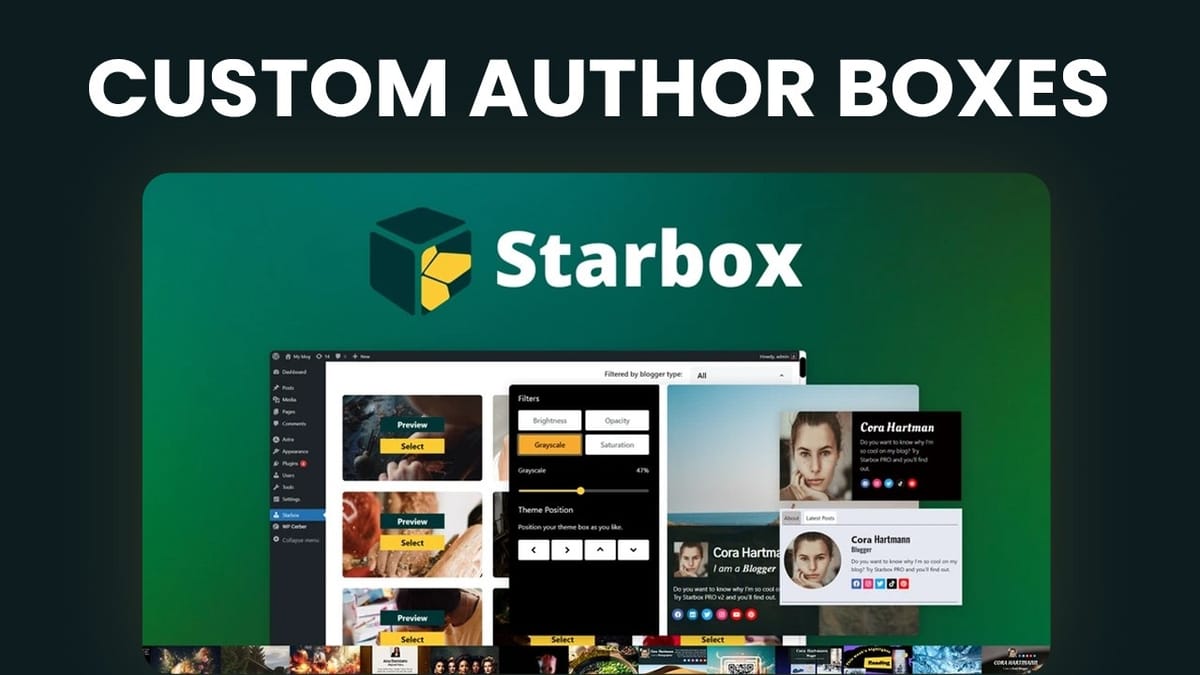
Starbox Pro
A WordPress plugin that adds customizable author boxes to your blog posts to improve E-E-A-T signals and author credibility.
WordPress bloggers and content creators who want a dedicated author box plugin without relying on their theme or page builder.
GeneratePress Author Layouts, Elementor Author Widget, Bricks Builder, Divi
What Is Starbox Pro and Why Does Your Author Box Matter?
Starbox Pro is a WordPress plugin built by the same team behind Squirrly SEO, one of the most popular WordPress deals in AppSumo history with over 442 reviews and nearly all five-taco ratings. The plugin's entire purpose is upgrading the author box on your WordPress site, and the reasoning ties directly into modern SEO strategy.
In the world of search engine optimization, Google evaluates content through the lens of E-E-A-T: Experience, Expertise, Authoritativeness, and Trustworthiness. A well-designed author box that showcases who wrote the content, their credentials, and their social presence helps signal to both Google and readers that the content comes from a credible source. Even AppSumo uses this approach themselves with a prominent "From the Founder" section on their deal pages.
The core value proposition is straightforward: fill out your author profile once, choose a template, and have a professional author box automatically appear on every post. The question is whether Starbox Pro delivers on that promise better than what WordPress and popular themes already offer.
Plans, Pricing, and AppSumo Deal Breakdown
Starbox Pro is available through AppSumo with three lifetime deal tiers. The Single plan covers one site for $49, the Double plan covers five sites for $100, and the Triple plan offers unlimited sites for $147. All of these are one-time payments, which is the standard lifetime deal structure.
With an AppSumo Plus membership discount of 10%, the entry-level plan drops to about $44. If you're running a single WordPress blog and want to test the waters, that's a reasonable price point for a lifetime license. For agencies or anyone managing multiple WordPress sites, the unlimited plan at $147 represents solid value assuming the plugin performs well enough to deploy across client sites.
Installation and First-Time Setup
Getting Starbox Pro up and running follows the typical WordPress plugin workflow. After purchasing through AppSumo, you create an account with Squirrly, download the plugin file, and upload it through the WordPress admin panel under Plugins > Add New > Upload Plugin. License activation is handled within the plugin settings.
The first-time setup wizard walks you through selecting your author, entering personal details, writing a bio, and adding social media links. One immediate friction point: the social media fields don't specify whether you should enter a full URL or just your handle. Entering just a handle (like @DavidSwift for Twitter) may cause issues, so it's safer to use the complete profile URL.
First impressions of the user interface are mixed. The layout is functional but very mechanical, lacking the polish you'd expect from a modern WordPress plugin. It gets the job done, but the experience feels like it was designed by engineers rather than designers. The setup also includes SEO options for your social links: nofollow, noopener, and noreferrer toggles that control how search engines and browsers handle outbound clicks from your author box.
Template Selection: Highly Visual, Standard, and Modern
Starbox Pro offers a respectable library of templates organized into three categories: Highly Visual, Standard, and Modern. The Highly Visual templates feature bold background imagery ranging from comic books to fitness photography to hot air balloons. They're eye-catching but probably too busy for most professional blogs.
The Standard templates dial things back to a cleaner layout that works better in most contexts: your name, bio, and social links without the visual noise. These all look quite similar to each other but provide a solid, no-frills author box. The Modern category includes just five options that resemble email signatures more than traditional author boxes.
Each template includes multiple layout variations, so you're not locked into a single arrangement. You can swap background images on visual templates, which means you're really choosing a layout structure rather than a fixed design. That said, some templates have visible issues out of the box, like profile images overlapping titles or job descriptions getting cut off, which doesn't inspire confidence in the attention to detail.
Theme Customization and Display Options
The theme customization panel offers controls for brightness, opacity, grayscale, and saturation. These are CSS-based image filters, which means they only work on templates that use a background image. If you've chosen a template with a solid color background, adjusting these sliders does absolutely nothing, and there's no indication of why. That's a UX miss.
You can also customize the border around your author information and add a panel overlay (essentially a colored ribbon) on top of the background image. The positioning controls use arrow buttons rather than drag-and-drop, which feels outdated. A reset button lets you revert changes, though it doesn't restore the original background image, requiring you to reselect the entire theme.
Display options let you control where Starbox appears across your site. If your WordPress installation has many custom post types, prepare for some tedious checkbox clicking since there's no "select all" or "deselect all" button. For most users, you'll want the author box on posts only, which means manually unchecking every other post type.
Author Profile and General Settings
The author editing section lets you fine-tune your profile details after the initial setup. One confusing aspect is the dual "job title" fields: there's a "job title slug" (formatted as "I am a [role]") and a separate job title field. The plugin asks you to fill in both, which often results in redundant information displaying on your author box. Simplifying this to just "I am a YouTuber" and leaving the standalone job title produces a cleaner result.
General settings include the ability to set a default author box template that applies to all authors on your site, with the option to exclude specific authors. There's a bug here worth noting: when selecting a different author to exclude, their name doesn't populate in the corresponding field. You can also edit author box settings from the standard WordPress user profile page, which is a nice touch for users who prefer working within familiar WordPress interfaces.
One reliability issue cropped up during testing: the company name and URL fields didn't save on the first attempt through the setup wizard but did save when entered through the WordPress user profile editor. If you notice missing information, try re-entering it from the user profile page.
The Author Box in Action: Real-World Results
Getting the author box to actually display required some trial and error. The toggle switches in the display settings use a design where gray could mean either active or inactive, and the directional indication isn't clear. After toggling them what appeared to be the wrong way initially, switching them to the opposite position got the author box to appear at the bottom of blog posts.
The visual result with the highly visual templates was underwhelming. Typography pulled in from the plugin clashed with the site's theme fonts, and the overall presentation looked rough. Switching to a standard template immediately improved things, with the body copy correctly inheriting the theme's font. However, a secondary "Latest Posts" tab was nearly invisible due to white text on a light background, likely a theme compatibility issue.
This highlights a fundamental challenge with Starbox Pro: CSS conflicts with WordPress themes are practically inevitable, and the plugin doesn't include built-in tools to address them. You'd need to write custom CSS to make everything look polished, which somewhat defeats the purpose of buying a dedicated plugin in the first place.
Final Verdict: A 6.2 Out of 10
Starbox Pro earns a 6.2 rating, and the reasoning comes down to a gap between concept and execution. The idea of decoupling your author box from your theme or page builder is genuinely appealing. A dedicated plugin means you can switch themes without losing your author box setup, and the E-E-A-T benefits of a well-crafted author section are real.
But the current state of the plugin needs work. The UI feels dated, template previews don't always match the live output, customization controls are inconsistent, and theme compatibility issues require manual CSS fixes. Several small bugs, from unsaved fields to confusing toggles, add up to an experience that feels unfinished.
It's also worth considering the alternatives. If you're using GeneratePress, their layout system includes a tutorial for building custom author boxes. Elementor has a dedicated author box widget, and builders like Bricks and Divi offer similar built-in options. Starbox Pro might be the right choice if you want a theme-independent solution and you're willing to wait for the team to polish it over the coming months. The Squirrly team has a track record of long-term development, so there's reason to be cautiously optimistic.
Watch the Full Video
Prefer watching to reading? Check out the full video on YouTube for a complete walkthrough with live demos and commentary.


