
SubEasy AI Review: Fast Transcription & Translation for $39
SubEasy AI delivers speedy Whisper-powered transcription and multi-language translation at a $39 lifetime price. Here's what works, what doesn't, and whether it's worth picking up.

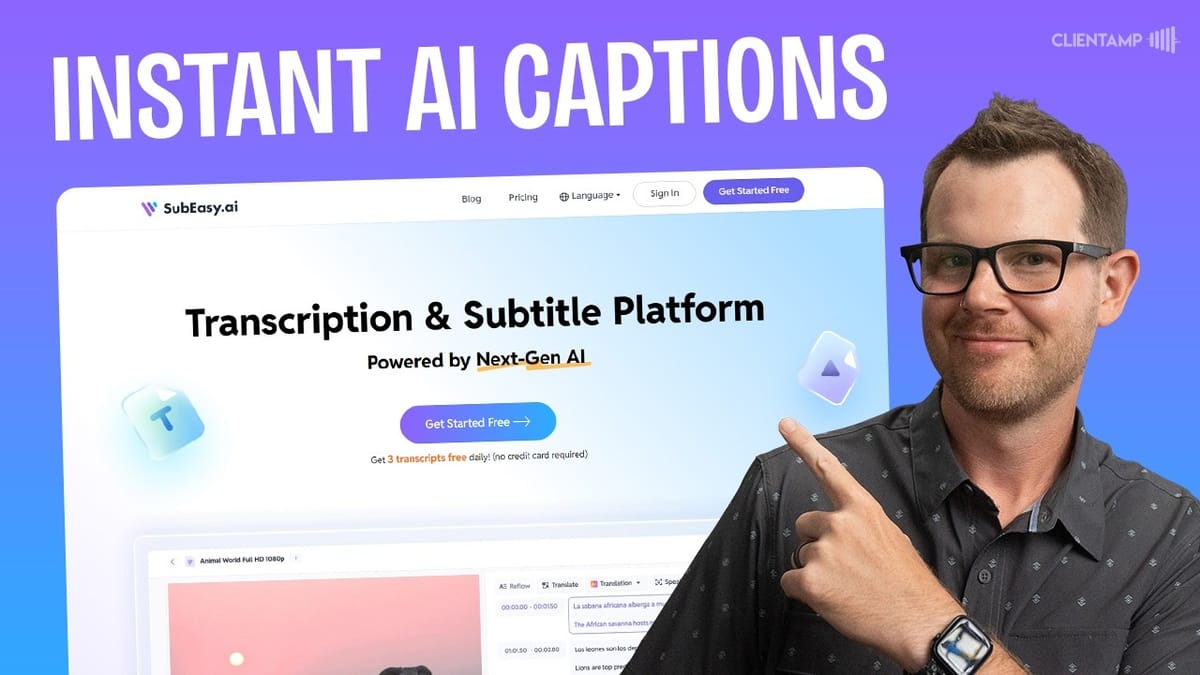
SubEasy AI
Cloud-based transcription and translation tool powered by OpenAI Whisper that converts audio/video into subtitles, transcripts, and translated content.
Content creators, podcasters, and video producers who need fast, affordable transcription and multi-language subtitle generation.
MacWhisper, Descript, Happy Scribe, Otter.ai
What Is SubEasy AI?
SubEasy AI is a cloud-based transcription and translation tool built on top of OpenAI's Whisper model. It takes your video or audio files, transcribes them with impressive accuracy, and can then translate the results into dozens of languages. You can even burn subtitles directly onto your video for re-uploading multilingual content.
The tool is currently available as a lifetime deal on AppSumo starting at $39. At the time of this review it launched as an early access deal for AppSumo Plus members, with pricing set to increase once the early window closes. Everything covered in this review was done on the $39 tier one plan, so you're seeing the entry-level experience here.
User Interface and File Uploads
SubEasy keeps its interface clean and straightforward. Uploading files is a pleasant experience — drag a file from your desktop and a large modal appears indicating you can drop the file anywhere on the screen. It sounds minor, but a generous drop zone makes a real difference when you're working quickly and don't want to hunt for a tiny target area.
Beyond local file uploads, SubEasy also accepts YouTube URLs. Paste in a link and the tool will download and transcribe the video automatically. Both methods completed transcription of 25–27 minute videos in roughly two minutes, which is genuinely fast. YouTube-sourced files even pull in the video thumbnail for a nice preview experience.
Understanding the Usage and Credit System
SubEasy's usage model has a couple of layers to it. Every plan includes three free transcriptions per day, as long as each file is under 30 minutes. These refresh on a rolling timer, so you'll always know when your next batch is available.
On top of the daily allotment, there's a monthly credit system. Tier one includes 200 credits, tier two bumps that to 500, and tier three provides 1,500. Credits get consumed when you exceed the 30-minute limit on transcriptions (one credit per extra minute), run translations, or use the built-in AI companion features. It's not the simplest system to wrap your head around, and it would benefit from a more straightforward structure. That said, for most casual users the three daily free transcriptions may be all you need.
Transcription Settings and Noise Filtering
Before you kick off a transcription, SubEasy offers a handful of useful settings. There are two noise filtering options: Clear Plus and Noisy Audio. Clear Plus is the higher-quality filter and is reserved for Pro Plan users — which AppSumo lifetime deal holders qualify as. Noisy Audio is designed for extreme cases like recording in a busy café with heavy background noise.
There's also a glossary feature that lets you pre-enter tricky words, proper nouns, or product names to improve transcription accuracy. The catch is that this glossary is set on a per-video basis, so if you're regularly covering the same topics you'll be re-entering terms each time. An account-level glossary that auto-populates on every upload would be a welcome improvement. Tucked away under a triple-dot menu, you'll also find a toggle for removing filler words like "um" and "ah" — it's on by default and works well for producing cleaner output.
Video Playback and Sync
Once your transcription is ready, SubEasy displays a subtitle view alongside a video player. There's an important quirk to understand here: SubEasy doesn't permanently store your uploaded video files. When you reopen a previously transcribed file, you'll see a black screen until you resync the video from your local storage. The resync is instant, which confirms the tool isn't actually re-uploading anything — it's just pointing back to your local file.
This is a smart approach for keeping SubEasy's storage costs manageable, but it means you need to keep your original files around. YouTube-sourced transcriptions don't have this limitation — they pull the video directly from the URL, complete with thumbnail, making for a smoother playback experience.
Subtitle View and Playback Controls
The subtitle editor is where SubEasy really shines for accuracy checking. Each subtitle line has a play button that jumps to that exact timestamp in the video, plays through the line, and then automatically stops. This makes it incredibly efficient to verify accuracy — you click, listen, confirm, and move on without having to manually scrub through your timeline.
If you want continuous playback instead, the standard play button will read the line and keep going through the rest of the video. It's a small design choice, but having both options readily available makes the review process much faster than what you'd get in a basic text editor with a separate media player.
Reflow: Smarter Subtitle Formatting
The reflow feature is an AI-powered tool that reformats your subtitle lines based on a maximum character count you set. Rather than having some lines extremely short and others uncomfortably long, reflow evens everything out for better readability when subtitles are displayed on screen.
For a 27-minute video, the reflow process takes roughly 10 to 15 seconds. It's only available in subtitle mode (not transcription view), and it makes a noticeable difference in the final presentation quality. If you're planning to burn subtitles into your video for distribution, running reflow first is well worth the few seconds it takes.
Translation: Multiple Languages, Multiple Quality Tiers
Translation is one of SubEasy's standout features. You get three quality tiers to choose from: Microsoft, SubEasy AI, and SubEasy AI Plus (labeled "superior quality"). Language selection includes numerous localizations, so you're not just picking "French" — you can choose specific regional dialects, which is a thoughtful touch for creators targeting particular audiences.
Speed is impressive across the board. The AI Plus translation of a 27-minute video into French took about a minute at roughly 1% per second. The standard AI tier ran even faster, completing a Spanish translation in about 15–20 seconds. Once translated, you can switch between your original and translated versions from a dropdown menu.
The credit cost varies by quality tier. The AI Plus French translation initially showed zero credits (likely a display bug) while a subsequent standard AI translation quoted 55 credits. With 200 credits on tier one, you'll want to plan your translations strategically if you're working with multiple languages regularly.
Subtitle Styling and Customization
SubEasy offers several styling options for your on-screen subtitles. You can choose from effects like outline, shadow, or the classic background bar you see on broadcast television. The background style is the most readable of the bunch — the outline and shadow effects can be a bit hard to read depending on your video content.
Positioning options let you place subtitles at the top, middle, or bottom of the frame, and there's a solid selection of fonts available. Different language options pull in appropriate font choices, which is a nice detail if you're producing multilingual content. The styling won't win any design awards, but it covers the essentials competently.
Speaker Identification
For podcasters or anyone recording multi-person content, SubEasy includes a speaker identification feature. Activate it with a single click and the tool will analyze your audio to differentiate between speakers. Once identified, you can label each speaker by name and make corrections if needed.
Testing was limited here since the review video only had a single speaker, but SubEasy correctly identified that with 100% accuracy. If you're running an interview show or panel discussion, this feature could save significant time compared to manually tagging speakers throughout a transcript.
Making Corrections and Find & Replace
Editing your transcription is refreshingly simple. Click on any subtitle line and start typing — it behaves like a basic word processor with no special key commands or editing modes to learn. If you forgot to add a product name to the glossary and the transcription got it wrong, you can fix it right in place.
The find and replace tool handles bulk corrections efficiently. Search for the incorrect term, enter the correct version, and replace all instances at once. One important caveat: subtitle view and transcription view maintain separate files. A correction made in transcription view won't automatically carry over to subtitle view, so you may need to run find and replace twice if you're working in both modes.
Transcription View, Focus Mode, and Translations
Beyond subtitle view, SubEasy offers a transcription view that presents your content as flowing text rather than timestamped lines. Clicking on any paragraph jumps to the corresponding point in your video, making it easy to review longer-form content. However, switching to transcription view causes your translations to disappear — you'll need to re-render them, which costs additional credits. This feels like an unnecessary limitation.
Focus mode strips away the UI and presents just the transcription text for distraction-free reading. The concept is solid, but the execution could use refinement. Lines stretch edge to edge across the screen, making them difficult to follow. Narrowing the text column to roughly half the width would make this a much more practical feature for proofreading.
AI Companion and Content Generation
SubEasy includes a built-in AI companion that can generate content from your transcriptions. One-click prompts produce show notes, blog posts, and other formatted outputs. The show notes feature is particularly well done — it generates timestamped, structured notes with sections for notable quotes, final thoughts, and calls to action.
Blog post generation costs five credits and produces a reasonable output, though it can run a bit short for longer videos. The AI content generation is functional and convenient, especially for creators who want to repurpose video content into written form without leaving the tool. Just keep an eye on your credit balance, as these features combined with translations can eat through your monthly allotment quickly.
ChatGPT Integration
If the built-in AI companion doesn't give you what you need, SubEasy has a direct integration with ChatGPT. Clicking the ChatGPT button launches a custom GPT that connects to your SubEasy account and can access your transcriptions directly. You can ask it to summarize content, generate different types of written material, or answer questions about what was said in your video.
The big advantage here is that this interaction uses your existing ChatGPT Pro subscription rather than your SubEasy credits. For heavy users who already pay for ChatGPT, this effectively gives you unlimited AI-powered content generation from your transcriptions without additional cost.
Tagging and Organization
SubEasy includes a tagging system for organizing your transcription library. You can assign color-coded tags to each video — useful for sorting by series, client, topic, or any other category that makes sense for your workflow. The main dashboard supports filtering by tag, so finding specific content in a growing library stays manageable.
It's a simple feature, but an important one for anyone who plans to use the tool regularly. If you're managing transcriptions for multiple shows, clients, or content categories, tags will keep things from becoming an unmanageable list.
Plans, Pricing, and Credit Costs
SubEasy's AppSumo lifetime deal comes in three tiers. Tier one at $39 includes three daily transcriptions and 200 monthly credits. Tier two bumps credits to 500, and tier three at the top provides 1,500 monthly credits along with batch transcription, 4K video export, and prioritized processing.
Additional credits can be purchased separately at a slight discount for bulk buys, and SubEasy also offers a $20–25/month unlimited subscription plan for users who outgrow the lifetime deal. The credit consumption breaks down to one credit per minute of audio beyond the 30-minute free limit, plus variable costs for translations and AI features depending on quality tier selected.
Final Verdict: A Solid 7.4 with Room to Grow
SubEasy AI earns a 7.4 rating as a capable, user-friendly transcription tool with genuinely impressive speed. Powered by OpenAI's Whisper model, it delivers accurate transcriptions in about two minutes for videos under 30 minutes, and the translation features open up real possibilities for creators looking to reach multilingual audiences.
The interface is clean and intuitive enough that most people won't need any training to get started. Speaker identification, the AI companion, and ChatGPT integration add meaningful value on top of core transcription. Where SubEasy falls short is in its credit system complexity, the frustrating loss of translations when switching views, and a handful of UI bugs encountered during testing — including a jarring auto-switch between projects.
For creators who primarily need English transcription with occasional translations, the $39 tier one plan offers solid value. The three daily free transcriptions alone may be enough for many workflows. If you're doing heavy multilingual work, you'll want to budget for a higher tier or be prepared to purchase additional credits. Compared to running local transcription software like MacWhisper, SubEasy trades some cost efficiency for convenience, cloud processing, and built-in translation — a tradeoff that makes sense for many creators.
Watch the Full Video
Prefer watching to reading? Check out the full video on YouTube for a complete walkthrough with live demos and commentary.


