
SuperOkay Review: Client Portal for Freelancers & Agencies
SuperOkay gives freelancers and agencies a branded client portal with project management, file sharing, packaged services, and Stripe billing — all without exposing your internal workflows.

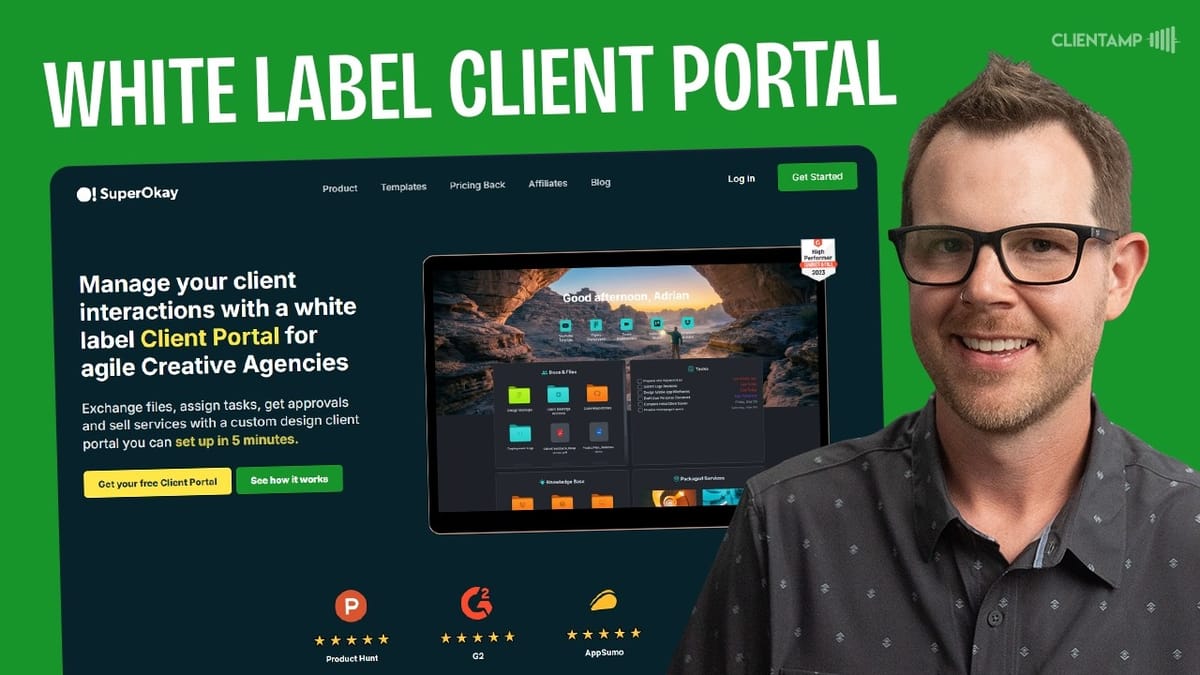
SuperOkay
A client portal platform that lets freelancers and agencies share project files, tasks, pages, and packaged services with clients through a branded, white-labeled dashboard.
Freelancers, agencies, and service-based businesses who want a professional client-facing portal separate from their internal project management tools.
Dubsado, HoneyBook, Notion Client Portals, Copilot
Plans and Pricing: Which Tier Should You Buy?
SuperOkay starts at $69 as a lifetime deal on AppSumo, spread across four tiers. Tier one gets you unlimited projects, unlimited task management, one team member, five pages, and 10 GB of storage. Team members here means people on your side who actually build and manage the portal — clients don't count against this limit.
Tier two is where things get interesting and where most buyers should start. You jump to three team members, ten pages, and a massive leap to 100 GB of storage. More importantly, tier two unlocks team member roles, custom project permissions, and the white-labeling and custom domain combo. That last part is critical if you want clients to see your brand instead of SuperOkay's.
Tiers three and four don't add new features — they just scale up resources. Tier three bumps storage to 250 GB with unlimited pages and team members, while tier four pushes storage all the way to a terabyte. Unless you're handling massive file transfers with clients, tier two or three should cover most use cases.
How SuperOkay Is Structured
The core of SuperOkay revolves around three main areas: projects, clients, and tasks. You create a project for every engagement — a web design job, a video production gig, an SEO campaign — and assign it to a specific client. That assignment restricts the project's visibility so the client only sees what belongs to them.
Tasks live inside projects and roll up into a main overview dashboard where you can see everything at a glance, sorted by project. The dashboard is more of a bird's-eye view, while the real work happens inside individual projects and client records.
Below the main navigation sits a templates section with pre-built starting points for common project types: branding, websites, mobile apps, graphic design, SEO, digital marketing, and video production. Each template comes with tailored sections and a bento-box layout of links and action items. They're genuinely useful, though you can't save your own custom templates yet — a notable gap in the current feature set.
Settings and Organization Branding
The settings panel is where you'll spend your first session after redeeming your AppSumo code. Under My Organization, you upload a primary logo and a reverse logo for dark mode, set up a color palette that becomes available across your documents and projects, and choose fonts from Google Fonts' library of over 1,700 options. No custom font uploads, unfortunately, so if your brand uses a proprietary typeface, you'll need to find the closest match.
Team member management is straightforward — add a name, assign a role (member, project manager, or admin), and they're in. This is separate from client access, which happens elsewhere.
One frustration worth noting: the color palette you painstakingly set up in settings doesn't automatically carry over to new projects or the client-facing login page. You'll find yourself re-entering brand colors in multiple places, which feels like an oversight rather than a design choice.
Client Portal Login and White Labeling
The client portal settings give you solid control over the login experience. You can set the portal language, toggle magic links on or off (and yes, you can fully disable them if you prefer traditional password authentication), and customize the login page theme with several layout options — centered, left-aligned, right-aligned — plus background image swaps via Unsplash or your own uploads.
Light and dark mode are both supported, and you can edit every bit of text on the login screen, from button labels to helper copy. The form background toggle is worth enabling — it adds a container around the login fields that dramatically improves readability regardless of your background image choice.
Custom domain setup works through standard DNS configuration. You point your domain, validate the records, and your portal runs on yourbrand.com or portal.yourbrand.com. Email white labeling follows the same pattern with DKIM authentication via a TXT record. Don't skip the email setup — without it, your portal notifications will land in spam folders. Both processes take just a few minutes if you're comfortable with DNS.
Managing Clients and Contacts
Adding clients is a quick process: enter the company name, upload their logo, pick a brand color, and create. After the client record exists, you add individual contacts within it — the actual people who'll log into the portal. Each contact is locked to the "client" role with no option to change it, which keeps things simple.
Once contacts are added, you notify them via a built-in email link or copy the portal URL and send it through whatever channel you prefer. Client records are editable after creation, so you can update logos, add new contacts, or remove ones who've moved on.
The client list also serves as a navigation hub — clicking into a client shows all their associated projects, giving you a quick path to manage access and settings without hunting through the projects list.
Projects: Templates, Docs, and Embedded Apps
Creating a new project starts with choosing a template, and SuperOkay's built-in options are genuinely useful. Each template comes pre-loaded with relevant sections, document placeholders, and quick links tailored to the project type. A video production template, for example, includes sections for proposals, briefs, pinned documents, and deliverables.
The docs and files section within each project supports uploading files, linking to external files, creating folders, and organizing deliverables. Clients can also upload files here, which makes it a two-way collaboration space. You have granular control over what clients can do — create, upload, remove, or move files — and it's worth locking down the destructive permissions early.
Embedded apps add another layer of utility. Out of the box, SuperOkay supports Miro, Airtable, Figma, Canva, YouTube, Google Data Studio, Loom, Trello, and ClickUp. If your tool of choice isn't on the list, you can paste in any embed code and it'll work. This means you can surface a Trello board, a Loom walkthrough, or a Figma prototype directly inside the client's portal without them needing separate logins.
Project Settings and Client Access
Project settings are accessed through the gear icon and control everything from client access to module visibility. Under manage access, you assign which team members and clients can see the project. An important quirk: you need to assign client access before you can preview the portal as that client, which feels backwards — ideally you'd want to preview before going live.
Modules are the building blocks of what clients see on their dashboard. You can toggle on or off: docs and files, tasks, timelines, packaged services, pinned folders, pages, quick links, and embedded apps. Each module can be enabled separately for your team and for clients, so you can have internal-only sections that clients never see.
File permissions deserve careful attention. By default, clients may have the ability to create, upload, remove, and move files. Based on real-world experience managing client relationships, turning off remove and move permissions is a smart default — clients make mistakes, and you don't want critical deliverables accidentally deleted.
Branding the Client Portal
Each project gets its own branding settings, separate from your organization-level branding. You can customize the background image, adjust its opacity for better contrast with your content cards, and toggle between light and dark modes. Font selection mirrors the organization settings with full Google Fonts access.
Here's a legitimate gripe: the branding you set up at the organization level doesn't cascade down to new projects. Your color palette and font choices are saved in settings, but every new project starts with SuperOkay's defaults. If you're managing dozens of clients, this means repetitive branding setup each time. It's the kind of thing that should "just work" — your org branding should be the default, with per-project overrides available when a client needs something different.
The client-facing design is functional but not going to win any awards. Some of the default templates have contrast issues — like blue text on a busy background — that you'll need to manually address. The hover states on project cards can also make text hard to read if your color scheme isn't carefully chosen.
Packaged Services and Stripe Billing
Packaged services turn SuperOkay into a lightweight storefront for productized offerings. You build service packages in the library using the built-in page editor, choosing from templates like SEO packages, branding bundles, or design retainers. Each package is essentially a product page with an itemized breakdown of what's included.
Once a package is created in the library, you attach it to specific projects through the project settings, then enable the packaged services module so clients can see it. When a client is ready to purchase, SuperOkay hands off to Stripe via payment links — no complex billing integration needed. The money goes straight to your Stripe account.
The workflow involves a few clicks to connect everything: create the package, attach it to a project, enable the module, and save. It's not the most streamlined flow, but once you understand the library-to-project pipeline, it becomes second nature. This is a genuinely useful feature for anyone selling fixed-scope services.
Pages and the Built-In Editor
Pages in SuperOkay function like simple website pages that live inside the client portal. You build them in the library, attach them to projects, and they show up in the client's sidebar navigation. Think about pages, team bios, FAQs, or onboarding guides — anything you'd want clients to reference.
The page editor is a lightweight page builder. You can add rows and columns (50/50, 30/70, and other splits), drag sections around, adjust padding and margin, and insert content blocks including text, buttons, and embedded code. It's capable enough for informational pages but won't replace a real website builder. Text alignment is per-element rather than container-level, and responsive behavior can get awkward when the viewport narrows.
The template selection for pages is the weakest part of the experience. The designs feel dated compared to the admin interface, and you'll likely spend time reworking them. That said, the reusable blocks system partially compensates — you can build content chunks once and drop them into any page via the content library, which includes team bios and case studies alongside custom blocks.
The Library: Reusable Blocks, Team Bios, and Case Studies
The library is SuperOkay's content hub, and it's worth investing time here before building out client projects. Reusable blocks are templated content chunks — questionnaires, onboarding checklists, budget forms — that you can drop into any page. Build them once, reuse them everywhere.
Team bios let you create profiles for your team members that can be embedded into client-facing pages. Case studies work similarly — write up a project showcase, and it becomes a linkable, embeddable asset you can surface inside client portals or share as a public link.
Almost everything in the library can be shared as a public link, which gives you flexibility beyond the portal itself. You can link to a case study from your main website, share a service package on social media, or send a team bio page directly to a prospect. This dual-use approach — internal portal asset and public-facing content — adds genuine value to the time you invest in building out your library.
Final Verdict: A 7.7 Out of 10
SuperOkay earns a 7.7, and that's a genuinely strong score. The core value proposition — a dedicated client portal that's separate from your internal project management — is well-executed. There's real wisdom in not letting clients see the sausage being made. Internal discussions, planning notes, and team debates stay private while clients get a clean, branded dashboard showing exactly what they need to see.
The platform does a lot right: unlimited projects across all tiers, solid file management with granular permissions, embedded app support for popular tools, packaged services with Stripe billing, and comprehensive white-labeling. The library system with reusable blocks is a thoughtful touch that saves time at scale.
What holds it back from the eights is primarily the design layer. Client-facing templates need modernizing, brand settings don't cascade from organization to project level, and there are small UX friction points like needing to assign client access before previewing. The inability to create custom templates is also a notable gap. But these are refinement issues, not fundamental flaws. If you're a freelancer or agency looking for a professional client portal that keeps your internal work separate from what clients see, SuperOkay delivers.
Watch the Full Video
Prefer watching to reading? Check out the full video on YouTube for a complete walkthrough with live demos and commentary.


