
SurveyNoodle Review: AI-Powered Surveys on AppSumo
SurveyNoodle is an AI-powered survey tool available as a lifetime deal on AppSumo. Here's an honest look at what works, what doesn't, and which pricing tier actually gets you the features you need.

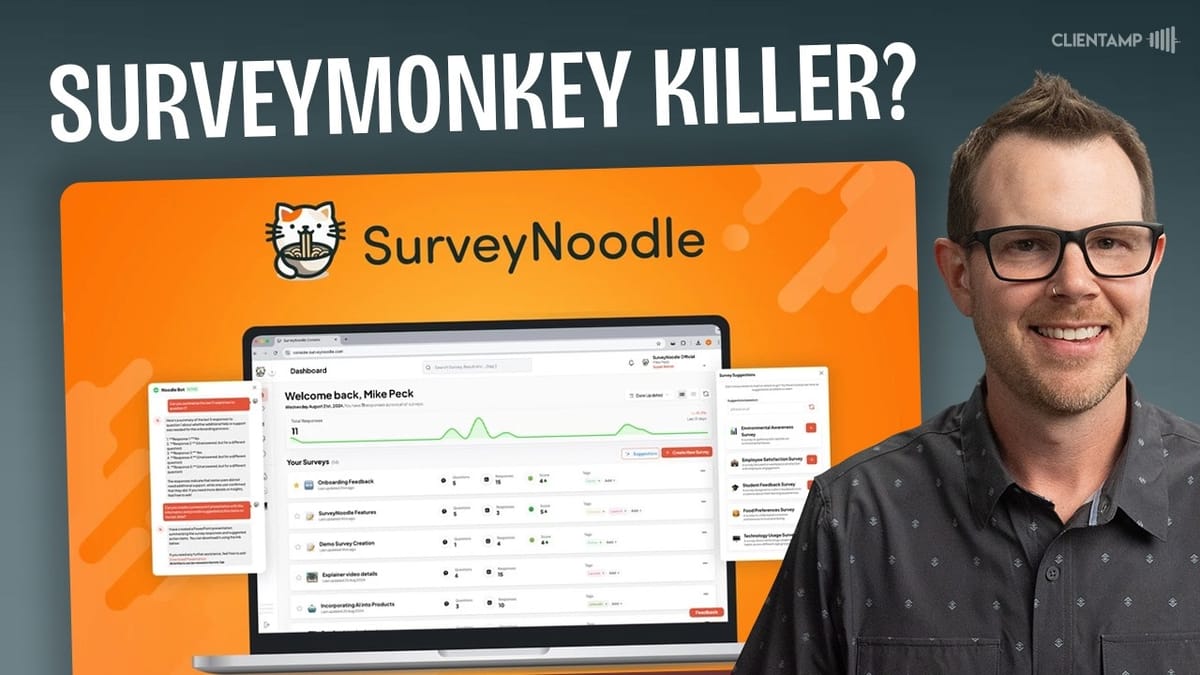
SurveyNoodle
An AI-powered survey creation and analysis tool that helps businesses build surveys, collect responses, and get automated sentiment analysis and summaries.
Business owners, marketers, and agencies who need to collect and analyze customer feedback without spending hours manually reviewing responses.
Typeform, SurveyMonkey, Google Forms, Tally
What Is SurveyNoodle?
SurveyNoodle is a survey building tool with AI baked into nearly every part of the experience. It's currently available as a lifetime deal on AppSumo, starting at $69 for the base tier. But here's the thing you need to know upfront: many of the most compelling features are locked behind tier three, which jumps to $269.
The core pitch is straightforward. You can use AI to generate entire surveys from a simple keyword or prompt, and then use AI again on the back end to analyze the results. That analysis piece is where the real time savings come in — if you've ever had to manually sift through hundreds of open-ended responses, you'll understand the appeal.
This review covers the full experience: building surveys, collecting responses, analyzing data, and all the quirks and bugs encountered along the way.
The Dashboard and Navigation
The SurveyNoodle dashboard opens to a response overview showing your activity over the last 30 days. On a new account this isn't particularly useful, but over time it'll display a line graph of daily response volume so you can spot trends.
Below the graph, your surveys are displayed in either grid or list view. List view is arguably more practical since it surfaces more information at a glance, though grid view is the default. The left sidebar is intentionally minimal — just the dashboard and a section for pinned surveys.
That pinned surveys feature is worth highlighting. If you're managing dozens or even hundreds of surveys across clients or projects, you can favorite the ones you're actively working on so they're always one click away. It's a small touch, but it makes daily workflow noticeably smoother.
Survey Settings and the Info Tab
Each survey has an info tab where you can configure several important settings. You can set a custom link for the survey, upload or AI-generate a cover image, and toggle options like hiding the SurveyNoodle branding and enabling link previews for social media sharing.
The AI image generation is interesting but not amazing. It produces images based on the survey description, but the results tend to look like generic DALL-E outputs rather than clean icons. If you care about visual polish, you'll probably want to upload your own images.
One key setting lives here: survey sentiment tracking. When enabled, SurveyNoodle's AI will analyze overall sentiment on a schedule you set — daily, weekly, or bi-weekly. This is a tier three and above feature, so keep that in mind when evaluating which plan you need.
Search, Tags, and Account Settings
The search bar at the top of the dashboard works, but it has a developer-centric quirk that's worth calling out. You can search by survey name easily enough, but if you want to search by tag, you need to use the syntax `tag:yourtag` rather than just typing the tag name. For technical users this is second nature, but most people will type a tag name, get no results, and assume it's broken.
Tags themselves are straightforward to add — just open a survey, type a tag name, and hit return. They're useful for organizing surveys by client, project, or campaign, especially as your account grows.
On the account settings side, tier three and above users can connect a custom domain so surveys live at something like `survey.yourdomain.com`. Team member limits are worth noting: tier one gets no teammates, tier two gets two, tier three gets three, and you need to jump to tier four for ten team members.
Building a Survey with AI
There are two ways to create a survey in SurveyNoodle. The "suggestions" mode is essentially easy mode — enter a keyword, hit regenerate, and the AI produces a set of survey concepts tailored to that topic. Click the plus button on any suggestion and it generates the entire survey, questions and all, in seconds.
The "create new survey" option gives you more manual control while still offering AI assistance throughout. If you're experienced with survey design and want to be more hands-on, this is the better path.
The suggestions mode is impressively fast. Enter something like "AppSumo customers" and you'll get options like product feedback surveys, use case studies, and market research surveys. Pick one and the AI builds out the full question set. That said, there are some glitches — during testing, a "name already exists" error appeared repeatedly when trying to generate certain surveys, with no clear cause or workaround beyond just trying again.
Question Types and Customization
SurveyNoodle supports the question types you'd expect: multiple choice, range/scale, select all that apply, rating (with customizable star counts), long answer text fields, and true/false. Every AI-generated question is fully editable — you can change the question text, swap the question type, and modify individual answer choices.
AI is woven throughout the question editing experience. There's a button to generate entirely new questions with AI, another to regenerate answer choices for checkbox-style questions, and the option to add AI-generated images to both questions and individual answers.
There is a notable bug worth mentioning: when adding images to answer choices and trying to set a description via the gear icon's instruction field, the description doesn't save. It simply disappears when you reopen the settings. For a tool that leans heavily on its image generation capabilities, that's a significant gap.
Conditional Logic
For more complex surveys, SurveyNoodle includes conditional logic that lets you route respondents to different questions based on their answers. The setup is straightforward: select a question, define a condition based on a specific answer, and choose which question to jump to.
You can stack multiple conditions on a single question, so each answer choice could theoretically route to a different follow-up question. This opens the door to genuinely sophisticated survey flows — think branching customer satisfaction surveys where a negative rating triggers a follow-up about specific pain points while a positive rating skips ahead.
Questions with conditional logic display a small icon indicator so you can quickly see which questions have branching behavior as you review the survey structure.
Survey Preview and Front-End Experience
Before publishing, you can preview exactly what respondents will see. The front-end interface is clean and moves quickly between questions. Multiple selection questions highlight chosen options in red, range questions display a slider, and long answer questions present a simple text field.
During testing, an AI-generated image appeared broken on the live survey preview, which is a notable quality issue. The overall respondent experience is functional but not as polished as what you'd get from Typeform. It gets the job done, and with a 92.9% completion rate on a test survey, respondents didn't seem to have trouble navigating through it.
Custom Endings and Redirects
The endings feature lets you customize what respondents see after completing the survey. You can add thank-you text, include links with buttons, and even redirect users to an external page automatically.
Where it gets powerful is with multiple endings. You can create different end screens and use conditional logic to route respondents to the appropriate one. For example, if someone says they'd like to schedule a call, you can send them to your Calendly. If they decline, you can show an email capture instead. It's a practical way to maximize the value of each completed survey.
The interface for customizing endings has some rough spots, though. Button styling asks for Tailwind CSS classes, which is meaningless to most non-developers. Similarly, adding icons requires looking up material symbol names on an external site. Simple color pickers and an icon browser would go a long way toward making this accessible.
Sharing and Distribution
SurveyNoodle gives you several ways to distribute your survey. You get a shareable link, a QR code (tier three and above), mobile and desktop previews, and an embed widget for adding surveys directly to your website.
The QR code feature is particularly useful for brick-and-mortar businesses — print it on menus, table cards, or receipts and let customers scan to give feedback on the spot. Just be aware that QR codes are gated behind the higher tiers.
Link previews for social media can be enabled in the info tab, so when you paste the survey URL into Facebook or LinkedIn, it shows a branded preview rather than a generic placeholder.
AI-Powered Survey Analysis
This is where SurveyNoodle's AI capabilities are supposed to really shine. The summary page shows response rates, individual question breakdowns, and AI-generated summaries for each question. There's also an overall sentiment analysis and an action items tab that should surface things respondents are telling you to fix or improve.
In practice, the AI analysis is a mixed bag. Long answer questions work very well — the AI does a solid job of synthesizing paragraph-length responses into actionable summaries, which is genuinely the most time-consuming part of survey analysis. Multiple choice and true/false summaries also work fine.
However, range-based questions consistently failed to generate summaries, reporting "no data" even when response data was clearly present. The overall sentiment analysis and action items didn't populate at all during testing, likely because they run on a scheduled basis rather than on-demand. Not being able to trigger these manually is a frustrating limitation.
Results, Exporting, and NoodleBot
Individual survey responses are viewable on the results page, where you can flip through each submission to see exactly what each person answered. For getting data off the platform, there's a CSV export and a built-in Google Sheets integration accessible from the settings.
The NoodleBot is SurveyNoodle's conversational AI feature — essentially a chatbot that can answer questions about your survey data. Ask it "what do people like the least?" and it'll pull from the responses to give you an answer. It's useful but requires subject matter knowledge to interpret correctly, since the AI can conflate "least selected" with "least liked."
NoodleBot can also generate PowerPoint presentations from your data, though the output is basic — mostly raw data and a single chart. Attempts to improve the presentation through follow-up prompts didn't work, as the bot seemed to lose context of the conversation. The presentation export is more of a novelty than a production-ready feature at this point.
Plans, Pricing, and What Each Tier Gets You
Here's the tier breakdown on AppSumo, and it matters more than usual because key features are locked behind higher tiers:
Tier one ($69) gives you 1,000 monthly responses, a single user, and access to AI survey creation, conditional logic, NoodleBot, and custom endings. Tier two ($179) bumps responses to 3,000 and adds a second user. The real feature unlock happens at tier three ($269): 10,000 responses, three users, plus automated sentiment analysis, QR codes, dynamic content in endings, and custom domains. Tier four ($579) adds no new features but increases limits to 30,000 responses and 10 users.
All tiers include unlimited surveys and questions, which is generous. But if sentiment analysis and QR codes are important to you, tier three is effectively the starting point. That $269 price tag is a significant jump from the advertised $69.
Themes and Customization
Tucked away in the share settings is a theme customizer that's easy to miss. You can choose between a default light theme and a dark theme, then customize colors for various elements. Refreshingly, this uses simple color pickers rather than requiring CSS knowledge.
You can also customize the text on navigation buttons, changing "Previous" and "Next" to whatever fits your brand voice. It's a small detail, but it's the kind of polish that helps surveys feel less generic.
Final Verdict
SurveyNoodle is a tool with genuinely interesting AI capabilities wrapped in an interface that still needs polish. The AI survey generation is impressively fast, the conditional logic is solid, and the AI-powered analysis of long-form responses could save serious time for anyone who regularly runs surveys.
On the other hand, there are noticeable bugs (broken images, disappearing field values, inconsistent AI summaries), some developer-centric UI choices that will confuse non-technical users, and the most compelling features are gated behind the $269 tier three plan.
This one lands somewhere in the mid-sixes. It's a good tool with real potential, but it needs additional polish before it feels fully ready for the average business owner who just wants to create surveys and understand what their customers are thinking. If you're comfortable with a few rough edges and the AI analysis features appeal to you, tier three is where the value proposition starts to make sense.
Watch the Full Video
Prefer watching to reading? Check out the full video on YouTube for a complete walkthrough with live demos and commentary.


