
SyncSignature Review: Is This Email Signature Tool Worth It?
SyncSignature is an email signature builder with team templates, click analytics, and Google Workspace integration — but is it worth the investment for your team?

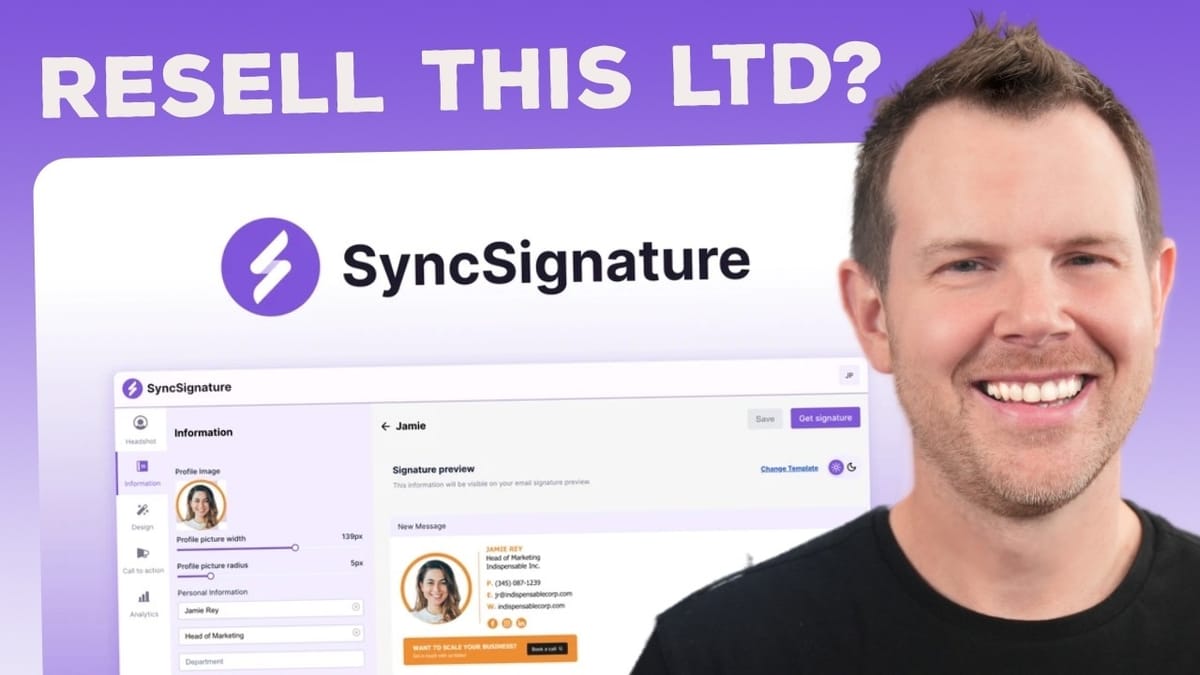
SyncSignature
SyncSignature is an email signature building and management tool that lets you create branded signatures, manage team-wide templates, and track click analytics.
Teams and companies (especially 10+ employees on Google Workspace) who want cohesive, professional email signatures across their entire organization.
MySignature, WiseStamp, Exclaimer, Newoldstamp
SyncSignature Pricing: Which Tier Do You Actually Need?
SyncSignature is currently available as a lifetime deal on AppSumo, starting at just $39 for tier one. That gets you 10 signatures, but honestly, the feature list is pretty bare at that level — you'll be staring at a wall of red Xs on the comparison chart.
Tier two at $100 is where things get interesting. You unlock almost every feature the platform offers, including the advanced signature editor, team templates, and Google Workspace auto-install. The only thing missing at this level is unlimited workspaces, which matters if you're managing signatures for multiple client accounts or need strict separation between signature groups.
If you need unlimited workspaces, you're looking at $150, and the top tier at $300 bumps you up to 250 total signatures. For most small-to-medium teams, tier two at $100 is the sweet spot — it's what I purchased for this review, and it gave me access to everything except workspaces.
Onboarding: A Bumpy But Functional Start
The onboarding flow walks you through building your first signature step by step. You'll enter your name, company name, position, and upload a logo. You can also toggle on social media icons for platforms like X, YouTube, Facebook, Instagram, and LinkedIn.
One thing that caught me off guard: SyncSignature doesn't pull in your brand colors from your website. It just displays "yourwebsite.com" as placeholder text, and there's no field to enter your actual URL during onboarding. You can set a theme color manually, though the color picker UI was a bit confusing — several color options didn't seem to do anything obvious when I clicked them.
The headshot editor is a nice touch. After uploading your photo, SyncSignature generates several professional styles using your chosen theme color as the background. You get options with different crops and shadow effects, and the results actually look pretty polished.
Fair warning: I ran into a bug where the onboarding completely stalled in Safari and wouldn't advance past the headshot selection screen. Switching to Chrome fixed it immediately, and it even picked up right where I left off. So stick with Chrome for this tool.
Choosing and Customizing Your Template
Once you get past onboarding, SyncSignature presents a solid library of pre-designed templates. They're organized into categories — minimal, creative, formal, text-only, and promotional — which makes it easy to find something that fits your brand's personality.
The promotional templates are worth noting if you run seasonal campaigns. There are options with banner spaces for things like holiday greetings or product launches that you can swap out as needed.
A word of advice on the photo-heavy templates: having your headshot in every single email can get overwhelming fast, especially in long reply threads. Imagine someone scrolling through a conversation and seeing your face fifteen times. It's the opposite of professional. If you do go with a photo template, consider toggling the signature off after your initial message in a thread.
Personal Information and Social Links
The signature editor gives you fine-grained control over your personal details. You can set your department, phone number, email, company name, address, and website URL — all of which populate the signature preview in real time.
Social media links are straightforward to add, though there's some redundancy with the onboarding process. You'll enter your social profiles during setup, but then you're essentially doing it again in the editor. The UI could also be clearer about which link corresponds to which platform — the icons don't always label themselves until you hover or remove one.
You can also add a footer line beneath your signature, which is useful for a subtle call-to-action like "Contact me for tips on growing your ROAS" or whatever fits your expertise. The signature previews in both light and dark mode, so you can verify it looks good regardless of your recipient's email theme.
The Design Editor: Fonts, Sizing, and Layout
The design section is where you fine-tune the look and feel of your signature. You can switch between icon styles — the default letter-style icons, rounded icons, or square ones. Social media links can display as icons or written-out text, depending on your preference.
Font selection is limited to email-safe options like Courier, Tahoma, and Trebuchet. This isn't a SyncSignature limitation — it's just the reality of email rendering. Custom or branded fonts won't work reliably across email clients, so pick something close to what your company already uses in correspondence.
You can adjust font sizes independently for your name and body text, as well as set the overall signature width (capped at 600 pixels, which is smart — going wider causes rendering issues in most email clients). There's also a separate footer width control. The editor enforces sensible minimums, so you can't accidentally shrink your signature into something unreadable.
Call to Action, Banners, and Sign-Off Options
SyncSignature lets you add a call-to-action button directly in your signature. You set the button text, link it to any URL, and it appears at the bottom of your signature block. Keep the text short — around 10 to 15 characters — because longer text wraps to a second line and there's no center-align option to clean it up. If you don't want a CTA button at all, just delete the text and it disappears entirely.
Banner images are another option. You can upload a promotional graphic that replaces or supplements your social icons — useful for product launches, events, or seasonal promotions. There's also a social banner option if you want something more visual than standard platform icons.
The sign-off feature automatically inserts a closing like "Best," above your signature. It's a nice idea in theory, but in practice it feels a bit awkward since you'd normally type your name after a sign-off, and the signature block jumps in instead. It exists if you want it, but most people will probably skip this one.
Click Tracking and Signature Analytics
Every signature you create comes with built-in click tracking analytics. SyncSignature monitors who's clicking the links in your signature, which links they're clicking, and where they're located. You get breakdowns by browser (Chrome, Safari, etc.), operating system, device type, and geographic region — complete with a map view.
For individual signatures, this gives you a sense of how much engagement your email footer is actually generating. But the real value shows up at the account level, where you can see aggregated analytics across every signature in your organization. If you're running a CTA campaign through your team's signatures, this is genuinely useful data.
Analytics are available on tier two and above, which is another reason the base tier feels incomplete for serious use.
Installing Your Signature in Apple Mail (and Other Clients)
Getting your signature into an email client is simple. Click "Get Signature" in the editor, then copy the signature code, download the HTML, or email it to yourself for later installation. SyncSignature provides specific instructions for every major email platform, which is a thoughtful touch since each client has its own quirks.
For Apple Mail, the process goes like this: open Settings (Command + comma), go to the Signatures tab, click the plus button to create a new signature, and paste in the copied code. Before pasting, make sure you uncheck "Always match my default font" — otherwise Mail will override the signature's formatting. You'll also want to verify that "Block all remote content" is unchecked in Privacy settings so your images actually load.
After pasting, drag the signature to the email account you want to use it with, and you're set. When composing a new email, just select the signature from the dropdown. The whole process took about two minutes.
Team Management: Teammates, Groups, and Templates
This is where SyncSignature really earns its keep for larger teams. The teammates section lets you add team members manually, import them via CSV, or sync directly with Google Workspace. That last option is a massive time saver if your company is already on Google's platform.
Templates work exactly how you'd hope. You can create a master signature template — importing from one you've already built or starting fresh — and then assign it to groups. Groups function like departments: maybe you have one for sales with a different CTA than your support team. Everyone in a group automatically gets the assigned template, which keeps branding consistent without requiring each person to set up their own signature.
When a new team member joins, you add them to the appropriate group, and they inherit the template. No back-and-forth, no "can you send me the signature file" emails. For companies with 10 or more employees, this workflow alone could justify the purchase.
SyncSignature vs. MySignature
Having reviewed MySignature (another AppSumo deal) within the past six months, I can say SyncSignature comes out ahead. MySignature worked fine, but the user interface felt clunky with a lot of unnecessary back-and-forth between screens. SyncSignature's UI is cleaner, more professional, and the workflow just feels more polished overall.
The Google Workspace integration is also a significant differentiator. If your team lives in Google's ecosystem, SyncSignature's auto-install feature removes a lot of friction from the deployment process. MySignature doesn't match that level of integration convenience.
Final Verdict: 7.6 out of 10
SyncSignature scores a 7.6 out of 10. It's a genuinely well-built tool that does what it promises — create professional, branded email signatures and deploy them across a team with minimal hassle.
The sweet spot is companies with 10 or more employees on Google Workspace. The combination of team templates, group management, auto-installation, and account-wide analytics makes signature management nearly effortless at that scale. Tier two at $100 is the way to go for most buyers.
For solo users or very small teams, it's harder to justify. Email signatures are one of those things that feel important but rarely move the needle on their own. If you do want one, set it up once, keep the photo templates in check (nobody needs to see your face fifteen times in a thread), and toggle the signature off after your first reply. That's the professional move.
I'll be honest — this category of tool isn't one I personally get excited about. But if branded email signatures matter in your line of work, especially in customer-facing roles like sales or support, SyncSignature is one of the better options available right now.
Watch the Full Video
Prefer watching to reading? Check out the full video on YouTube for a complete walkthrough with live demos and commentary.


