
ZeroWork Review: No-Code Automation for Web Scraping & Tasks
ZeroWork lets you automate repetitive web tasks like scraping, lead generation, and social media interactions — all without writing code. Here's how it works and whether it's worth grabbing on AppSumo.

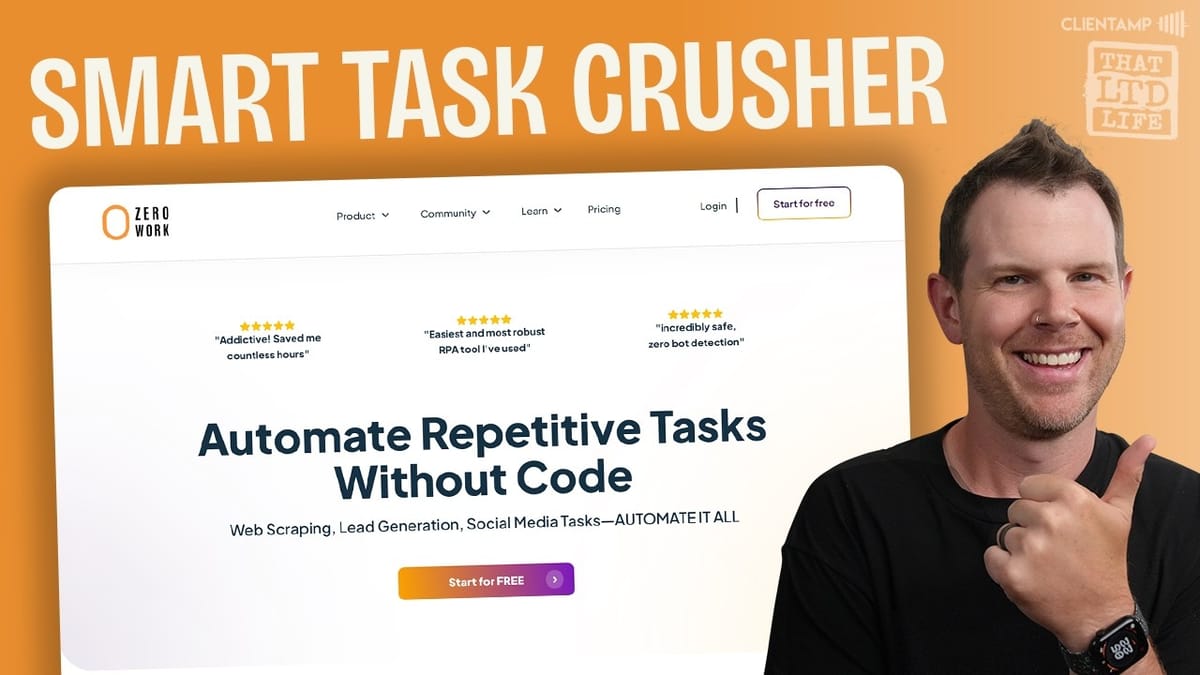
ZeroWork
A no-code platform that automates repetitive web tasks like scraping, lead generation, and social media interactions using visual task bots.
Entrepreneurs, marketers, and small business owners who want to automate manual web-based workflows without learning to code.
Browse AI, Bardeen, Apify, PhantomBuster
What Is ZeroWork and Why Should You Care?
ZeroWork is a no-code automation platform that handles the repetitive web-based tasks you probably spend hours on every week. Think web scraping, lead generation, social media engagement, and data collection — all automated through a visual drag-and-drop builder.
The platform works by creating what they call "task bots." These bots simulate real browser interactions — clicking, typing, navigating — so they can work on virtually any website. That includes major platforms like Amazon, Google Maps, Instagram, Facebook, YouTube, and LinkedIn. The open-ended nature of the tool means your use cases are really only limited by your creativity and business needs.
One important thing to note upfront: ZeroWork is not a plug-and-play tool. There's a real learning curve here, and the founder has put together a solid crash course that takes about an hour to get through. Set aside that time before you dive in. Once you've built that foundation, though, the platform can genuinely save you many hours of manual work each week.
Plans and Pricing on AppSumo
ZeroWork appeared as an AppSumo Deal of the Day, which means limited availability at a steep discount. There were two tiers available: Tier 1 at $89 and Tier 2 at $209, with the latter giving you unlimited task bots.
The catch? Only the first 150 codes were available at those prices. Deal of the Day pricing on AppSumo is genuinely time-sensitive, so if you're reading this and the deal is still live, it's worth acting quickly if the tool fits your workflow. Even at standard AppSumo pricing, it's significantly cheaper than paying monthly for comparable automation platforms.
Core Features and Capabilities
At its core, ZeroWork handles three main categories of automation: web scraping, lead generation, and social media tasks. But that undersells how flexible the platform actually is.
On the data side, you can scrape enriched data from web pages — things like Twitter profile links, LinkedIn job titles, pricing information, product details, and more. Once you've collected that data, ZeroWork includes transformation tools to clean it up. You can split fields (like separating first and last names), filter out unwanted entries, and format everything to your specifications.
The platform also supports web interactions beyond just reading data. You can automate liking comments, replying to posts, and other engagement tasks. There's even AI integration for generating responses, so your automated interactions don't sound robotic. It's a genuine all-in-one automation suite for anyone who spends significant time on repetitive browser-based work.
Building Your First Task Bot
The heart of ZeroWork is the task bot builder — a visual canvas where you drag, drop, and connect action blocks to create automated workflows. To demonstrate how it works, let's walk through building an Amazon product scraper from scratch.
The first step is simple: add an "Open Link" block and point it to amazon.com. But here's where it gets interesting. If you just fire up a bot and visit Amazon, you'll immediately get flagged as a bot. Amazon's detection is aggressive, and an automated browser session sticks out like a sore thumb.
To get around this, ZeroWork's training recommends using the Cookie Editor Chrome extension. The process is straightforward: visit Amazon in your regular browser, log in normally, then export your session cookies as JSON using the extension. Back in ZeroWork, paste those cookies into the task bot's settings via the gear icon. When the bot runs, it loads your cookies first, making the session look like a normal logged-in user rather than an automation script.
Automating Search with Keyboard Actions
Once your bot can open Amazon without getting blocked, the next step is navigating the page. ZeroWork handles this through keyboard action blocks that simulate real keystrokes.
For the Amazon search bar, the approach is surprisingly low-tech but effective: you use the Tab key to navigate to the search input field. On Amazon, it takes about 10 tab presses to land on the search bar. You add a keyboard action block, name it something descriptive like "Go to Search," and record those 10 tab presses.
After that, you chain an "Insert Text" block to type your search query — in this case, "RC cars." ZeroWork even lets you adjust typing speed between fast, average, and slow to help avoid bot detection. Finally, another keyboard action block presses the Return key to submit the search. Each block connects to the next on the visual canvas, creating a clear left-to-right workflow that's easy to follow and modify later.
Running and Testing Your Task Bot
With the search automation built out, it's time to test. Clicking the Run button launches a full-screen Chrome browser session where you can watch your bot work in real time. It opens Amazon, tabs over to the search bar, types the query, hits return, and pulls up search results — all hands-free.
The bot closes automatically once it runs out of actions to perform. This immediate visual feedback is one of ZeroWork's strengths during development. You can see exactly what's happening at each step, which makes debugging much more intuitive than working with headless automation scripts. If something goes wrong — maybe the page layout changed or a selector broke — you'll see it happen live rather than trying to parse error logs.
Setting Up Data Tables
Before you can scrape data, you need somewhere to store it. ZeroWork offers two options: its built-in tables or direct export to Google Sheets. The Google Sheets option is particularly useful if you need to share data with team members or clients, but the internal tables work perfectly fine for personal use.
Creating a table is straightforward. From the left sidebar, click the hamburger menu, choose "Add New Table," and define your columns. For the Amazon scraper example, three columns cover the basics: Image URL, Product Title, and Price. You can get as granular as you want — adding columns for ratings, review counts, seller names, or any other data point you plan to capture. The table starts empty and fills up as your task bot runs.
Scraping Data with CSS Selectors
This is where ZeroWork gets genuinely powerful — and where the learning curve kicks in. To scrape data from a webpage, you need to tell the bot exactly where each piece of information lives using CSS selectors.
The workflow starts with a "Start Repeat" loop block that tells the bot how many items to capture from the page. Set it to 10 or 12 items to match a typical Amazon search results page. Then you add "Save Web Element" blocks for each data point — one for image URL, one for product title, one for price.
Each Save Web Element block needs a CSS selector. ZeroWork recommends the "Copy CSS Selector" Chrome extension for this, but there's a catch: the extension often generates selectors that are too specific to a single product rather than a general pattern that works across all results. If you're a developer, you can inspect the page source and write a more generic selector yourself. If you're not, here's a clever workaround: use your browser's developer tools to select the entire product card element, copy the HTML, and paste it into an AI tool like Claude along with a prompt asking it to generate the CSS selectors you need. The AI will output clean, reusable selectors for each data field.
One gotcha to watch for: make sure you set the correct data type for each element. Image URLs need to be saved as "Image File URL," not "Text." Getting this wrong means you'll end up with blank fields. It's an easy fix once you spot it, but it tripped things up during the first test run.
Saving and Exporting Your Results
Once your Save Web Element blocks are configured with the right selectors, you need to point each one at the correct table and column. Open each element, scroll to the "Save To" section, select your table (RC Cars in this example), and map it to the corresponding column.
After running the completed task bot, the table populates with real data pulled directly from Amazon's search results. Product titles, prices, and image URLs all land in their correct columns. You can click through the image URLs to verify they match the right products. If something looks off, it's easy to go back, adjust a selector, clear the table, and run the bot again.
Scheduling and Sharing Task Bots
Task bots aren't just for one-off runs. ZeroWork includes scheduling so your automations can run on autopilot. You can set bots to run daily, on specific days of the week, and at specific times. This is particularly useful for monitoring tasks — tracking competitor pricing, scraping new listings, or collecting social media data on a regular cadence without any manual intervention.
Sharing is another nice touch. Each task bot has a share icon that lets you send it to specific users or generate a public sharing link. If you've built a particularly useful scraping workflow, you can distribute it to your team or even sell it as a template. This collaborative aspect extends ZeroWork's value beyond just your own automation needs.
Final Verdict: Is ZeroWork Worth It?
ZeroWork earns a solid 7.9 out of 10. It's a genuinely powerful automation platform that can handle serious web scraping, lead generation, and task automation — all without writing a single line of code. The visual task bot builder is intuitive once you understand the fundamentals, and the ability to work with virtually any website gives it a flexibility that more specialized tools can't match.
The trade-off is the learning curve. This isn't a tool you'll master in 15 minutes. Plan to spend at least an hour with the founder's training materials before you start building anything meaningful. You'll also need to get comfortable with browser developer tools and CSS selectors, even if AI can help bridge that knowledge gap.
ZeroWork probably won't become a mainstream tool with millions of users, and that's fine. For the niche audience that needs this kind of automation — marketers, researchers, small business owners doing manual data collection — it's the kind of tool that puts you several steps ahead of anyone still doing this work by hand.
Watch the Full Video
Prefer watching to reading? Check out the full video on YouTube for a complete walkthrough with live demos and commentary.


