
Tigsaw Review: Add Content to Any Website for $79
Tigsaw is a visual editor that lets you inject content like countdown timers, product highlights, and custom widgets into any website — no developer access required.

Tigsaw
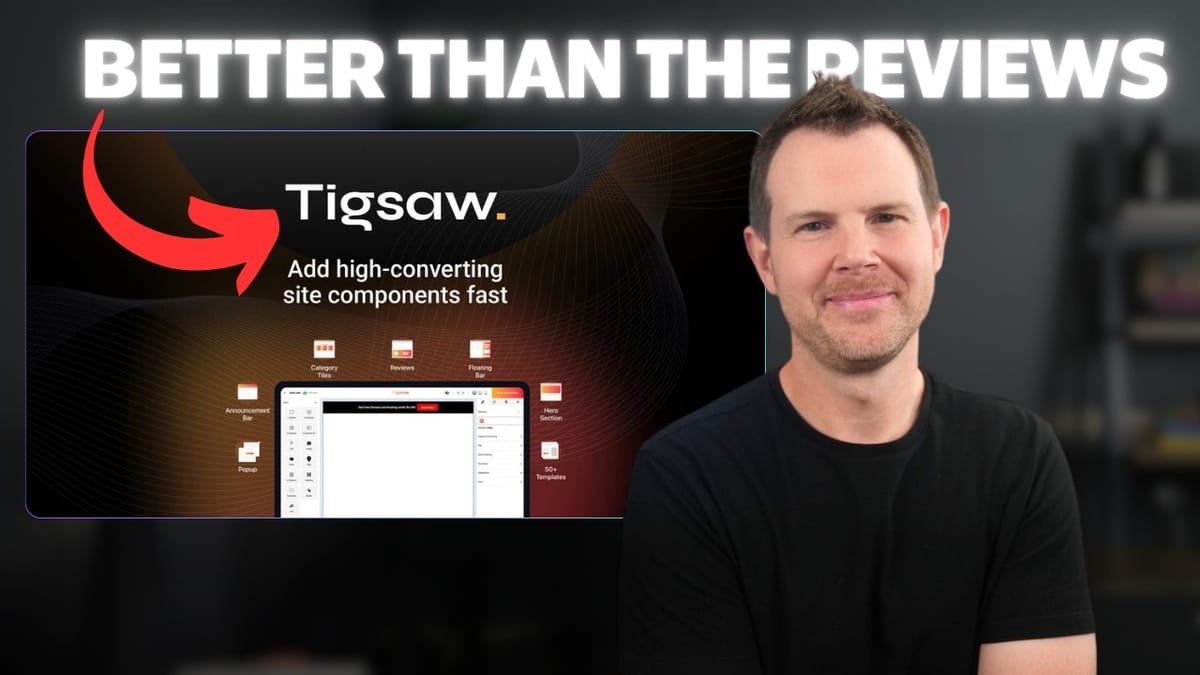
Tigsaw lets you design and publish website components — like countdown timers, product highlights, and custom widgets — on any website without needing backend access or a developer.
E-commerce store owners, marketers, and non-technical website operators who need to add or modify content on sites they can't easily edit.
Repixel (Rebu), Onvocado, Claspo
What Is Tigsaw and Why Should You Care?
Tigsaw is one of those tools that suffers from a messaging problem. Its AppSumo listing says it can "design and publish high converting website components," which sounds vague enough that most people will scroll right past it. That's likely why it had a low number of reviews and a middling score when I first spotted it.
But here's the thing — once you actually understand what Tigsaw does, it clicks. Think of it as a visual website editor that works on top of any existing site. You paste a small snippet of code into your site's header (just like Google Analytics), and from that point on, you can design and inject content into any page without ever logging into your CMS or bothering a developer. Countdown timers, product USP lists, review widgets — whatever you need, wherever you need it.
The Tigsaw Editor: Powerful but Technical
The editor is where Tigsaw will either win you over or lose you. This isn't a dumbed-down drag-and-drop builder with a handful of preset options. It exposes full CSS flex settings, attributes, layer management, and granular style controls. If you've used Elementor, Bricks, or Webflow, the interface will feel immediately familiar.
You can see every div and container in your widget's layer stack, drag and drop new elements like videos or text blocks, and resize anything with intuitive handlebars. The styles panel gives you control over spacing, colors (hex, RGB, or a visual picker), backgrounds, and more. It's genuinely flexible — you can change literally everything about a component's appearance and behavior.
That said, this level of control means there's a learning curve. If you're looking for a "pick a template and go" experience with zero CSS knowledge, Tigsaw might feel overwhelming. But for anyone who's even slightly technical, the trade-off is worth it — you get far more customization than competing tools typically allow.
Connecting Your Domain and Installing the Code
Setup is straightforward. You add a domain inside Tigsaw's dashboard, enter your site's URL, and then paste a small JavaScript snippet into your website's header. For WordPress users, a free plugin like Fluent Snippets makes this dead simple — create a new snippet, set it to run in the site-wide header, and activate it.
Ghost users can drop it into the code injection section. Squarespace, Shopify, and Wix all have similar header code areas. It's a universal approach that works on virtually any platform, which is one of Tigsaw's strongest selling points.
One thing worth noting: if you run into trouble with domain verification (as at least one AppSumo reviewer did), it's almost certainly a caching issue. Clear your site cache, then verify the code is actually loading by right-clicking your page, choosing Inspect, and searching the Elements tab for "tigsaw." If it's there, you're good — Tigsaw's verification just hasn't caught up yet.
Templates and Building Your First Widget
Tigsaw comes with a decent library of templates organized by category — product highlights, countdown timers, opt-in boxes, and more. You can also start from scratch if you prefer. The template browser does need some UX love, though. There are no titles on the template cards, and the preview images show full-page screenshots that make it hard to tell what you're actually getting at a glance.
Once you pick a template, you name your widget, assign it to a URL on your site, and set conditions like which devices it should appear on. From there, you're dropped into the editor to customize everything. In my test, I used a "Product USP Highlights" template — essentially a clean bulleted list with icons — and was able to tweak colors, spacing, and layout in just a few minutes.
What's especially useful is that a single widget can apply to one specific product page or to every product page across your entire site. If you've got universal selling points like "30-day money-back guarantee" or "free shipping," you can add them everywhere in one shot.
Publishing and Placing Content on Your Site
The publishing flow is where Tigsaw's magic really happens. After saving your widget, you choose which domain to publish it on, and Tigsaw loads up the actual page you specified during setup. You then visually click on any element on the page and choose to insert your widget before or after it.
I placed my product highlights widget right below the Add to Cart button on a WooCommerce product page, and it rendered cleanly — loading just as fast as native page elements like PayPal buttons. The result looks completely natural, as if it were always part of the page.
There is one genuine pain point here. If you go back to edit your widget later — even just to adjust some spacing — you have to redo the entire placement process. Tigsaw doesn't remember where you put the widget, so you're clicking through the same flow every time you make a change. For occasional tweaks this is fine, but if you're iterating heavily on a design, it gets tedious fast. This feels like an obvious improvement the team should prioritize.
Pricing, Limitations, and What Sets Tigsaw Apart
The AppSumo lifetime deal starts at $79, and the thing that immediately stands out is the lack of visitor limits. Almost every similar tool I've reviewed caps you at 10,000 or 50,000 visitors and then nudges you toward a higher tier. Tigsaw doesn't do that. You're paying based on how many active widgets and connected domains you need, not how much traffic your site gets. That's a significant advantage for anyone running high-traffic pages.
It's worth being clear about what Tigsaw is not. Despite the "high converting" marketing language, this isn't a lead generation tool. There's no way to collect emails or build popups. It doesn't even do popups at all. The bundled AI SEO analyzer feels like a bolted-on feature that doesn't add much real value — you'll want to stick with dedicated SEO tools for that.
What Tigsaw actually excels at is giving you a visual editor for websites that don't have one, or for pages where you don't have convenient editing access. E-commerce checkout pages, third-party hosted storefronts, legacy sites built without a page builder — these are the scenarios where Tigsaw genuinely shines. It reminds me a lot of Repixel (formerly Rebu), a tool that served a similar purpose before it shut down several years ago. If you missed that one, Tigsaw fills the same gap nicely.
UX Rough Edges You Should Know About
Tigsaw isn't without its frustrations. The navigation menu in the dashboard has a particularly annoying behavior — hovering near the sidebar icons causes a flyout menu to expand, which shifts your cursor position and sends you to the wrong page. It happens constantly and feels like the kind of issue that would have been caught if the team used their own product more regularly.
The template browser, as mentioned, needs better labeling and larger previews. And the requirement to re-select widget placement after every edit is a workflow killer for heavy iteration. Domain names are also forced to display in capital letters, which is a small but oddly rigid design choice.
None of these are dealbreakers, but they do add up. Tigsaw feels like a product with a genuinely useful core that needs another round or two of UX polish. For $79, those trade-offs are reasonable — just go in with realistic expectations.
Watch the Full Video
Prefer watching to reading? Check out the full video on YouTube for a complete walkthrough with live demos and commentary.


