
Toggl Track Review: Time Tracking for Agency Owners
Toggl Track makes time tracking effortless for agency owners with deep integrations, project budgets, alerts, and invoicing — so you can stop guessing and start knowing where your hours go.

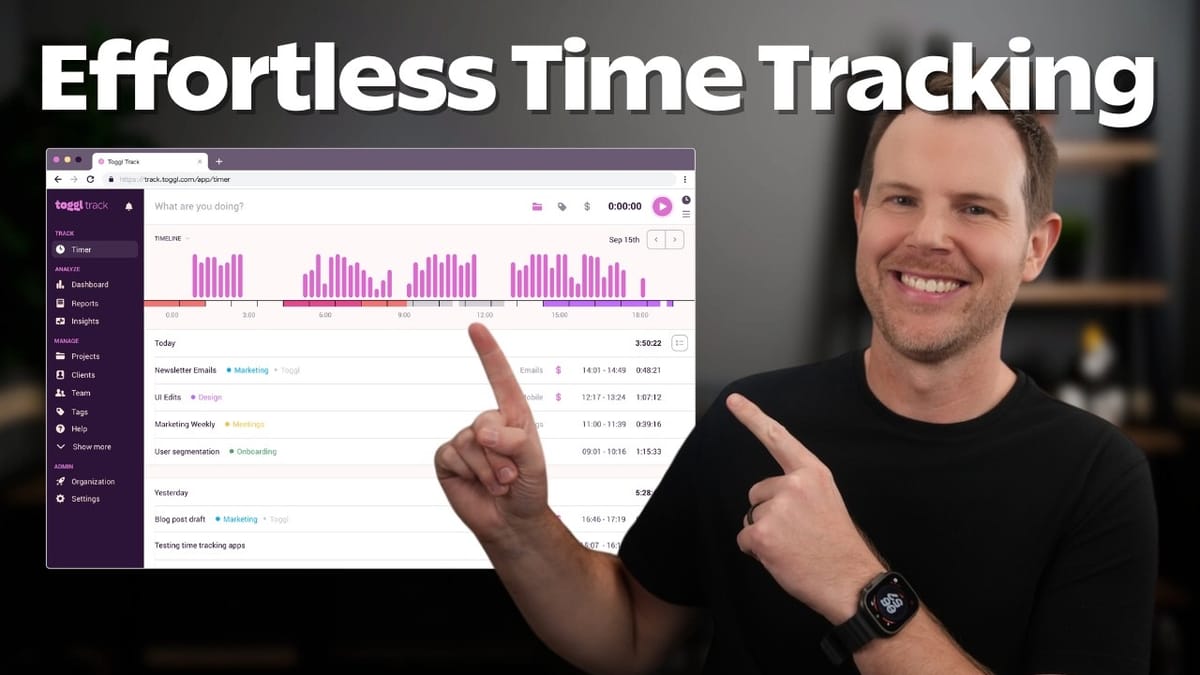
Toggl Track
Toggl Track is a time tracking tool that lets service providers and agencies log hours, manage project budgets, and generate invoices across desktop, mobile, and browser.
Agency owners, freelancers, and service providers who need to track billable hours across multiple clients and projects.
Harvest, Clockify, Hubstaff
Why Every Agency Owner Should Be Tracking Time
If you run an agency or offer any kind of client services, there's a good chance you're leaving money on the table every single month. It doesn't matter whether you charge hourly, offer subscriptions, or quote flat-rate projects — without accurate time tracking data, you're flying blind.
The reality is that most service providers either over-deliver on their client work or under-charge for it. Often both. When you don't know that a project you quoted at five hours is actually taking fifteen, your profitability takes a hit you might not even notice until it's too late. Time tracking gives you the hard data you need to adjust pricing, scope projects accurately, and make informed decisions about where your business is headed.
The Real Problem with Time Tracking
Here's the thing — most people already know they should be tracking time. The problem isn't awareness, it's friction. Nobody wants to constantly start and stop timers, and trying to reconstruct your day from memory at 5pm is an exercise in creative fiction.
Time tracking has to be effortless or it simply won't happen. If the tool you're using feels like another burden on top of your already full workload, you'll abandon it within a week. That's why the tool you choose matters just as much as the habit itself.
What Is Toggl Track?
Toggl Track is one of the longest-running time tracking platforms on the market, and that longevity shows in how polished and well-integrated the product is. It's designed to fit into whatever workflow you already have rather than forcing you to change how you work.
The core idea is simple: track your hours with as little effort as possible, then use that data to make smarter business decisions. But beneath that simplicity is a surprisingly robust set of features for managing clients, projects, budgets, team members, and invoicing — all the things an agency owner actually needs.
The Dashboard and Getting Oriented
The Toggl Track dashboard might look like a lot when you first log in, but it's actually quite straightforward once you understand the layout. The main interface shows your recent time entries, active timers, and quick access to projects and clients.
The truth is, you won't spend much time in the dashboard at all. Because Toggl's integrations run so deep, most of your actual time tracking happens wherever you're already working — in your browser, on your phone, or inside the apps you use every day. The dashboard is really for admin tasks: checking reports, setting up new clients, and managing your workspace settings.
Apps and Browser Extensions That Track Time Anywhere
One of Toggl Track's biggest strengths is the sheer number of ways you can start a timer. Native apps are available for Android, iOS, Mac, and Windows, so your timer is always a click or tap away regardless of what device you're on.
The browser extension is where things get really interesting. It doesn't just sit in your toolbar waiting to be clicked — it actually embeds itself into the tools you're already using. Open Notion, and you'll see a Toggl button right in the interface. Same goes for dozens of other web apps. You can even enable auto-tracking so that time logging happens passively without you lifting a finger.
For WordPress users, there's an especially nice touch: you can add custom URLs so that anytime you're working on a specific client's website, Toggl automatically starts tracking. No manual input required.
Starting a Timer Manually
When you do need to start a timer by hand, the process is quick. Click the browser extension icon, type a short description of what you're working on, and Toggl immediately shows your recent projects so you can assign the entry with a single click.
You can also assign the entry to a specific client, add tags to categorize the type of work (more on why that matters later), and mark it as billable or non-billable. Once you hit start, the timer runs in the background. When you're done, just click stop. The entry gets logged automatically and shows up in your history.
The key here is speed. Toggl has clearly optimized the manual flow so that starting a timer takes seconds, not minutes. There's no form to fill out, no required fields slowing you down at the start — you can always add details later.
Setting Up Clients and Projects
Getting your client and project structure right from the start is the single most important thing you can do to make Toggl Track useful. Without it, you're just collecting raw hours with no context.
The recommended setup is straightforward: add each client, then create projects under each client. Projects can represent recurring services like website management, or one-off engagements like a logo redesign. Adding a new client takes about ten seconds — click "New Client," enter the name, and assign their first project.
Once your clients are set up, you can expand each one to see all their associated projects at a glance. This hierarchy is what powers Toggl's reporting and invoicing features, so it's worth taking a few minutes to set things up properly before you start tracking.
Project Budgets, Time Estimates, and Custom Rates
This is where Toggl Track really starts earning its keep for agency owners. When you edit a project and open the advanced options, you can configure everything you need to stay profitable.
First, set a time estimate for the project. Even if you're charging a flat rate, entering the number of hours you've budgeted internally lets Toggl show you exactly how much runway you have left. For example, if you've scoped a project at 20 hours, the dashboard will show your progress against that estimate in real time.
You can also set a custom billable rate per project. Your workspace might have a default rate of $150/hour, but a particular project might justify $200/hour. Toggl handles this gracefully — the project-level rate overrides the workspace default.
Finally, there's the fixed fee field. Think of this as the total project budget rather than just a pricing model. If the project is 20 hours at $200/hour, your fixed fee is $4,000. This number shows up on your project dashboard so you can see at a glance how much budget remains.
Budget Alerts That Keep You Profitable
Knowing your budget is one thing — getting warned before you blow past it is another. Toggl lets you set percentage-based alerts on any project so you get an email notification when you're approaching the limit.
For example, if a client's logo project has $500 left in the budget, you can set an alert at 80% of the fixed fee. When your tracked time crosses that threshold, Toggl sends you an email saying it's time to either slow down, have a conversation with the client, or renegotiate scope. It's a simple feature, but it can save you from the all-too-common scenario of realizing you've already eaten through the entire budget with deliverables still outstanding.
Recurring Projects and Templates
For services you deliver on a regular basis — monthly website management, ongoing social media work, retainer agreements — Toggl supports recurring projects. Toggle the recurring option inside a project's advanced settings, set the interval to monthly, and the project's time estimate and budget reset automatically each period.
Recurring projects are marked with a small looping arrow icon in the dashboard, making them easy to spot at a glance.
Once you've dialed in a project's settings, you can save it as a template. Pin the template to the top of your projects list, and anytime you onboard a new client with a similar service, you can spin up a new project from that template in seconds. All the settings — time estimate, billable rate, fixed fee, recurring interval — carry over automatically. You just assign it to the new client and you're done.
Workspace Settings and Team Management
Toggl Track gives you fine-grained control over what's required when someone logs time. In the workspace settings, you can make fields like project assignment and description mandatory for every time entry. This is worth doing — without it, you'll end up with a bunch of logged hours that have no context, which defeats the purpose.
Adding team members is simple. Head to the Members section, send an invite via email, and assign a permission level. Toggl offers four roles: Admin, Team Lead, Project Lead, and Workspace User. Each comes with different access rights, so you can give someone exactly enough control without exposing sensitive data or letting them edit their own hours if that's a concern.
This granularity matters when you're managing a team. An employee tracking hourly work probably shouldn't be able to modify their own time entries, while a project lead might need access to client budgets and reports.
Billable Rates and Custom Client Pricing
Toggl handles billing rates at multiple levels, which gives you real flexibility. Your workspace has a default hourly rate that applies to all new projects. But you can override that rate at the project level for clients who pay more or less than your standard.
All tasks are billable by default, though you can toggle individual entries to non-billable when needed — internal meetings, training, admin work, and so on. This distinction matters when it comes time to generate invoices, because Toggl knows exactly which hours to include and which to leave out.
Reports That Actually Tell You Something
The reports section is where all your tracking data comes together into something actionable. You can filter by team member, client, project, or date range to get exactly the view you need.
Want to see how a specific employee is spending their time? Filter by their name and you'll get a complete breakdown. Need to know how many hours went into a particular client's project last month? Filter by client and project, adjust the date range, and it's all there.
The reports also show billable amounts alongside hours, so you can see not just where time is going but what it's worth in dollar terms. This is the data that tells you whether a client relationship is profitable or whether it's time to renegotiate.
Invoicing Directly from Your Time Data
One of the most practical features for service providers is Toggl's built-in invoicing. From the reports view, you can select a project's unbilled hours and generate an invoice with a single click.
The invoice pulls in all the relevant time data automatically. You just add an invoice ID, your business address, the client's address, and any custom details like payment instructions. From there, you can either download the invoice and send it manually, or connect Toggl to QuickBooks and push the invoice directly into your accounting software.
It's not a full-blown invoicing platform, but for straightforward time-based billing, it eliminates the tedious step of manually transferring hours from your tracker into a separate invoicing tool.
Why Tags Are Your Secret Weapon
Tags are one of the most underused features in any time tracking tool, and Toggl makes them easy to set up and apply. The idea is simple: while projects tell you which client you're working for, tags tell you what kind of work you're doing.
Set up your tags before you start using Toggl — create one for each type of service you offer. Things like web development, design, reporting, client meetings, research, and strategy. When you start a timer, assigning a tag takes a couple of keystrokes thanks to Toggl's keyboard shortcuts.
The payoff comes when you look at your data across all clients. You might discover that design work is consuming 40% of your total hours, which tells you it might be time to hire a dedicated designer or raise your rates for design-heavy projects. Without tags, you'd never see that pattern.
Editing Entries, Calendar View, and Timesheets
Mistakes happen, and Toggl makes it easy to fix them. Every time entry is fully editable — you can change the description, reassign it to a different client or project, adjust the duration, or swap out tags. You can even attach files like receipts to individual entries for expense tracking.
Beyond the default list view, Toggl offers both a calendar view and a traditional timesheet view. The calendar gives you a visual sense of how your day or week is structured, while the timesheet is a more compact, spreadsheet-style layout. It comes down to personal preference, but having options means you can work in whatever format feels most natural.
Analyzing Workload by Tags
The workload report grouped by tags is arguably the most strategic view in all of Toggl Track. Instead of looking at time through the lens of clients or projects, you're looking at it through the lens of activities.
This perspective reveals patterns you'd otherwise miss. If design is eating up the majority of your team's hours, you can drill down to see who's doing the design work, whether certain team members are less efficient than others, and whether the revenue from design services justifies the time investment. It's the kind of data that drives real business decisions — hiring, pricing, and even which services to offer or drop.
Pricing and Getting Started
Toggl Track offers a free plan that's genuinely usable — not just a trial, but a free-for-life tier that supports up to five users. For solo freelancers or very small teams, that might be all you need.
If you want access to the project management features covered in this review — budgets, time estimates, custom rates, and templates — you'll need the Starter plan at $9 per user per month. Given how much visibility it provides into your profitability, that's a pretty easy cost to justify for any agency billing clients for their time.
The onboarding process is straightforward: sign up, install the apps and browser extension, add your clients and projects, set up your tags, and start tracking. Within a week, you'll have enough data to see where your time is actually going — and that's where the real value kicks in.
Watch the Full Video
Prefer watching to reading? Check out the full video on YouTube for a complete walkthrough with live demos and commentary.


