
VideoToPage Review: Turn Videos Into Blog Posts & Docs
VideoToPage is a powerful AI tool that transforms video and audio content into structured documents like blog posts, reviews, and SOPs — with minimal custom prompting needed.

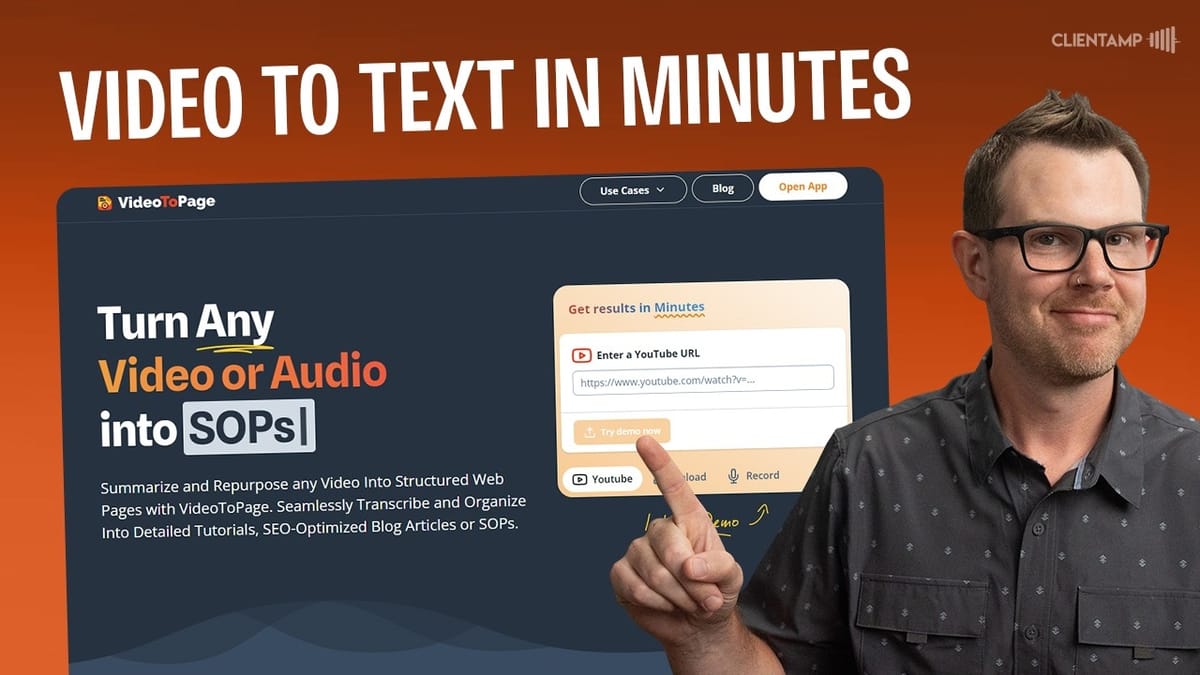
VideoToPage
Converts YouTube videos, uploaded video/audio files, or browser-recorded audio into structured documents like blog posts, reviews, SOPs, and course materials.
Content creators, bloggers, podcasters, and course creators who want to repurpose video and audio content into written formats quickly.
Video to Blog
What Is VideoToPage?
VideoToPage is a new lifetime deal on AppSumo that takes any video or audio file and transforms it into a polished document. It goes well beyond simple blog posts — you can generate standard operating procedures for your business, supplemental content for online courses, podcast show notes, and more.
At launch, the tool is priced at $59 for Tier 1, with a price increase expected after the initial sale window. If you've been following the lifetime deal space, you might notice the name sounds awfully similar to Video to Blog, another tool I recently reviewed. While they serve a similar purpose, these two tools have enough differences in their approach and feature sets that they'll appeal to different workflows.
Starting a New Project
Getting started with VideoToPage is straightforward. You paste a YouTube URL, upload a video or audio file, or record audio directly in your browser. Once you hit generate, the tool immediately begins processing your video in the background — downloading it from YouTube, transcribing the audio, and preparing it for content generation.
The processing speed is genuinely impressive. In my testing, the transcription was finished before I'd even finished browsing through all the available content type options. That kind of speed matters when you're trying to batch-process multiple videos in a single session.
Choosing Your Content Type
VideoToPage organizes its content templates into four categories: Blogging, Content Creation, Educational Content, and Transcription. Under Blogging, you'll find options for long-form blog posts, listicles, reviews, and interview articles. Content Creation covers SEO-focused articles, marketing content, and podcast materials — including the ability to generate outlines for reaction videos or new podcast episodes based on existing video content.
The Educational Content section is particularly useful for course creators, offering tutorial and documentation generators that can turn step-by-step walkthrough videos into written guides. Transcription options include a video digest (an in-depth exploration of the content) and a clean transcript.
There are a couple of UX quirks worth noting. You can only select one content type at a time — there's no multi-select option, so if you want both a review and a video digest, you'll need to generate them separately. The collapsible sections that organize the templates also make browsing a bit clunky. A simple flat list would be a better experience. That said, you can always change the template after generation, so it's not a dealbreaker.
Document Preview and Screenshots
Once your content type is selected, VideoToPage generates a full document with a title, publication date, section headings, and written content for each section. One of the standout features is automatic screenshot extraction — the tool pulls frames from the video and places them throughout the article, which adds visual appeal without any manual work.
You don't get to choose exactly which frames are used, so occasionally you'll end up with an unflattering screenshot (open mouth, mid-blink), but honestly, having images sprinkled throughout the article is a huge upgrade over a wall of text. The tool also inserts clickable timestamps that link directly to the corresponding moment in the embedded video player, making it easy for readers to jump to the exact part of the video being discussed.
Sharing and Export Options
VideoToPage gives you several ways to share and export your content. The simplest option is a public VideoToPage link — useful for podcast show notes or quick sharing, though you'll want a backup in case the service ever goes down. The tool also provides SEO metadata fields for the public link.
For downloads, you can export as Markdown (multi-page or single-page), HTML, or PDF. The multi-page option treats each section as its own page, while the single-page option combines everything into one document. Direct publishing integrations include WordPress.com, WordPress.org, and Notion. The Notion integration is a nice differentiator — if you're building SOPs or internal documentation, pushing directly to Notion is a huge time saver. Video to Blog offers Ghost and Medium integrations that VideoToPage currently lacks, so your choice may depend on which platform you publish to.
The Editor Experience
The built-in editor displays all individual sections of your document, each of which can function as its own page with a dedicated URL. You can change the generator type for any section independently — so if the AI used a case study generator but you'd prefer a key points format, you can swap it and regenerate just that section.
Below the section settings, you'll find custom instructions that control exactly what content gets generated. This is where you can fine-tune the output, removing excess quotes, adjusting the focus, or adding specific talking points. If a section has too many pull quotes (a common occurrence), you can simply delete them from the instructions and regenerate.
The editor supports both a WYSIWYG mode and a Markdown mode. The WYSIWYG editor works as expected with standard formatting tools. The Markdown editor is functional, though the text could be a bit larger. Both get the job done.
Regenerating Content with Tone Controls
One of VideoToPage's strongest features is the ability to regenerate your entire article with a single click. After making changes to custom instructions or switching the tone of voice, hitting the "Generate All" button recreates everything. Available tones include informational, friendly, authoritative, and casual — and the difference is noticeable. Switching to casual, for example, produced an intro that read naturally: "Welcome to the Taco Truck Roundup. I'm Dave Swift. If you're new here, I dive into a new lifetime deal every day of the week."
Critically, there's no credit system limiting how many times you can regenerate. You can keep tweaking and regenerating until you're happy with the output, which is a significant advantage over tools that count each generation against a monthly quota.
Multi-Page View and Navigation
VideoToPage treats each section of your document as a separate page, which you can navigate via a table of contents sidebar or page tabs at the top of the editor. This multi-page approach works well for longer content where you want distinct sections with their own URLs — think course modules or multi-part documentation.
The tool generates inter-page links automatically so readers can navigate between sections. In my testing, these links worked on one document but not on another, so there may be occasional bugs to work around. For most blog post use cases, the single-page view will be more practical, but the multi-page option is a thoughtful addition for documentation and educational content.
Summary, SRT Files, and Transcription
Beyond the main article, VideoToPage generates three additional assets for every video. First, there's an editable summary of the video content. Second, you get a full SRT file with timestamps — perfect for adding closed captions to self-hosted video players where automatic captioning isn't available. Third, there's a complete transcription of the video.
The transcription view could use a quality-of-life improvement: there's no export or copy button, so grabbing the full text means manually scrolling and selecting everything. If you want to feed the transcript into another tool or chatbot, that friction adds up quickly.
Switching Templates After Generation
If you're not happy with the format of your generated article, you can switch templates at any time using the "Change Template" option. Selecting a new template and hitting "Change and Regenerate" creates a completely new article using the new format.
The template picker in this view is unfortunately less organized than the initial selection screen — options aren't grouped into categories, and it appears that not all templates are represented. It's a minor inconvenience since the feature itself works well, but cleaning up this interface would make the experience smoother.
VideoToPage vs. Video to Blog
With names this similar, a comparison is inevitable. Video to Blog uses a per-video credit system — the cheapest plan gives you 10 blog posts per month. If something goes wrong (like YouTube screenshots failing to load) and you have to regenerate, that's another credit burned. VideoToPage avoids this entirely with a time-based system — you're only limited by transcription hours, and you can regenerate content as many times as you want.
That said, Video to Blog has its own strengths. Its user interface is arguably more polished, it offers Ghost and Medium integrations that VideoToPage doesn't, and the output quality is competitive. For my money, VideoToPage gets a slight edge thanks to the unlimited regeneration and broader template selection, but both are solid tools worth evaluating for your specific workflow.
The Chat Assistant
VideoToPage includes an AI chat assistant that's available throughout the tool — both when editing individual sections and on the main project page. The assistant provides contextual suggestions like adding new pages, modifying the transcription, or changing the language of the output.
In my testing, I tried using the chat assistant to translate an article into French. The instructions and section titles updated to French correctly, but the actual article body remained in English even after multiple regeneration attempts. This was the one notable failure I encountered during the review. The tool would likely handle French content fine if the original video were recorded in French, but repurposing English content into another language didn't work as expected.
Plans and Pricing
Every VideoToPage plan includes the full feature set — the only variable is transcription hours per month. Tier 1 starts at $59 for 5 hours (though you may get a couple bonus hours at signup). Tier 2 offers 12 hours, Tier 3 bumps it to 28 hours, Tier 4 gives 65 hours at $449, and Tier 5 maxes out at 130 hours for $799.
The time-based model is genuinely appealing. Unlike credit-based systems where a failed generation wastes a credit, here you only consume time for transcription. All the regeneration, template switching, and AI chat interactions are essentially free. At the higher tiers, you could realistically build a service business around this — creating podcast show notes or blog content for multiple clients.
Final Verdict
VideoToPage delivers a nearly flawless experience for turning video content into written documents. The processing speed is fast, the output quality requires minimal editing, and the unlimited regeneration model means you can experiment freely without worrying about wasted credits. The only real stumble was the language translation feature, which didn't work as advertised in my testing.
Compared to Video to Blog (which I scored a 7.9), VideoToPage earns an 8.1. It edges ahead thanks to its time-based pricing, broader template selection, Notion integration, and the freedom to regenerate without limits. Video to Blog still holds its own with a slightly more refined UI and additional publishing integrations like Ghost and Medium. If you're producing video content and want to maximize its reach through written formats, VideoToPage is an excellent tool to add to your stack.
Watch the Full Video
Prefer watching to reading? Check out the full video on YouTube for a complete walkthrough with live demos and commentary.


