
ViewFlip Review: Remote Support Tool for Mac & Windows
ViewFlip is a cross-platform remote collaboration tool that makes it easy to provide tech support to anyone — whether they're on Mac or Windows. Here's how it works and whether the $49 lifetime deal is worth it.

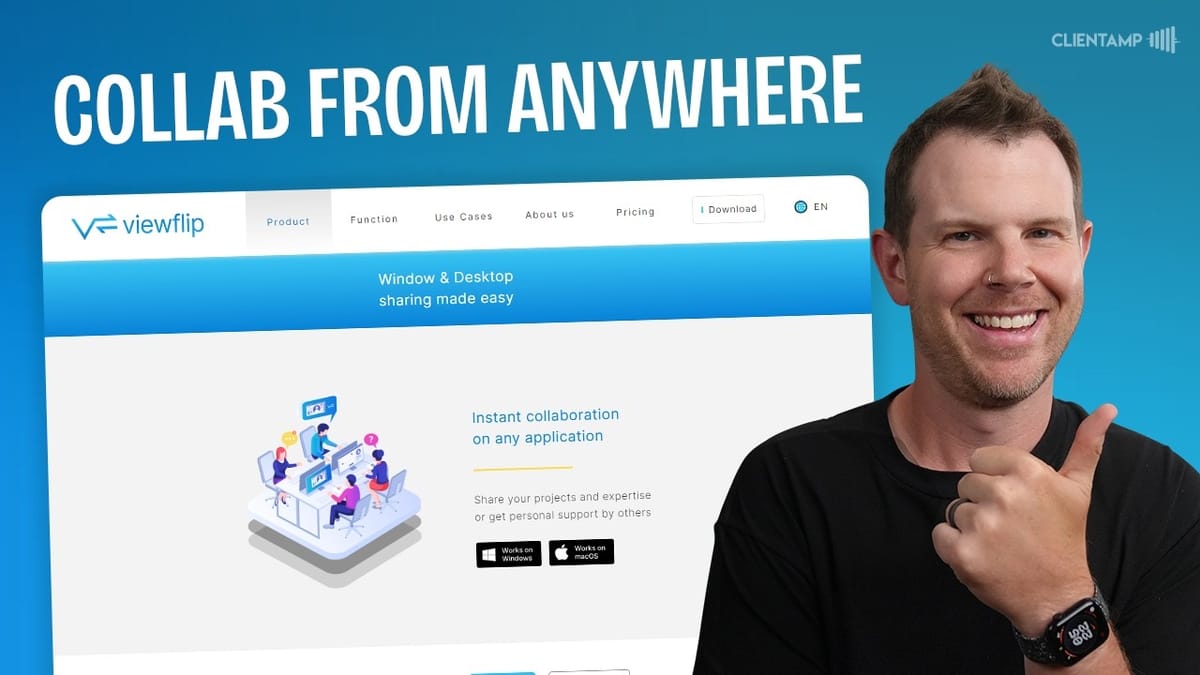
ViewFlip
ViewFlip is a remote collaboration and screen-sharing tool that lets you control and provide tech support on Mac and Windows machines over the internet.
Small teams, IT support staff, and anyone who needs to provide remote tech support — even for non-technical family members.
TeamViewer, AnyDesk, Chrome Remote Desktop
What Is ViewFlip and Why Should You Care?
ViewFlip is a remote collaboration tool designed to let you provide tech support to anyone — whether that's a colleague in your company or grandma who can't figure out her PC. Instead of driving across town, you connect to their machine over the internet and handle things directly from your own desk.
The standout feature here is full cross-platform support. One person can be on a Mac and the other on Windows, and it works seamlessly in both directions. That's a bigger deal than it sounds, because plenty of remote tools still struggle with mixed-platform setups.
ViewFlip is currently available as a lifetime deal on AppSumo starting at $49 for two devices or users. If you need more seats, there are tiers for 10, 25, and even 50 users — making it flexible enough for solo operators and small teams alike.
Installation and Setup
Getting ViewFlip up and running is straightforward. Head over to viewflip.app, hit the download button, create an account with a username, and sign in. The whole process takes just a few minutes on Windows.
Mac users will have a couple of extra steps to deal with. Apple's security settings require you to grant permissions for screen recording, microphone access, and a few other system-level features. It's not difficult, but it could trip up less technical users. If you're setting this up for someone who isn't comfortable navigating macOS system preferences, it's worth doing the initial install in person — or at least walking them through it over a call.
Once installed, ViewFlip sits quietly in your menu bar (Mac) or taskbar (Windows), ready to go whenever you need it.
The ViewFlip Interface
Clicking the ViewFlip icon opens a sidebar overlay on your screen. One nice design choice is that ViewFlip shares individual windows rather than your entire screen by default. Whatever window is in the foreground when you initiate sharing is what gets sent to the other user.
This is a meaningful privacy feature. You're not accidentally broadcasting your entire desktop — email notifications, chat messages, and all. If you do want to share your full screen, that option is available, but window-level sharing is the default and it's a smart one.
The sidebar also shows your personal connections — the team members you've added — so connecting to someone is just a click away.
Connecting to Other Users
Connecting to another user is as simple as clicking their name in the sidebar. The other person gets an audible notification and a prompt to accept or decline the connection. They also get to choose whether to enable microphone audio for the session.
One important thing to understand about ViewFlip: someone must be physically present at the remote machine to grant access every time. You cannot connect to an unattended machine. This is a deliberate security decision — nobody can remotely access your computer without your explicit permission each session.
During testing, both machines were on completely separate networks (one using a cell phone hotspot as a secondary connection), and the tool still worked well. There was a slight delay due to the mobile connection, but browsing, clicking, and navigating all worked without major issues. For standard tech support tasks like installing software, adjusting settings, or walking someone through a process, the performance is more than adequate.
The Control Toolbar
Once you're connected to a remote machine, a small toolbar appears with several useful controls. You can toggle your microphone on and off for real-time voice communication during the session. There's a remote control toggle that the host can use to disable mouse and keyboard input from the connected user — essentially switching to a presentation or view-only mode.
The full-screen button is where things get interesting. In the default window-sharing mode, you can only see and interact with the specific window that was shared. But switching to full screen gives you complete access to the remote machine — you can open the Finder, launch applications, navigate the file system, and do pretty much anything the machine's owner could do.
There's a noticeable bit of mouse lag in full-screen mode (the remote cursor trails behind your local one), but it's still perfectly usable for administrative tasks. You probably wouldn't want to edit video or produce music through the connection, but for typical support scenarios it works well. The toolbar also includes a pause button, which is handy when the remote user needs to type a password or handle something sensitive without it being visible on your end.
Managing Your Team in the Sidebar
The sidebar doubles as your team management hub. You can invite new users by clicking the invite button and entering their email address. They'll receive a notification, create their own account, and automatically appear in your connections list — all subject to the seat limits of your AppSumo plan.
For larger teams, ViewFlip includes a pin feature that lets you keep your most frequently contacted team members at the top of the list. It's a small quality-of-life touch, but when you're managing 25 or 50 connections, being able to pin your go-to people saves time.
Beyond that, the sidebar stays clean and minimal. There's no clutter, no unnecessary features — just your connections and a quick path to start sharing.
Settings and Privacy Controls
ViewFlip's settings are refreshingly simple. Under account settings, you'll find your username, activity information showing usage stats, and details about who you've invited to your workspace.
The privacy controls are worth paying attention to. Under workspace settings, you can configure user search to be global (anyone on ViewFlip can find you), workspace internal only, limited to specific domains, or completely disabled. For most companies, workspace internal is the sensible default — there's inherent risk in remote screen sharing, so keeping your team's visibility locked down is the conservative and recommended approach.
There's also an expertise section where you can list your skills and make yourself discoverable to external users. The idea seems to be that freelancers or consultants could advertise their tech support capabilities through the platform. For most users, though, leaving external visibility turned off is the way to go.
Final Verdict: Is ViewFlip Worth the $49 Lifetime Deal?
ViewFlip earns a solid 7.9 out of 10. It does exactly what it promises — simple, cross-platform remote screen sharing and control — without unnecessary complexity. Installation takes minutes, connecting to another user is intuitive, and the performance is reliable enough for everyday tech support tasks.
Compared to TeamViewer, ViewFlip holds its own for basic remote support scenarios. If you're not spending hundreds of hours in a remote desktop tool and just need to make quick fixes, install software, or walk someone through a process, it's a very capable alternative at a fraction of the ongoing cost.
The one feature that would push ViewFlip to the next level is unattended access — the ability to connect to a machine without someone physically present to approve the session. Imagine setting up a dedicated machine with a specific application and letting authorized users remote in whenever they need it. That said, the current permission-based model is arguably more secure, and for most support use cases, having someone at the other end is expected.
At $49 for a lifetime license with two seats, ViewFlip is an easy recommendation for anyone who provides remote tech support — whether professionally or just for family members who need a hand.
Watch the Full Video
Prefer watching to reading? Check out the full video on YouTube for a complete walkthrough with live demos and commentary.


