
Getting Started with WordPress & Elementor: A Beginner's Guide
A complete walkthrough of setting up a WordPress website with Elementor hosting, from choosing a plan to customizing your site with templates, global styles, and SEO.

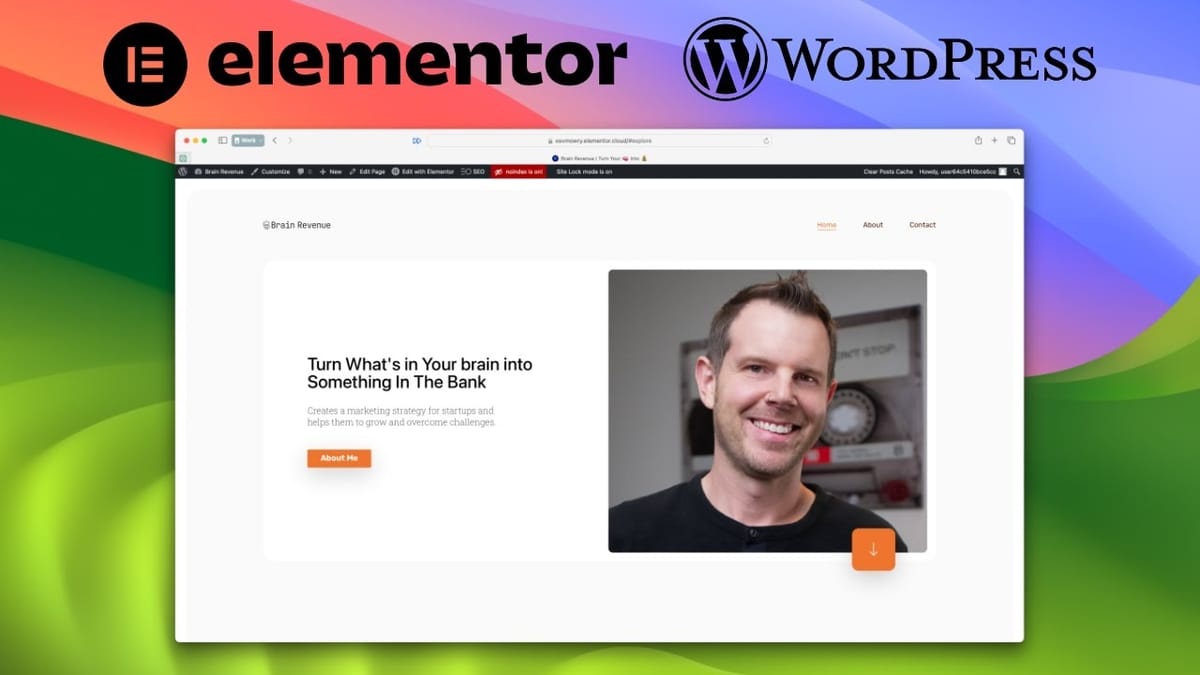
Elementor
Elementor is a drag-and-drop page builder and managed hosting platform for WordPress that lets you create custom websites without coding.
Non-technical entrepreneurs, bloggers, and small business owners who want a professional website without learning to code.
Squarespace, Wix, Webflow
Why WordPress Still Beats Closed Website Platforms
If you listen to podcasts or watch YouTube, you've probably been bombarded with ads for closed website builders promising anyone can throw together a site in a few hours. There's nothing fundamentally wrong with those platforms, but they create a blind spot — people see the ads and assume that's the only way to build a website without ever exploring alternatives.
WordPress is the most popular open-source website platform in the world, built and maintained by a massive community of volunteers. Think of it like an operating system for your website: it handles the underlying infrastructure, and you can bolt on whatever features you need. That flexibility is WordPress's greatest strength, but it also means the out-of-the-box experience can feel overwhelming compared to a locked-down drag-and-drop builder.
That's exactly the gap Elementor fills. When it launched around 2017, WordPress felt clunky — like using software from the '90s. Elementor brought the polish and ease of those closed platforms directly into WordPress, letting you design anything you can imagine without writing a single line of code. You get the best of both worlds: the freedom and extensibility of open source, with a modern visual building experience on top.
Elementor Hosting: Managed WordPress Without the Headaches
One of Elementor's newer offerings is their own managed WordPress hosting. This is the actual server your website runs on, and the key advantage is simplicity — with a few clicks, you get a fully configured WordPress site with Elementor Pro pre-installed. That Pro license alone normally costs around $60 per year, so it's bundled into your hosting fee.
Managed hosting means you don't touch the technical stuff. Elementor handles automatic updates, daily backups, staging environments, and performance optimization. Site speed matters enormously — if your pages take too long to load, visitors bounce. Elementor's infrastructure is built to keep things fast.
On the security side, you get DDoS protection and a firewall to keep bad actors out. WordPress sites are common targets for hackers, so having a hosting provider that actively manages security is a real benefit, especially if you're not technical enough to handle it yourself.
Choosing the Right Elementor Hosting Plan
Elementor offers several hosting tiers. The Business plan runs about $20 per month (billed annually at roughly $300/year) for a single website. That's competitive for what you're getting: managed WordPress hosting plus the full Elementor Pro page builder.
The Business plan stands out from the cheaper option in two important ways. First, you get 30 days of backup retention instead of just 14. That extra buffer is valuable if something breaks and you don't catch it right away. Second, you get a staging environment — a copy of your site where you can test changes before pushing them live. If you're making design tweaks or adding new plugins, staging prevents you from accidentally breaking your production site.
You also get an additional team member who can contact Elementor support on your behalf, which is handy if you work with a virtual assistant or a collaborator. Important clarification: this doesn't limit how many people can use your WordPress site. WordPress itself is fully open source, so you can add as many users as you want. The team member limit only applies to who can contact Elementor's support team.
And if you ever decide to leave, you can. Elementor provides three different methods for migrating your site to another host. You're never locked in.
Setting Up Your Site with Website Kits
Once you've purchased a plan and clicked through the setup, Elementor asks for your website name and then presents you with website kits — pre-built template collections that serve as the foundation of your site. These aren't just single-page templates; they're complete design systems with matching pages, styles, and layouts.
There are over 100 kits to choose from, organized by category. You'll find options for everything: music festivals, real estate agencies, online courses, wedding invitations, cleaning companies, and even a baby sleep consultant site. If you can think of a niche, there's probably a kit for it.
For design purists, there are wireframe options that give you just the layout structure without pre-populated content. And if you're a professional designer, you can always start from scratch. But for most people, starting with a kit and customizing it is the fastest path to a polished result.
After selecting a kit, Elementor takes about five minutes to set everything up — installing WordPress, activating the Elementor Pro plugin, and applying the kit templates. When it's done, you've got a fully functional website ready for customization.
WordPress Basics: Plugins, Themes, Users, and Content Types
Before diving into customization, it helps to understand a few WordPress fundamentals. The WordPress admin area is your control center, with a left-hand sidebar that grows as you add more features.
Plugins are how you add functionality to WordPress. There are over 54,000 free plugins in the official directory, covering everything from e-commerce (WooCommerce) to analytics (GTM for WP). Most free plugins also offer premium versions with extra features. The key is not to go overboard — install what you need, but don't pile on dozens of plugins that slow your site down.
Themes control the overall look of your WordPress site. Since we're using Elementor, the recommended theme is Hello — a lightweight starter theme designed specifically to work with the Elementor page builder. You're not locked into it, but it's the best foundation for an Elementor-powered site.
WordPress has a built-in user system with five default roles: Subscriber, Contributor, Author, Editor, and Administrator. Each role has increasing levels of access, from simply commenting on posts all the way up to full site control. You can also create custom roles if the defaults don't fit your needs.
Finally, WordPress distinguishes between Pages and Posts. Pages are permanent, undated content like your homepage, about page, or contact page. Posts are dated, authored content like blog articles. Pages go in your navigation; posts live in a blog directory.
Customizing Your Site with the Elementor Editor
Editing in Elementor is intuitive. Click "Edit with Elementor" on any page, and you enter a visual builder with drag-and-drop blocks on the left, a live preview in the center, and a navigator panel on the right for jumping between sections of complex pages.
Swapping out content is straightforward. Click an image to replace it, click a heading to rewrite it, drag a video block into place — or delete it if it doesn't work. Every element follows the same pattern: a Content tab for what's displayed, a Style tab for how it looks, and an Advanced tab for things like padding and custom CSS.
Typography adjustments are granular. You can change font size, line height, letter spacing, and weight on any individual element. If you make a change that differs from the global defaults, Elementor shows it in a darker shade so you know where overrides exist. You can always revert to the system default with one click.
The header and footer are edited separately since they appear on every page. When you edit the header, you're making changes that ripple across your entire site — perfect for updating your logo, adjusting navigation styles, or tweaking the layout of elements that should be consistent everywhere.
Global Styles: Colors, Fonts, and Design Consistency
One of Elementor's most powerful features is its global design system. Under Site Settings, you can define global colors and global fonts that cascade across your entire website. Change the accent color once, and every button, link, and highlight updates automatically.
The color system gives you slots for primary, secondary, text, and accent colors, plus custom slots for backgrounds and other uses. A built-in style guide preview lets you see how your color changes look across different elements in real time before committing.
Fonts work the same way. You have access to the full Google Fonts library, and you can assign different fonts and sizes for headings, body text, and accent text. For the site demonstrated in the video, Rubik was chosen for headings and Georgia for body text — a clean sans-serif paired with a readable serif.
The real power shows up in the Theme Style settings, where you can control how specific element types (like buttons or links) inherit from your global presets. Assign your button typography to match your nav links, set link hover colors to your accent color, and suddenly the entire site feels cohesive. You can even save custom combinations as new global presets for reuse. This interconnected system is what makes Elementor-built sites fast to maintain at scale.
Responsive Design: Making Your Site Look Great on Every Device
Responsive design ensures your website looks good on desktops, tablets, and phones. Elementor makes this easy with a built-in responsive editing mode that lets you toggle between device views and adjust styles independently for each screen size.
The system works top-down: settings cascade from desktop to tablet to mobile. If you set a heading to 46 pixels on desktop, both tablet and mobile inherit that value. Override it at 36 pixels for tablet, and mobile inherits the tablet value. Override mobile separately at 28 pixels, and your desktop and tablet sizes stay untouched.
Any styling property with a device icon next to it can be adjusted per breakpoint. Font size, line height, letter spacing, padding — all responsive. Properties without the device icon (like font family) remain consistent across all devices. This gives you precise control where it matters without overcomplicating things that should stay uniform.
Adding SEO to Your Elementor Site
Getting traffic to your website starts with SEO — making sure Google can easily understand what your pages are about. Elementor plays nicely with major SEO plugins, and SEOPress is a solid free option to start with.
Once installed, SEOPress integrates directly into the Elementor editor. Click the gear icon while editing any page, and you can set a custom SEO title and meta description right there — no switching between different admin screens. You get a live preview of how your page will appear in Google search results, which is incredibly useful for crafting titles and descriptions that attract clicks.
SEOPress also handles social sharing previews. You can set custom images, titles, and descriptions for Facebook and Twitter, ensuring your content looks polished when people share it. The default sharing appearance is usually ugly, so taking a minute to customize this is well worth the effort.
SEO is a deep topic, but getting the fundamentals right — proper titles, descriptions, and social images on every page — puts you ahead of most websites. The fact that you can manage all of this without leaving the Elementor editor keeps the workflow smooth and efficient.
Is Elementor Worth It for Your Next Website?
Elementor consistently ranks as the number two plugin in the entire WordPress repository, with millions of active installations. It's earned that position by solving WordPress's biggest usability problem: making it possible for non-technical people to build professional, custom websites.
Pairing Elementor with their managed cloud hosting removes the last remaining friction. You don't need to shop for separate hosting, install WordPress manually, configure security, or manage updates. Everything is handled, and you can focus entirely on building your site.
The website kit system gets you from zero to a functional site in under ten minutes. The global design system means you can rebrand or restyle your entire site by changing a few color and font values. Responsive editing ensures mobile visitors get a great experience. And the plugin ecosystem means there's virtually no feature you can't add.
If you're looking for a future-proof, non-technical solution for building a custom website — whether it's a blog, business site, portfolio, or online store — Elementor on WordPress is one of the strongest options available.
Watch the Full Video
Prefer watching to reading? Check out the full video on YouTube for a complete walkthrough with live demos and commentary.


