
WP Adminify Review: Modernize Your WordPress Admin Panel
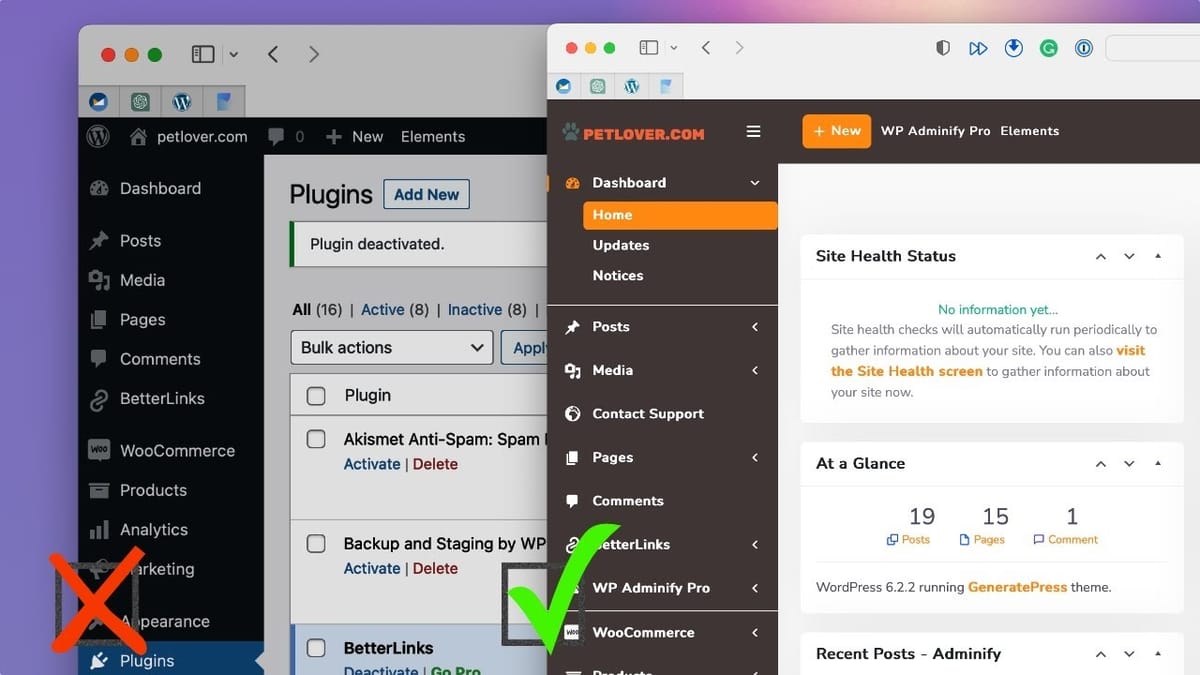
WP Adminify is a comprehensive WordPress plugin that replaces the dated admin panel with a modern, customizable dashboard while consolidating dozens of utility plugins into one.

WP Adminify
WP Adminify modernizes and customizes the WordPress admin panel with a redesigned UI, branded login pages, folder organization, activity logs, and dozens of built-in utility features.
WordPress developers, freelancers, and agencies who build sites for clients and want a polished, branded admin experience.
White Label CMS, Admin Menu Editor, LoginPress, Ultimate Dashboard
Why the WordPress Admin Needs a Makeover
You can build the most beautiful WordPress site imaginable — gorgeous color palette, modern layout, perfectly placed illustrations — but the moment you hand the keys over to a client, they're greeted by a backend that looks like it was designed in 2003. The WordPress admin panel hasn't aged gracefully, and for anyone who isn't a seasoned WordPress user, it can feel overwhelming and frankly ugly.
WP Adminify is a plugin that tackles this problem head-on. It transforms the entire WordPress admin experience from a dated control panel into something that actually feels like modern software. But this isn't just a coat of paint — it's a comprehensive suite of tools that handles everything from dashboard aesthetics to security features, content organization, and client-facing customization.
Getting Started with the Setup Wizard
Installation is straightforward. Once you activate the plugin, a setup wizard walks you through the initial configuration. The first screen presents all of WP Adminify's module settings, and by default every module is enabled. It can feel a bit overwhelming given just how much is packed into this single plugin, but the recommendation is to leave everything on initially and disable individual features later if you don't need them.
The design settings come next, and this is where things get fun. You can toggle between light and dark mode for the admin area, upload a custom logo to replace the default WordPress branding, and add footer text — perfect for leaving your clients a friendly support message at the bottom of every admin page. None of these changes affect the front-end of your website, so visitors won't notice a thing.
The wizard also covers menu settings (vertical is recommended for most sites since WordPress tends to have a lot of sidebar options), menu styling like accordion dropdowns and rounded corners, and admin bar positioning. You can place the admin bar at the top or bottom of the screen and configure handy utilities like a site-wide search bar, a comments indicator, a front-end preview button, and a light/dark mode toggle.
Taming Admin Notices and Update Nags
This might be the most satisfying part of the entire setup for any WordPress professional. WP Adminify lets you disable those persistent admin notices — the banners, the welcome panels, the "Try Gutenberg" nags, and the PHP update warnings that pile up across the top of every admin screen.
You can also suppress notifications about core updates, plugin updates, and theme updates. This is especially useful if you're managing client sites through a tool like MainWP, where you handle updates on your own schedule. Your clients get a clean, distraction-free dashboard, and you maintain control over when and how updates are applied. It's one of those small quality-of-life improvements that makes a surprisingly big difference in how professional your WordPress builds feel.
Branding and Color Customization
Once you're past the wizard, WP Adminify's settings panel gives you granular control over the look and feel of the entire admin area. You can set separate logos for light and dark mode, adjust logo dimensions, and customize the color scheme to match your client's brand.
The customization screen offers a library of pre-built color templates, or you can go fully custom with a color picker for every element — body fonts, background colors, gradients, sidebar styling, and more. If you're the type who obsesses over getting every pixel right, WP Adminify will keep you busy for hours. For everyone else, the templates provide a quick way to achieve a polished, on-brand look without manually tweaking dozens of individual color values.
Folder Organization for Media and Content
WordPress's built-in content organization system is user-facing, which means categories and tags show up on the front end of your site. WP Adminify introduces a backend-only folder system that lets you organize media, posts, pages, and even custom post types into drag-and-drop folders.
For media, this means you can create folders for things like illustrations, product images, and logos, then simply drag files into the appropriate folder. The same system works for posts and pages — if you're coordinating a product launch, for example, you can group all related pages and posts into a single folder for easy access. It's a simple feature, but it addresses a real organizational pain point that otherwise requires a dedicated plugin.
Custom Login Pages and Notification Bars
The login page is often the first thing your end users see, whether they're logging into an e-commerce account or an LMS. WP Adminify includes a full login page customizer that lets you swap out the default WordPress login for something that actually represents your brand. You can upload a custom logo, adjust sizing, change background colors and gradients, customize button colors, and choose from a library of pre-designed templates.
Beyond the login page, there's also a notification bar feature — the kind of top-of-page banner you'd typically need a separate plugin for. You can add promotional messages, sale announcements, or important notices with custom text, links, and styling. Users can dismiss the bar with a close button. It's another example of WP Adminify consolidating what would otherwise be yet another single-purpose plugin.
Security and Redirect Options
WP Adminify includes some practical security-oriented features as well. The redirect URLs section lets you change the default WordPress login URL — instead of the well-known /wp-admin or /wp-login.php paths, you can set a custom login URL. This is a solid first line of defense against brute-force login attempts, since bots typically target the default WordPress login paths.
You can also customize the registration URL, which is particularly useful for community sites, membership platforms, or any WordPress installation where users create accounts. These redirect features, combined with the ability to suppress update notices and control what different user roles can see, give you a reasonable set of security and access control tools without needing to stack additional plugins.
Server Info, PageSpeed Insights, and Activity Logs
WP Adminify surfaces some genuinely useful diagnostic information right inside the WordPress admin. The server info panel provides details about your WordPress installation, PHP version, server software, memory usage, and more — all accessible from the sidebar without needing to install a separate server monitoring plugin.
There's also a built-in PageSpeed Insights tool that runs Google's Lighthouse audit directly from your dashboard. It takes about a minute to complete (which is standard for Google's API), but having it accessible without leaving WordPress is a nice convenience.
The activity log might be the most practically valuable of the bunch. It tracks all actions taken within the admin area — page edits, plugin changes, login events — and lets you filter by user role or specific user. The next time a client insists they didn't change something, you've got a clear audit trail.
Admin Pages and Custom Admin Columns
Admin Pages is a clever feature that lets you create custom pages visible only in the admin area. You build them using the Gutenberg editor, and they show up as menu items in the sidebar. The obvious use case is a support or contact page — embed a form, add a click-to-call button, or include documentation links so your clients always know where to go for help.
Admin Columns rounds out the feature set by letting you customize the columns displayed in post lists, page lists, and custom post type lists. WordPress's default columns tend to get cluttered once you install an SEO plugin or two, and while the built-in Screen Options toggle exists, most non-technical users don't even know it's there. With WP Adminify, you can remove unnecessary columns like tags or author (if you're the only contributor), and add useful ones like word count. These changes apply site-wide for all users, giving everyone a cleaner, more informative content overview.
Final Verdict: Is WP Adminify Worth It?
WP Adminify is one of those plugins that solves a problem you might not have realized was costing you time and professionalism. If you're building WordPress sites for clients, the difference between handing over a raw WordPress dashboard and a polished, branded admin experience is significant. It communicates attention to detail and makes your clients' lives easier.
What makes WP Adminify particularly compelling is the sheer number of utility plugins it replaces. Folder organization, login customization, notification bars, activity logging, admin notices control, custom login URLs, PageSpeed monitoring, admin columns — each of these would typically require a separate plugin. Consolidating them into a single, well-designed tool reduces plugin bloat, potential conflicts, and maintenance overhead. If you manage WordPress sites professionally, this is well worth a look.
Watch the Full Video
Prefer watching to reading? Check out the full video on YouTube for a complete walkthrough with live demos and commentary.


