
Writebook Review: Free Self-Hosted Publishing from 37signals
Writebook is a completely free self-hosted publishing platform from 37signals that lets you create and share books on the web. Here's how to get it running on your own server in minutes.

Writebook
A free, self-hosted web publishing platform that lets you create, organize, and share books online without needing a traditional publisher or monthly subscription.
Content creators, small business owners, and anyone who wants to self-publish documentation, guides, or books on the web without recurring costs.
WordPress, GitBook, Notion, Google Docs
Why Self-Hosted Software Deserves Your Attention
Most people running a business rely on a mix of SaaS platforms and the occasional lifetime deal. But there's a third category that often gets overlooked: self-hosted software. The concept is straightforward — you download the code, run it on a server you control, and skip the monthly fees entirely.
Self-hosted tools come with real advantages. You own your data, you're not subject to price hikes, and the software runs as long as your server does. The trade-off is that you're responsible for keeping things online, but modern tooling has made this far simpler than most people realize. Running your own email server, for example, used to be considered reckless — but it's entirely doable today with the right setup.
That's the premise behind this look at Writebook: a self-hosted publishing tool that's genuinely easy to install and use, even if you've never touched a server before.
What Is Once.com and How Writebook Fits In
Writebook comes from 37signals, the company behind Basecamp and HEY Mail. Their Once.com initiative flips the SaaS model on its head — instead of paying monthly, you download the software once and run it on your own infrastructure.
The first Once product was Campfire, a self-hosted Slack alternative priced at $300. Writebook is the second release, and here's the kicker: it's completely free. No license fee, no hidden costs. All you need is a server and a domain name, both of which are inexpensive to set up.
What Writebook Actually Does
Writebook's tagline says it all: "Instantly publish your own books on the web for free — no publisher required." It's a lightweight content management system purpose-built for long-form, structured content like books, manuals, and documentation.
Once installed, Writebook feels indistinguishable from any polished SaaS product. The interface is clean, responsive, and requires essentially zero maintenance on the backend. You create books, add pages (text, images, or section dividers), organize them with drag-and-drop, and publish — either publicly or to a private audience. The 37signals team clearly brought their decades of UI expertise to bear here.
What You Need Before Getting Started
Setting up Writebook requires three things: a server, a domain name, and about 15 minutes of your time.
For the server, Hetzner and DigitalOcean are both solid choices. Hetzner tends to offer more bang for your buck — you'll get beefier specs at a lower price point compared to alternatives like DigitalOcean, Vultr, or Linode. Writebook's minimum requirements are modest: two gigabytes of RAM and one CPU core. On Hetzner, that's under four euros per month on a shared plan.
For the domain, you don't necessarily need to buy a new one. If you already have a website, a subdomain works perfectly — something like books.yourdomain.com. If you're starting fresh, grab a domain from Namecheap, Porkbun, or Hover. A .com runs about $6.49, though other TLDs like .io or .ai are available at varying price points.
Spinning Up a Server on Hetzner
Creating a server on Hetzner is straightforward. From the servers panel, click to add a new server and choose your location. Ubuntu works great as the operating system and is the recommended choice for Writebook.
For the plan, you have two paths. If you're just experimenting with self-hosted software, the cheapest shared vCPU plan (under four euros per month) gives you two CPUs and two gigs of RAM — more than enough to run Writebook. If you're planning to scale and expect thousands of readers, start with a dedicated vCPU at around 12 euros per month. Starting with dedicated resources from the beginning saves you from having to migrate later.
Leave the remaining settings at their defaults. SSH keys and backups are nice-to-haves you can explore later. Give your server a name, hit create, and you'll receive an IP address — copy it, because you'll need it for the next step.
Pointing Your Domain with DNS
With your server's IP address in hand, the next step is telling the internet where your domain should point. Head to your DNS manager — this could be in your domain registrar (Namecheap, GoDaddy) or a service like Cloudflare.
All you need is a single A record. If you're using a root domain purchased specifically for Writebook, set the name to @ or leave it blank. If you're using a subdomain, enter just the subdomain portion (like "books" for books.yourdomain.com). Paste your Hetzner IP address as the value.
If you're using Cloudflare, make sure to turn off the proxy status for this record. Save the entry, and the DNS side of things is done. You've essentially told the phone book of the internet which computer your domain connects to.
Installing Writebook on Your Server
Now for the actual installation. Click on your server name in Hetzner, go to Actions, and open the Console. This gives you a terminal connection to your remote machine.
Log in using the username and password from the email Hetzner sent when you created the server. Fair warning: the console doesn't support copy-paste for passwords, so you'll need to type it manually. You also won't see any characters appear as you type — that's normal for password fields in a terminal. After your first login, you'll be prompted to change the password. Save this new password somewhere safe, ideally in a password manager.
Once logged in, grab the install command from the email you received when you signed up for Writebook. Don't copy anyone else's command — yours is tied to your specific domain. Paste it into the console and let it run. The installer handles everything automatically: it sets up Docker, installs Writebook, and even provisions an SSL certificate so your site gets the secure padlock icon. When prompted, enter your domain name, and within a minute or two, you'll see the success message.
First Look Inside Writebook
Navigate to your domain in a browser and Writebook loads instantly — the performance benefit of being the only user on your own dedicated server. Set up your admin account with a name, email, and password, and you're in.
Writebook ships with its own user manual already loaded as a book, which is a clever touch. You get to experience the reading interface immediately while learning how the tool works. The manual demonstrates all of Writebook's capabilities: text pages, image pages, section dividers, and the overall navigation flow.
Readers can navigate between pages using arrow keys or mouse clicks. The reading experience is clean and distraction-free — exactly what you'd want for long-form content.
The Editor and Page Types
Writebook's editor uses Markdown, which pairs perfectly with AI-assisted writing workflows. If you're drafting content with ChatGPT or Claude, you can paste the output directly into Writebook and the formatting carries over. For those less familiar with Markdown syntax, toolbar helpers let you insert headings, bulleted lists, numbered lists, and images without memorizing any syntax.
Toggling between edit mode (the pen icon) and view mode (the eye icon) is seamless. You write in one view and preview exactly what readers will see in the other. There's also a full-screen mode for distraction-free writing.
Writebook supports three page types. Text pages are your standard written content with full Markdown support. Picture pages are designed for image-heavy content — upload a photo, add a caption, and you're done. This makes Writebook surprisingly viable for visual formats like comic books or photo essays. Section pages act as title dividers, letting you break a book into distinct parts with dark or light styling options.
Creating and Managing Books
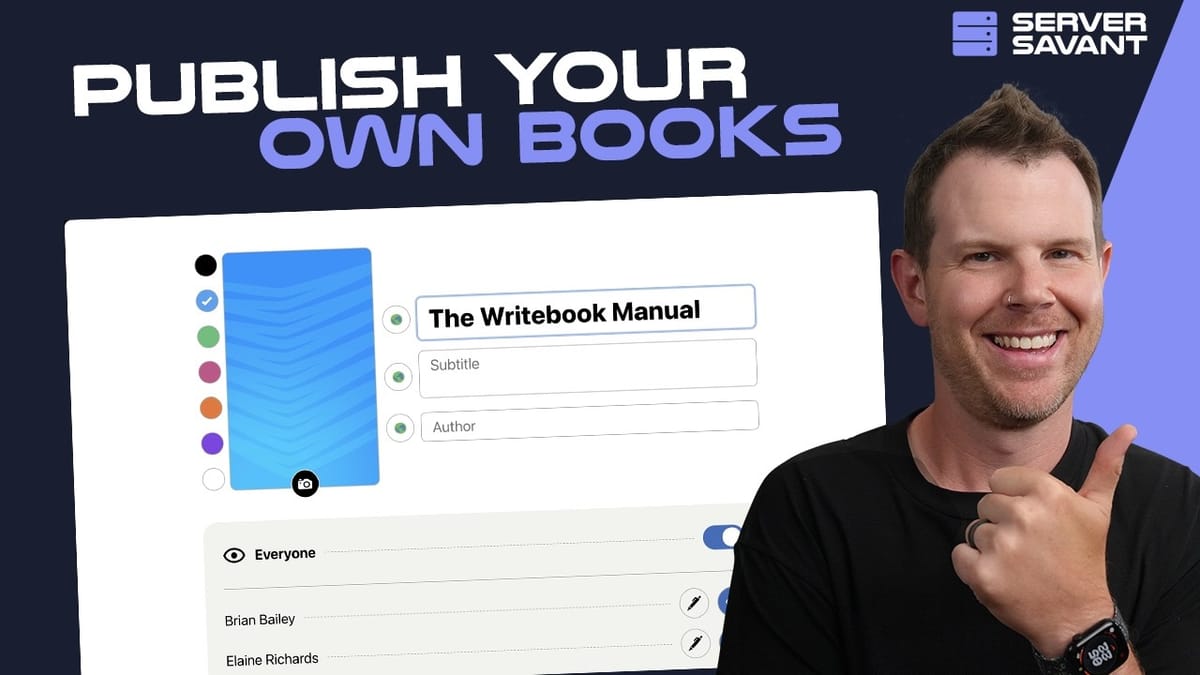
Creating a new book takes about 30 seconds. Give it a title, subtitle, and author name. Choose a background color from the presets or upload a custom cover image — Writebook handles non-standard aspect ratios gracefully, though a properly designed cover will obviously look better.
Each book can be set to public or private. Public books get a shareable URL, a built-in QR code, and a customizable slug. Private books are only visible to users you explicitly grant access to. This opens up interesting use cases: internal company documentation, SOPs for your team, or even paid content where you manually manage access.
While Writebook doesn't include e-commerce features out of the box, 37signals provides the complete source code. Developers can build integrations — like a Stripe webhook for automated access — and the community will likely produce solutions for this over time. For most people starting out, manually adding users to a private book is a perfectly workable approach.
User Management and Permissions
Writebook includes a straightforward user system. From the gear icon, you can generate a signup link that lets others create accounts on your Writebook instance. If unauthorized signups become an issue, regenerating the link instantly invalidates the old one.
Permissions work at the book level. For each private book, you can see a list of all users and toggle whether they have view-only or full edit access. You can also promote any user to administrator status, giving them full control over the entire Writebook instance.
It's a simple permissions model, but it covers the essential scenarios: public publishing, private team documentation, collaborative editing, and read-only distribution.
Final Verdict: Is Writebook Worth Setting Up?
Writebook is a compelling argument that self-hosted software doesn't have to be painful. The entire setup — from renting a server to publishing your first book — takes under 20 minutes and costs less than a cup of coffee per month to run. There's no recurring software fee, no vendor lock-in, and no maintenance to worry about beyond keeping the server online.
The tool itself is polished, fast, and thoughtfully designed. 37signals brought the same attention to detail that made Basecamp and HEY successful. If you've ever wanted to publish documentation, guides, manuals, or actual books on the web without dealing with the complexity of WordPress or the limitations of a SaaS platform, Writebook is hard to beat — especially at the price of free.
For anyone curious about self-hosted software but intimidated by the technical side, this is the perfect starting point. If you can follow along with a tutorial and type a password into a terminal, you can run Writebook.
Watch the Full Video
Prefer watching to reading? Check out the full video on YouTube for a complete walkthrough with live demos and commentary.


