
xCloud Review: WordPress Hosting Panel First Impressions
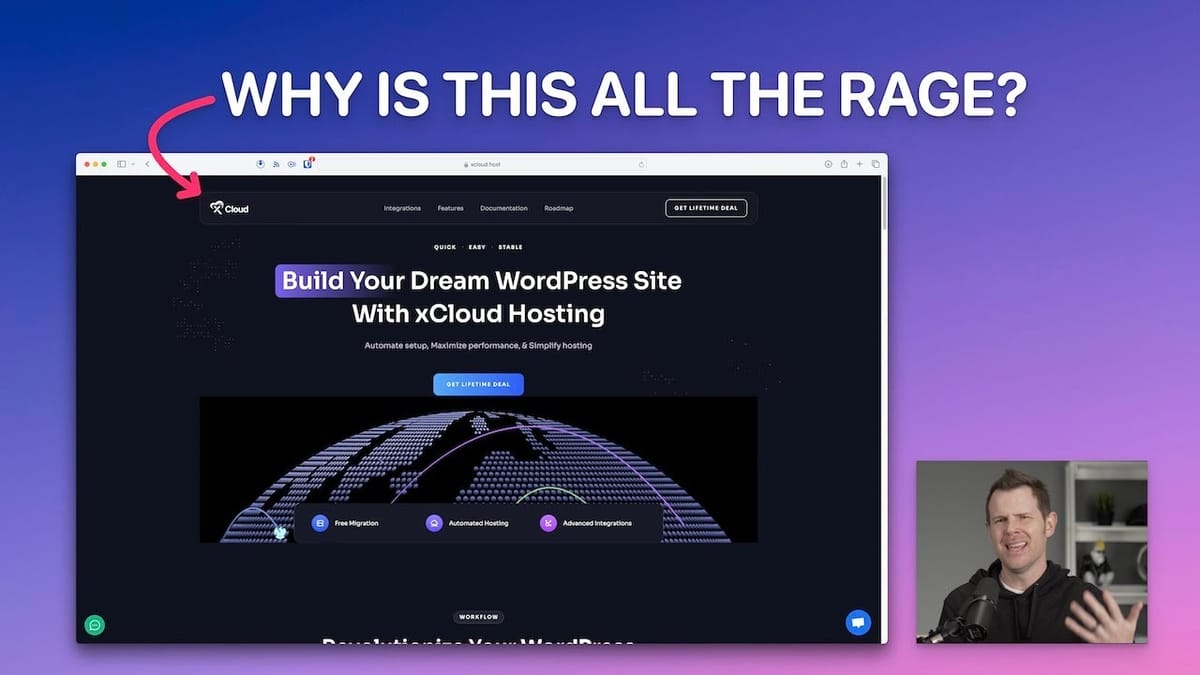
xCloud is a new WordPress control panel from the makers of WP Managed Ninja and WP Developer. Here's what happened when I set up my first server and site from scratch.

xCloud
A WordPress server control panel that lets you manage sites on your own cloud servers or their managed hosting infrastructure.
WordPress developers, agencies, and site owners who want a modern control panel for managing servers and sites without deep command-line knowledge.
GridPane, SpinupWP, RunCloud, Laravel Forge
What Is xCloud and Why Is Everyone Talking About It?
xCloud is a new WordPress hosting control panel created through a collaboration between the founder of WP Managed Ninja and the founders of WP Developer — two of the most recognized names in the WordPress development space. That pedigree alone has generated a lot of excitement in the community.
What makes xCloud interesting is its flexibility. It's not strictly a hosting provider — it's more of a control panel that also offers optional managed hosting. You can bring your own server from Vultr, DigitalOcean, or Google Cloud, or you can use xCloud's own managed servers if you'd rather skip the third-party setup entirely.
This review covers my very first experience with the platform, from spinning up a server to deploying a live WordPress site. I'd never touched xCloud before recording, so these are genuinely fresh impressions — the good and the not-so-good.
Server Setup and Pricing Breakdown
Setting up a server on xCloud is straightforward. If you're connecting your own provider, DigitalOcean stands out with OAuth authentication — no API key copy-pasting required. Vultr requires an API key, but it's still simple enough for anyone with basic technical skills.
xCloud's own managed servers come in two tiers: General and Blazing Fast premium. The pricing is remarkably close to what you'd pay going directly through Vultr. A 3-CPU, 8GB RAM server runs about $50/month on xCloud versus $48 on Vultr — so the markup is minimal. Backups add 20% to the server cost, which matches Vultr's pricing exactly. For what it's worth, the server locations and specs align so closely with Vultr's offerings that it's hard not to speculate about the underlying infrastructure.
One tip: always go for the faster CPU versions when available. WordPress genuinely benefits from higher clock speeds, and the experience improvement for both developers and visitors is noticeable. Server provisioning took about 10-15 minutes, which is standard for any provider that needs to install its management stack on top of the base OS.
Dashboard First Impressions and Team Management
The xCloud dashboard has a dark theme that feels a bit dated for a brand-new product. The documentation is also stuck in dark mode with no light mode toggle, which makes reading technical content more fatiguing than it needs to be. The contrast isn't fantastic either. These are cosmetic issues, but first impressions matter.
Team management is built in, with granular role-based permissions. You can create different roles — site admin, for example — and customize permissions down to individual checkboxes. You can even grant access to specific sites, which partially addresses the need for client-level organization without requiring separate teams.
However, teams appear to be tied to separate billing, which means you can't simply create a team per client under one billing account. I also managed to get stuck in "team jail" — switching to a team without active billing essentially locked me out of navigation. The only escape was switching back to a team with billing set up. It's the kind of rough edge you'd expect from an early-stage product, but it's worth knowing about.
Deploying Your First WordPress Site
xCloud gives you five options for adding a site: fresh install, clone from Git, migrate, manual upload from a zip file, or full server migration from another provider. The server migration feature supports SpinupWP, Forge, RunCloud, Ploy, and cPanel — a genuinely useful feature that could save hours of tedious site-by-site transfers.
For a fresh install, you choose between live and staging environments, enter your domain, and optionally add additional domains. There's a Cloudflare integration available for DNS management, though I opted to set my DNS records manually. xCloud helpfully displays the exact A record and IP address you need — a small touch that eliminates a common stumbling block.
The site creation wizard includes sensible defaults: full-page caching and Redis object caching are enabled out of the box. You can configure your PHP version on a per-site basis (up to 8.2), set admin credentials, and even run WP-CLI scripts during deployment. The entire site provisioning process completed in just a few minutes, including SSL certificate issuance.
Email Configuration and Built-In SMTP
Email handling is one of xCloud's more thoughtful features. Every site gets 100 free transactional emails per month through their managed email service, which runs on Elastic Email under the hood. The free tier sends from an xcloud.email domain — if you want your own custom domain, you'll need their $1/month plan for 1,000 emails.
For the integration, xCloud automatically installs Fluent SMTP and pre-configures it with Elastic Email credentials. Beyond their managed service, you can connect Mailgun, SendGrid, or any generic SMTP provider. One notable absence is Amazon SES, which at $0.10 per 1,000 emails is the cheapest option out there — though it's also notoriously difficult to manage.
The one thing I noticed is that xCloud didn't prompt me to add any DNS records for email authentication (SPF, DKIM) during setup. For transactional emails like password resets or WooCommerce receipts, proper email authentication is important for deliverability. This might be handled automatically through the xcloud.email domain, but it's worth verifying if you're relying on this for anything critical.
Server and Site Monitoring
xCloud provides monitoring at both the server and individual site level. The server view shows uptime, RAM usage, and general statistics in a clean, visual format. It's less detailed than something like Monit (which GridPane uses), but it's far more accessible for the average user who doesn't want to parse dense monitoring data.
The real standout is per-site monitoring. When you have multiple sites on a single server and performance tanks, finding the culprit can be a headache. Typically you'd need to SSH in and run htop to figure out which site is consuming resources. xCloud surfaces this information in a graphical interface, making it much easier to identify problem sites without touching the command line.
The logging system includes both error logs and event logs, giving you a timeline of every action taken on your server and sites. It's basic but functional, and exactly the kind of visibility you want when troubleshooting issues.
Caching, Cron Jobs, and Server Management
The caching setup in xCloud deserves praise for clarity. The platform uses Nginx caching by default and supports integration with WP Rocket, WP Super Cache, and WP Total Cache. More importantly, all caching layers are visible and controllable from one screen. Cache stacking — where you accidentally have server-side caching, plugin caching, object caching, and Cloudflare caching all fighting each other — is one of the most common WordPress performance mistakes, and xCloud's consolidated view helps prevent that.
Server-side cron is another welcome inclusion. By default, xCloud disables WP-Cron (which only fires when someone visits your site) and replaces it with a proper server-level cron job. You can set the interval from every minute to hourly. For ecommerce sites, run it every minute. For blogs, every 15 minutes is usually fine. This eliminates the classic problem of scheduled posts not publishing because nobody visited your site that morning.
The service management panel lets you view and independently restart Nginx, Redis, PHP, OpenSSH, and MySQL. You can even disable services you're not using. It's the kind of granular control that's typically reserved for command-line management.
Backups, Redirects, and Other Features
Backups can be configured to remote storage providers including DigitalOcean Spaces, Vultr Object Storage, or any S3-compatible bucket like Backblaze B2 or Wasabi. Local backups are also available, though I'd caution against relying on them exclusively — VPS storage fills up quickly when you're duplicating entire sites. The backup system doesn't appear to be incremental, meaning every backup copies all files and the database from scratch.
Server-side redirects are manageable directly from the dashboard — no need to SSH in and edit Nginx config files. You can set up permanent or temporary redirects in seconds, which is a huge accessibility win for non-technical users. Just remember to include the full URL with protocol when setting up the destination.
The platform also includes a built-in database manager (similar to phpMyAdmin), direct access to the wp-config file through a browser-based editor, SSH/SFTP access details, and a magic login link for one-click WordPress admin access. Site cloning is available at the site level, though server cloning is not yet supported.
PHP and WordPress Memory Configuration
One thing that tripped me up initially was finding the WordPress memory limit setting. It turns out xCloud syncs the WordPress memory limit directly with the PHP memory limit configured at the server level. When I changed the PHP memory limit from 512MB to 1024MB, the WordPress max memory limit updated automatically on the next page load.
This is a clean approach, but it does mean the setting applies to all sites on the server — there's no per-site memory configuration. If you're running multiple sites with different resource needs, that's worth keeping in mind. The default PHP memory limit of 512MB is reasonable, but the WordPress memory limit starts at 40MB, which is on the low side for anything beyond a basic blog.
Final Verdict: Should You Try xCloud?
xCloud is an impressive first effort from a team with serious WordPress credentials. The feature set is genuinely competitive — in some areas it already surpasses platforms that have been around for years. Per-site monitoring, consolidated cache management, built-in email, server-side cron, and the migration tools from competing platforms are all strong selling points.
The rough edges are real but expected for an early product. The dark-mode-only documentation, some UI inconsistencies, the team billing confusion, and sparse documentation all need work. The archive server feature is poorly explained and seemingly unreliable by their own admission. And the inability to change your server's timezone is an odd limitation.
If you're currently using GridPane, SpinupWP, or a similar panel and everything is working well, there's no urgent reason to switch today. But if you're setting up new infrastructure or evaluating options for the first time, xCloud is absolutely worth a serious look — especially if you can grab their current pricing before it goes up.
Watch the Full Video
Prefer watching to reading? Check out the full video on YouTube for a complete walkthrough with live demos and commentary.


