
Xtensio Review: Collaborative Documents That Actually Look Good
Xtensio is a collaborative document builder that goes way beyond Google Docs, offering drag-and-drop modules, presentation mode, and responsive sharing — all wrapped in a lifetime deal on AppSumo.

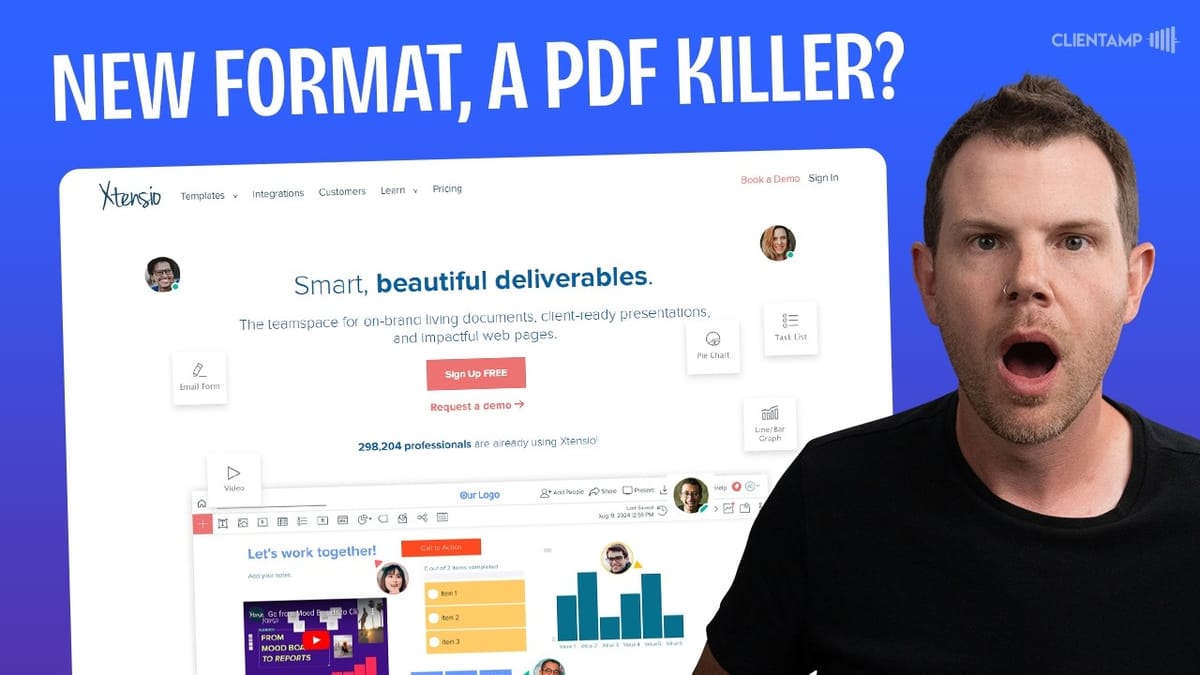
Xtensio
A collaborative document builder that combines the ease of a page builder with real-time team editing, letting you create interactive, responsive business documents called folios.
Agencies, freelancers, and teams who need to create polished client-facing documents, pitch decks, reports, and dashboards that go beyond what Google Docs or PDFs can offer.
Google Docs, Canva, Notion, Pitch
What Is Xtensio and Why Should You Care?
If you've ever tried to make a Google Doc look professional and ended up frustrated, Xtensio might be exactly what you need. It's a collaborative document tool, but instead of giving you a blank page with a blinking cursor, it gives you something closer to a website page builder — complete with drag-and-drop elements, interactive modules, and responsive layouts.
The documents you create in Xtensio are called "folios," and they're organized into "workspaces" (basically folders). You can share them as live web links, embed them on websites, or present them as slide decks. The big selling point here is that these aren't static PDFs that look terrible on mobile — folios are fully responsive and interactive.
Xtensio is currently available as a lifetime deal on AppSumo across four tiers, ranging from $39 to $249. The tier you pick matters quite a bit because key features like the style guide, custom domains, and analytics are locked behind higher tiers.
Workspaces and Organization
Getting started with Xtensio is straightforward. Your left sidebar shows all of your workspaces, and each workspace contains your folios. Creating a new workspace takes seconds — give it a name, set the sharing permissions (private, team-visible, or public), and you're good to go.
One small gripe worth mentioning: Xtensio assigns a random color to each workspace, and you can't change it. There's no option to add a logo, emoji, or custom icon either. If you're managing multiple client workspaces, this lack of visual customization makes it harder to quickly distinguish between them. You can rename workspaces, but that's about the extent of the personalization.
A Template Library That Covers Serious Ground
One of Xtensio's strongest selling points is its template library, and it's genuinely impressive in scope. You'll find templates for Kanban boards, content strategy planners, marketing plans, sales battle cards, reporting dashboards, lead magnets, and even slide decks. The variety here suggests Xtensio is positioning itself as a Swiss Army knife for business documents.
A particularly clever use case: instead of attaching PDFs to online courses, you could link directly to an Xtensio folio. Students would get a much more interactive and mobile-friendly experience compared to pinching and zooming on a PDF. The same logic applies to client proposals, pitch decks, and any document you'd normally share as a static file.
Previewing templates before using them is simple — click preview, scroll through, and if it fits, hit "use template." You'll name your folio, assign it to a workspace, and Xtensio drops you right into the editor with a fully customizable copy.
Image Library and Style Guide
Every AppSumo plan comes with storage for uploading assets like logos and images. Xtensio also integrates with Pexels, giving you access to roughly two million free stock photos you can search and add directly to your folios without leaving the platform.
The style guide is where things get interesting — and a little frustrating. You can set up your brand colors and fonts so everything stays consistent across all your folios. There's even a neat trick where you enter a website URL and Xtensio pulls the colors directly from that site. Google Fonts are fully supported, and you can upload custom font files if you need something specific.
Here's the catch: the style guide is only available on tier three ($199) and above. For a feature that's essentially about brand consistency — something every business user needs — locking it behind the third tier feels like an odd choice. If you're on tier one or two, you'll be manually matching colors every time you create a new document.
The Folio Builder: Where Xtensio Shines
The builder is the heart of Xtensio, and it's where the tool really differentiates itself from traditional document editors. When you create a blank folio, you start with a section containing a text element. From there, you can resize containers freely, adjust vertical alignment, and add background images or colors to any section.
The editing experience sits somewhere between a website builder and a document editor. You get the visual flexibility of something like Squarespace — free placement of elements, drag handles for resizing, background image positioning — but the output is a shareable document, not a website. Text formatting is solid with options for bold, font changes, size adjustments, and color picking that ties back to your style guide palette.
One area that could use improvement: there's no image overlay option. If you place a heading over a background image, you can't darken the image to improve text contrast. You'll need to carefully position your background and choose your text color wisely. It's a small thing, but it's standard in page builders and would make a noticeable difference here.
Modules: 16 Building Blocks for Your Documents
Xtensio offers 16 different modules you can drop into your folios, and they cover a surprising amount of ground. Beyond the basics of text and images, you get video embeds (YouTube, Vimeo, etc.), tables, task lists, buttons, social link widgets, charts, and even email opt-in forms.
The video module is particularly smooth — paste a YouTube URL, hit update, and the video appears inline in your document. You can resize and reposition it just like any other element. The embed module extends this to Twitter posts, Instagram content, SoundCloud, and more. If you're building a client reporting dashboard, being able to embed live previews of social posts and external content is a genuine time-saver.
Charts come in four flavors: pie, scale, bar, and line graphs. They look decent, but there's a significant limitation — you can't connect them to external data sources like Google Sheets. All data has to be entered manually. The same goes for tables. If Xtensio added live spreadsheet integration, it would transform their reporting capabilities from "nice to have" to genuinely powerful.
Sections and Presentation Mode
Sections in Xtensio serve double duty. On the surface, they provide visual hierarchy — each section can have its own background color or image, and you can rearrange them with a single click. But there's a hidden superpower: presentation mode.
When you click the presentation button, Xtensio treats each section as an individual slide. You can navigate between them with arrow keys, turning your folio into a full-blown slide deck. This means you can create a single document that works as both a scrollable web page and a presentation — no need to maintain two separate files.
By default, folios use a "pageless" layout, which is essentially a continuous scroll. You can switch to a paged view for a more traditional document feel, but the pageless approach makes more sense for most use cases. Nobody's printing these, and the seamless scroll-to-presentation workflow is one of Xtensio's cleverest features.
Tables, Task Lists, and Project Management
The table module works much like inserting a table into Microsoft Word. You can add rows, columns, and label columns for tagging. Resizing is flexible — make tables taller, shorter, wider, or narrower to fit your layout. It's functional for presenting structured data, though the lack of spreadsheet integration limits its usefulness for dynamic reporting.
Task lists bring a lightweight project management feel to your folios. You can add items, set statuses (next, in progress, completed), customize colors, and even duplicate lists to create a Kanban-style board. Items can be dragged between columns, which is a nice touch if you want to track project progress directly within a shared document.
Buttons let you add clickable CTAs anywhere in your folio — link to external sites, or use share links from other folios to connect documents together. Labels exist as a module too, though their purpose is unclear — they look like buttons but don't support links, making them mostly decorative.
Sharing, Analytics, and Notifications
Xtensio offers several ways to get your folios in front of people. The simplest is a shareable web link with a customizable slug. You can also connect a custom domain (tier three and above), embed folios on any website via iframe, or share directly to social media.
The analytics suite is surprisingly robust for a document tool. You get view counts, average time spent on the document, geographic data, device breakdowns, and click tracking. It's the kind of analytics you'd expect from a landing page tool, not a document editor. However, like the style guide, this feature is locked behind tier three.
Perhaps the most underrated feature is email notifications. Xtensio can alert you whenever someone views your folio — invaluable if you've sent out a proposal or pitch deck and want to know when a prospect has actually looked at it. All notifications are enabled by default, so you'll want to dial those settings back unless you enjoy a flooded inbox.
Team Sharing and Permissions
Xtensio uses a three-tier permission system: admins, team members, and guests. Admins get full control including team management and style guide editing. Team members can create folios and workspaces and access team-visible content, but can't touch the style guide. Guests can view and edit existing folios but can't create new ones — this is the role you'd assign to clients.
The guest role is key for agencies and freelancers. If you're building reports or proposals for clients and want them to collaborate or review without giving them the keys to the castle, guests are the way to go. Just keep in mind that guest accounts start at tier two (one guest) and scale up to unlimited on tier four.
Plans and Pricing: Which AppSumo Tier Is Right for You?
The AppSumo deal runs across four tiers, and the jumps between them are significant. Tier one ($39) gives you 10 folios, one workspace, one seat, and 250MB of storage. It's essentially a trial — fine for kicking the tires, but too limited for real work.
Tier two ($99) is where Xtensio starts becoming useful. You jump to 100 folios, unlimited workspaces, and gain one guest account. That's a meaningful upgrade for solo users who need to collaborate occasionally. But the sweet spot for most people is tier three ($199), which unlocks the style guide, custom domains, custom analytics, password-protected links, custom templates, 365 days of revision history, three team seats, and 10 guest accounts.
Tier four ($249) adds unlimited guest accounts, 10 team seats, and white-label branding. If you're running an agency and plan to use Xtensio as a core part of your client workflow, the unlimited guests and white labeling justify the extra $50 over tier three.
Final Verdict: A 7.1 With Room to Grow
Xtensio earns a 7.1 out of 10. It's a genuinely interesting tool that does a lot of things well, but it's not without rough edges. The template designs, while functional, don't quite match the visual polish of something like Canva. The lack of image overlays, limited chart customization, and no spreadsheet integration hold it back from being a must-buy.
That said, the core concept is strong. Responsive, interactive documents that double as presentations and can be shared as live links — that's a real upgrade over static PDFs and clunky Google Docs. The analytics and notification features add professional-grade functionality that you don't typically find in document tools.
If you need to create client-facing documents, pitch decks, or reporting dashboards and you want something more polished than a Google Doc but less complex than building a webpage, Xtensio is worth serious consideration. Just make sure you budget for tier three to get the features that actually make the tool shine.
Watch the Full Video
Prefer watching to reading? Check out the full video on YouTube for a complete walkthrough with live demos and commentary.


