AppSumo Black Friday 2026 Drop 3: All 8 Deals, Plus Plutio, Nifty and upcoach Up Close
AppSumo's third Black Friday 2026 drop has 8 tools for running your business. What each one does, plus Plutio, Nifty and upcoach set up.

If you send invoices, look at Plutio. If you manage a team, look at Nifty. And if you sell coaching, look at upcoach, but know that it's a really good idea that isn't quite ready for high-ticket clients yet.
Those are my three picks from AppSumo's third Black Friday drop, and I set up all three on my own accounts. The drop has eight new tools, and the theme is everything you need to run your business: manage your projects, do your scheduling and, of course, get paid. I'll cover all eight quickly, then go further into the three I think are worth a closer look.
When to buy
Just like the other drops I've covered, the best time to buy these deals is right now or tomorrow. Prices go up $10 on every tier Sunday morning (November 22), when Drop 4 goes live.
New to AppSumo? Code DAVE10 gets you 10% off.
All eight Drop 3 deals at a glance
Here's every tool in the drop, in alphabetical order, with what it does in one line.
| Deal | What it does |
|---|---|
| Agency Handy | Your clients, your team and your payments in one place, built for agencies |
| Buildin | A workspace for your docs and projects, with AI agents built in |
| Formaloo | Forms and client portals that kick off workflows on their own, no code needed |
| Lunacal | Scheduling you pay for once |
| Nifty | Project management for teams, with an MCP connection for your AI |
| Plutio | One app to run a freelance or small service business, from proposal to payment |
| Rocky AI | An AI coach with your branding on it |
| upcoach | Structured coaching programs: one-to-one, group coaching and masterminds |
The five I'm not demoing
Agency Handy is for agencies. If you run one, it puts your clients, your team and your payments all in one place.
Buildin is a workspace for your docs and projects, and it comes with AI agents built right in.
Formaloo lets you build forms and client portals that kick off workflows on their own, with no code needed.
Lunacal is a scheduling tool from the future. I did a full Lunacal review back in March of this year, which seems like an eternity ago. Basically, think Calendly, except you pay for it once.
Rocky AI is an AI coach that you can put your own branding on, so your clients can get coaching from a virtual you at any time of day.
Plutio: one app to run your business
Plutio is a classic AppSumo deal. It calls itself one app to run, grow and automate your business, and it is not holding back on features. Under Product alone, you'll find project management, scheduling, contracts and agreements, and the list goes on and on. If you need to do it in your business, chances are Plutio has you covered.
On top of all that, it has smart automations and an AI assistant nicknamed Pal. I tried Pal, and I'll get to how that went.
Plutio is so deep that there's no way I could give it a proper tutorial and show you everything in it. So I asked a different question: if you pick up a Plutio code (or you're thinking about it), what should you do first to get the most out of the tool with the least amount of friction?
Brand it for your clients first
Click the gear icon, then go to Logo and branding.
A warning before you start: a lot of what follows needs AppSumo Tier 4 or above, because that's the tier that includes white labeling. I think white labeling is really worth it for a tool like this. Your clients are going to be logging in. When they do, they get a nicely branded experience, and I think that adds value to your work.
Here's what you can set:
- Logos. A logo, a square logo and a favicon, with light mode and dark mode options.
- Colors. There's a color palette, though honestly, those preset choices are a bit too saturated for me. Midnight or Noir look okay. The good news is there are hex code options for basically every element in the interface.
- Custom CSS. If that still isn't enough, you get access to a global style sheet where you can add your own CSS.
- Custom domain. No white label experience is complete without one. Go to Domain and set up something like portal.yourcompany.com.
You can even set up the login screen exactly how you like it.
Then spend real time in Templates
Once everything is dialed in, head over to the Templates section. Ideally, you'd spend a good chunk of time here and add everything you're going to be doing in Plutio over the next week or two. Then you can just start flying with the app.
Templates do a few things for you. They get you preloaded to just do the work, so you don't have to worry about making things look nice each time. They also teach you the app. Once you get used to using templates, the rest of the tool is very, very simple.
Add your products and services as items
Under Templates, one place to go first is Items. This is where you put the products or services you sell.
If you're interested in Plutio, I'm assuming you sell something. Maybe you're a freelancer, or you work with a small team and sell services or productized services to clients. Add all of those here.
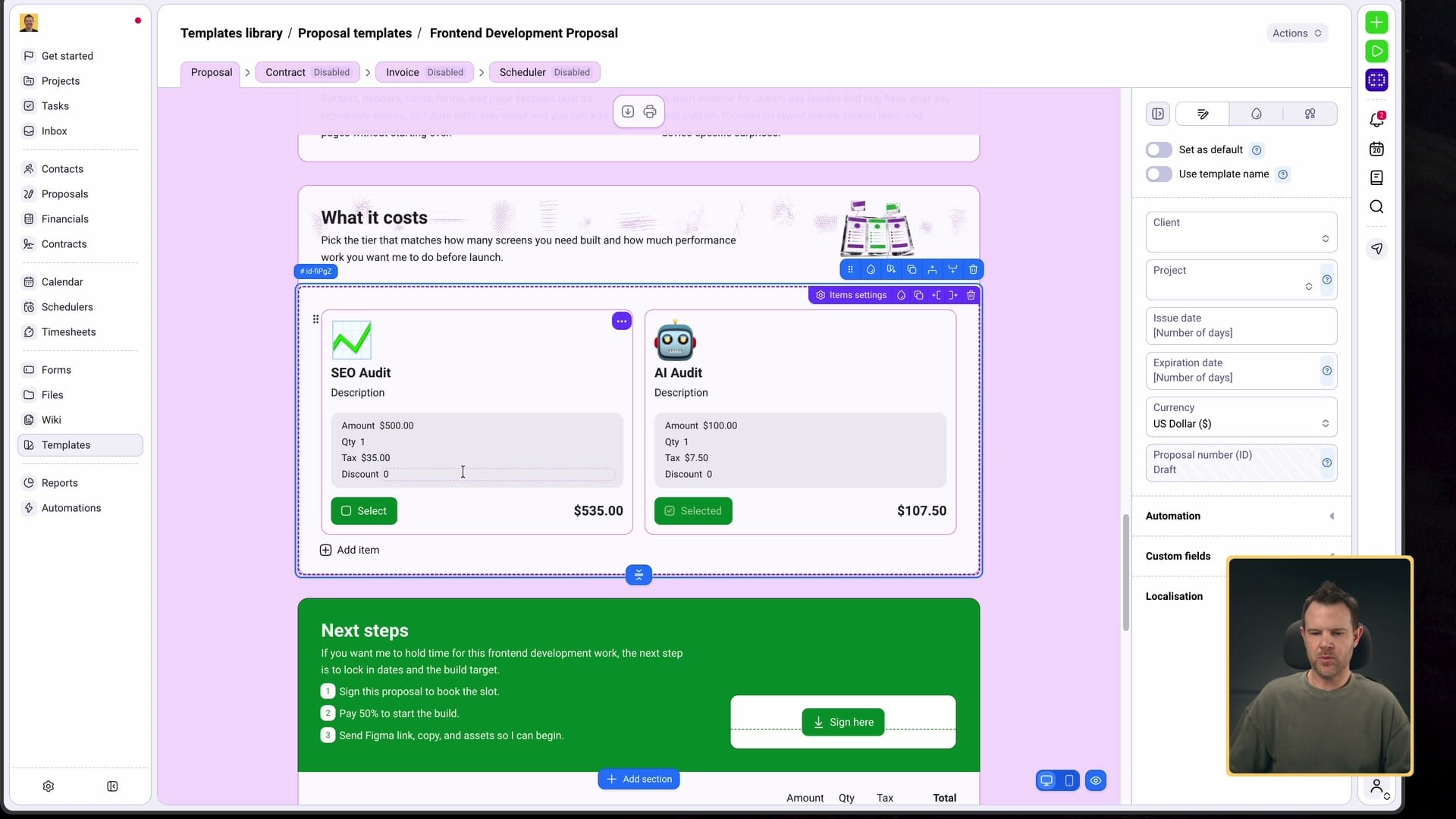
I already had one called AI Audit, so I added an SEO audit. I charged $500 for it, added about $35 in tax, and gave it a little up-and-to-the-right graph emoji to keep track of things. Then I realized I'd forgotten to name it. The name field is right at the top; click in and start typing. Repeat that for every product or service you plan to sell soon.
Build a proposal from a free template
Next, set up a proposal template. If you're in a services business, you write a lot of proposals, and doing each one from scratch takes too much time. A template you customize for each client is a lot faster.
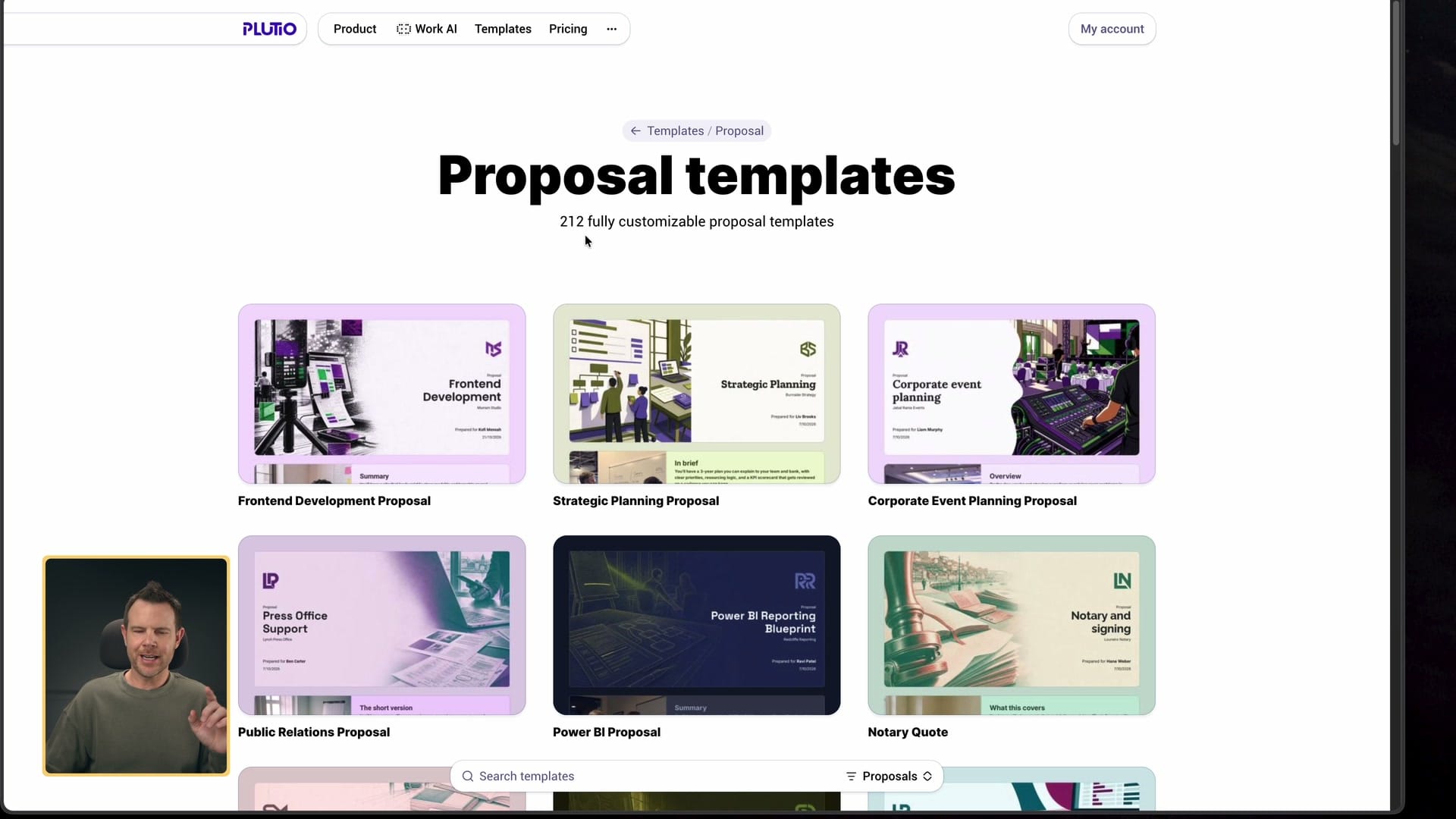
At the top of the Templates section is Proposals. You can build one from scratch, but there's also a Get templates button that takes you to a section of Plutio's website with 212 proposal templates you can use for free (and that's just proposals). Scroll through and you'll probably find one for your type of business: personal training, property management, residential interior design, bookkeeping, beauty salons. There are really no limits to the kinds of businesses Plutio can work for.
I grabbed a front-end development proposal. Click Use this template to see a preview of what it will really look like. They're nicely designed, and everything looks stylish. It has a style, and that style is distinctly Plutio.
That's worth thinking about. Most tools like this have a design language, so find a template that already fits you and your business. You can change the colors, and maybe you could change everything about how it looks, but that's a lot more effort than starting from one that's aligned with your design values. The colors were a bit much for me, but you can customize those.
Choose Get template to bring it into your account. Then change the words to fit your business (I made mine about SEO and AI done for you) and use the proposal to show prospects your process and how much care goes into the work.
When you get to the items section, remove the placeholder items, then use Apply template to drop in your own. I applied my SEO audit, then applied the template again for my AI audit.
Let clients pick and pay inside the proposal
This is the part I like. As a client scrolls through your proposal, they get a little e-commerce experience where they choose which products they actually want. At the bottom, they see a total and can complete their purchase right there.
That works because you can connect your payments to Plutio. In Settings, scroll down to Financials and connect your bank account, PayPal, Square or Stripe.
The same process (add items, then add them to a document) works for contracts and invoices too. They're basically just the next steps in the whole process.
Bundle it all into a project
You can bundle proposals, contracts and invoices together into a project, and now you're doing project management. That isn't only about the sales side and getting paid. It's about doing the actual fulfillment, and you can do that inside Plutio too.
When it's time to use your templates, go to the top menu item for that thing. To send a proposal, go to Proposals and create a new one from the template you want. For a project, click Projects to see your existing ones, and create a new one with the plus button.
There are keyboard shortcuts for darn near everything in Plutio. Press C to open the create menu and see every option.
Give the project a name and add any project clients, so you can invite your clients in. Plutio has different roles (clients, co-owners, contractors and teammates), each with their own permissions, so people see exactly what they need to see and no more.
The project is really the heart of Plutio, because everything is bundled into one place. The tabs across the top cover everything I've talked about so far.
Tasks, boards and the calendar
Inside a project, you get a task board. Boards have templates too, so I applied a sales pipeline and had one in my project right away. You can view it as a Kanban board, a table or a timeline, however you like to do project management.
Tasks can connect to a calendar. If you have milestones to hit, give your tasks due dates or add events right on the calendar. I jumped ahead to April 2027, double-clicked the 6th and added a task called "Style guide," due that day, inside my demo project. It showed up on the calendar, and when I switched to the Kanban view, there it was.
Pal, Plutio's AI assistant: one miss, then a hit
Now imagine that project is busy. It's filled with hundreds or even thousands of items, plus invoices, subscriptions and proposals, and you can't remember when the style guide is due. You don't want to take the time to dig for it.
Press P anywhere in Plutio, and Pal slides open: "Hey Dave, what will we work on?" It knew I was inside my demo project, so it has context.
This is where I'm supposed to have an AI assistant with contextual awareness of everything. And I kind of do. It reminds me of Siri: it gets answers right occasionally, but it tells you it isn't sure more often than you'd like.
My first try was a pretty normal question. I asked it to find the due date for the style guide. Nothing tricky, just how I'd ask any other AI. It thought about it, then said it couldn't find the date.
So I got more specific: "Look at the tasks, find one called style guide and tell me the due date." That time, it went out, found the data and nailed it.
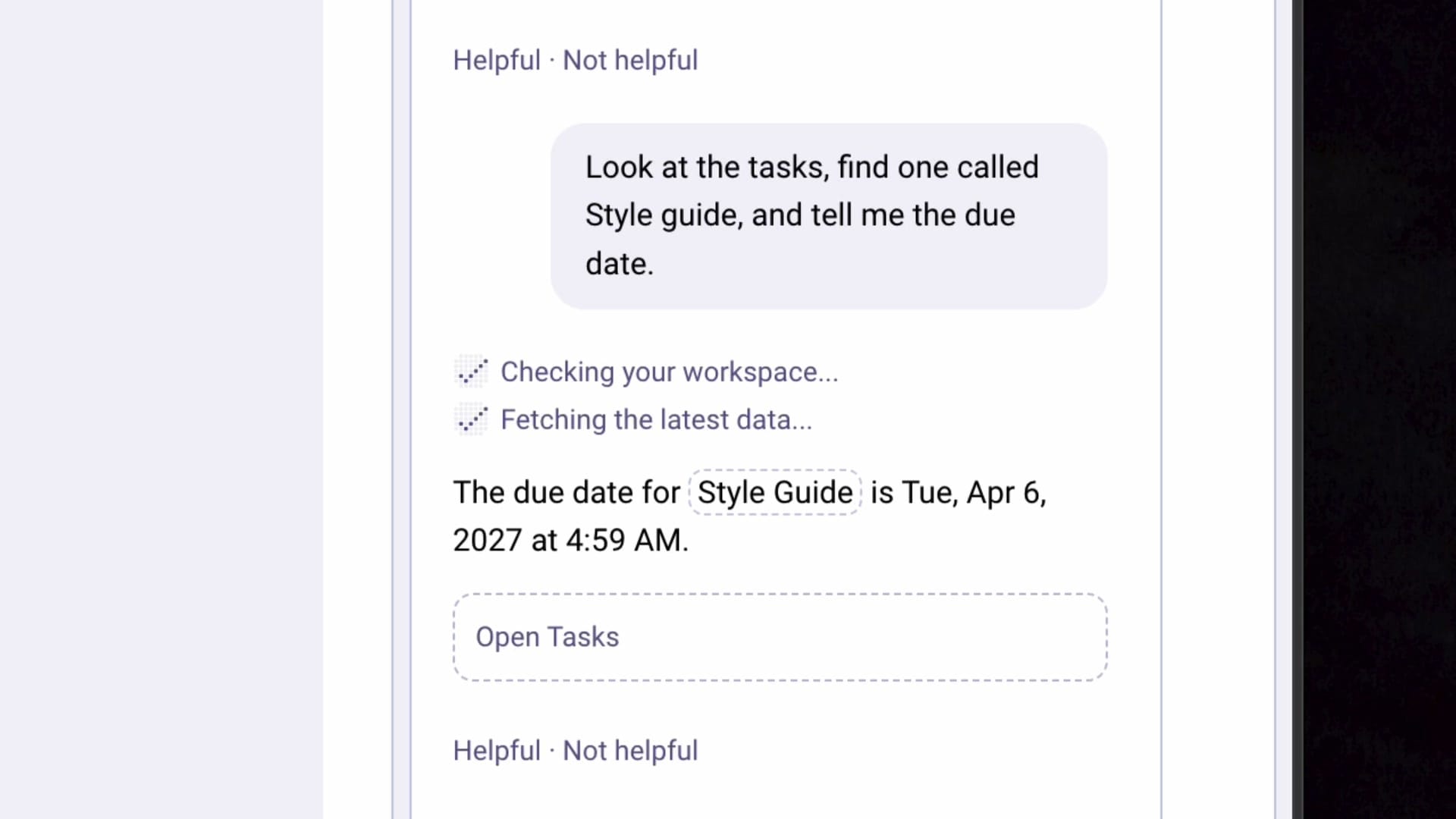
That's the problem with Pal. It probably would have been amazing a few years ago, but we're spoiled by how good AI tools are now, and by today's standards it needs an upgrade.
To be totally honest about Plutio: all of the business features are really good. The AI still needs work. I'm not trying to make it look bad. It does a ton, and I think it's a good project management tool. Buy it for the business tools, not for the AI.
Plutio pricing
Plutio starts at $79. Tier 1 covers you plus five clients, and you can stack codes. Remember that white labeling needs Tier 4 or above.
Plutio vs Nifty: which one should you get?
Nifty and Plutio share a lot. That's one of the reasons I wanted to set up both: to help you figure out which one is the better fit.
They're both project management tools, and they do a lot of the same things. But if you send invoices, you'll want Plutio. And if you manage a team, Nifty is the stronger choice.
| If you... | Look at |
|---|---|
| Send invoices | Plutio |
| Manage a team | Nifty |
Here's why. Plutio is trying to do basically everything your business needs, so proposals, invoices and sales all happen alongside your project management. Nifty is focused on the project management side. That makes it a great place to collaborate with larger teams, or to bring in clients who work alongside your team. You can do those things in Plutio as well. There's just more going on.
Nifty: project management for teams
Nifty's homepage has a lot of overlap with Plutio, but one thing stood out to me right away: Nifty really is a project management tool.
Roadmaps and views
Inside a project, you can have a roadmap. If you're building out features, you keep that list there, separate from your tasks.
Tasks have several views: a timeline, a Kanban board (familiar if you're a Trello user), a list and a calendar, just like in Plutio.
Overall, I think the interface is quite nice. It might look a little dated to me at this point. Nifty has been around for a while, and I don't think it has had a fresh coat of paint in quite some time. Plutio, on the other hand, has been updated pretty consistently over the years. Honestly, both could use an update: Plutio for its AI, and Nifty for an interface that looks a little on the old side.
Connect your own AI with MCP
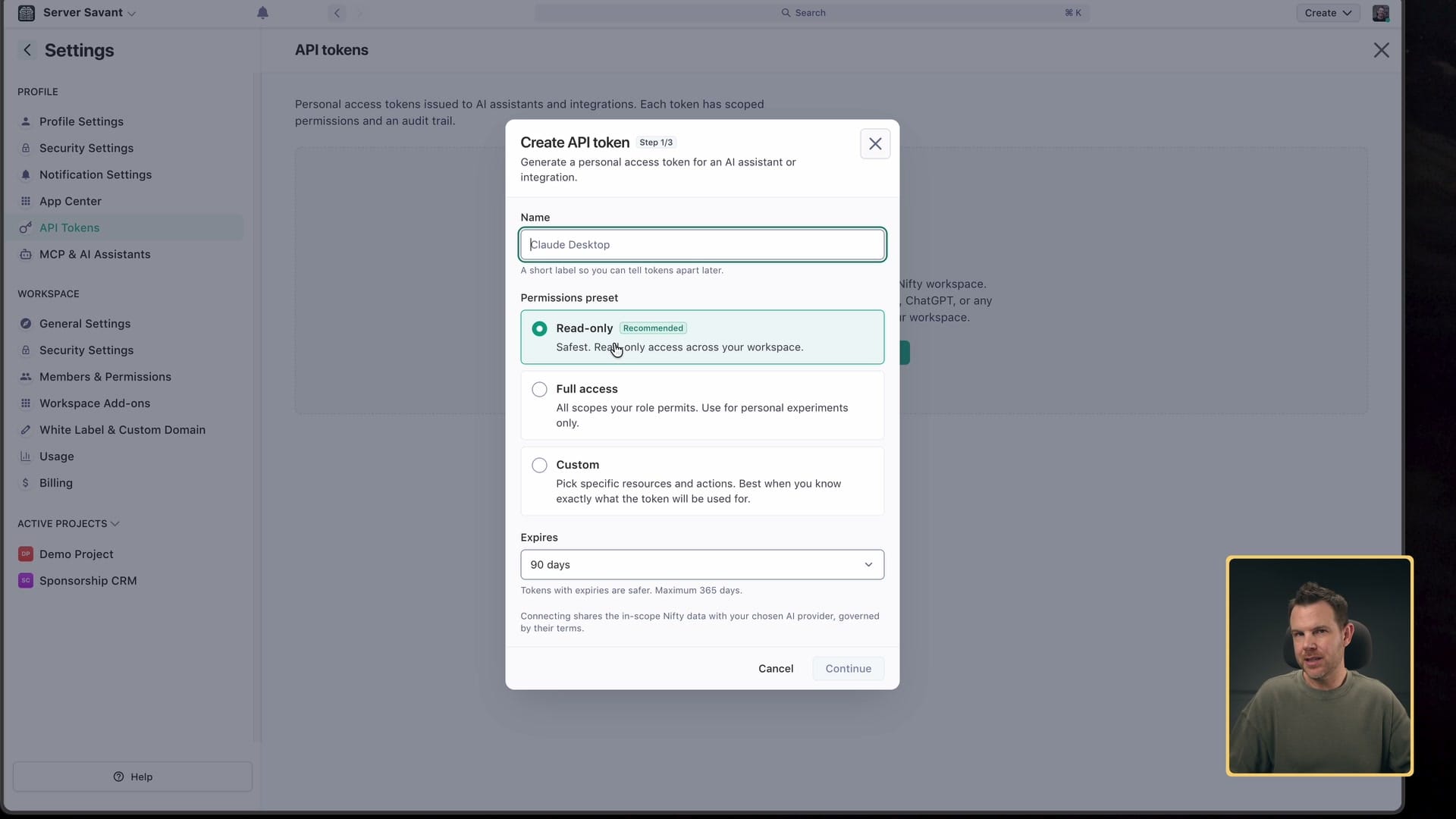
What Nifty really has going for it is its AI integration. Go to your profile settings, and you'll find MCP & AI assistants.
This is the way to do things, people. You don't need to build AI into your app. You need to let me connect my AI to your app.
Nifty gives you directions for connecting different editors and apps. It's an MCP connection, so it works about the same way in any tool that supports MCP. You don't have to worry about which one you use.
You also choose how much access your AI gets:
- Read only. The AI can only answer questions. My Plutio question would be easy here. I could use a way over-engineered model like Opus 5.5 to ask when my next appointment is, and it would find it for sure.
- Full access. The AI can change your data.
- Scoped access. I really like this one. You choose which features the AI can only read, and which ones it can edit, create or delete.
Build a project from a prompt
To build a new project, go to Projects, hit the plus and create a new one. You can start blank.
Nifty has templates, but you have to make them yourself. If you go to saved templates, there aren't any to start with. That's not a bad thing, because the AI builder lets you start from what is essentially a template. If I choose a sales CRM, I get the parts a sales CRM needs, like a pipeline and a list of deals. You can also write your own prompt.
I dictated: "Create me a project management system to keep track of clients' websites and the updates that we do to them over time." As I said it, it showed up on screen. Is the result perfect? No, but I can customize it how I want. At least it gets me in the general vicinity of where I want to go.
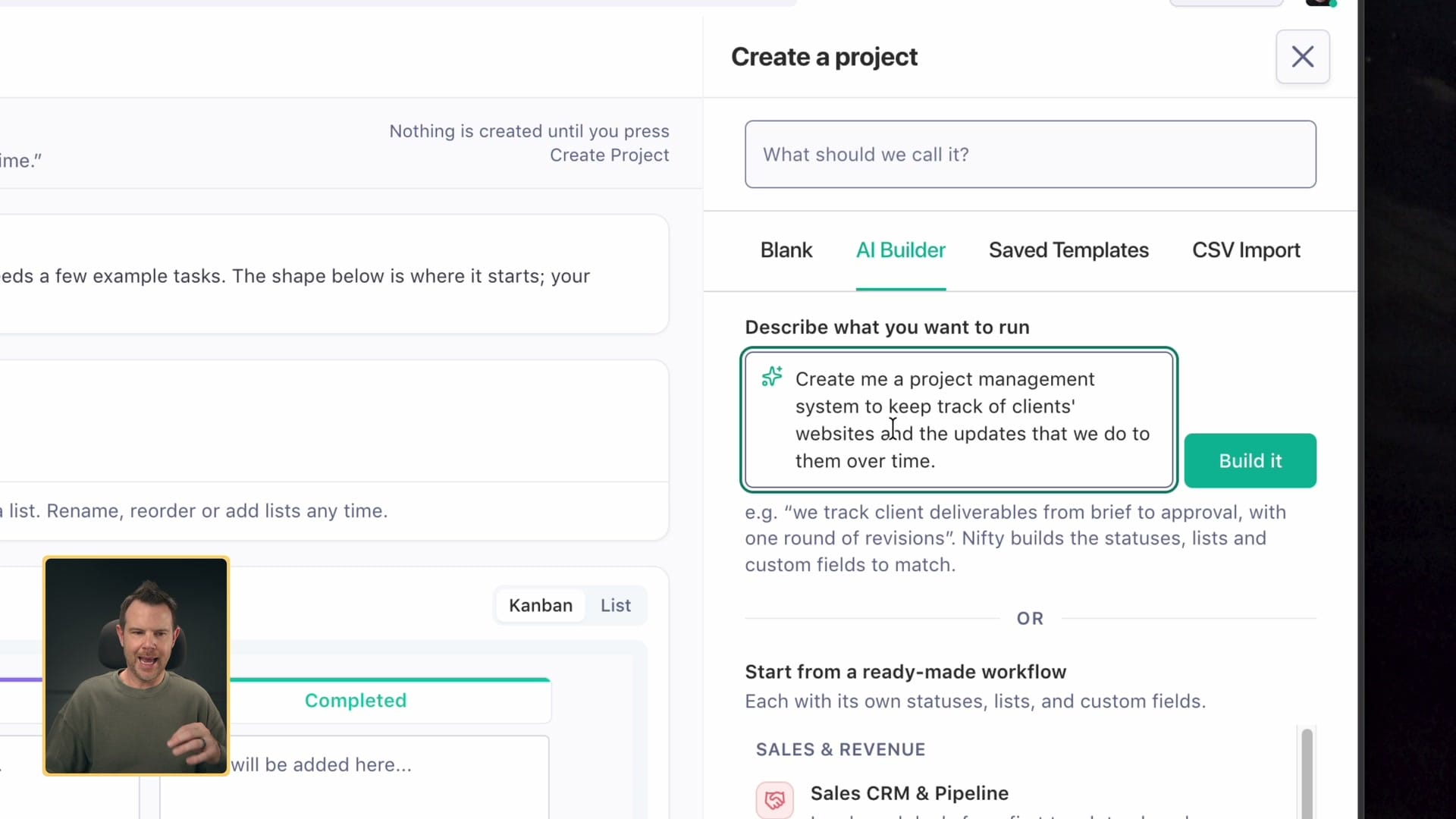
Before you build, you can turn the different views on and off. If you don't want the roadmap, turn it off. If you need forms, turn them on. Then hit Build, and Nifty builds the project from your prompt.
You can change views later too. In an existing project, hit Add view and turn on anything you skipped. I swapped the roadmap for forms in my demo project, and it was done right away.
What's not in the deal I have
You can start a form, but forms aren't included in the lifetime deal I have. When I tried to set one up to create a new task whenever a response comes in, Nifty asked me to upgrade. That's a bit of a bummer.
White label is also an upsell. There's no way to unlock it, at least that I know of. If you want to white label Nifty, it's a $30-a-month add-on. Maybe that changed in the AppSumo deal terms, so check the deal page on AppSumo before you buy.
Members and permissions
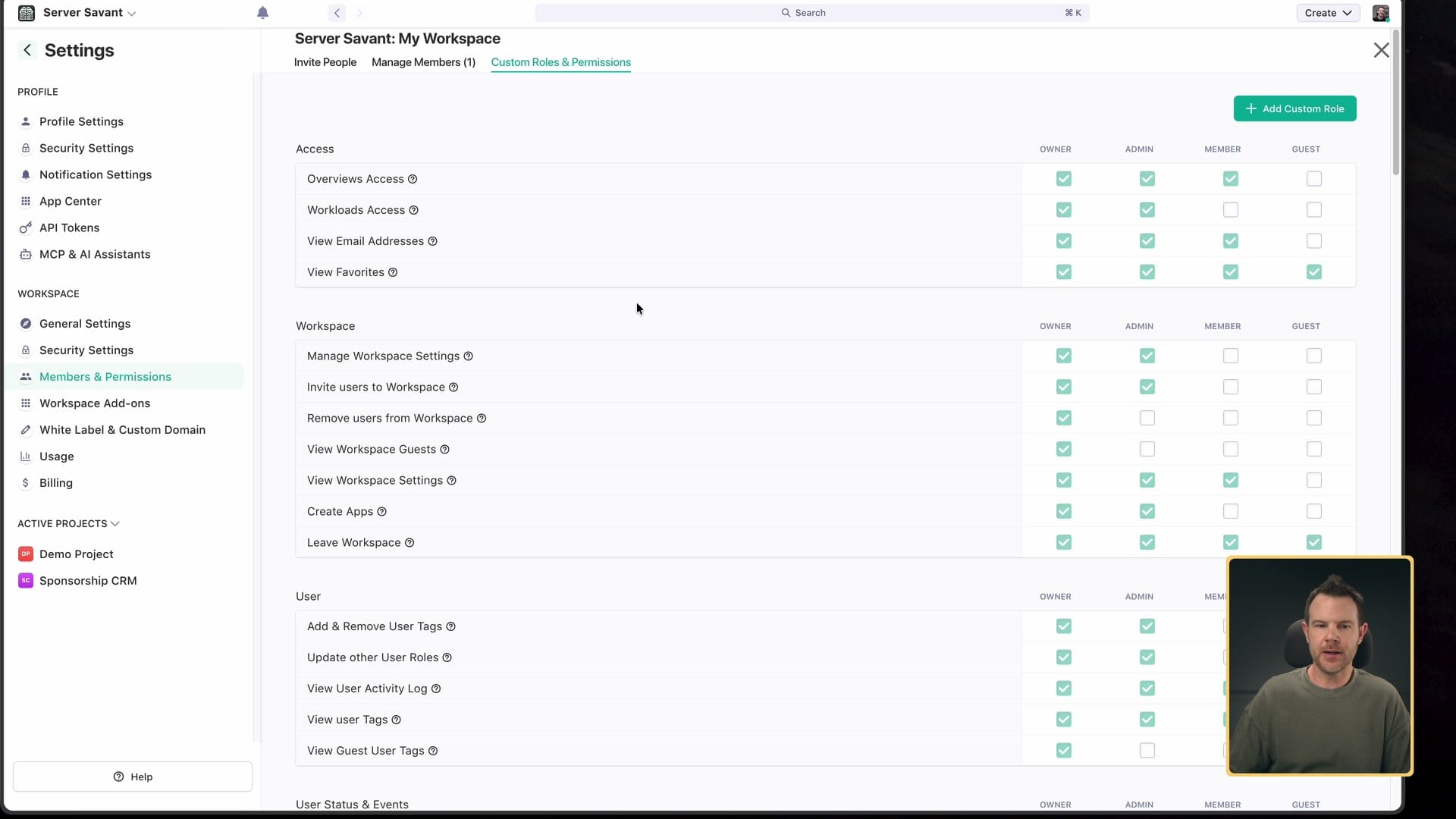
When it comes to adding team members, Nifty is absolutely feature-packed. Under Members and permissions, you can create your own custom role with very specific, granular permissions, so you can dial in exactly who can do what.
Honestly, to me, those are too many permissions. I'd rather have some presets, and thankfully Nifty provides them: owners, admins, members and guests, each with a description of what that role can do.
How you'll actually use it
This is probably how you'll use Nifty most: in a Kanban view, moving cards around. For that, it works fairly well. Double-click a card, get the details you need and go about your life.
Because honestly, you don't want to live in a project management tool unless you're a project manager. Otherwise, check what the next task is and get it done.
Nifty pricing
Nifty starts at $99.
upcoach: coaching programs with structure
The last deal in Drop 3 is upcoach. It's an online platform for coaching: group coaching, one-to-one programs, masterminds, you name it. If you want to coach it online, you can probably do it with upcoach.
What's different, and what I like, is that you don't only pick a format (one-to-one or group). You also get structure built in.
Think about the history of learning online. It has mostly happened through online courses, and courses have structure baked in. If you're the course creator, you're forced to decide which lesson comes first and which comes second.
If you've ever worked with a coach, online or in person, you know they aren't all that structured. Sometimes you meet up and they ask, "What should we work on today?" That can be good. But it can also turn into a long coaching relationship without a set end result. So I like where upcoach is going.
Pick a format
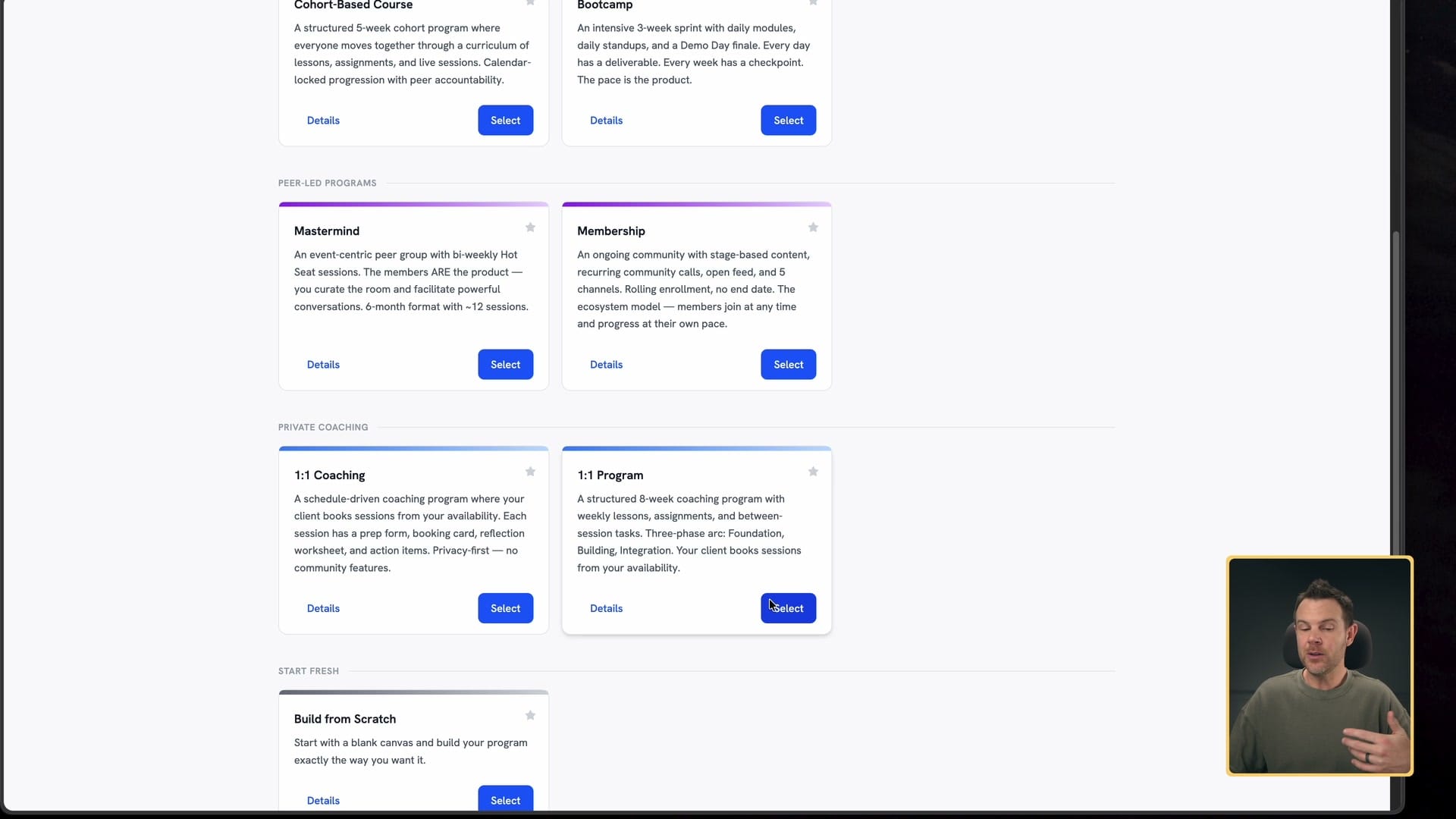
The first thing upcoach asks is what kind of program you want to build. It can be a self-paced course, a mastermind or membership, or one-to-one coaching. I chose a structured eight-week coaching program that's still one-to-one.
Connect a calendar and set your schedule
These sessions happen in real time. They aren't asynchronous, so you're expected to connect a calendar and set your availability. That's the next step. I connected my Google Calendar, then set up the schedule:
- Name and length. I kept their default name, "Coaching session," at 60 minutes.
- Start times. I first picked every 30 minutes, then changed it to every 60.
- Date range and notice. You can set a date range and a minimum notice before someone can book. I went with at least a day in advance.
- Buffers. You can add a gap before and after each session if you need time to reset or plan, like 10 minutes on each side. I left it at zero because my slots were already an hour apart.
- Rescheduling and canceling. Check a box to let participants reschedule or cancel, and set how much notice they have to give you.
- Availability and location. Set when people can book and where the meeting happens. In person works too; you can enter an address.
Build the program
Believe it or not, all of that was just the prerequisite for creating the program. By this point, the program had a name and a duration, my calendar was connected and the session frequency was set. Now I could actually structure it.
If you already have an outline, there's a button to paste it right in. If you're like me and haven't thought that far ahead, click Create program, and upcoach builds the eight-week program for you.
Publish it and share it
How are you going to market this? You can sign people up directly, or share a link.
You do need to publish the program so it becomes available. Click Publish and invite. There's a little warning, then the one-to-one program is ready. I hadn't even seen it yet.
Here's my problem: in the week list on the left, I couldn't see the details of what's included in each week. In my opinion, that's a major flaw in the interface. upcoach created these templates itself, so it should have made that column wide enough to actually read what the program is going to be. You have to click into a week to see the titles. Not the end of the world, just fit and finish.
If you share the link without changing anything, people land on a default page. You can customize it, but otherwise visitors click Join and they're in the program. It's not the most visually stunning share page I've ever seen. You can set your own avatar, but I wasn't taken through any kind of wizard to enter information about the offer.
There's a lot of potential here (no pun intended). upcoach just needs to go the extra mile and walk me through the whole program creation process, so that the shareable link it hands me is ready to share.
An appointment tool with a curriculum
Design disses aside, I think this is a unique idea, and a very interesting one, because there are so many scheduling tools out there. I use TidyCal, and it's really great. You can book multiple appointments through TidyCal. But having everything structured like a class, whether it's taught or coached one-on-one, is a unique take on an appointment tool. That's kind of what upcoach is: an online appointment booking tool with a curriculum attached.
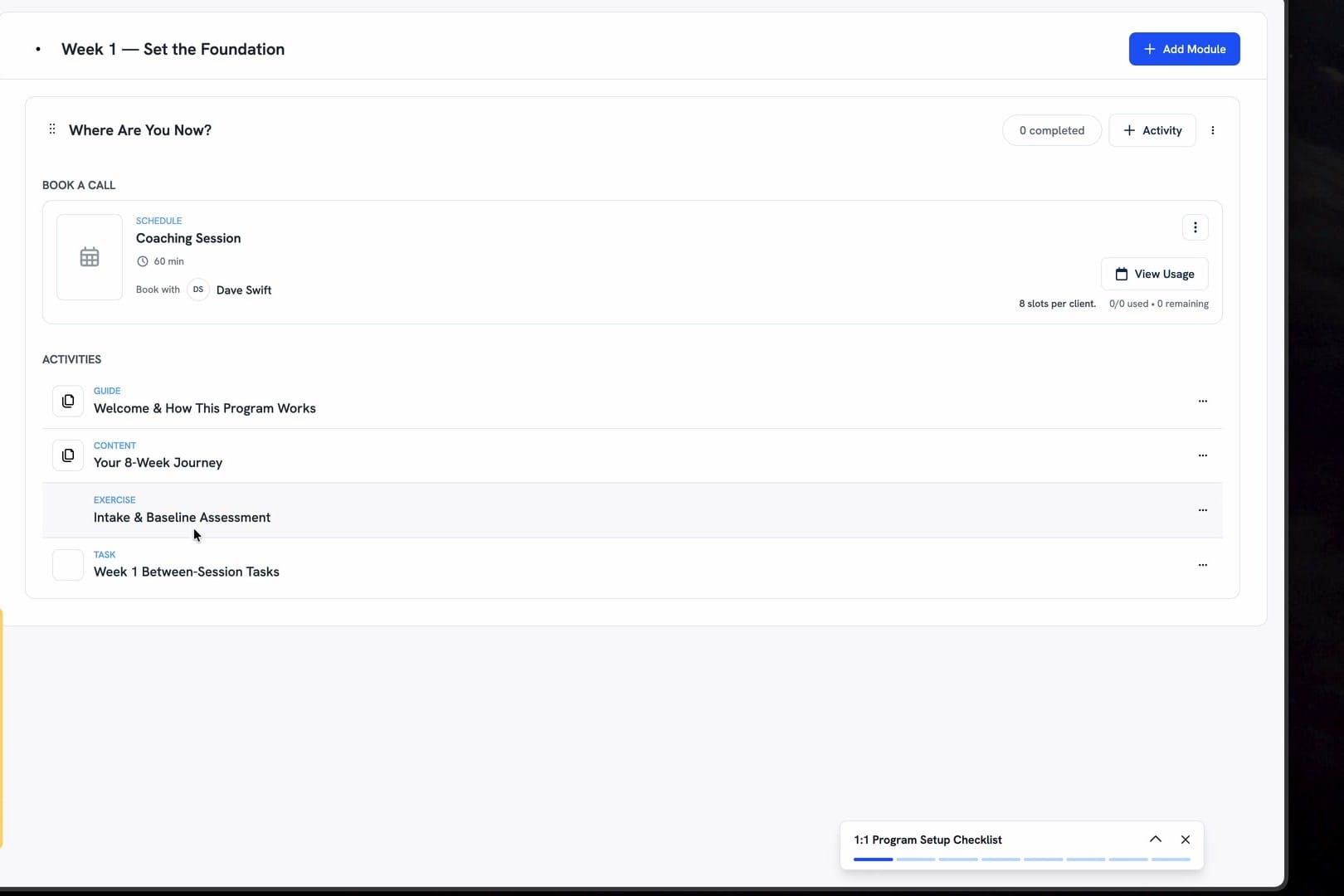
Open any week of the program, and you see the coaching schedule plus the activities for that call, kind of like a lesson plan. My week one had four different activities for a 60-minute call, which is a lot. Make sure it fits into an hour. Other than that, what they're doing makes a lot of sense.
Connect your AI
I love that you can connect your AI assistant, so the information you already keep in the rest of your life can come into the platform. It works with Claude, ChatGPT or other MCP clients, just like Nifty. That covers basically anything that supports MCP at this point, including AI agents like OpenClaw and Hermes Agent.
Reuse your best material
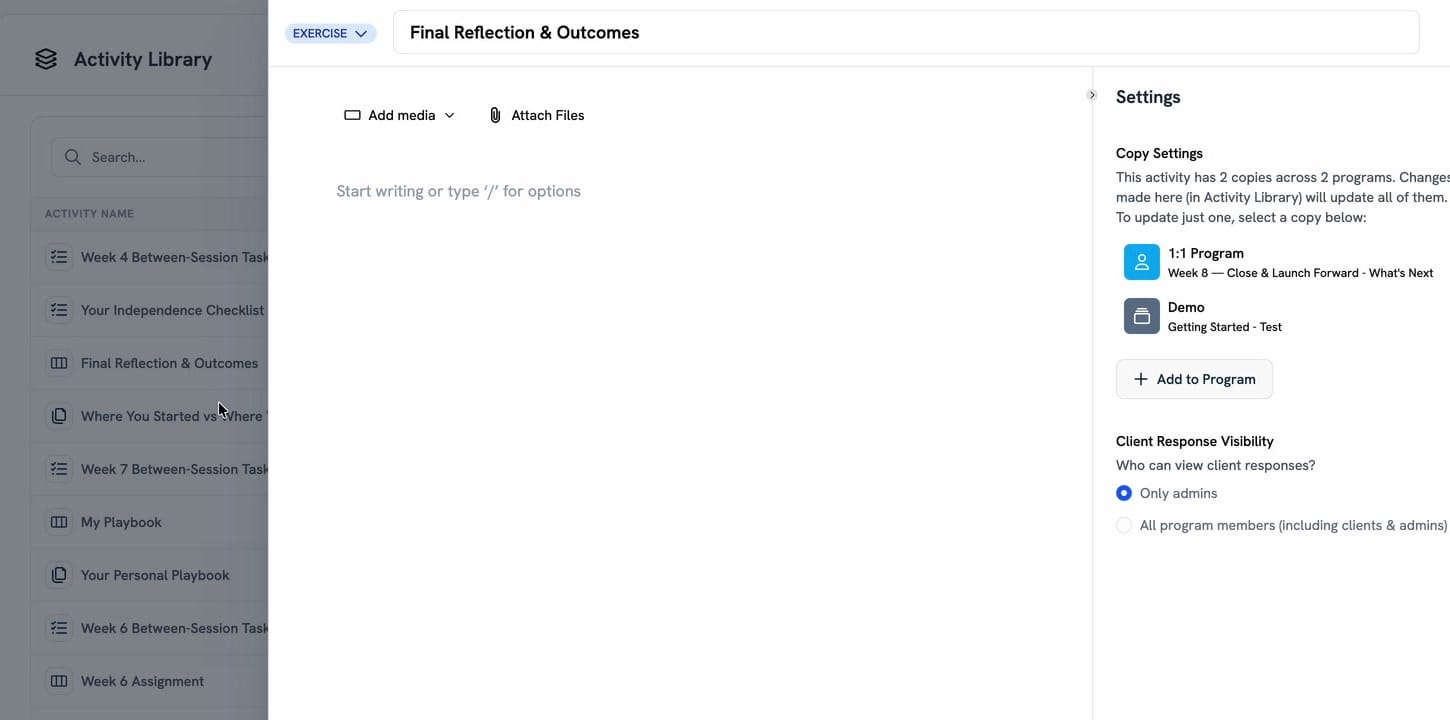
upcoach has a content management section where you add activities to a library: lessons, task lists, quizzes, worksheets and check-ins. There's a media library too, and you can assign any of it to a particular program.
When you build a program, you add modules. In a module, click Add activity, and your existing activities are right there to drop in. Back in the activity library, you can see how many programs each activity is in (mine was in two), and add it to another program from there.
This is what I like most. As a coach, you have your go-to bits. Think about a comedian: they go from joke to joke, and they aren't making it up every time. They have structured pieces that get them from one point to the next. Coaching is often very similar. Someone says something, it sparks an idea, and you want that material loaded. With a library, you can put it right into their curriculum, so each client gets their own tailored path that's actually leading somewhere.
Get paid (and check the checkout page)
If you're an online coach, you definitely want to get paid. Most people don't do this as a volunteer activity.
Go to Sell, then Payments, and connect Stripe.
The downside is that the design problems from earlier carry into the checkout experience. When I opened the checkout page for my one-to-one program, it wasn't very visually appealing. Something about the layout just doesn't scream confidence and legitimacy.
So I filled it in to give it a fair shot. You can add a featured image or a video; I embedded a YouTube video by pasting in its URL, which was very easy. There's a "what's included" list on the checkout card, a "who is this for" section, a feature list with icons, testimonials, an author bio and an FAQ (the one part I didn't fill in).
The foundation for a great-looking page is all there. It just doesn't look amazing, and we have a high bar at this point. Everyone expects great design, and this falls a little short for me. In the preview, the video sits at the top and a little sticky bar stays with you as you scroll. I didn't write much in the about section, so more copy would help. But the "who is this for" section feels abrupt. It feels templated, which it has to be, but it doesn't have to feel that way.
There's also a "Powered by upcoach" logo at the very top of the screen. I'd be okay with that at the bottom. At the top, it's pushing the limits.
The booking widget, on the other hand, looks pretty good. It's a standard booking widget: pick a time and you're off and running.
White label
There are white label options. AppSumo's tiers weren't available to me when I recorded, so I'm not sure which tier gets them, but here's what's there. Under Brand settings, you can set up your own custom domain, set a few background colors, and add your logo and favicon.
upcoach recommends a wide, short logo. I used my square avatar, and it got cropped in the upper-left corner. I find it weird that a square shows up there even though there's a separate favicon option.
My take on upcoach
upcoach is a really great idea. The execution just isn't quite where I'd want it to be to sell high-ticket clients on coaching.
upcoach pricing
upcoach starts at $99. Tier 1 covers 25 active participants and three programs.
Which Drop 3 deal is right for you?
Start with the job you already have.
If you send invoices, look at Plutio. It covers the whole job for a freelancer or small service business, from proposal to payment, and Tier 4 gets you the white labeling your clients will see. If you manage a team, look at Nifty, especially if you want to connect your own AI with exactly the access you choose. And if you sell coaching, look at upcoach, but polish the share and checkout pages before you put a high-ticket offer on them.
The other five are worth a look if they fit something you already do: Agency Handy for running an agency, Buildin for docs and projects with AI agents, Formaloo for forms and client portals, Lunacal for scheduling you pay for once, and Rocky AI for coaching clients with a branded AI. AppSumo has all the plan details for each one.
Prices go up $10 on every tier Sunday morning, when Drop 4 goes live. I'll be covering that one too. If you missed the earlier deals, here's Drop 1 and Drop 2.
One question for you: would you actually let AI run your projects for you? Tell me in the comments, and let me know what kind of business you run.
I was given a top-tier upcoach account so I could test it.
Get Dave's Toolbox
The tools I actually use, every Tuesday. Free. No spam.
No cost. No spam. Unsubscribe anytime.