
AppSumo Black Friday 2026 Drop 4: All 8 Deals, Plus Nexter, Shareables and reap Up Close
AppSumo's fourth Black Friday 2026 drop has 8 tools for making websites, courses, posts and video. Plus Nexter, Shareables and reap set up.

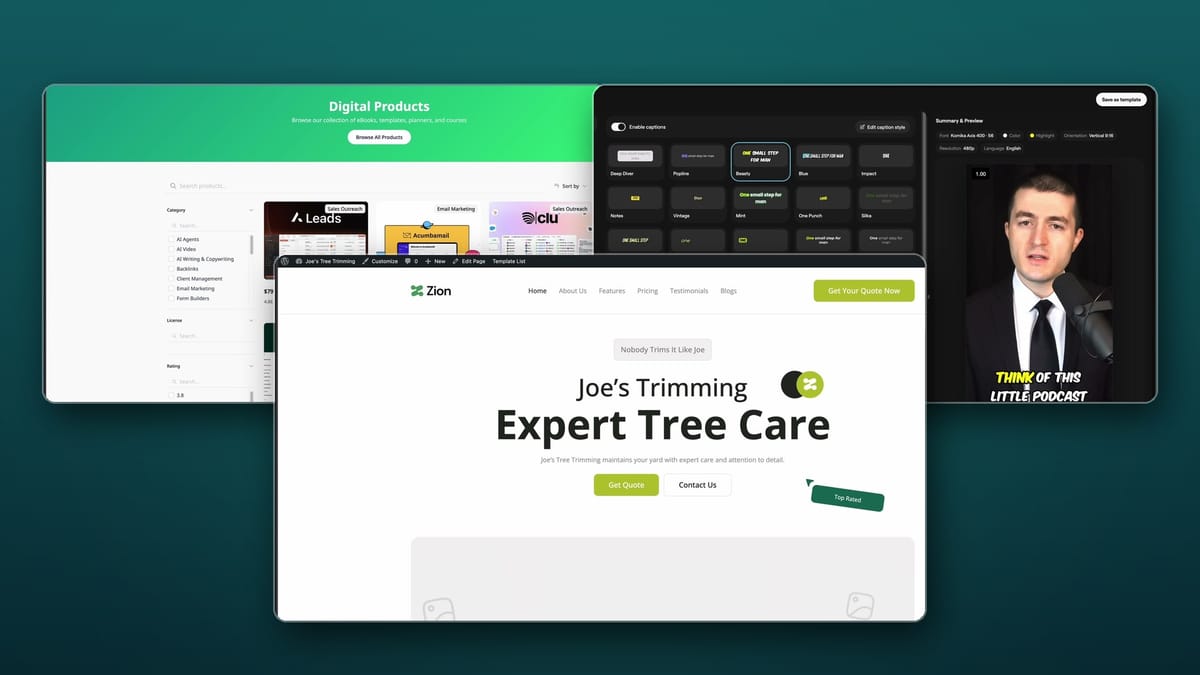
If you're on WordPress and want it to feel complete without becoming a plugin hoarder, look at Nexter. If your content lives in spreadsheets and you want to get it in front of other people, Shareables is the one to try. And if you make long-form content and want to clip it up for social media, check out reap.
Those are my three picks from AppSumo's fourth Black Friday drop, and I tried all three on my own accounts. The drop has eight new tools, and this one is all about making stuff: websites, courses, funnels, posts and a lot of video. I'll cover all eight quickly, then go further into the three that are my favorites of the drop.
Today's sponsor: Softr
A lot of AI app builders are great at making nice-looking prototypes. You type a prompt, it generates an app, and it looks impressive. But is it secure? Is it something your clients could actually use?
Real business software needs a database, logins and permissions, and workflows that let your clients, team members and partners see the right data (and not see data they aren't supposed to see). That's the job Softr is built for. It's an AI platform for building business apps without code: client portals, internal tools, CRMs, dashboards and more. You describe what you need, Softr's AI Co-Builder generates the database, pages, permissions and business logic, and then you keep editing visually instead of going back and forth with prompts. I didn't build a Softr app for this video, so for a full walkthrough, see the links below.
If your business has outgrown spreadsheets, check out Softr. My link also includes 200 free AI credits when you sign up (that's the offer in my video description; check the signup page for current terms). I've made quite a bit of Softr content over the years, so there's a whole playlist of my Softr videos, and I wrote up how the AI Co-Builder builds a full business app from one prompt.
When to buy
The prices for these deals go up on Tuesday morning (November 24). Every tier goes up $10, so the best time to buy is between now and then.
There's also a sitewide sale you might want to know about. Starting at 4 PM Central on Sunday, November 22, AppSumo is taking 10% off of everything sitewide. If there's something from an older drop you missed, or something on AppSumo you've been eyeing, that might be the day to give it another look.
New to AppSumo? Code DAVE10 gets you 10% off.
All eight Drop 4 deals at a glance
Here's every tool in the drop, in alphabetical order, with what it does in one line.
| Deal | What it does |
|---|---|
| Coursebox | Builds a full course from a prompt or a document, to sell on your own branded site |
| FlexiFunnels | Landing pages and sales funnels from one prompt, without the monthly bill |
| Jupitrr | Adds captions, B-roll and sound effects to talking-head videos |
| Mootion | Turns text, a script or an image into a finished video |
| Nexter | A theme, a bundle of plugins and 120+ blocks that make WordPress complete |
| reap | Turns your long-form videos into Shorts and posts them for you |
| Shareables | Turns a Google Sheet or Airtable base into widgets and websites |
| Supergrow | Interviews you, then writes LinkedIn posts that sound like you |
The five I'm not demoing
Coursebox: you give it a prompt or a document, and it builds a full course that you can sell on your own branded website.
FlexiFunnels: type one prompt, and it builds your landing pages and sales funnel. Basically, think ClickFunnels, but without the monthly bill. I did a full breakdown of FlexiFunnels, so check that out if funnels are your thing.
Jupitrr is for talking-head videos. You upload a clip, and it adds captions, B-roll and sound effects for you.
Mootion goes the other way. You give it text, a script or an image, and it hands back a fully finished video.
Supergrow is for LinkedIn. It interviews you for about 10 minutes, then turns your answers into posts that sound like you.
Nexter: everything WordPress needs, in one place
You know that if you're a WordPress user, you need a ton of plugins, a theme and just extra stuff to make WordPress actually good. That's kind of the strength of WordPress: you can add extra stuff. But it also turns into a hoarding problem, where people get obsessed with more and more plugins.
Well, look no further. Nexter basically does everything you're going to need. The deal has three parts:
- Nexter Theme. The main styling and look of your website.
- Nexter Extension. A bundle of several plugins you'd normally install one at a time. They're components here, and you turn on only the ones you want. This is the part that covers SEO, security and speed.
- Nexter Blocks. More than 120 blocks for building good-looking pages.
My favorite part is the AI. You can connect Nexter to your AI agent over MCP. If you use an agent like Claude (I use Hermes Agent, and I recommend most technical and even slightly technical people check it out), you can manage WordPress websites, and build them, directly through your agent. I didn't run the agent side for this drop. What follows is the import and the built-in tools.
I also have a full Nexter review. There's a lot to get into, so read that if you want to go deep.
Start from an AI-compatible template
I started with a demo WordPress site with absolutely nothing on it. Visit it, and it just says "Nothing found." Let's change that in a hurry.
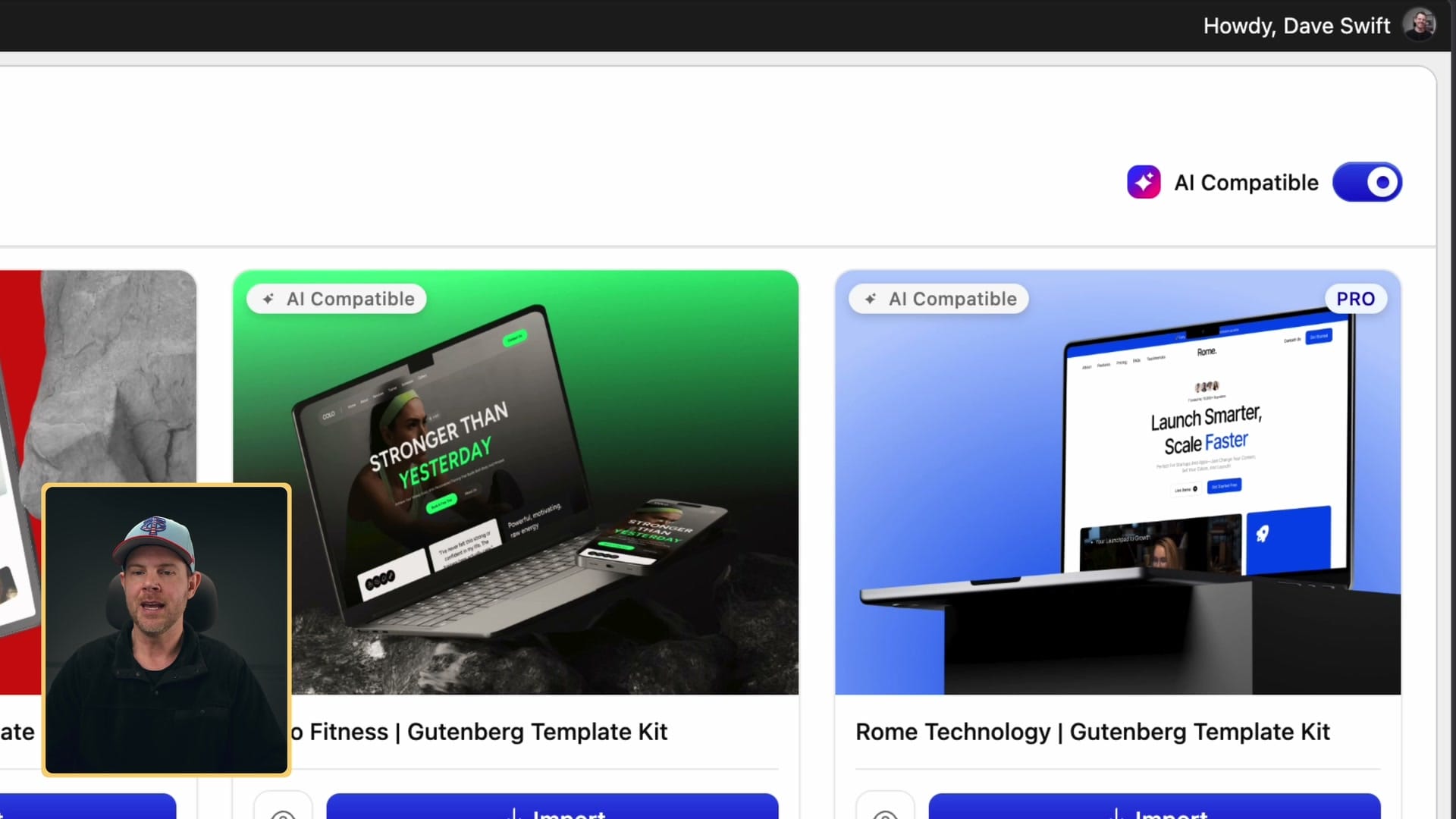
With Nexter installed, go to Nexter in the WordPress sidebar and choose Templates. There are a ton of them: 121 when I looked.
Turn on the little switch that says AI compatible. Those are the templates you can build out now and keep customizing later through Nexter's MCP connection. I grabbed one called Zion. Click the eyeball icon to preview a template. Zion looks like a nice little SaaS page, with some animations and graphics, all customizable later. You have to start somewhere, so choose Import.
The import runs through WDesignKit
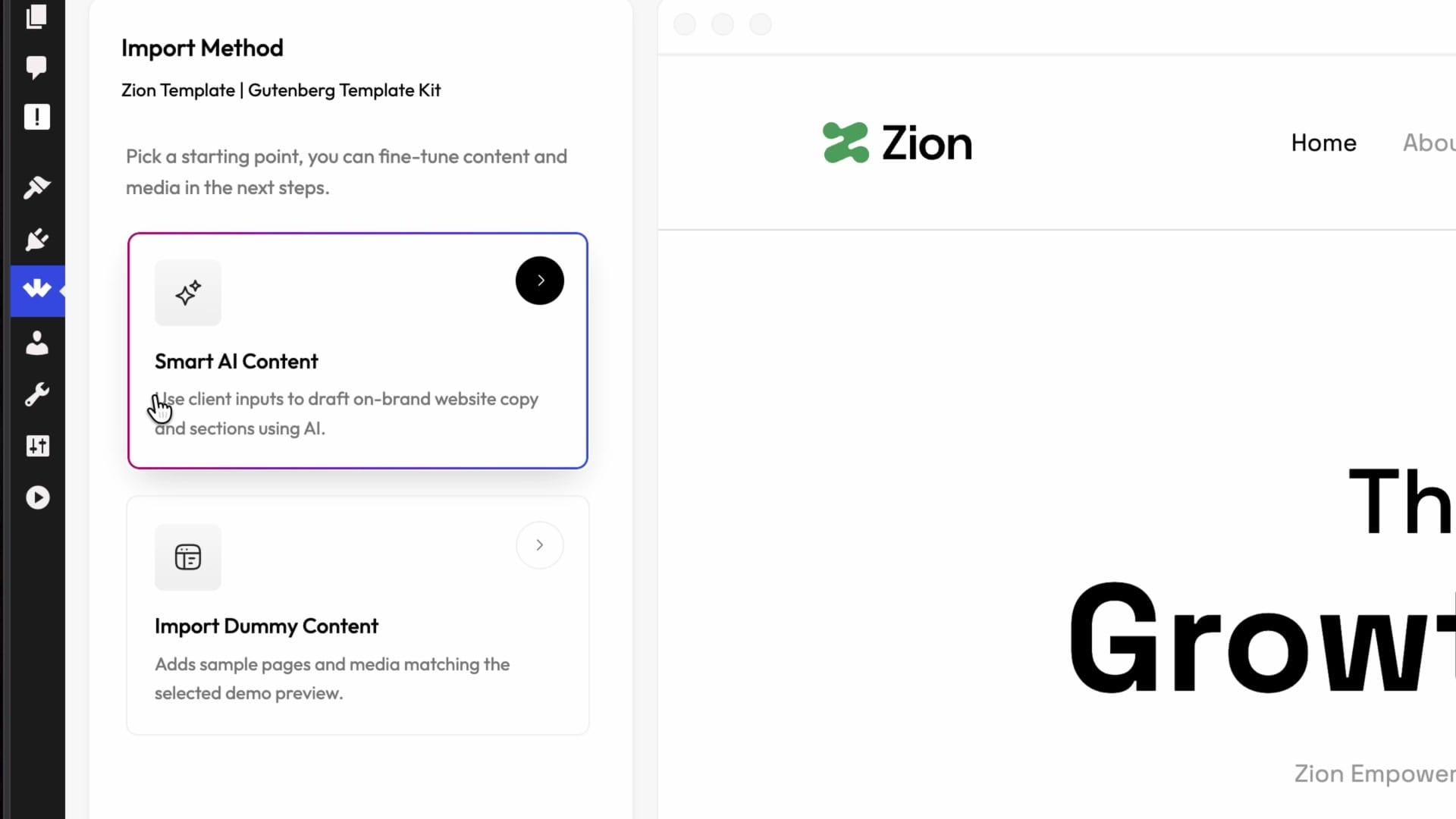
This part is slightly confusing. The import screen is a separate plugin called WDesignKit. You can use a free WDesignKit account. Everything I'm showing here works without the paid version; I don't have it. You're basically just using it to import the template.
You get two options: Smart AI content or plain dummy content. I tried the smart AI content.
Answer a short interview about your business
Smart AI content asks you questions about your business, then writes the site around your answers. I invented a fake business called Joe's Tree Trimming. Here's what it asked for:
- The business name.
- What the business does. I said: "We keep people's lawns and trees looking great all year round with affordable subscriptions, to make sure that everybody can have a beautiful-looking lawn they're proud of."
- A tagline. "Nobody trims it like Joe."
- A logo. I didn't have one, so I skipped it. If you don't have a logo, it sets up type-based branding for you.
- Your address, and an email address for contact forms.
- A phone number and social media links.
- Your call to action. When people visit your website, what do you want them to do? I said "get a quote."
- Whether to generate AI blog posts. It said the call to action was the last question, but it wanted one more thing. I said yes.
It supports a ton of languages, too. I went with English, but it works worldwide.
Colors, fonts and the parts your site needs
Next you set your colors and fonts. I chose something very green and went with Open Sans. As you pick, the preview on the right updates, so you can see the result before you continue.
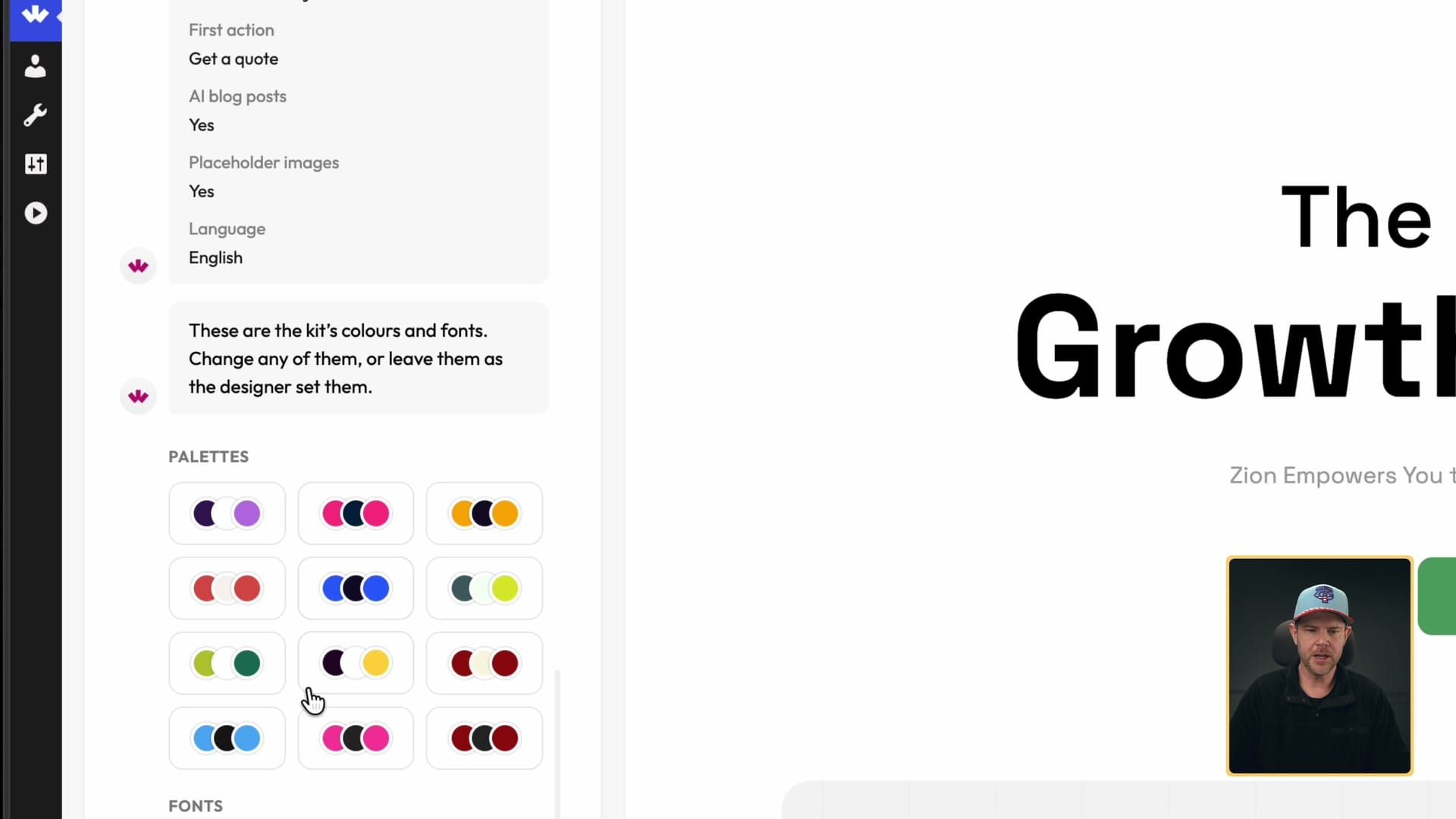
Then it asks what your site needs: design, e-commerce, dynamic content, performance, security and extras. I probably didn't need e-commerce, but I definitely wanted performance, security and extras. The Nexter theme is on by default. Hit install, and it queues everything up and builds the site in the background.
The best part: even though the site was created largely with AI, it's something I can still manage by hand if I choose.
The extensions replace a pile of plugins
While the site builds, look under Nexter. You've got Blocks, Extensions, code snippets, content fields and more. It's really everything you need in WordPress, kind of in one place. It's a beautiful thing.
The extensions are organized nicely and very modular. Nexter doesn't install something unless you turn it on, so it isn't going to bloat your website.
- Code snippets. Replace whatever code snippet plugin you're using now. It supports PHP, HTML, CSS and JavaScript, and you don't pay for anything extra.
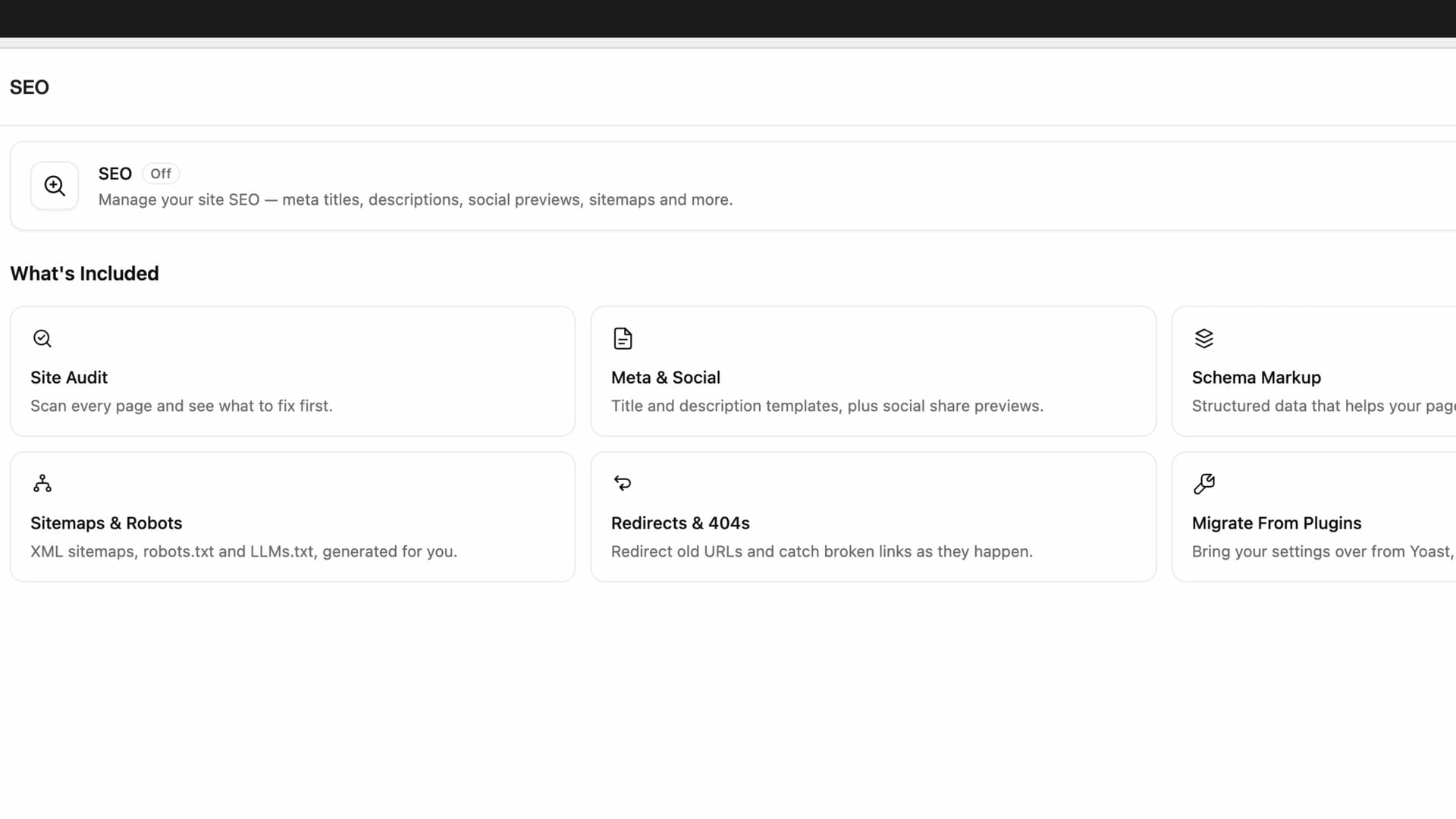
- SEO. You don't have to install anything else or sign up for another plan. Click Enable SEO and you get a site audit that tells you what to fix, metadata so your pages look good when they're shared on social, schema markup so you can show up in Google's rich snippets, plus redirects and 404s. It can even pull in your data from other SEO plugins, so if you want to cancel an expensive SEO tool, you can.
- Utilities. Tools you'd normally install separately, like duplicate posts, custom font uploads and SMTP email. They're built right in. Toggle one on and you're good to go.
- Performance and security tools. Those are in there too.
If you're getting started fresh with WordPress, I can't think of a better all-in-one solution.
Finish the site by hand or with your agent
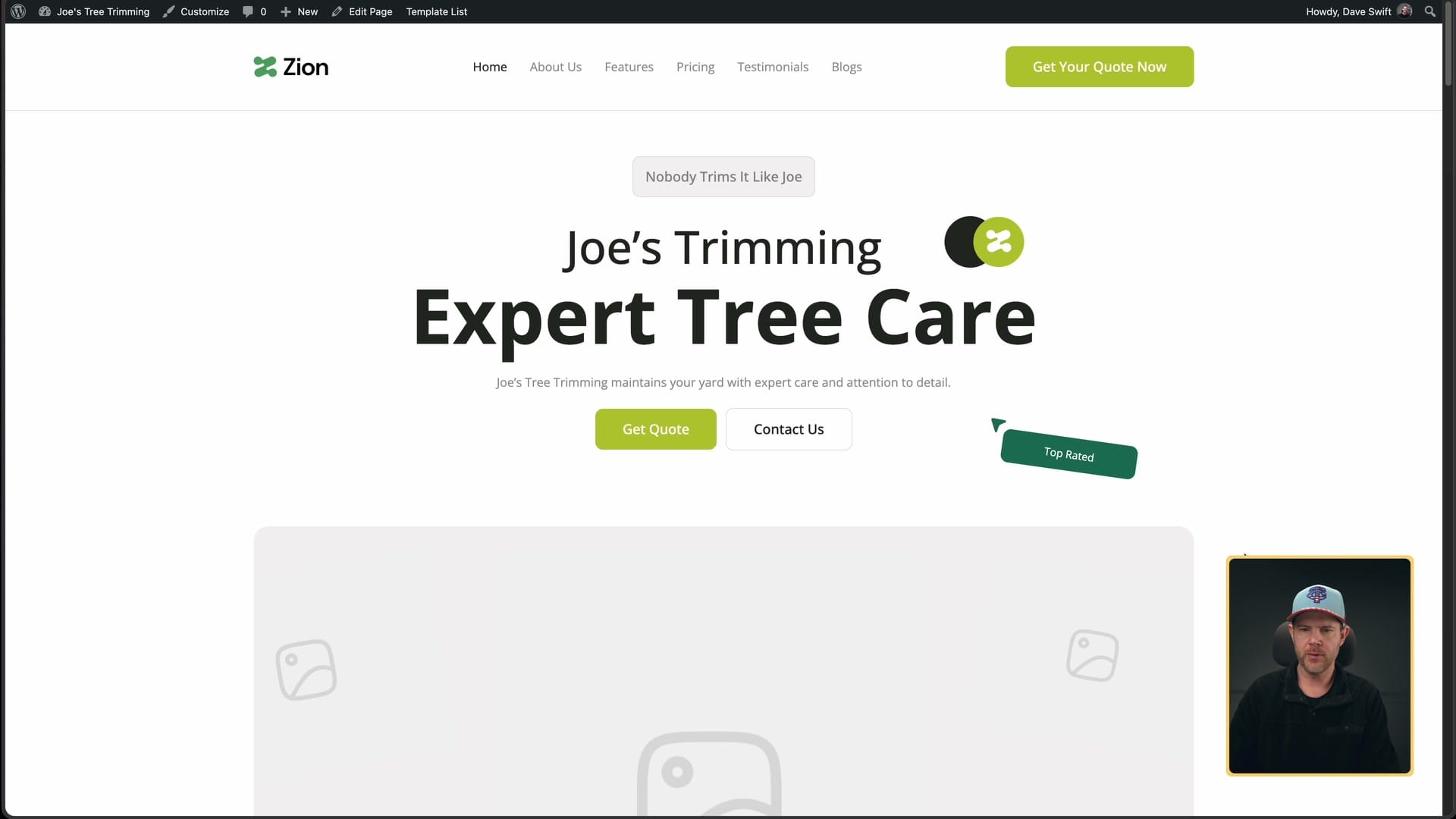
Preview the finished site, and there it is: Joe's Trimming, expert tree care. There are some placeholders left (images, mostly), so you'd still have to finish it off. That's easy to do two ways. Connect it to your AI agent, or open the page in the editor, select the block you want and add your own image.
Nexter pricing
Nexter starts at $59, and there are three tiers. As an AppSumo Plus member, I'm seeing it as low as $47 right now if you act quickly. If you want unlimited sites, the Plus price is under 200 bucks ($185 before the price goes up).
A word on AppSumo Plus
The prices I'm seeing are because I'm an AppSumo Plus member. If you're not a Plus member, what are you doing? You can join AppSumo Plus here. If you're reading this, chances are you like AppSumo quite a bit.
Plus pays off because you get the best price every time you buy, and you also get extra time. When Black Friday runs out for everybody else, Plus members get an additional window to pick up deals they forgot about or just didn't have time to fully investigate.
Nexter or Shareables?
Both of my first two picks build websites, so here's the short version.
| If your stuff is... | Look at |
|---|---|
| On WordPress | Nexter |
| In a spreadsheet | Shareables |
Shareables is for everybody who wants to build websites and shareable content but doesn't want to deal with WordPress.
Shareables: turn a spreadsheet into a site
Shareables takes anything you have stored in Airtable or Google Sheets (and the other platforms it supports, like Notion databases) and turns it into lovely little widgets. You can embed them on your website or just share them directly.
Some examples of what you can build: a member directory, a resource library, a calendar, a job board, a blog or a digital products store. You can even sell stuff directly with Shareables.
My example was a Google Sheet with a directory of all the deals on AppSumo. It's useful, but it's a spreadsheet. Let's turn it into something a little easier to look at.
Widget or website?
When you create something, you pick between two options:
- A widget is very specific. It's something you add to a website you already have.
- A website is a website. You get a blog, a client portal, a digital store or a website template.
I built a widget for my AppSumo directory and chose the Digital products template. Click a template to get a little preview, and open the full preview to see it in greater detail. This one is a little e-commerce store, which was going to work great for the spreadsheet I already had. Hit Use template.
Connect your Google Sheet
Next come your data sources. I chose Google Sheets. You do have to connect your Google account, and it's the normal Google sign-in and approval. Approve it, and you're ready to go.
Shareables asks how you'd like to start: fresh, with a new spreadsheet, or with existing data. I used existing data and picked my AppSumo deal sheet from Google Drive.
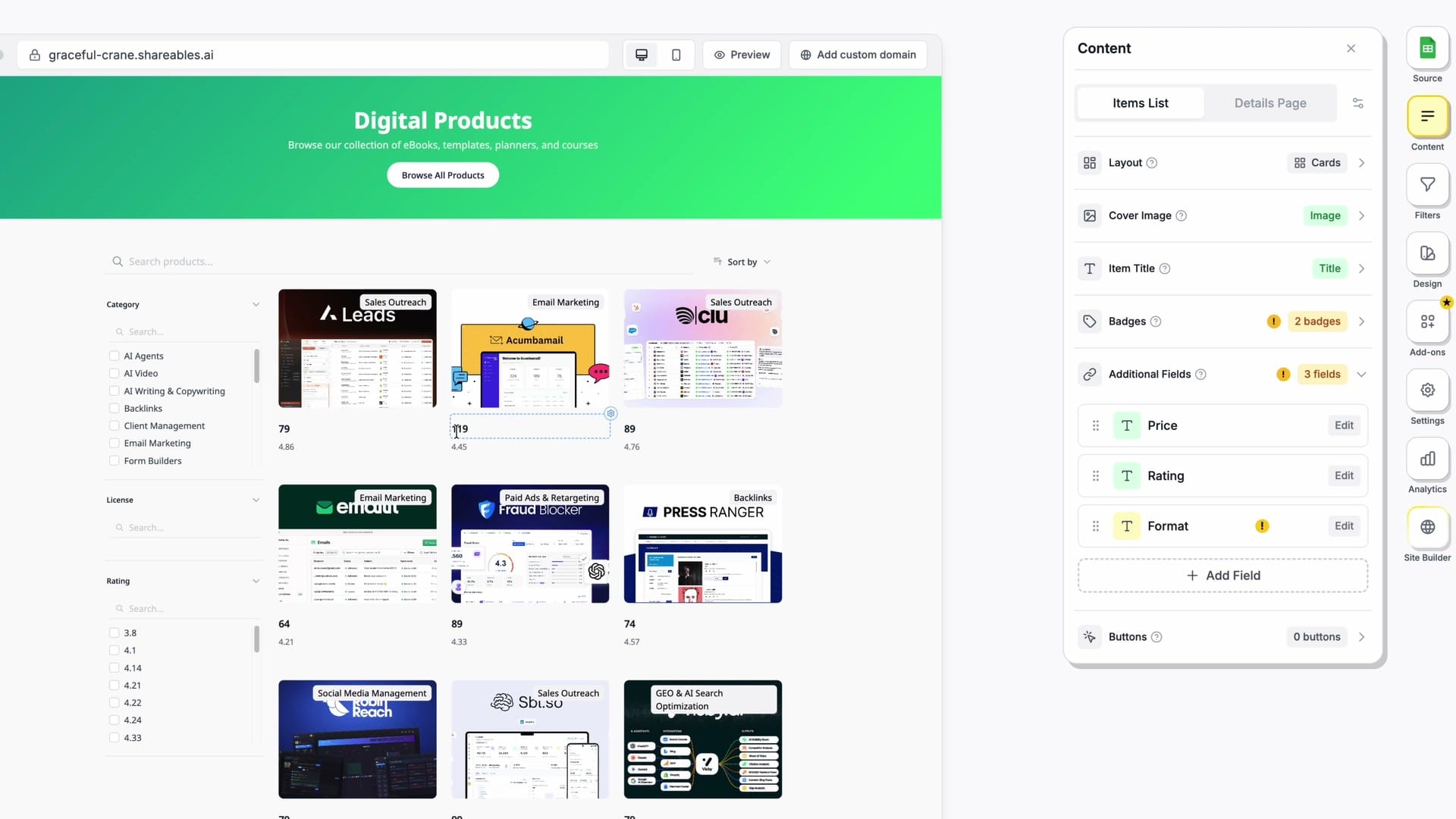
It pulled in everything right away. From there, you can style it to look exactly how you want. My prices showed up as plain numbers, so I clicked the gear icon on that field and set a prefix of a dollar sign. That looked a lot better.
Publish it
When you're done, hit Publish. You can add it to your website as an embed or use it as a shareable link. And if you've got a lot of shareables, you can build a full website out of them.
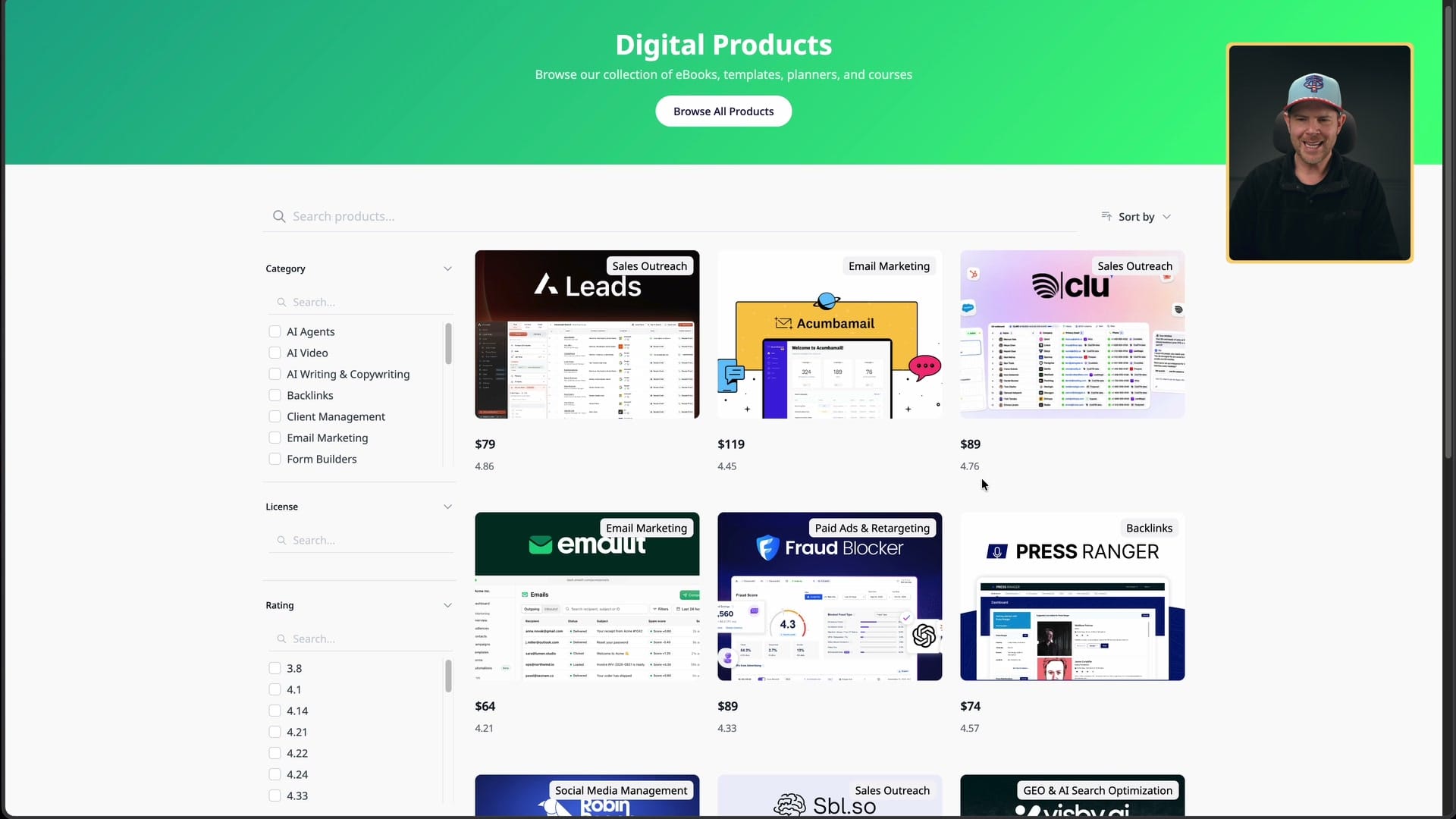
My shareable link looked really good. All the product images were there, there's even a little animation, and the prices had their dollar signs. I'd probably spruce it up a little more, because one column is the number of stars out of five and it didn't say so yet. Click a card, and each deal gets its own page. Click Buy now, and it goes right over to AppSumo.
That's only scratching the surface of what Shareables can do. It's a really simple way to take the data in a spreadsheet or a Notion database and share it with other humans so they can actually read it. I really like this one.
Shareables pricing
Shareables starts at $69 for Tier 1.
reap: turn long videos into Shorts
The last deal of the drop is reap. It takes your long-form video and shrinks it down into Shorts.
We've all seen tools like this. reap is a really high-quality one, and you don't have to pay for it monthly, because you can get the AppSumo deal, pay once and use it all the time.
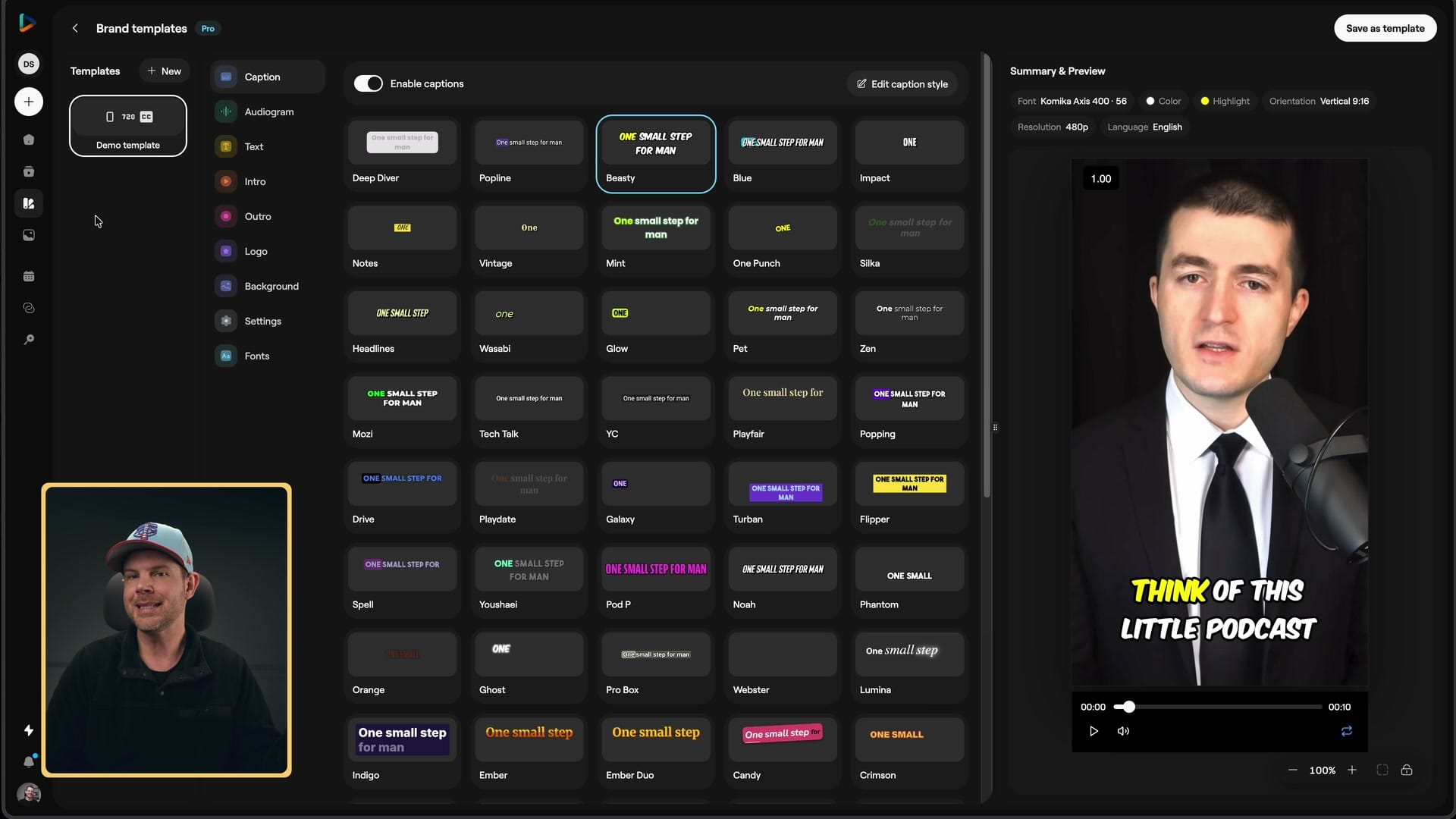
First, make a brand template
When you get your new account, this is the first thing I'd do: go into the brand template area and create a template for your brand. This is how your videos are going to look. It includes:
- Your caption style.
- The audiogram, and whether to show it. If you're not familiar, that's the little waveform that moves when someone's talking.
- Styling for text, and an intro and outro if you want one on every clip.
- Your logo, your background and your fonts.
You can do this for each brand you work with. Create a new template, give it a name, and it's easy to apply across multiple shows. If you're running something like a podcast network, with a lot of shows you want clips from, I highly recommend trying this tool.
Then add your assets
You can also add your assets to the asset library, and they'll be available in your projects. If you have logos or recurring graphics you use all the time, add them here.
So the setup is very simple: create your brand template, then add the assets you'll use.
Create clips from a long video
Now create a project and choose to create clips from a long-form video. Paste in a YouTube URL (only for content you own), or upload the original files if you have them. I uploaded a podcast episode.
Before you hit the button, set up your styles:
- Video genre, such as a talking head or a gaming video.
- Caption style, or pull in your brand template.
- Clip length. I set mine to between 30 and 60 seconds. That's configurable.
There are a bunch of other settings if you want to get very specific. When you're ready, hit Get clips, and reap starts processing. Give it a while; I expected my clips in about 15 minutes.
What you get back
The episode was about 20 minutes long, and reap made a ton of different Shorts from it. You just keep scrolling: about 15 clips, each roughly a minute or less.
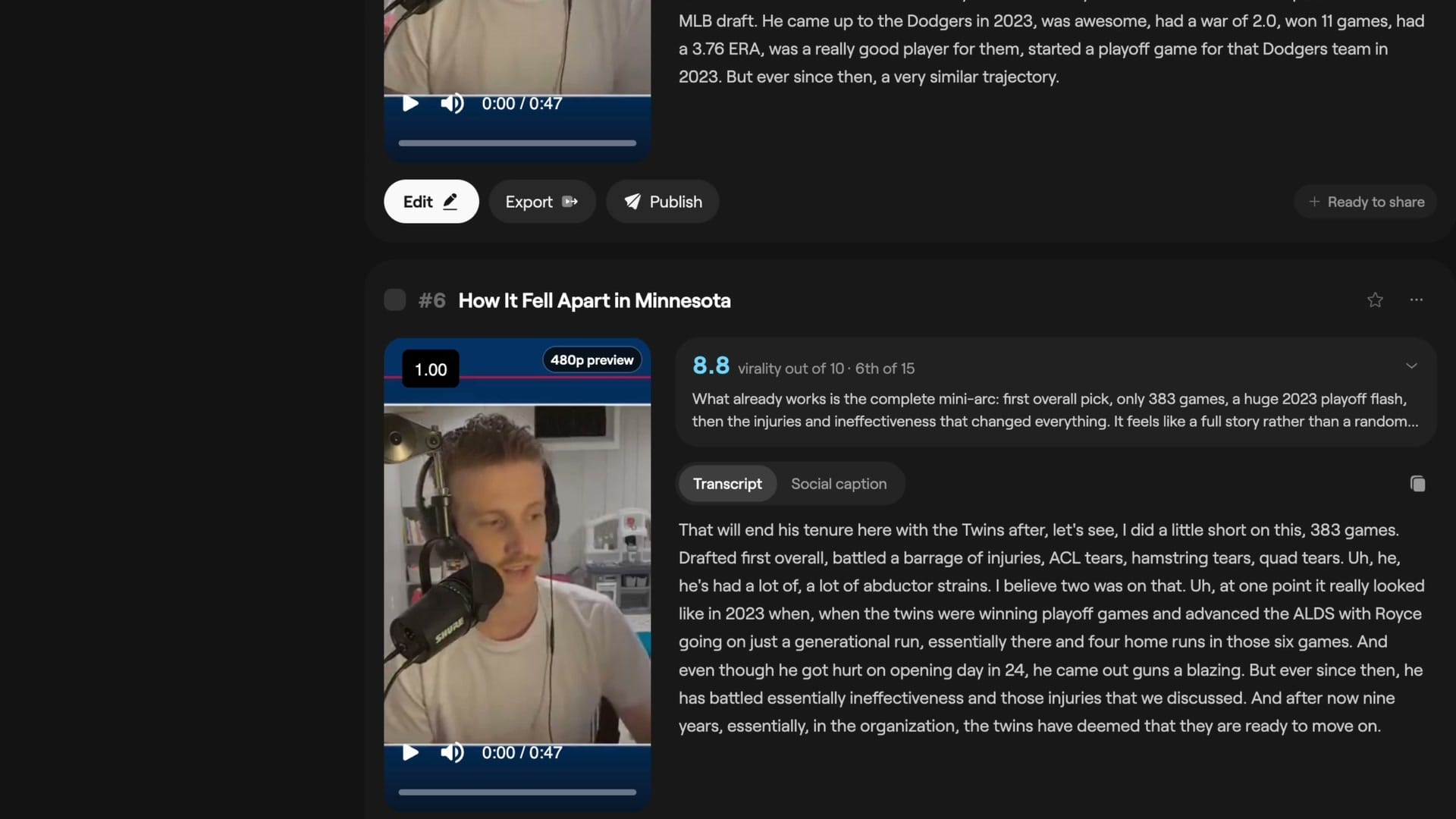
You can take them as they are, or open one in the editor and refine it.
Edit a clip by its transcript
Every clip comes with a transcript, and you can change the video by editing the transcript. If I want the clip to start on a certain word, I click that word and choose Set as start.
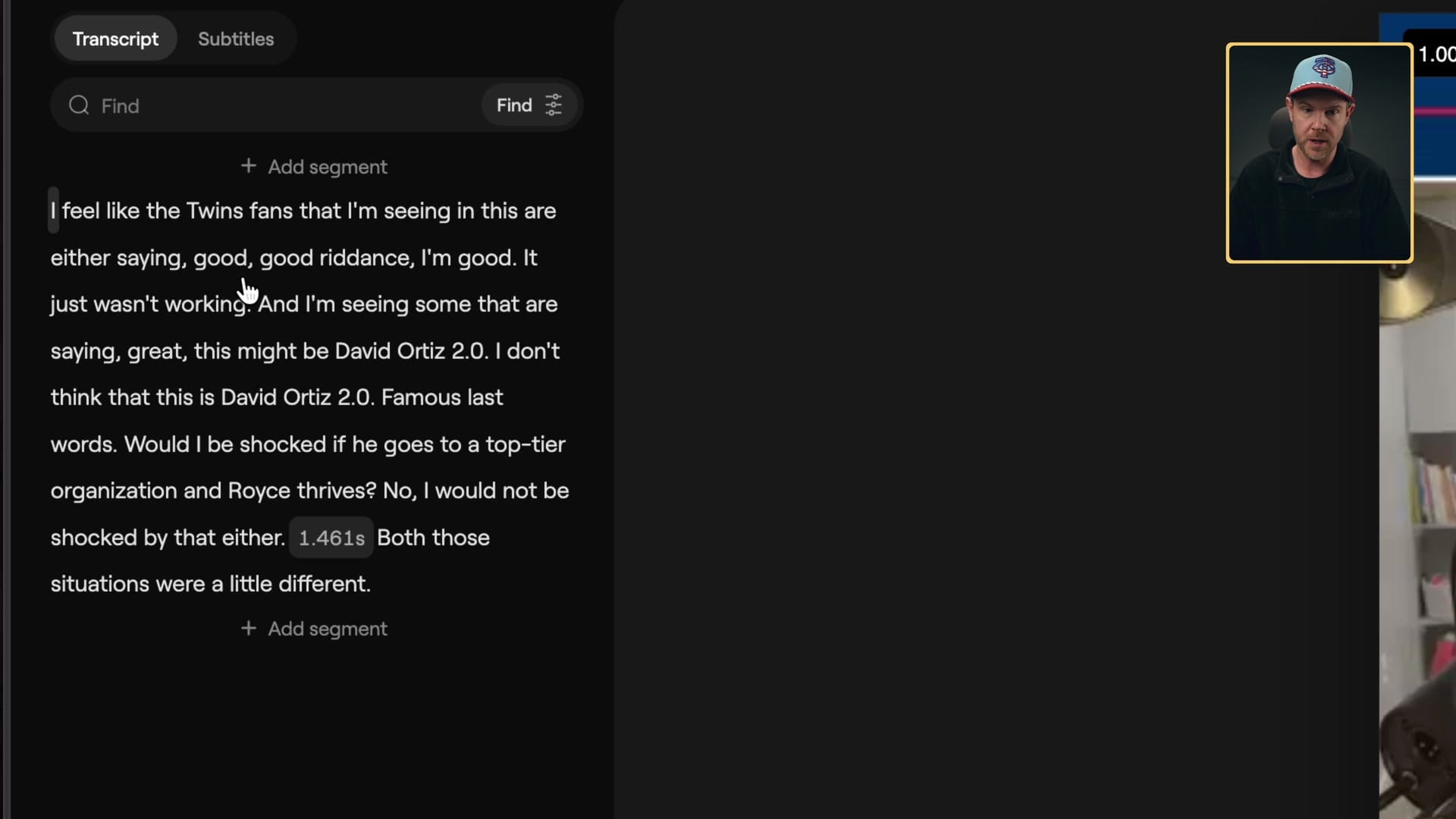
There's also a timeline below, just like a regular non-linear editor, with your captions and the video file on it, so you can make further refinements. If the transcription got a word wrong, you can fix it.
You can change the caption look, too. All the styles are at the top of the editor. Pick one, and the whole clip uses that style of captioning from the beginning.
More tools in the editor
There's a ton more in reap, but here are the ones worth knowing about:
- Voiceovers. Record your own, or use an AI voice.
- B-roll. It's right inside the app, so grabbing an image or a video clip is easy.
- AI editing tools. Adding emojis, highlighting words and even face tracking are each as easy as a toggle.
- Your assets. The logos and icons you uploaded at the start are in a folder in the editor, so adding the ones you reuse for a client is very easy.
Post straight to social
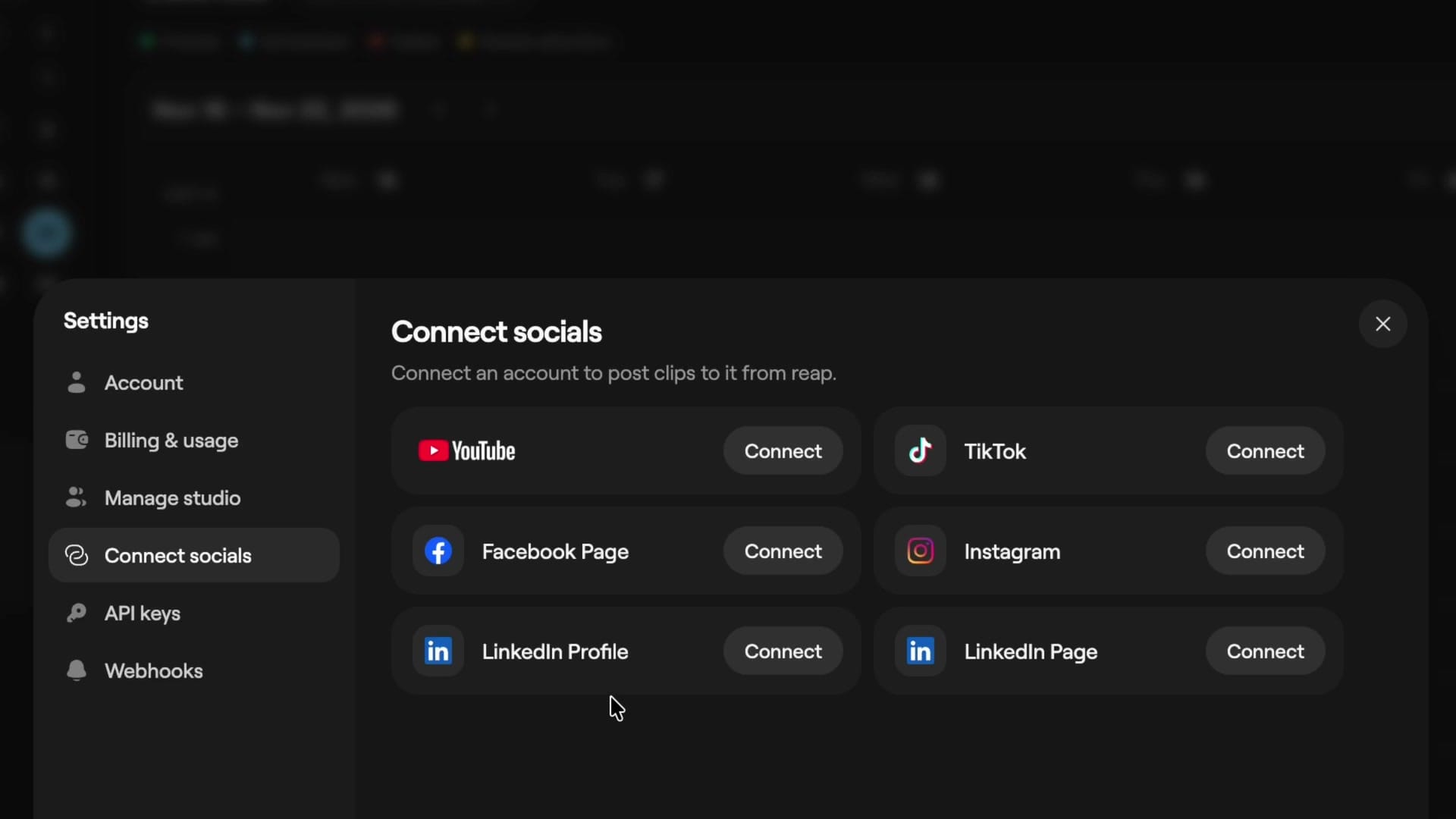
When your clips are done, you can upload them to social media directly from reap. Connect your YouTube account, Facebook, LinkedIn (a profile or a page), TikTok and Instagram.
My take on reap
I highly recommend checking out reap, especially if you already make long-form content, and particularly things like talking-head podcasts and people having conversations. It does really well with those.
You could use other AI, like a Claude Code subscription, to edit your videos, and that does work. I'm not saying it's a bad approach, but it's extremely expensive. If you're just clipping long-form content, I really think a tool like reap makes a ton of sense.
reap pricing
reap starts at $79 for a lifetime plan. There's also a three-year plan at $209.
Which Drop 4 deal is right for you?
Start with where your work already lives.
If you're on WordPress and want something to make it more complete without having to become a plugin hoarder, check out Nexter. If your content lives in spreadsheets but you want to get it out to other people, Shareables is the one to try. And if you make long-form content and want to clip it up and get it out to other social platforms, check out reap.
The other five are worth a look if they match something you already do: Coursebox for selling courses, FlexiFunnels for funnels, Jupitrr for talking-head edits, Mootion for turning a script into video, and Supergrow for LinkedIn.
Remember that prices go up Tuesday morning. If you missed the earlier drops, here's Drop 1, Drop 2 and Drop 3.
And if you don't live in the US, the timing can be confusing. Black Friday itself is this coming Friday, and Cyber Monday is after that. That's when I'll be back with more AppSumo deals.
One question for you: what are you sick of paying for every single month? Leave a comment on the video. I'll either show you how to vibe code it or find a lifetime deal that can do it for you.
I was given free accounts for Shareables and reap so I could test them.
Get Dave's Toolbox
The tools I actually use, every Tuesday. Free. No spam.
No cost. No spam. Unsubscribe anytime.