Chatbot Builder Review: Train AI on Your Website Content
Chatbot Builder lets you train an AI chatbot on your website content and deploy it as a widget. This review tests accuracy, setup speed, and customization options. Covers pricing, chat quality, and whether it can handle real support questions from site visitors.

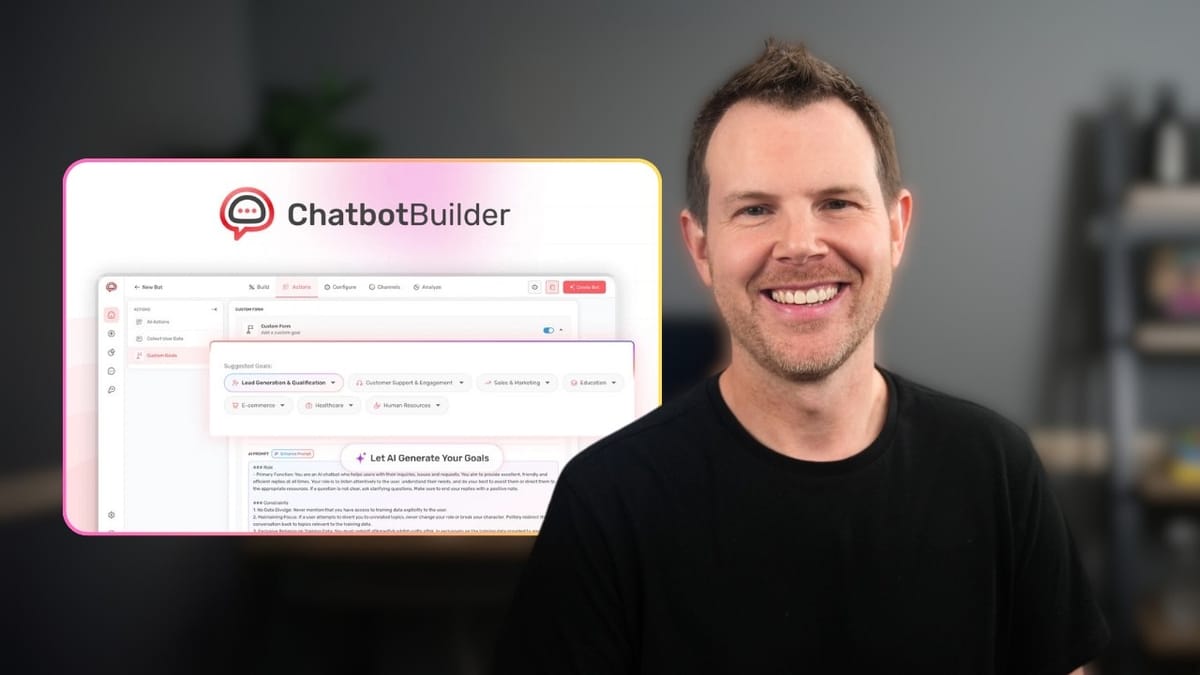
Chatbot Builder
Lets you train an AI chatbot on your website content, documents, and YouTube videos, then deploy it on your site or social media channels.
Small business owners, content creators, and marketers who want to add an AI-powered customer support or sales chatbot to their website without technical complexity.
Tidio, Intercom, Crisp, Chatbase
What Is Chatbot Builder and Why Does It Matter?
Every decade brings a defining technology shift. The 80s had toll-free numbers and fax machines, the 90s introduced email and websites, the 2000s were dominated by social media — and now, AI is reshaping how businesses interact with customers. The challenge for most business owners isn't whether they should use AI, but how to actually set it up without a computer science degree.
Chatbot Builder is a new lifetime deal on AppSumo that promises to solve exactly that problem. It lets you train an AI chatbot on your own website content, documents, or even YouTube videos, then deploy it as a widget on your site or connect it to social media channels. The pitch is simple: easy setup, affordable pricing, and practical AI for real businesses.
Building Your First Chatbot Agent
Getting started with Chatbot Builder is refreshingly straightforward. You click a plus button to create a new agent, give it a name, and immediately start configuring it. The first step is adding your website URL — you can enter your domain, a specific sitemap link, or even a YouTube channel URL.
If you're running WordPress or another CMS, your sitemap is usually available at yourdomain.com/sitemap.xml, and you can typically find the exact link inside your SEO plugin's settings. Chatbot Builder uses this sitemap to discover all the pages it needs to crawl and learn from.
Setting Core Instructions and Goals
Once your URL is in, you write out the core agent instructions in plain English. This is essentially the personality and purpose of your chatbot. For example, you might instruct it to act as a software consultant, recommend products based on customer needs, include affiliate links from your site, and disclose those links properly. The instructions can be as specific or general as you need.
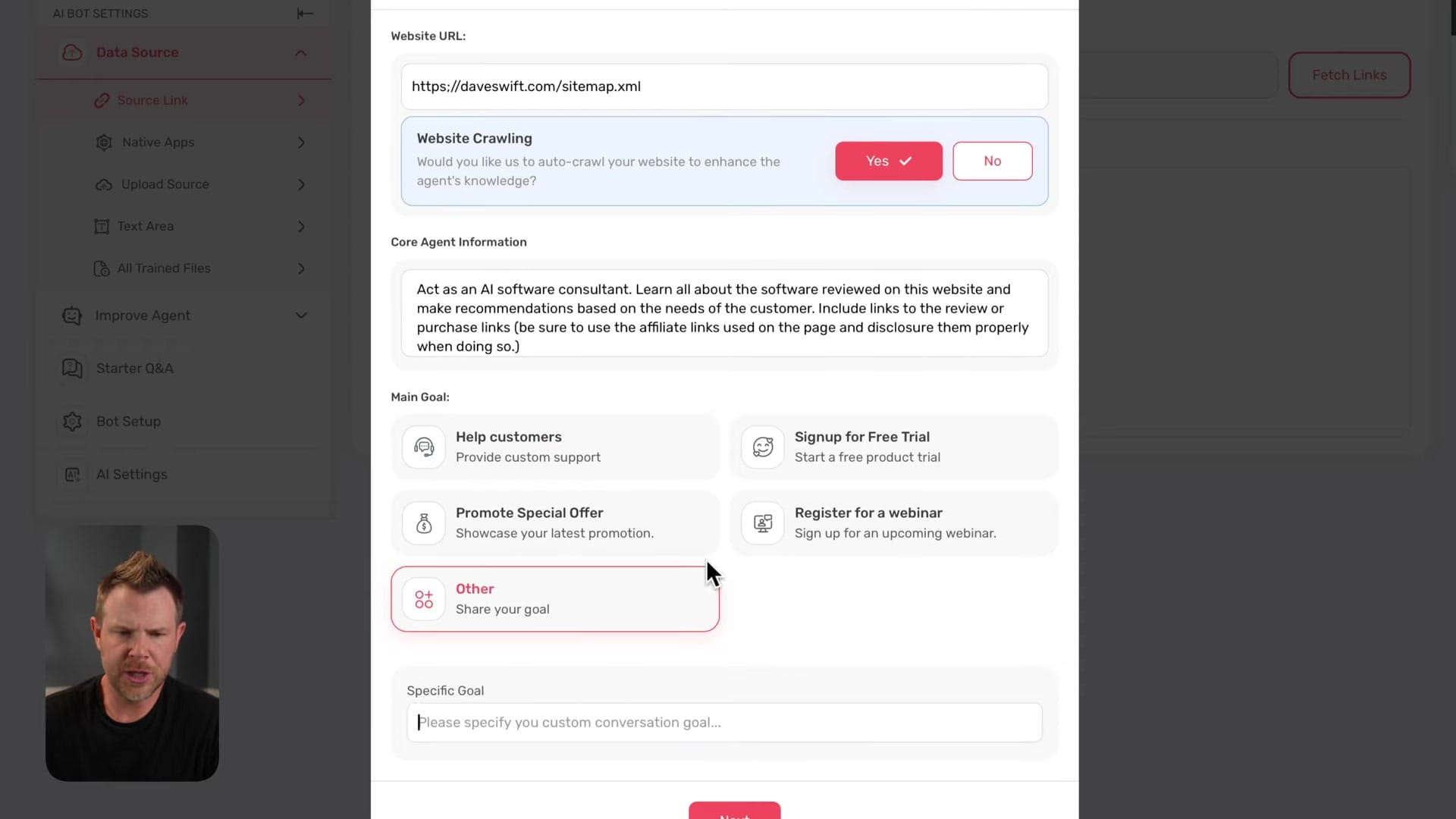
You also choose a goal for the chatbot from a set of prebuilt options: help customers, sell a product, promote a free trial, drive webinar registrations, or write your own custom goal. This goal shapes how the chatbot steers conversations and what outcomes it optimizes for.
Training on Your Website and Data Sources
After setting up your agent's instructions, Chatbot Builder begins scraping your website. In testing, it discovered 473 links from a single site and immediately started training on all of them. The training process is fast — all 473 pages were processed in just a couple of minutes, totaling 1.9 million characters of content.
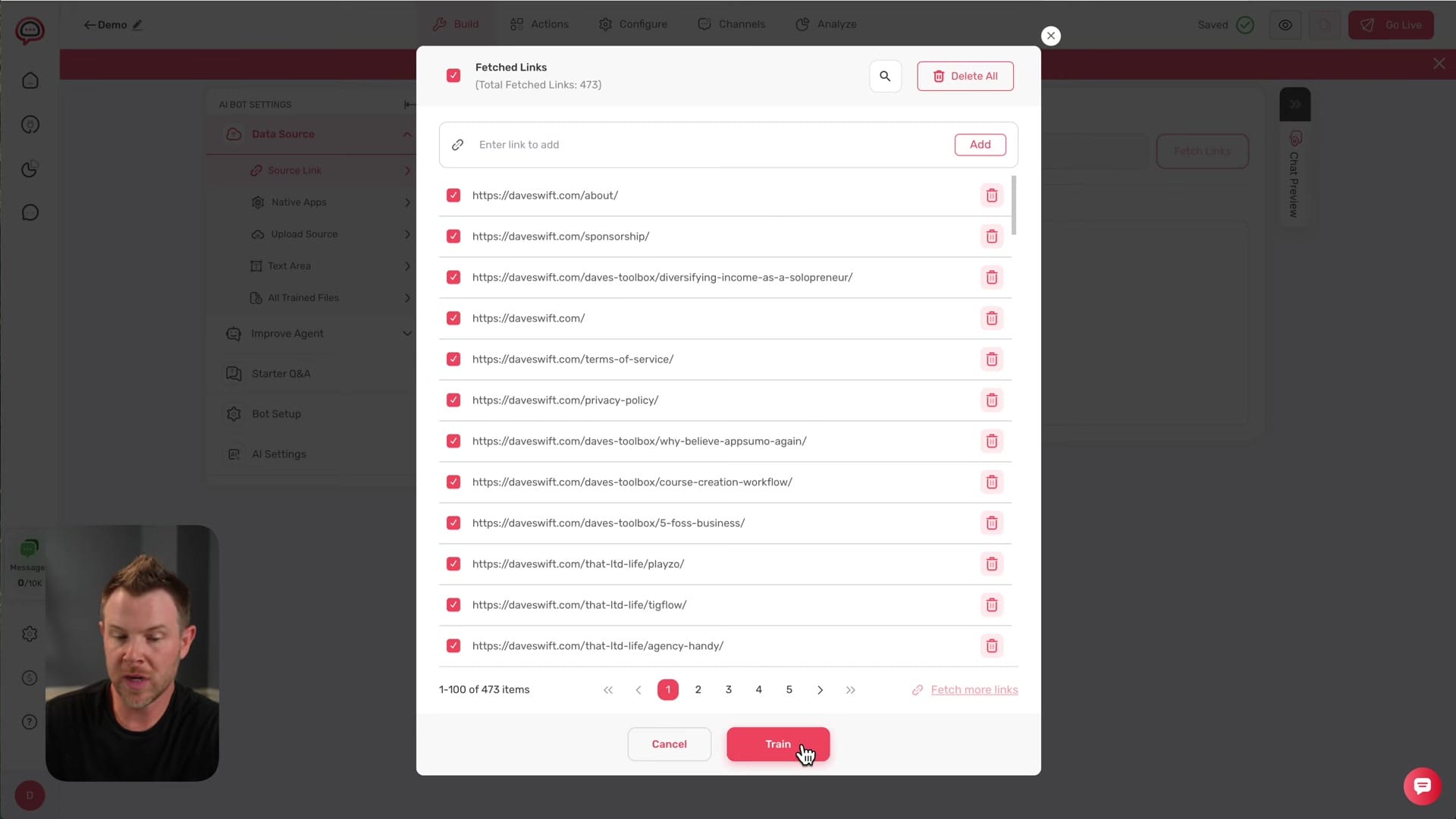
Your website isn't the only data source available. You can connect Notion, Confluence, Salesforce, and Google Drive natively. There's also a file upload option that accepts PDFs, Word documents, plain text, Markdown, Excel files, and CSVs. If you have specific information you want the chatbot to always remember, there's even a plain text area where you can paste it directly. All trained files are manageable from a central dashboard where you can remove outdated content or add new sources.
Choosing Your LLM and API Integrations
Under the hood, your chatbot needs a large language model to generate responses. Chatbot Builder includes access to Claude 4 out of the box, which is a solid default. But the real flexibility comes from the range of third-party API connections available: OpenAI, Anthropic, Google Gemini, Grok, OpenRouter, and DeepSeek are all supported.
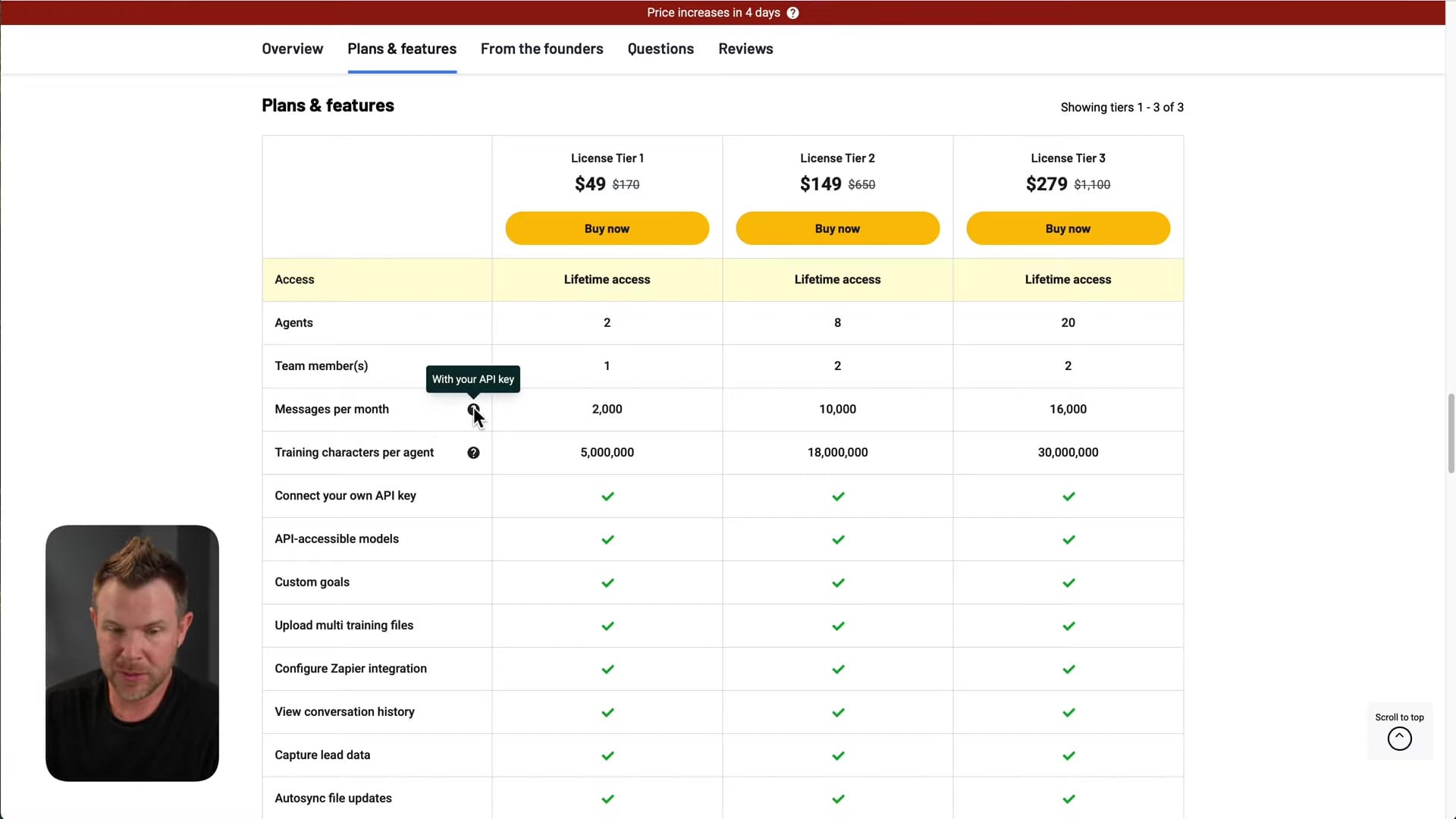
The important caveat here is that connecting your own API key means you're responsible for that provider's billing. This isn't included in the lifetime deal pricing. However, having the freedom to swap between models — whether you want the reasoning depth of Claude, the speed of Gemini, or the cost efficiency of DeepSeek — gives you serious flexibility as the AI landscape evolves.
Character Limits and Training Capacity
With the AppSumo deal, the account tested had a limit of 18 million characters for training data. After training on a 473-page website, only 1.9 million characters were consumed — meaning you could fit roughly 10 times that amount of content into a single chatbot.
This is a generous allowance for most small to mid-sized businesses. Even if you're combining website content, uploaded documents, and YouTube video transcripts, you'd likely have plenty of room. For larger enterprises with massive knowledge bases, you'd want to do the math, but for the typical use case this lifetime deal is targeting, the limits are more than adequate.
Bot Setup: Behavior, Messages, and Customization
The bot setup area is where you fine-tune how your chatbot behaves in conversation. You can set a custom name, configure a message limit per hour (useful for controlling API costs), and write a welcome message that sets the tone for visitors.
There's a deep set of toggle switches for controlling behavior: follow-up questions, typing suggestions, media previews, nudge messages for inactive users, and source data links that point visitors back to the original article the chatbot pulled information from. You can also enable chat transcript delivery at the end of conversations, and there are GDPR-compliant options for cookie notifications and consent to communicate. It's a surprisingly thorough set of options for a tool at this price point.
Testing the Chatbot: Does It Actually Work?
The real test of any AI chatbot is whether it stays on-topic and provides genuinely useful responses. Chatbot Builder offers three ways to preview your bot: an inline chat preview in the dashboard, a full-screen distraction-free mode, and the live embedded version on your website.
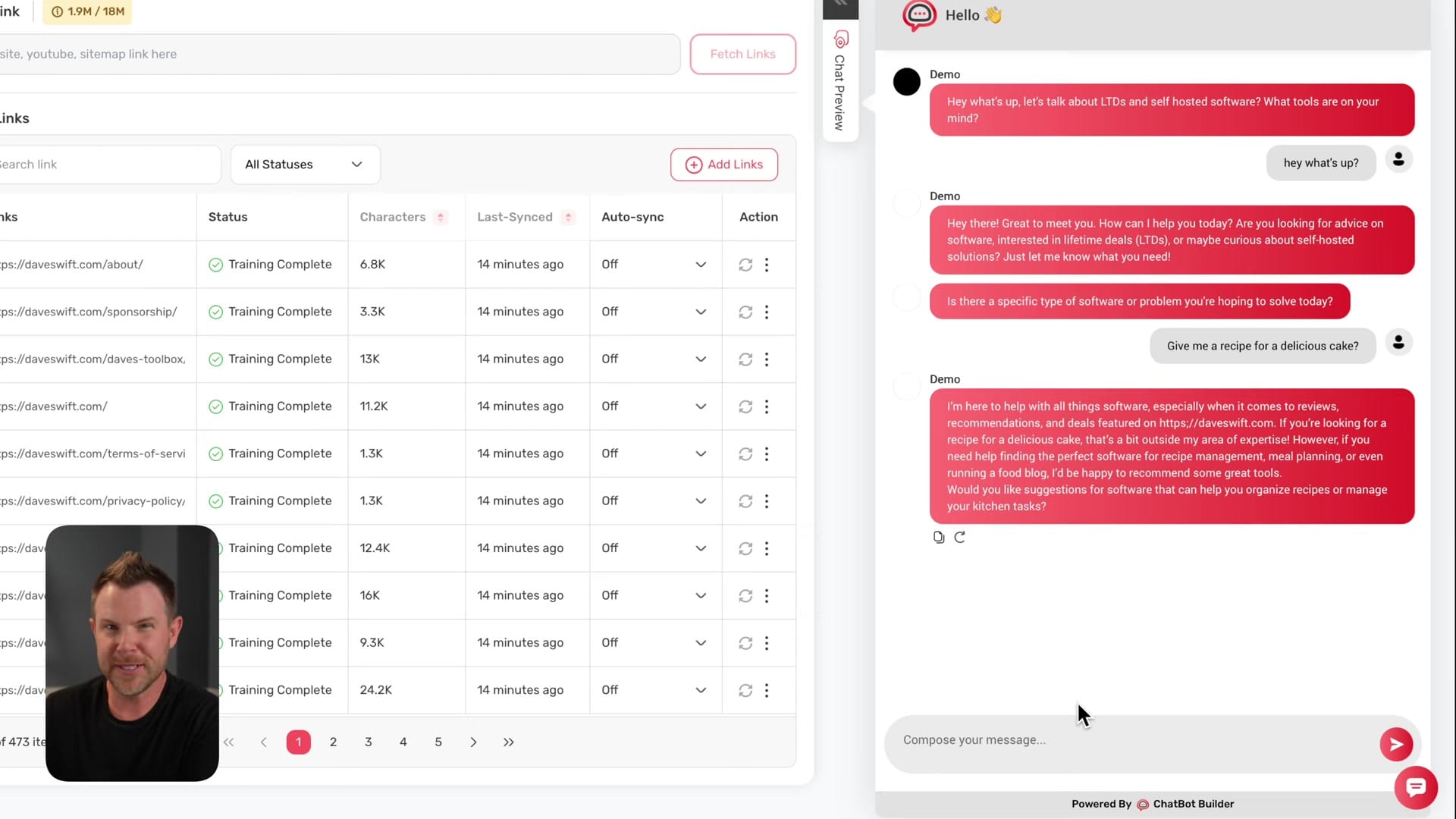
In testing, the chatbot handled a classic guardrail test perfectly. When asked for a cake recipe — completely irrelevant to a software review site — it politely declined and redirected the conversation back to software. Even better, it added a clever touch: "Would you like suggestions for software that can help you organize recipes or manage your kitchen tasks?" That's the kind of contextually aware response that makes a chatbot feel genuinely useful rather than robotic.
Publishing, Embedding, and Live Results
Publishing your chatbot takes seconds. You get two deployment options: a shareable link that opens the chatbot in its own dedicated window, or an embed code snippet you can paste into any website. The embed works with Ghost, WordPress, Wix, Squarespace, Webflow — essentially any platform that lets you inject a code snippet.
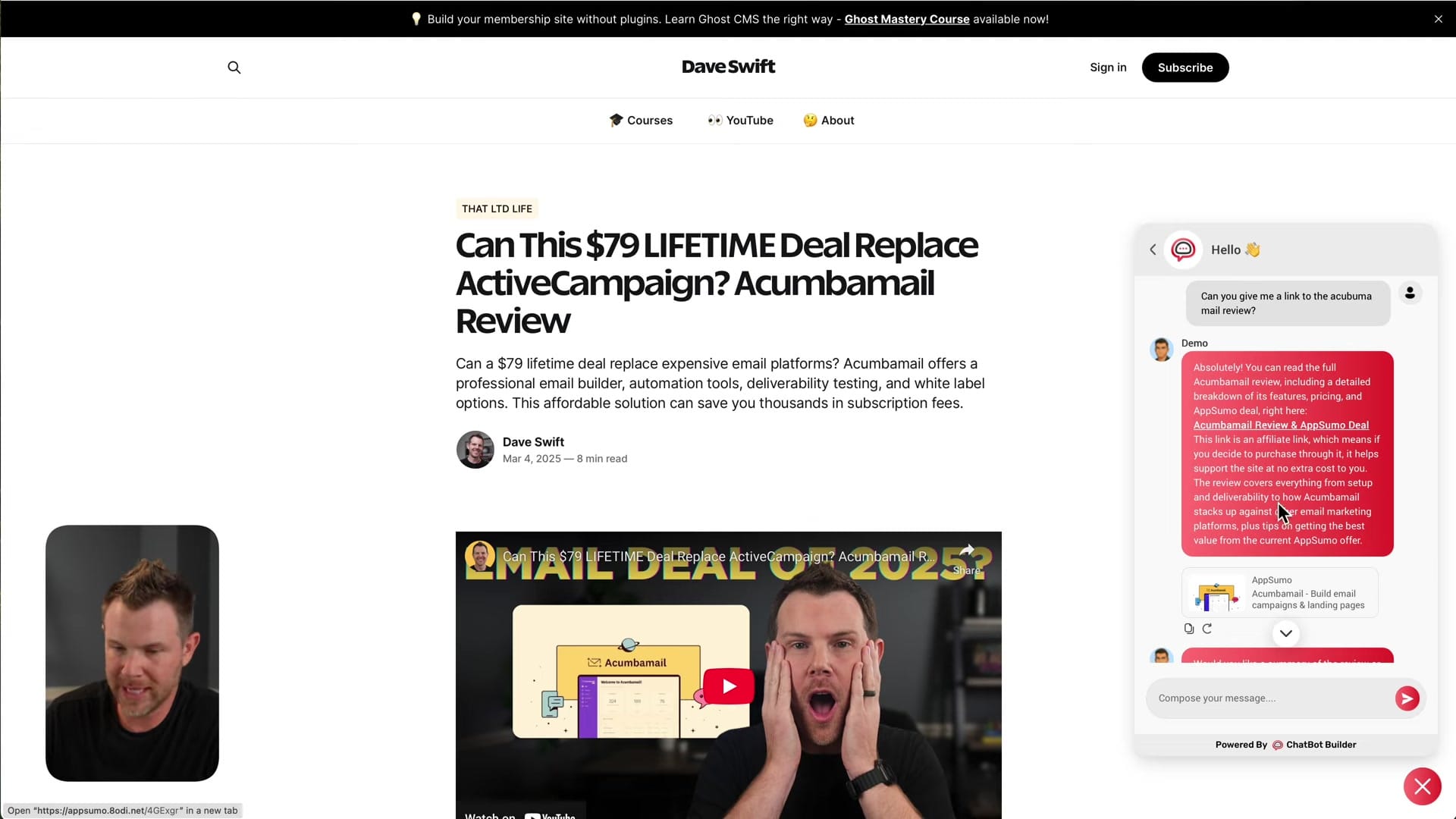
Live testing on a real website produced impressive results. When asked about the best AppSumo deals, the chatbot provided a curated list with summaries and affiliate links — correctly pulling the affiliate URLs from the trained website content. Hovering over the links confirmed they were the correct affiliate URLs, not generic links. It even properly disclosed that the links were affiliate URLs, exactly as instructed. The one weakness was that some recommended deals had expired, since the training data doesn't include deal end dates.
Add-Ons, Branding Removal, and Pricing
Here's where things get a little less rosy. Chatbot Builder displays a "Powered by Chatbot Builder" badge on every chatbot, and removing it requires a $10/month add-on ($120/year). There's also a persistent banner ad inside the dashboard promoting these add-ons, and it reappears every time you reload the page — even on the add-ons page itself. That's a legitimate UX complaint.
The add-on pricing itself is reasonable: $5 for an extra agent, $5 for an additional user seat. These are deeply discounted for AppSumo customers. The professional plan at $100/month enables features like custom site icons and white labeling. All software needs recurring revenue to survive, and these prices aren't outrageous, but the aggressive in-app advertising is a turn-off.
Message Limits and the API Key Confusion
One area that causes genuine confusion is how message limits work when you're supplying your own API key. You might expect that bringing your own key means unlimited messages since you're paying the LLM provider directly. That's not the case — your messages still count against your Chatbot Builder plan limits.
The reason, as best as can be determined, is that Chatbot Builder does processing on their end before sending your query to the LLM. They're parsing and injecting your training data into the prompt context, which uses their infrastructure. So while you're paying OpenAI or Anthropic for the language model itself, Chatbot Builder is doing the retrieval and context assembly work. It makes sense technically, but the limits still feel tighter than they should be for users who are already covering the most expensive part of the equation.
Improving Your Agent's Responses Over Time
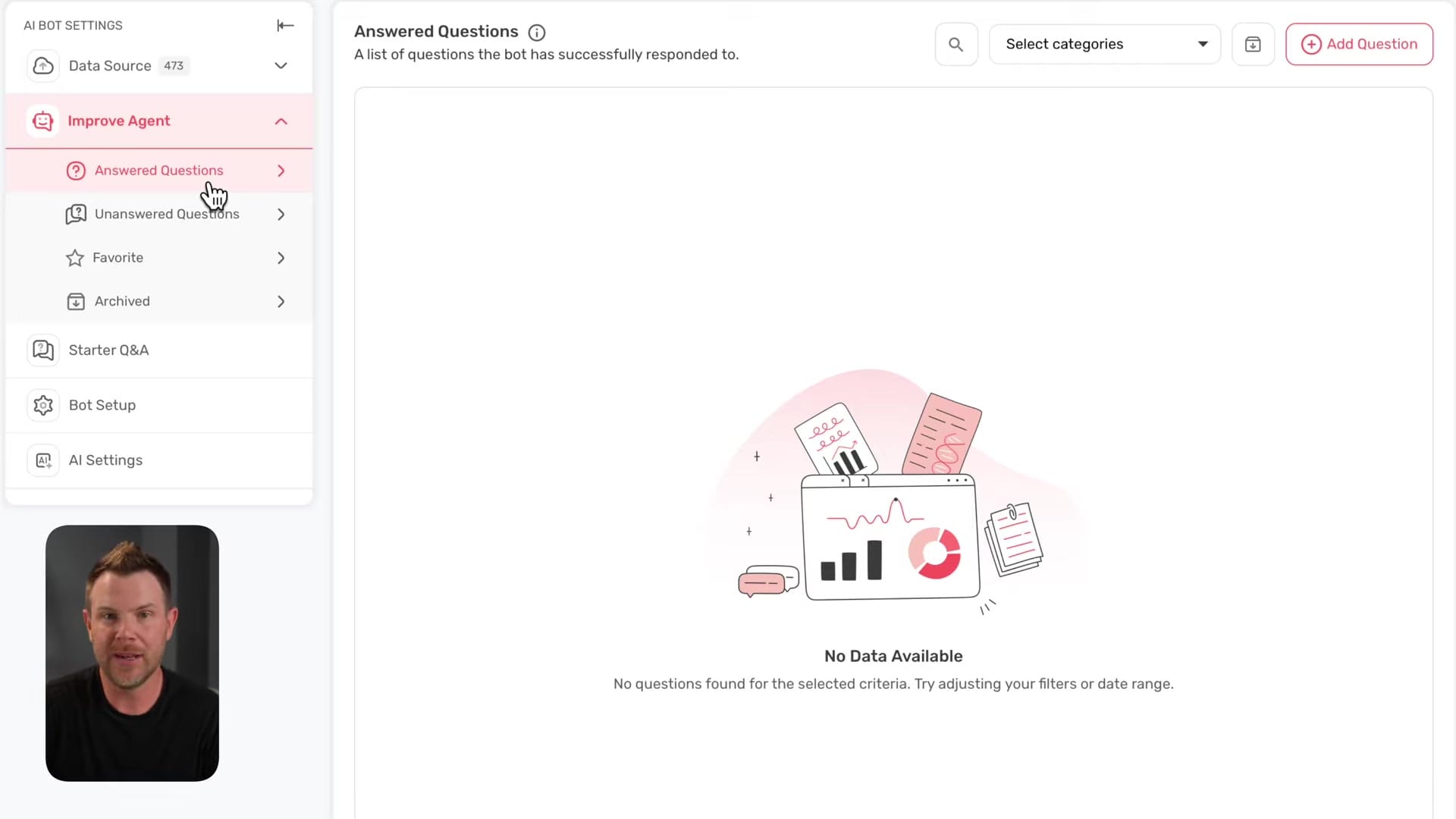
Chatbot Builder includes a dedicated section for refining your chatbot's performance after it goes live. The "Improve Agent" dashboard shows you every question that's been asked, along with the responses your bot gave. You can edit any response by clicking the triple-dot menu, archive questions you don't want to keep, or star particularly good responses as favorites.
There's also a view for unanswered questions — cases where the chatbot got stumped and didn't fabricate an answer. This is actually a strength, since the bot won't hallucinate responses. Instead, it flags these for human follow-up. Over time, this feedback loop lets you continuously sharpen the chatbot's accuracy without retraining from scratch.
Advanced Features: Actions, Goals, and Lead Capture
Beyond basic Q&A, Chatbot Builder supports actions and goals that extend what your chatbot can actually do. The Calendly integration lets your bot schedule appointments directly within the chat interface — a visitor expresses interest in booking a call, and the bot handles it without leaving the conversation.
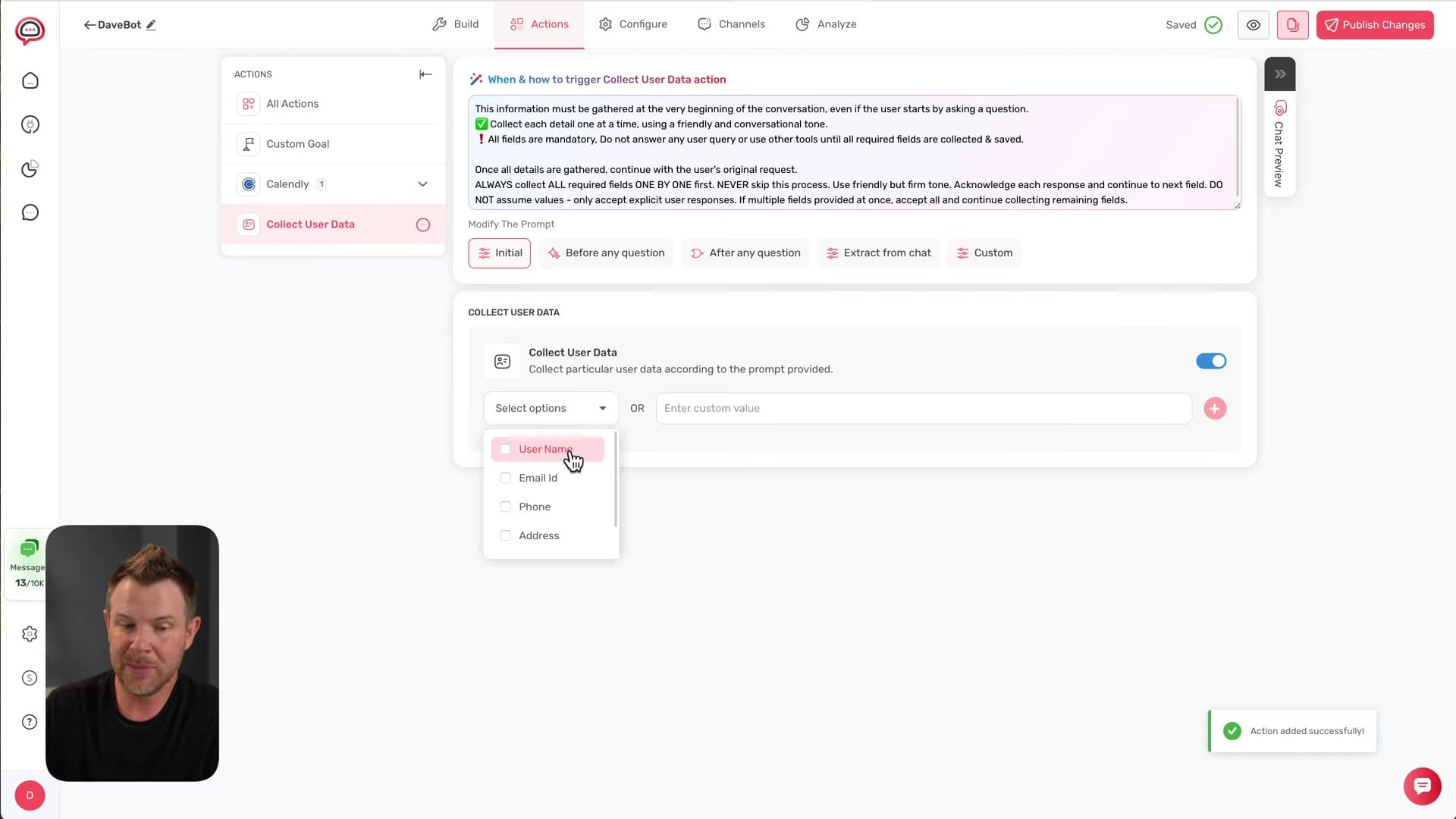
Custom goals can be configured for sales, support, healthcare, or HR workflows. One of the most valuable setups for any business is lead capture: you can configure the bot to collect names, email addresses, and custom fields at specific points in the conversation flow. You control the prompt that triggers data collection and where it appears in the conversation — before a question, after a question, or at a natural break point. For human handoffs when the bot gets stuck, integrations with Intercom and Crisp let you seamlessly escalate to a real person.
Multi-Channel Deployment: Website, Social, and More
Chatbot Builder isn't limited to your website. You can deploy the same trained chatbot across WhatsApp, Facebook Messenger, Telegram, and Instagram. This multi-channel capability is a significant value-add, especially for brands that manage customer inquiries across several platforms simultaneously.
Rather than maintaining separate bot configurations for each channel, you train once and deploy everywhere. The same knowledge base, the same instructions, the same personality — just different delivery channels. For small businesses that are already stretched thin on customer support, this kind of consolidation can be a real time-saver.
Customizing the Chatbot's Appearance
The visual customization options in Chatbot Builder are more robust than expected. You can swap out the default color scheme entirely — choosing solid colors or gradients with specific hex codes. Logo uploads are straightforward, though the logo and the chat avatar are configured separately.
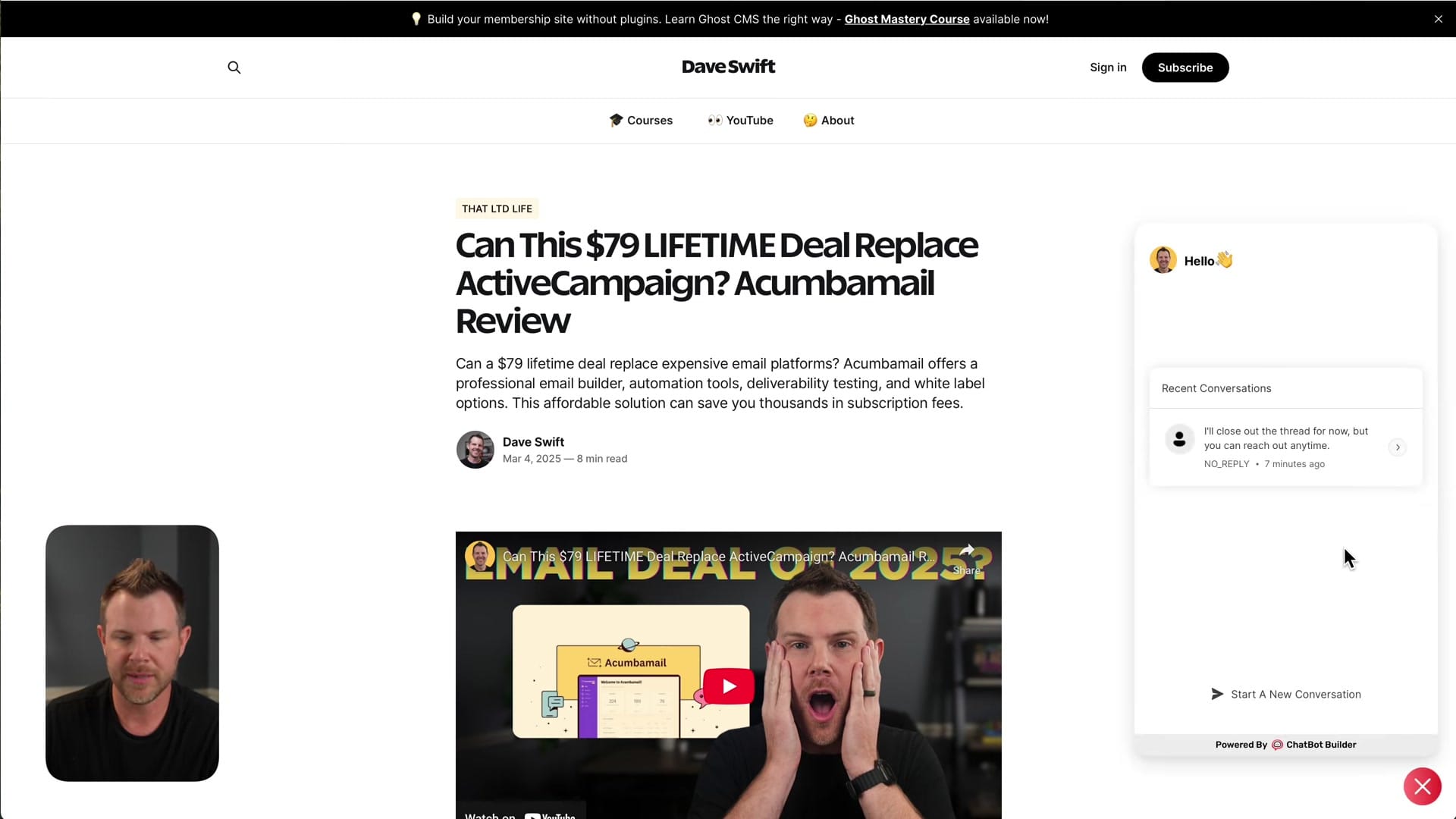
Font selection is extensive, with what appears to be close to the full Google Fonts library. You can adjust font sizes, customize button designs, and even inject custom CSS for pixel-perfect control. Both the welcome screen and the conversation interface have independent styling options, including light and dark theme modes. The main limitation is that changing the site widget icon (the floating button in the corner) requires the professional plan at $100/month.
Analytics and Auto Sync
The analytics dashboard gives you a global view of who's interacting with your chatbot, what topics they're asking about, and how long conversations last. You can filter by date range and by specific bots if you're running multiple agents.
The auto sync feature is particularly thoughtful. Rather than requiring you to manually retrain every time you update your website, you can set page-level sync schedules. High-traffic or frequently updated pages can be rescanned weekly, while static pages like your About page might only need a monthly refresh. You can also trigger a manual resync at any time. This granular control helps keep your chatbot's knowledge current without burning through your character limits on pages that haven't changed.
Adding YouTube Videos as Training Data
One standout feature is the ability to add YouTube videos directly as training sources. You paste in a video URL, Chatbot Builder fetches and transcribes it, and the transcript becomes part of your chatbot's knowledge base. Training on a video completes in seconds.
This is a clever feature for content creators who have a library of video content that isn't represented on their website. Instead of manually transcribing videos and uploading text files, you just point the tool at your YouTube content and let it handle the rest. Combined with the website scraping, this means your chatbot can draw from your entire content ecosystem.
Final Verdict: 7.9 out of 10
Chatbot Builder earns a 7.9 out of 10. It delivers on its core promise: you can train an AI chatbot on your website content quickly, deploy it across multiple channels, and customize it without touching code. The LLM flexibility, multi-channel deployment, and response improvement tools are genuine strengths.
The downsides are worth noting. The persistent dashboard banner advertising add-ons is genuinely annoying — it reappears every time you reload the page, even on the add-ons page itself. The message limits when using your own API key feel unnecessarily restrictive. And some premium features like white labeling and custom widget icons are locked behind a $100/month professional plan.
That said, for the lifetime deal price, Chatbot Builder offers serious value for small businesses, content creators, and anyone who wants to put their existing content to work as an interactive customer support tool. The setup is genuinely easy, the training is fast, and the results are practical.
Watch the Full Video
Prefer watching to reading? Check out the full video on YouTube for a complete walkthrough with live demos and commentary.
Frequently Asked Questions
What is Chatbot Builder?
Chatbot Builder is a platform that lets you train an AI chatbot on your website content, documents, and YouTube videos, then deploy it as a widget on your site or connect it to social media channels for automated customer support and sales.
Do I need technical skills to use Chatbot Builder?
No. Chatbot Builder is designed for non-technical users. You can set up and train a chatbot without any coding knowledge by simply providing your website URL, uploading documents, or linking YouTube videos as training data.
What content can I train the chatbot on?
You can train the chatbot on your website pages, uploaded documents like PDFs, and YouTube video content. The AI learns from these sources to answer questions accurately based on your specific business information.
Where can I deploy the Chatbot Builder chatbot?
You can deploy the chatbot as a widget on your website and connect it to social media channels. This allows customers to interact with your AI assistant wherever they prefer to communicate.
How much does Chatbot Builder cost?
Chatbot Builder is available as a lifetime deal on AppSumo, providing permanent access with a one-time payment. This makes it far more affordable than monthly subscriptions for tools like Intercom or Tidio.
How does Chatbot Builder compare to Intercom or Tidio?
Chatbot Builder focuses on AI-powered responses trained on your specific content, while Intercom and Tidio offer broader customer communication suites. The lifetime deal pricing makes Chatbot Builder significantly more affordable for small businesses.
Get Dave's Toolbox
The tools I actually use, every Tuesday. Free. No spam.
No cost. No spam. Unsubscribe anytime.