FluentAuth: The Free WordPress Security Plugin I Use on Every Client Site
FluentAuth adds 2FA, passkeys, login blocking and file scans to WordPress for free. Here's every setting and what I'd turn on for your site.

Install FluentAuth on your WordPress site. It's a free plugin from WPManageNinja, one of the most trusted developers in WordPress, and it's now on all of my client sites.
That's a fairly new opinion for me. FluentAuth has been around for several years, and honestly, it wasn't that interesting until very recently. Version 3 changed that. It went from "nice to have" to a really capable security tool, and it's currently on version 3.1.
Quick disclosure: Cloudways sponsored my video on FluentAuth. FluentAuth didn't sponsor anything, and neither did WPManageNinja. I'm recommending the plugin because I use it.
Why WordPress login security matters right now
I don't want to be an alarmist, but security is really at the front of my mind right now. Glance at the headlines and you'll see banks, hospitals and even military bases getting hacked. So who's to say your little WordPress website (which might earn you hundreds of thousands of dollars) is any safer than a hospital?
WordPress runs some 40% of the websites we know about, but that also makes it a really big target. So we need to do everything we can to secure our own sites.
Out of the box, logging into WordPress takes two things: a username and a password. Almost no other site works that way anymore. Your bank, your email, and nearly every app you use asks for a text message or some kind of extra code. WordPress should be no different. For some reason, two-factor login still isn't part of WordPress core. I think it should be. Until it is, FluentAuth fills the gap.
What FluentAuth protects (and what it doesn't)
Before you install anything, know where this fits.
FluentAuth makes the front door of your site more secure. It protects the application: the logins, the accounts, the files WordPress runs. But many of the attacks happening right now aren't coming through the front door. They're busting straight through the walls, and the walls are the software that actually powers your server.
That part starts with your host. A good host takes care of the server for you. That's why I recommend Cloudways, the sponsor of my video, and why I'll cover the server side in a separate video. FluentAuth is part of the solution. It's not the entire solution.
Install FluentAuth
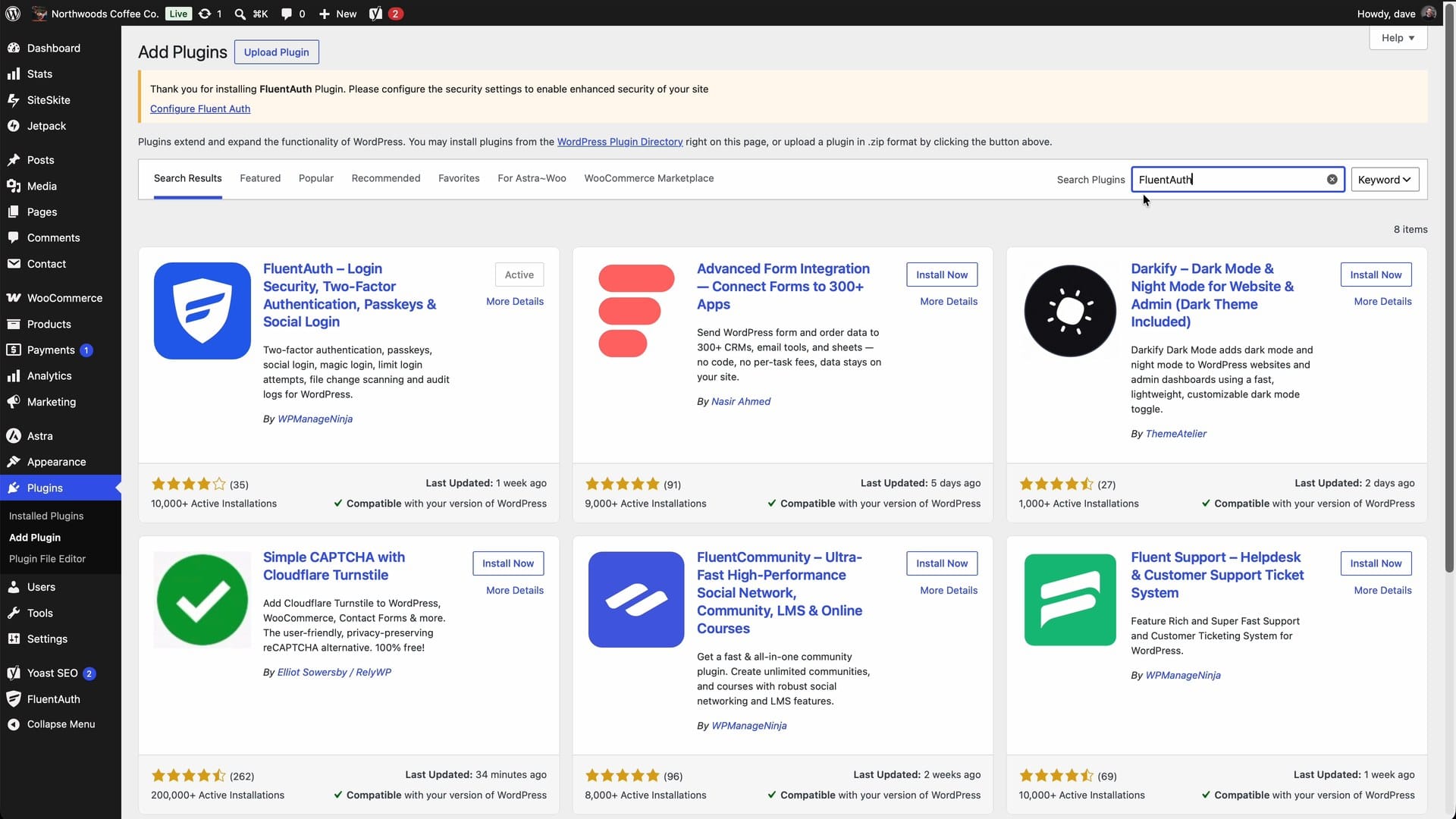
- In your WordPress dashboard, go to Plugins → Add New.
- Search for FluentAuth. You want the one by WPManageNinja (it's usually the first result).
- Click Install, then Activate.
- Click FluentAuth in the left sidebar. That opens the setup wizard.
The wizard asks a few questions and handles the bulk of the settings. Here's how I'd answer each one.
Step 1: Pick your two-factor methods
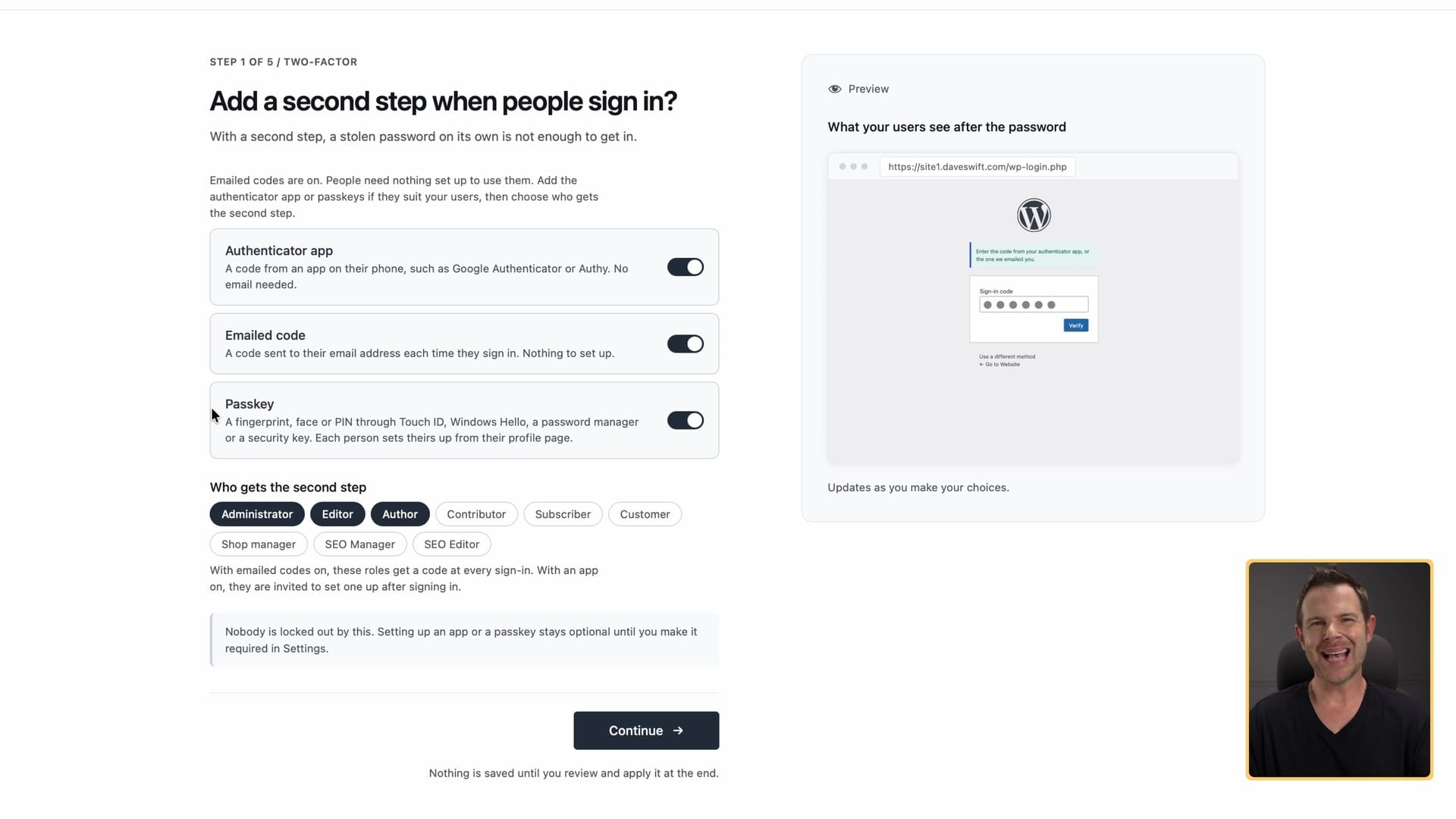
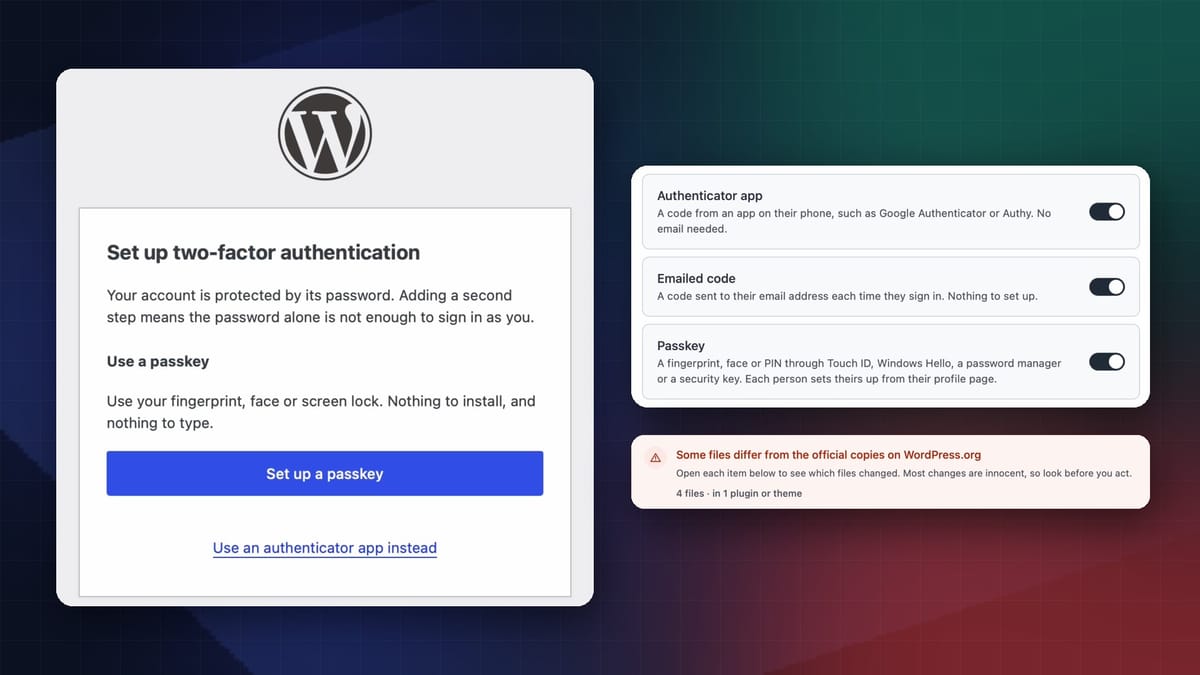
The first step adds a second factor to the login. After this, logging in takes a username, a password and one more check. FluentAuth gives you three kinds.
Authenticator app
This was the gold standard for a long time. An app generates a code (usually six digits) that changes every 30 seconds or so, and you type it in before it expires.
You can do this in your password manager, something like 1Password or Apple Passwords. Or you can use a dedicated app like Google Authenticator or Authy. Google Authenticator, Authy and Apple Passwords are free; 1Password isn't. It's not my favorite method anymore, but it's a pretty good option and I recommend turning it on.
Emailed code
If there's one method I'd turn off, it's this one. An emailed code only works if your email is safe, and email can be compromised too.
Think about it from the hacker's side. If you have an important WordPress site, getting into your email might just be the first step. They might already have your email, and you won't know it until they try your WordPress login and the code lands in an inbox they control. So this is the least secure option.
That said, I'd leave it on at least for setup. Right after you install FluentAuth, the emailed code is the method that kicks in automatically (more on that in the login section below).
Passkeys
Passkeys are the newest method. In my opinion they're also the most secure and the most convenient.
A passkey works a lot like an SSH key, but don't get scared. You don't have to deal with any of it. It's all handled on your device. An iPhone, a Mac or 1Password can store the passkey for you. You confirm it's you with your fingerprint, a face scan, Touch ID or Windows Hello, and the login just happens.
Compare that to an emailed code, where you jump out of the tab, open your email, find the code, then copy and paste it back. There are tools that try to autofill those codes, but in my experience they never work super reliably.
If you only turn on one method, choose passkeys.
The catch: passkeys need a slightly more technical audience. If your site has editors who are barely operating a computer (no offense to those folks, I know quite a few of them and they're good people), passkeys could overwhelm them. For them, an emailed code is still much better than a password alone.
My recommendation
In general, I turn all three on. The goal is for people to actually use one, and three choices isn't too overwhelming. Let people pick the one they're comfortable with, and make sure they're doing something.
Step 2: Choose who gets the second step
Next, the wizard asks who will be offered two-factor. By default that's administrators, editors and authors. Customers are off unless you toggle them on.
This is important: turning a role on here doesn't require those users to set up two-factor. It gives them the option. You can make it required later in the settings (see "Require two-factor by role" below).
For most sites, the defaults are fine. Almost nobody else can change the contents of your site. And if you take payments through something like Stripe, card details are encrypted. That's why a customer account shows the last four digits of a card, never the whole number. A hacked customer account isn't a path to credit card numbers.
Step 3: Block repeated failed logins
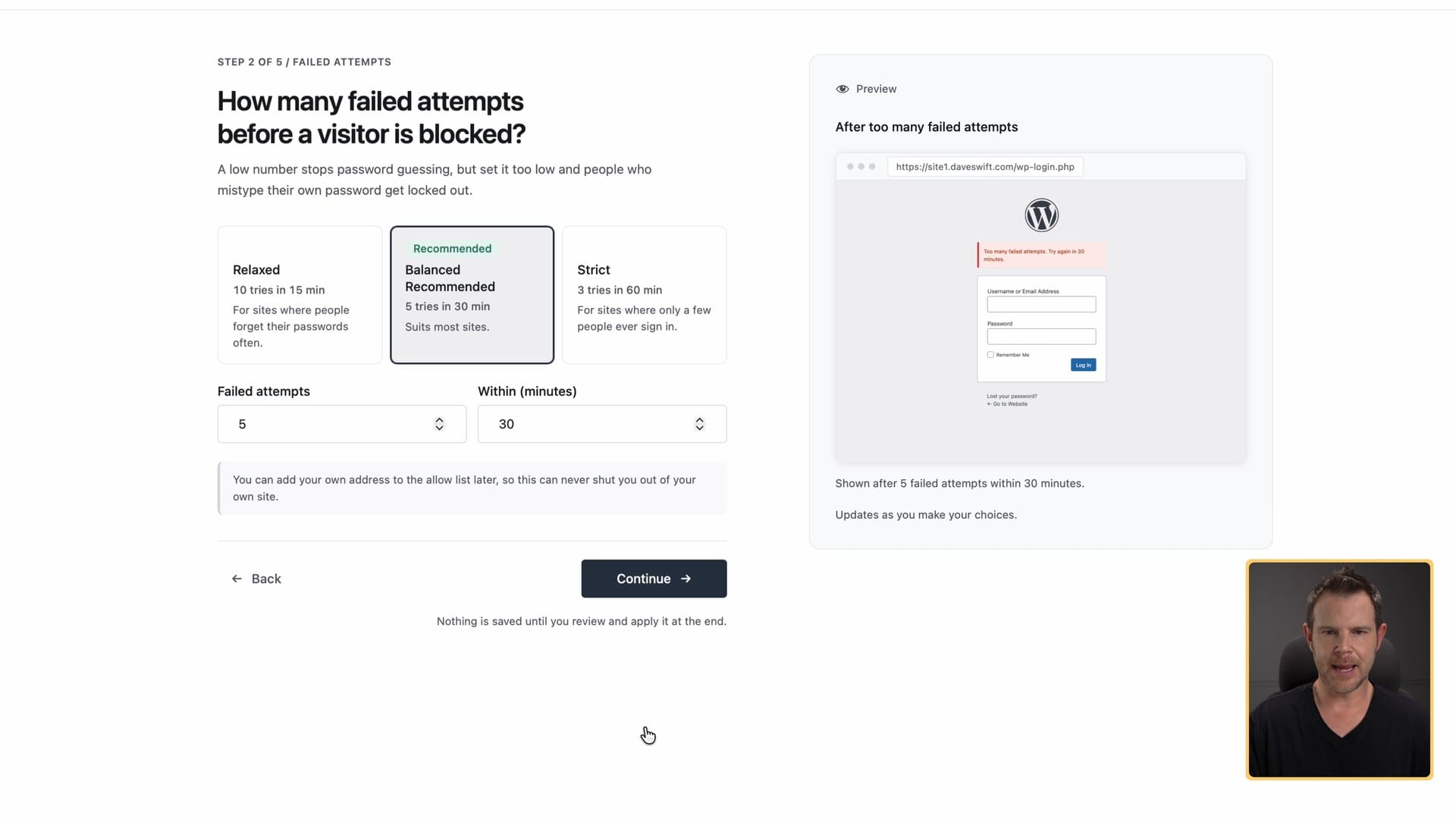
The Failed Attempts step blocks anyone who keeps trying to log in and failing, like a bot trying thousands of times a day.
Yes, they really do that. If you've got logging turned on and you're not blocking failed logins, look at your logs sometime. You'll see literally thousands of bots trying to log into virtually every WordPress website on the internet. This has been going on much longer than we've had AI.
I recommend turning it on. The recommended setting blocks anyone with 5 failed attempts within 30 minutes.
One word of caution: you might already have a security tool, or your host might already block this. In that case you don't need it on, but there's no harm in using FluentAuth's recommended settings.
FluentAuth also lets you add your own IP address so you never get locked out. I don't think that's necessary. If you forget your password and keep hammering away past five tries, that's kind of on you. If you're worried about users who forget their password all the time, you could add their individual IP addresses. Just know that home internet IP addresses change fairly regularly, so it's a job to keep up with. I'm not sure it's worth it.
Protections: leave everything on
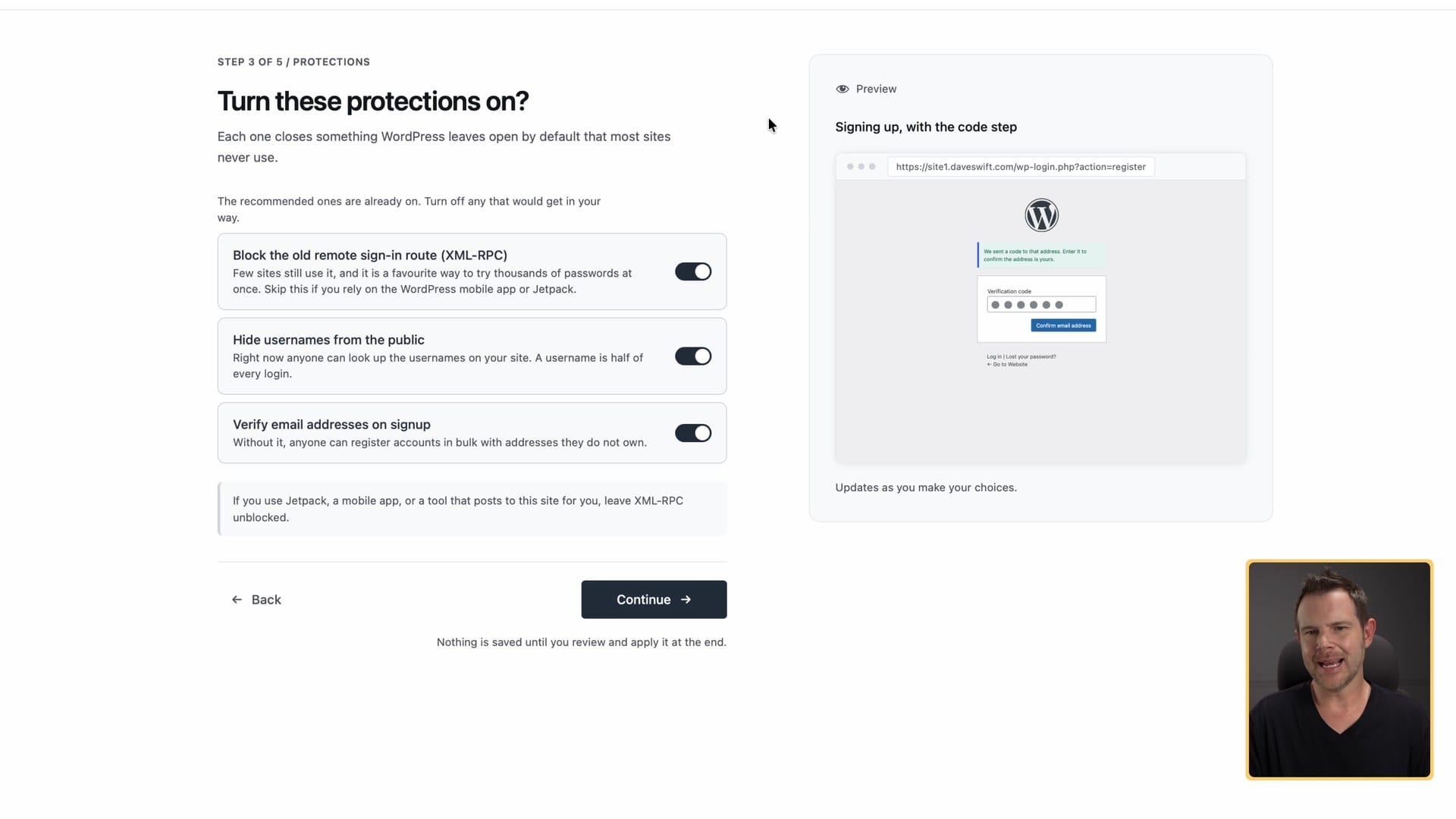
The protections step has great defaults. Here's what each one does.
- Block XML-RPC. XML-RPC is an old way of logging into WordPress that almost nobody with good intentions uses anymore. Block it.
- Hide usernames from the public. Those bots hammering your login page? In your logs you'll see they're using the real usernames from your site. WordPress makes usernames easy to find, so bots grab them and cycle through thousands of common passwords (password123, you know the type) until one works. Hide them.
- Verify email addresses on signup. When someone signs up, they get an email asking them to confirm it's really their address. Almost every service outside WordPress does this, and I don't know why WordPress core doesn't. It keeps out fake signups, and it also catches typos. If someone signs up with google.co instead of google.com, they find out right away instead of getting locked out later and emailing your support team angrily.
In summary: on this step, leave everything on.
Step 4: Login alerts (I turn these off)
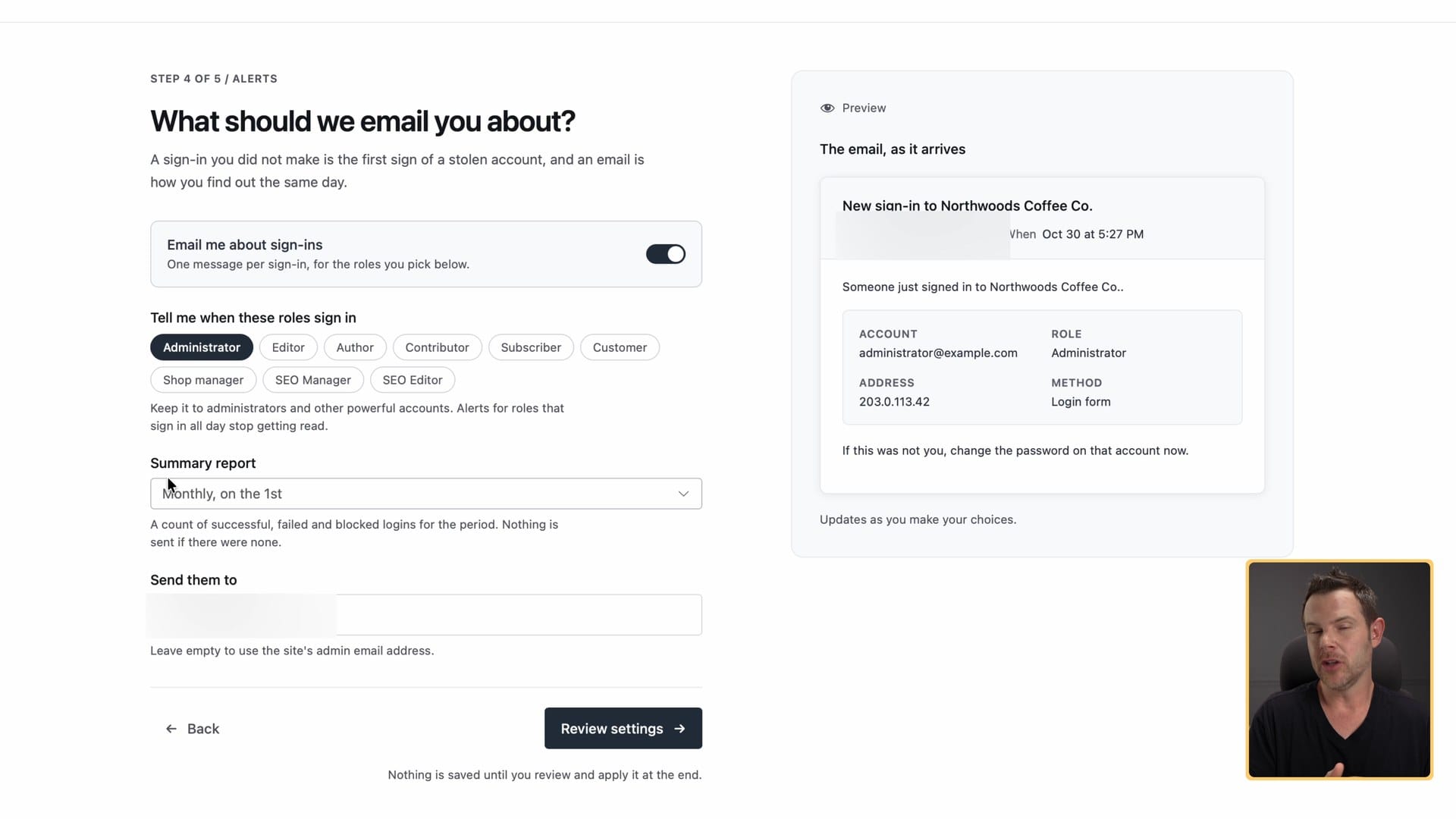
The last question is about alerts: who gets an email about logins. These aren't sent the moment someone logs in. They're a digest you can get daily, weekly on a chosen day, or at the beginning of the month, for the user roles you pick, sent to the email address you choose.
I turn this off. I manage client sites, and I don't need a daily or monthly report of everyone who logged in. FluentAuth keeps its own logs, so I can check if I ever need to. A digest would only help if you needed to track logins as they happen, and this doesn't do that.
Then review your choices and apply the settings.
What a login looks like with FluentAuth turned on
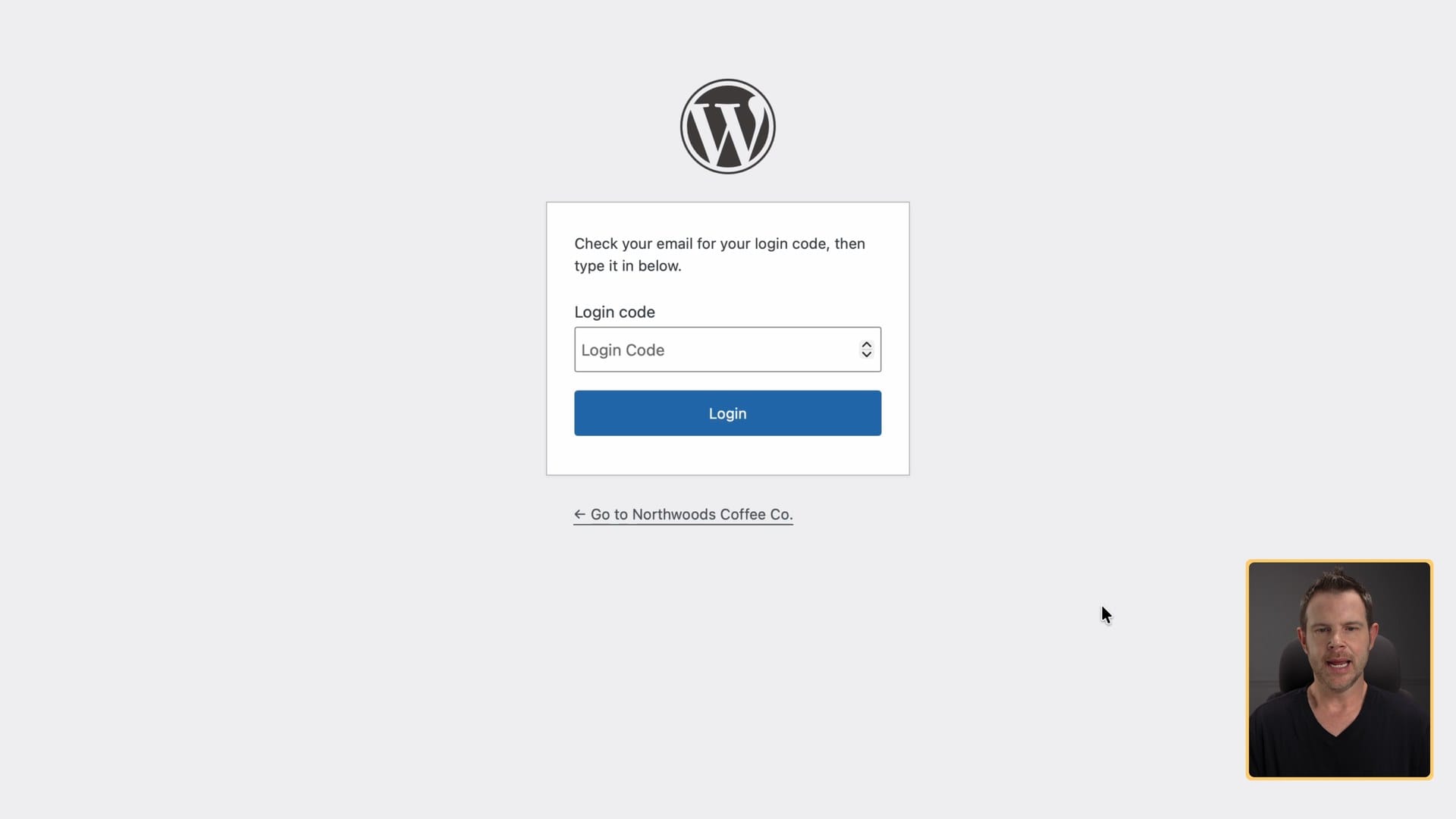
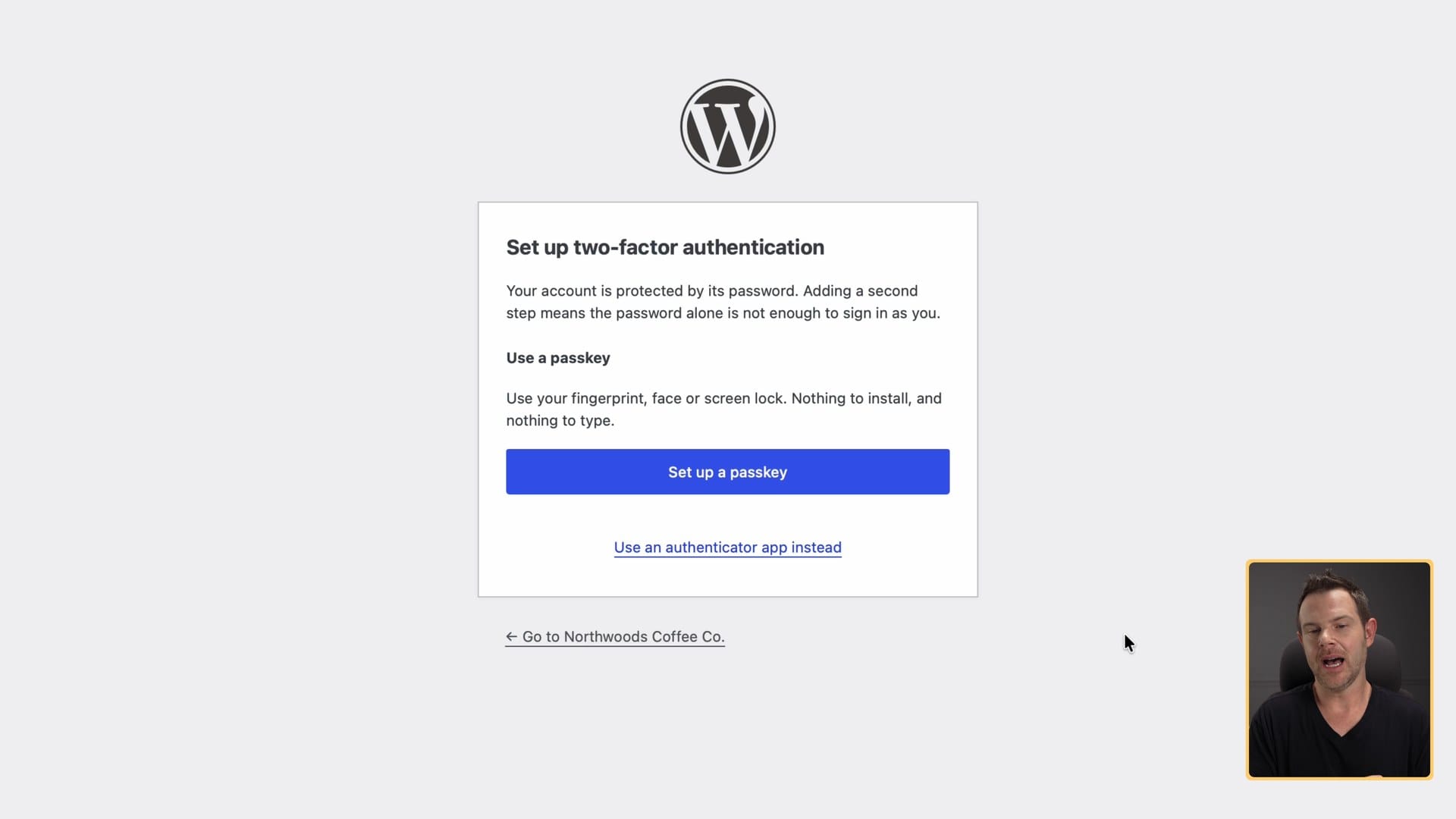
After the wizard, log out and log back in to see what your users will see.
On the first login after installing, FluentAuth asks you to check your email and type in the login code. There's no choice yet. It adds the emailed code right out of the gate, which is why I said to leave email on during setup. The email itself is nicely designed, with the code right there. Copy it, paste it in, click login, and you're in.
Next, FluentAuth offers to set up a passkey or an authenticator app. On a modern device, that's fairly easy even for a novice. On an older computer without a fingerprint reader or face scanner, it can be confusing, and that user can pick the authenticator app instead. They can also skip it and go straight to the dashboard.
The FluentAuth dashboard
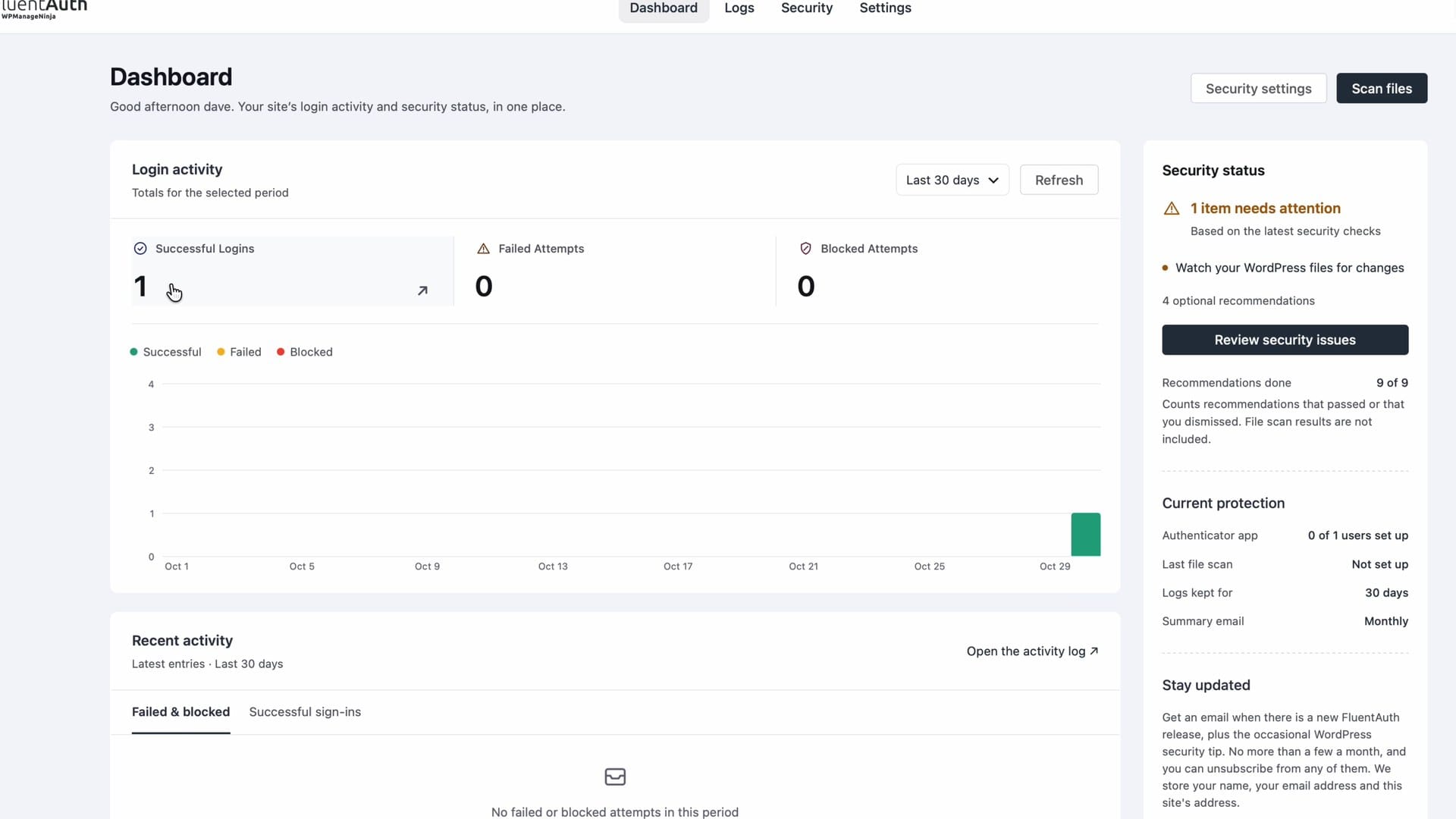
The dashboard shows everyone who has logged in since you activated the plugin. It doesn't go back and show logins from before you installed it.
You'll also see a chart of logins over time, recent activity (including failed and blocked logins), successful signups, and which sign-in method each person used. Over time that chart shows how many people log in regularly and flags any problems.
If you stop here and actually do everything above, great. You've made a lot of progress. But FluentAuth does a lot more.
Run the 12-point security scan
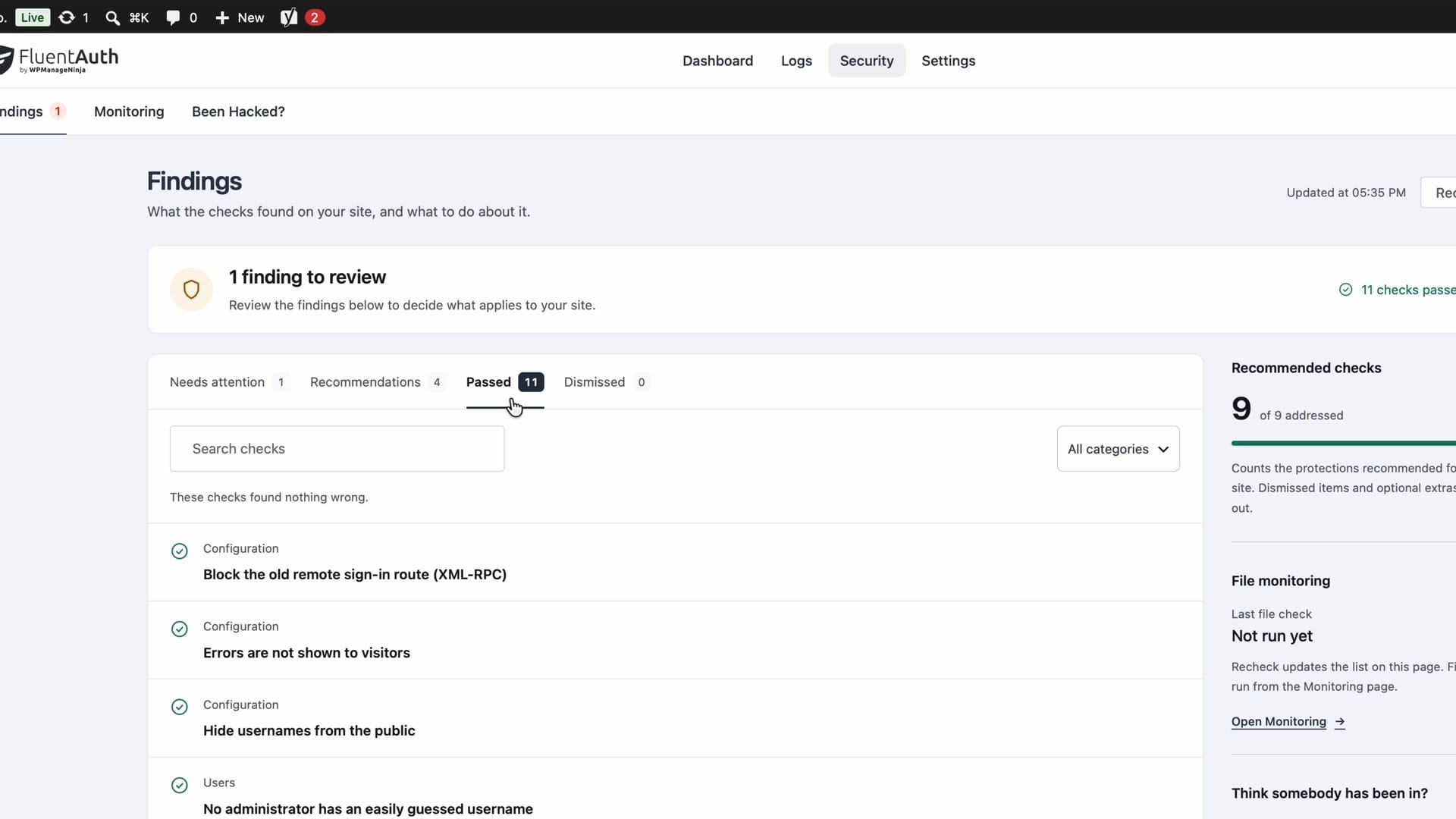
Somewhere on the dashboard you'll probably see a security status telling you there's something to do. Open Security (it's also a tab across the top).
Every time you activate FluentAuth on a WordPress site, it runs a 12-point security scan. On my demo site, 11 of the 12 checks passed. The one that needed attention was watching for WordPress file changes.
Watch for file changes
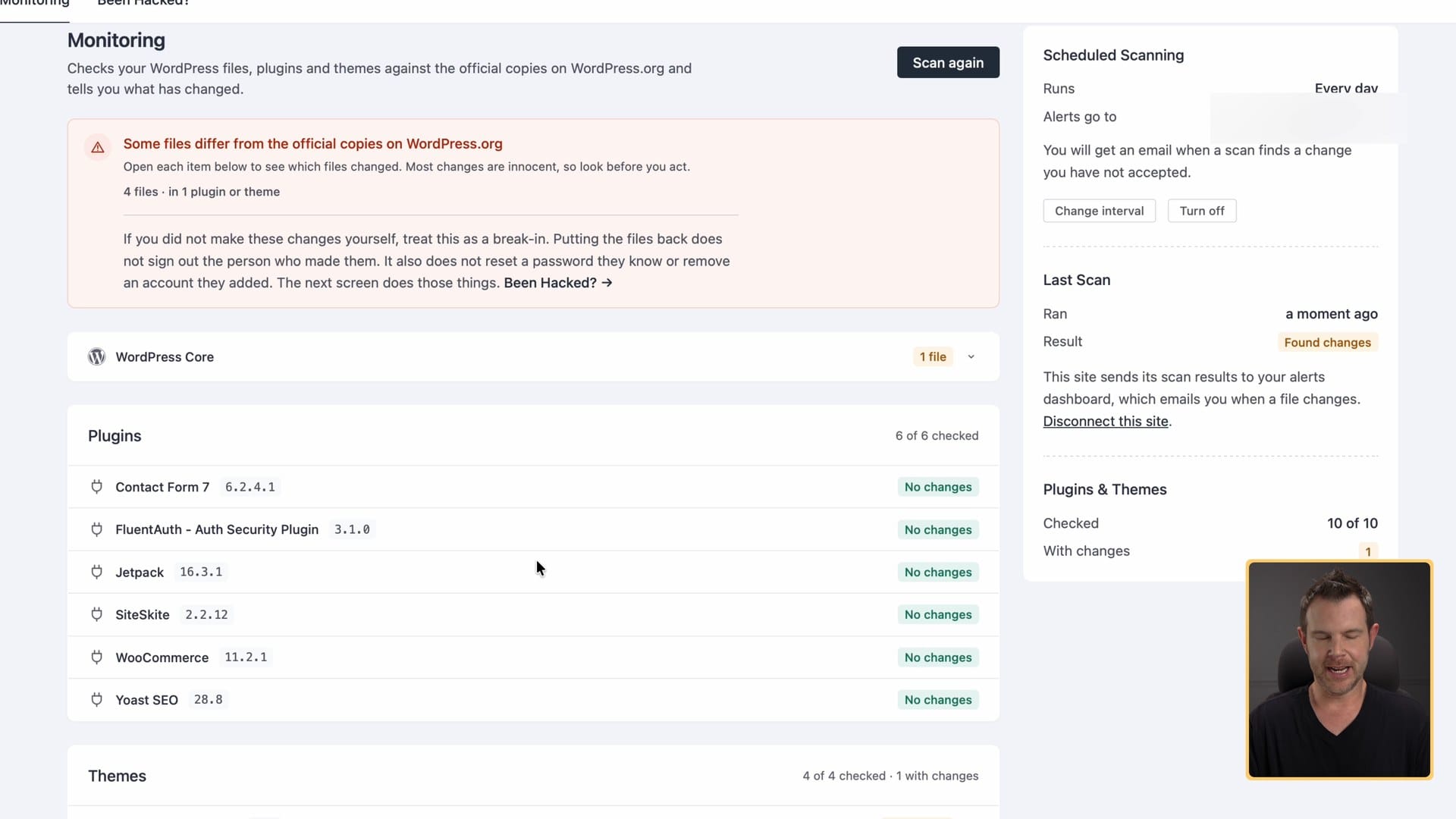
Changing files is a common way hackers get in. They get into a plugin, sometimes through the developer, and use a backdoor to redirect links on your site to theirs, change your pages, lock you out, or do all sorts of malicious things. File monitoring runs on a schedule and looks for changes in the code (the stuff you'd never see as a visitor) so you can put the original back before a backdoor gets used.
Click Setup, and you get two options:
- Connect to FluentAuth's server. Give them your name and email, and the checking happens on their server. They email you an API key, you paste it in, and FluentAuth scans every day and emails you when something changes.
- Don't connect. You can still scan, but you lose the scheduled scans and the email alerts, so you'll have to be more proactive.
I personally don't have an issue with using their API, but I'm not recommending that you do. Read their terms and make sure they line up with your company's values. Plenty of people will be nervous about connecting a site to an outside server, and I understand why.
Reading the scan results
The scan checks WordPress core (the main application), your plugins and your themes. It can also check must-use plugins and any premium plugins you've added, but you run those scans individually, and you can choose which premium plugins to track.
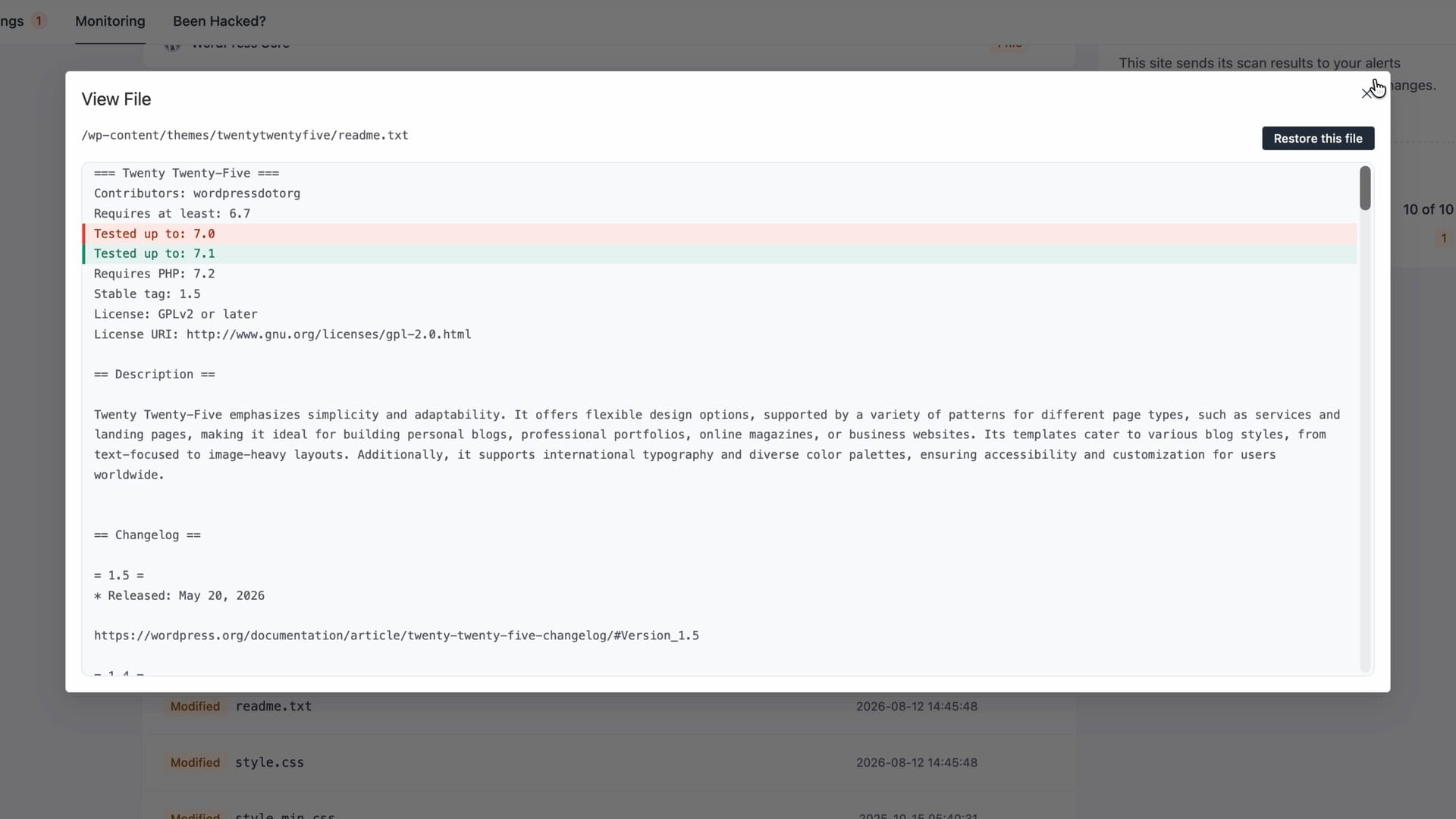
On my demo site, the scan flagged the Twenty Twenty-Five theme as "not original." Should you panic? No. Open the file and look at what changed. In my case, one line said the theme was "tested up to" 7.0 and the official copy said 7.1. Nothing else had changed, so it was fine. When that happens, click the three dots and choose Add to ignore list. A second file, the theme's style.css, had the same kind of harmless difference.
If a change is suspicious, restoring the original is one click: Restore, confirm, done.
You'll find all of this under Security → Monitoring. If you don't set up the recurring scans, run one yourself at least once a month or so. I've seen malicious code lie dormant on client sites for months. I'll take over a site, the scans find no viruses, and a few months later a file that hasn't changed in years wakes up and starts doing malicious things. It's WordPress. You've got to be prepared for the ridiculous and the unusual.
If your site gets hacked: the Been Hacked page
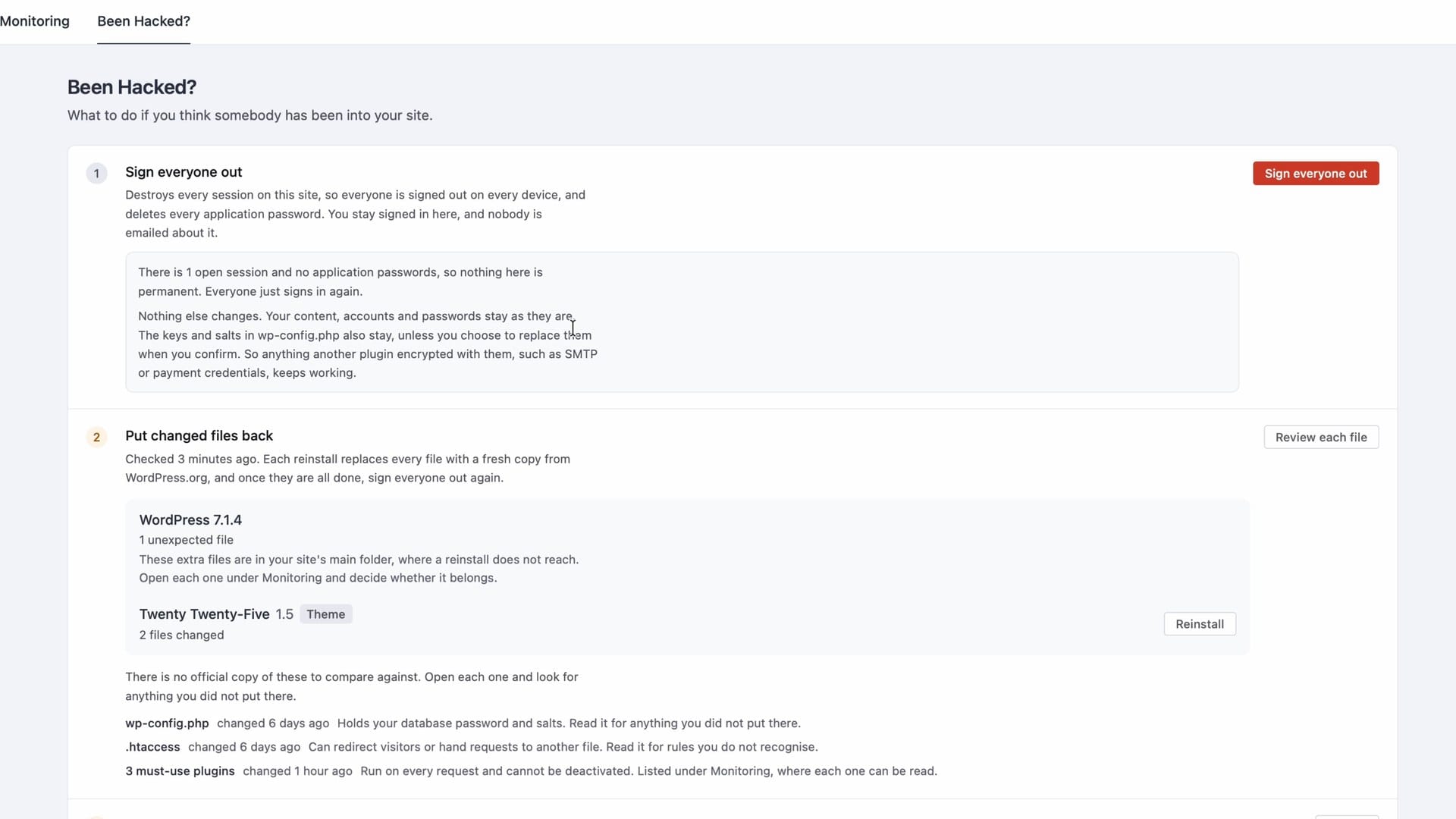
This is one of my favorite pages in the plugin. Go to Security → Been Hacked and you get a four-step recovery process.
- Sign everyone out. One button, and everyone has to log in again.
- Put changed files back. This takes you to the monitoring screen, so you can figure out what actually changed.
- Check who has access. Do you have more administrators than you need?
- Ask everyone to choose a new password. You can do this for just administrators or for every user. Sometimes a vulnerability lets an ordinary logged-in user make changes to your site. That's not common, but it happens.
Step 3 is worth doing today, hacked or not. Look at who's an administrator on your site. Are there old support accounts that don't need access anymore? People who used to work for your company? Delete those accounts. You can always create a new one if you need it again. Leaving old accounts around is like having spare keys tucked under mats all over your house. They don't need to exist.
Activity logs
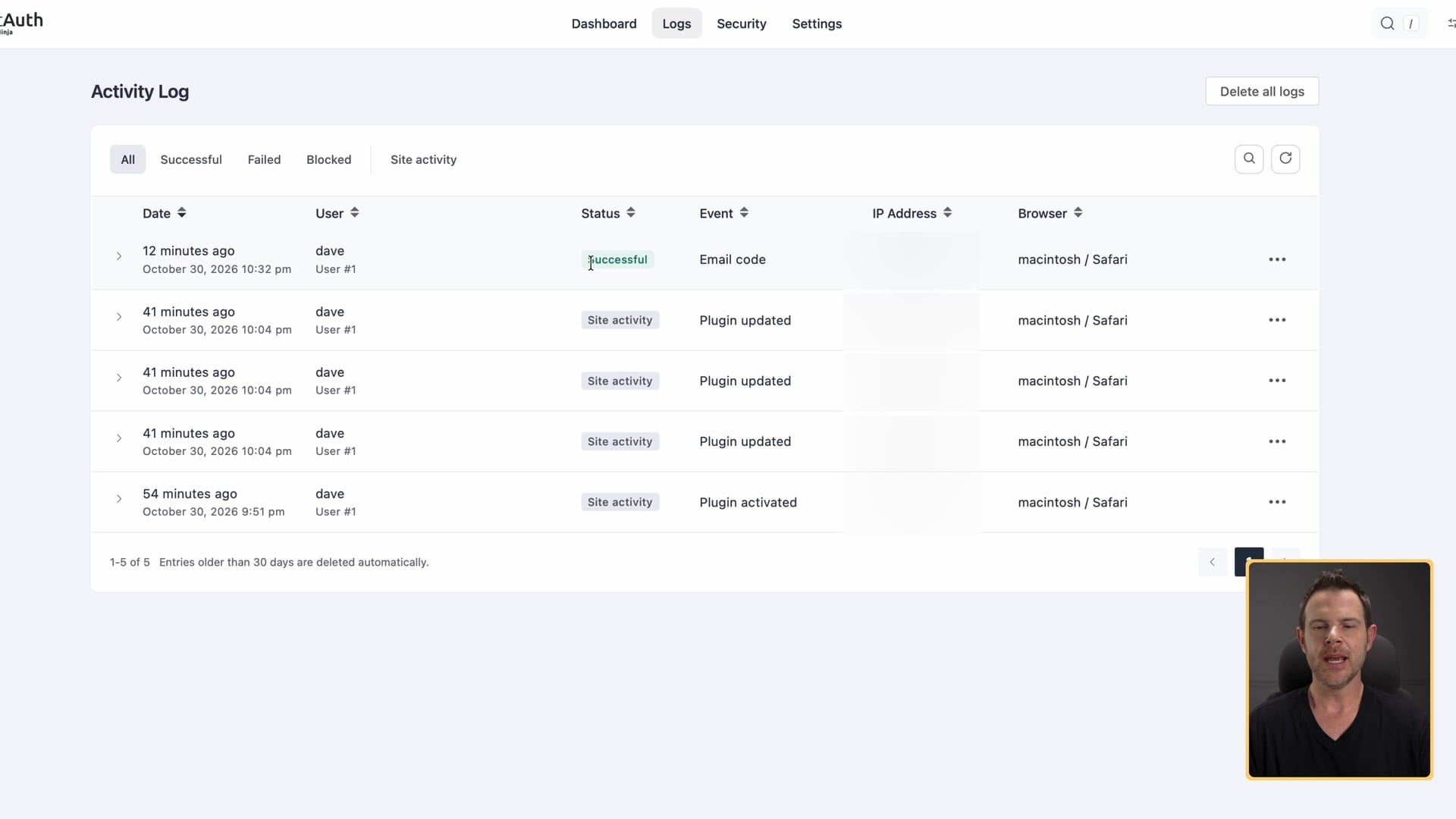
If you want to know who logged in right before your site got hacked, open Logs. FluentAuth keeps a record of everything happening on your site, from every user: a successful login, a plugin update, all of it.
Logs are kept for 30 days. You can delete all of them at any time, or click the three dots on one entry to delete it. From that same menu you can allow or block that entry's IP address, so that person either never gets locked out or can never log in again.
If FluentAuth stopped here, it would already be an amazingly generous contribution to the WordPress community from WPManageNinja. It doesn't stop here.
Everything else in the settings
Here's the rest, quickly.
Require two-factor by role
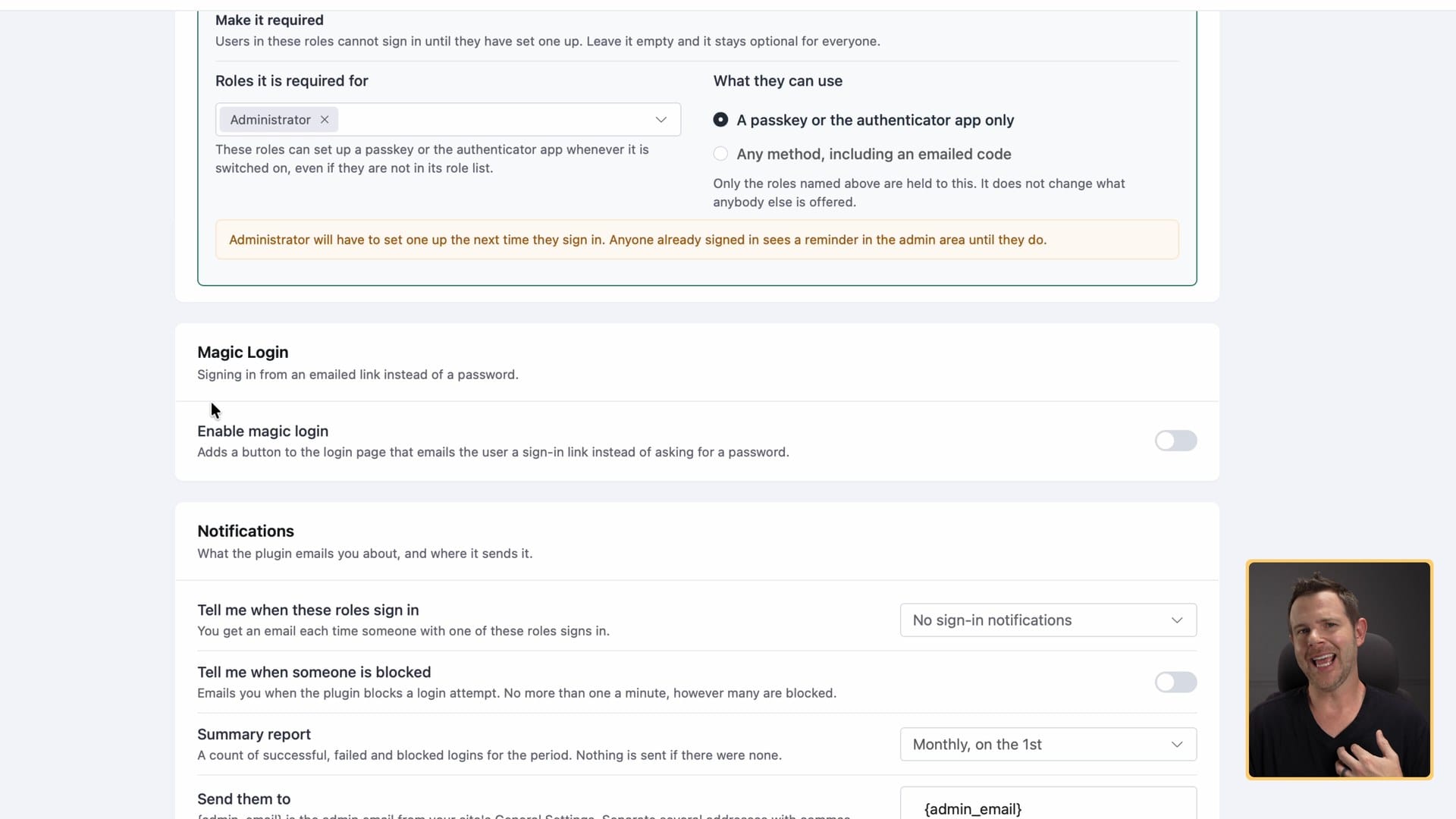
Settings → General Settings is where you change everything from the setup wizard: the protections, login blocking and two-factor methods. It's also where you can make two-factor required for a role. Require it for administrators and leave it optional for customers. I love that.
You can also allow only passkeys and authenticator apps, or allow emailed codes too (which, again, are less secure). The defaults here are so good. It's very clear the people who made this plugin know security.
Magic logins
General Settings also has magic logins: no password, just an emailed link every time you log in. Personally, I hate magic logins. A lot of tools only allow them. I don't love it, but obviously it can work if that's what your site needs.
Below that are options for notifications, visitor IPs and some advanced settings.
See who has set up two-factor
The 2FA Enrollment screen shows which users have set up two-factor and which method they use. It also lists the people who haven't, so you can let them know you're patiently waiting for them to secure their account.
If someone gets locked out, this is your fallback. Click the three dots to open their profile and reset their two-factor.
IP access rules
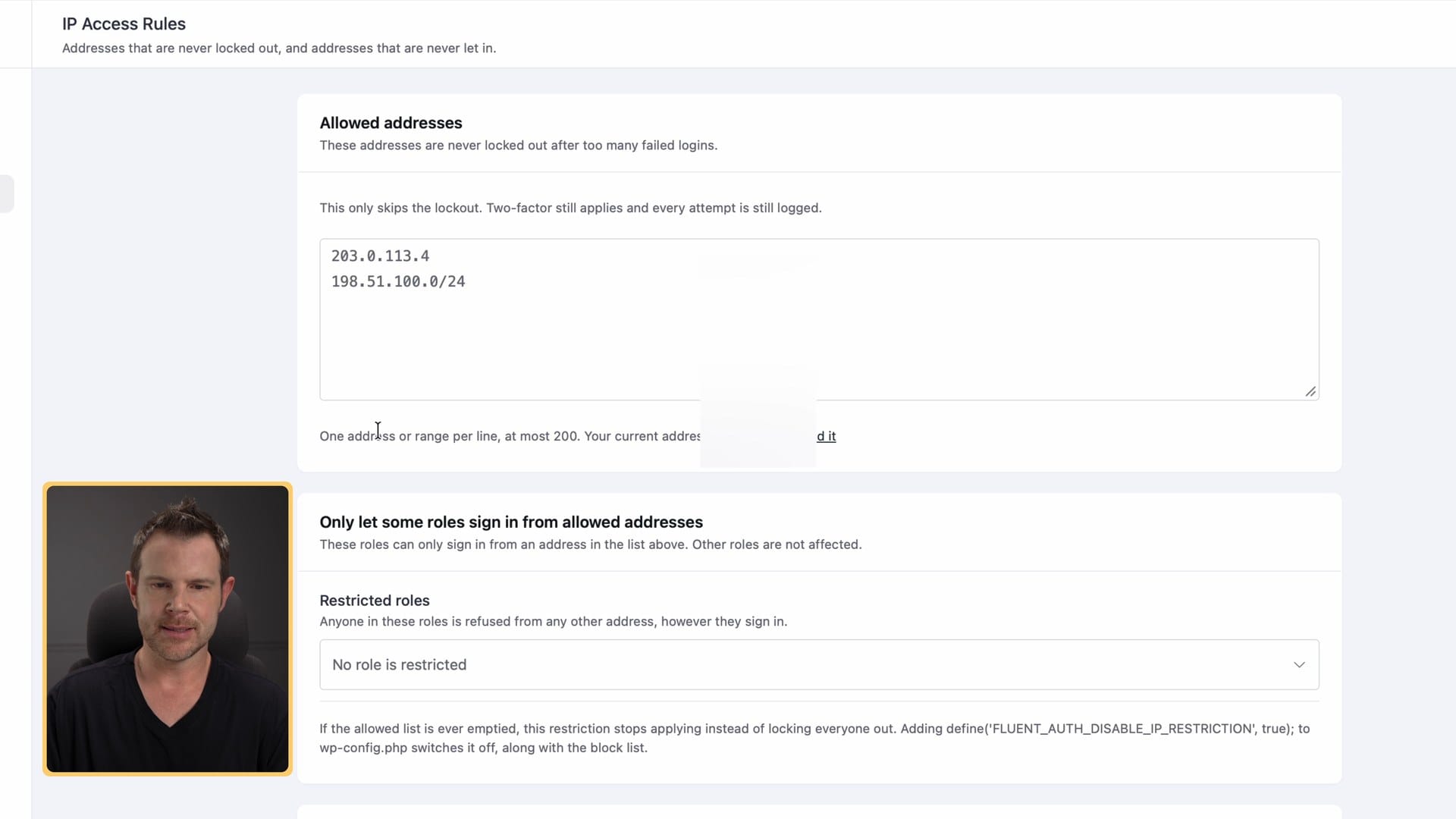
You can block or allow specific IP addresses here, like your company's office address. Remember what I said earlier: a lot of home internet addresses change fairly often, so don't rely on this for allowing access.
Bot protection with Cloudflare Turnstile
This adds one of those little "prove you're a human" checkboxes to your login. I don't know how these still work now that we have AI, but they do keep a lot of spam signups off your site.
I use Turnstile on all of my sites. I used to add it with other plugins. Going forward, I'll do it in FluentAuth, because it's nice and simple to have it in one plugin. FluentAuth gives you directions to set it up. Turnstile is free with a Cloudflare account, and you should probably be using Cloudflare with your sites anyway.
Social login
You can let people log in with Google, GitHub or Facebook. I almost never use this. I'm not a fan of social logins.
A custom login page
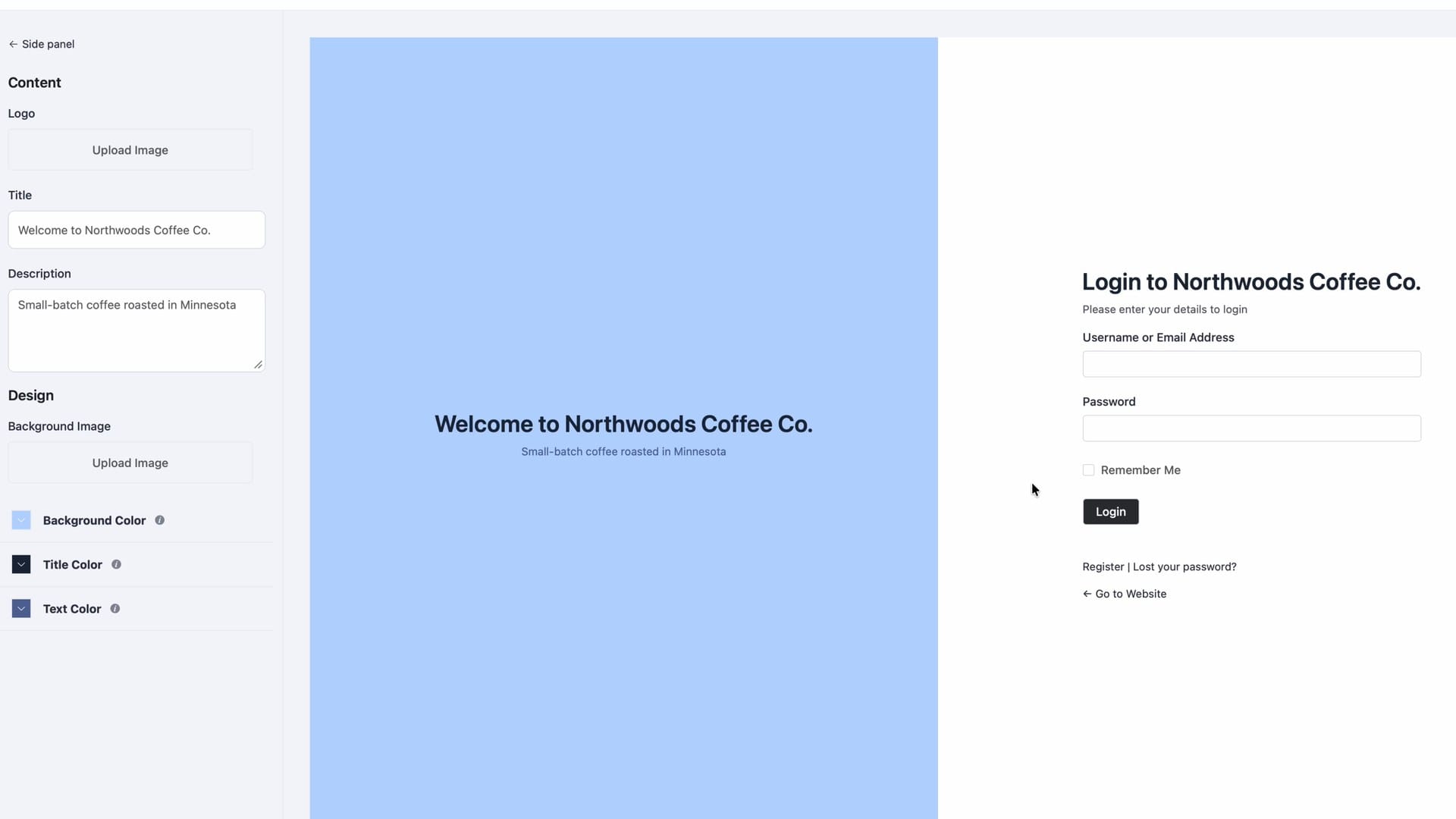
This is the feature that surprised me most, because it isn't about security. It's about looks. Under Login and Sign-up Forms, toggle on the designer and you can add a banner, change the background color or upload a background image, and change the text color. It won't give you every possible customization, but it looks good, and it's certainly better than the default WordPress login. You can fully replace that ugly WordPress sign-in page.
There are also shortcodes for login-only, registration-only and password-reset forms, so you can put a login form on any page (in a sidebar, for example).
Login redirects
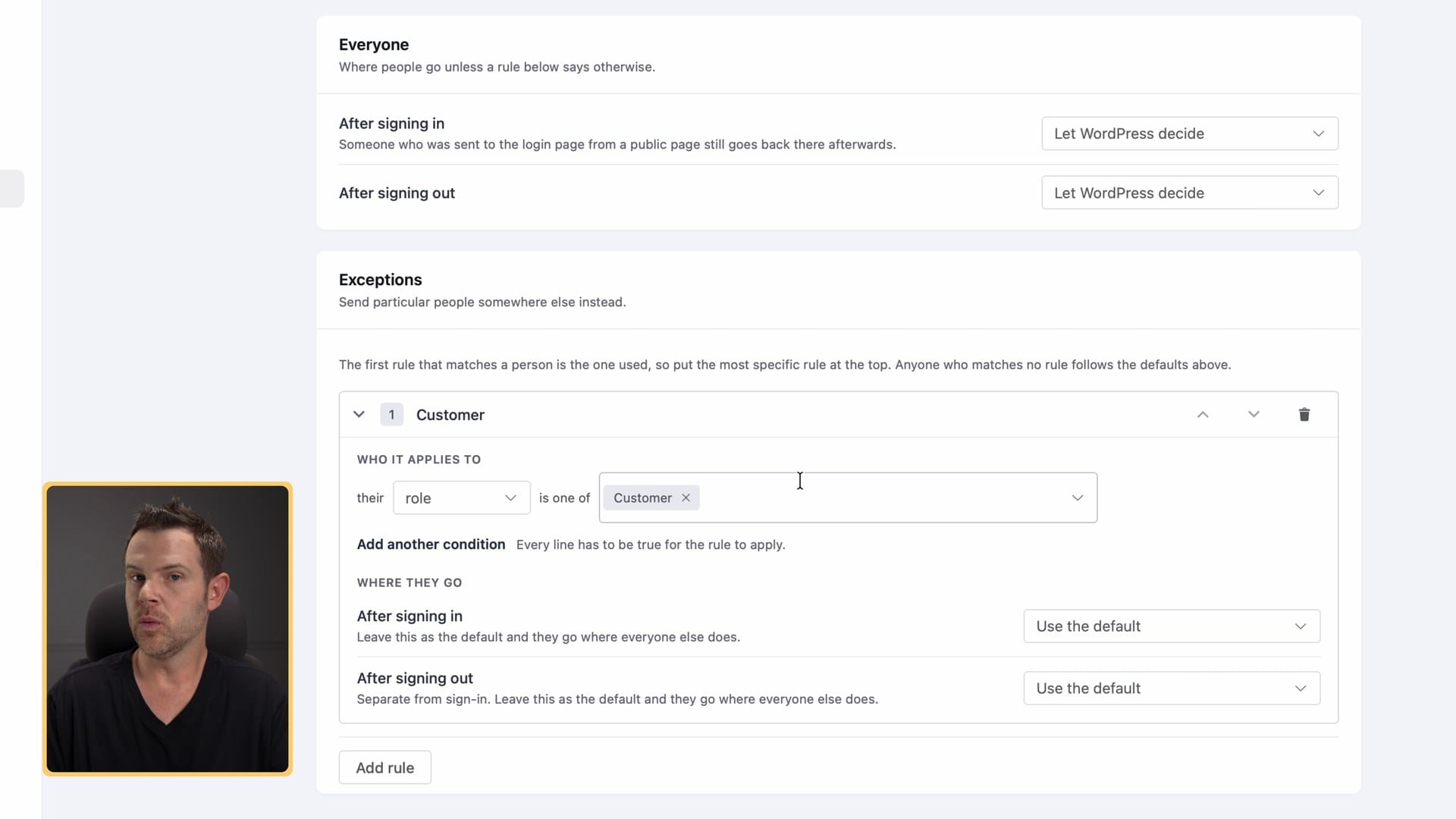
You can send people to a specific page after they sign in or out, with rules for everyone or for certain users. For example:
- Customers go to their My Account page after signing in. After signing out, they land on your latest promotion, so they have a reason to come back and buy something.
- Administrators go to the WordPress admin, or wherever you want.
They're putting a lot of plugins out of business with this. It's one less thing to install, and again, it should probably be part of WordPress core.
Email alerts
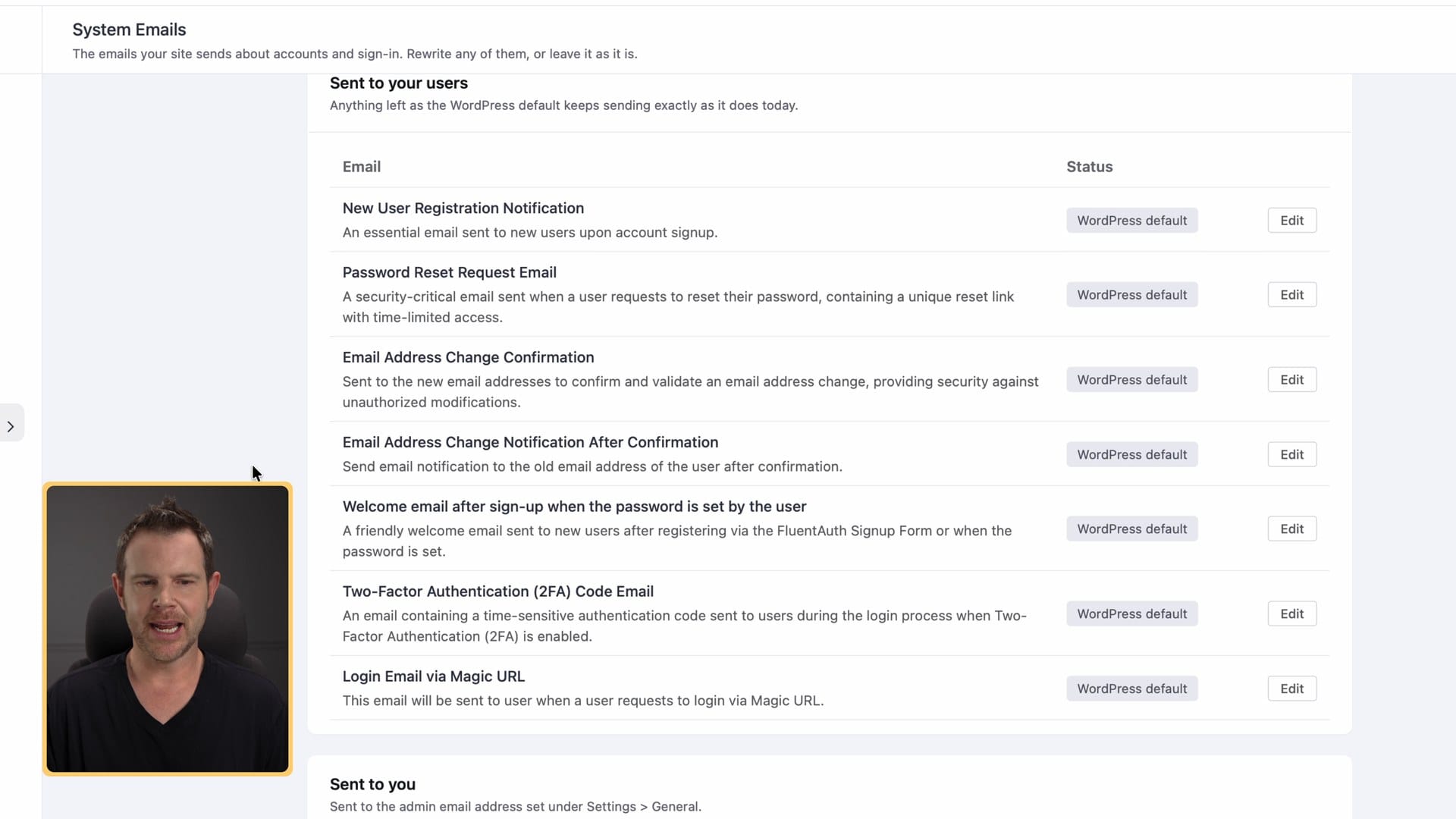
There's an email alert for virtually everything that can happen in the plugin, and you can design what those emails look like. Gosh, it sure would be nice if WooCommerce could do this.
My recommended FluentAuth settings
If you want the short version:
| Setting | My pick |
|---|---|
| Two-factor methods | All three on. Passkeys if you only allow one. |
| Emailed codes | Leave on during setup; it's the least secure method. |
| Who gets two-factor | Administrators, editors and authors (the default). |
| Required two-factor | Turn it on for administrators in General Settings. |
| Failed attempts | On: 5 failures in 30 minutes, unless your host or another tool already does this. |
| Protections | All on: block XML-RPC, hide usernames, verify signup emails. |
| Login digest emails | Off. |
| File monitoring | Set it up. If you skip FluentAuth's server, scan by hand monthly. |
| Admin accounts | Audit them today. Delete what nobody uses. |
Install it today
FluentAuth is an amazing, free way to protect your WordPress website, and I recommend installing it on all of your WordPress sites right away. Start with the setup wizard and require two-factor for your administrators. Then delete the admin accounts nobody uses anymore.
It's free, so if you want to support the people who make it, use and buy some of WPManageNinja's other plugins, like Fluent Forms, Fluent Community and Fluent Player. (The Fluent Forms and Fluent Community links are my affiliate links.) You can get FluentAuth itself free on WordPress.org.
And remember that the plugin protects the front door. The server is the host's job. I've been recommending Cloudways since 2018 on my channel, long before they were a sponsor. They're security-minded, they're not some fly-by-night operation, and their plans include a server firewall, malware scanning and a vulnerability scanner that flags risky plugins. If you're looking for new hosting, sign up with my Cloudways link and use code DAVESWIFT for $10 in free hosting credits.
If you have questions about your setup, ask me in the comments on the video.
Get Dave's Toolbox
The tools I actually use, every Tuesday. Free. No spam.
No cost. No spam. Unsubscribe anytime.