
How to Install Waiting On You in Hermes
A step-by-step guide to installing Waiting On You, my free Hermes plugin. Answer the two install questions, turn on the Desktop switch most people miss, restart the gateway if it was running, and get your first task list.


Waiting On You is my free Hermes plugin. It finds every spot where an agent is waiting on you and puts those asks in one task list in Hermes Desktop. If you want to know what it does first, read the main post. This guide is only the install.
It takes a few minutes. Most of it happens in Terminal, and one switch is in Hermes Desktop. That switch is the step people miss.
What you need
- Hermes 0.21.5 or newer
- Hermes Desktop, because that's where the list shows up
- macOS or Linux (Windows is untested, so use WSL there)
Waiting On You is free and open source (MIT).
Step 1: Check your Hermes version
Open Terminal and run:
hermes --version
The first line shows your version. If it's older than 0.21.5, update Hermes:
hermes update
If you only want to see whether an update is waiting, hermes update --check checks without installing anything.
Step 2: Install the plugin
Waiting On You is in the Hermes plugin catalog, so you can install it by name:
hermes plugins install waiting-on-you-desktop --enable
The name ends in "-desktop" because another plugin already uses waiting-on-you. You can also install it straight from GitHub with hermes plugins install clientamp/waiting-on-you-desktop --enable, but the catalog name is the one I'd use.
Hermes prints a description of the plugin, including what it sends to your model. Then it asks you two questions. Both default to No if you just press Enter, so read them.
The first one is about Node:
waiting-on-you-desktop declares Node dependencies (package.json).
  Install them into the plugin's own node_modules now? [y/N]:
Type N and press Enter. The panel comes pre-built, so it doesn't need them. Hermes prints Skipped Node deps, and that's fine.
The second one is about Python:
waiting-on-you-desktop declares Python dependencies:
  - PyYAML>=6,<7
  Prepare these with Hermes through PM now? [y/N]:
Type y and press Enter. The plugin needs this one. Hermes resolves the Python packages, then finishes with:
✓ Plugin waiting-on-you-desktop enabled.
To double-check, run hermes plugins list --plain --no-bundled. You should see a line with enabled, 1.0.2 and waiting-on-you-desktop.
Step 3: Turn on the Desktop panel
This is the step people miss. --enable turns on the agent half of the plugin. It doesn't turn on the panel in Hermes Desktop. You do that yourself.
- Open Hermes Desktop.
- Go to Capabilities → Plugins.
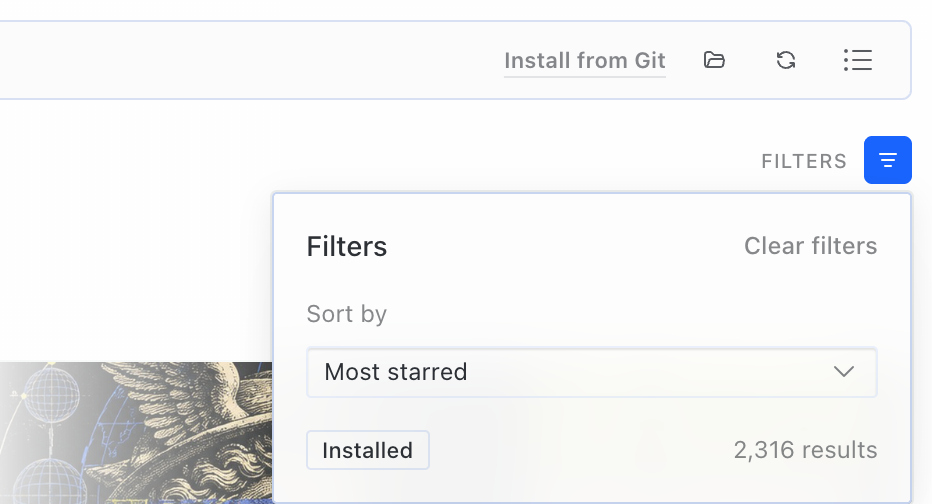
- Click FILTERS and pick Installed, or search for it.
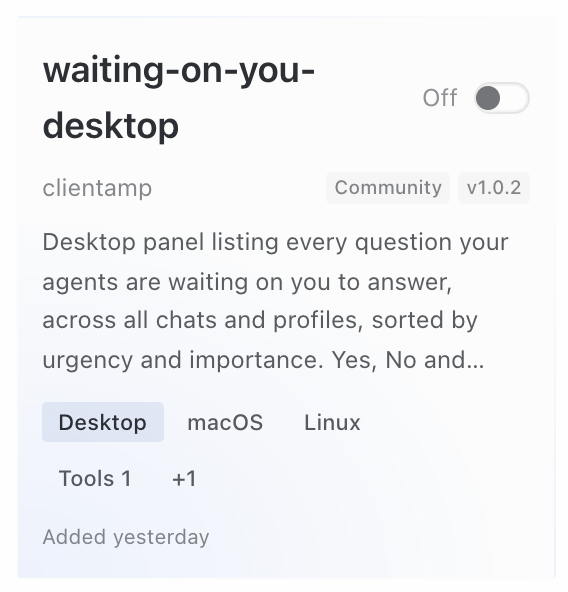
- Find the card labelled waiting-on-you-desktop. Its switch says Off. Click the card.
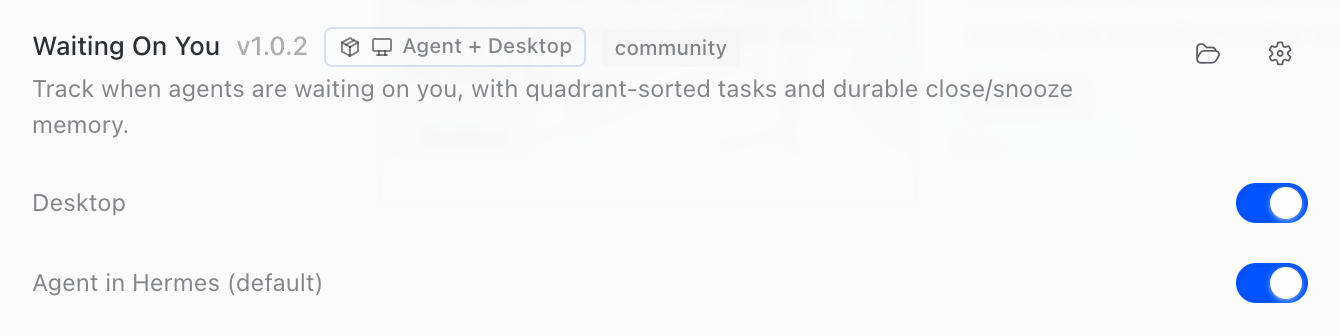
- A dialog opens, titled Waiting On You v1.0.2 · Agent + Desktop. It has two switches. Agent in Hermes (default) is already on. Desktop is off. Turn on Desktop.
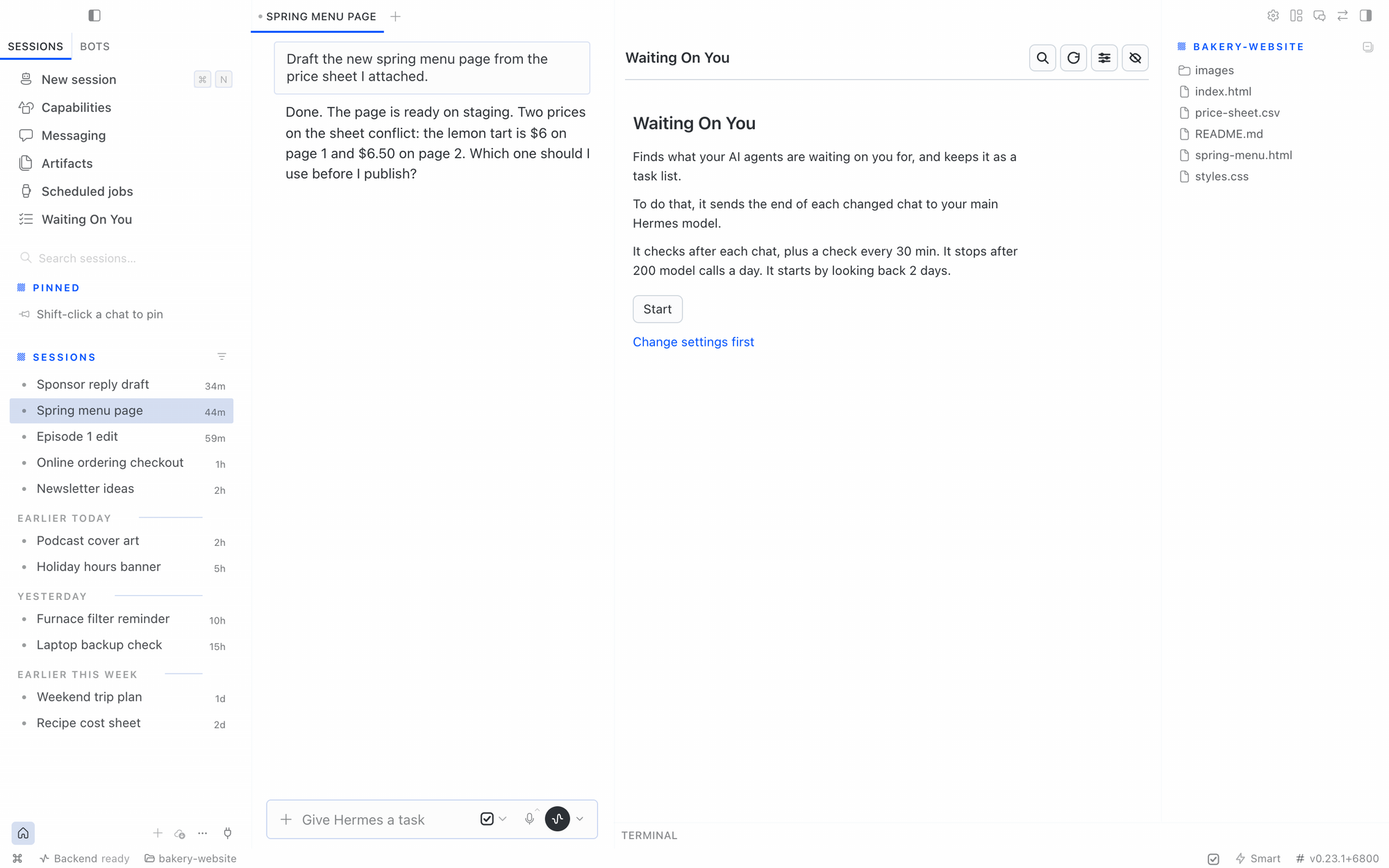
Back on the list, the card now says On. A Waiting On You item shows up in the left sidebar right away, and a checkbox button shows up in the status bar at the bottom. That button is Show Waiting On You (⌘⌥Y). You don't need to restart Desktop to see them.
Step 4: Restart the gateway (if it was already running)
The part that scans your chats runs in the Hermes gateway. If your gateway was already running before you installed the plugin, restart it once so it loads:
hermes gateway restart
Run this in Terminal, not inside a Hermes chat, because it interrupts live chats. If an agent is in the middle of something, Hermes lists that work and asks y/N before it restarts. Adding -y skips the question.
Don't add --all. That kills every gateway across all your profiles, and you don't need it here.
Step 5: First run
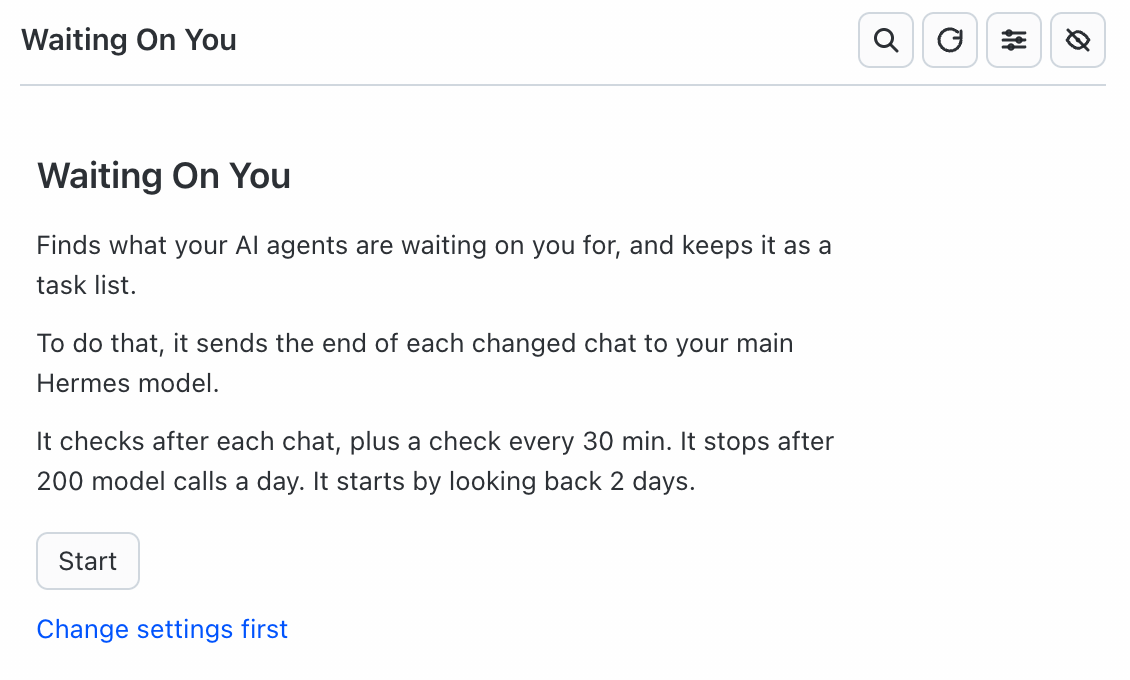
Open Waiting On You from the sidebar. The first screen explains what it will do: which model reads the end of your chats, how often it checks, the daily limit, and how far back it looks. Nothing goes to a model until you click Start. If you want to change something first, click Change settings first.
After Start, you get three optional steps. You can skip all of them.
- Pick a decision model (optional). Provider is set to Off. Click Skip for now, or pick one and click Next (more on this below).
- Suggest tags from your recent chats. Click Skip for now if you don't want tags yet.
- Teach priorities now? This is a quick quiz where you sort 10 tasks by hand. Click Later to do it another time from Settings.
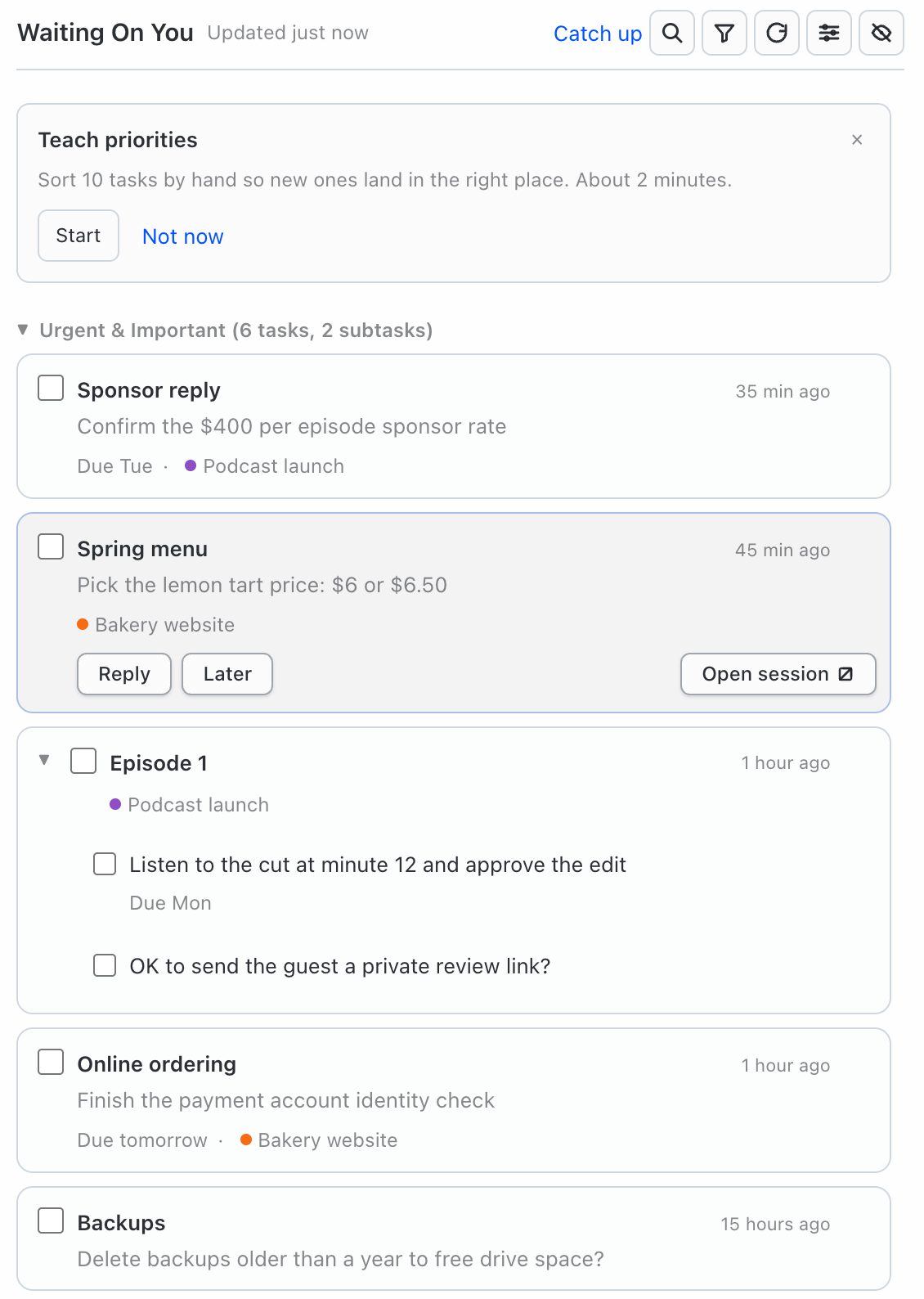
The first scan runs, and your open asks fill the list, sorted by urgency and importance.
Optional: Add a decision model
A decision model is a small, fast model that answers yes/no and rating questions. Waiting On You can use one to skip chats with nothing waiting, so your main model gets fewer calls. You don't need one. I use TypeSafe Jev.
When you pick a provider, the panel tells you which key it needs. The key doesn't go in the panel. It goes in Hermes:
- In Hermes Desktop, open Capabilities → Plugins and click the waiting-on-you-desktop card.
- Click the gear icon in the dialog. That opens Settings › Plugins › waiting-on-you-desktop.
- Paste your key in the right field and click Save settings.
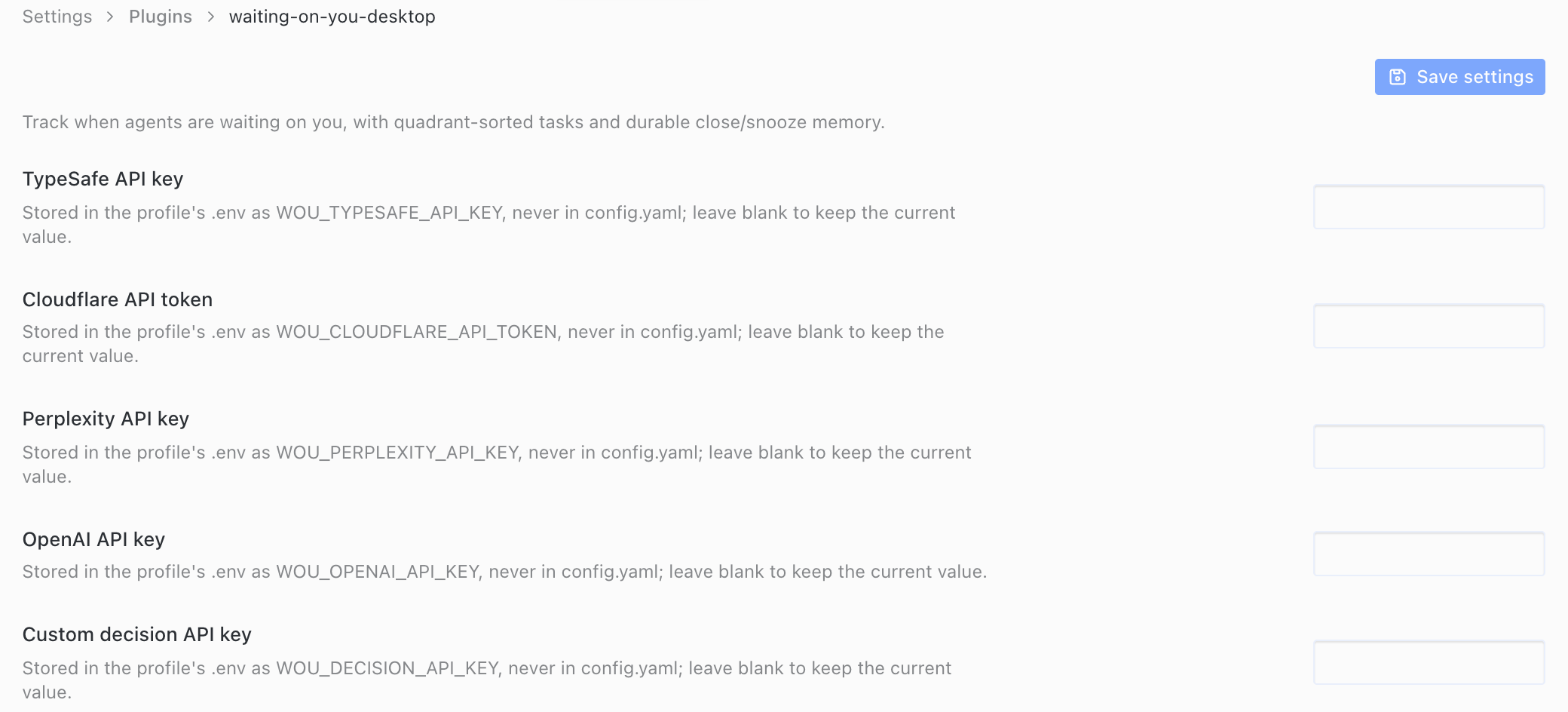
The panel's hint says "Hermes Settings › Plugins › Waiting On You." In Hermes, the page is labelled waiting-on-you-desktop. It's the same place.
To change the decision model later, open the panel's settings (the sliders icon) and find Decision model (optional).
Using it on more than one computer
There are three ways this can go, depending on what you want.
A separate list on each computer. Install the plugin on each computer with the same steps. Each computer keeps its own task list in ~/.hermes/plugin-data/waiting-on-you/ on that computer. The lists don't sync with each other, and this version doesn't support syncing them.
One list that also includes chats from another computer. Install the plugin only on your main computer. Then, on that main computer, open ~/.hermes/plugin-data/waiting-on-you/config.json (create the file if it doesn't exist) and add the other computer:
{
  "collect": {
    "remote_hosts": [
      { "name": "studio", "ssh_host": "studio", "state_db": "~/.hermes/state.db" }
    ]
  }
}
nameis the label you'll see in the panel.ssh_hostis what you'd type afterssh. That can be a host name or an alias from your SSH config.state_dbis that computer's Hermes chat database. It's normally~/.hermes/state.db. A Hermes profile on that computer lives at~/.hermes/profiles/<name>/state.db. Add one entry for each database you want read.
For this to work, ssh studio has to log you in without a password prompt (key-based login), and the other computer needs python3. It doesn't need the plugin. Waiting On You reads that computer's Hermes chats over SSH, read-only, and writes nothing there. It's off until you add a host. The config is read on every scan, so you don't need to restart anything.
If the other computer can't be reached, the panel shows a "can't be reached" warning, and old copies of its chats are never sent to your model again. Yes, No and Reply only work for chats open in this Desktop window, so tasks from the other computer get an Open button instead.
Only add computers you trust. The end of each chat from that computer goes to the same model as your local chats.
Hermes Desktop on a different Mac than Hermes. If your Desktop app connects to Hermes on another machine, Desktop loads the panel from the Mac where Desktop runs. Copy desktop/plugin.js from the GitHub repo to ~/.hermes/desktop-plugins/waiting-on-you-desktop/plugin.js on that Mac.
Update later
Check for an update:
hermes plugins check-updates
Then install it:
hermes plugins update waiting-on-you-desktop
If it says the plugin is already at the catalog pin, you're on the latest version. After an update, run hermes gateway restart again and restart Hermes Desktop.
Uninstall
hermes plugins remove waiting-on-you-desktop
It doesn't ask first. It prints a red ✗ with "removed." That's normal, not an error.
Your task list stays in ~/.hermes/plugin-data/waiting-on-you/, so if you reinstall later, your tasks are still there. A copy of the panel may also stay in ~/.hermes/desktop-plugins/waiting-on-you-desktop/. If you want a clean slate, delete both folders.
Troubleshooting
The card still says Off. The terminal install doesn't turn on the panel. Click the waiting-on-you-desktop card and turn on the Desktop switch (Step 3).
The panel is missing. Check that both switches in the plugin dialog are on. Then restart the gateway (Step 4), and quit and reopen Hermes Desktop.
I can't find "Waiting On You" in Settings. The panel's hint uses the display name. In Hermes, look for Settings › Plugins › waiting-on-you-desktop, or click the gear on the plugin's dialog.
I pressed Enter on the Python question. That answers No, and the plugin may not be enabled. Run the install command again and type y at the Python question.
If you want to hear when I improve Waiting On You, join my newsletter. You'll also get my weekly exclusive videos and guides.
Waiting On You is listed on the Hermes Marketplace, and the code is on GitHub.
Get Dave's Toolbox
The tools I actually use, every Tuesday. Free. No spam.
No cost. No spam. Unsubscribe anytime.