
Waiting On You: A Task List of Everything Your AI Agents Need From You
Waiting On You is a free Hermes plugin that reads your agent chats and builds one task list of everything your agents are waiting on you to do. You can answer many of them right from the list.


I have a lot of AI chats going. Different Hermes agents, different profiles, sometimes a different Mac. Each one does its work and then stops to ask me for something. Connect this account. Approve this reply. Pick a thumbnail.
The problem is that the ask sits at the bottom of a chat I'm no longer looking at. The agent is waiting on me, and I don't know it.
So I built Waiting On You. It's a free Hermes plugin that reads your chats, finds the spots where an agent is waiting on you, and puts them in one task list in the Hermes Desktop sidebar. For a lot of those asks, you can answer right from the list.
I made a short video for the Hermes Agent Plugin Hackathon that shows how it works:
My entry for the @NousResearch Hermes Agent Plugin Hackathon: Waiting On You.
— Dave Swift (@daveswift) November 11, 2026
I run a lot of agent chats, and their questions get buried. This Hermes Desktop plugin finds every ask, ranks them by what matters, and lets me answer from one list. Yes, No, Reply, with five seconds… pic.twitter.com/eusYsG3LKk
What it does
Waiting On You watches every Hermes profile on the computer where it runs. It reads chats from Hermes Desktop, the terminal UI and WebUI. It doesn't read messaging apps like Telegram or Slack, and it doesn't read cron runs. When an agent asks you to do something, that ask shows up as a task.
Tasks are sorted into Stephen Covey's four quadrants: Urgent and important; Important, not urgent; Urgent, not important; and Not urgent, not important. The top of the list is what you should do first. If you'd rather see them another way, you can group tasks by project, or not group them at all.
Answer from the list
A list tells you what's waiting. I also wanted a place to answer it.
Pick a task and you get five buttons:
- Yes and No send that word into the chat.
- Reply lets you type your own answer.
- Later snoozes the task until tomorrow at 8 AM.
- Open session opens the chat so you can look first.
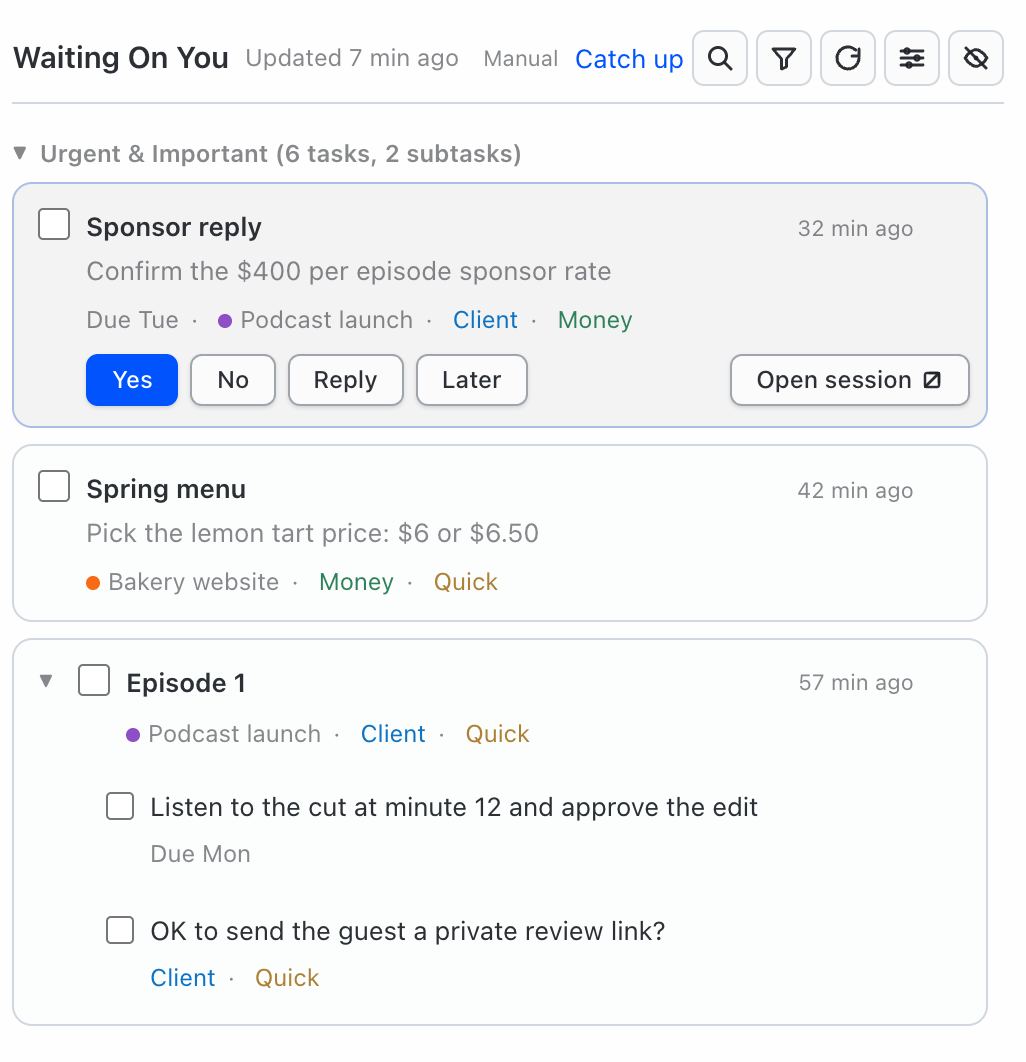
Each one has a key: Y, N, R, L and O. J and K move up and down the list. If you want the buttons on every task instead of only the selected one, press ⌘⌥A.
Nothing goes out right away. You see a note that says Sending "Yes" in a few seconds…, with an Undo button, so you have five seconds to change your mind. If you just want the task gone without telling the agent anything, there's a Done button for that.
It's careful about where an answer lands. It only sends into a chat this Hermes Desktop window is showing, it never overwrites something you've half typed, and it sends once. If the chat is on another machine or another profile, you get Open and a note instead, so an answer never ends up in the wrong chat.
How it works
About 90 seconds after a chat reply, the plugin looks at that chat. In Automatic mode it also checks every 30 minutes so nothing slips through. For each chat that changed, it sends the end of the conversation to a model, and the model decides whether the agent is waiting on you.
If it is, you get a task. If you already handled it, or it isn't really a task, the model sees that too.
Each task is written in plain words, with a short line underneath on what it's about and what happens if you wait.
Each chat gets one entry. If an agent asked for four things in one chat, those four asks are nested under that one entry instead of cluttering the list.
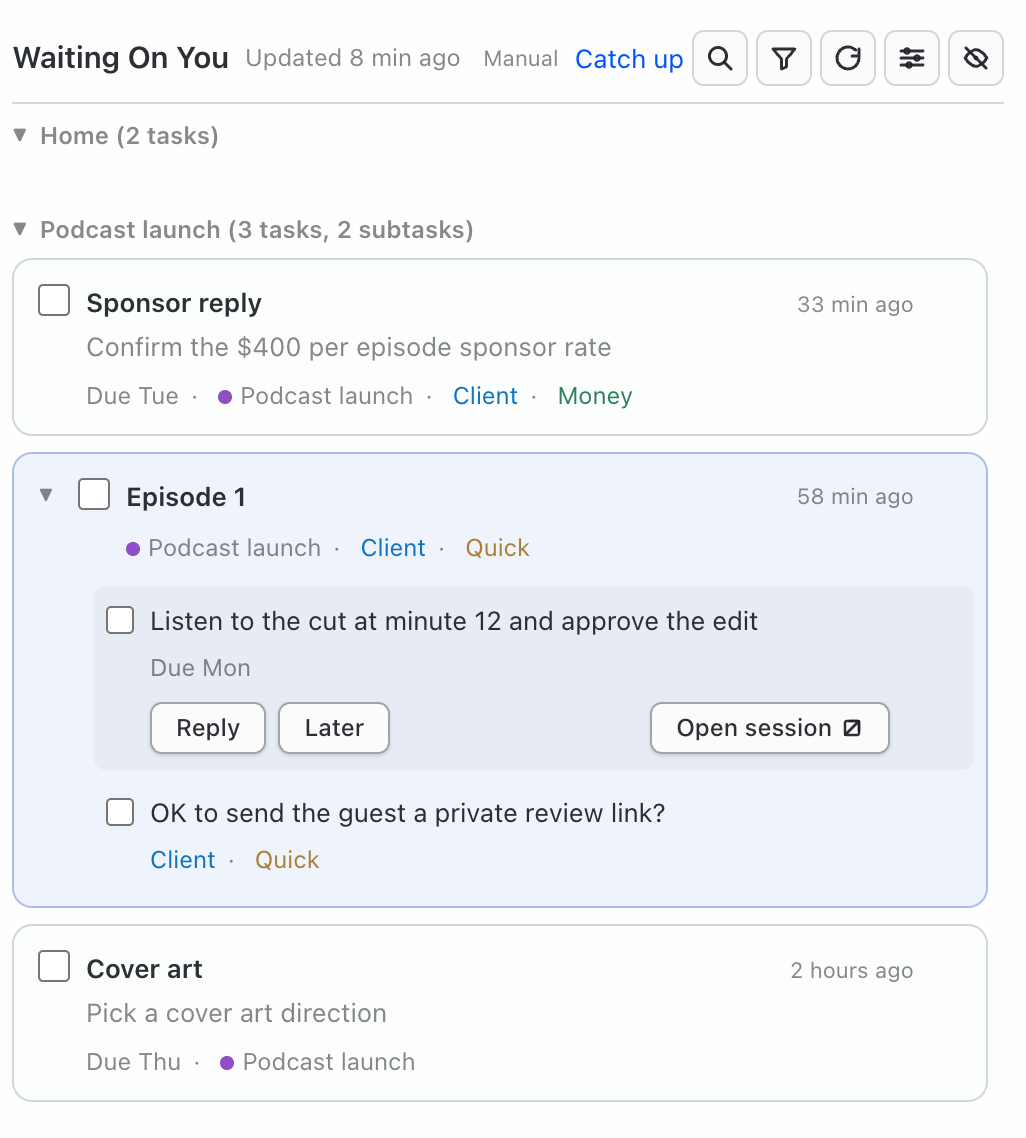
Tasks you haven't answered stay on the list until you deal with them. If you'd rather have old ones clear out, you can turn that on in Settings, and they show as "Cleared for age · not answered," never as answered.
How it sorts priorities
The model rates urgency and importance separately. If a task has a due date, it becomes urgent once that date is within two days (or overdue). That happens automatically, without another model call.
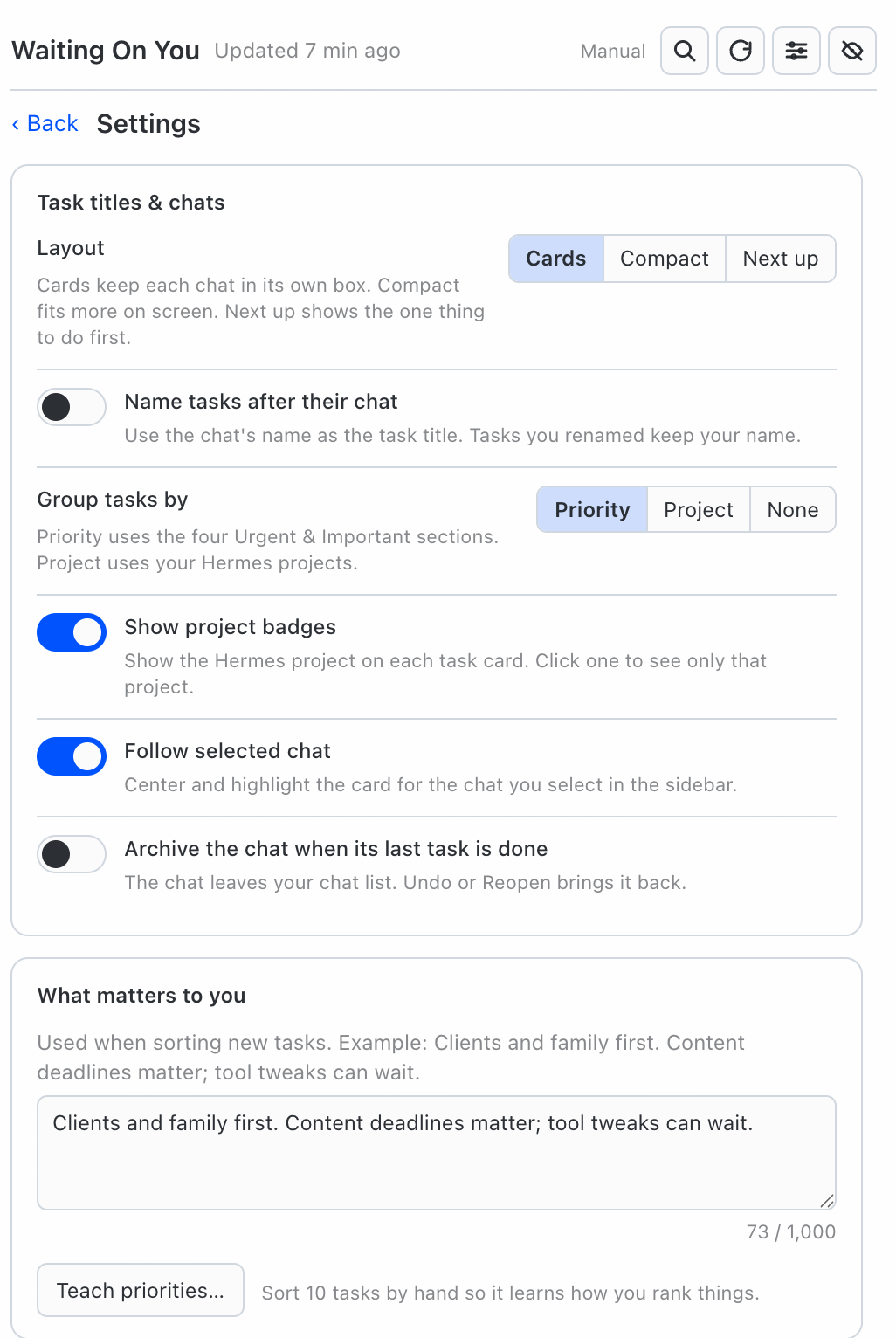
In Settings, there's a box called What matters to you. Write a sentence or two about what you care about most, like "Clients and family first. Content deadlines matter; tool tweaks can wait." It uses that when it sorts new tasks.
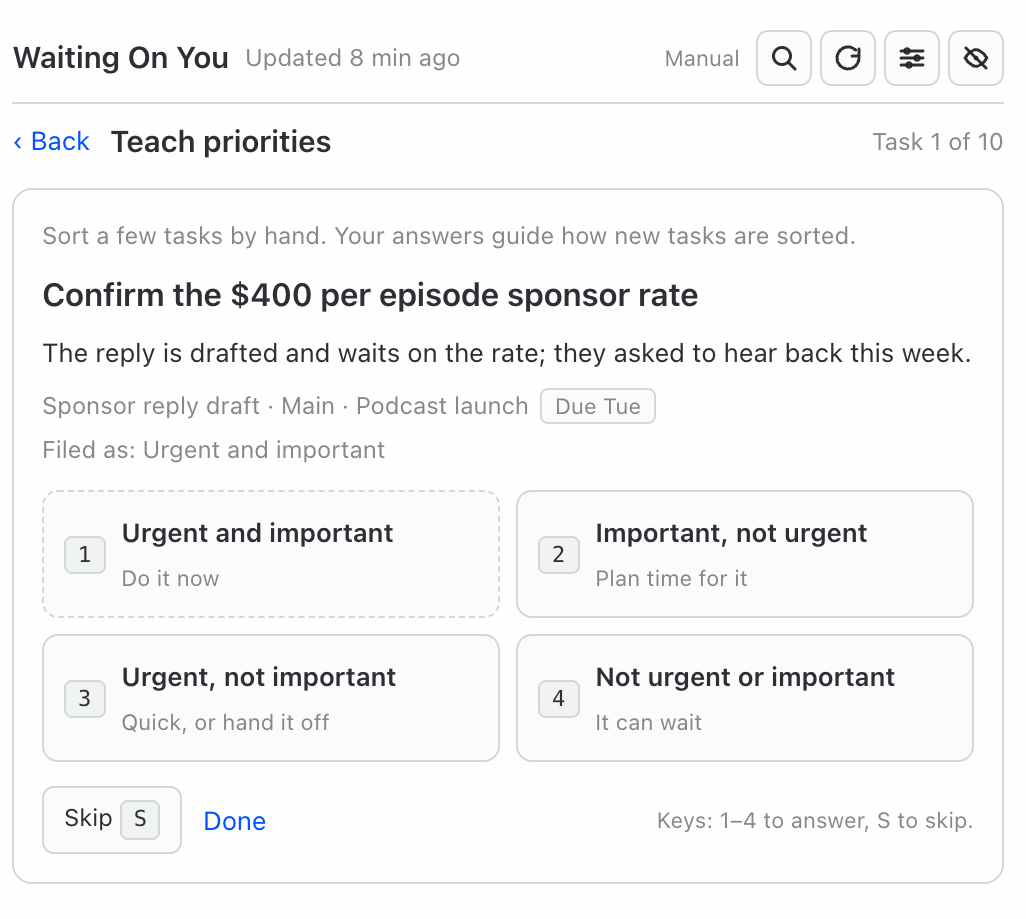
Teach priorities is a quick quiz. It shows you 10 tasks, one at a time, and you sort each one with four buttons: Urgent and important (Do it now), Important, not urgent (Plan time for it), Urgent, not important (Quick, or hand it off), and Not urgent or important (It can wait). Keys 1 to 4 pick a button, and S skips. It takes about two minutes, and your answers guide how new tasks get sorted.
It's offered once, right after the first scan. After that, it's in Settings under Teach priorities… and in the ⌘K command palette. When you move a task to a different quadrant yourself, that counts as a correction too, and that task stays where you put it.
Projects and tags
Projects come from Hermes's own Projects, based on each chat's working folder. You can filter the list by project, or group tasks by project.
If you've been away from one project for a while, use Catch up. It shows every chat in that project that's waiting on you, in one view.
Tags are your own labels. Make a tag, give it a name and a color, and put it on a task or a whole chat. Then filter the list by tag.
If you want, you can let AI add your tags. It only uses tags you made, and if you remove one from a task, it stays off. There's also a Suggest tags button. It reads your recent chat titles and suggests tags, and you add the ones you like or skip them. Nothing is saved until you add it.
Three ways to see the list
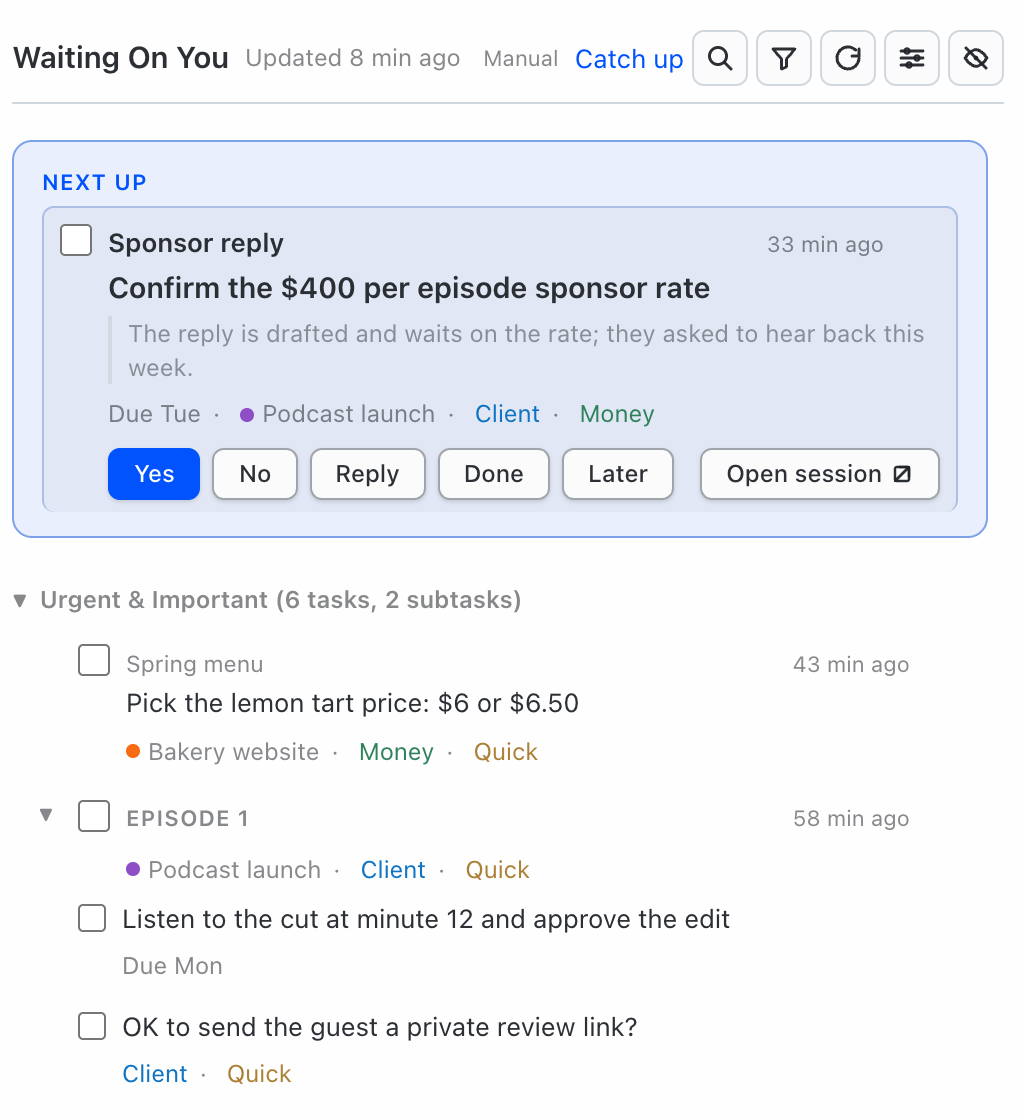
Under Settings → Layout, you can pick how the list looks:
- Cards is the default. Each chat gets its own box.
- Compact fits more on screen, with one line per ask.
- Next up puts the one thing to do first in a box with Done, Open session and Later. The rest is listed below it.
Next up is handy when you don't want to look at the whole list at once.
Features
- Done, Not a task, snooze, or move. Snooze has presets (Tomorrow 8 AM, Next Monday, In one week) plus a custom date. Move puts a task in a different quadrant.
- It remembers. Once you check something off or dismiss it, it doesn't come back on the next scan.
- Undo. There's an undo button, and ⌘Z works in the panel.
- Filter and sort. One Filter and sort button holds the agent, project and tag filters, plus newest or oldest first. When a filter is on, a one-line summary with Clear shows at the top.
- Search. ⌘F searches tasks, chats, projects and tags. You can include closed tasks too.
- Close all tasks. Right-click a chat card to close every task in that chat at once. It asks first, and you can undo it.
- Working badge. The chat you're looking at gets a Working badge while its agent is still going.
- Follow selected chat. Pick a chat in the Hermes sidebar and its task card moves to the middle and lights up. This is on by default.
- Add to Waiting On You. A button in the prompt bar adds a task by hand from the chat you're in, for anything you want to track yourself.
- Due dates. Tasks with a date show a chip like "Due tomorrow" or "Overdue."
- Why is this here? Shows the agent reply that created the task, so you can see where it came from.
- Rename with AI. If a task name isn't clear, Rename with AI is in the card's … menu. You can also have tasks named after their chat.
- Archive when done. Optionally archive a chat when you finish its last task. This is off by default, and Undo brings it back.
- Show or hide the panel. Press ⌘⌥Y, use the status bar button, or use ⌘K.
Settings
You control how often it runs. Automatic (the recommended one) checks after each chat reply, plus every 30 minutes by default. Every hour only checks once an hour. Only when I press refresh waits for you. Paused stops checking, but the list still works.
There's also a daily limit on model calls (200 by default), a usage counter so you can see calls and tokens for today and the past seven days, and a setting for how many days back it looks (2 on a new install). The daily limit covers the regular checks. It doesn't cap Rename with AI, Suggest tags, or decision model calls.
Decision models (optional)
A decision model is a small, fast model that answers yes/no and rating questions. Waiting On You can use one to skip chats with nothing waiting (so your main model gets fewer calls), rate priority, and add your tags. Your main Hermes model still writes the tasks. If a decision call fails, your main model still runs and your tasks are kept.
It works with TypeSafe Jev, Cloudflare Clef or Clef Flash, Perplexity or Perplexity Flash, and OpenAI gpt-6-luna, or your own server through Ollama. I use Jev. You add the key in Hermes's own plugin settings, under Settings › Plugins › waiting-on-you-desktop.
Nothing runs until you say so
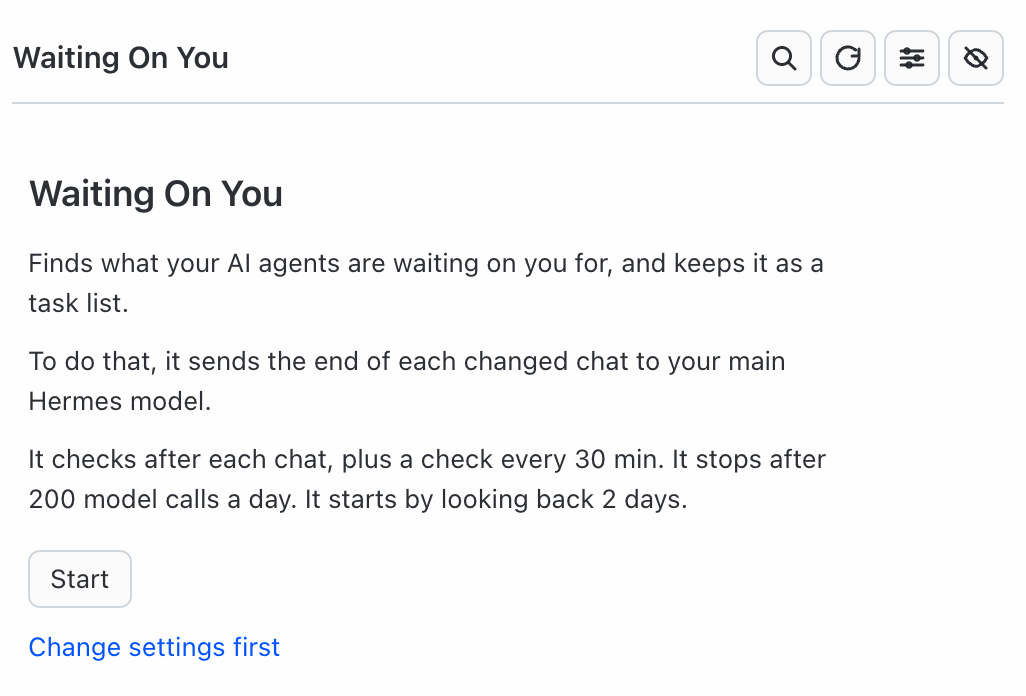
The first time you open the panel, it tells you what it will do, which model will read your chat endings, how often it checks, the daily limit, and how far back it looks. Nothing goes to a model until you click Start. If you want to change the settings first, you can. After that, it offers a few optional steps: pick a decision model, suggest tags, and teach priorities.
Chats on another machine
If you run Hermes on more than one computer, Waiting On You can read chats from the others over SSH. You add the machine to the plugin's config.json, and it reads that machine's Hermes chats without writing anything there. This is off until you add a machine. If that machine can't be reached, the panel shows a warning, and old copies of its chats are never sent to the model again.
Privacy and cost
This plugin sends parts of your chats to a model, so here's what goes out. There's no telemetry, and your tasks and settings stay on your computer, in your Hermes folder.
- Finding tasks: your last message (up to 300 characters), the agent's last reply (up to 1,500 characters), the chat title, date, and project, the unfinished tasks for that chat, its ten most recent closed asks, your "What matters to you" note, and up to eight of your priority corrections.
- Rename with AI (when you click it): the first two and last 30 messages of that chat, up to 600 characters each.
- Suggest tags (when you click it): up to 200 recent chat titles, your project names, and the tags you already have.
- Priority evaluation (only after you confirm it): chat excerpts and task details, so it can compare its guesses with how you sorted those tasks.
- A decision model (only if you set one up): chat titles and excerpts to decide whether a chat needs you, plus task text, context, due dates, project names, your priority note and corrections, and tag names to rate priority and pick tags.
- Other machines (only if you add one): it reads that machine's chats over SSH, read-only. Nothing is written there.
Finding tasks goes to whatever model you set under auxiliary.waiting_on_you in your Hermes config.yaml. If you don't set one, it uses your main Hermes model. I recommend a cheap, fast model. Deciding whether an agent is waiting on you doesn't need your best reasoning model.
A typical check uses about 1,200 to 2,500 input tokens and 100 to 400 output tokens. It only checks a chat when there's a new message, plus one re-check a day for a few chats that still have open tasks. If you get new agent replies in about 40 chats a day, expect roughly 50 to 80 calls. The daily limit (200 calls by default) caps the worst case, and Settings shows your usage for today and the past seven days.
Who it's for
This is for you if you use Hermes with more than a couple of agents or profiles, and you've lost track of what they asked you to do. If you run Hermes on more than one computer, it can read those chats too, over SSH.
It's not for you if you only have one or two chats going. You can keep track of those yourself. It also isn't for you if you don't want any chat text going to a model, even a small slice.
Get Waiting On You
Waiting On You is free and open source (MIT). You need Hermes 0.21.5 or newer and Hermes Desktop. It's in the Hermes plugin catalog, so you can install it by name:
hermes plugins install waiting-on-you-desktop --enable
The name ends in "-desktop" because another plugin already uses waiting-on-you. You can also install it straight from GitHub:
hermes plugins install clientamp/waiting-on-you-desktop --enable
Hermes asks two questions, and both default to No. When it asks about Node dependencies, answer N, because the panel comes pre-built. When it asks about Python dependencies (PyYAML), answer y.
The install turns on the agent half, but not the panel. Open Hermes Desktop, go to Capabilities → Plugins, and click the waiting-on-you-desktop card (it says Off). Turn on the Desktop switch. Waiting On You shows up in the sidebar right away.
If your Hermes gateway was already running, restart it once so the scanner loads:
hermes gateway restart
It's listed on the Hermes Marketplace, and the code is on GitHub. Waiting On You is my entry in the Hermes Agent Plugin Hackathon.
For every step with screenshots, plus updating and uninstalling, read my full install guide.
If you want to hear when I improve it, join my newsletter. You'll also get my weekly exclusive videos and guides.
FAQ
Does it use a lot of tokens?
A typical check uses about 1,200 to 2,500 input tokens and 100 to 400 output tokens. Chats without a new message aren't checked again. The daily limit (200 calls by default) caps the worst case, and Settings shows what you used each day. A decision model can cut calls further by skipping chats with nothing waiting.
Can it answer for me?
No. It only sends what you press: Yes, No, or a reply you typed. Even then, you get five seconds to undo before it goes into the chat.
Is it secure?
It doesn't change your chats unless you press an answer button or turn on archive-when-done. Here's what leaves your computer: the end of each changed chat goes to the model you picked, and Rename with AI and Suggest tags send a bit more when you click them. A decision model gets chat excerpts and task details, but only if you set one up. It's optional. Reading chats from another machine over SSH is optional too, read-only, and off until you add a machine. Your tasks and settings are stored locally in your Hermes folder.
Which decision model should I use?
You don't need one. It's optional. I use TypeSafe Jev. If you want it to stay on your own hardware, run one through Ollama. It needs a model that speaks the decision protocol the plugin uses; a regular chat model won't work.
Does it work on my phone?
Not yet. The list lives in the Hermes Desktop sidebar.
Is it Mac only?
No. It runs on macOS and Linux. Windows is untested, so use WSL there. Either way, you need Hermes Desktop, because that's where the list shows up.
Get Dave's Toolbox
The tools I actually use, every Tuesday. Free. No spam.
No cost. No spam. Unsubscribe anytime.