Sell Event Tickets With 0% Platform Fees Using PaymentForm.io
Sell event tickets with QR codes, ticket groups and a lineup page on PaymentForm.io's free plan. It takes 0% of sales; only Stripe or PayPal fees apply.

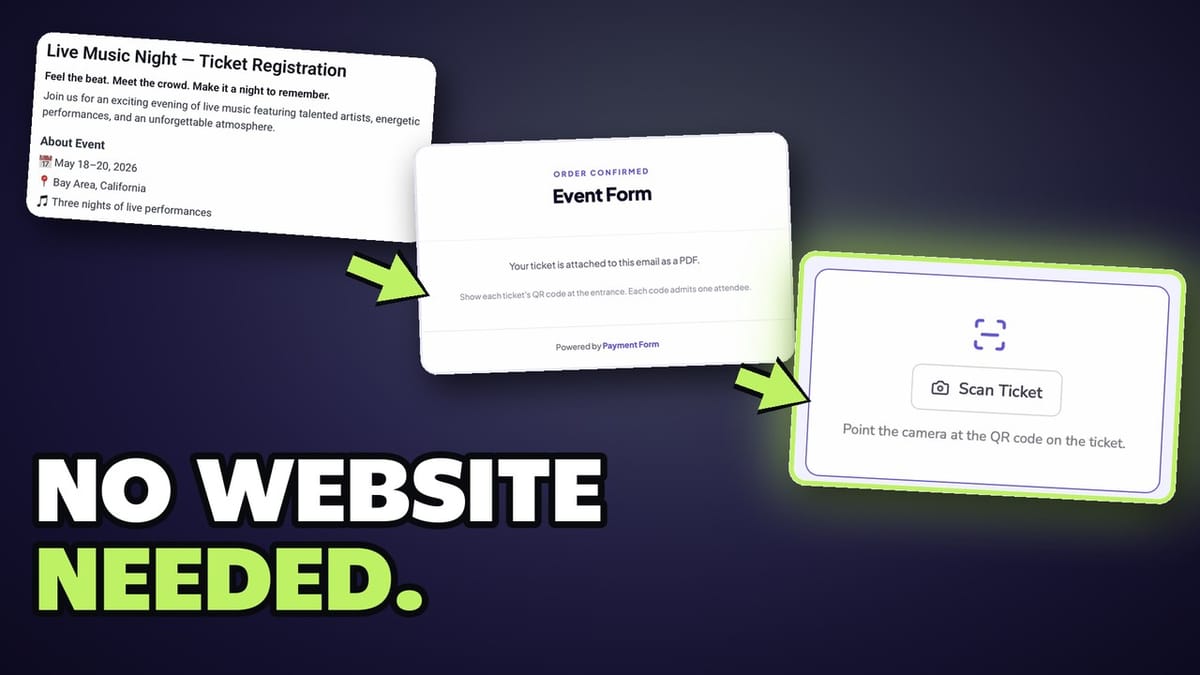
If you sell tickets to your own events and you're tired of a ticketing platform taking a slice of every sale, I recommend trying PaymentForm.io.
If you've ever sold tickets on Eventbrite, you know about the fees. Every ticket you sell, the platform takes a slice. PaymentForm.io lets you sell tickets with zero platform fees. You still pay the normal Stripe or PayPal fees, but PaymentForm doesn't take a cut.
You don't need a website, and you can do all of this on the free plan.
To see if it holds up for a real event, I built a ticket page from scratch for a pretend music festival (Dave's Festival). It has VIP and general admission tickets, a lineup, set times, single-day and weekend passes, a coupon code, and a real checkout through PayPal. The QR code ticket showed up in my inbox.
Bit Apps, the team behind PaymentForm.io, sponsored the video this article is based on. If you want to try it, you can sign up here: PaymentForm.io. Bit Apps is also giving my viewers 50% off the yearly plan with the code DAVE50.
What does PaymentForm.io cost?
There are two plans. When I checked the pricing page in October 2026:
- Free: $0 a month. 0% transaction fee, unlimited forms, submissions and transactions, all modules, the page builder, custom thank-you pages, Google Analytics and Meta Pixel, password protection, and QR code check-in.
- Pro: $9 a month, or $108 a year (that's $7 a month). It adds unlimited custom domains and subdomains, branding removal, a custom favicon, your logo on invoices, webhook integrations, exporting submissions, built-in analytics, abandoned-form emails, and 2 GB of storage instead of 1 GB.
Both plans have a 0% PaymentForm fee. What you do pay is your payment processor. Stripe, PayPal and the other gateways still charge their normal processing fees on every sale.
That's how PaymentForm makes money. On the free plan, your pages and emails carry the PaymentForm branding, so you're kind of advertising for them. If you don't want that, Pro removes it. For seven bucks a month on the yearly plan, it really does feel too good to be true if you've used another ticketing platform.
A few settings I show below are Pro features on the pricing page: the custom favicon and the abandoned-form emails. I'll point those out when we get to them.
It isn't only for tickets
When you click Create Form, PaymentForm.io gives you templates for memberships, physical products, digital products, plain contact forms and fundraising, as well as event tickets.
So if you sell on social media and don't want to deal with a website, take donations, or run a gym that needs a recurring monthly signup, it's the same tool. I'm sticking to tickets here because that's where the 0% fee stands out most.
Start with the event tickets template
Sign up for a free account, then click Create form and choose Event tickets. I used their template so I had something to edit instead of a blank page.
On the left you'll see the parts of the build:
- Tickets: your ticket types and prices.
- Lineup: who's performing or speaking, so people know who they're paying to see.
- Agenda: when the event starts and when each act goes on.
- Sessions: the dates the event actually happens.
- Options: ticket delivery, coupons, custom fields and terms and conditions.
My advice is the same as in the video. Get all your information into the form first, then worry about how it looks in the design section.
Set up your tickets
The template starts with two ticket types, a general admission ticket and a VIP experience ticket. That's pretty standard these days.
Click Edit ticket to change the name, the description, whether it's free or paid, and the price. You also get:
- Available from and closing dates. These control when people can buy. You might close sales on the day of the event. (If people want to buy tickets after the event, I guess you can take their money.)
- Minimum and maximum per order. Everyone has to buy at least one, but if you want people to come in pairs, you can set that up too.
- Quantity. Most venues need a limit so you don't sell more than you can fit.
There's a live preview on the right. It flips between tablet and mobile views, but the preview didn't render exactly how I wanted, so I used the Share button to open the real page on my phone. It looked pretty awesome before I'd touched any styling.
The Share menu also gives you an embed code. If you do have a website, you can embed the form so people buy right on your own site. You can also restrict embedding to certain domains so nobody else puts your form on their site.
Use ticket groups to share a limit
This is the feature I skipped at first, and it's the one that makes a bigger event work.
A ticket group holds related tickets that share one limit. In my festival, the VIP experience group has a VIP solo pass and a VIP group pass for teams of four or more. The group is capped at 120 tickets total. Click the three dots on a group to change its settings.
When you edit a ticket inside a group, Enable group is turned on and the ticket counts against the group's 120. That's why there's no separate quantity field on those tickets.
To add a third kind of ticket, click Add ticket. I added lawn seats. The description editor has slash commands like Notion, so you can type / to add headings, lists, or toggles that hide extra details until someone clicks.
Then I made a new group for the lawn seats instead of putting them in the VIP group (that wouldn't make sense). I called it the cheap seats, gave it 200 tickets, and tied it to the festival weekend.
You can drag tickets to reorder them. I moved general admission below the VIP seats so the expensive tickets get more attention. Save your changes before you move on.
Add the lineup
The lineup is where your performers live. Each one gets a photo, a name, a title, a short bio and social links. You can add a link from any major platform or just a regular website.
Buyers see this on the ticket page under Performers and hosts. If someone has never heard of Julian Torres, they can click Julian's name, read a little about them, and jump to their social profiles before they buy.
Like tickets, the lineup can have groups. My template had a group of performers and a group of hosts (the people who introduce the performers). I added a group of magicians to show how it works, then deleted it, because I don't really want magicians at my concert.
And hey, egos get in the way. You can drag performers to change the order. This isn't the order they perform. It's the order people see on the ticket page. After I moved Julian to the top of the bill, saved and refreshed the page, Julian showed up first.
Rename the agenda (or turn it off)
"Agenda" is kind of a stuffy word for a concert. That's what you do in meetings. You can rename it, so I changed mine to Set times.
The schedule uses the same slash-command editor, with headings, numbered lists, images, toggles, and even a dedicated emoji section.
A conference might have a speaker list and a strict schedule. Music festivals often don't stick to exact set times, so you can switch the agenda off if you don't want to show one. That's what I did.
Set your sessions and dates
Sessions are when your event actually happens. Each session has a name, a start date, an end date, and a check-in start time.
That check-in time matters, because it's when QR code scanning at the gate begins.
My template had one session for the festival weekend. I renamed it Dave's Festival (it sounds better), then added two more:
- Dave's Festival day one, on November 9th.
- Dave's Festival day two, on November 10th.
Now there are three sessions. Back in Tickets, you can make tickets that only work for one session. My day one general admission ticket is set to day one only, and the day two ticket to day two only. Put them in a group if they should share a limit.
Delivery, coupons, custom fields and terms
Under Options:
Ticket delivery. Send the ticket to the purchaser or to each attendee. I send everything to the purchaser, because that's the standard for concerts.
Coupons. Click the button at the top to create a discount code. You can choose a flat amount or a percentage, a total usage limit, a per-person limit, and the dates it runs.
Here's the one I made. It's a last-week sale from the 3rd to the day of the event on the 9th. The code is SAVE10, it takes $10 off, and each person can use it once. It needs a $55 order minimum, so a single general admission ticket doesn't qualify. The two-day pass does, and comes to $45 after the discount. You could cap a code at 50 uses, and it turns off when they're gone.
You don't have to turn coupons on right away. You can wait and see how tickets are selling.
Custom fields. Use these when you need more information, like T-shirt sizes for a giveaway or meal preferences. You don't have to, but it's there.
Terms and conditions. These are off by default. PaymentForm gives you placeholder text, but please talk to a lawyer about what goes in them. I highly recommend having terms if you're putting people in a building, because of liability. What you say in them is up to you and your legal team.
Check the page before you style it
Open the share link and look at what buyers see. Mine showed the important dates, the ticket types, and a checkout at the bottom.
It also showed an error: Payment Gateway not available. That's expected at this point. You haven't connected PayPal or Stripe yet, so people can't pay you. We'll fix that in settings.
The coupon also refused to apply, for two good reasons. The ticket was under the minimum, and the sale dates hadn't started. The page tells the buyer when the code becomes valid.
Design: theme and landing page
The design section has two parts.
Theme is the overall look: font, colors and language. There are a lot of fonts, probably thousands. You can't upload your own custom font, and that's the only downside I could find here. I switched to Inter (it didn't make much of a difference), then changed the purplish-blue accent to red so it stands out. Everything that was purple-blue turned red.
Landing page is a full landing page builder. You can drag in sections, swap the hero at the top, delete the old one, and add blocks like testimonials that you edit in the right sidebar.
For most people, the standard form will be great. But if you want a full sales page with social proof ("this is going to be the greatest festival of all time"), you can build one.
This is my favorite kind of page builder. It has enough detail that the page feels customized, but it's not so overwhelming that you'd need coding school or have to ask AI what to do next.
The settings worth turning on
There are quite a few settings. These are the ones I'd look at.
Header image. Change it, add your own, or remove it so the page goes straight to the form. Removing it looks a lot cleaner if your form is going to live on your own website. (I used a photo of a much younger me with my band.)
Favicon. You can change the little icon in the browser tab, so people see your brand instead of the developer's. The pricing page lists this as a Pro feature.
Form status. Turn the form on or off if you're not ready to sell.
Password protection. Add a presale code so only your biggest fans, your newsletter or your fan club can buy early.
Form abandonment emails. Someone enters their email but never finishes buying. PaymentForm can send them a follow-up, something like "Hey, you should probably come back and get those tickets. They're going to sell out soon." Toggle it on and write the recovery email (the default subject is "Complete your form submission"). It goes out 30 minutes after they stop, and you can change that to an hour or six hours. The pricing page lists abandoned-form emails as a Pro feature.
Tracking. Add your Meta Pixel and Google Analytics tag to track conversions. If you run paid traffic on Google or Meta, this tells you who's actually buying. It also supports the Meta Conversions API access token, which gives you server-side event tracking.
Payment gateway. This is where you connect Stripe or PayPal. If you're outside the US and don't want either, it probably supports what you need, because there are quite a few gateways.
Taxes. Set up a tax rule in your local currency so everything is on the up and up.
Success page. This is what people see after they buy. Add an image of you saying thank you, a message about how excited you are to see them, or a YouTube video like a concert trailer. That stuff goes a long way toward getting people excited about the event they just paid for.
Connect PayPal and buy a test ticket
I connected PayPal with the client ID and client secret from my PayPal account, using test credentials. Once it was connected and I reloaded the page, the gateway error was gone and the checkout said Pay with PayPal.
Before you buy, remember that PaymentForm.io takes zero percent of your ticket sales. You only pay the PayPal fees.
I bought a single VIP solo pass. Because I'd turned on terms and conditions, I had to agree to them. The checkout offered PayPal, PayPal Credit, and debit or credit cards, so buyers don't need a PayPal account.
PayPal also showed its own offers, like paying in full, paying in four, or PayPal Credit with no interest for six months. That gives your buyers a way to finance a ticket without you having to set anything up.
I paid in full (it wasn't real money). The purchase completed, and when I checked my inbox, the email had my QR code ticket for the door.
Check people in at the door
As the organizer, you need to check people in, because you don't want people getting in who didn't pay.
Go to the Results page. It has three tabs:
- Responses. Everyone who bought a ticket. Hopefully you have hundreds or thousands. I had one, and it was me.
- Analytics. Your sales over the last 31 days, or whatever filter you set.
- Check-in. The most important one on event day.
In Check-in, turn on Share attendee check-in and set a password. You get a link that anyone working your event can open on their phone, enter the password, and scan tickets. You don't have to buy any extra hardware.
If you're checking people in yourself, you can type ticket codes in by hand, or scan them on your computer with a webcam.
For a really small event, a few dozen people, you don't need scanning at all. You can check off names from the list. I saw this at a small community ed class recently: QR codes went out and nobody used them. The people running it asked for names and checked them off the list, and that worked just fine.
I opened the check-in link on my phone in the video to show what your staff would see. I didn't show a ticket being scanned at the door, so try a test scan yourself before event day.
Should you use PaymentForm.io for tickets?
If you're running a concert, a class, a fundraiser or a meetup, and you don't want a ticketing platform taking a cut, I'd start here. The free plan covers a full ticket page with groups, a lineup, sessions, coupons, QR code tickets and check-in. You pay nothing to PaymentForm and only the normal processing fee to Stripe or PayPal.
Upgrade to Pro if you want your own domain, no PaymentForm branding on the page and emails, webhooks for automations, exports, or abandoned-form emails.
Bit Apps is giving my viewers 50% off the yearly plan. Use the code DAVE50 when you upgrade.
Before you sell real tickets, connect your payment gateway and buy one test ticket yourself, like I did. Make sure the QR code email lands in your inbox. Then open the check-in link on the phone you'll use at the door.
Then build one event. PaymentForm.io is free to start, and you can see if it looks as good for your event as it did for my fake festival. That really was my band in the photo, though.
If you have questions about how any of this works, ask me in the comments on the video.
Get Dave's Toolbox
The tools I actually use, every Tuesday. Free. No spam.
No cost. No spam. Unsubscribe anytime.