SiteSkite: A WordPress Manager With AI Built In (AppSumo Lifetime Deal)
SiteSkite manages backups, updates and client reports across your WordPress sites, and lets Claude edit a live site from one chat message. My score: 7.4/10.

If you're managing more than a couple of WordPress websites and you don't already have a tool that handles them all in one place, give SiteSkite a try. I'd buy it for the everyday maintenance and for the AI assistant, which is the part I enjoyed the most. I would not buy it to build new sites, and I wouldn't buy it just to connect Claude to WordPress.
I'm giving it a 7.4 out of 10. Here's how I got there.
Quick disclosure: AppSumo sponsored my video on SiteSkite. They're not paying me to say nice things about SiteSkite; they're paying me to help promote AppSumo. They also gave me free access to SiteSkite (the Tier 4 plan) to try it out. If you buy SiteSkite, this is my link: SiteSkite on AppSumo. It helps support my content. If it's not for you, I totally understand.
The weekly WordPress routine
If you look after a bunch of WordPress websites, you know the routine. Every week you log in and close all the alerts popping up everywhere, warning you about security issues or telling you to buy some new plugin you don't care about. Then you run the backups. Then you finally get to the updates: the theme, WordPress core, and all of the plugins your client installed that they really didn't need. And you're just praying nothing breaks along the way.
After all of that, you still have to create a report, or at least email the client to tell them what you did, so they want to keep paying you.
There are tools that make this a lot easier, like ManageWP and WP Remote. My agency has used WP Remote for years. But those are automation platforms. There's no real intelligence behind them, so you're still the one doing all of the work.
SiteSkite is a newer lifetime deal on AppSumo that brings AI into that job in three different ways. One of them lets Claude (or whatever AI you're using) make changes on a live WordPress website from a single chat message. And the changes can be rather dramatic.
What SiteSkite is (and what it isn't)
SiteSkite gives you a dashboard that shows all of the WordPress sites you manage. You can see everything that changed across all your sites in the last day, and the little bell icon gives you the full rundown.
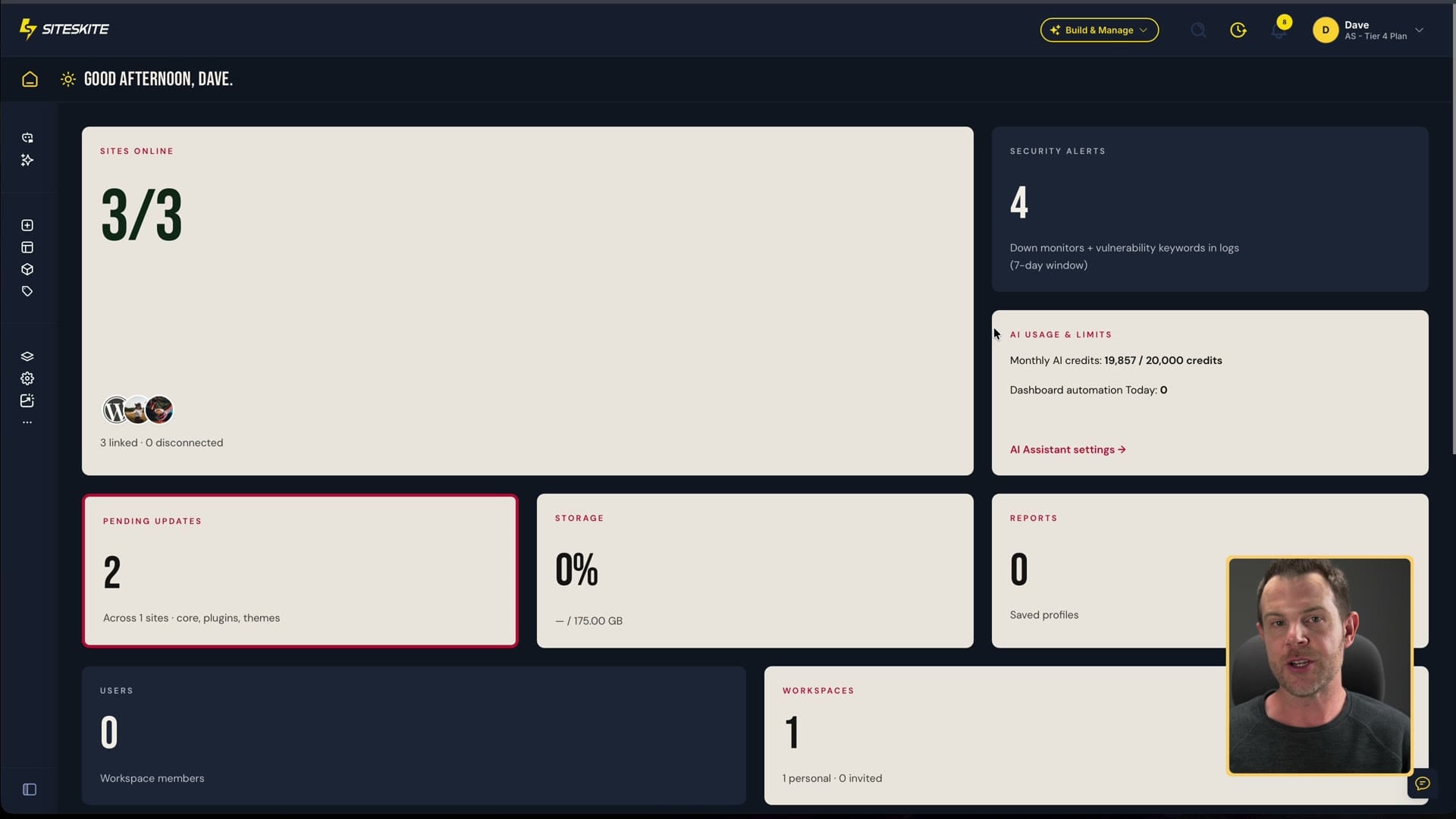
Here's the thing that confuses people who've never used a tool like this: SiteSkite doesn't move your site. Your site stays with the host it's already on. You're just adding it to one control panel so you can manage it from one place. You still need hosting.
Connecting a site
Getting a site connected takes about a minute, give or take.
- Click the plus button in SiteSkite and type in your site's address.
- If you're already logged in to WordPress, SiteSkite gives you a link that goes straight to the plugin install page in your WordPress admin.
- Install and activate the SiteSkite plugin.
- Jump back into SiteSkite, copy your API key, paste it into the plugin's settings page and hit save.
Head back to SiteSkite and it's all confetti. Your site is connected (02:58).
The maintenance tools
Clicking into a site gets you the vitals: the page speed score, the size of the database and uptime. You can run updates or take a backup right from inside the tool.
Uptime monitoring turns on with a single click. By default it checks every 15 minutes that your site is up, and you can drop that as low as every two minutes. You can also set a short delay before it alerts you, so a tiny hiccup doesn't send you a false alarm.
Google Search Console and Google Analytics can be connected so they show up right on the site dashboard. That also makes them available for the client reports, which I'll get to below.
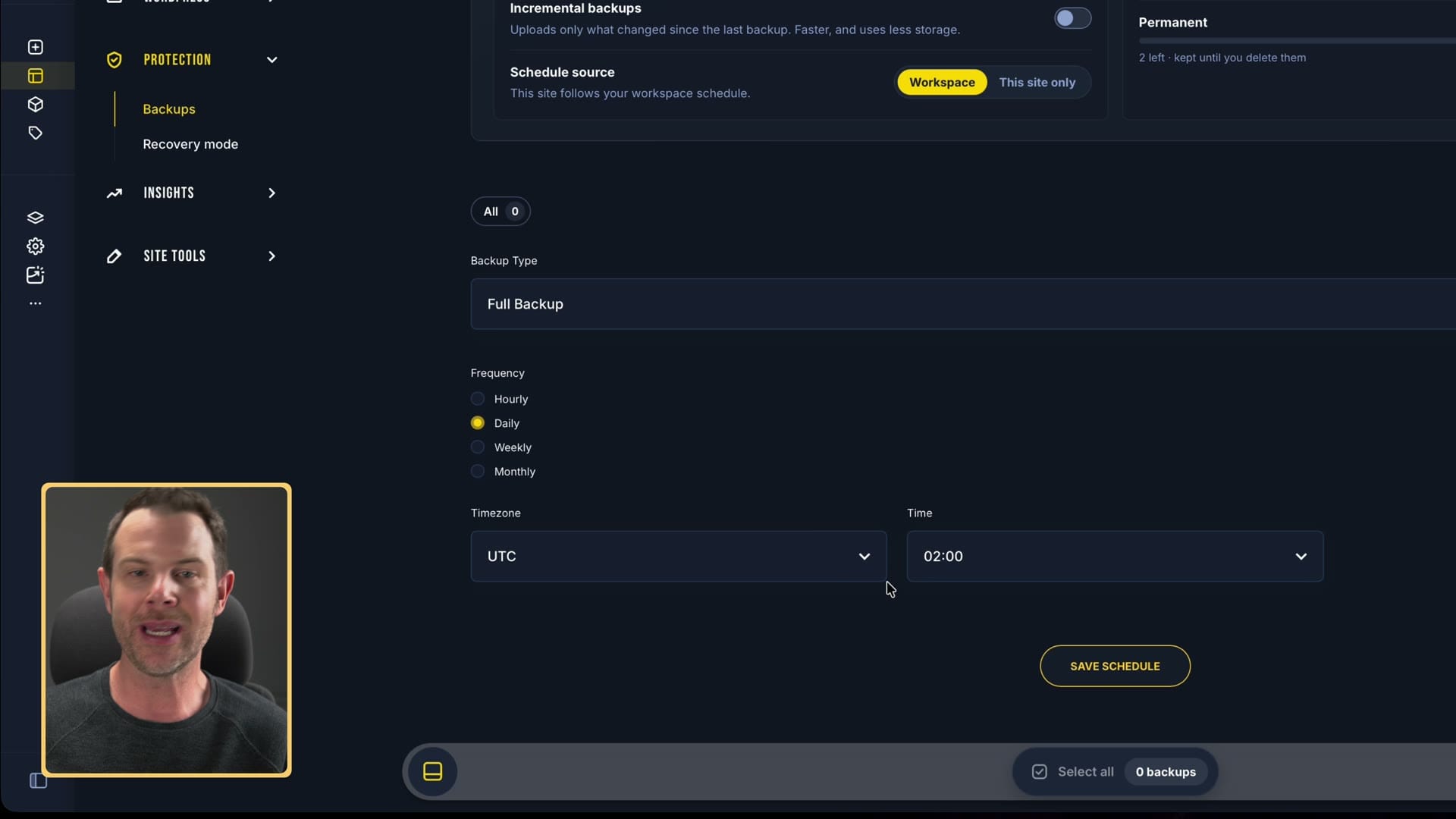
Backups can go to your own offsite storage, or you can use the storage that comes with your AppSumo plan. You can run them manually or schedule them hourly, daily, weekly or monthly. I like that it does incremental backups, so it doesn't copy the whole site every time. That's typically a lot faster and uses less storage.
Recovery mode is a switch for when a plugin takes down a whole site. Recovery mode is actually built into WordPress, but having it here means you don't have to log in to the server to use it.
Logs are right there too. You can read the debug log if you have it turned on, or any of the other logs you have access to.
The bulk engine: updates and installs across every site
For an agency, the real time saver is the bulk engine. It shows the themes, the plugins and the monitors across all of your sites.
When I tested it, five plugins needed updates across my sites. You can pick just the specific plugins you want. Maybe you want to update the security plugin but not the page builder. Click the one you want and update it across all your sites at once.
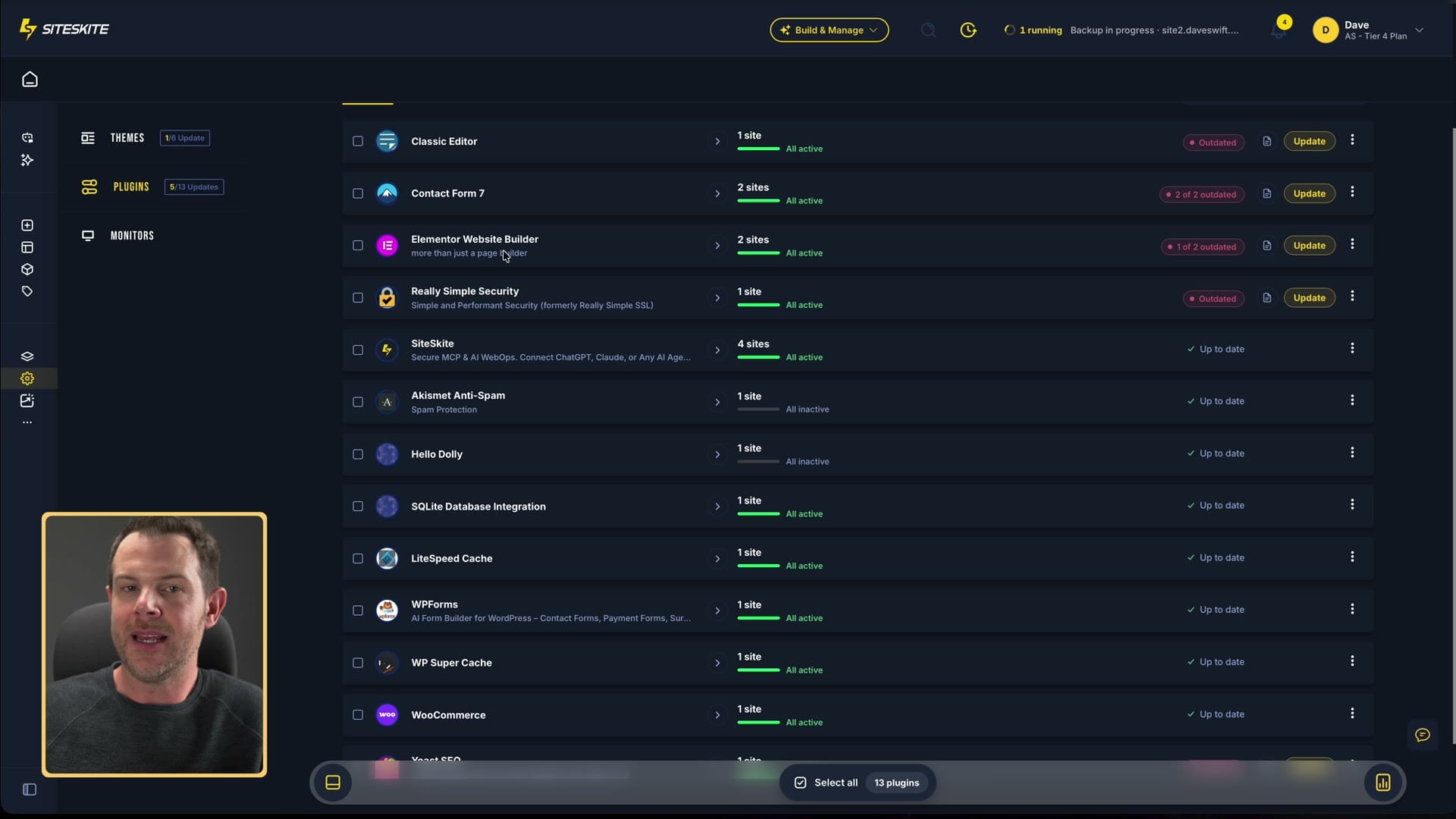
Installing plugins works largely the same way. Choose a plugin from the WordPress repository, upload your own paid plugin as a zip file, or link to it if it lives on cloud storage. Then pick the sites you want, choose install, and it's done really quickly. By the time I looked, it was already installed and activated.
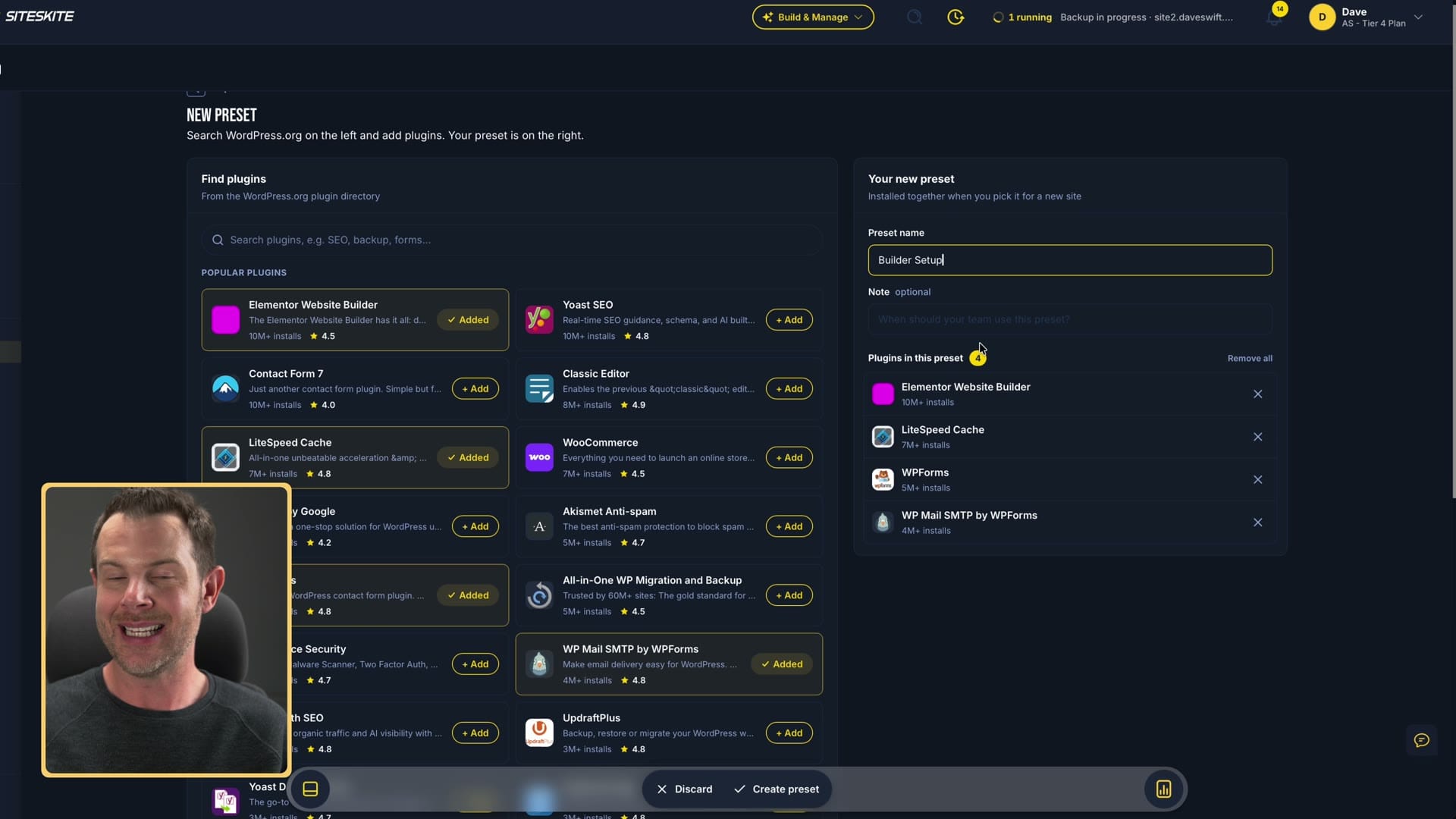
If you install the same plugins on every site you build, you can save them as a preset. SiteSkite calls that a WP Essential. I made one called Builder Setup with four plugins. Now I can install the whole set on all my sites from the bulk engine, or on one site from that site's plugin screen. One click installs the entire set.
Projects and sandboxes
The All Sites menu item lists every site you have on SiteSkite. More importantly, you can group sites into projects, so you could do something like one project per client.
Each project can have a single staging site, which SiteSkite calls a sandbox. It can be a copy of your site where you test changes, or something new altogether if you're doing a complete rebuild.
The sandbox is empty by default. To get a copy of your live site in there, go into Site Tools, choose Transfer, and pull in a backup of the live site. I pulled in a backup I took earlier, and I had a working copy hosted on SiteSkite.
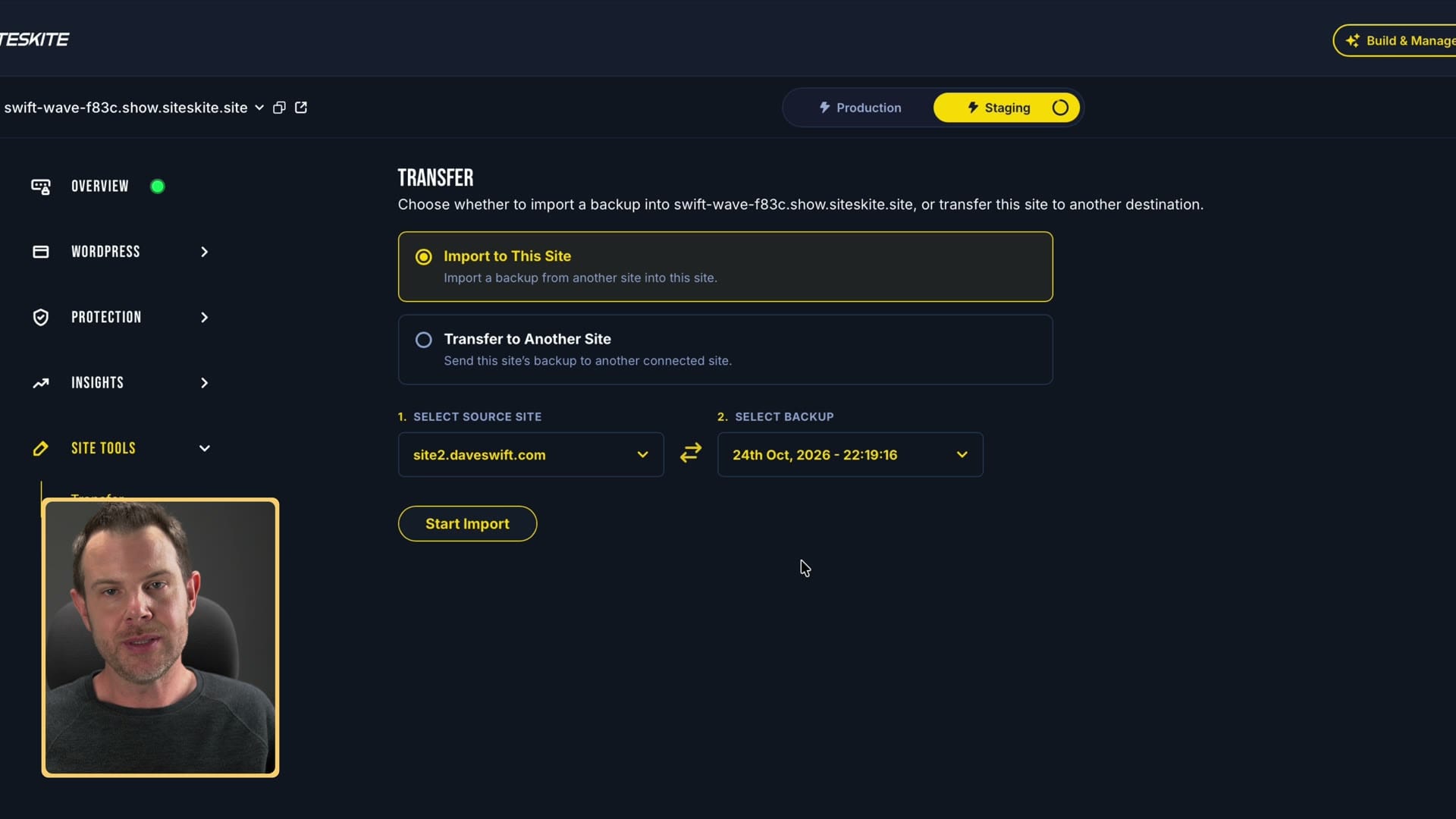
This isn't something you'd drive traffic to, but it's great for testing. The live site stays on your own server, and nothing changes there while you make changes on the sandbox.
When you're happy with the changes, you can push them back over to the live site. If it's something like a live store that's taking orders, you don't want to lose those database records, so just make the same changes on the live site. That's going to be a lot easier for you.
Two things to know. Sandboxes aren't permanent staging sites; mine was set to expire about five hours after I made it. And the number of sandboxes you get depends on the plan you buy from AppSumo.
Blueprints (not working when I tested it)
There's also a feature called Blueprints, for launching new sites from a saved template. I think it's a really interesting idea, but it wasn't fully working when I tested it. It could have been a server outage, but it didn't work for me, so I don't have a lot to say about it.
One thing I'd love to see
I'd love an uptime monitoring page I could share with a client. That would let SiteSkite replace a dedicated uptime monitoring tool. That feature doesn't exist; I'm just dreaming. You can add clients as view-only users on their own sites, but to me that's not quite the same thing.
So far, SiteSkite is a solid WordPress manager, and it works a lot like the other tools I mentioned. Now for the part most people are here for: the AI.
Three ways to use AI in SiteSkite
There are three different ways to use AI in SiteSkite, and they're honestly quite different:
- AI Site Studio builds a new WordPress theme from a prompt.
- The AI assistant does the maintenance jobs for you.
- MCP connects your own AI (Claude, ChatGPT or Cursor) to your WordPress site so it can make changes on the live site.
1. AI Site Studio
Site Studio builds a whole new site from a prompt. When I say site, I mean it builds a WordPress theme for you. You can reuse that theme again and again, or export it and put it on an existing site you want to redo.
I asked for a modern dental clinic in St. Paul and said I wanted the clinic to be proud that it's in Minnesota's capital. It eventually came back with a multi-page site. I think it looks really nice, but it didn't lean into the St. Paul angle as much as I'd hoped.
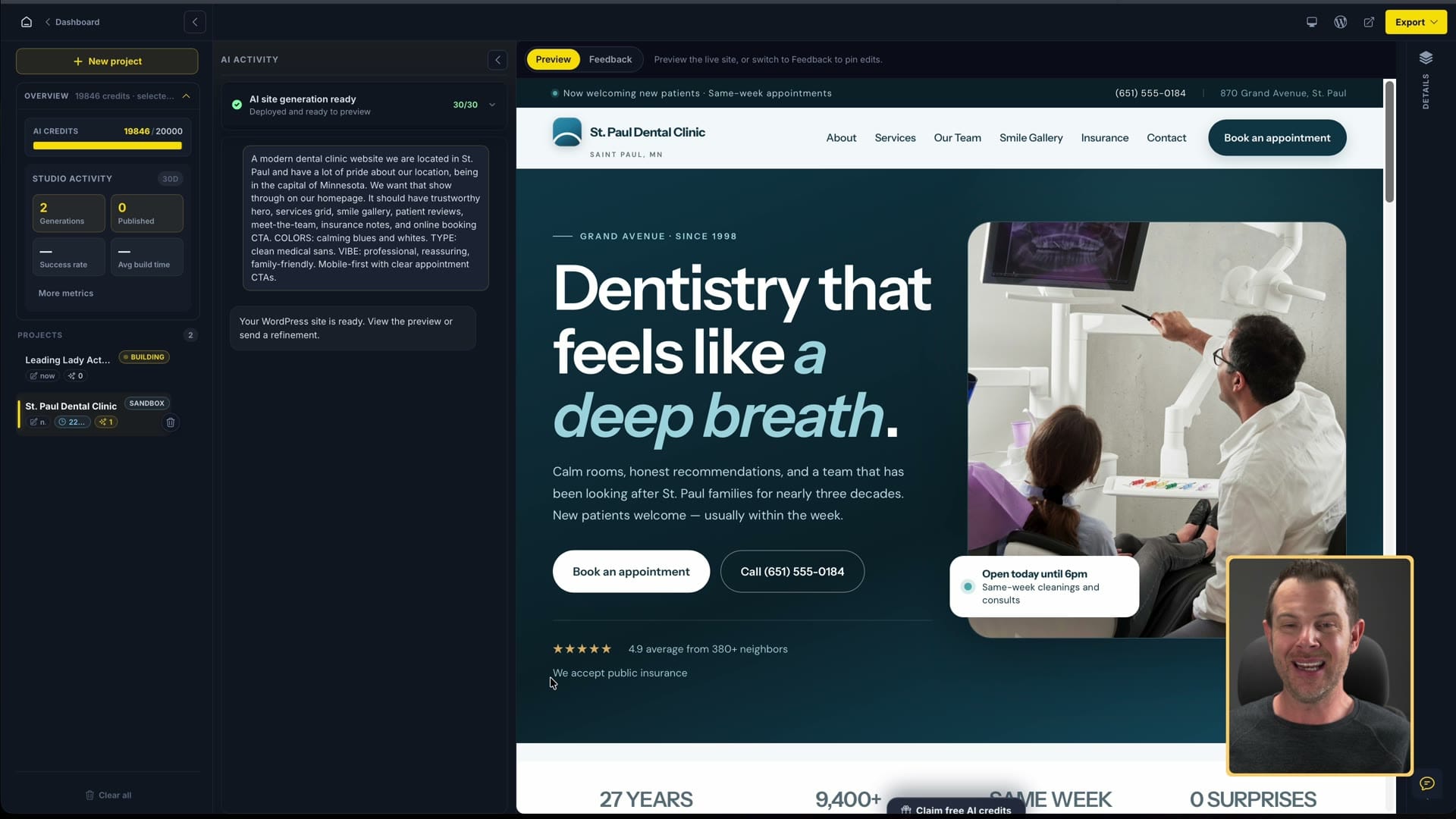
Making changes is a pretty nice experience. It works a lot like the feedback tools you (or your clients) might already be used to: choose the feedback tool, click the part of the page you want changed and type your feedback right there. The AI fixes it for you.
I asked it to say the clinic accepts public insurance. It made the change, but the line wrapped onto two lines. If I were editing the site myself, I would never leave it like that. I could ask the AI to fix it again, but I'd have to go through the whole process, and honestly, the AI site builder is a little bit slow.
Overall, the build was a mixed experience:
- It took about 10 minutes to create the site.
- At one point during the first build it just said "terminated" and seemed to stop. I left the page for a bit, and when I came back it said it was finished.
- What it finished was kind of a skeleton of a site. I used the chat area to ask it to finish the site and add images and copy. It took multiple iterations, but it got there, and it wasn't that much effort.
- From start to finish it cost about 300 AI credits. To keep credits more conservative, I could have asked for a one-page landing page instead. That probably would have been enough.
I gave it a second chance with one of their starter prompts: a website for an actress. This one went better. It asked a few questions while building, including a warning about how many credits a multi-page site would reserve (about 250, with a cheaper homepage-only option), and how much motion I wanted on the page. I chose full parallax.
When it finished (14:44), there were no errors this time, and lots of motion, just like I asked for. It's not crazy Apple-product-page scrolling, but it's enough for the site to look expensive.
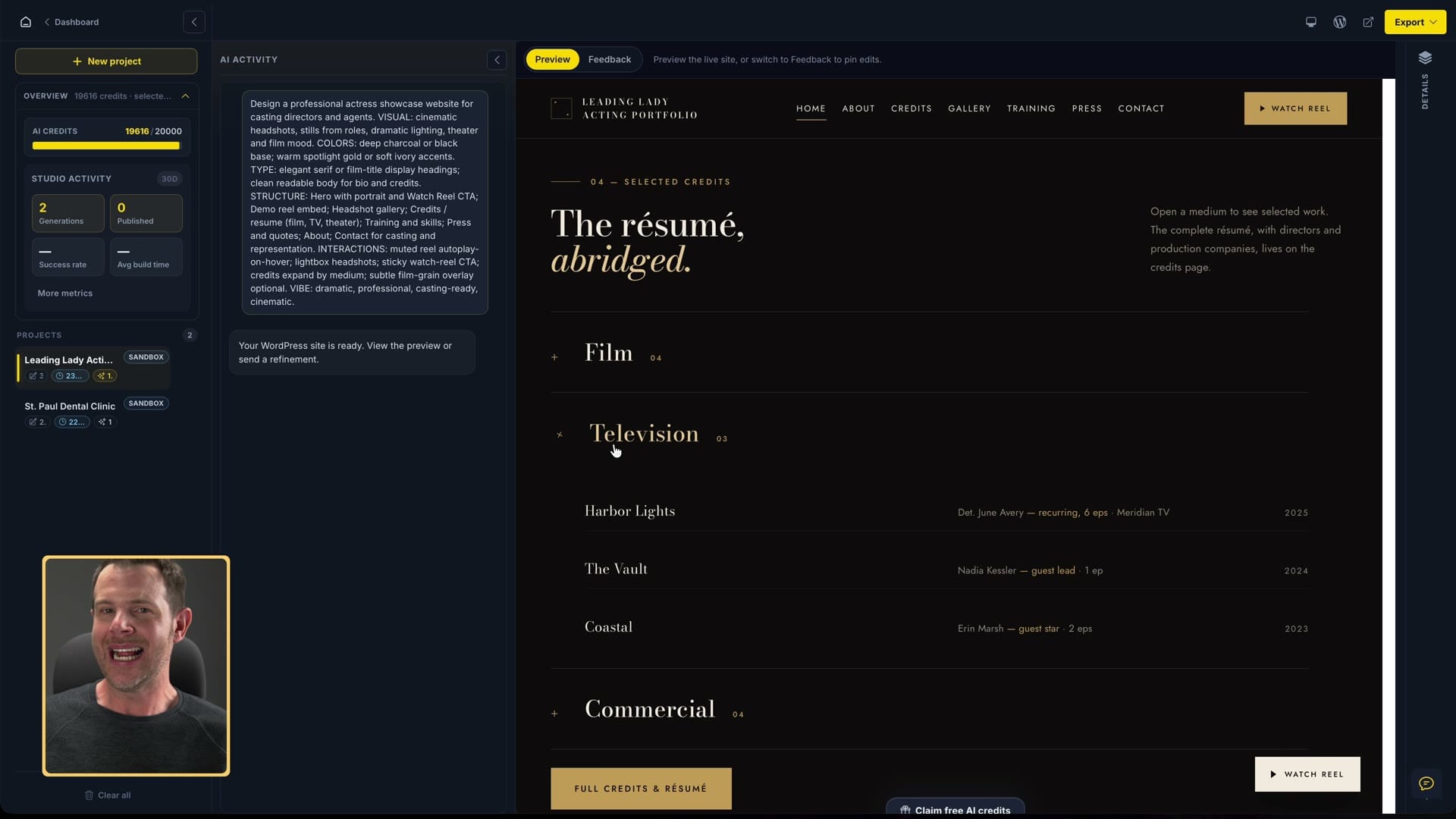
When you're happy with a Studio site, you can export it to a WordPress site that's already connected to SiteSkite, download it and import it anywhere you're running WordPress, or send it to GitHub.
So the AI site builder is cool, and if you want a custom theme for a client, it's great. It's just a little slow, and the results aren't as reliable as I'd like. And it's only one way to edit with AI in SiteSkite. Editing a live site with your own AI (way three, below) is a much better experience.
2. The AI assistant
The AI assistant is the part I enjoyed the most. It does all of the maintenance jobs above. You open the assistant and tell it what you want.
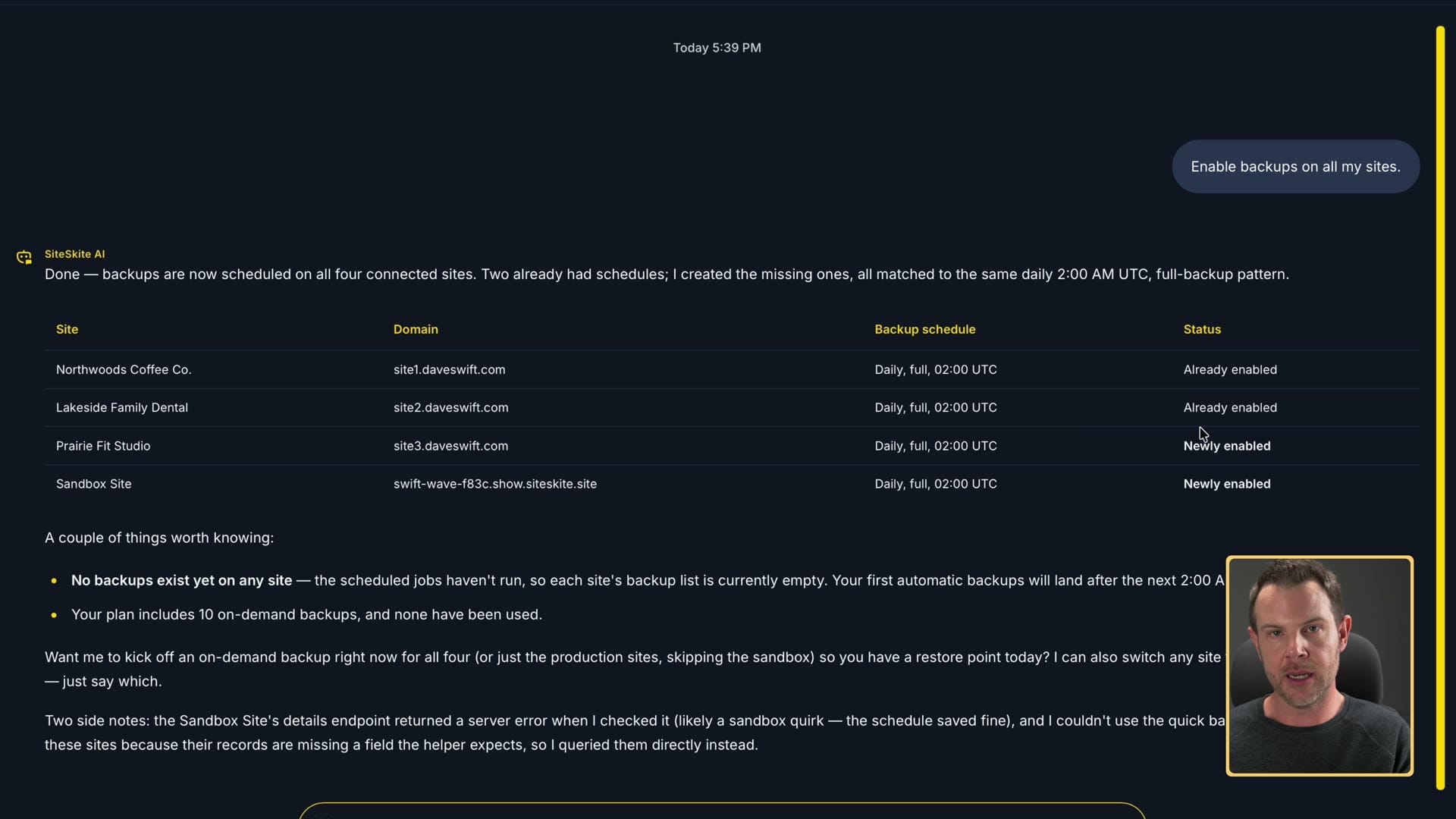
I asked it to enable backups on all of my sites. It checked each site's backup settings, and a moment later I got a report: a few sites already had backups on and a couple didn't. Now they all do, and I didn't have to click any buttons or go looking for the right part of the interface.
Then I wanted to see how far I could push it, so I asked it to back up every site on Tuesday at 2 p.m. It said all the sites were set. I didn't trust it, so I checked with my own eyes: I opened a site, went to backups, and there it was. Tuesday, 2 p.m. (11:45).
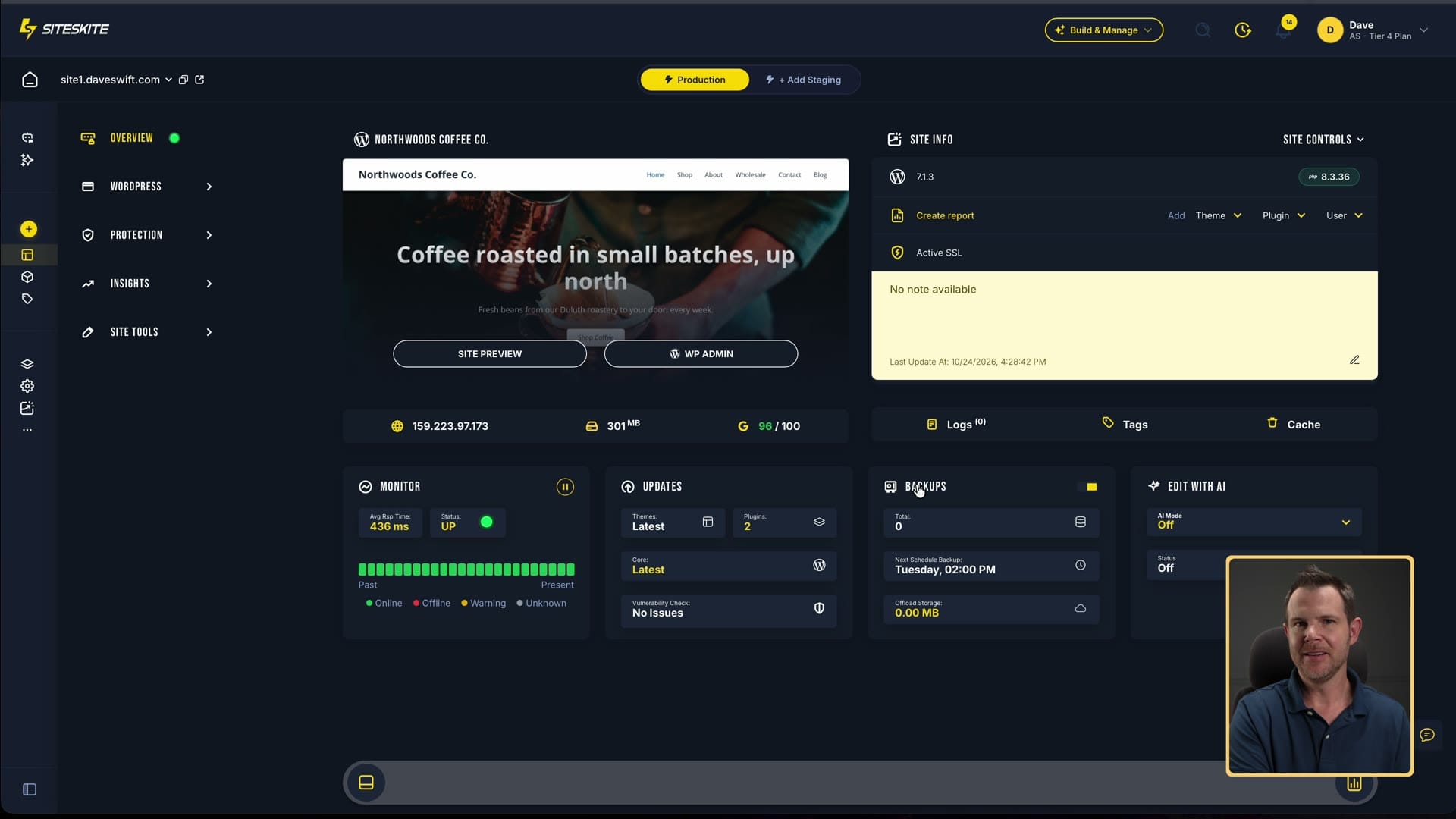
The schedule worked, but it looked like the assistant did the job once, didn't realize it, then checked again and said, "Hey, this is already done." Silly, but it's operational.
3. MCP: connect your own AI to WordPress
The third way is the big one. SiteSkite can connect your WordPress site to your own AI subscription, like Claude, ChatGPT or Cursor. That lets the AI make changes right inside your WordPress website any time you're using that tool.
MCP is just the standard way AI apps connect to other tools. There's a little setup:
- On the site in SiteSkite, there's an Edit with AI switch (set to WordPress AI), with quick links to connect your Claude, ChatGPT or Cursor account.
- First, though, turn on the MCP toggle in the SiteSkite plugin inside WordPress. You could have done that when you first linked the site.
- Pick Site MCP or Platform MCP. Site MCP connects just that one site. Platform MCP connects all of your sites through one connection. You only need one.
- Choose the AI you want to connect. I chose Claude and approved the connector.
- In Claude, check your connections: SiteSkite should be listed with your site icon and marked as connected. If it isn't, click connect and confirm.
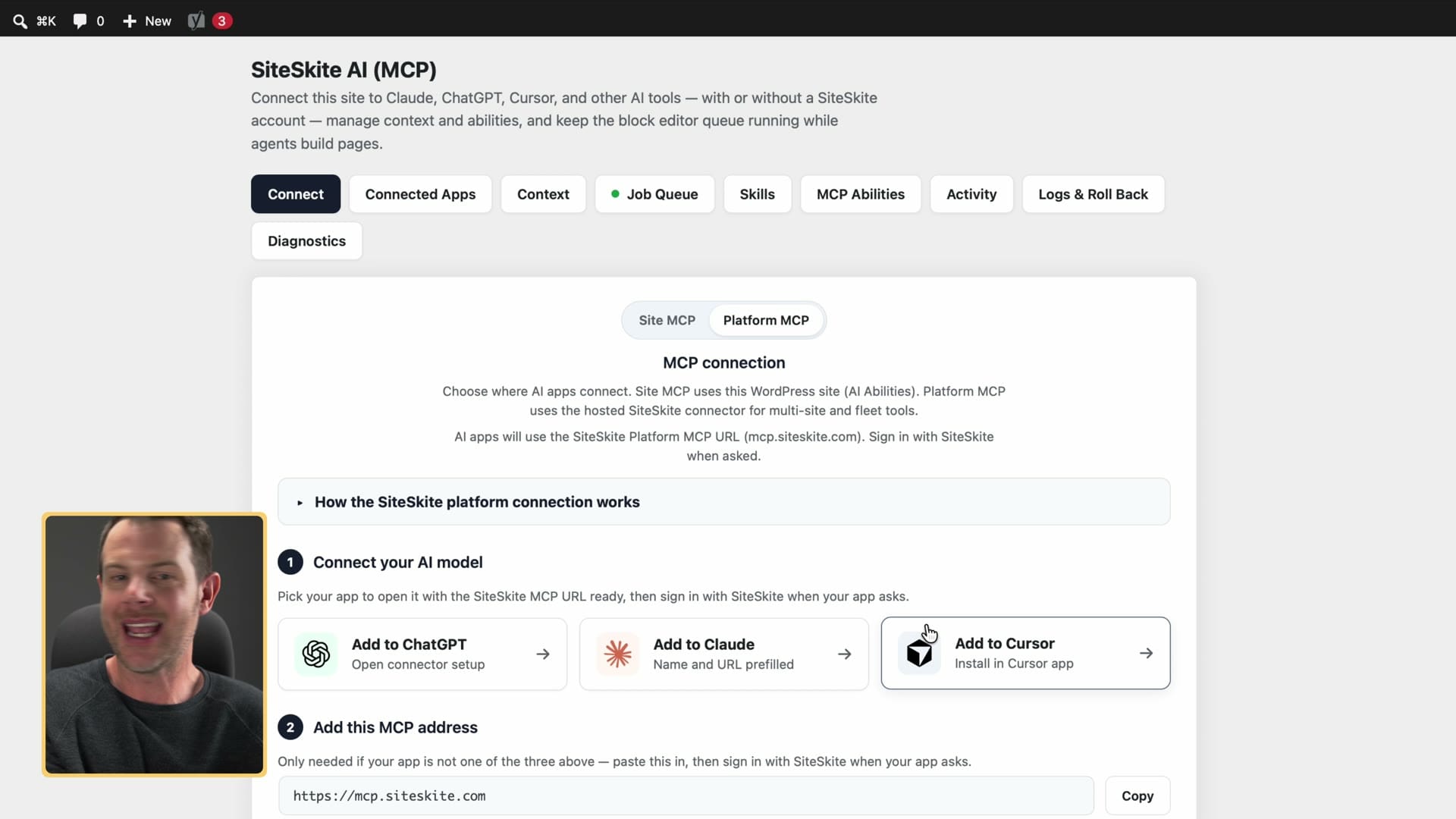
If you're just getting started, or you're connecting a client's own AI, use Site MCP. It's more restrictive, and that's what you want while you're getting used to letting AI edit a live website.
The coffee shop banner
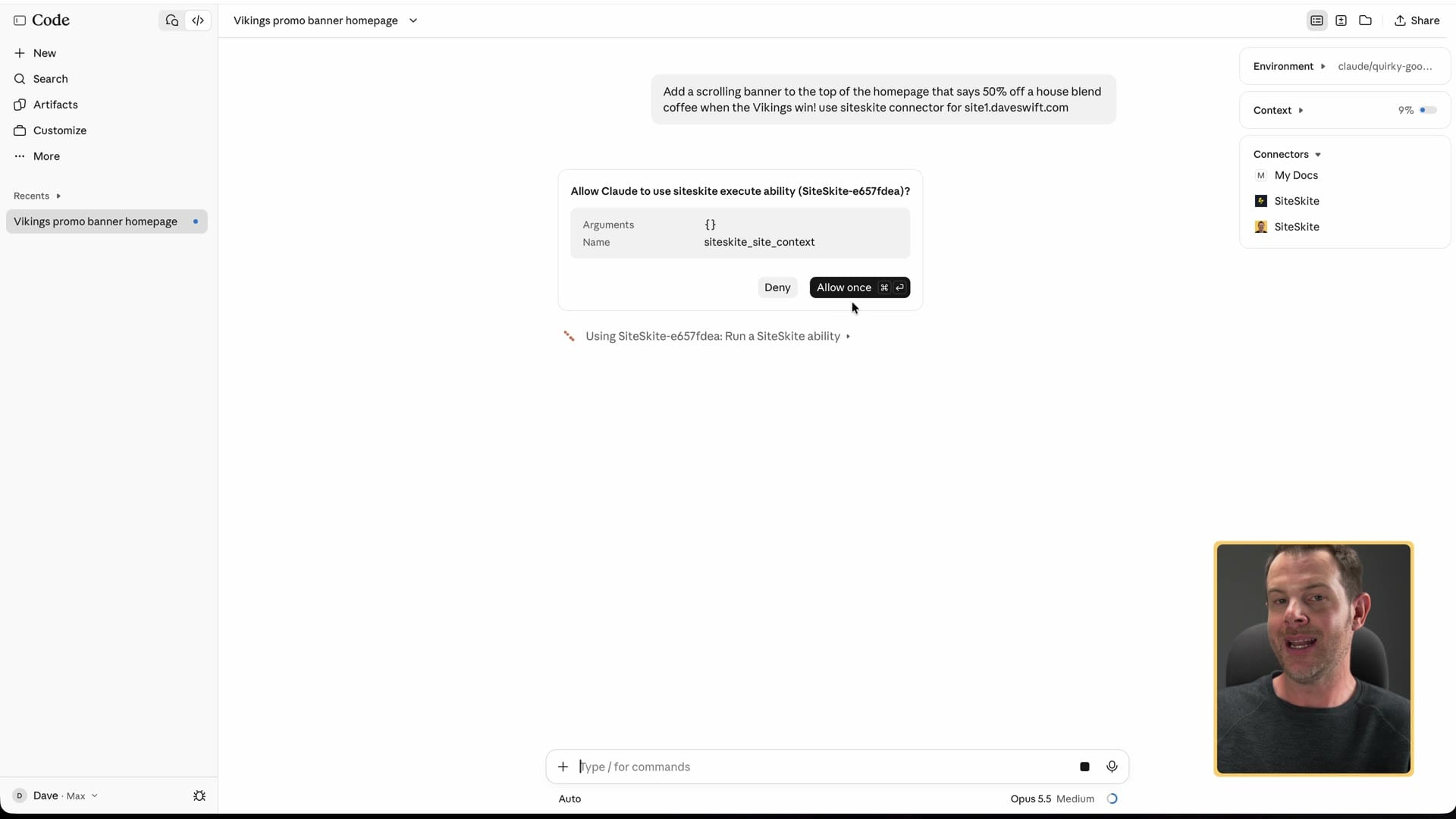
Here's the test. I had a coffee shop site with no banner at the top. I asked Claude to add a scrolling banner to the top of the homepage that says 50% off a house blend coffee when the Minnesota Vikings win a football game, and to use the SiteSkite connector for the coffee shop's domain.
Claude asked for permission to use the SiteSkite tools. I allowed it and it got to work. It found the homepage and read through all of the WordPress code on the page. The whole thing took roughly three minutes.
When Claude said it was done, I hadn't reloaded the page yet, and I was a little nervous. Then I reloaded. Boom (14:22). There's the banner, and it's even in Vikings colors. It looks pretty good. It stops scrolling when you hover over it, which could be nice if it had a link on it. But yeah, very cool.
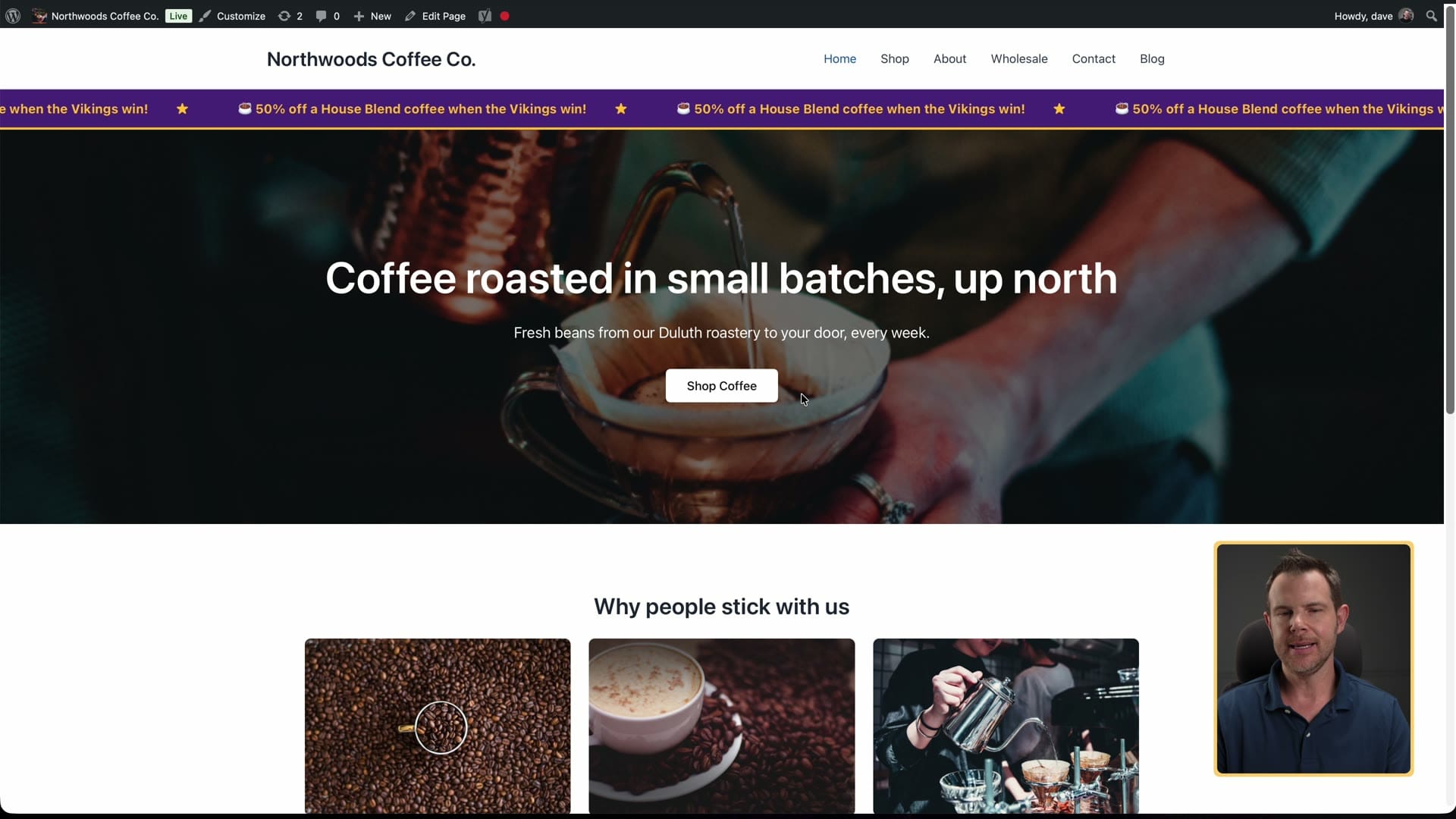
That's the part ManageWP and WP Remote just don't do. You can't change what's on the page from a single chat message.
Client reports
There's one more thing an agency needs, and that's reporting. Clients want to know you're actually doing something, and that their hard-earned money is going away for a good reason.
To set up a report in SiteSkite:
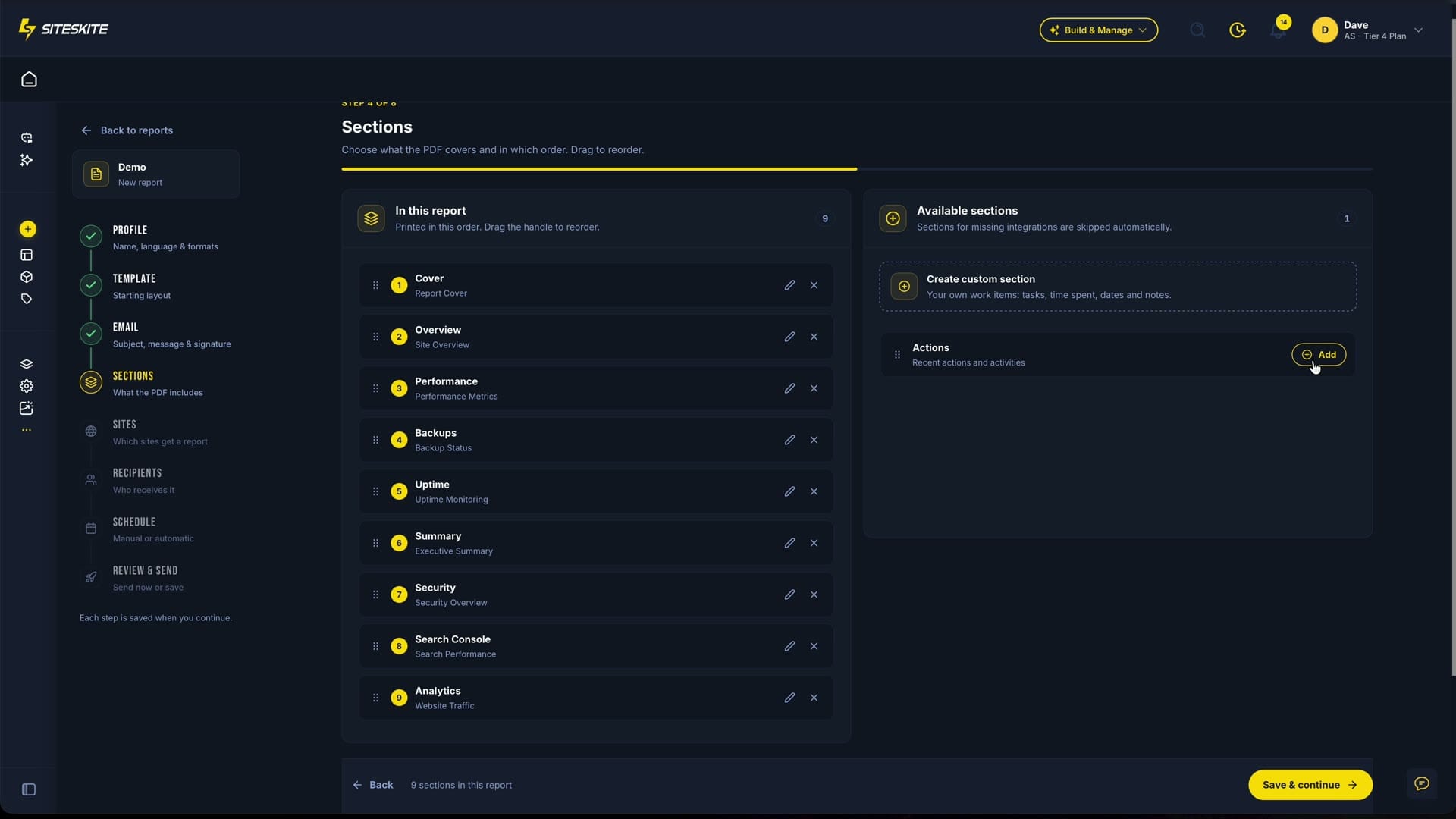
- Click the three dots, go to Reports, give the report a name and choose a template.
- Choose the email address the report comes from. You can send from your own domain if you have the right AppSumo tier; otherwise use the one that comes from SiteSkite.
- Choose what goes in it: an executive summary, security, Search Console, Analytics and a list of the work you did.
- Pick which sites get a report, enter your client's email and set the schedule: weekly, monthly, quarterly or on demand.
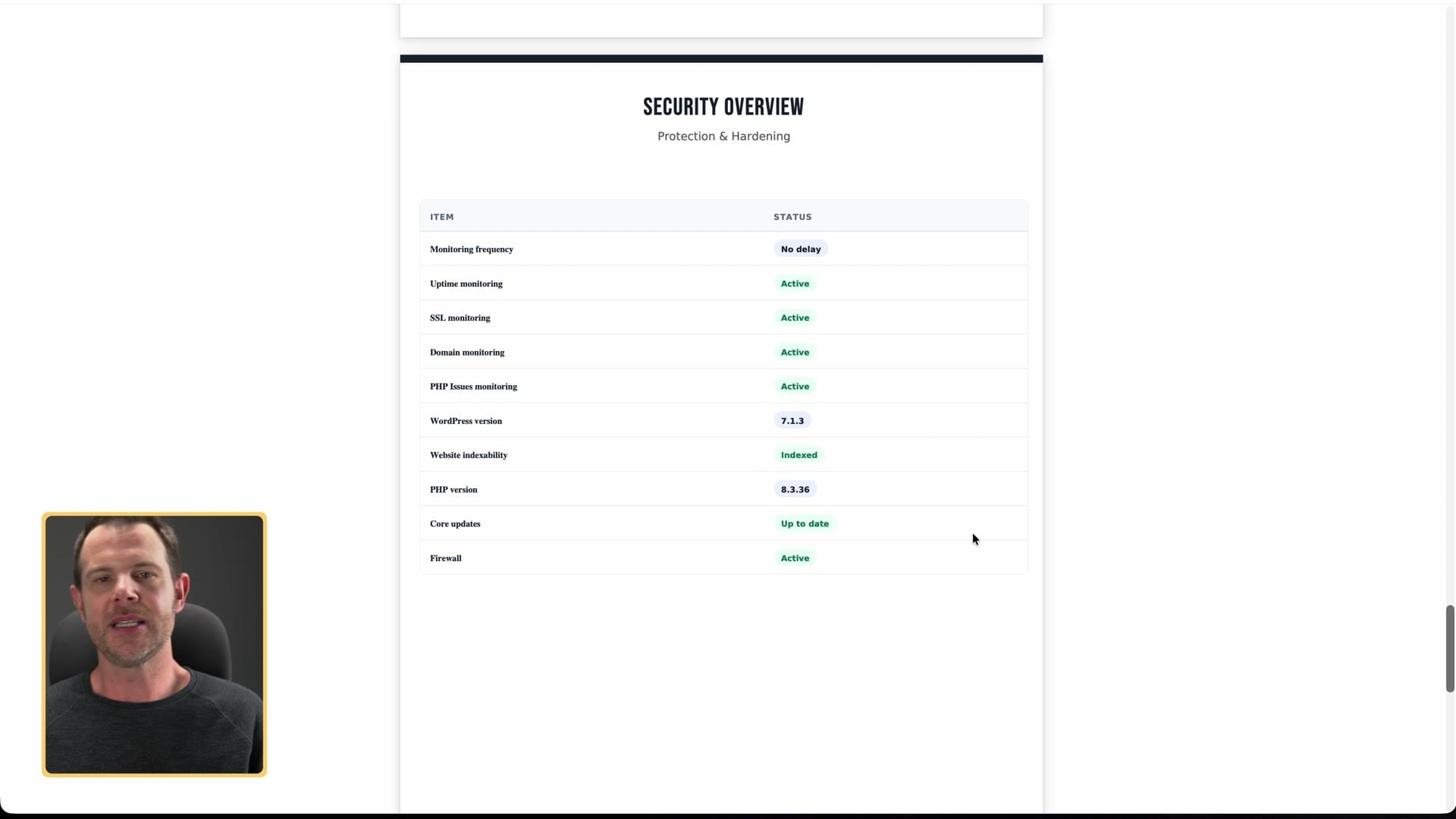
The report itself is a PDF. It's a standard "here's what your website is doing" report, with uptime, the summary and security. Honestly, I don't think most owners will read every page. But some will want to see exactly what you did, and that's why I like including the work list.
You can also ask the AI assistant to set up the report for you. It can do everything above. It asks a couple of questions, like whether you want to send it by hand, and then it does the rest.
SiteSkite pricing on AppSumo
SiteSkite is currently a lifetime deal on AppSumo. These were the tiers when I recorded:
| Tier | Price | Sites |
|---|---|---|
| Tier 1 | $29 | 1 |
| Tier 2 | $139 | 10 |
| Tier 3 | $299 | 30 |
| Tier 4 | $599 | 70 |
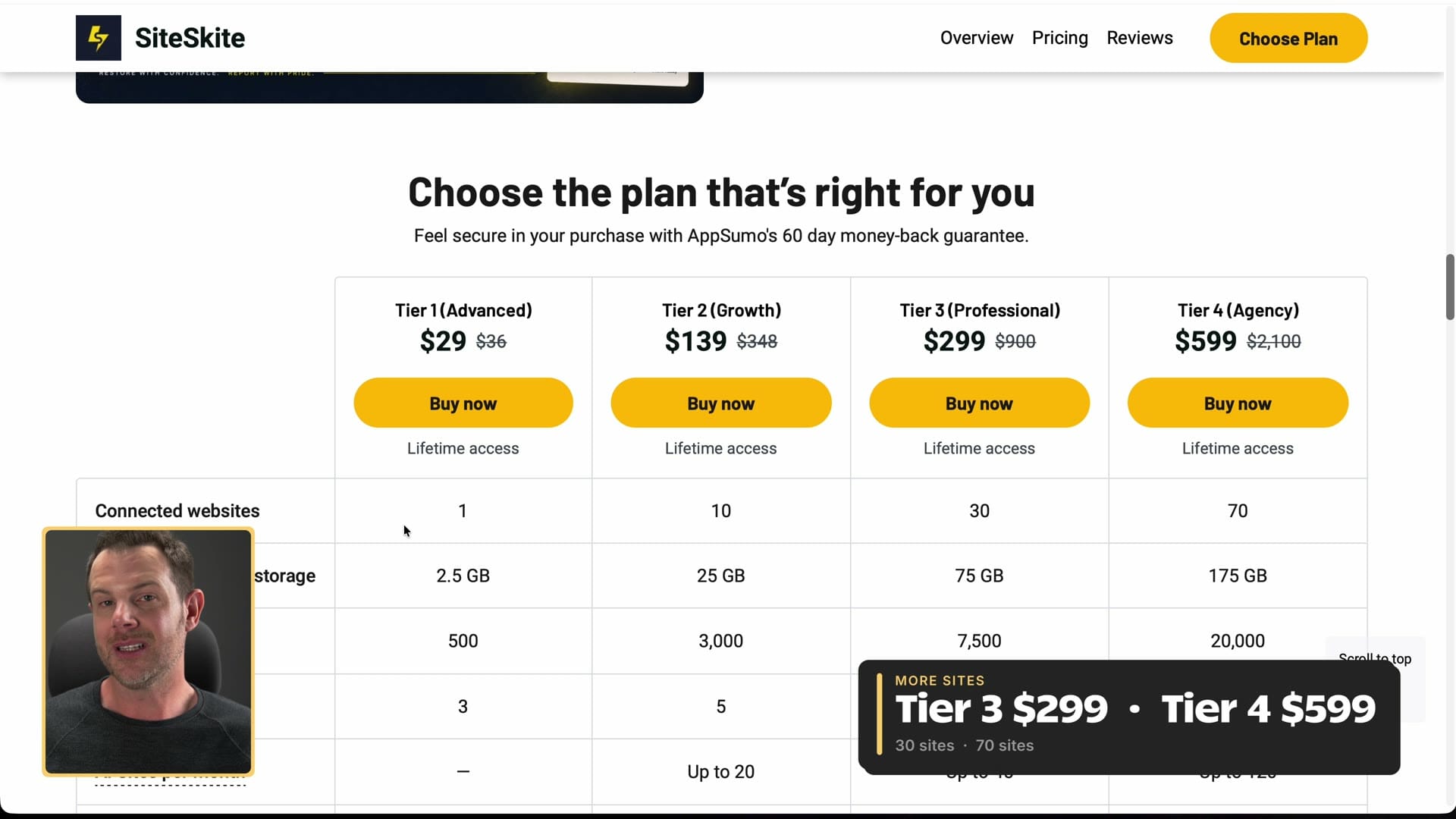
Going from Tier 1 to Tier 2 seems like a big jump, but you get 10 times the sites, 10 times the backup storage and six times the AI credits, plus more blueprints and more features overall.
Not every feature above is on every plan, so look closely before you buy:
- Tier 1 does not include AI Site Studio.
- Bringing your own AI model requires Tier 2. To be clear, this is about using your own AI inside SiteSkite so you don't have to spend their AI credits. SiteSkite really wants heavy AI users on Tier 2 or higher.
- White labeling (the plugin shows your name to clients instead of SiteSkite's) and custom email domains are on the higher tiers.
- The MCP connection to Claude or ChatGPT is on every plan. That's the good news.
I used Tier 4 throughout, because that's what AppSumo gave me to make this video. Pick the tier that fits how many sites you want to manage. And you've always got 60 days to try it out under AppSumo's return policy if you don't like it.
Would I trust SiteSkite with a client site?
For everyday maintenance, yes. It's an impressive tool for managing multiple WordPress sites, and I like having the AI assistant around for all the server ops things I just don't want to deal with.
For building sites, specifically with the AI site builder, I don't think I'll use it. I found it a bit too slow, and getting errors from time to time made me not want to use it at all. Blueprints not working bothered me too. That would be a major part of how I build with WordPress, so if it isn't reliable, I'm probably out on building with SiteSkite.
At our agency, we've been using WP Remote for years, and I still think it's the stronger, more reliable tool, specifically on security and on not breaking things in general. WP Remote always takes a backup first, and it uses things like visual regression testing to make sure plugin updates don't break your sites.
That's my main gripe. You have to take a backup before updating plugins. SiteSkite needs to add backup-before-updates immediately.
I do like the connection to Claude or ChatGPT, but there are a lot of ways to connect AI to WordPress now, so I wouldn't buy SiteSkite for that alone.
If you manage more than a couple of WordPress websites and you don't already have a tool that does it all in one place, I would give this one a try, for the peace of mind and for the AI assistant that's there in case anything tricky comes up. It's a great deal for what you pay per site, and these tools can get very expensive. I'd grab at least Tier 2, or whatever fits how many sites you manage.
My score: 7.4 out of 10. A bunch of you have been asking for the scores to come back, so there you go.
If you buy SiteSkite, this is my link: SiteSkite on AppSumo. And if you have questions about it, leave them in the comments on the video.
Get Dave's Toolbox
The tools I actually use, every Tuesday. Free. No spam.
No cost. No spam. Unsubscribe anytime.