VoiceBox.sh: free local TTS with voice cloning
VoiceBox is a free, open-source text-to-speech engine that runs entirely on your local machine. I tested voice cloning, multiple TTS models, and sound effects to see how it stacks up against paid services like ElevenLabs.


Links Mentioned in This Video
What Is VoiceBox?
VoiceBox is a free, open-source text-to-speech application that runs entirely on your local machine. No cloud processing, no subscriptions, no email signup required. You just download it from their website and start generating speech.
It works on Mac, Windows, and Linux, and it includes an API so you can integrate it with your existing automations. The fact that everything runs locally means your voice data never leaves your computer — which is a big deal for anyone concerned about privacy.
I tested it on my M4 Max Mac Studio, and the speed was impressive. But keep in mind that since everything runs locally, your hardware directly impacts performance. A beefier machine means faster generation.
TTS Model Quality: Quen 3 vs Chatterbox

VoiceBox ships with multiple text-to-speech models, and the quality difference between them is noticeable. I spent most of my time testing Quen 3 (the 1.7 billion parameter model) and Chatterbox.
Quen 3 produces noticeably better audio quality. The voice sounds clear and natural, though the cadence isn't perfectly human — sentences sometimes feel cut off rather than ending strongly. You can work around this by adjusting how you write your prompts.
Chatterbox has a unique advantage: slash commands for expressions. You can add /laugh, /gasp, /clear_throat, and several others. The tradeoff is lower overall audio quality. It sounds more like a generic audiobook narrator than a natural voice. Useful for specific scenarios, but Quen is the better daily driver.
How to Clone Your Voice
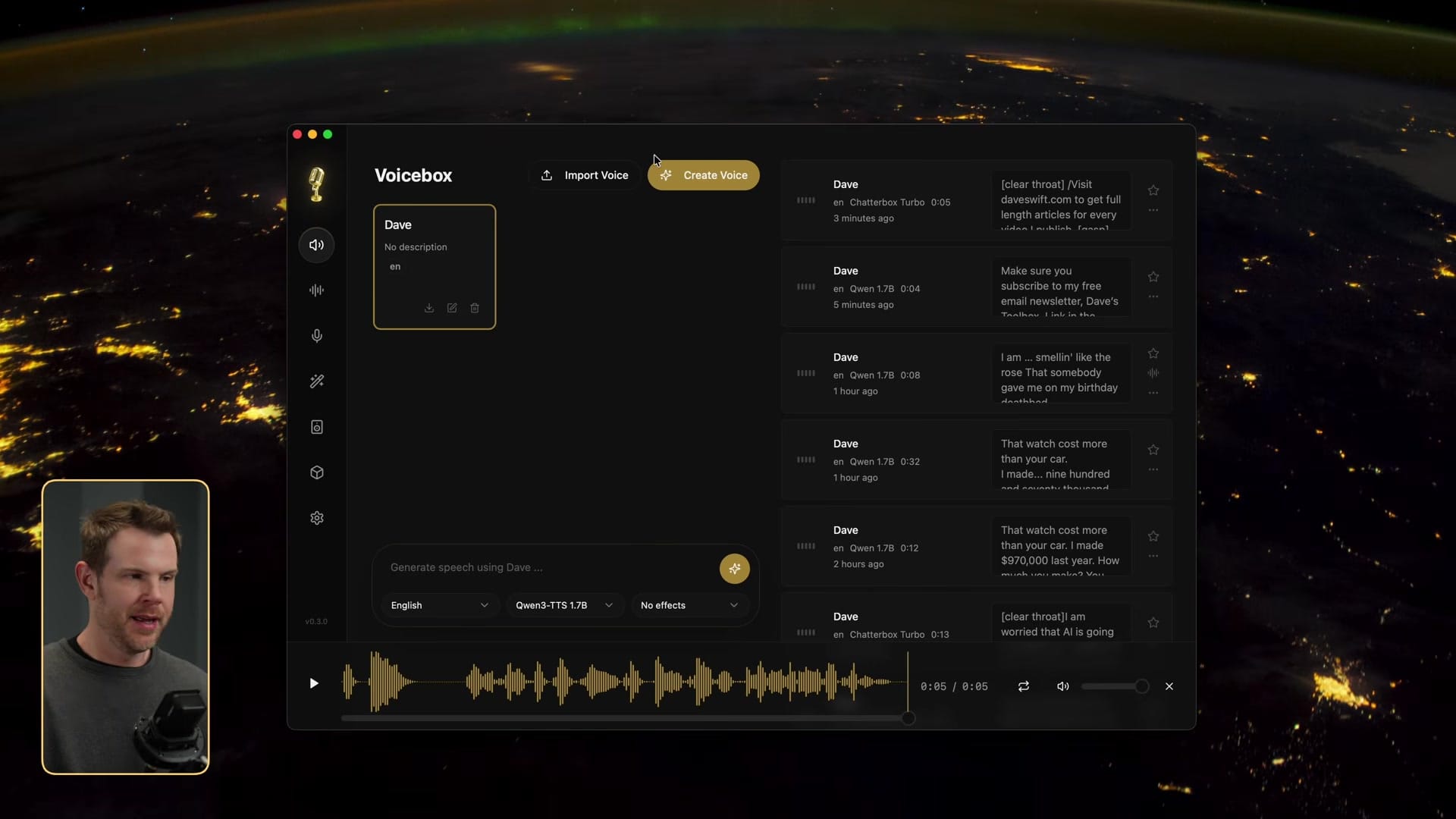
Voice cloning is the headline feature, and it only needs about 30 seconds of audio. But there are a few things you need to do first, or you'll run into problems.
The most important step: **install the TTS models before you try to clone a voice.** If you skip this, VoiceBox will throw errors and you'll need to quit and relaunch the whole app. Go to the cube icon in the interface and install at least one model, plus the Whisper transcription model.
You have three options for providing audio: record with your microphone, upload an existing recording, or use system audio to capture from a video or podcast. If you're recording live, make sure your system audio settings point to your best microphone — VoiceBox doesn't have its own input selector, so it just uses whatever your OS has selected.
One thing that tripped me up: audio clipping kills the clone. If your recording clips even slightly, VoiceBox freaks out and the clone fails. Keep your gain settings conservative and leave some headroom.
The Reference Text Trick
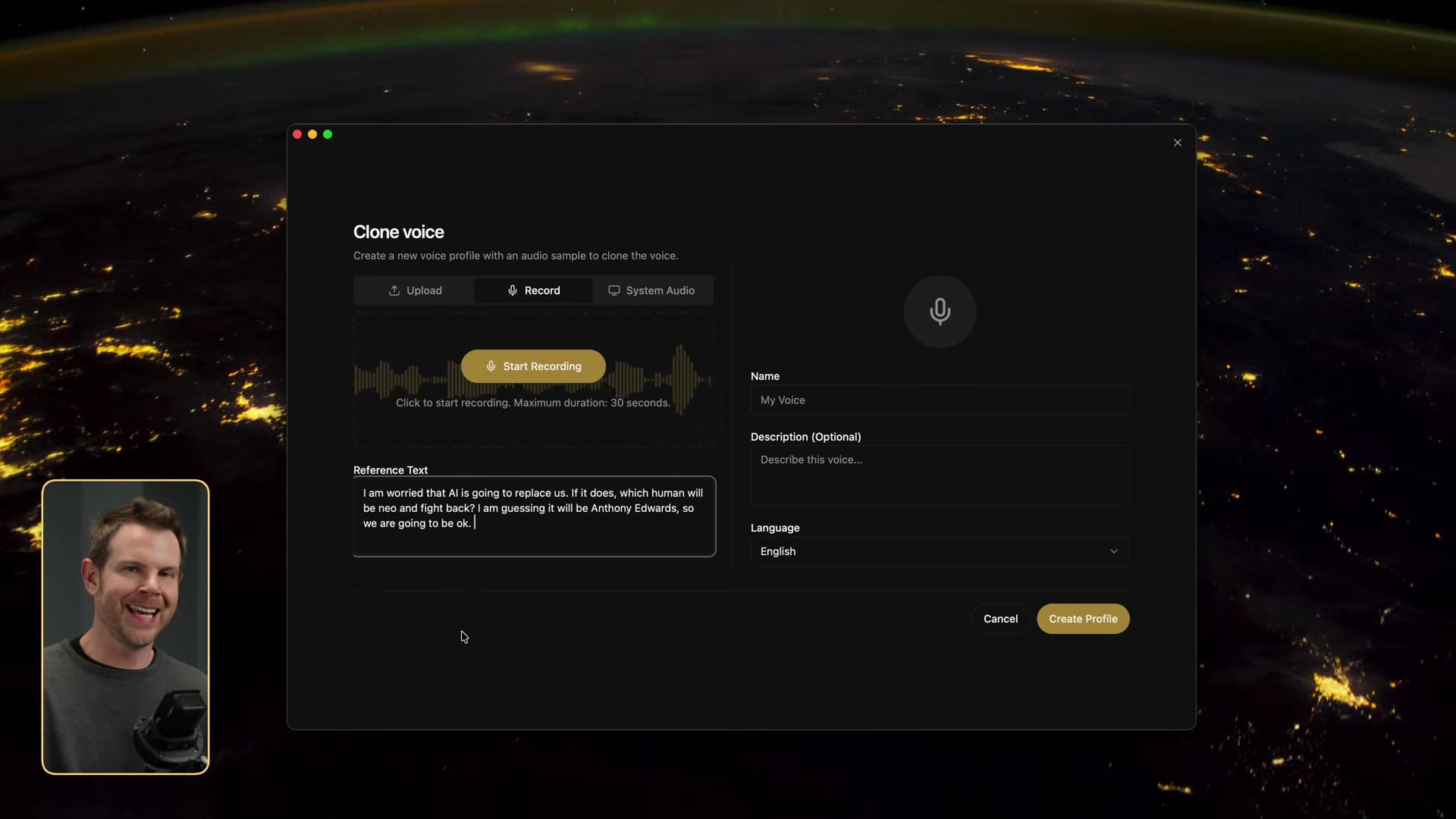
There are two approaches to voice cloning. You can either record yourself talking freely and then let VoiceBox transcribe it, or you can start with reference text and read it aloud. The second approach tends to produce better clones because the system has an exact text-to-audio match to work from.
The process pairs your recorded audio with the reference text, and VoiceBox uses that alignment to build the voice profile. It's surprisingly simple — just make sure your transcription model is installed so VoiceBox can do the matching.
Sound Effects: Cool but Limited
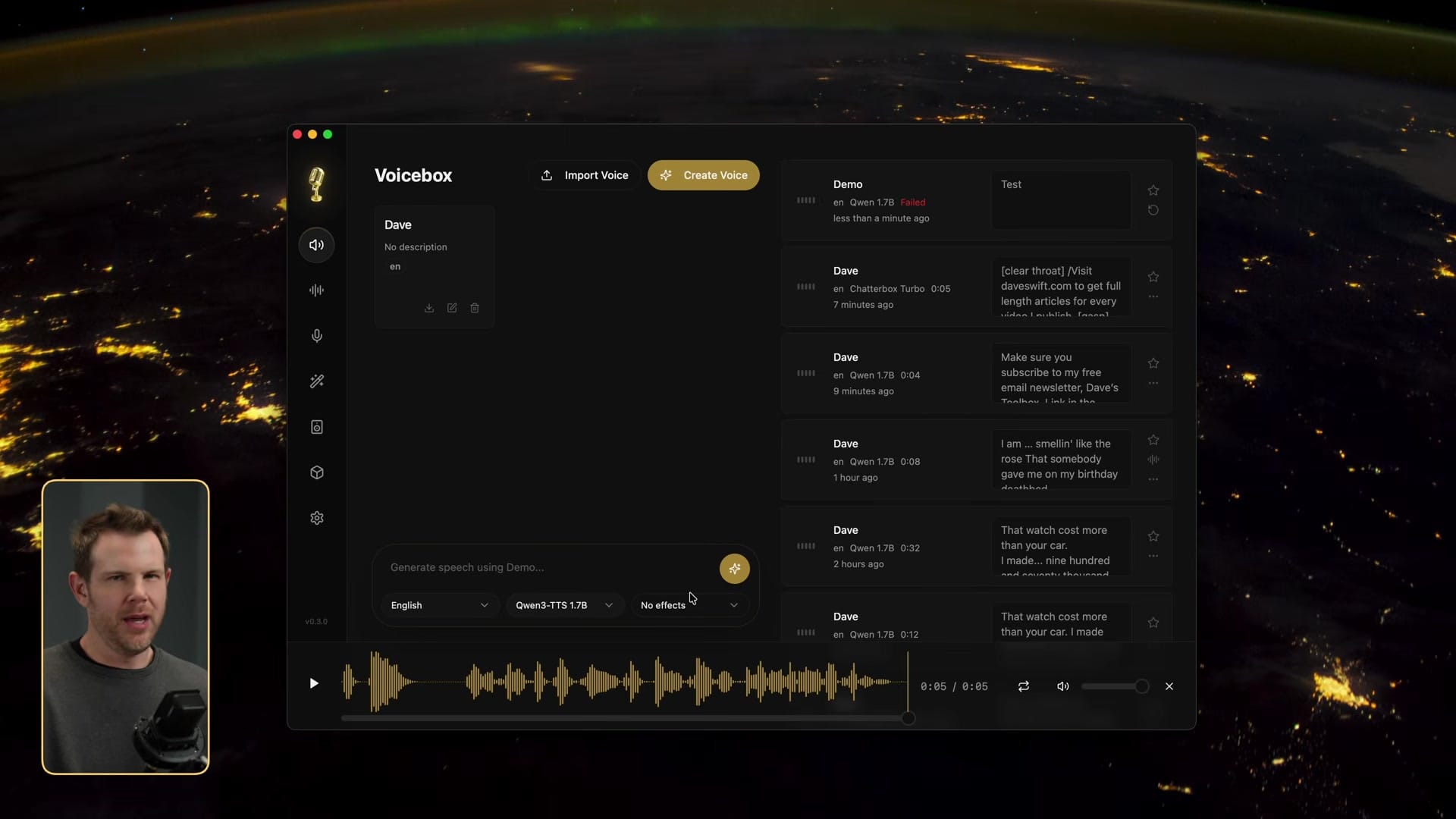
VoiceBox includes four built-in audio effect presets: Robotic, Radio, Echo Chamber, and Deep Voice. They're essentially collections of standard audio filters — low pass, high pass, chorus, reverb, delay, compressor, and pitch shifter.
Honestly, they're not very impressive out of the box. The "robotic" effect is really just a chorus/flanger — it doesn't sound robotic at all. The radio effect is a gentle EQ rolloff with compression. Deep Voice shifts pitch down three semitones with a low pass filter.
Echo Chamber is the most useful starting point. If you strip out the delay and dial back the reverb, you can make the generated speech sound much more natural — like someone actually talking in a room instead of a sterile digital output. That subtle reverb is the key to making TTS output feel more lifelike.
There's a bug here worth mentioning: you can customize the presets and tweak settings, but saving custom presets doesn't work. You get an error every time. Hopefully this gets fixed in a future update.
Stories: Long-Form Content Organization
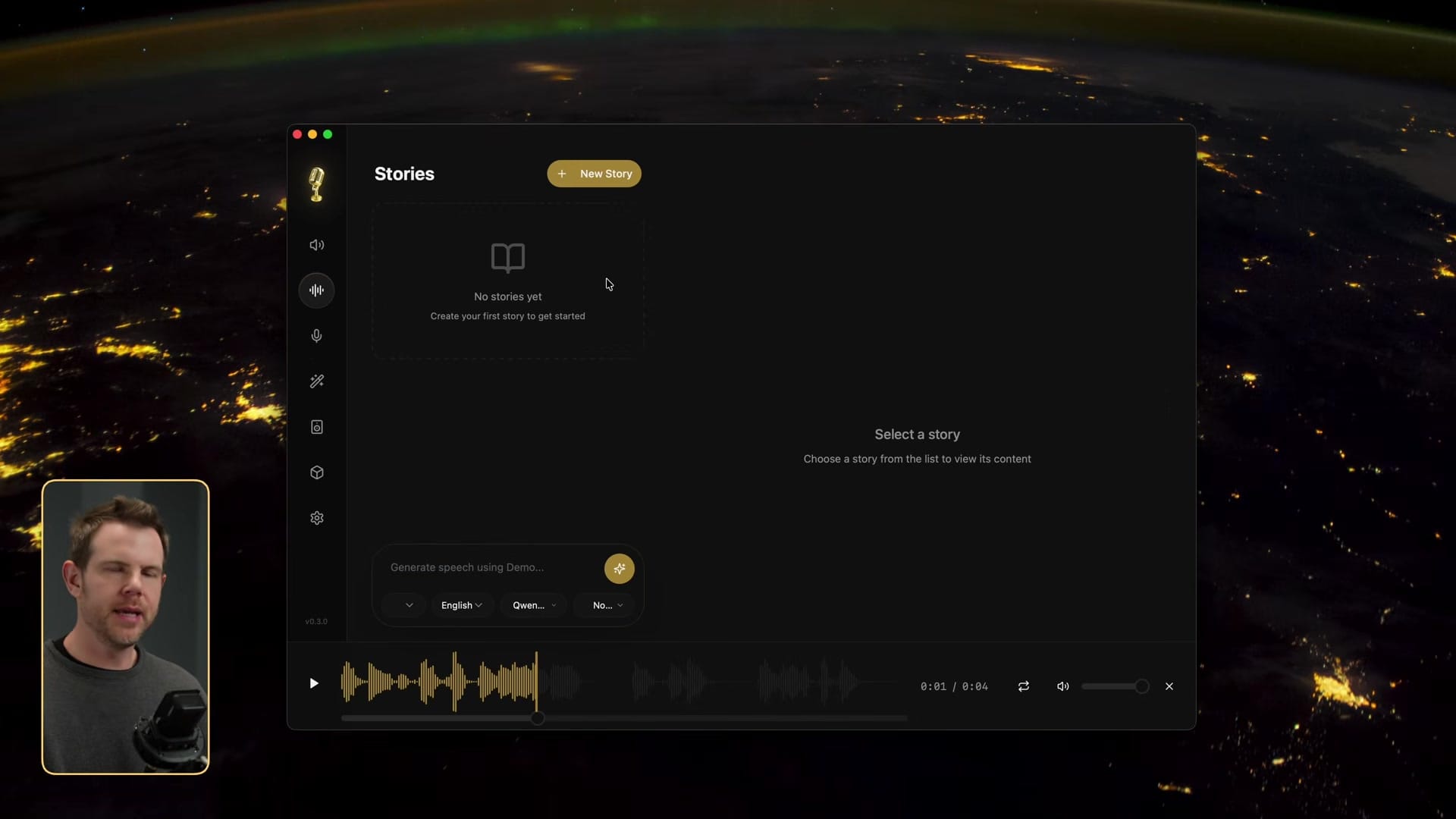
The Stories feature lets you generate longer-form speech content and organize it into folders. Think of it as a project system for your audio — you can group related prompts together under one story.
I tested it by having Claude write a short story, then generating speech from that text. VoiceBox handled the longer content without issues, and the folder system makes it easy to keep track of different projects.
Everything stays local, so you can regenerate as many times as you want without worrying about API costs. If a generation doesn't sound right, just try again — no extra charge.
API Access for Automation
If you want to integrate VoiceBox with other tools, there's a built-in API server. Head to the gear icon and toggle the server to always-on mode. It shows you the local network address, and you can enable network access so other devices on your network can reach it.
This opens up some interesting possibilities for automation workflows. You could trigger voice generation from scripts, integrate it into content pipelines, or build custom interfaces on top of it.
Security Concerns Worth Considering
I have to bring this up because it's important. The fact that voice cloning this good is running locally on a consumer machine costing a couple thousand dollars — that should give everyone pause.
Voice authentication is becoming less reliable. If you can clone someone's voice from 30 seconds of audio, the idea that you can verify identity over a phone call is increasingly shaky. It's not quite there yet for fooling someone in real time, but give it a year.
My practical advice: set up verbal passwords or code words with family members and colleagues. Don't rely on voice recognition alone for anything sensitive. The technology is only going to get better and more accessible.
Is VoiceBox Worth Using?
For a free, open-source application, VoiceBox is impressively capable. The Quen 3 model produces quality that's genuinely usable for content creation, and the voice cloning feature works well as long as you follow the setup steps I outlined. The fact that it runs entirely locally is a huge advantage for privacy and cost.
It's not perfect — the sound effects need work, custom preset saving is broken, and the cadence isn't quite human. But for a tool that costs nothing and keeps your data on your machine, it's hard to complain. If you're currently paying for a cloud TTS service and your needs are modest, VoiceBox is absolutely worth trying.
If you want more tutorials like this and early access to my tool breakdowns, consider joining my Premium membership.
Frequently Asked Questions
Is VoiceBox really free?
Yes, VoiceBox is completely free and open-source. You can download it from voicebox.sh without even creating an account or providing an email address. There are no usage limits since everything runs on your local hardware.
What platforms does VoiceBox support?
VoiceBox works on Mac, Windows, and Linux. Since it runs locally, your system specs affect performance — more powerful hardware means faster speech generation.
How long does voice cloning take in VoiceBox?
You only need about 30 seconds of audio to clone a voice. The key is using clean audio without clipping — if your recording clips, the clone will fail. Use an external microphone and keep your gain conservative.
Which TTS model should I use in VoiceBox?
Quen 3 produces the best audio quality overall. Chatterbox is useful if you need expressive slash commands like /laugh or /gasp, but the general audio quality is lower. Start with Quen 3 for most use cases.
Can VoiceBox replace ElevenLabs?
For basic text-to-speech and voice cloning, VoiceBox gets surprisingly close. It won't match ElevenLabs on real-time streaming or some advanced features, but for generating audio clips locally without paying a subscription, it's a strong free alternative.
Does VoiceBox have an API?
Yes, VoiceBox includes a built-in API server. You can enable it in settings to run on your local network, making it possible to integrate with automation workflows and external tools.
Why does voice cloning fail in VoiceBox?
The most common cause is audio clipping during recording. Make sure your microphone gain is set low enough to avoid clipping. Also, install the TTS models before attempting to clone — doing it out of order causes errors that require restarting the app.
Is it safe to use voice cloning software?
The technology itself is neutral, but it raises legitimate security concerns. Voice authentication is becoming less reliable as cloning improves. Set up verbal passwords with family members and avoid relying solely on voice recognition for identity verification.
Get Dave's Toolbox
The tools I actually use, every Tuesday. Free. No spam.
No cost. No spam. Unsubscribe anytime.